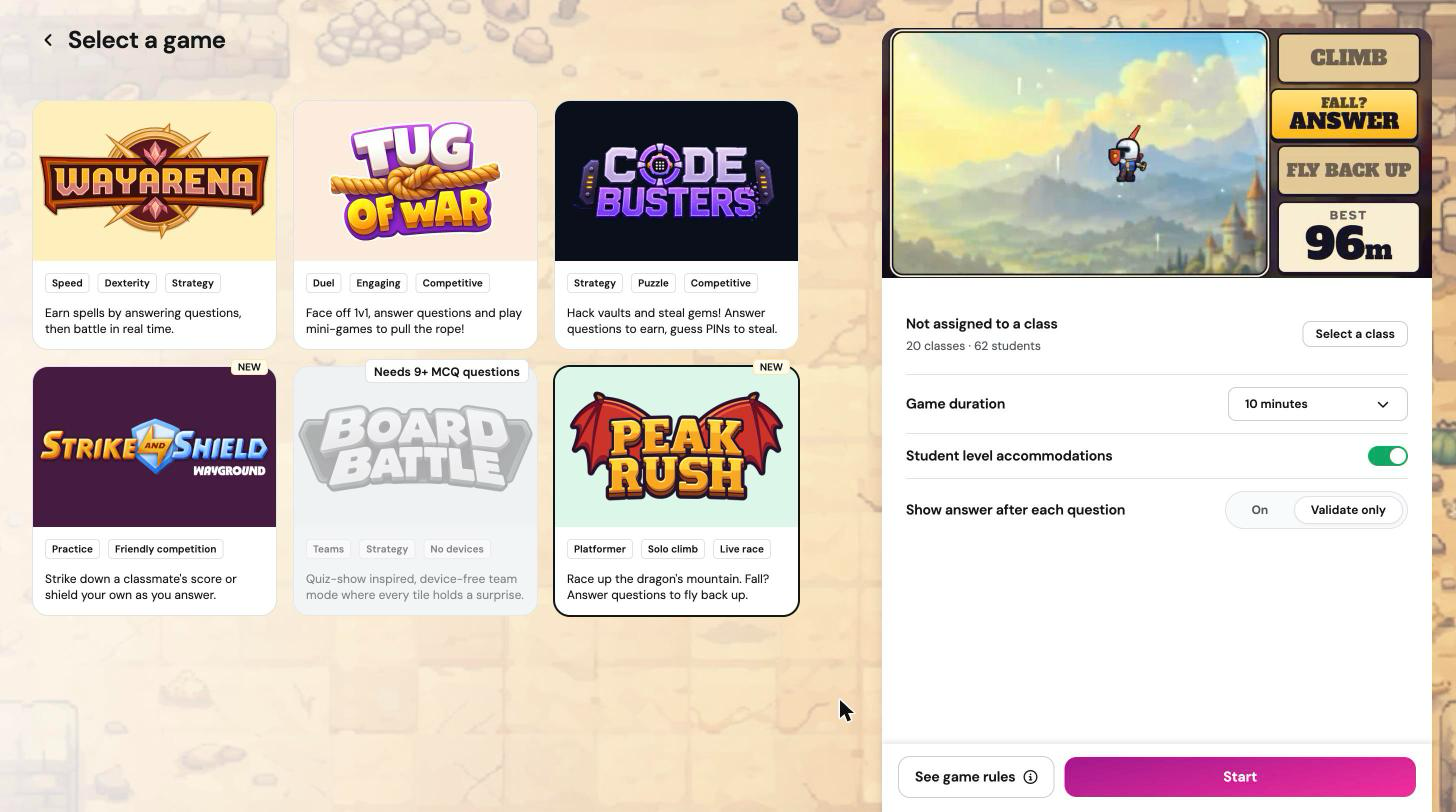
Peak Rush is a Playground game where every student plays a knight racing up the same mountain. Students run, jump, and dodge hazards, and they can see classmates climbing right beside them. When a knight falls, answering questions correctly pulls them back up. The highest climb wins.
In this article, we will go over how Peak Rush works, how to set it up, what students do in the game, and answers to the questions teachers ask most.
In this article, we will go over:
- Quick facts
- How Peak Rush works
- How to start a Peak Rush session
- Configuring your session
- Student controls
- Your in-session controls
- End of session results
- Tips for running Peak Rush well
- Troubleshooting
- FAQ
Quick facts
- Format: live, individual climbing race
- Best for: energizers and longer review sessions
- Session length: 5, 10, 15, or 20 minutes (default 10)
- Class size: any, from one student up
- Questions: Multiple Choice and multi-select only
- Devices: laptop, desktop, Chromebook, or tablet; small phone screens aren't supported
- Ranking: by best height reached, not by accuracy
How Peak Rush works
Every student climbs the same mountain, which has three worlds: Meadows, Crags, and Frostwall. The summit is at 700 meters. Each knight has three armor plates, and hazards knock off a plate when they hit.
Questions come up in a few ways:
- After a big fall: the knight gets a three question rescue. Each correct answer pulls them further back up, and three correct answers return them all the way.
- Smolder, the dragon's herald: at times a herald appears, and students answer questions to land hits on it and climb past it.
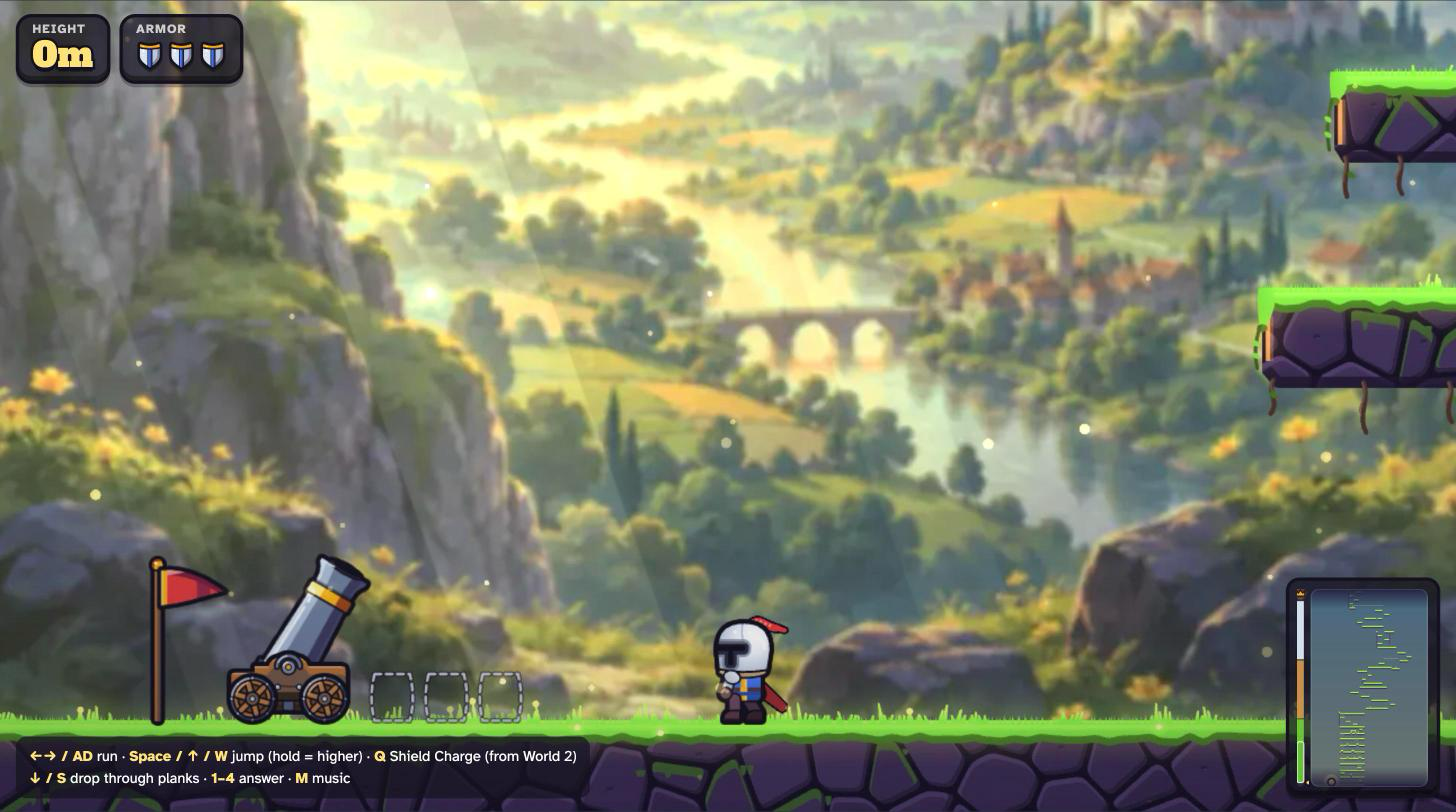
- The cannon: right answers launch knights higher.
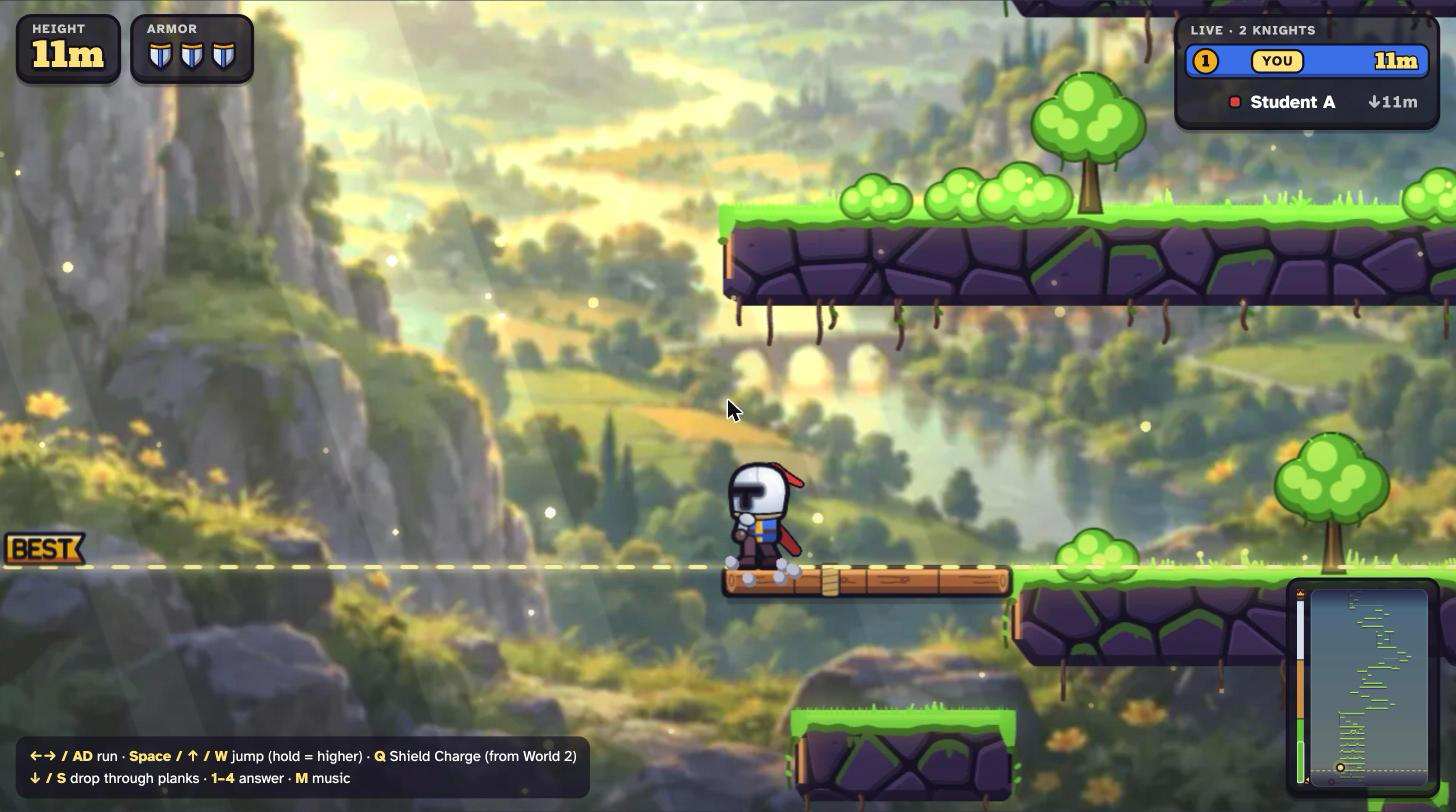
The race is decided by each student's best height, the highest point they reached. Falling doesn't lower a student's best height, so a fall costs time, not their place.
How to start a Peak Rush session
Peak Rush launches only through 'Start now', not through 'Assign'. Here are the steps:
- Open 'My Library' and pick a resource with Multiple Choice or multi-select questions, or search for one in the 'Wayground Library'.
- Click on 'Play', then 'Start now'.
- Choose 'Student paced', then 'Playground'.
- On the 'Select a game' screen, click on 'Peak Rush'.
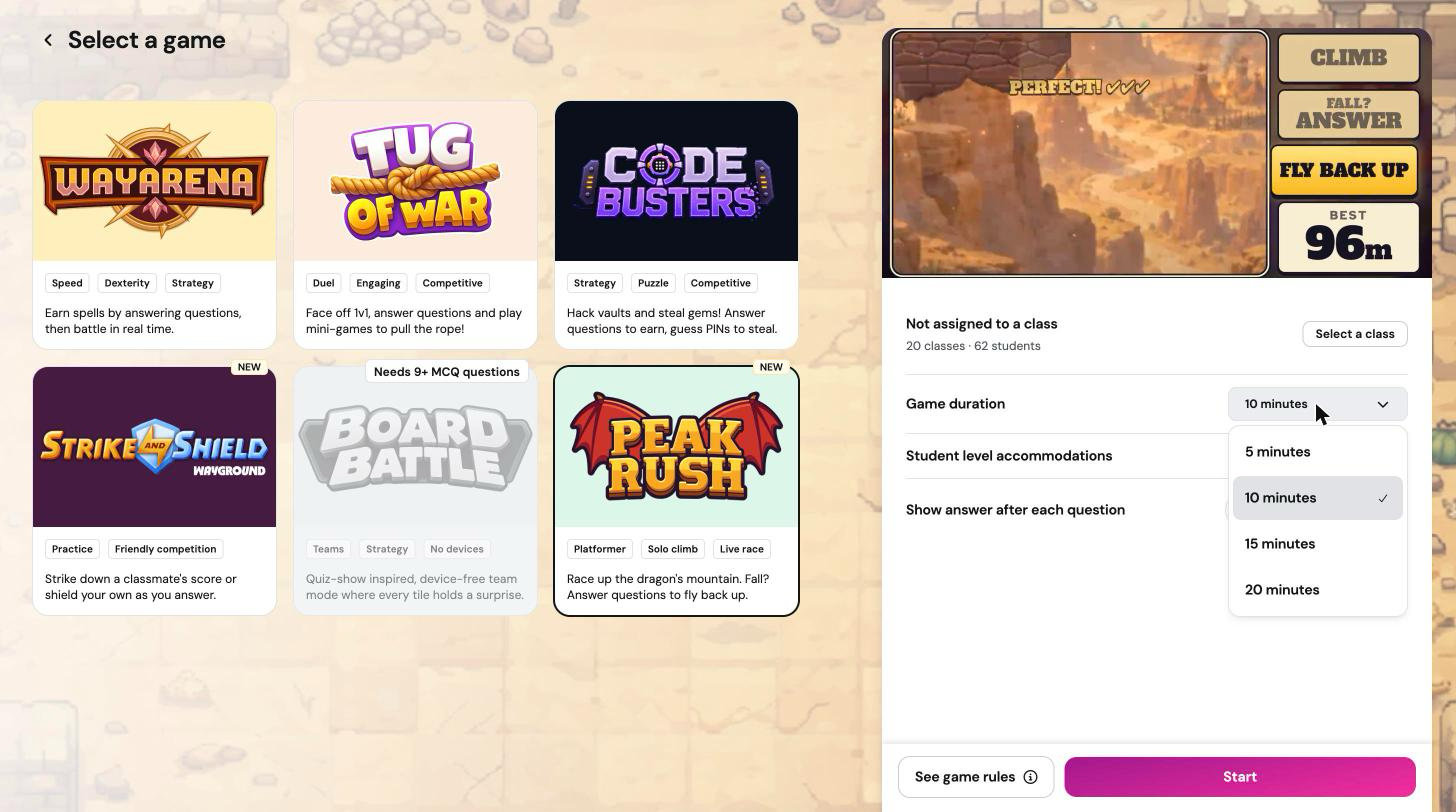
- Adjust your settings (see below), then click on 'Start'.
- Share the join code or QR code with your class. Students join at joinmyquiz.com.
Configuring your session
- 'Assign to a class': optional. When a class is assigned, only students in that class can join.
- 'Game duration': '5 minutes', '10 minutes' (default), '15 minutes', or '20 minutes'.
- 'Student level accommodations': available when you have accommodations set up for your students. When on, each student's own read aloud, sound, toolkit, dyslexia friendly font, and reduced answer choices settings apply.
- 'Show answer after each question': 'On' or 'Validate only' (default).
Note: Peak Rush doesn't use 'Questions per round'. Questions repeat as needed, so a resource never runs out.
Student controls
Share this section with your class before the first session. On a keyboard:
- Run: Left and Right arrow keys, or A and D
- Jump: Space, Up arrow, or W (hold to jump higher; press again in the air to double jump)
- Drop through planks: Down arrow or S
- Shield Charge: Q, unlocked in World 2 (hold an arrow key with Q to aim it)
- Answer a question: number keys 1 to 4, or click on an option
- Music: M
On a tablet, students use the on-screen pad and buttons instead. The controls are shown at the bottom of each student's screen during play.
Your in-session controls
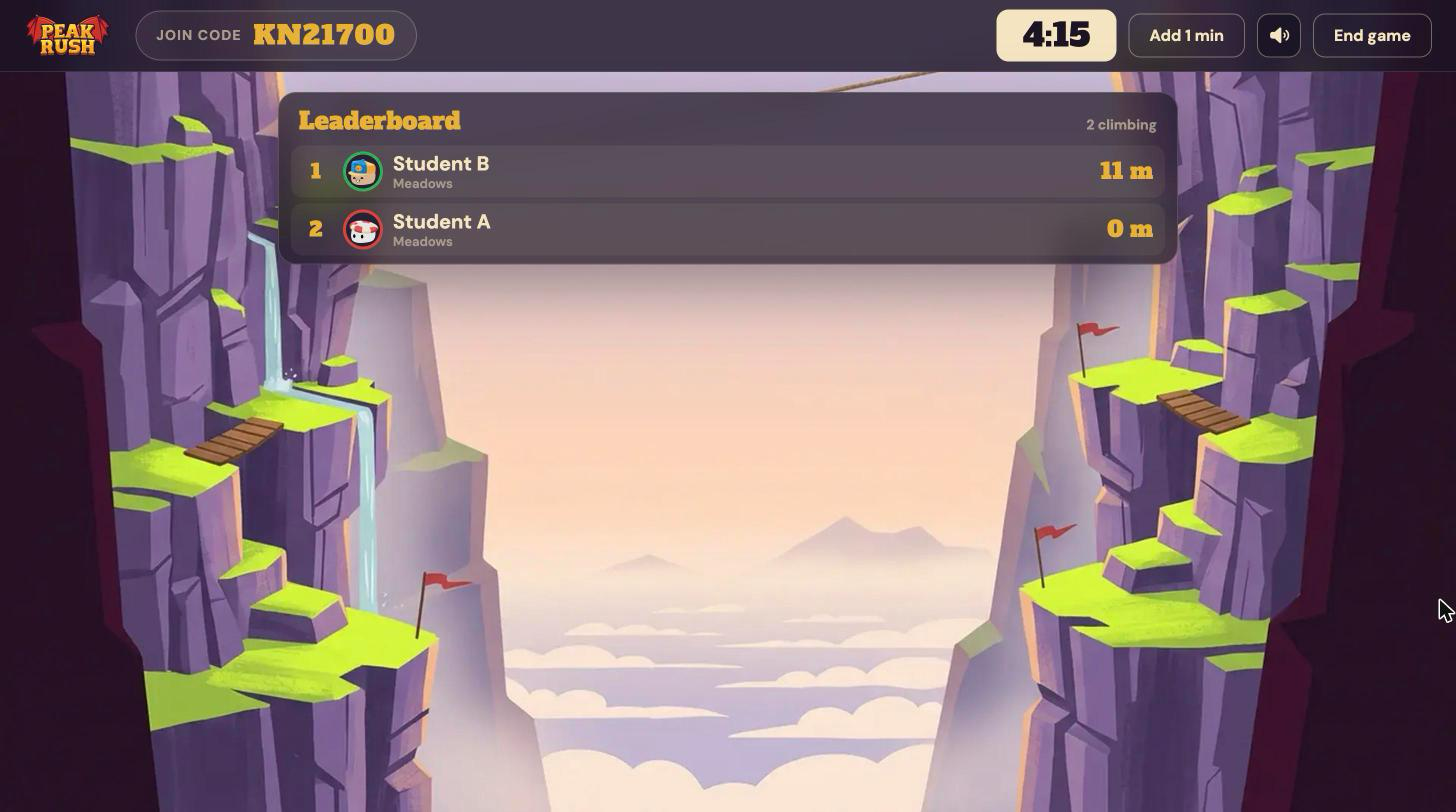
The host screen is built for your projector. It shows the join code, the timer, and a live 'Leaderboard' with each student's world and best height. When a student has fallen, you also see their current height under their name, and 'Offline' appears for anyone who lost their connection.
- 'Add 1 min': extends the session by one minute. Use it as often as you need.
- Music button: turns the music on or off. Sound effects keep playing.
- 'End game': ends the session right away, with no confirmation step.
- 'Remove': next to each student on the leaderboard. Click on it, then on 'Confirm', to remove that student.
End of session results
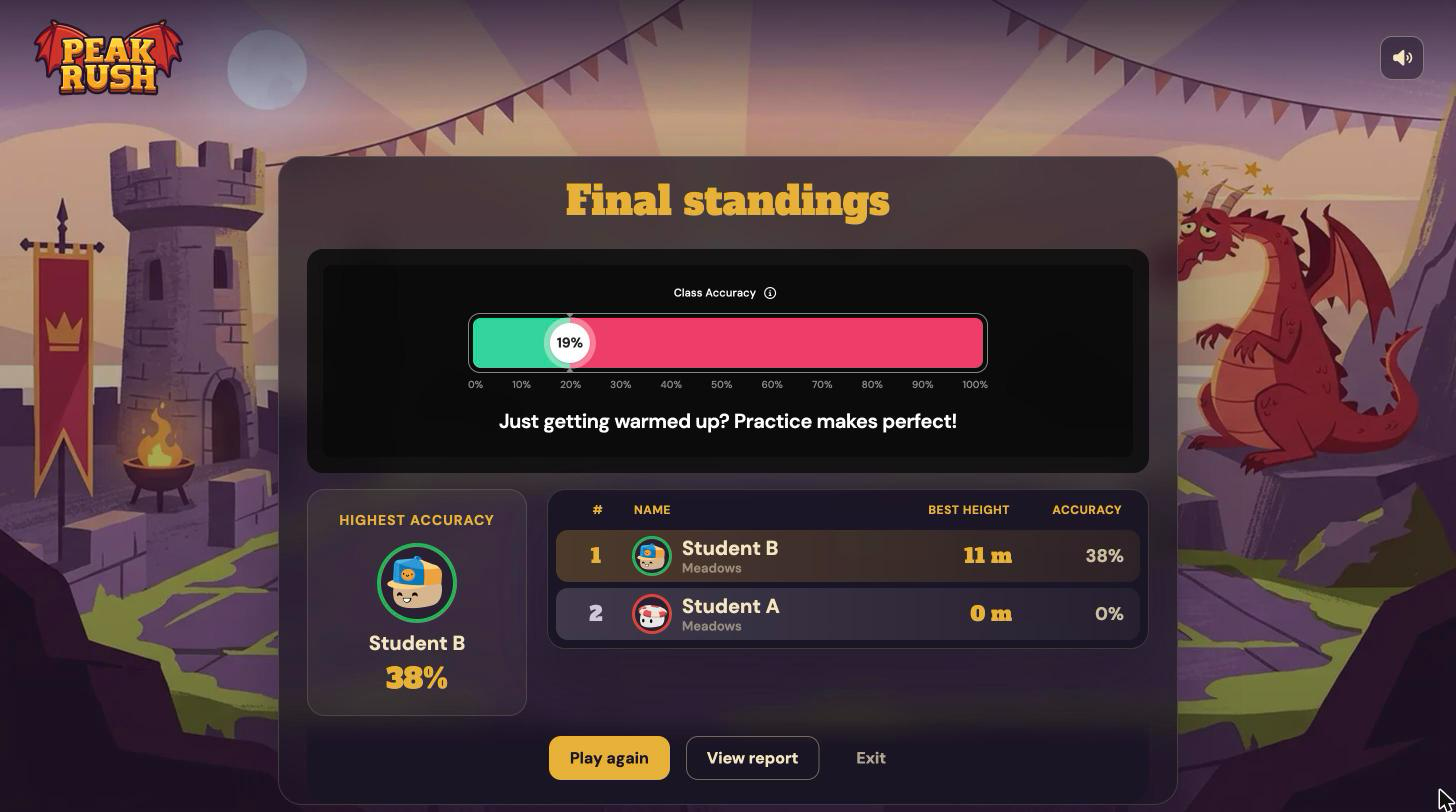
The session ends only when the timer runs out or when you click on 'End game'. Reaching the summit doesn't end it, so students keep climbing and answering until time is up. Then you see:
- Podium: the top three climbers by best height, for about five seconds.
- 'Final standings': class accuracy, the 'Highest accuracy' student, and a table with each student's 'Best height' and 'Accuracy'.
- Buttons: 'Play again' starts a new session with the same resource and duration. 'View report' opens the full report in a new tab. 'Exit' returns you to your dashboard.
When two students reach the same best height, the one who got there first ranks higher.
Tips for running Peak Rush well
- Choose 10 minutes for a first session. Students need a minute or two to learn the controls.
- Read the student controls aloud, or project them, before you click on 'Start'.
- Use a resource with plenty of questions, since students see questions again once they've gone through them all.
- Project the host screen so the class can watch the leaderboard change in real time.
Troubleshooting
A student sees "Device Not Supported"
Peak Rush needs a bigger screen. Ask the student to join from a tablet, laptop, desktop, or Chromebook.
A student sees "Quiz not supported"
The resource has no Multiple Choice or multi-select questions Peak Rush can use. Pick a resource with these question types.
A student lost their connection
They appear as 'Offline' on your leaderboard and keep their best height. When they refresh and rejoin, they continue from their best height. The timer keeps running for everyone while they're away.
A student shows "Could not rejoin"
The session may have ended. If it's still running, share the join code again and have the student rejoin.
FAQ
Why is a student's accuracy low even though they answered well?
Accuracy in Peak Rush compares a student's points to all the questions in the resource. A student who climbed well but only answered a few questions has a low accuracy score, even if every answer was right. Use 'Best height' for the race and the report for question-level detail.
Who wins Peak Rush?
The student with the highest best height when time runs out. Accuracy is shown separately and doesn't change the ranking.
Does reaching the top end the game?
No. The session runs until the timer ends or you click on 'End game'.
Can students join late?
Yes. Keep the join code on screen. Late students start at the bottom and play until the same end time as everyone else.
Can students play on phones?
No. Phones and other small screens aren't supported. Tablets, laptops, desktops, and Chromebooks work.
Can students play at home?
No. Peak Rush is a live classroom game that you host.
Related articles
Still have questions? Contact our support team at support@wayground.com.
Was this article helpful?
That’s Great!
Thank you for your feedback
Sorry! We couldn't be helpful
Thank you for your feedback
Feedback sent
We appreciate your effort and will try to fix the article