Playground turns any resource into a short, live game your class plays together. Pick a resource, choose a game and its settings, and start a session. Most games have students join from their own devices, and Board Battle runs entirely on your screen.
In this article, we will go over each Playground game, how to choose one, how to start a session, the settings and controls you'll see, and answers to common questions.
In this article, we will go over:
- When to use Playground
- Available games
- Choosing a game
- How to start a Playground session
- Common settings
- Reports
- Sharing through your LMS
- Plans and availability
- FAQ
When to use Playground
Teachers use Playground for:
- Bell ringers to start class
- Brain breaks between difficult topics
- Quick reviews before a new unit or test
- Whole-class review on days without devices, with Board Battle
Available games
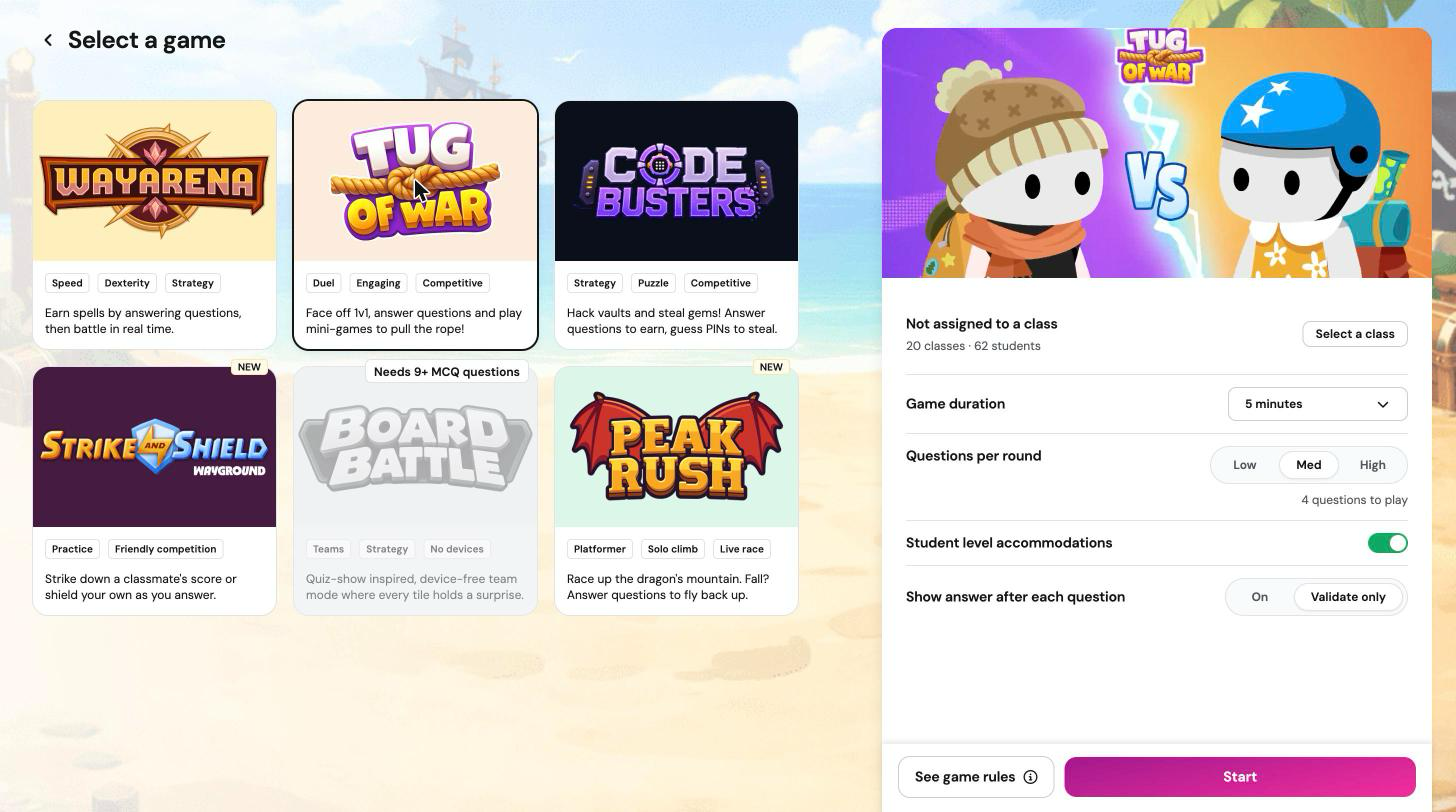
- WayArena: a real-time battle where students answer questions to earn spells, then use them against classmates in an arena.
- Tug of War: one on one duels. Each duel mixes questions with quick mini-games, and every round won pulls the rope toward the winner.
- Board Battle: a device-free team game. Teams pick tiles on a board and talk through each question together while you enter their answers.
- Peak Rush: an individual climbing race up a mountain. Correct answers rescue students after falls and launch them higher.
- Code Busters: a heist where students lock a vault with a secret code, earn gems by answering, and crack classmates' codes to steal some.
Each game has its own article with full rules, settings, in-session controls, and troubleshooting.
Choosing a game
Use these differences to pick the right game for your class:
- Student devices: Board Battle needs none. Every other game needs one device per student.
- Format and pace: WayArena is a fast multiplayer battle. Tug of War is duel based, and Wayground matches students into one on one duels automatically. Board Battle is team play. Peak Rush is a climbing game and a student favorite. Code Busters is slower and calmer, with students thinking through code guesses.
- Session length: WayArena, Tug of War, and Code Busters run 3, 5, 7, or 10 minutes (default 5). Peak Rush runs 5, 10, 15, or 20 minutes (default 10). Board Battle has no time limit by default, or you can pick 5, 10, or 15 minutes.
- Questions: Board Battle needs at least nine single-answer Multiple Choice questions. The other games use Multiple Choice and multi-select questions, and Tug of War needs at least three.
- Class size: Tug of War and Code Busters need at least two students. Board Battle needs at least two teams.
How to start a Playground session
Playground games launch only through 'Start now', not through 'Assign' (the homework path). Here are the steps:
- Open 'My Library' and pick a resource, or search for one in the 'Wayground Library'. Make sure it meets your game's question requirements.
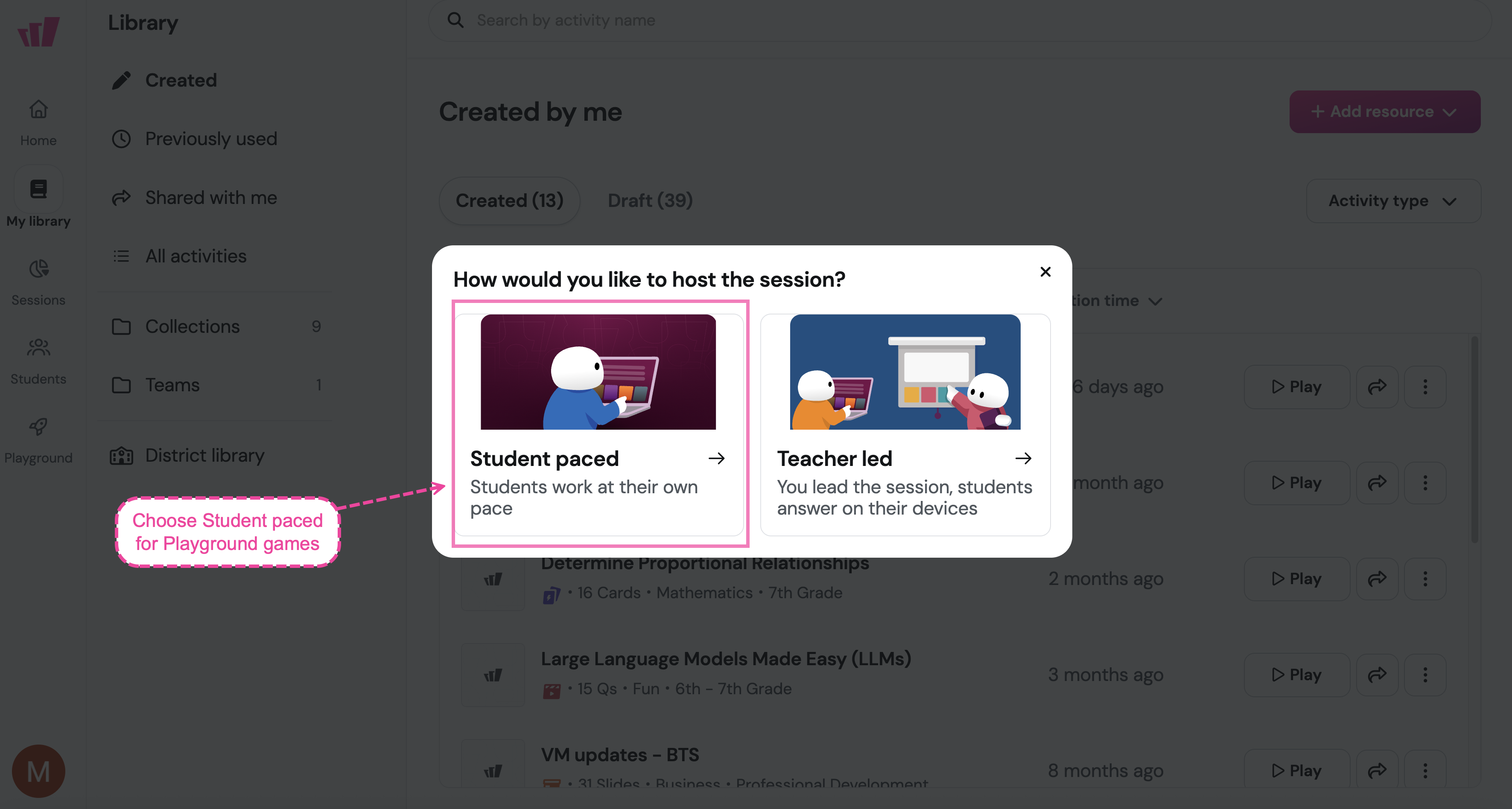
- Click on 'Play', then 'Start now'.
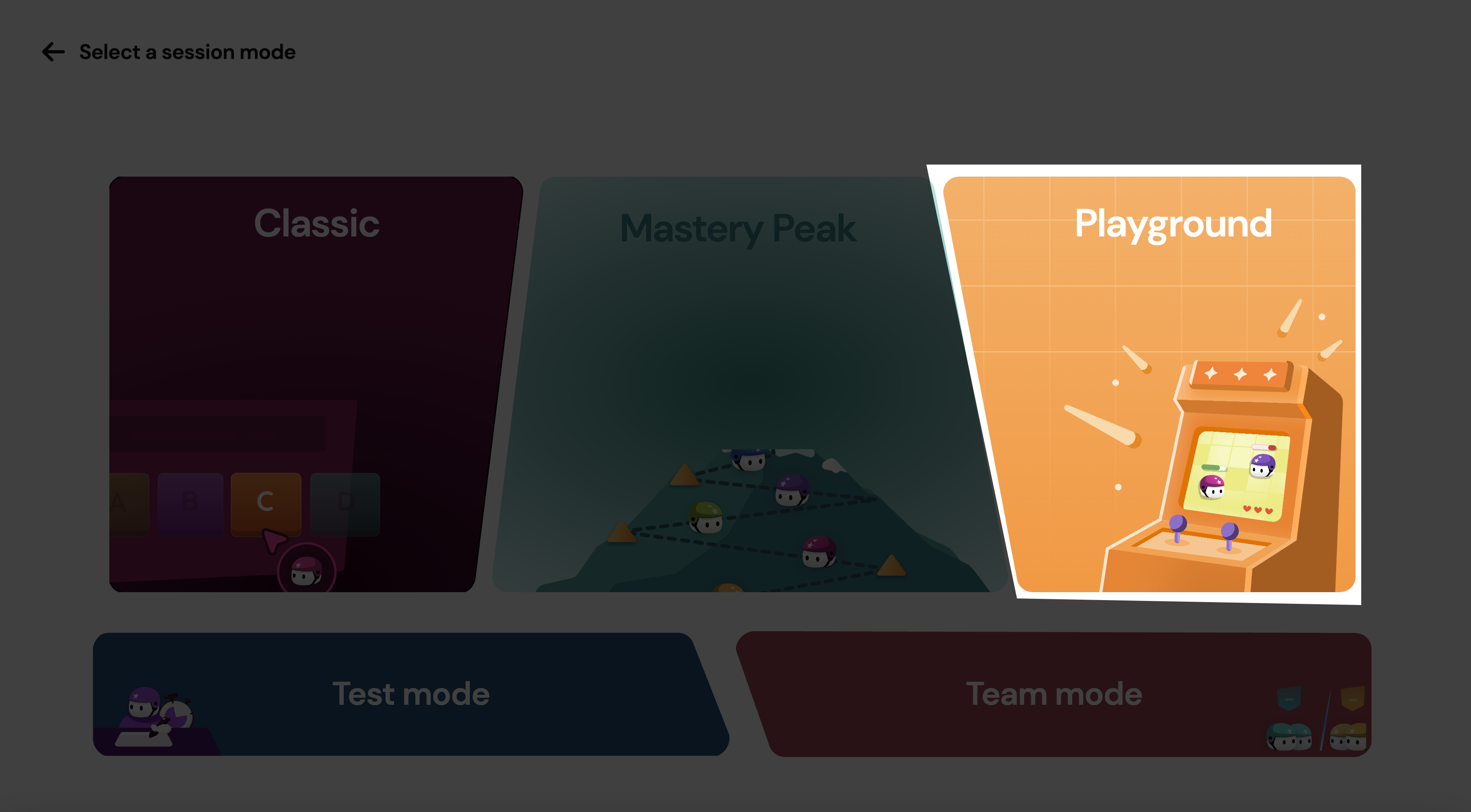
- Choose 'Student paced', then 'Playground'.
- On the 'Select a game' screen, choose your game. A grayed out card shows what your resource is missing, such as 'Needs 9+ MCQ questions'.
- Adjust your settings (see below), then click on 'Start'. For Board Battle, the button is 'Generate board'.
- Share the join code or QR code with your class. Board Battle skips this step.
Students join at joinmyquiz.com with the join code, or by scanning the QR code. They don't need an account to play. Signed-in students keep their avatar, coins, and any customizations they've earned.
Common settings
Most games share these settings on the setup screen:
- 'Assign to a class': optional. When a class is assigned, only students in that class can join.
- 'Game duration': how long the session runs. The choices depend on the game.
- 'Questions per round': 'Low', 'Med', or 'High'. It sets how many questions students answer between game moments. Peak Rush doesn't use it, since questions come up during the climb.
- 'Student level accommodations': when on, each student's own accommodation settings apply, such as read aloud or a dyslexia friendly font.
- 'Show answer after each question': 'On' shows the correct answer. 'Validate only' (default) shows right or wrong, without the correct answer.
Note: Board Battle has its own settings instead: 'Teams', 'Game duration', 'Tile timer', and 'Power-ups'. It doesn't use a class, a join code, or accommodations.
Reports
Open the report for any Playground session by clicking on 'View report' on the final screen, or from 'Sessions' > 'My sessions' in the left navigation. Toggle 'Show repetitions' to include or exclude student retries. You can edit, download, print, or use 'Share report' to send it to others. In Board Battle reports, each team appears as a participant.
Sharing through your LMS
Wayground integrates with Google Classroom, Canvas, Schoology, and Microsoft Teams (via LTI) for assigning your other Wayground content. Playground sessions launch through 'Start now' instead, as described above.
Plans and availability
Playground is available on all Wayground plans. Some games or features may be limited by region or plan. If something in this article isn't visible in your account, check with your school or district admin.
FAQ
Can I use my existing resources?
Yes, as long as they have the right question types. Board Battle needs at least nine single-answer Multiple Choice questions. The other games use Multiple Choice and multi-select questions.
Why don't I see Playground in the Assign flow?
Playground games launch only through 'Start now'. Open your resource, click on 'Start now', choose 'Student paced', then pick 'Playground'.
Do students need to be signed in?
No. Students can join as guests. Signed-in students keep their avatar, earn coins, and use customizations they've unlocked.
What devices do students need?
Peak Rush and Code Busters work on laptops, desktops, Chromebooks, and tablets. Board Battle needs no student devices. Phones and other small screens aren't supported. See each game's article for details.
Can I run more than one game in a class period?
Yes. When a game ends, use 'Play again' to run it again with the same resource ('Restart Heist' in Code Busters), or start a new session with a different resource or game.
Can students play Playground games at home?
No. Playground games are live classroom sessions that a teacher hosts.
Where do I find new games?
The 'Select a game' screen shows every available game. New games are marked 'NEW', and games marked 'Coming soon' aren't playable yet.
Related articles
Still have questions? Contact our support team at support@wayground.com.
Was this article helpful?
That’s Great!
Thank you for your feedback
Sorry! We couldn't be helpful
Thank you for your feedback
Feedback sent
We appreciate your effort and will try to fix the article