TABLE OF CONTENTS
- Quick facts
- How the game works
- How to start a WayArena session
- Configuring your session
- Picking an arena
- How students design maps
- Student controls
- Spells
- Stuns and Health
- Your in-session controls
- End-of-game results
- Reports
- Tips for running WayArena well
- Troubleshooting
- FAQ
WayArena is a Playground game. Students move around a top-down arena and cast spells at each other. Correct answers earn spell ammo.
Quick facts
Type: live, real-time, multiplayer
Best for: energizers, warmups, quick reviews
Recommended duration: five to 10 minutes
Class size: any
Device: laptop, desktop, or Chromebook (keyboard controls; not phones or tablets)
Question types: multiple-choice (MCQ) and multi-select (MSQ) only
How the game works
Every round has three phases:
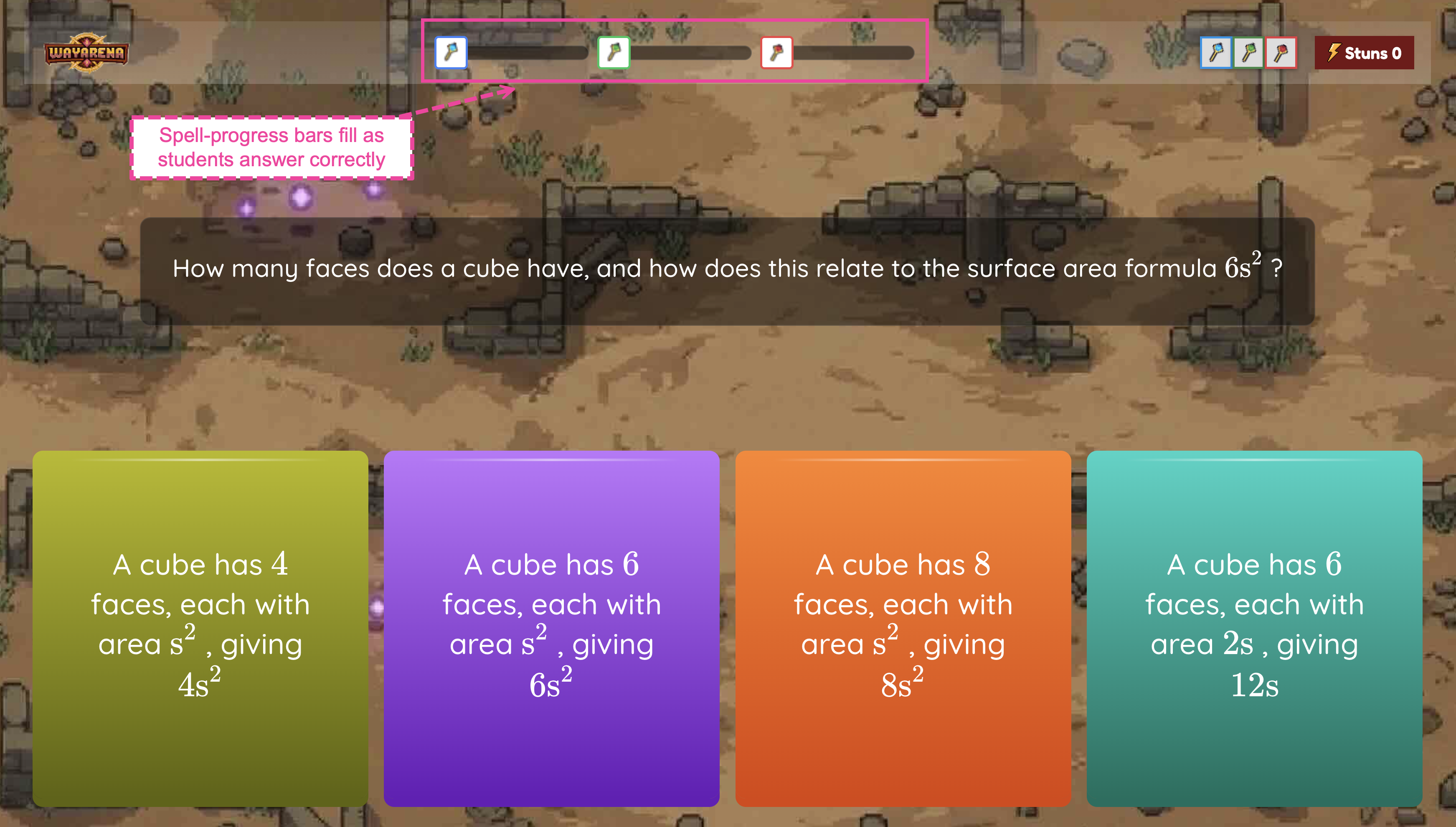
Answer questions: a full-screen multiple-choice or multi-select question card appears (Quiz Time!). Spell-progress bars at the top fill as students answer correctly.
Earn spells: correct answers add ammo to a student’s three spell slots.
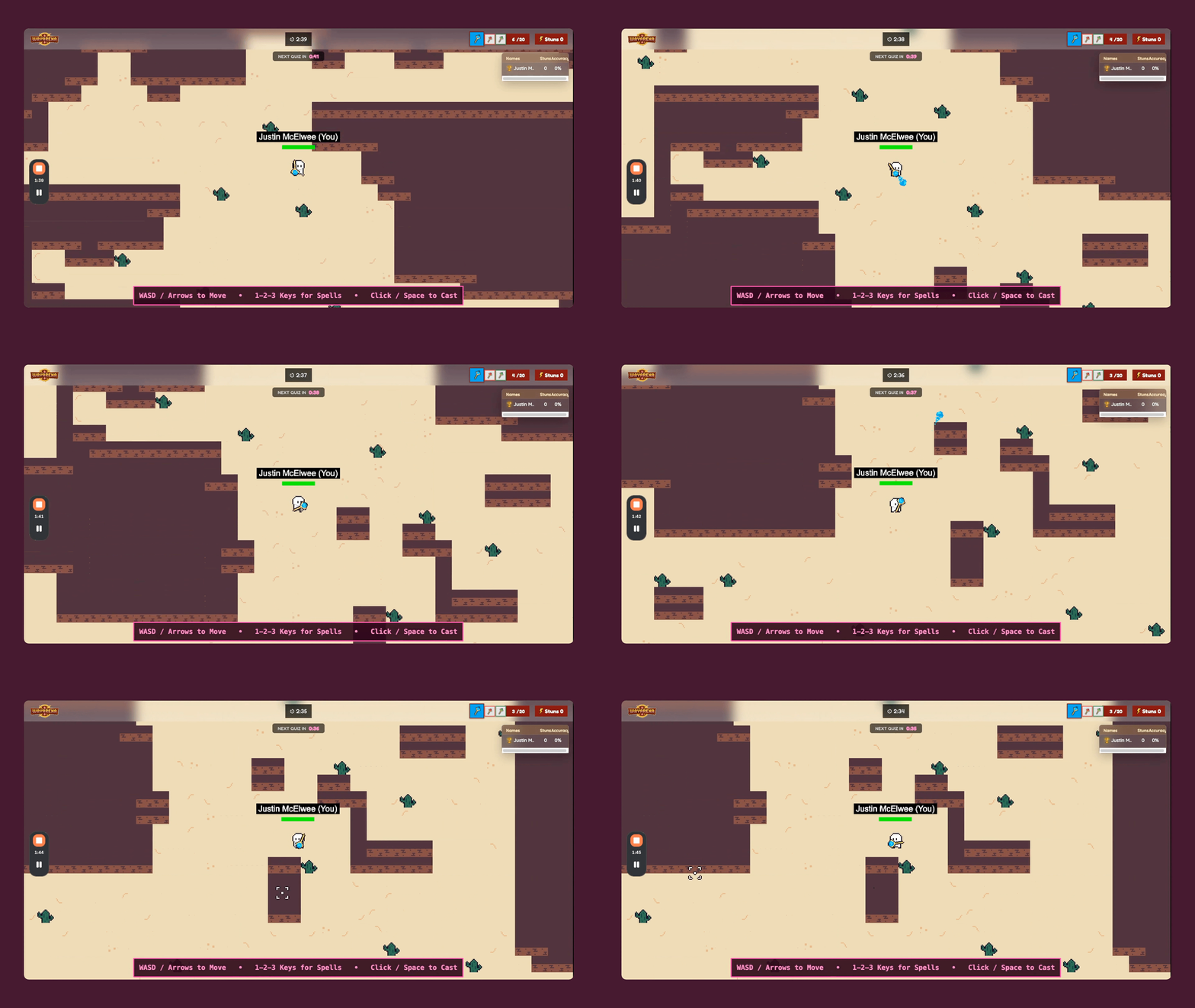
Battle in arena: students move around the map and cast spells at each other.
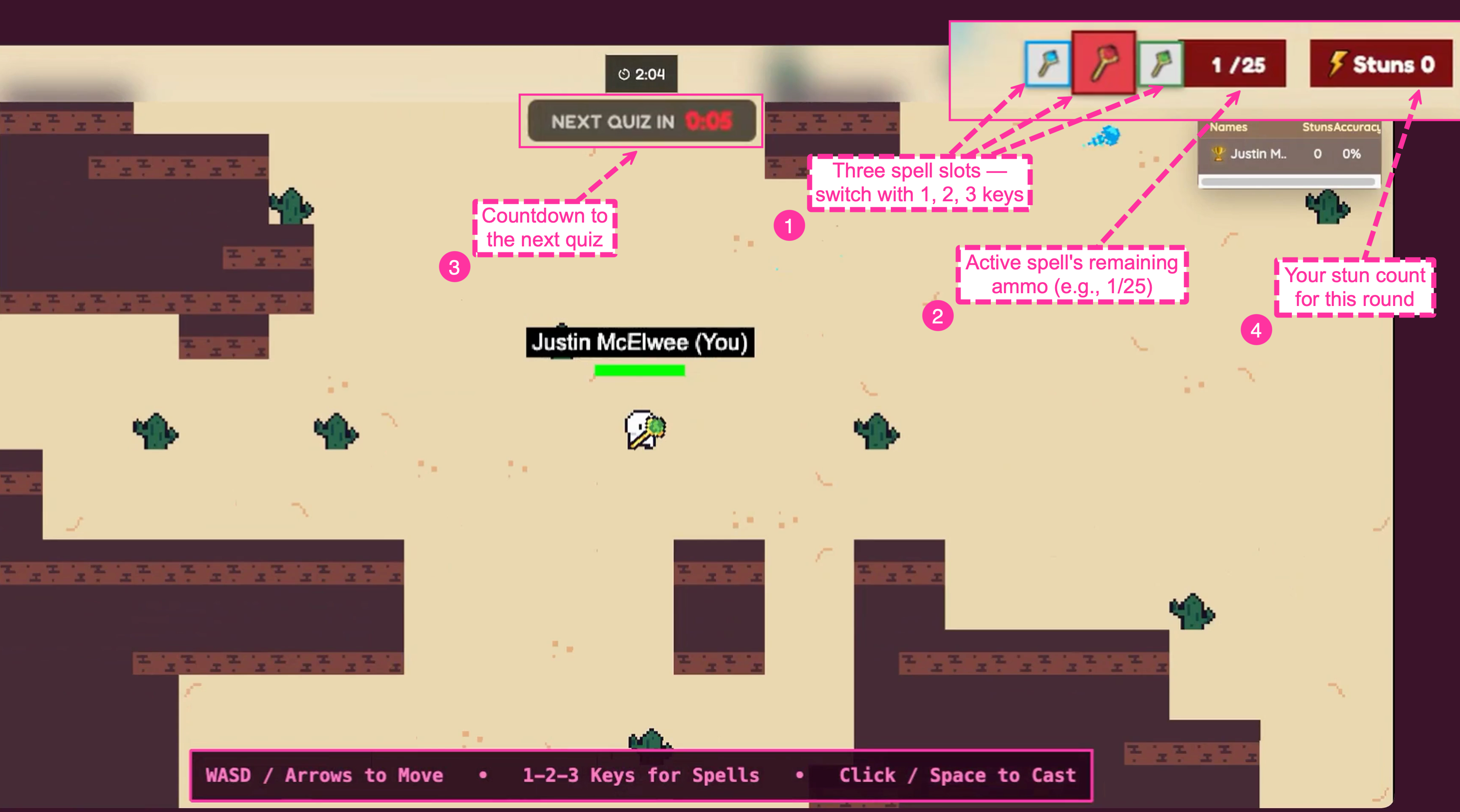
A NEXT QUIZ IN timer counts down to the next question set.
How to start a WayArena session
Open My library and pick a resource, or search any public resource from the Wayground Library.
Click Play, then Start now.
Choose Student paced, then Playground, then WayArena.
Configure your settings (see below).
(Optional) Open Select an arena to pick a map.
Click Start and share the join code with your class.
Configuring your session
Game duration: 3, 5, 7, or 10 minutes (default: 5).
Questions frequency: Low, Med, or High (default: Med). The toggle previews how many questions to expect (for example, 5 questions to play for Med at five minutes).
Student level accommodations: on by default. Helps struggling students stay in the action.
Show answer after each question: On, Off, or Validate only (default). Validate only tells students whether they were right or wrong without revealing the correct answer.
Optionally assign the session to a class with Select a class.
Picking an arena
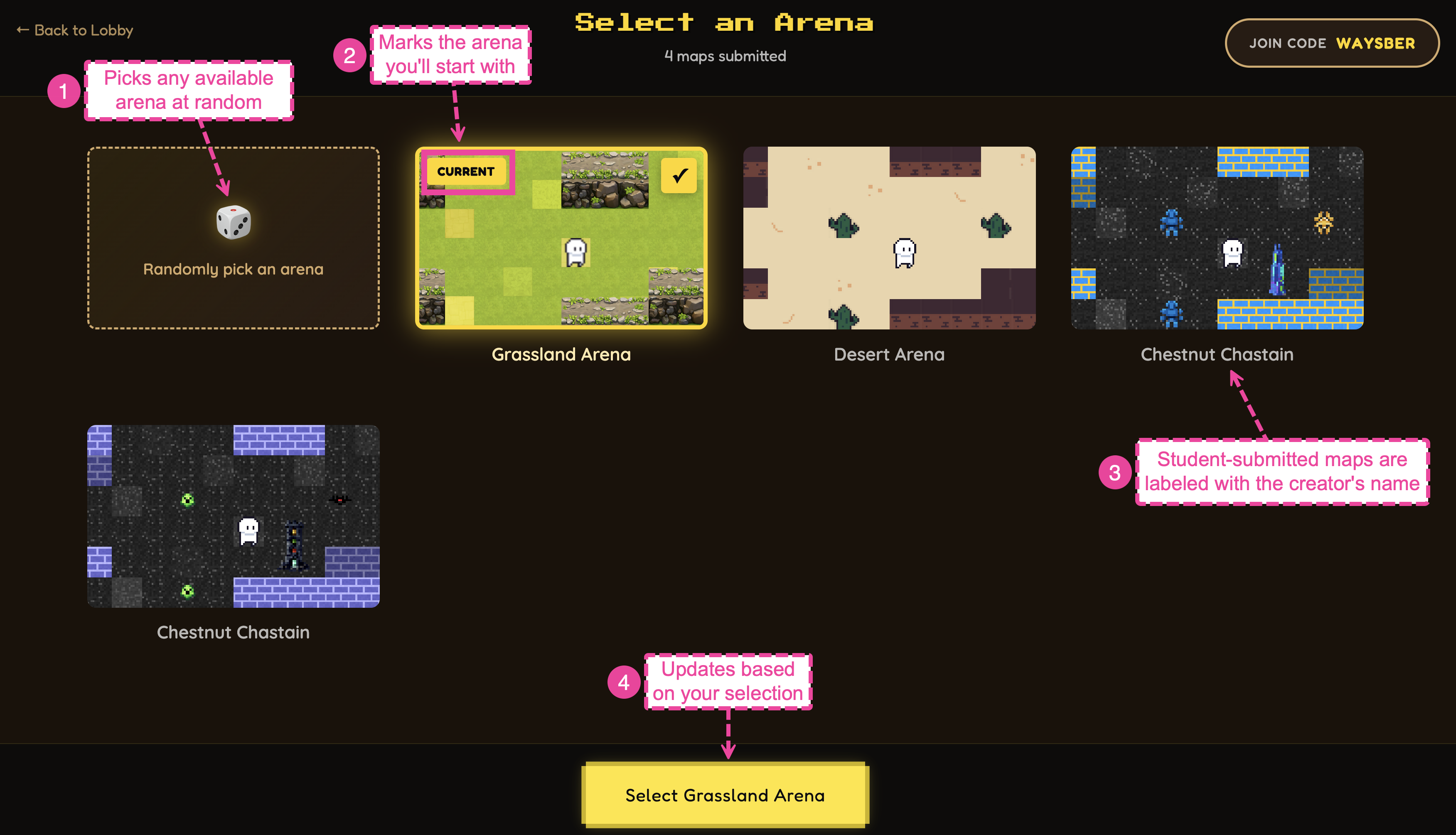
Select an arena shows every map for this round. The header counts submitted student maps (3 maps submitted). Use ← Back to Lobby to return.
Pick a stock arena, a student-designed map, or the dice card for a random pick.
The current selection gets a Current badge with a ✓. The bottom button updates with your choice (for example, Select Grassland Arena).
When you pick a student’s map, their name appears as a watermark across the arena (for example, Map by [student_name]).
How students design maps
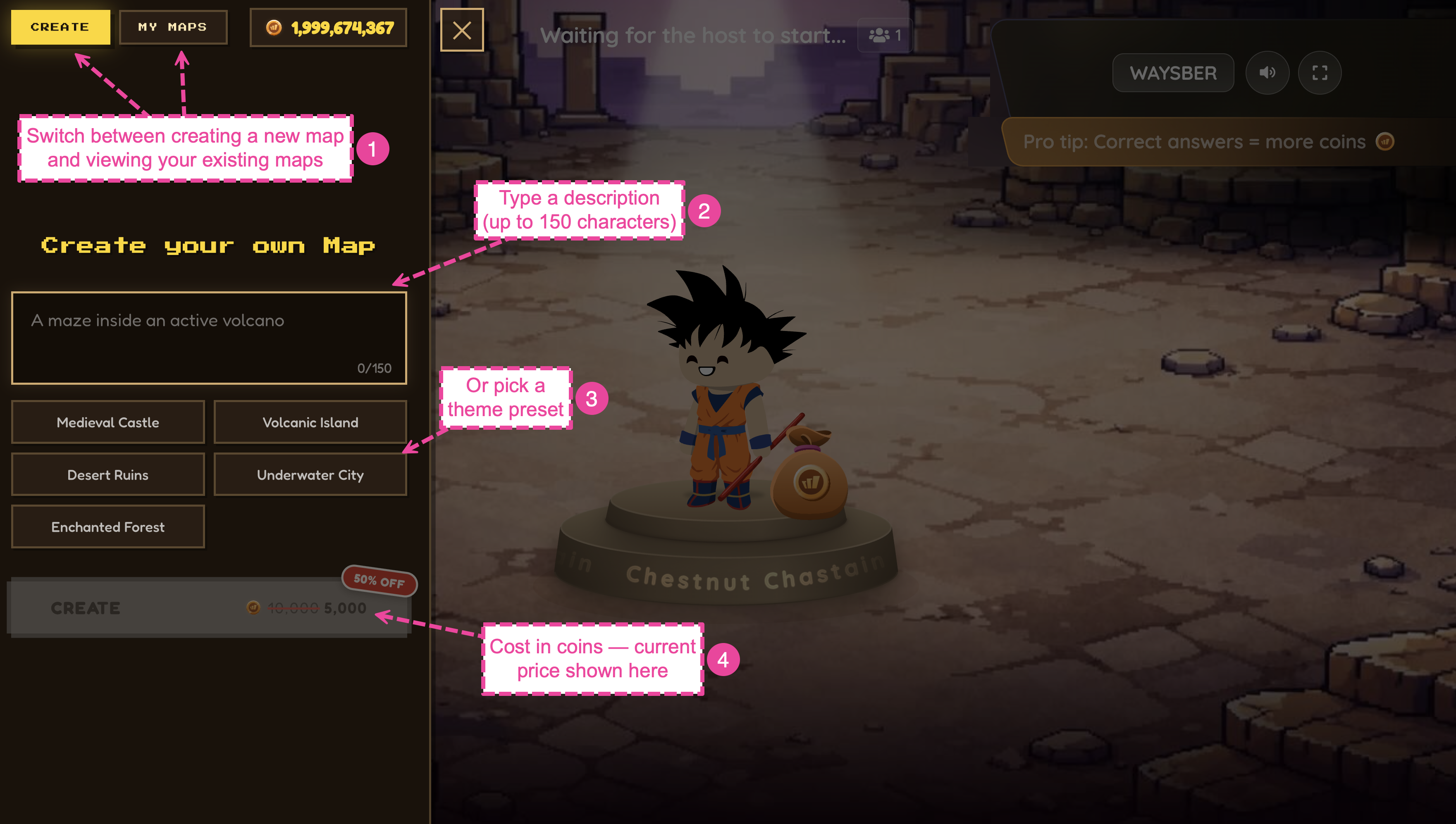
Students with enough coins can open the map workshop from the lobby. It has two tabs:
Create: design a new map.
My Maps: all the maps the student has built so far.
Creating a map
From the Create tab, students describe a map (up to 150 characters) or pick a theme preset, then tap Create.
Finished maps (Map Generated!) land in My Maps with a themed name and a ✓ Submitted mark, ready to pick in Select an arena.
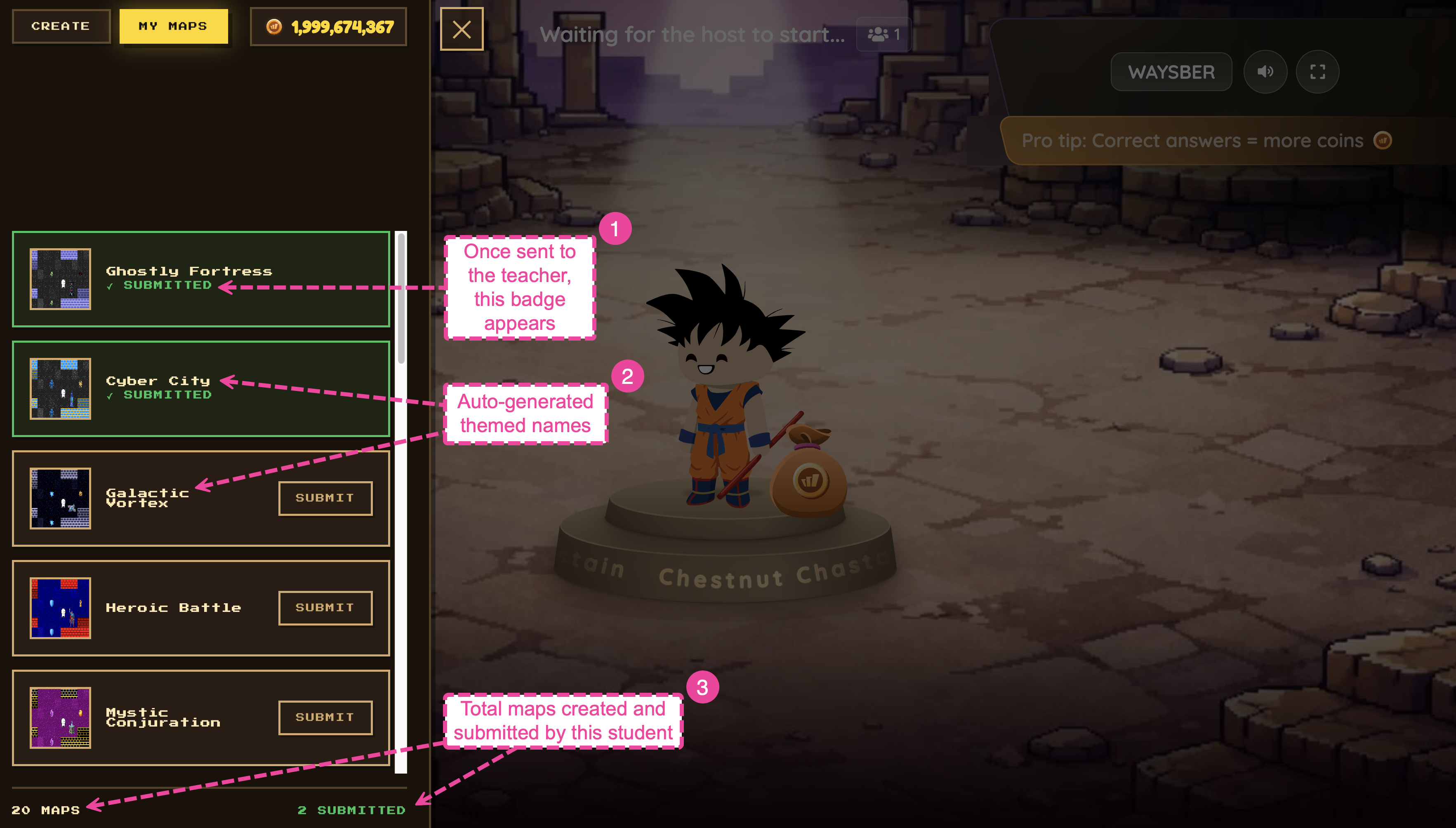
Map creation costs coins. The lobby shows the current price; promotional discounts may apply.
Student controls
When the game starts, students see a rules card titled Player with most stuns wins! with three actions:
Move: Arrow keys (or WASD)
Stun with spells: Space bar (or Click) to cast
Change spells: 1, 2, 3 number keys
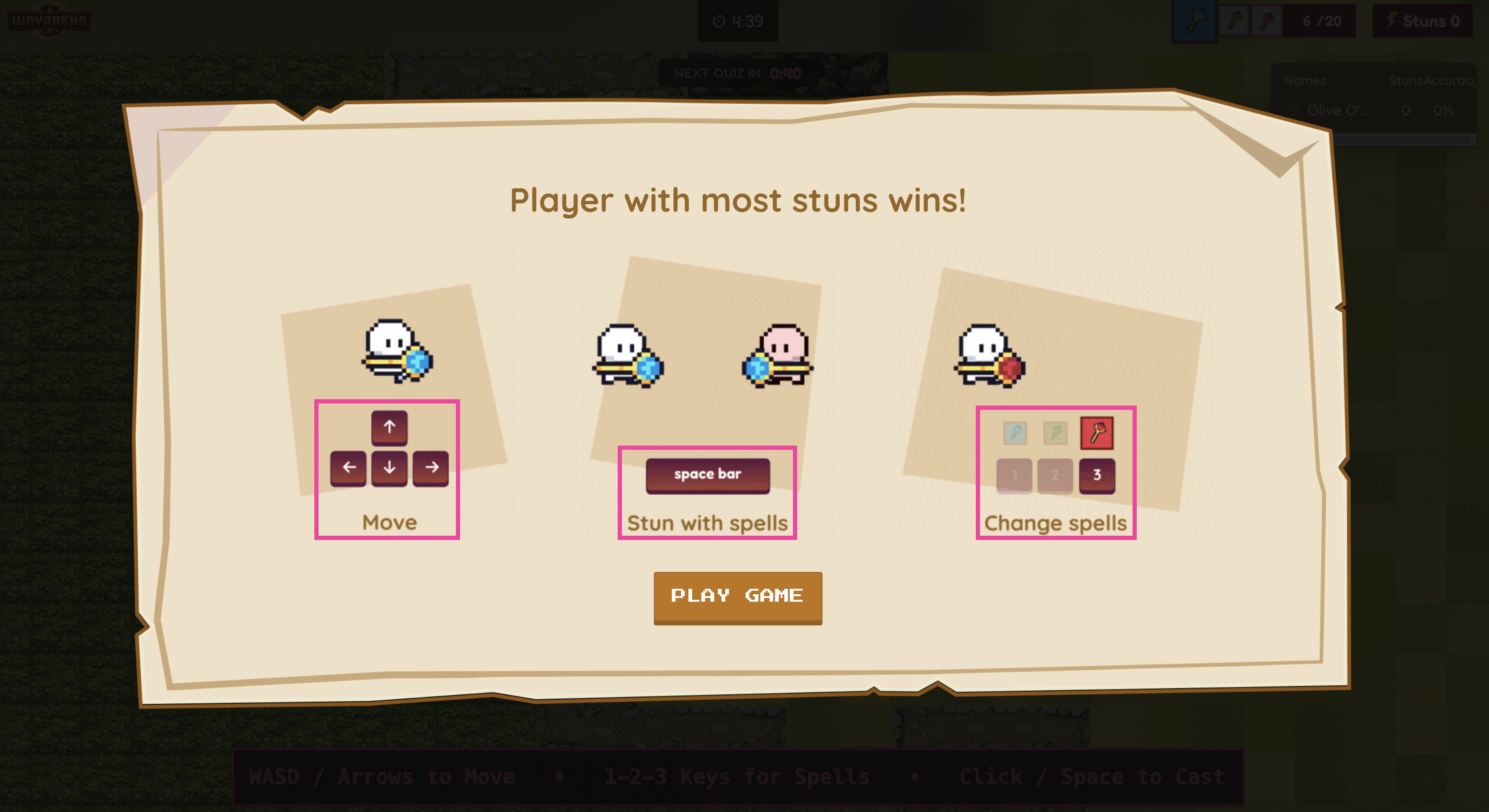
After Play Game, a reminder bar stays at the bottom of every student’s screen:
Spells
Each student has up to three spell slots at the top of their screen. The active slot shows remaining ammo (for example, 14/20). Students refill ammo by answering questions correctly.
The starter spell is Freeze. A successful cast shows You froze all players! on the caster’s screen. More spells unlock based on session settings.
Stuns and Health
Every player has a green health bar above their character. Spells reduce health; when it runs out, the player is stunned. Each student has two tracked stats:
Stuns: how many times they stunned others
Got stunned: how many times they were stunned
Both show on the post-game leaderboard alongside accuracy.
Your in-session controls
While the game is running, your top bar shows:
Game timer: time remaining
Add 1 min: extends the round by one minute (use as often as needed)
Join code: with a copy icon for latecomers
Audio icon: silences game sound effects
End game: stops the session immediately
Spectator Mode: a teacher-only view
Spectator view shows the same map and players without your avatar. Useful when projecting on your classroom screen.
End-of-game results
When the timer ends (or you click End game), three screens play in sequence.
1. Podium
A celebration screen with the 1st, 2nd, and 3rd place students on podiums.
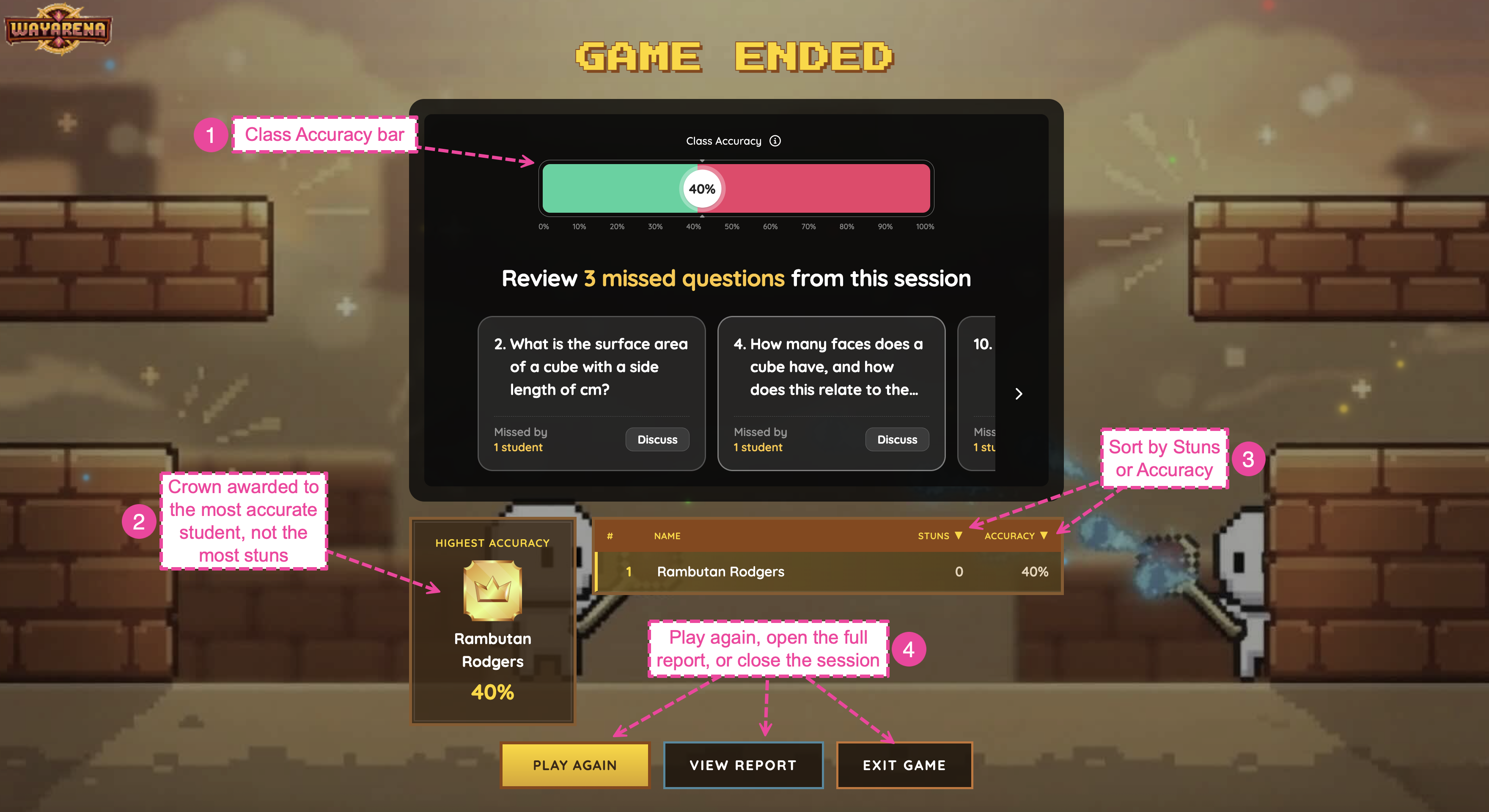
2. Game Ended screen
Your post-game stats card:
Class Accuracy: a 0–100% bar showing your class’s correct-answer rate, with an encouragement message that varies by score (for example, Just getting warmed up? Practice makes perfect!).
Highest Accuracy: a crown for the student with the best accuracy.
A sortable leaderboard with columns #, NAME, STUNS ▼, ACCURACY ▼. Click an arrow to sort.
3. Action buttons
Play Again: run the same resource again
View Report: open the full Wayground report
Exit Game: close the session
Reports
Click View Report on the Game Ended screen, or by opening Sessions on the left navigation pane > My sessions. Toggle Show repetitions to include or exclude student retries. You can edit, download, print, or Share report with other stakeholders.
Tips for running WayArena well
Use five minutes for an energizer, seven to 10 for a quick review.
Keep Student level accommodations on for mixed-ability classes.
Use Validate only when you plan to revisit the same content later.
Pick a student-designed arena when you can. Seeing their name watermarked on the playfield motivates the rest of the class to start making maps too.
Project ‘Spectator Mode’, not a student’s screen, so the projector shows the action without your avatar.
Troubleshooting
A student is removed from the game and can’t rejoin
They see the Removed from Game modal with the message You are not authorized to play this game. This appears when the host session has ended on your side. If the session is still running, a removed student can rejoin: re-share your Join code from the top bar and have them enter it again. Once a session has ended, they can’t rejoin it, so start a new session to bring them back in.
The classroom is too noisy
Use the audio icon in the top bar to silence game sounds. For future sessions, set duration to three minutes.
The map workshop isn’t visible to students
Some accounts have AI map generation turned off based on region or plan. Ask your admin to confirm whether map generation is enabled.
A student didn’t see the correct answer after a question
Expected if Show answer after each question is set to Validate only.
FAQ
Can students play WayArena at home?
No. WayArena is a live, in-class energizer that requires a teacher-hosted session.
Does WayArena work on iPads or phones?
No. WayArena uses keyboard controls, so students play on a laptop, desktop, or Chromebook. It isn’t supported on phones or tablets.
Why is the leaderboard ranked by accuracy, not stuns?
Accuracy is the academic outcome the game celebrates. Students can still sort by stuns, but the headline class stat and the crown award are tied to accuracy.
Can I limit which students can create maps?
Map generation requires coins and is gated by region or plan settings. For more controls, talk to your admin.
Was this article helpful?
That’s Great!
Thank you for your feedback
Sorry! We couldn't be helpful
Thank you for your feedback
Feedback sent
We appreciate your effort and will try to fix the article