TABLE OF CONTENTS
- When to use Playground
- Available games
- How to start a Playground session
- Settings every game shares
- In-session controls
- Reports
- Sharing through your LMS
- Plans and availability
- FAQ
Playground turns a resource into a short, in-class game. Pick a resource, choose your settings, and start a session. Students join the same way they do for any live Wayground class.
Each Playground game has its own content requirements, so check the article for the game you’re running.
When to use Playground
Common uses:
Bell ringers to start class
Brain breaks between difficult lessons
Quick reviews before a lesson or test
Sessions run from 3 to 10 minutes, with a default of 5.
Available games
WayArena: a real-time, spell-based game where students answer questions to earn spells, then battle each other in an arena. See the WayArena article for details.
How to start a Playground session
Open My library and pick a resource, or search any public resource from the Wayground Library. Make sure it fits your game’s content requirements.
Click Play, then choose Start now
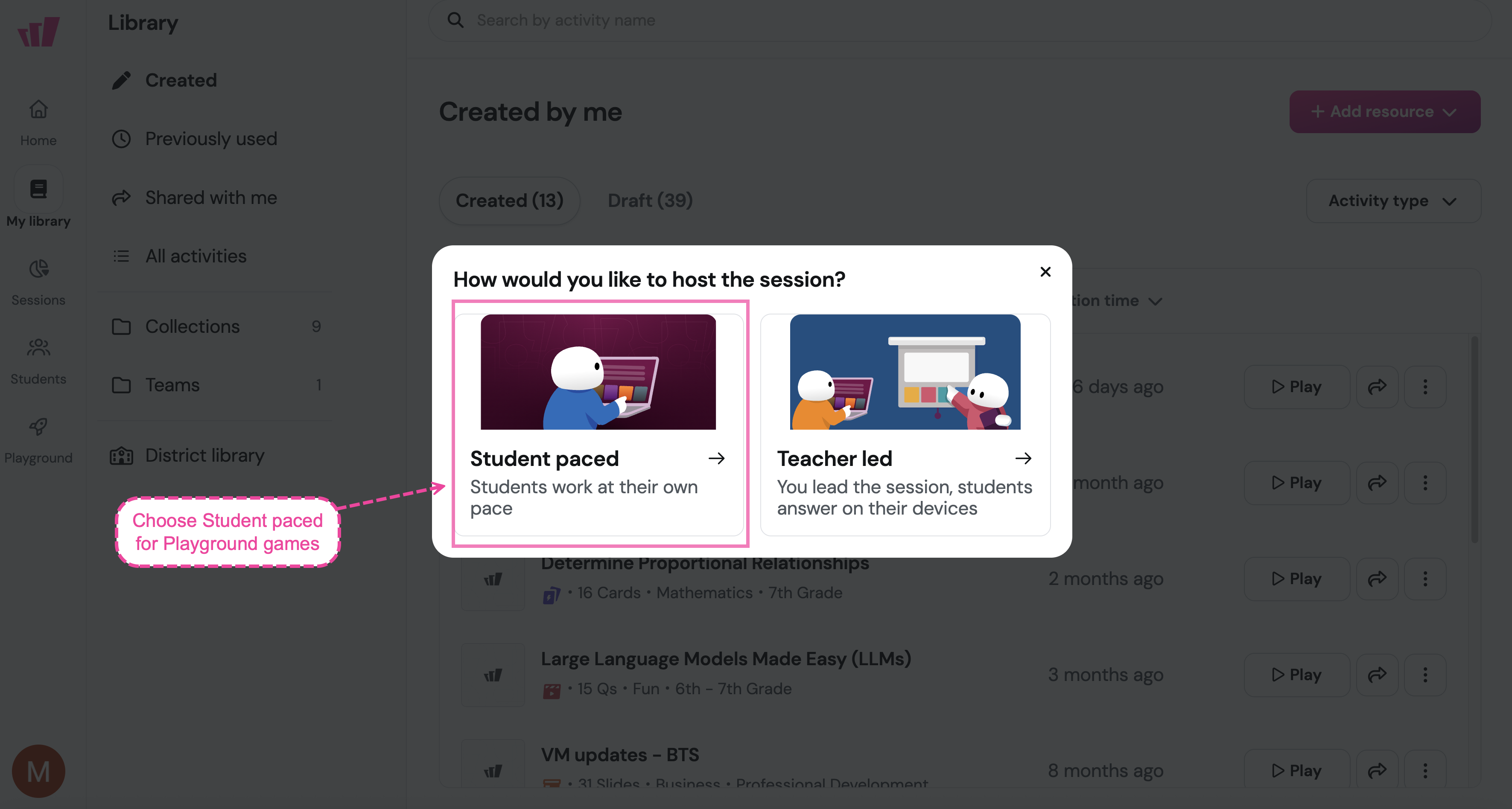
Choose Student paced
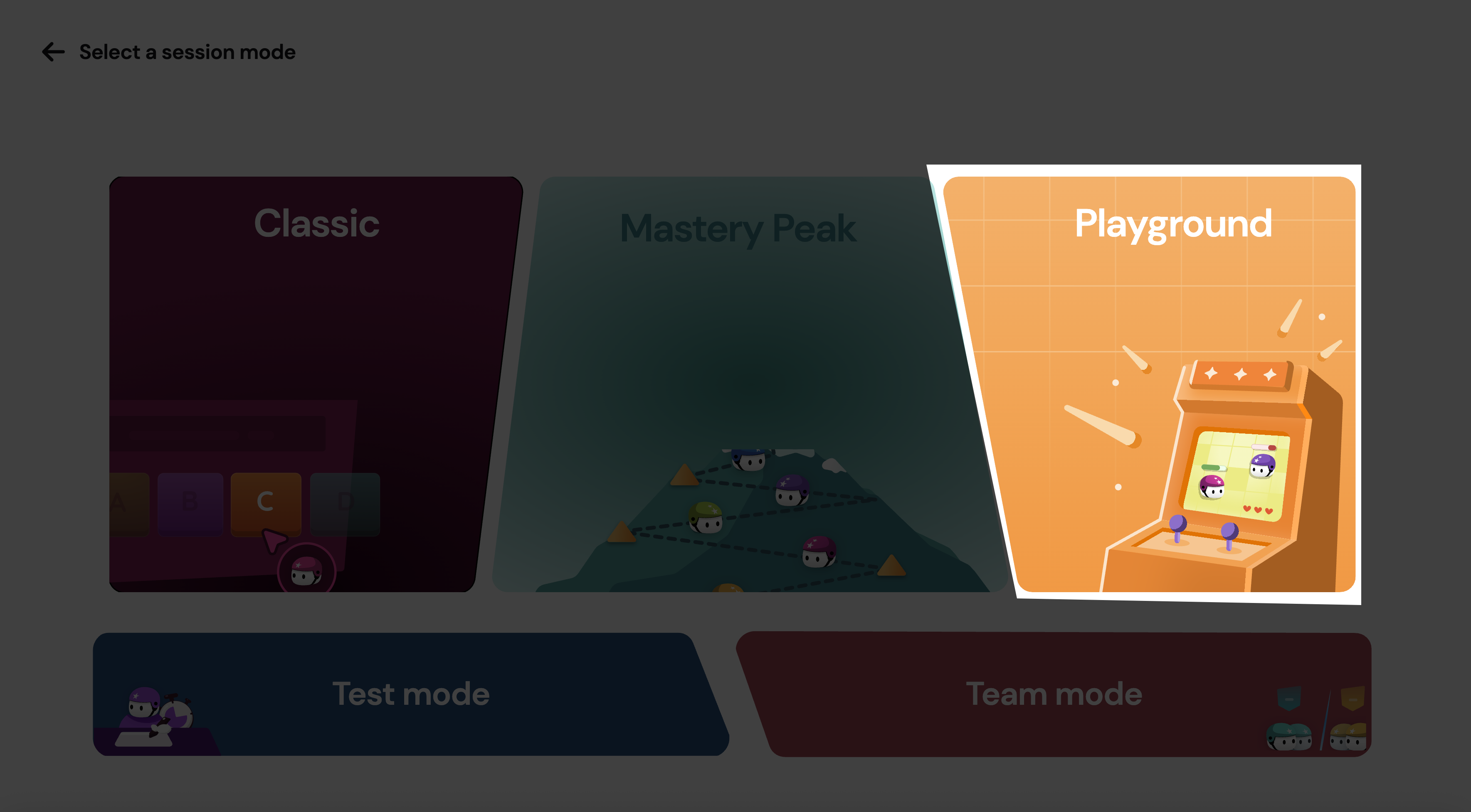
Choose Playground on the Select a session mode screen
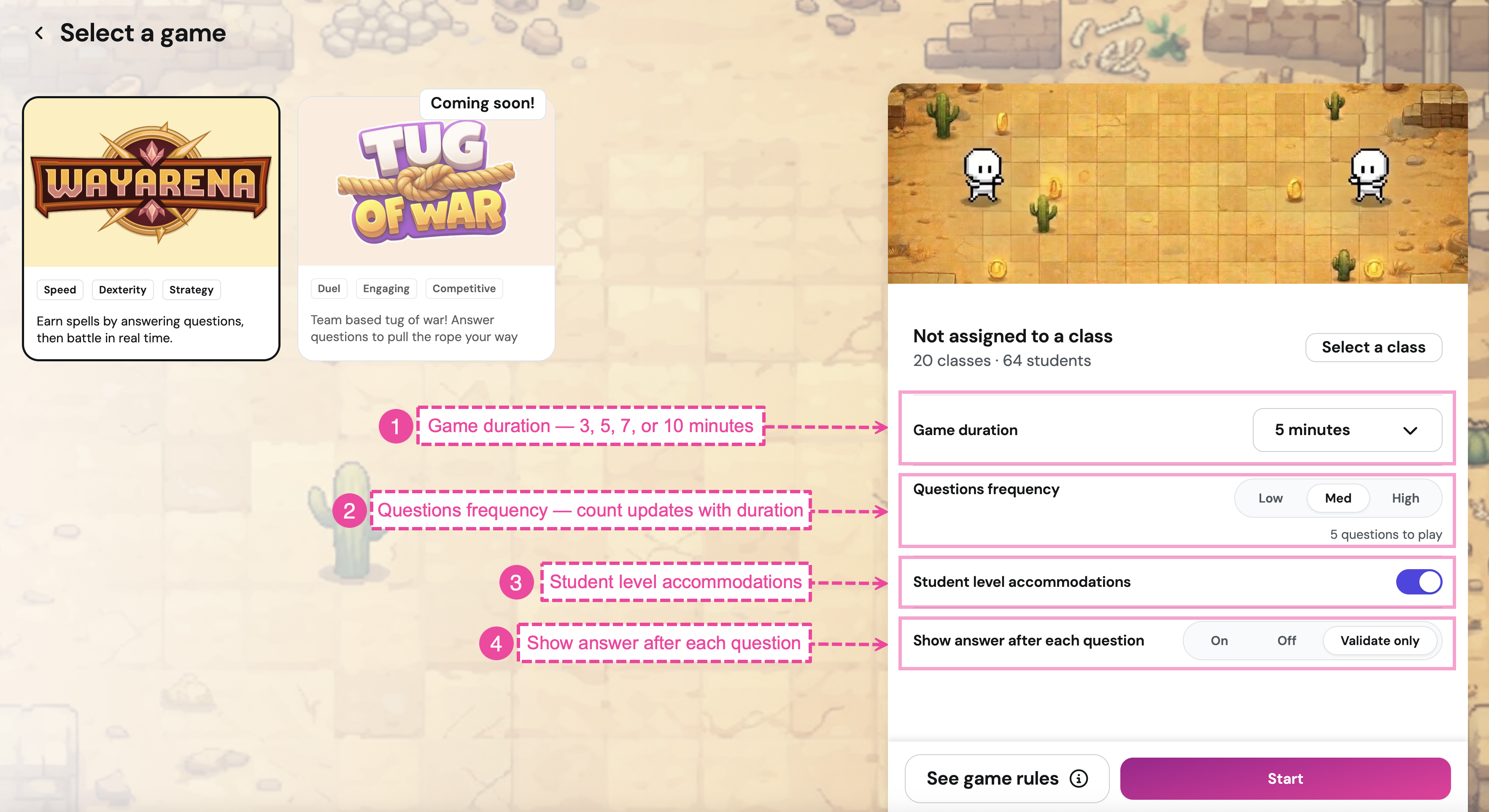
Pick the game you want to run on the Select a game screen
Adjust your settings (see Settings every game shares below)
Click Start
Share the join code or QR code with your class
Students join at joinmyquiz.com with the join code, or by scanning the QR code. They don’t need an account to play. Signed-in students keep their Qbit (avatar), coins, and any customizations they’ve earned.
Settings every game shares
Every Playground game has the same four settings on the setup screen:
Game duration: 3, 5, 7, or 10 minutes. Default is 5 minutes
Questions frequency: how often questions appear during play. Options are Low, Med, and High (default: Med). The screen shows the resulting question count for your duration (for example, Med plus 5 minutes equals 5 questions)
Student level accommodations: when on (default), the game adjusts to keep struggling students in the game. Turn off for higher-rigor sessions
Show answer after each question:
On: students see right or wrong and the correct answer
Off: students see no feedback
Validate only (default): students see right or wrong, but not the correct answer
You can also assign the session to a class using Select a class, or play without a class.
In-session controls
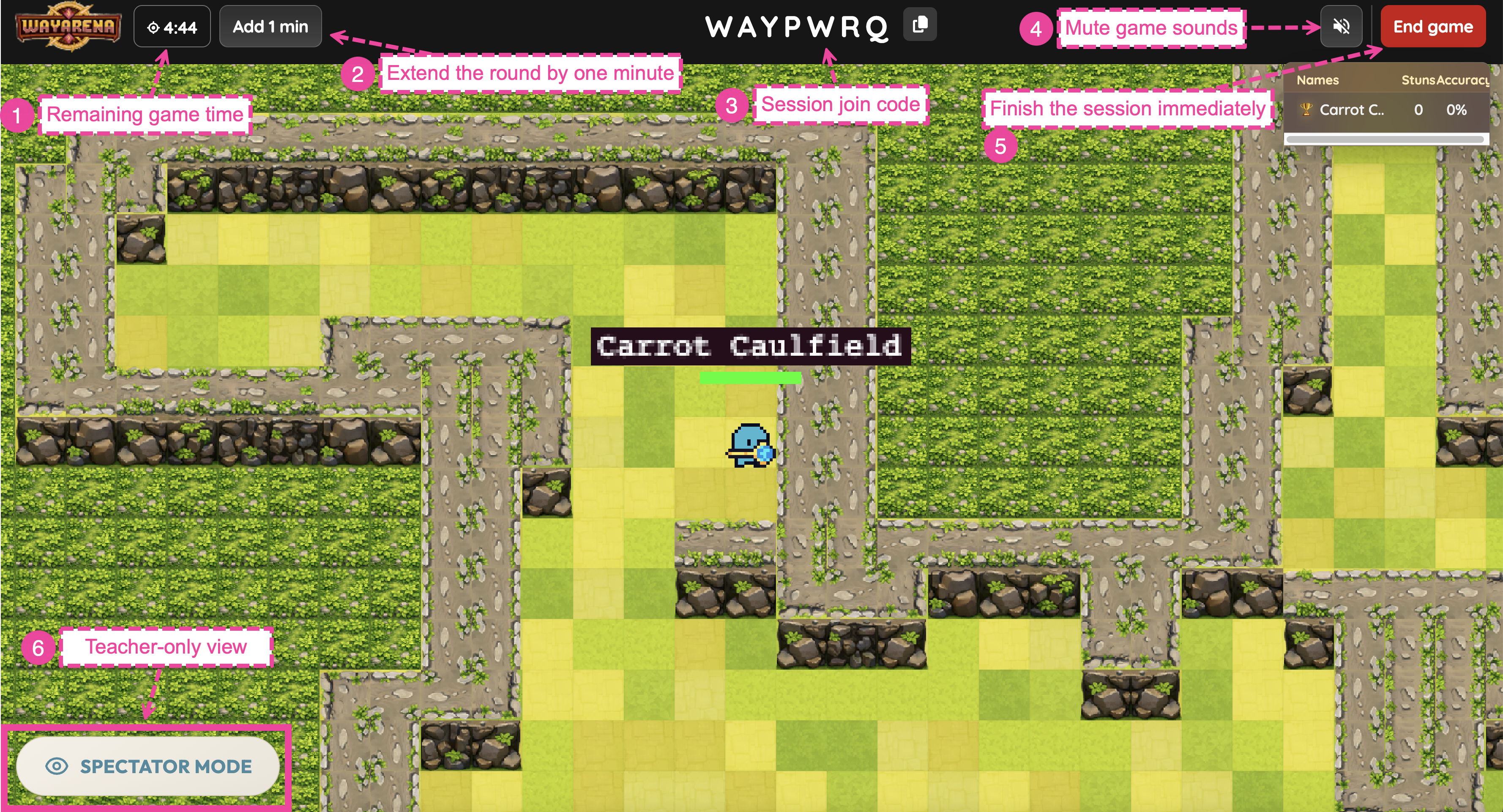
While the game is running, the top bar shows:
Game timer: time remaining in the round
Add 1 min: extends the timer by one minute, use as often as needed
Join code with a copy icon, so latecomers can join
Audio icon: mute sound effects
End game: stop the session immediately
Spectator Mode: a teacher-only view (your avatar isn’t part of the action)
Reports
Find the report for any Playground session by clicking View Report on the Game Ended screen, or by opening Sessions on the left navigation pane > My sessions. Toggle Show repetitions to include or exclude student retries. You can edit, download, print, or use Share report to send it to others.
Sharing through your LMS
Wayground integrates with major LMS platforms (Google Classroom, Canvas, Schoology, and Microsoft Teams via LTI) for assigning and sharing your other Wayground content.
Playground sessions launch through Start now, not the Assign button. See How to start a Playground session above.
Plans and availability
Playground is available on all Wayground plans. Some features may be limited by region or plan. If something in this article isn’t visible in your account, check with your school or district admin.
FAQ
Can I use my existing resources?
Yes, though each Playground game has its own content requirements. For example, WayArena only works with multiple-choice (MCQ) and multi-select (MSQ) questions. Check the article for the specific game you’re running for its full requirements.
Why don’t I see Playground in the Assign flow?
Playground games launch only through Start now. Open your resource, click Start now, choose Student paced when prompted, then pick Playground from the session mode picker.
Do students need to be signed in?
No. Students can join as guests. Signed-in students keep their Qbit, earn coins, and use customizations they’ve unlocked.
What devices do students need?
Most Playground games run in any browser. Some games use keyboard controls, so laptops, desktops, and Chromebooks work best. Tablets can join but aren’t great for the action segments, and phones aren’t supported. Check the article for the specific game you’re running.
Can I run multiple Playground games in one class period?
Yes. After a game ends, click Play Again to run the same resource again, or Exit Game to start a new session with a different resource.
Is the AI in Playground safe for students?
Yes. Students use AI to generate things in the game, not to chat, and everything they generate is moderated. Playground blocks anything unsafe, religious, political, or otherwise controversial. Your admin can also adjust which AI features are available for your school.
Can students play Playground games at home?
No. Playground games are live, classroom-only sessions and require a teacher to host.
Where do I find available games?
The Select a game picker shows available games. Games marked Coming soon aren’t yet playable.
Was this article helpful?
That’s Great!
Thank you for your feedback
Sorry! We couldn't be helpful
Thank you for your feedback
Feedback sent
We appreciate your effort and will try to fix the article