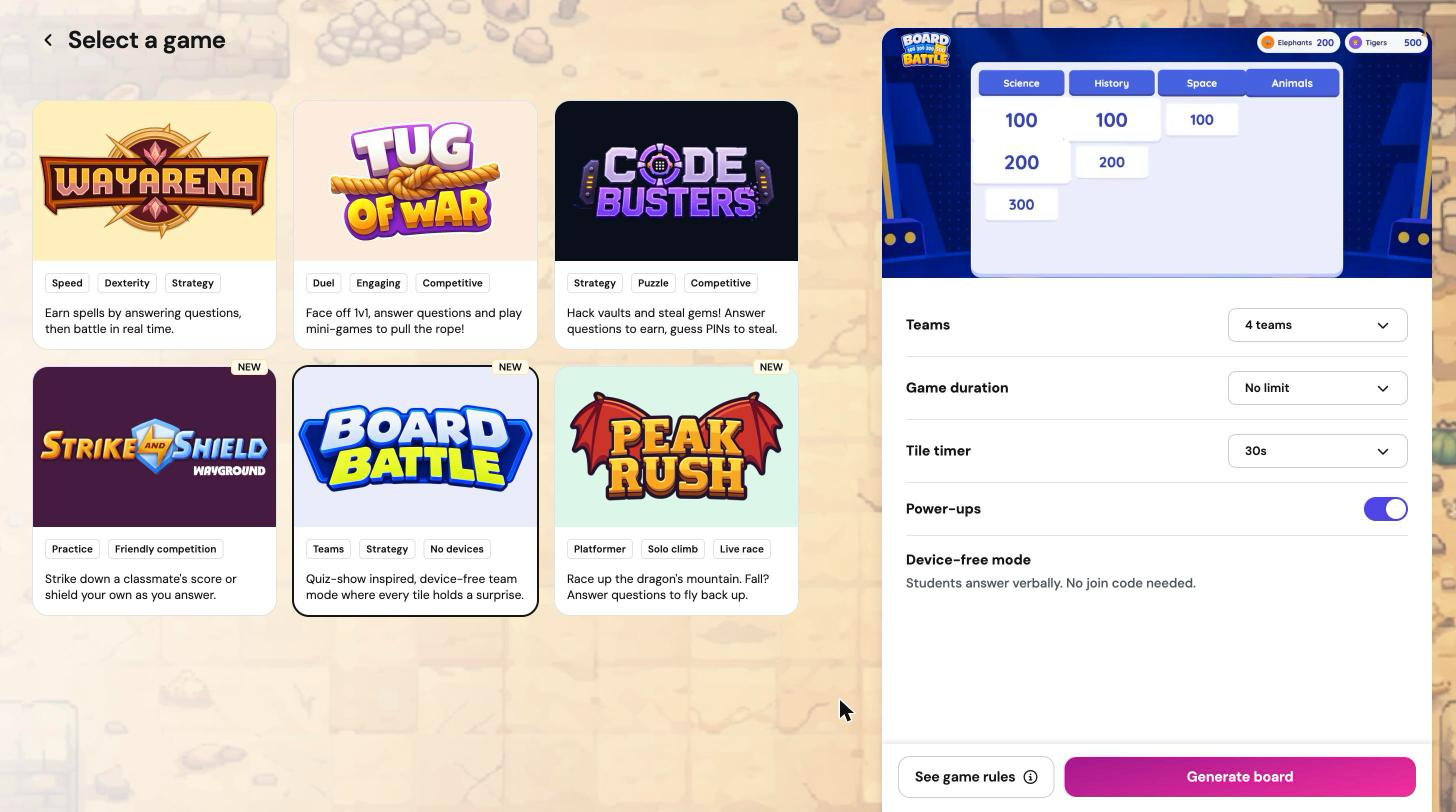
Board Battle is a quiz-show inspired Playground game for teams. Your class splits into teams, each team picks a tile on the board, and the whole team talks through the question behind it to win points. The game runs entirely on your screen, so students don't need devices or a join code.
In this article, we will go over how Board Battle works, how to set it up, how to run a turn, and answers to the questions teachers ask most.
In this article, we will go over:
- Quick facts
- How Board Battle works
- How to start a Board Battle session
- Configuring your session
- Setting up teams
- Power-ups, Steal, and the timer
- Your in-session controls
- How the game ends and results
- Tips for running Board Battle well
- Troubleshooting
- FAQ
Quick facts
- Format: device-free team game, run from your screen
- Best for: whole-class review, test prep, and days without devices
- Teams: two or more (default four)
- Session length: no limit (default), or 5, 10, or 15 minutes
- Questions: at least nine single-answer Multiple Choice questions
- Student devices: none; students answer out loud and you enter their answer
- Best setup: project your screen so the whole class can see the board
How Board Battle works
The board is built from your resource's Multiple Choice questions, one question per tile. The board size depends on how many questions you have, from a 3x3 board for nine questions up to a 5x5 board for 25 or more. Board Battle uses up to 25 questions.
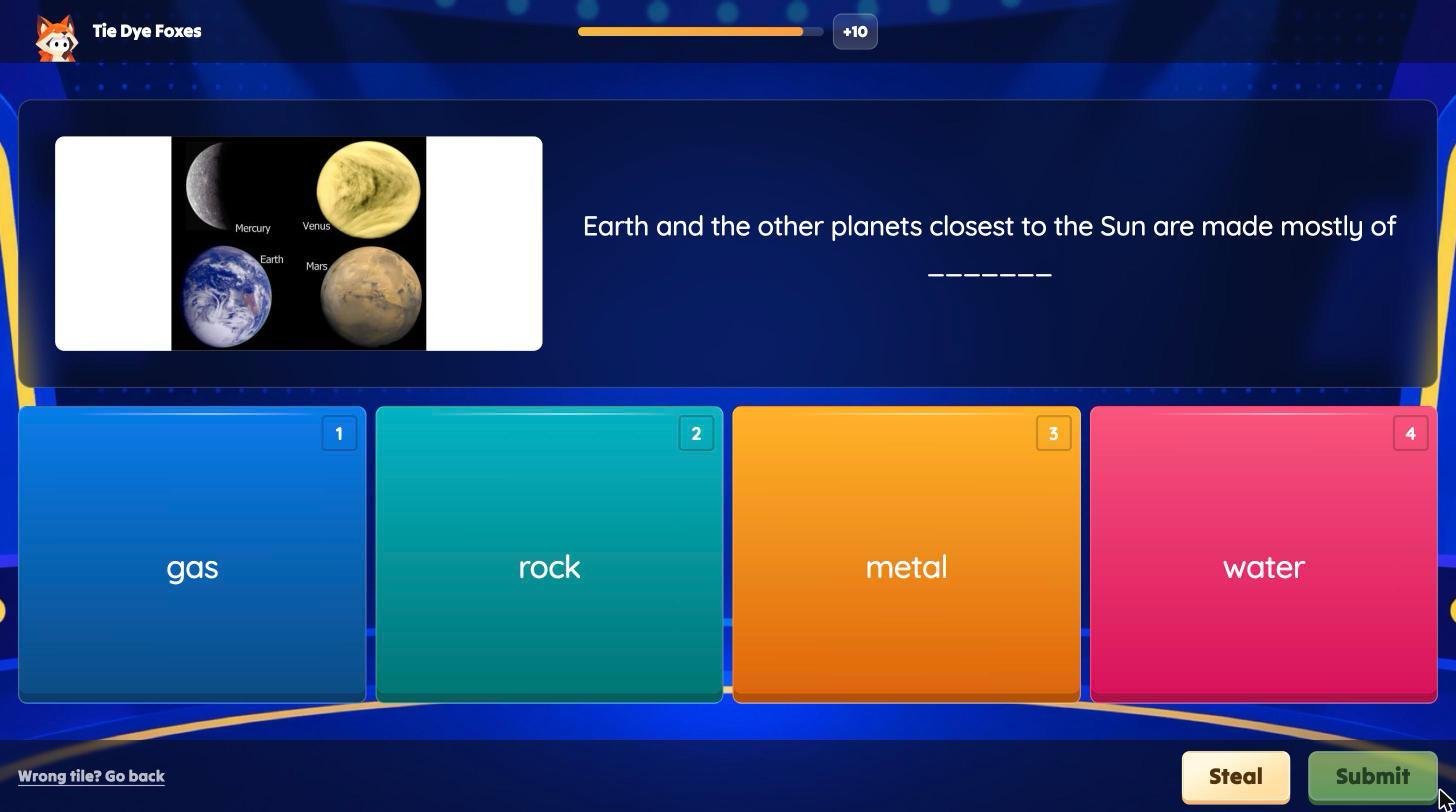
Teams take turns in the order you list them. On each turn:
- The team picks a tile, and you select it.
- The team huddles and agrees on an answer before the tile timer runs out.
- You click on the answer the team gives, then click on 'Submit'.
- A correct answer wins the tile's points. A wrong answer, or running out of time, scores no points, and nothing is taken away.
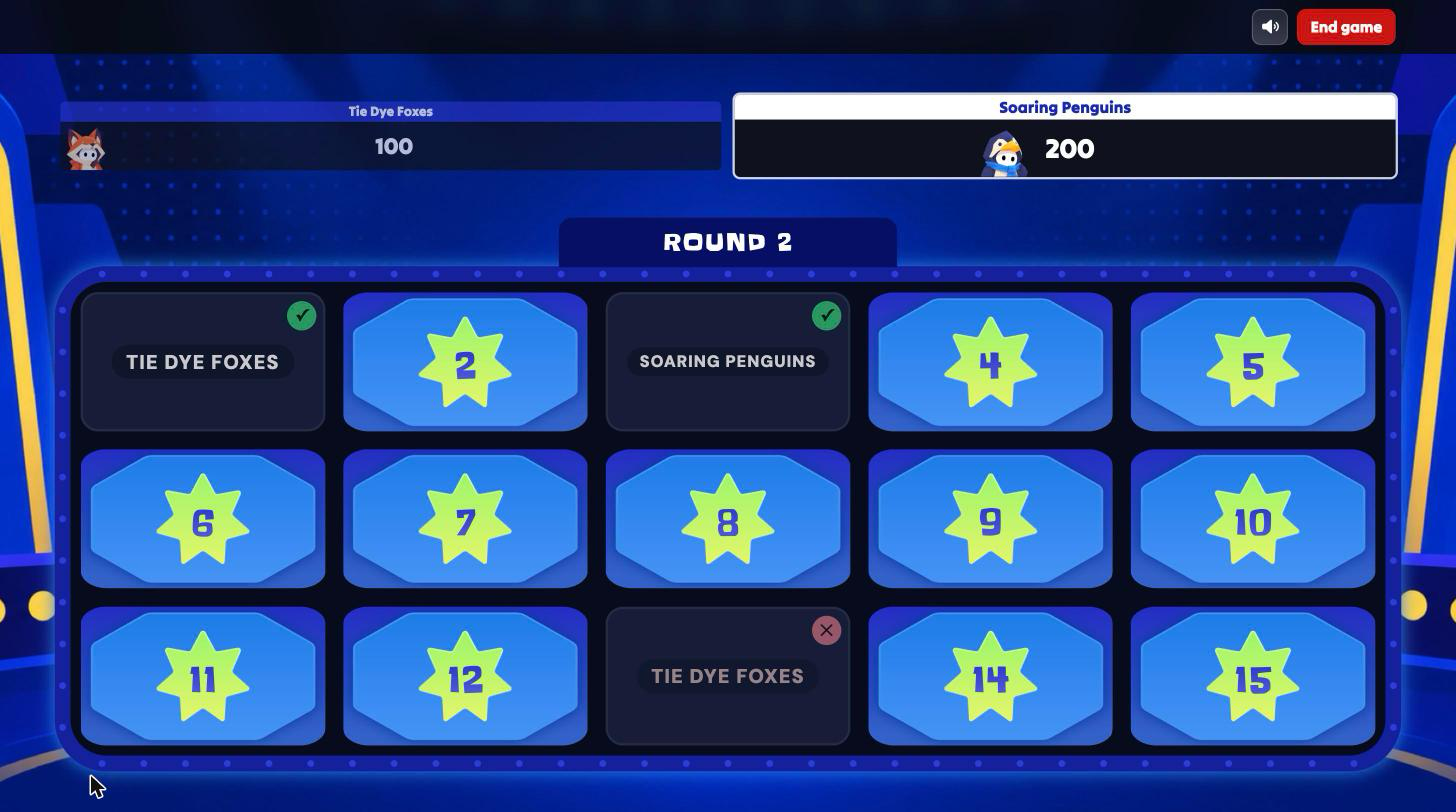
A round is one turn for every team. Points grow each round: every question is worth 100 points in round one, 200 points in round two, and so on. Tiles a team wins stay on the board in that team's color. Tiles that were missed close for the rest of the round, then come back in the next round in new positions.
How to start a Board Battle session
Here are the steps:
- Open 'My Library' and pick a resource, or search for one in the 'Wayground Library'. It needs at least nine single-answer Multiple Choice questions.
- Click on 'Play', then 'Start now'.
- Choose 'Student paced', then 'Playground'.
- On the 'Select a game' screen, click on 'Board Battle'. If the card shows 'Needs 9+ MCQ questions', pick a resource with more Multiple Choice questions.
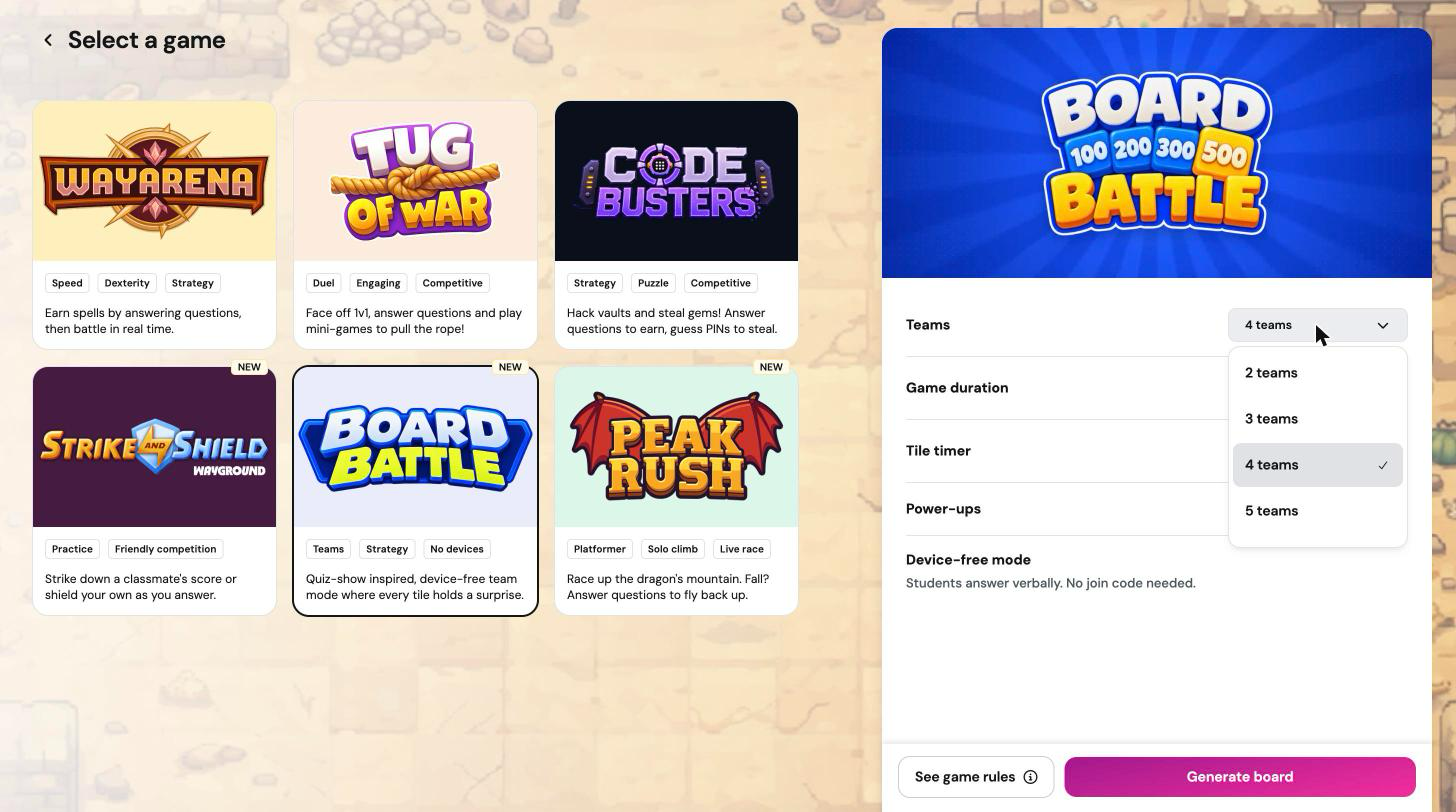
- Adjust your settings (see below), then click on 'Generate board'.
- Watch or skip the short 'How to play' guide.
- Name your teams, then click on 'Start game'.
Configuring your session
- 'Teams': from '2 teams' up. The default is four, and how many teams you can pick can depend on how many questions your resource has. You can also add or remove teams on the team naming screen before you start.
- 'Game duration': 'No limit' (default), '5 minutes', '10 minutes', or '15 minutes'.
- 'Tile timer': how long a team has to answer each question: '30s' (default), '45s', or '1 minute'.
- 'Power-ups': on by default. When on, some tiles reveal a power-up before the question.
Note: Board Battle doesn't use a class roster, a join code, or 'Student level accommodations'. You decide who is on each team.
Setting up teams
On the team naming screen, each team gets a ready-made name, such as Tie Dye Foxes or Soaring Penguins. Edit any name (up to 18 characters). You can add more teams or remove them down to two, but only before you click on 'Start game'.
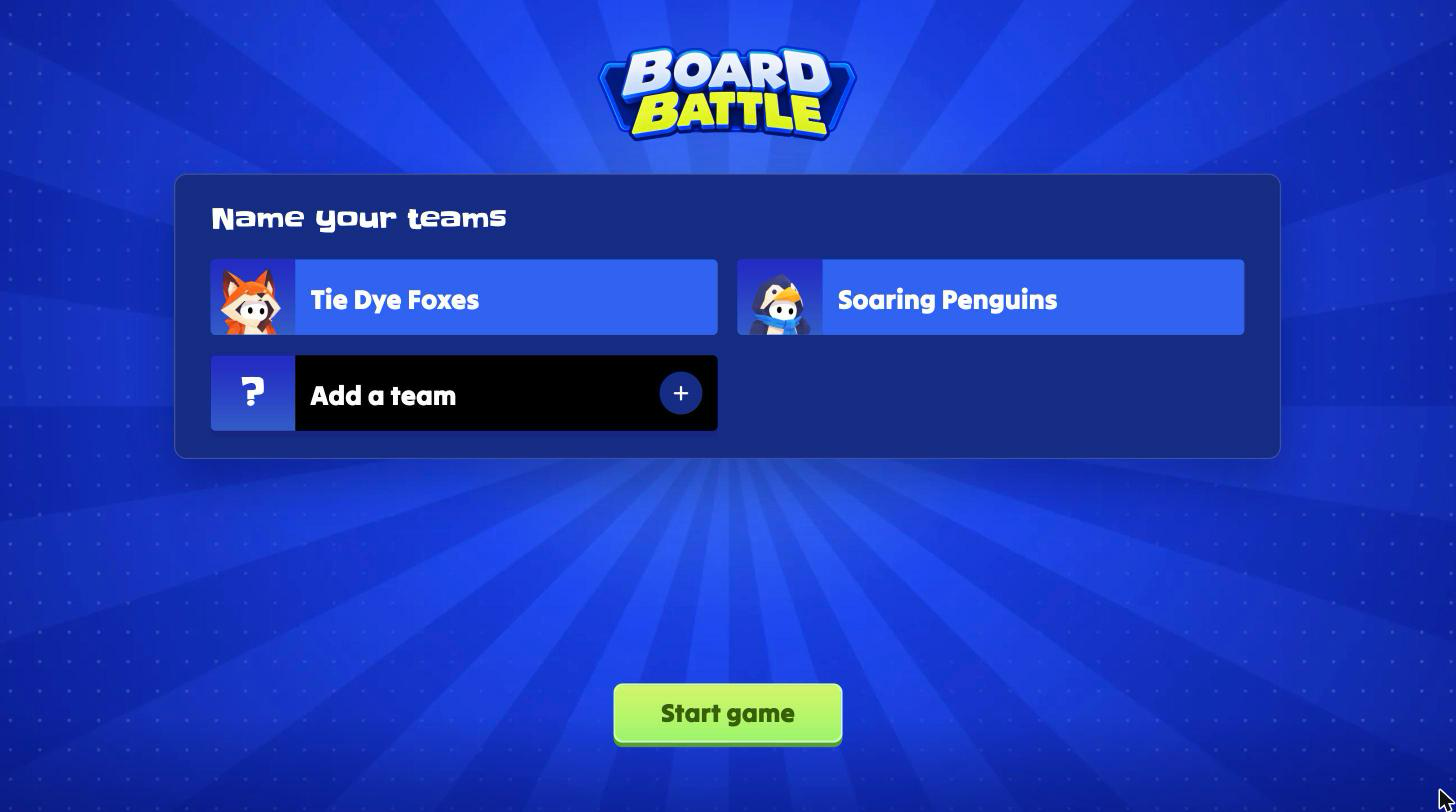
Board Battle doesn't sort students into teams for you. Group students however works best for your class, such as by table or by row, before you start.
Power-ups, Steal, and the timer
Power-ups
When 'Power-ups' is on, a tile may reveal one of these before its question:
- '2x Points': a correct answer is worth double.
- 'Loot': a correct answer also takes up to half of the round's points from the team in the lead. Loot appears from round two onward, and only for teams that aren't leading.
Teams that are behind get power-ups more often, which keeps the game close. A wrong answer uses up the power-up with no effect.
Steal
If a team is stuck, press 'Steal' and choose another team in 'Who's stealing?'. The stealing team answers with a fresh tile timer and wins the points, and any power-up on the tile. You can steal once per question, and the turn order doesn't change.
Extra time and mistakes
- '+10': adds 10 seconds to the tile timer.
- 'Wrong tile? Go back': if you clicked on the wrong tile, this undoes it and returns to the board.
Your in-session controls
Your board shows every team's score, with 'Your turn' on the team that is up next.
- 'Add 1 min': appears when you set a game duration, and extends the session by one minute.
- Sound button: mutes or unmutes music and sound effects. Your choice is remembered for next time.
- 'End game': asks 'End this game?' first. Choose 'End game' to finish or 'Keep playing' to return.
How the game ends and results
The session ends when the first of these happens:
- Every tile on the board is won.
- The game clock runs out, if you set a duration.
- You click on 'End game'.
- A new round has fewer questions left than teams. You see 'Not enough questions for every team' and can end the game or keep playing.
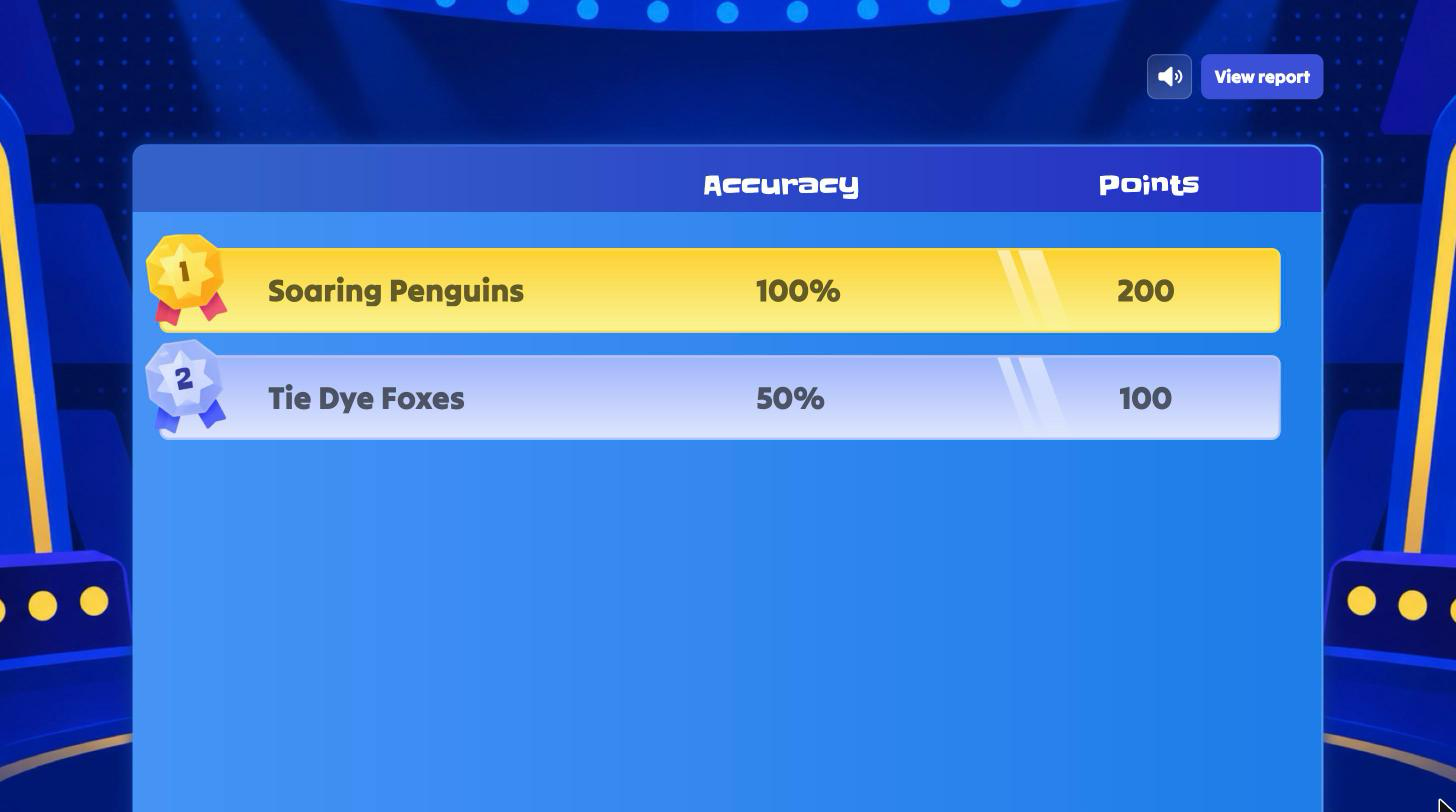
The final leaderboard ranks teams by points and shows each team's 'Accuracy'. Open 'View report' for the full report, where each team appears as a participant with its answers.
Tips for running Board Battle well
- Build or pick a resource with 15 to 25 Multiple Choice questions for a fuller board.
- Use the 'No limit' duration for a full review, or 10 minutes to fit a bell ringer.
- Give each team a spokesperson so you hear one clear answer.
Troubleshooting
The Board Battle card is grayed out
Your resource needs at least nine single-answer Multiple Choice questions. Multi-select and other question types aren't used. Add questions or pick another resource.
I refreshed the page during a game
Reopen the game on the same device and browser. Board Battle saves the game in progress there, including scores and any open question. It can't be resumed from a different device.
"Couldn't check the answer" appears
Check your internet connection, then submit the answer again.
FAQ
Do students need devices or a join code?
No. Only you need a device. Students answer out loud, and you enter each team's answer.
Does Board Battle show category names on the board?
No. Tiles show only their position, so every pick is a surprise.
What happens if two teams tie?
Teams with equal points are listed in alphabetical order by team name. There's no tiebreaker round.
Can I assign Board Battle as homework?
No. Board Battle is a live game you run in class.
Related articles
Still have questions? Contact our support team at support@wayground.com.
Was this article helpful?
That’s Great!
Thank you for your feedback
Sorry! We couldn't be helpful
Thank you for your feedback
Feedback sent
We appreciate your effort and will try to fix the article