Tug of War is a Playground game where students face off one on one. Each duel mixes quiz questions with quick mini-games, and every round they win pulls the rope a step toward their side. Your class stays on its feet, and every student gets a turn at the rope.
In this article, we will go over how Tug of War works, how to set it up, what you see while it runs, and answers to the questions teachers ask most.
In this article, we will go over:
- Quick facts
- How a Tug of War duel works
- How to start a Tug of War session
- Configuring your session
- The lobby and student worlds
- What students see
- Your in-session controls
- End of session results
- Tips for running Tug of War well
- Troubleshooting
- FAQ
Quick facts
- Format: live, one on one duels, played as a round robin
- Best for: warmups, quick reviews, and energizers
- Session length: 3, 5, 7, or 10 minutes (default 5)
- Class size: at least two students
- Questions: Multiple Choice and multi-select only, with at least three in the resource
- Devices: laptop, desktop, Chromebook, or tablet; small phone screens aren't supported
- Student accounts: optional; students can join as guests
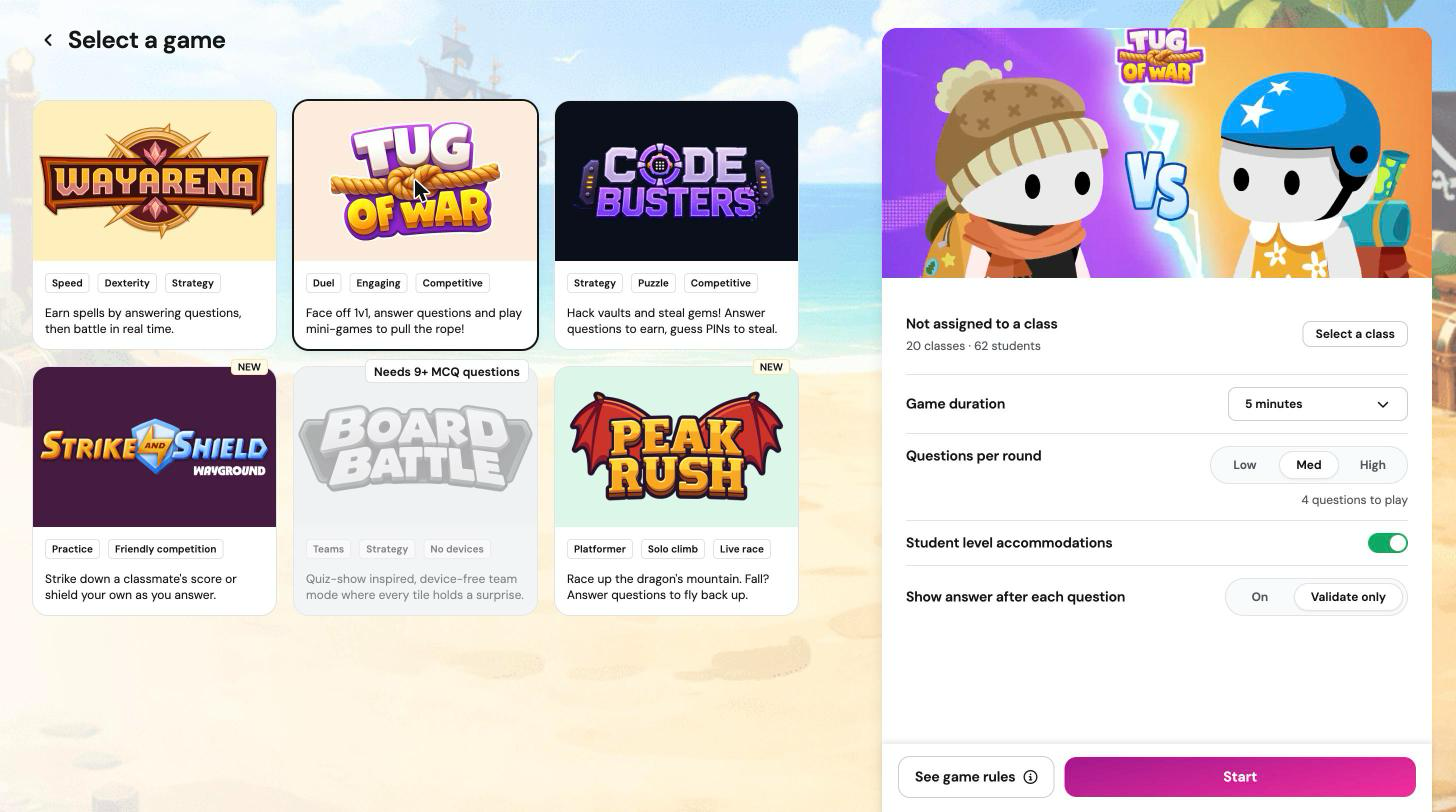
How a Tug of War duel works
Each student plays every classmate at most once. As soon as two students are free and haven't played each other yet, Wayground pairs them for a duel. Pairing is random, not based on skill or score.
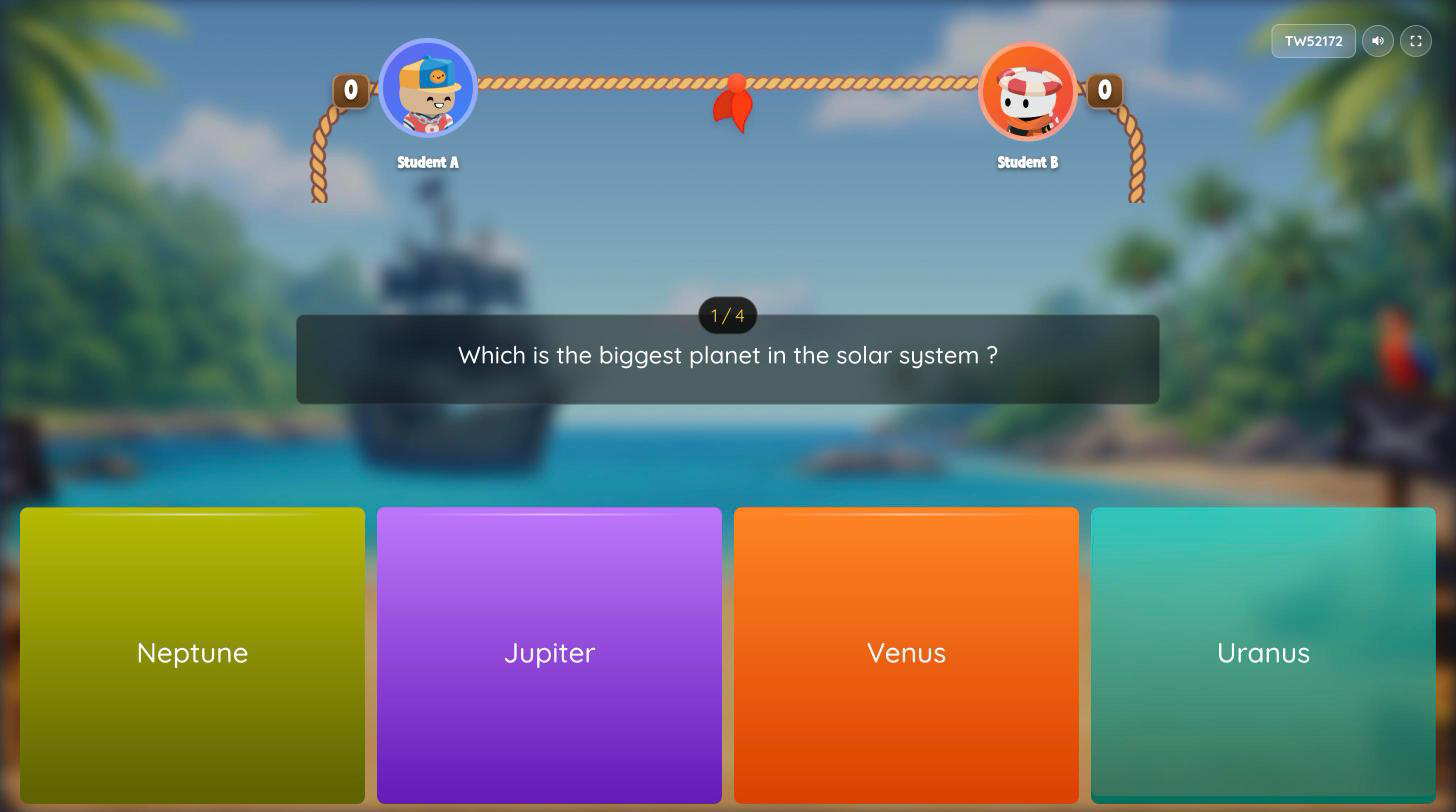
A duel has a fixed number of rounds. Most are question rounds, and two are mini-games:
- Question rounds: both students get the same question. If only one student answers correctly, they win the round. If both are correct, or both are wrong, the round is a draw. Speed doesn't break ties on questions.
- Mini-game rounds: a 10 second challenge such as Button Mash, Reaction Time, Typing Sprint, Swipe Sprint, or Fruit Slice. The higher score wins the round.
Every round win moves the rope one step toward the winner, up to three steps. The duel always plays every round. After the last round, a student who has pulled the rope all the way to their side wins. Otherwise, the student with more round wins takes the duel, and an equal count is a draw.
The 'Questions per round' setting decides how long each duel is:
- 'Low': three questions plus two mini-games (five rounds)
- 'Med': four questions plus two mini-games (six rounds)
- 'High': five questions plus two mini-games (seven rounds)
How to start a Tug of War session
Tug of War launches only through 'Start now', not through 'Assign'. Here are the steps:
- Open 'My Library' and pick a resource, or search for one in the 'Wayground Library'. Make sure it has at least three Multiple Choice or multi-select questions.
- Click on 'Play', then 'Start now'.
- Choose 'Student paced', then 'Playground'.
- On the 'Select a game' screen, click on 'Tug of War'.
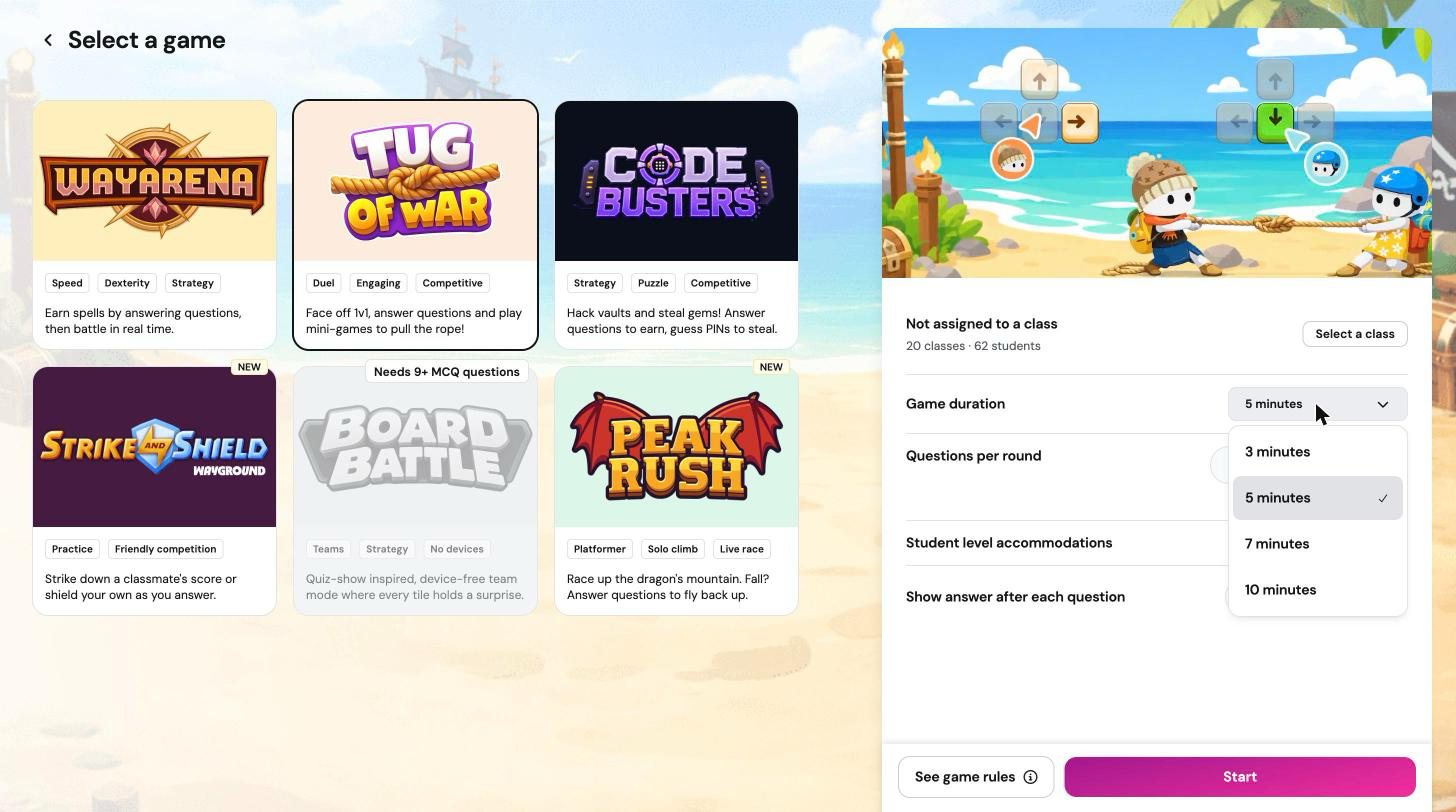
- Adjust your settings (see below), then click on 'Start'.
- Share the join code or QR code with your class. Students join at joinmyquiz.com.
Pro Tip: Open 'See game rules' before you start. It gives you a short summary you can read to your class.
Configuring your session
- 'Assign to a class': optional. When a class is assigned, only students in that class can join.
- 'Game duration': '3 minutes', '5 minutes', '7 minutes', or '10 minutes'. The default is five minutes.
- 'Questions per round': 'Low', 'Med', or 'High'. This sets the number of questions in each duel. The default is 'Med'.
- 'Student level accommodations': available when you have accommodations set up for your students. When on, each student's own accommodations apply as they join.
- 'Show answer after each question': 'On' or 'Validate only' (default). There's no 'Off' option, because duels are scored on correct answers.
The lobby and student worlds
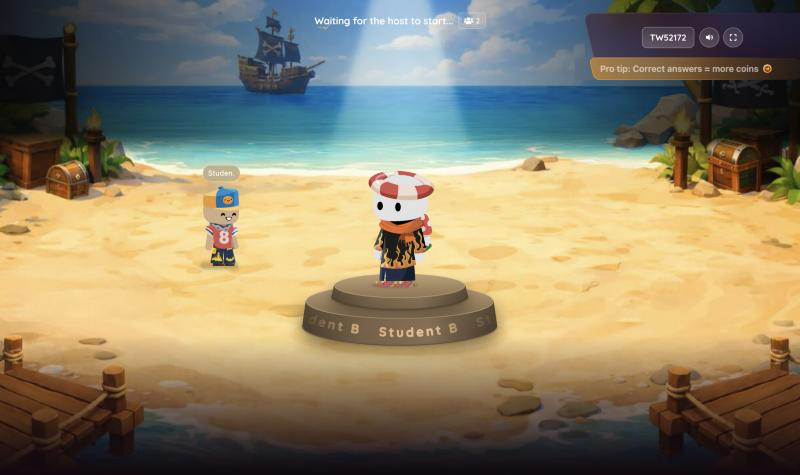
While students join, your lobby shows each student's name and avatar. To remove a student before the session starts, use the trash icon beside their name.
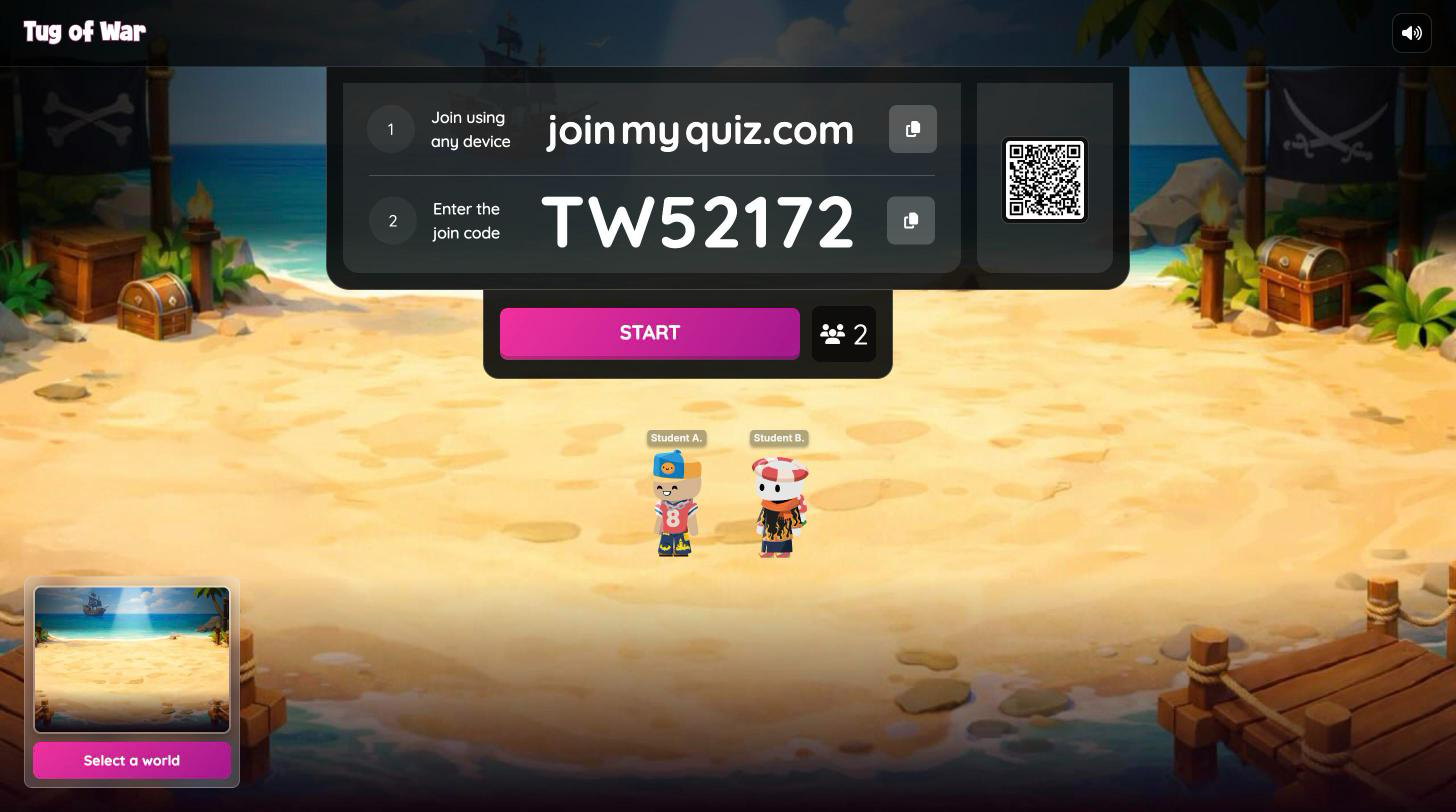
Every session plays on a background called a world. 'Pirate Party' is the default, and 'Mystic Night' is also available. Signed-in students can create their own world from the lobby and submit it to you. Each world they create costs 10,000 coins and one monthly create credit.
To choose a world:
- Open 'Select a world' in the lobby. The number badge shows how many worlds students have submitted.
- Pick a world. Each student world shows the name of the student who made it.
- Select 'Select arena' to apply it. To let Wayground decide, choose 'Randomly pick an arena'. This option appears once at least two student worlds are submitted.
The world you pick becomes the background for everyone. You can only change it in the lobby.
What students see
Share this section with your class before the first session so everyone knows what to expect:
- Enter the join code and your name, then click on 'Start'.
- When the session starts, you see your opponent's name and a three second countdown.
- Answer each question, then play each mini-game when it appears. Mini-games accept a keyboard, a mouse, or touch.
- After each round, you see 'You won this round!', 'You lost this round!', or 'Draw!'.
- When a duel ends, a winner or draw screen appears, and then you wait for your next opponent with 'Searching for opponent...'.
- If you've played everyone in the class, you see 'All your matches are completed!' and wait for the session to end.
Your in-session controls
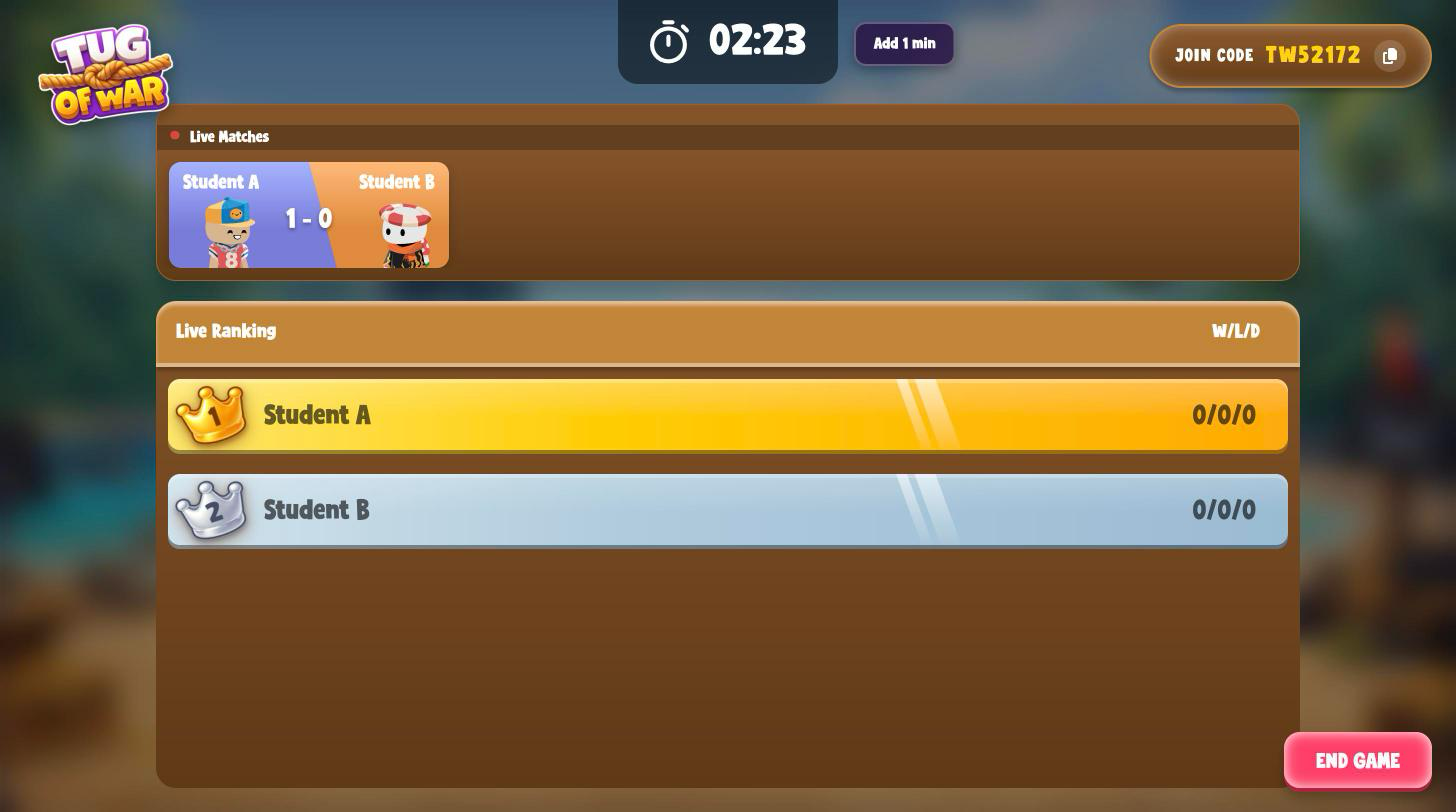
While the session runs, your screen shows the timer, the join code, 'Live Matches' with a score card for every duel in progress, and 'Live Ranking' with each student's wins, losses, and draws.
- 'Add 1 min': extends the session by one minute. Use it as often as you need.
- 'End game': ends the session right away. There's no confirmation step, so click it only when you're ready.
- Join code: select it to copy it for latecomers. Hover over it to show it in large type for your projector.
End of session results
When the timer runs out, or you end things early, any duel still in progress is decided by rounds won so far. Then you see:
- Podium: the top three students, ranked by wins.
- Summary: 'Class Accuracy', a review of missed questions, the 'Highest Accuracy' student, and a leaderboard you can sort by 'Accuracy', 'Losses', 'Draws', or 'Wins'.
- Buttons: 'PLAY AGAIN' starts a new session with the same resource. 'VIEW REPORT' opens the full report in a new tab.
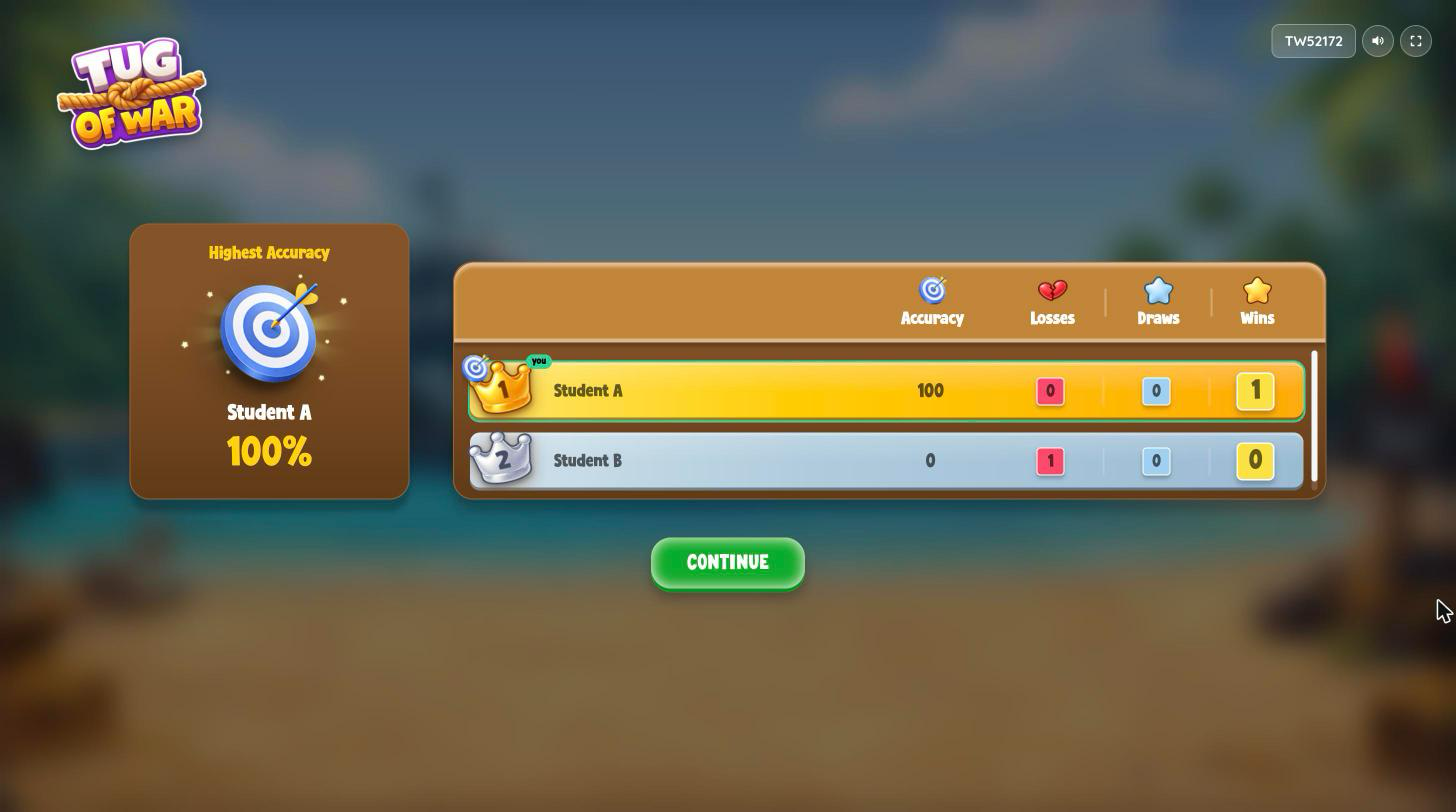
The leaderboard ranks by most wins, then most draws, then fewest losses. Reports also live under 'Sessions' > 'My sessions'.
Tips for running Tug of War well
- Pick five or seven minutes for a full class. In a large class, the timer ends the session before every student plays everyone, and that's expected.
- Use 'Low' for shorter duels so students meet more classmates.
Troubleshooting
A student sees "Device Not Supported"
Tug of War needs a larger screen. Ask the student to join from a tablet, laptop, desktop, or Chromebook.
A student lost their connection
Ask them to refresh the page. They rejoin their duel where they left off, and nobody wins by forfeit while they reconnect.
FAQ
Is Tug of War a bracket or elimination tournament?
No. Every student keeps playing until the timer ends, so nobody is knocked out. Each student plays each classmate at most once.
Why did two students with correct answers get a draw?
When both students answer a question correctly, the round is a draw, regardless of who answered first. This keeps the focus on accuracy rather than speed.
Why do some students have more wins than others?
Students who finish duels faster meet more opponents before the timer ends. The leaderboard ranks by wins, so sorting the summary by 'Accuracy' shows who answered best.
Why are some students waiting instead of playing?
Brief pauses are normal. 'Searching for opponent...' means the student is ready, but every classmate they haven't faced yet is busy. Common causes:
- Odd class size: someone is always left over until a match frees up.
- Busy opponents: nobody plays the same partner twice, so a free student may need one particular classmate to finish.
- Everyone played: 'All your matches are completed!' appears, and they wait for time to run out.
Waiting never costs wins or rank. Picking 'Low' keeps duels short, so opponents free up sooner.
Can students join after the session starts?
Yes. Keep the join code on screen. A late student is paired right away with any free classmate.
Does Tug of War give extra time for accommodations?
No. When 'Student level accommodations' is on, students get their own read aloud, sound, toolkit, and dyslexia friendly font settings. Question time comes from each question's timer in the resource, or 20 seconds if none is set.
Can students play at home?
No. Tug of War is a live classroom game that you host.
Related articles
Still have questions? Contact our support team at support@wayground.com.
Was this article helpful?
That’s Great!
Thank you for your feedback
Sorry! We couldn't be helpful
Thank you for your feedback
Feedback sent
We appreciate your effort and will try to fix the article