What is a Match Table Grid?
Match Table Grid is a question type that allows teachers to create grid-based matching questions where students select the correct matches between rows and columns.
This question type can be used to assess students’ ability to identify relationships, categorize information, compare concepts, and make connections between different items.
How to create a Match Table Grid question
To create a Match Table Grid question:
Open the Wayground Question Editor.
Select Add Question.
Choose Match Table Grid from the list of available question types.
Enter the question prompt.
Add the row options and column options to create the matching grid.
You can add more columns or rows by clicking the "+" icon to the right
Select the correct answers by marking the appropriate cells in the grid.
Save the question and add it to your assessment.


Multi-select vs Single-select in Match Table Grid
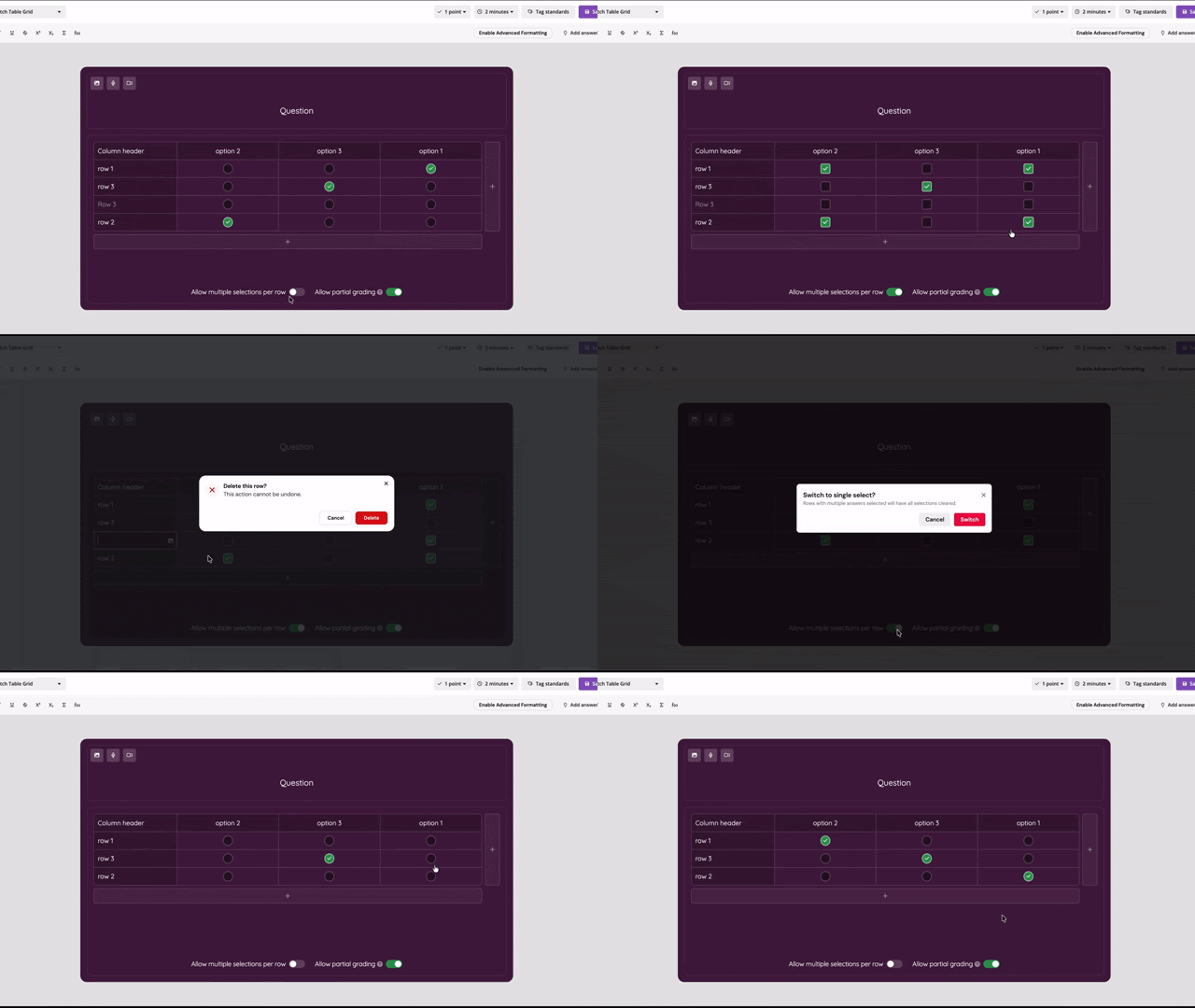
Match Table Grid supports two answer selection modes. You can switch between them using the Allow multiple selections per row toggle, located at the bottom of the question editor.
Single-select
In Single-select mode, students can select only one option per row.
This mode is useful when each row has only one correct match.
Example:
Match each country with its capital.
Match each shape with its number of sides.
Multi-select
In Multi-select mode, students can select multiple options for a row.
This mode is useful when more than one option can be correct for a given row.
Example:
Select all animals that are mammals.
Match each animal with its characteristics.
How to enable Partial Grading for Match Table Grid
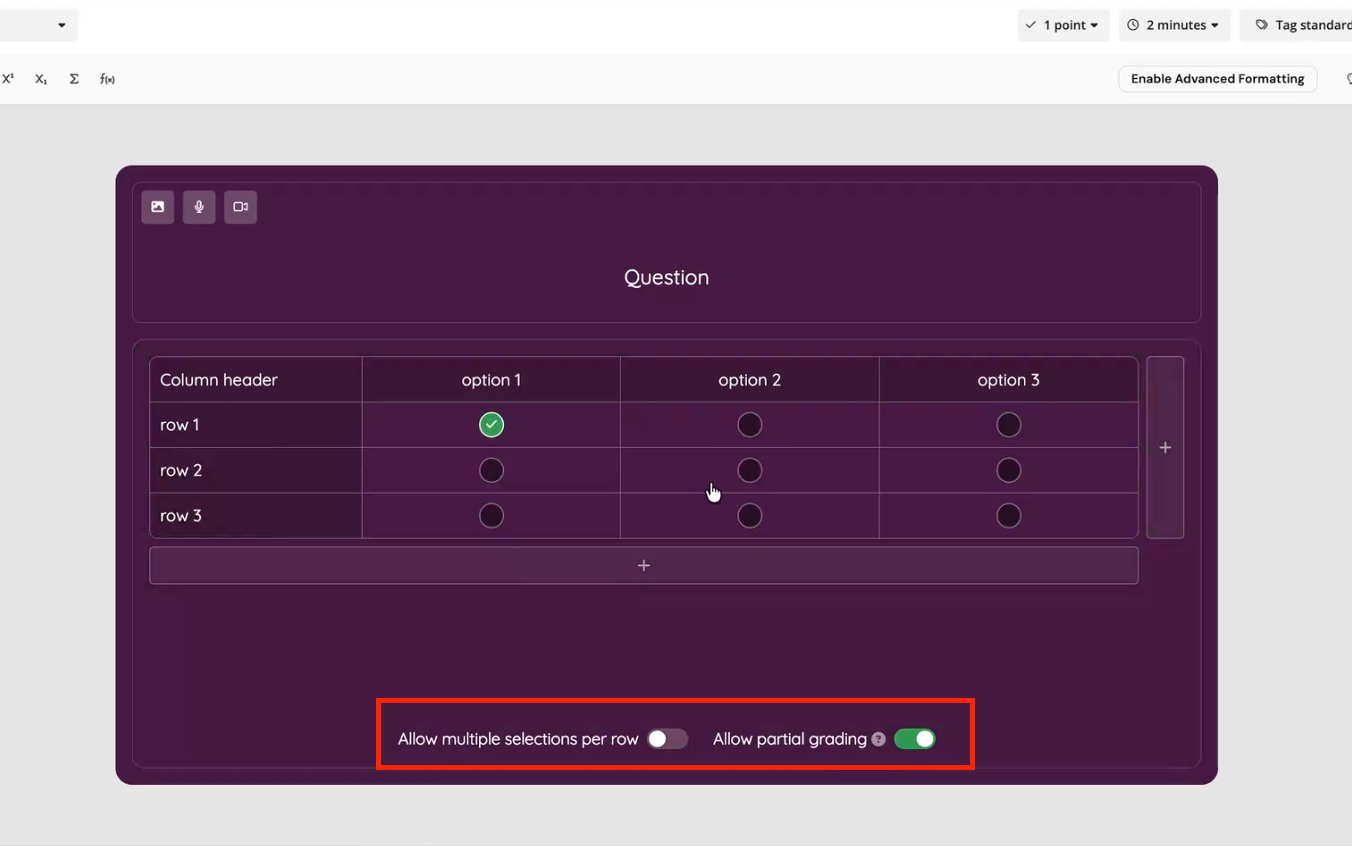
Partial grading allows students to receive credit for partially correct responses.
Partial grading is enabled by default for Match Table Grid questions. If you do not want to award partial credit, you can disable it using the Allow partial grading toggle located at the bottom of the question editor.
How Partial Grading works in Match Table Grid
When Allow partial grading is enabled, Match Table Grid questions use the Net Correct Incorrect scoring method.
This means:
Each correct cell selected earns credit.
Each incorrect cell selected cancels out one correct selection.
The final score cannot be less than 0%.
The score is calculated using the following formula:
Partial Score = Max(0, (Correct selections − Incorrect selections) ÷ Total correct selections)
Example
Example calculation
A question has 4 correct cells.
If a student selects:
3 correct cells
1 incorrect cell
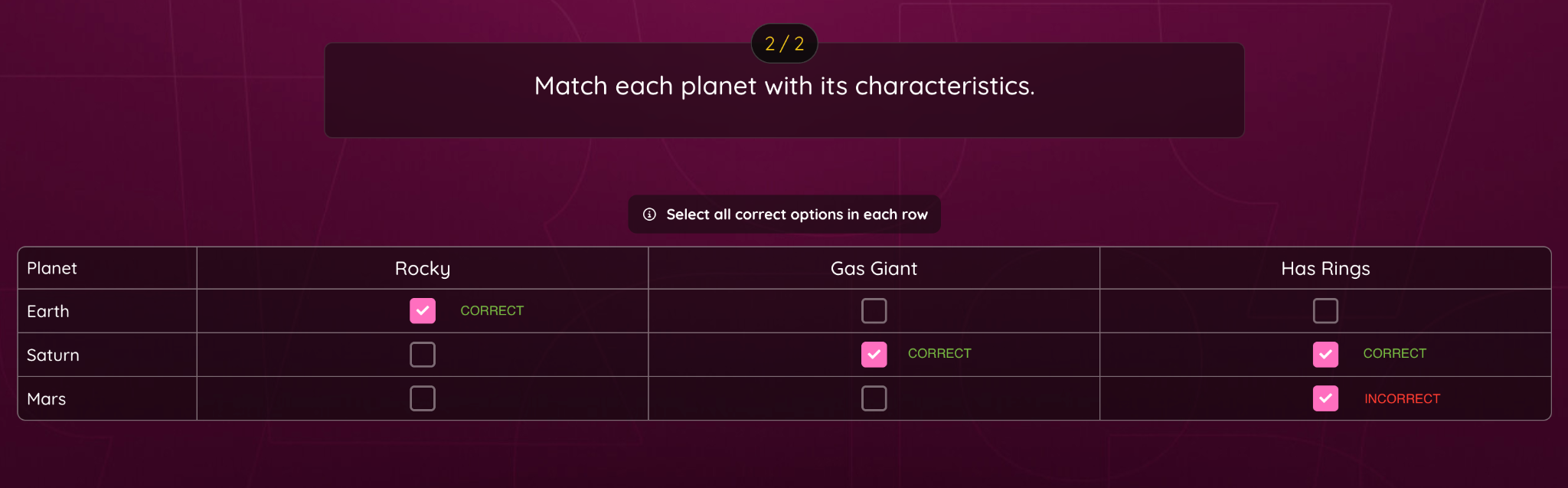 The score is
calculated as:
(3 − 1) ÷ 4 = 2 ÷ 4 = 50%
If a student selects:
1 correct cell
3 incorrect cells
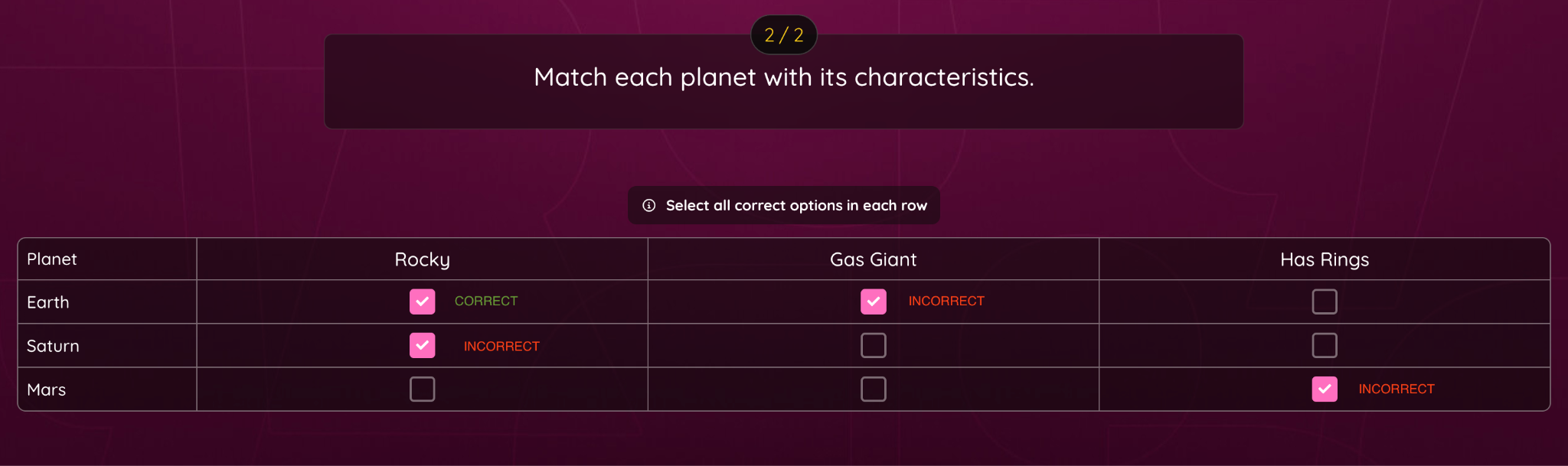 The score is
Calculated as:
Max(0, (1 − 3) ÷ 4) = Max(0, -2 ÷ 4) = 0%
Although one correct answer was selected, the incorrect selections reduce the score below zero, so the final score is capped at 0%.
Scoring when Partial Grading is disabled
When Partial Grading is turned off:
Students receive full marks only if all correct cells are selected.
If any cell is incorrectly selected or any correct cell is missed, the answer is marked incorrect.
No partial credit is awarded.
Student Experience
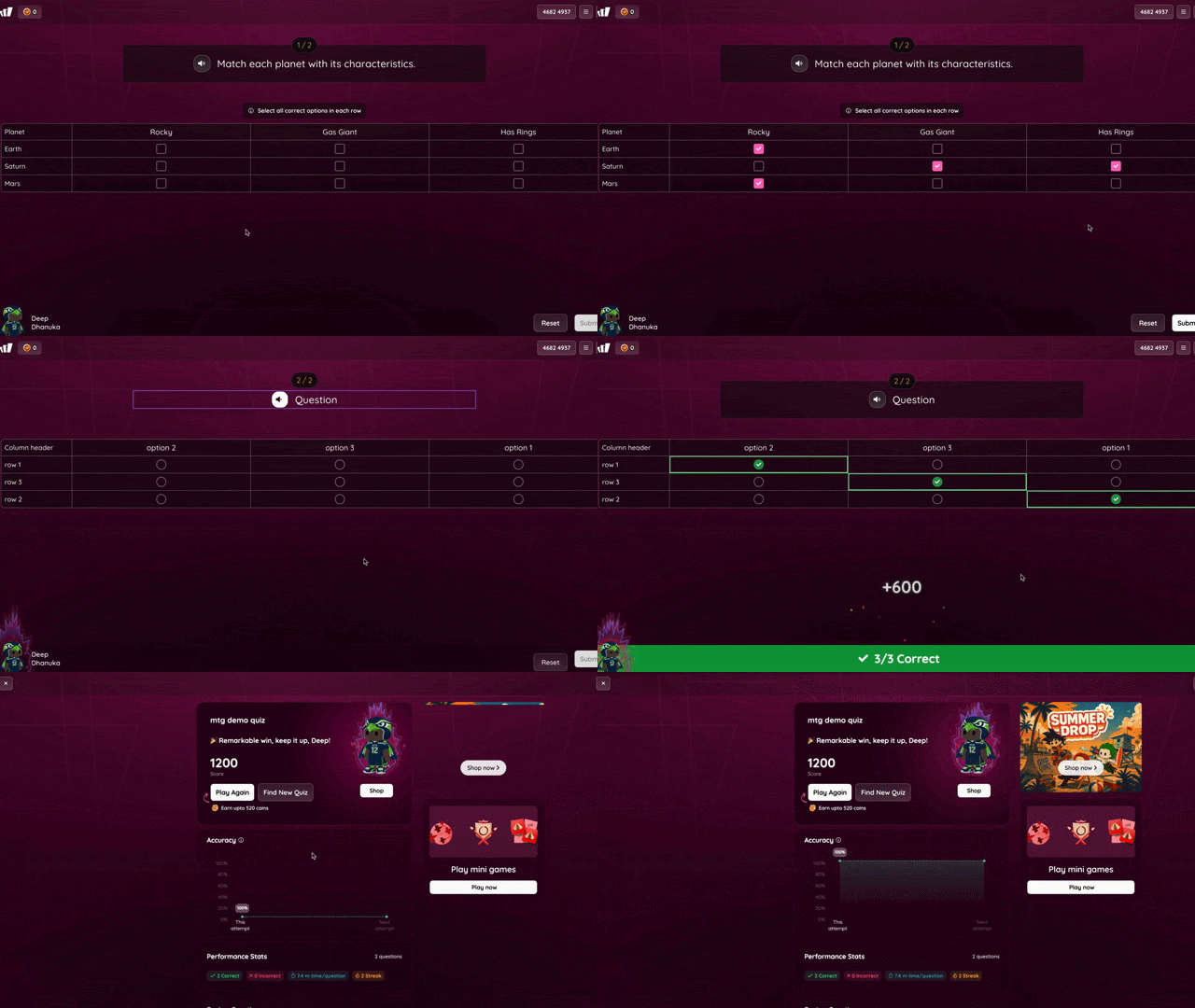
Students will see the Match Table Grid question as a grid containing rows and columns.
Depending on the selection mode:
In Single-select mode, students can choose one answer per row.
In Multi-select mode, students can choose multiple answers where applicable.
If Partial Grading is enabled, students may receive partial credit based on their selections.
Was this article helpful?
That’s Great!
Thank you for your feedback
Sorry! We couldn't be helpful
Thank you for your feedback
Feedback sent
We appreciate your effort and will try to fix the article