The Graphing question type lets you create auto-graded questions where students plot points, draw equations, or now select solution regions for inequalities directly on a graph. It is ideal for Math and Physics classes that focus on visual reasoning.
The Graphing question type is available on the Wayground Individual (Super) and School & District Plans.
What’s new in Graphing
You can now:
Create questions with inequalities like y ≥ x + 2 or y < 3x − 1
Ask students to select or shade the correct solution region
Use an improved graphing UI on both the creation and join side for smoother interactions
This makes graphing tasks more visual and helps students reason about solution sets, not just equations.
Types of solutions you can create
When creating a Graphing question, start by choosing the type of solution.
You can plot up to two equations in a single Graphing question.
For standard (normalized) equations like y = x + 3 or y = x² + 1, students can plot both equations on the same graph.
For inequalities, both equations must include an inequality symbol (> , < , ≥ , ≤). After plotting both inequalities, participants can select the solution region that satisfies them.
Creating a Graphing question
Select Graphing as the question type while creating or editing your resource
Choose the type of solution: Points, Linear, Quadratic, Exponential, or Inequalities.
Enter your question
Use the graph to mark the correct answer.
Marking correct answers
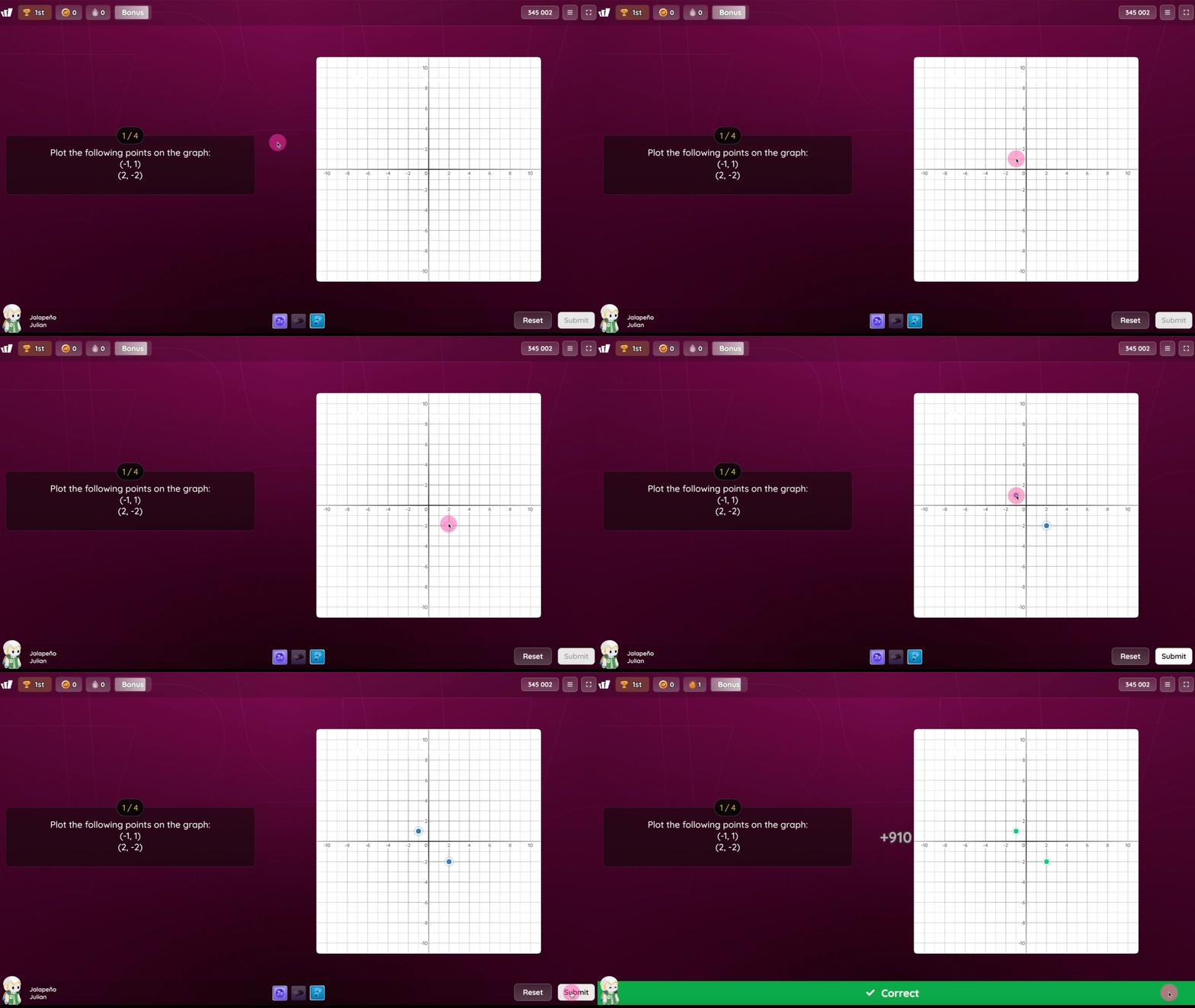
Points
Click anywhere on the graph to add a point.
Drag to move it.
Click a point again to delete it.
You can add up to 10 points.
Students will plot the same points on their graph.
Teacher's view: 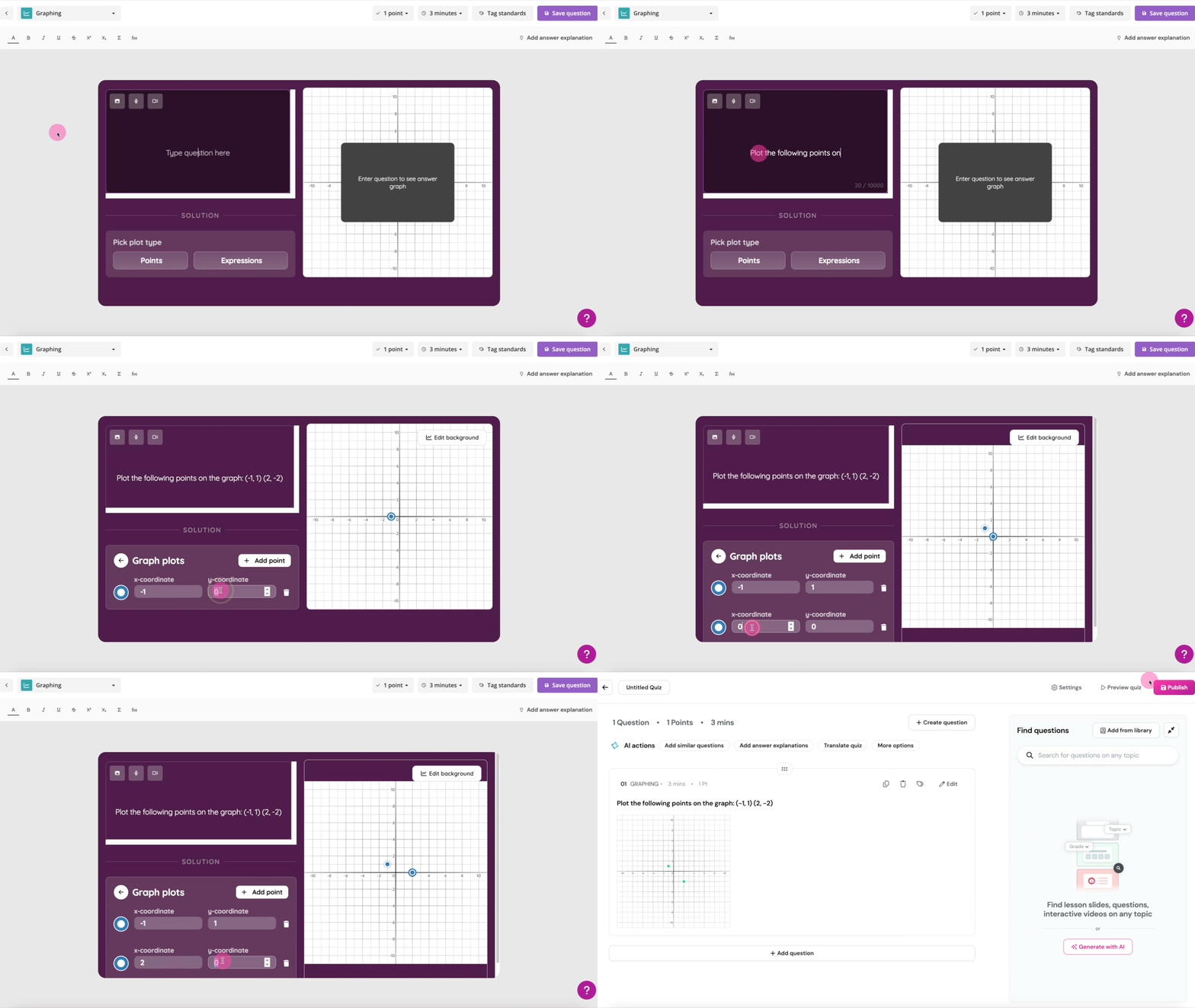
Student's view:
Equations
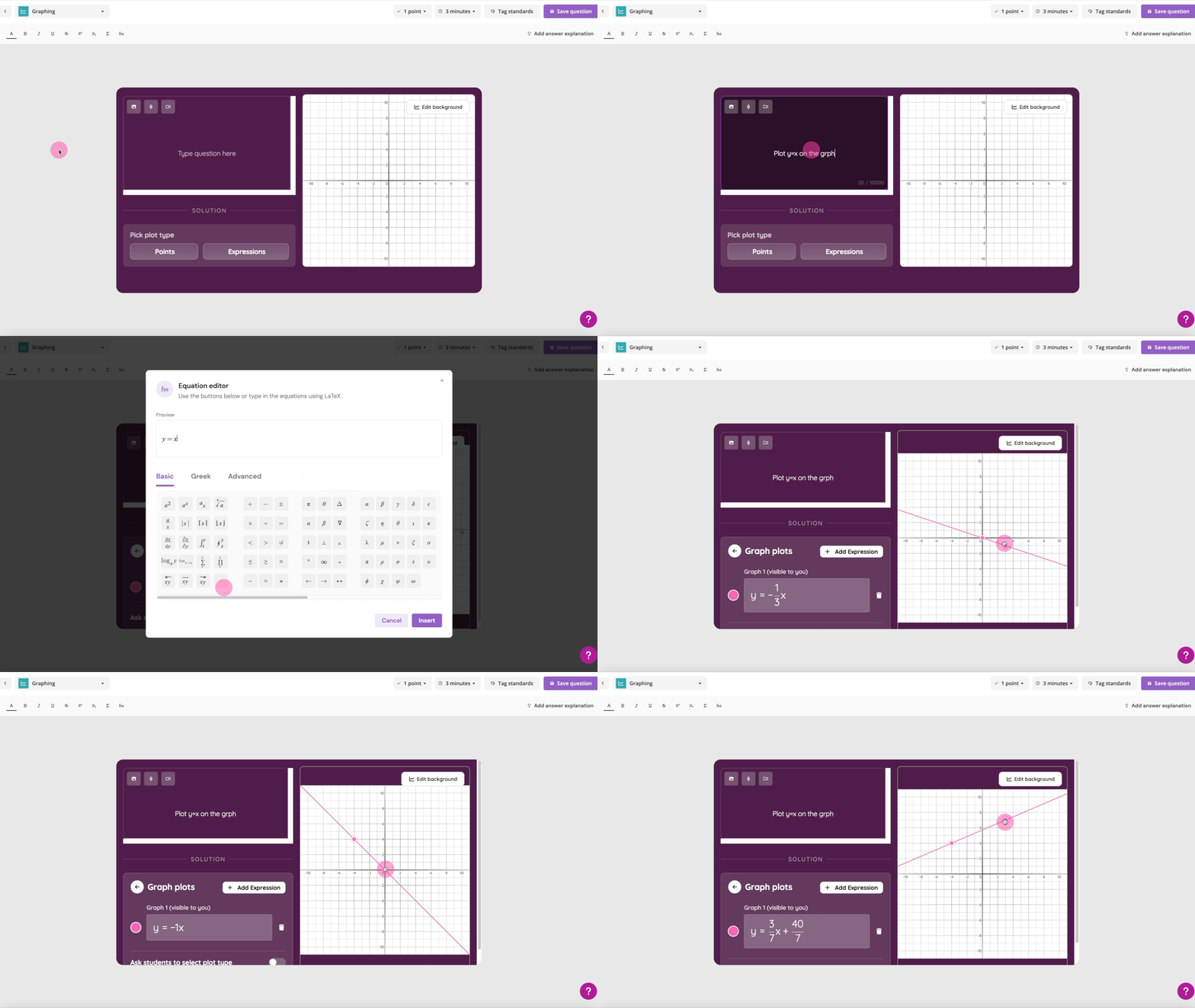
You can add equations directly or adjust them visually on the graph.
To add an equation, enter it in standard (normalized) form in the input box.
Equations must pass through grid points.
Use whole numbers or 0.5 increments for coefficients and intercepts
(for example, y = 2x + 1 instead of y = x/3)
Once added, equations can be adjusted directly on the graph by dragging their control points.
You can plot up to two equations in a single Graphing question. LaTeX input is also supported for equations.
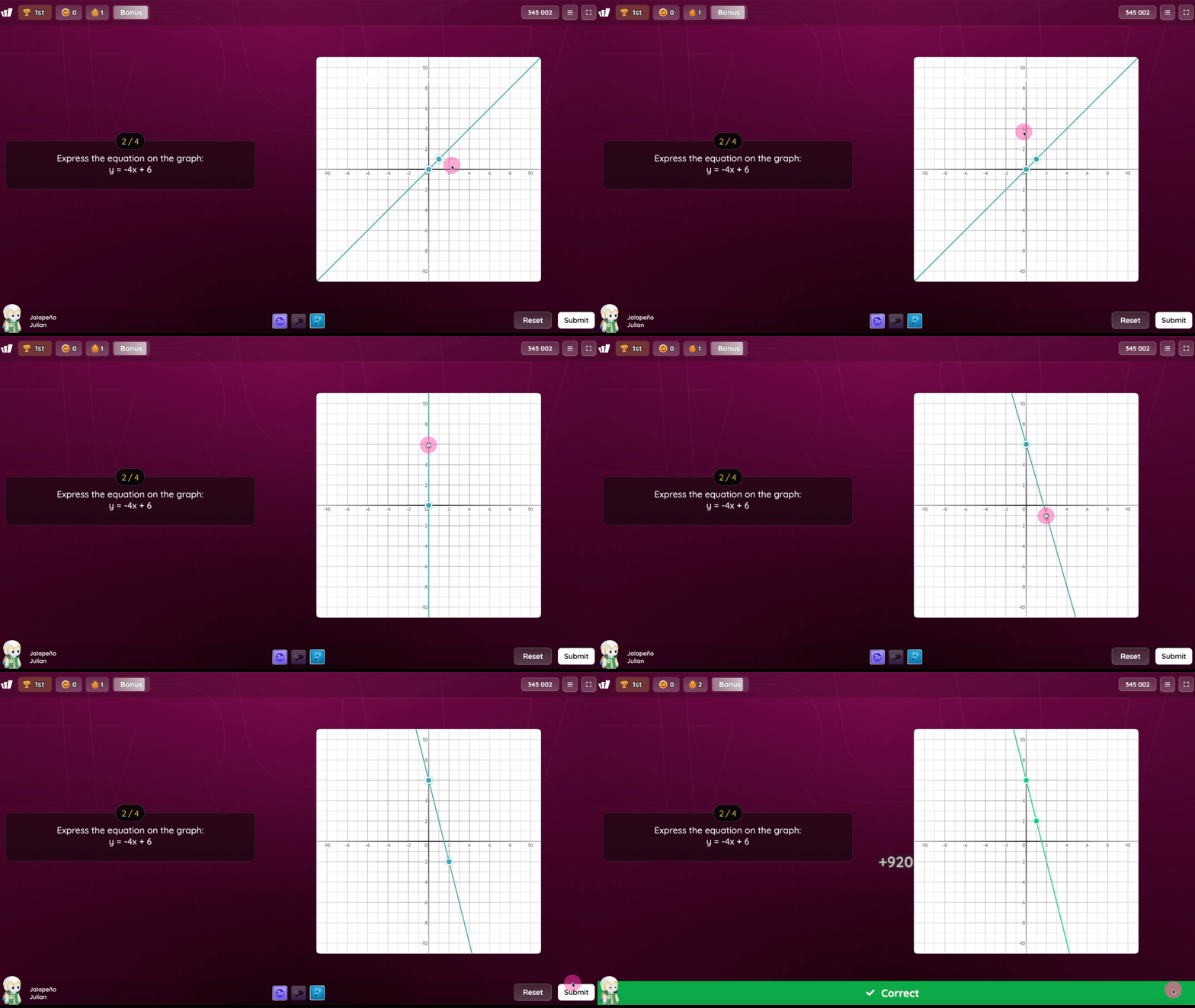
Linear equations
Drag the two control points on the line to adjust its position.
Move the line until it represents the correct equation.
Teacher's view: 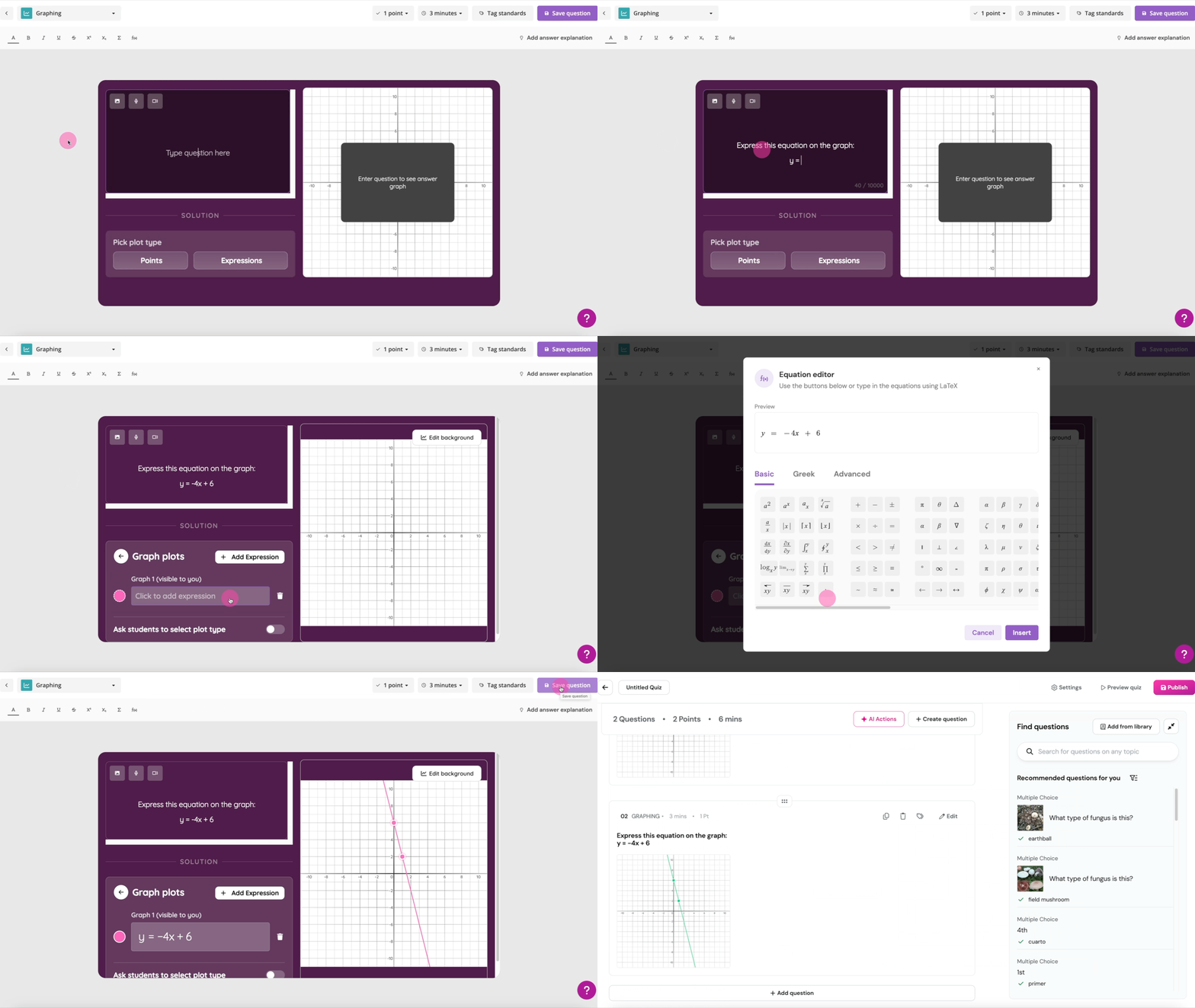
Student's view:
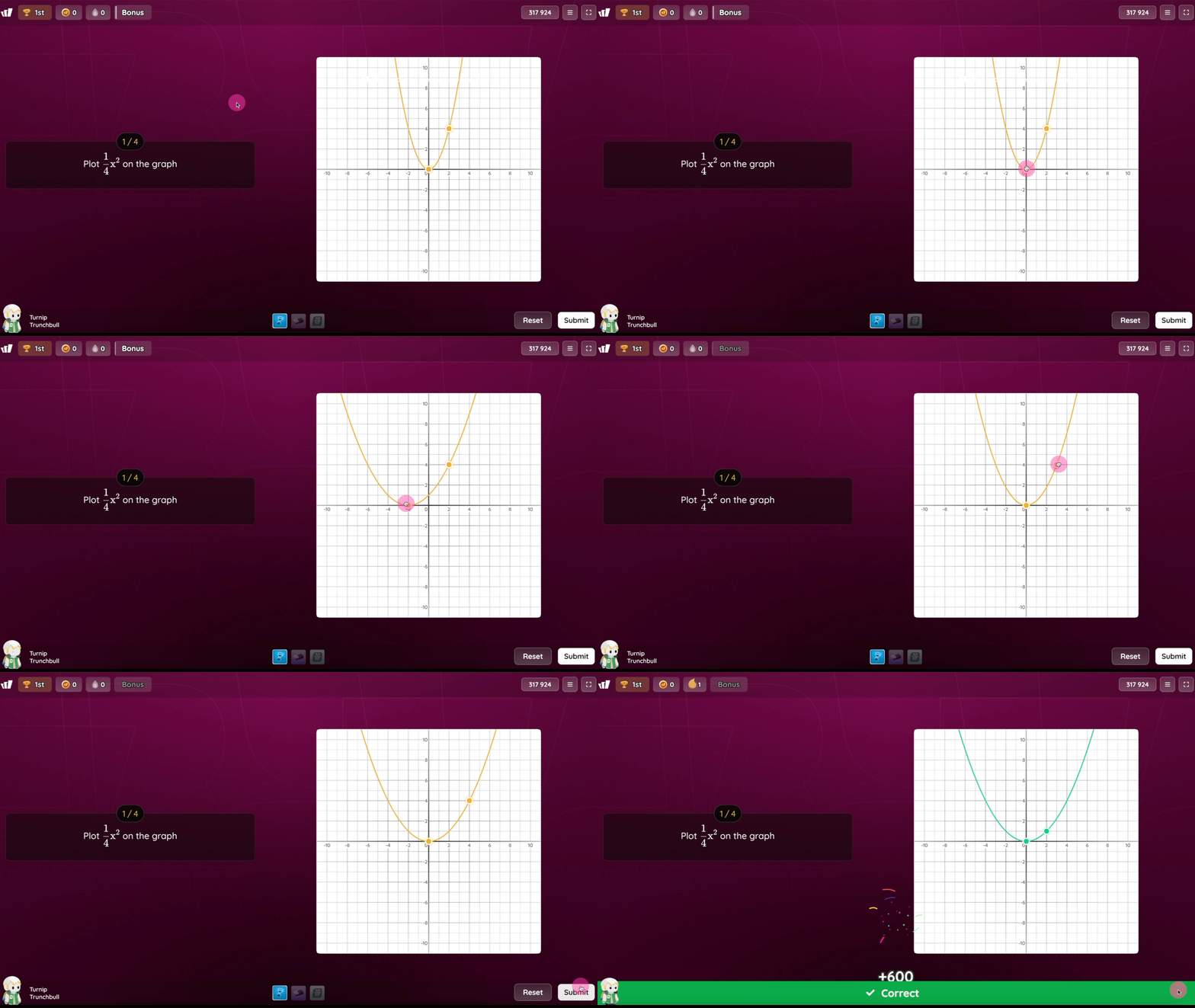
Quadratic equations
Drag the vertex point to move the parabola.
Drag the width control point to adjust its shape.
Teacher's view: 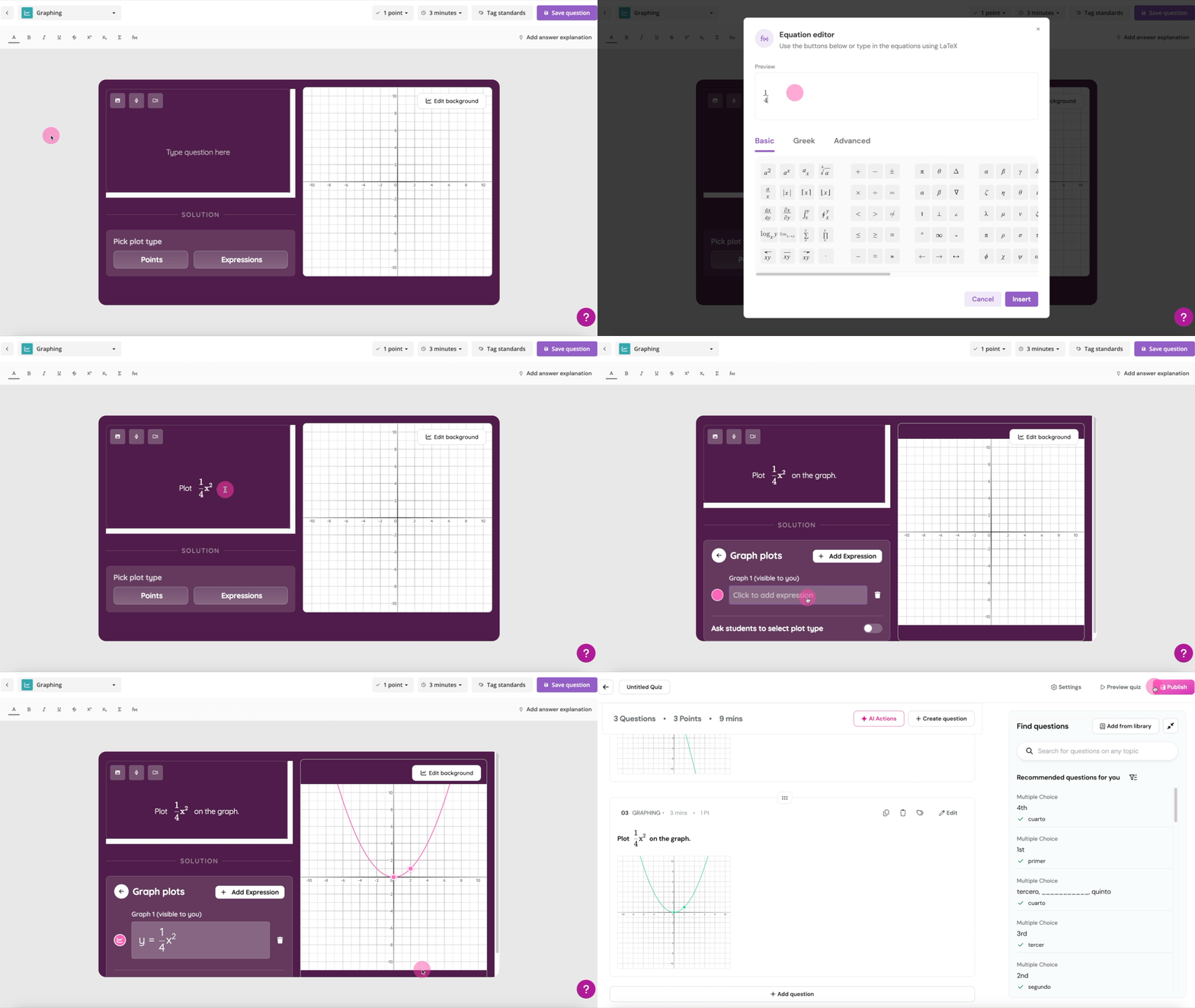
Student's view:
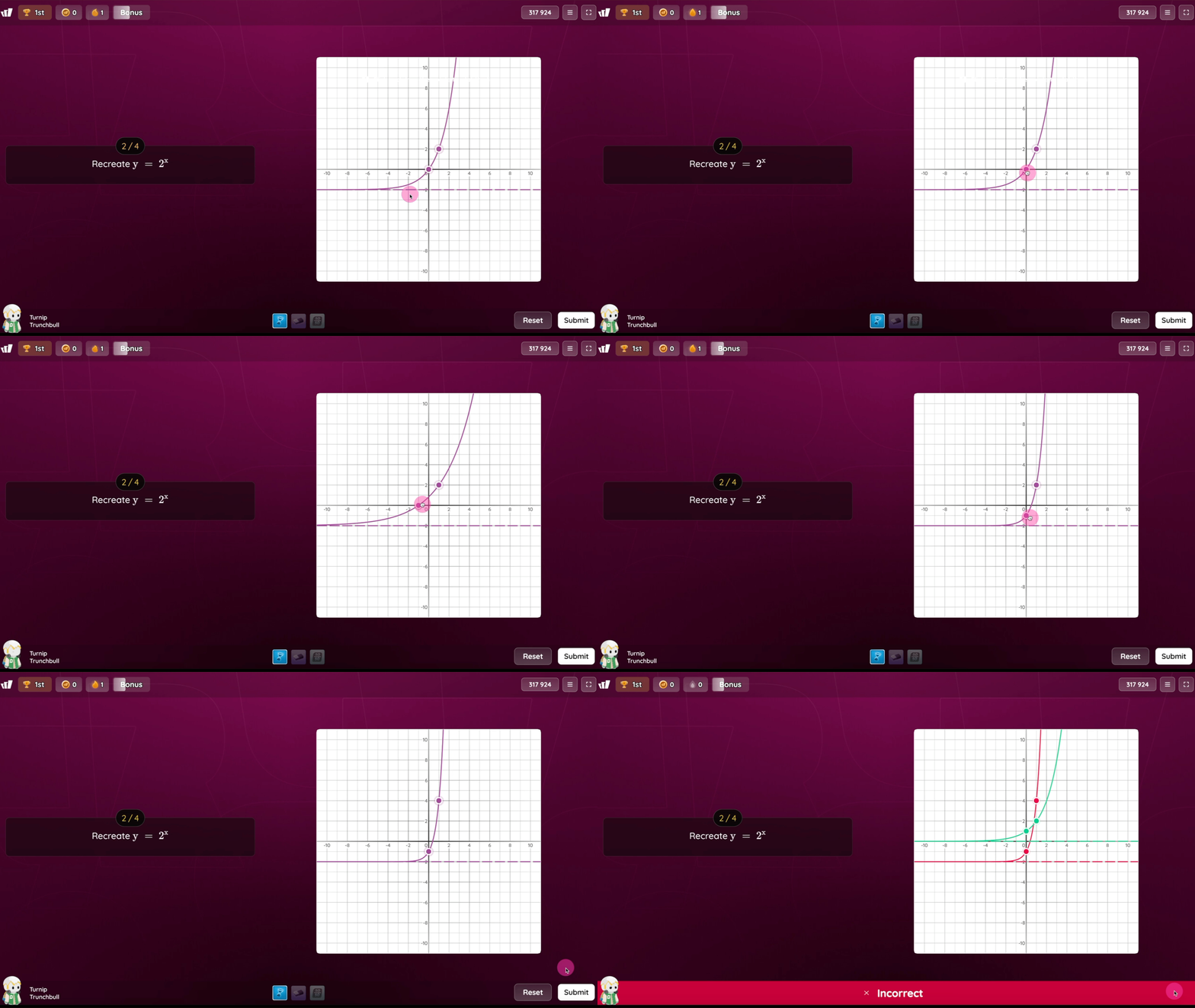
Exponential equations
Drag the two curve points and the asymptote to match the solution.
Teacher's view: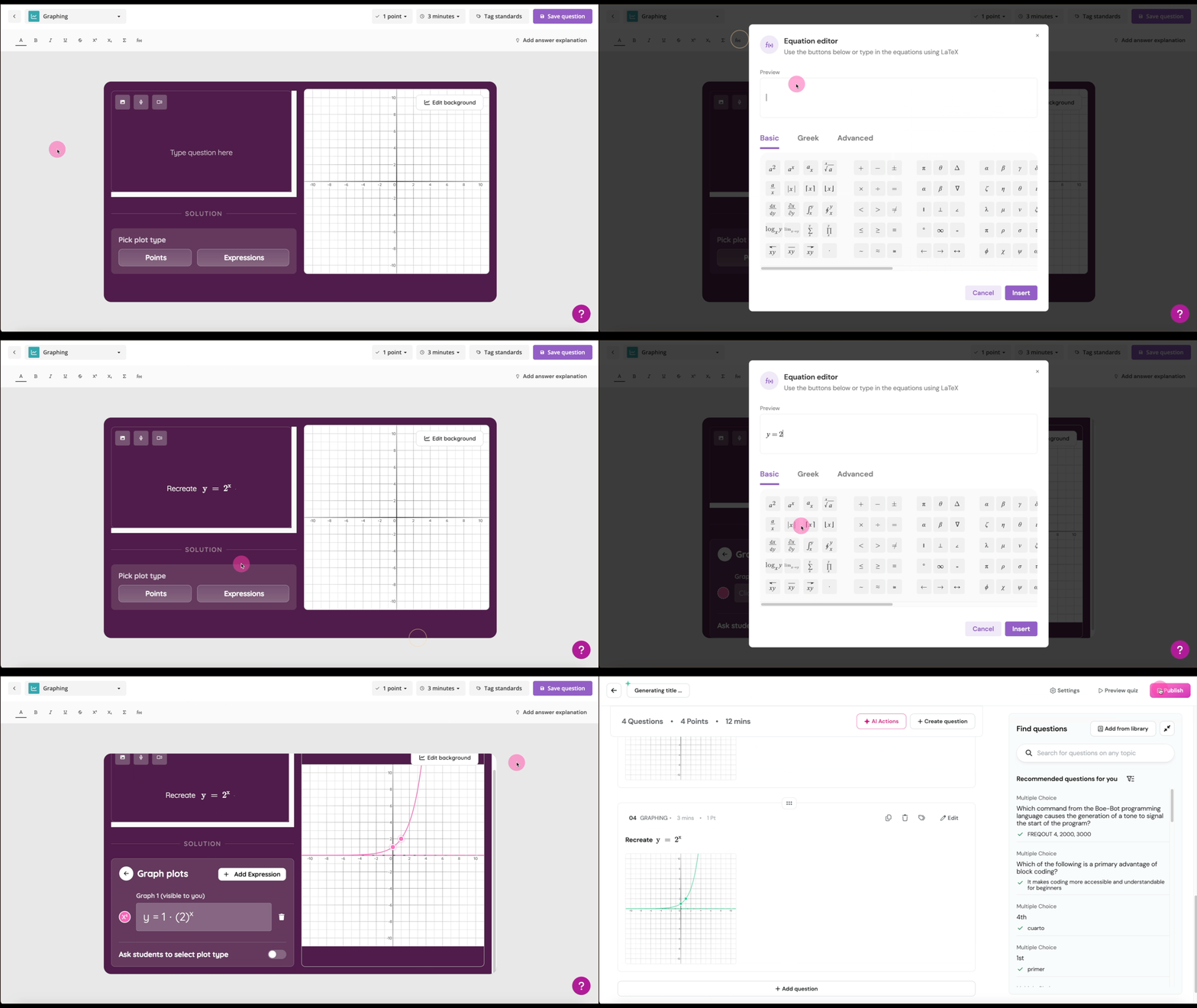
Student's view:
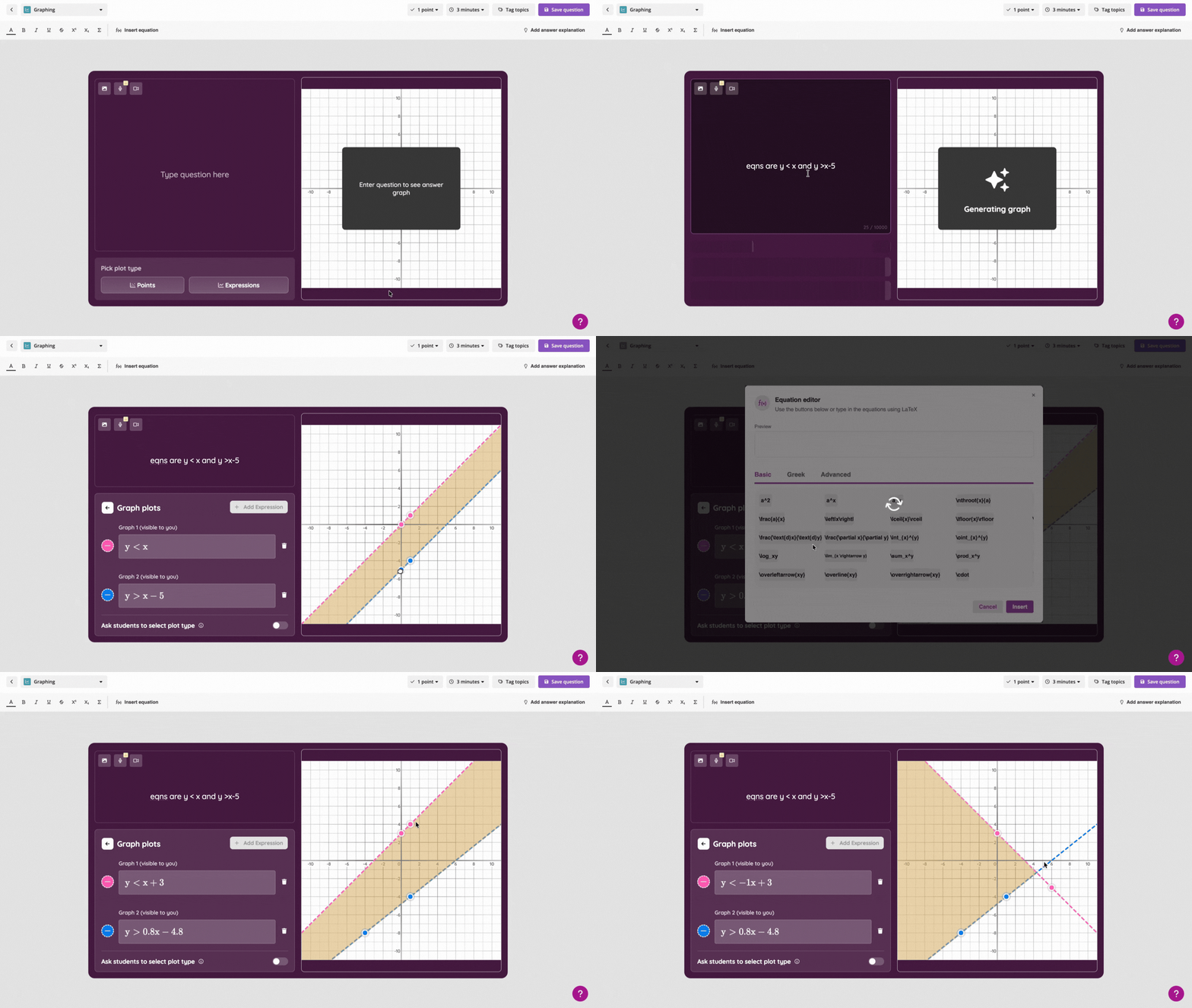
Inequalities (New)
With inequalities, students no longer just draw a line. They select the solution region.
Draw the boundary line or curve.
Choose the correct boundary type:
Solid line for ≤ or ≥
Dashed line for < or >
Click or drag on the graph to shade or select the correct region.
Teacher's view:
Student's view:
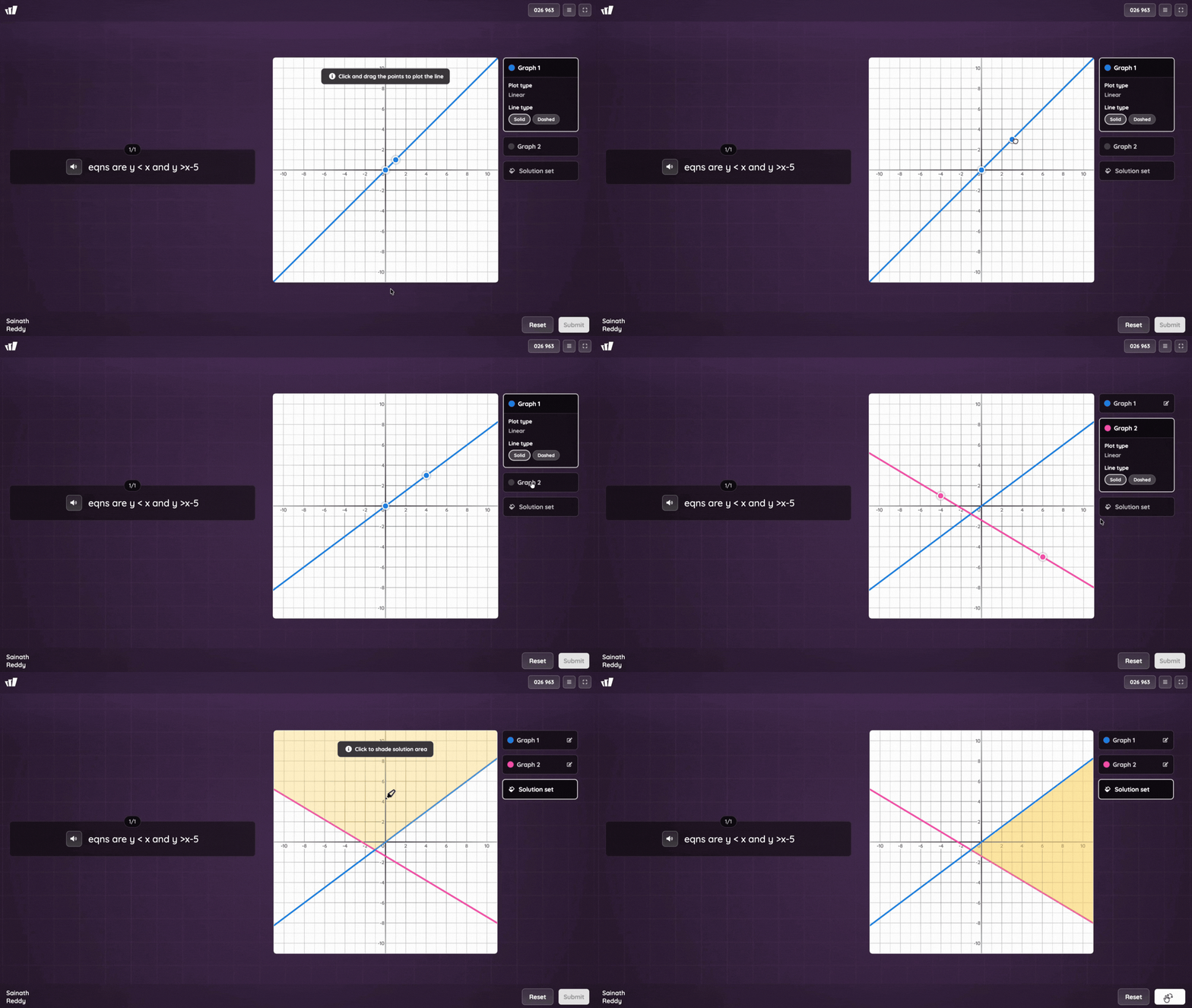
Students will see the same boundary and will be asked to select the region that satisfies the inequality.
Viewing the equation while creating
For linear, quadratic, and exponential questions, the equation updates live at the bottom-left are of the screen as you adjust the graph.
This equation is visible only to you while creating the question. It is not shown to students.
Was this article helpful?
That’s Great!
Thank you for your feedback
Sorry! We couldn't be helpful
Thank you for your feedback
Feedback sent
We appreciate your effort and will try to fix the article