TABLE OF CONTENTS
- Create a Fill-in-the-Blank question
- Blank types
- Equation editor
- Question settings
- Student experience
- Important notes
Use Fill-in-the-Blank questions to ask students to fill in one or more missing words in a sentence or passage.
Each question can have multiple blanks, and each blank can be one of three types:
Text: students type their answer
Dropdown: students pick the answer from a list
Math: students enter a math expression using an on-screen keyboard
Create a Fill-in-the-Blank question
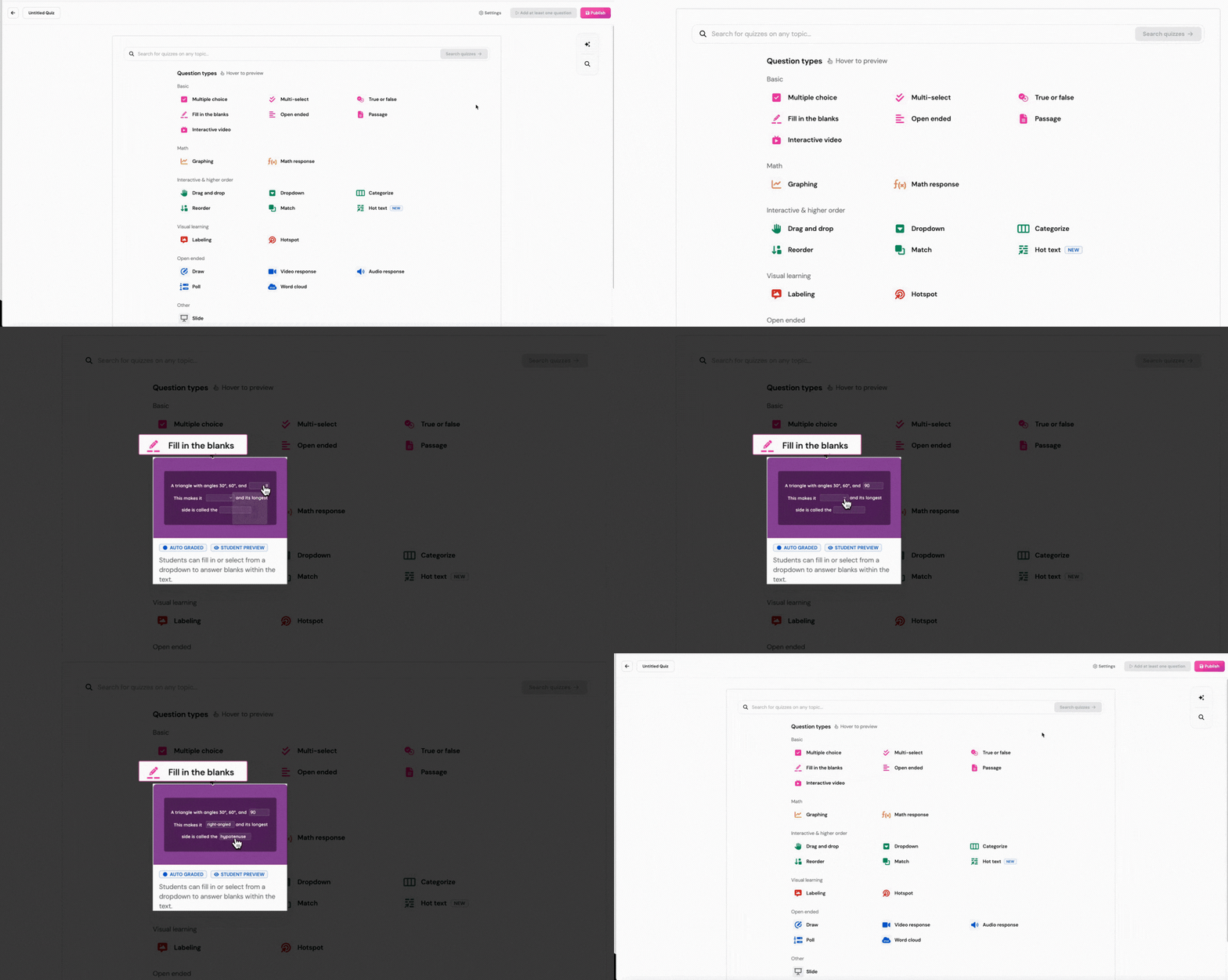
Open a resource and add a new question.
Select the Fill-in-the-Blank question type.
Type your question in the editor. You can also add an image, audio, video, or equation to your question.
Place your cursor where you want a blank, then click + Blank.
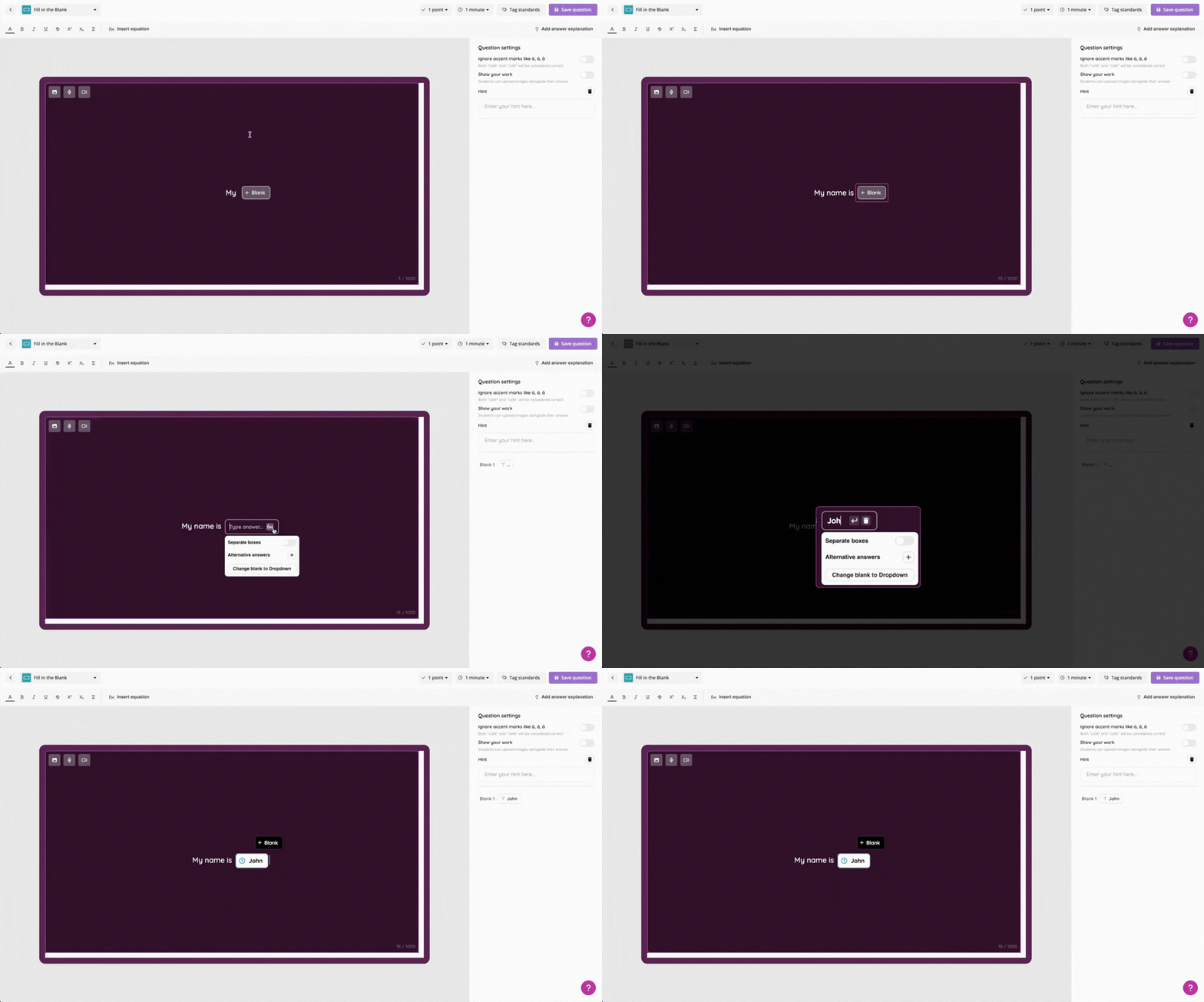
Type the correct answer in the blank.
To add more blanks, keep typing and click + Blank wherever you need another one.
Click Save question in the top-right corner.
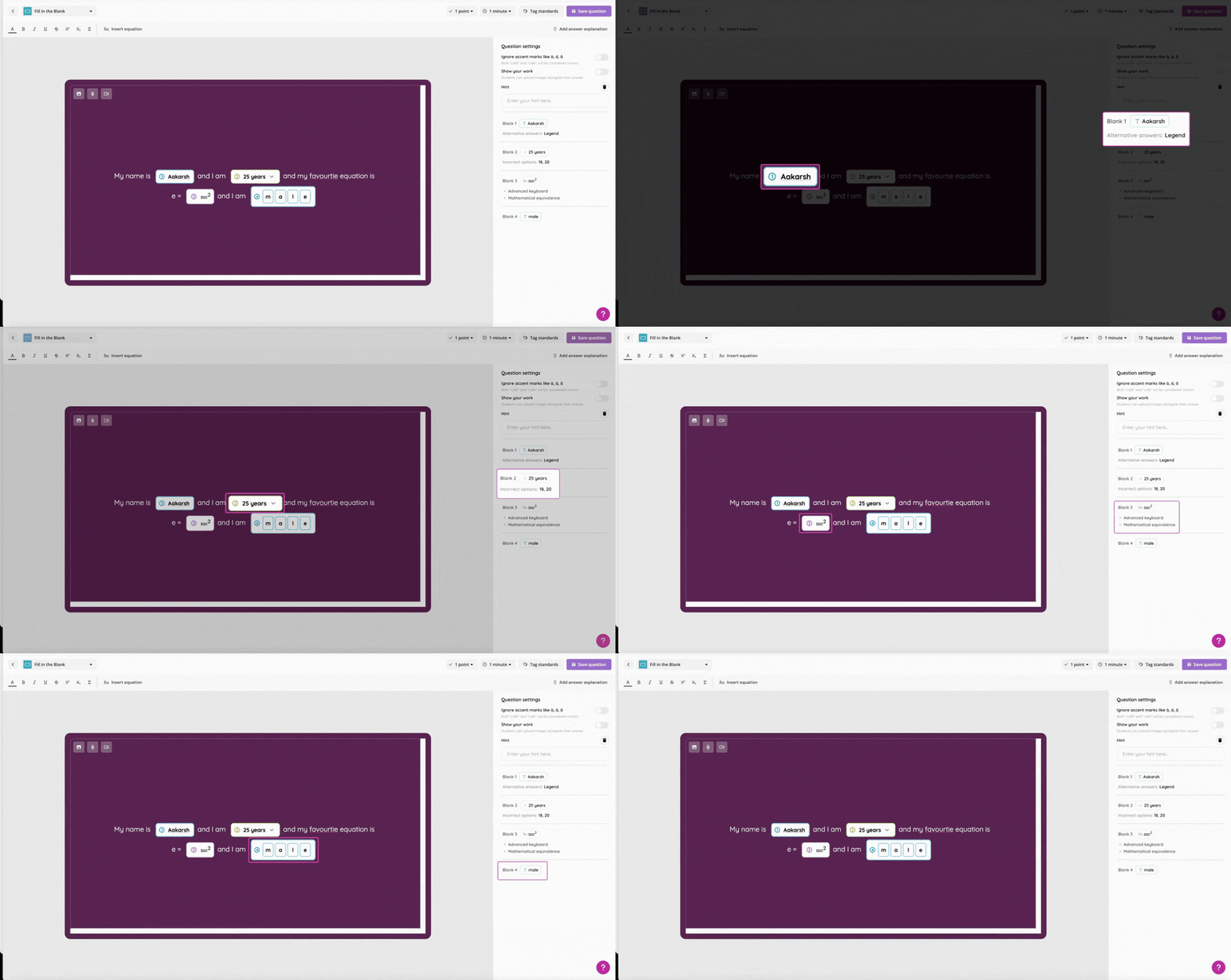
Each blank appears as a numbered tag (①, ②, ③) in the editor and is listed as Blank 1, Blank 2, Blank 3, and so on in the Question settings panel on the right.
Blank types
Every new blank starts as a Text blank. To change its type, click the blank in the editor and use the options in the popup.
Text blank
Students type their answer directly. Click a Text blank to see these options: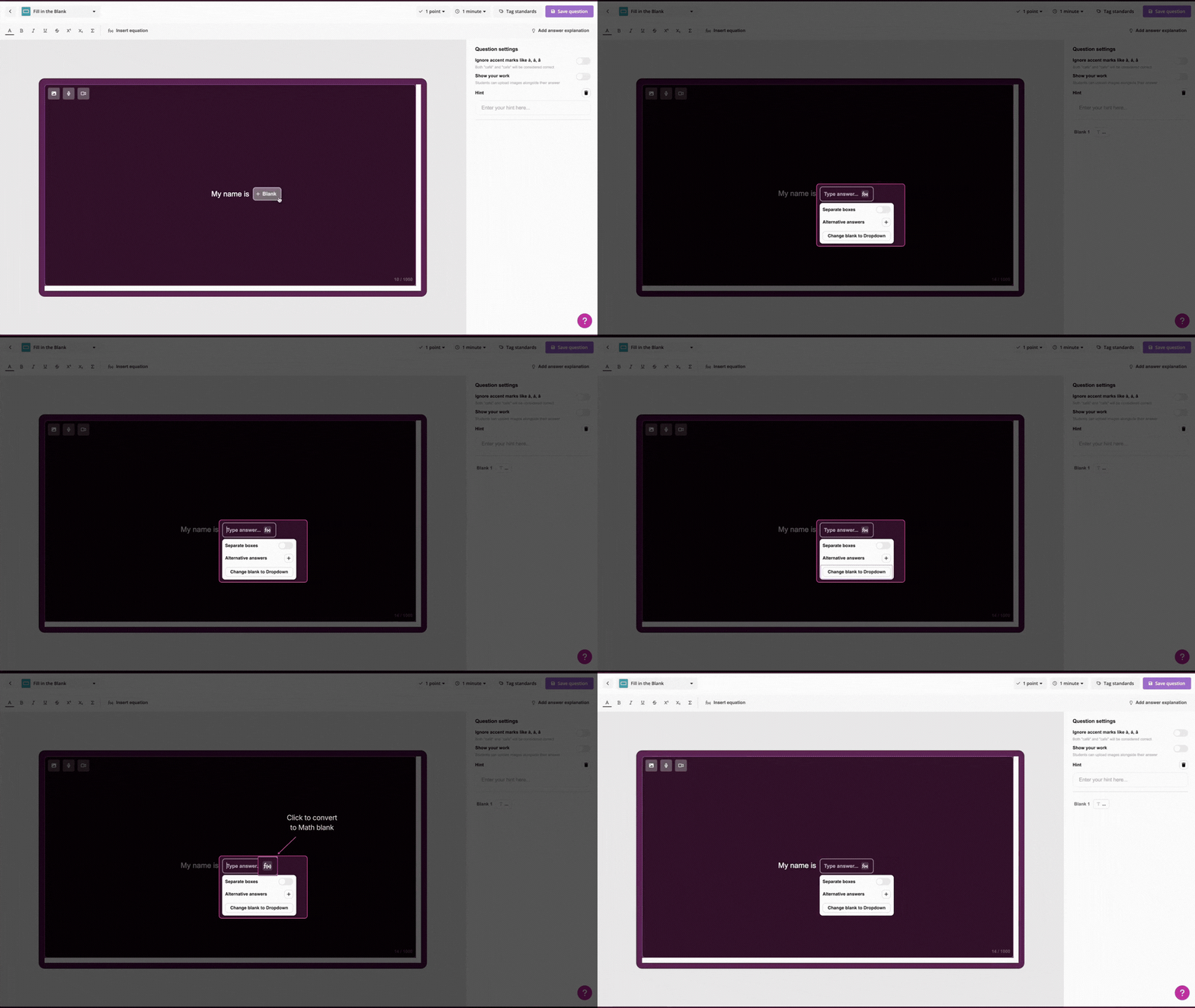
Separate boxes: turn this on to show one box for each letter of the answer. If your answer contains punctuation or spaces, those characters are pre-filled for the student
Alternative answers: click + to add other answers that should also be accepted. This option is only available when Separate boxes is off
Change blank to Dropdown: converts this blank into a Dropdown blank
A Text blank also has an f(x) button next to the answer field. Click it to open the Math response window and turn the blank into a Math blank.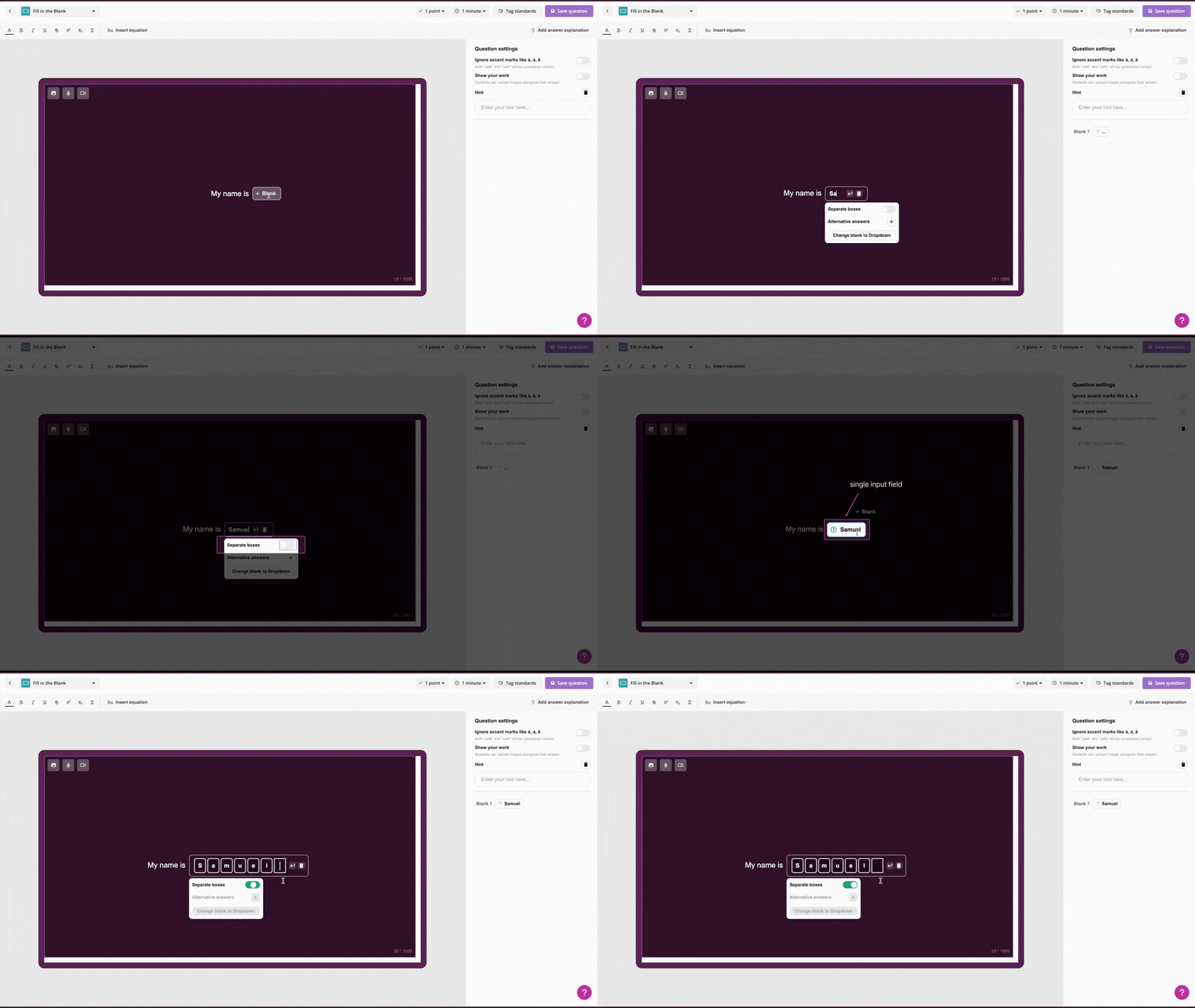
Dropdown blank
Students pick their answer from a dropdown menu.
To create a Dropdown blank, click any Text blank in the editor and select Change blank to Dropdown. Then set it up in the popup: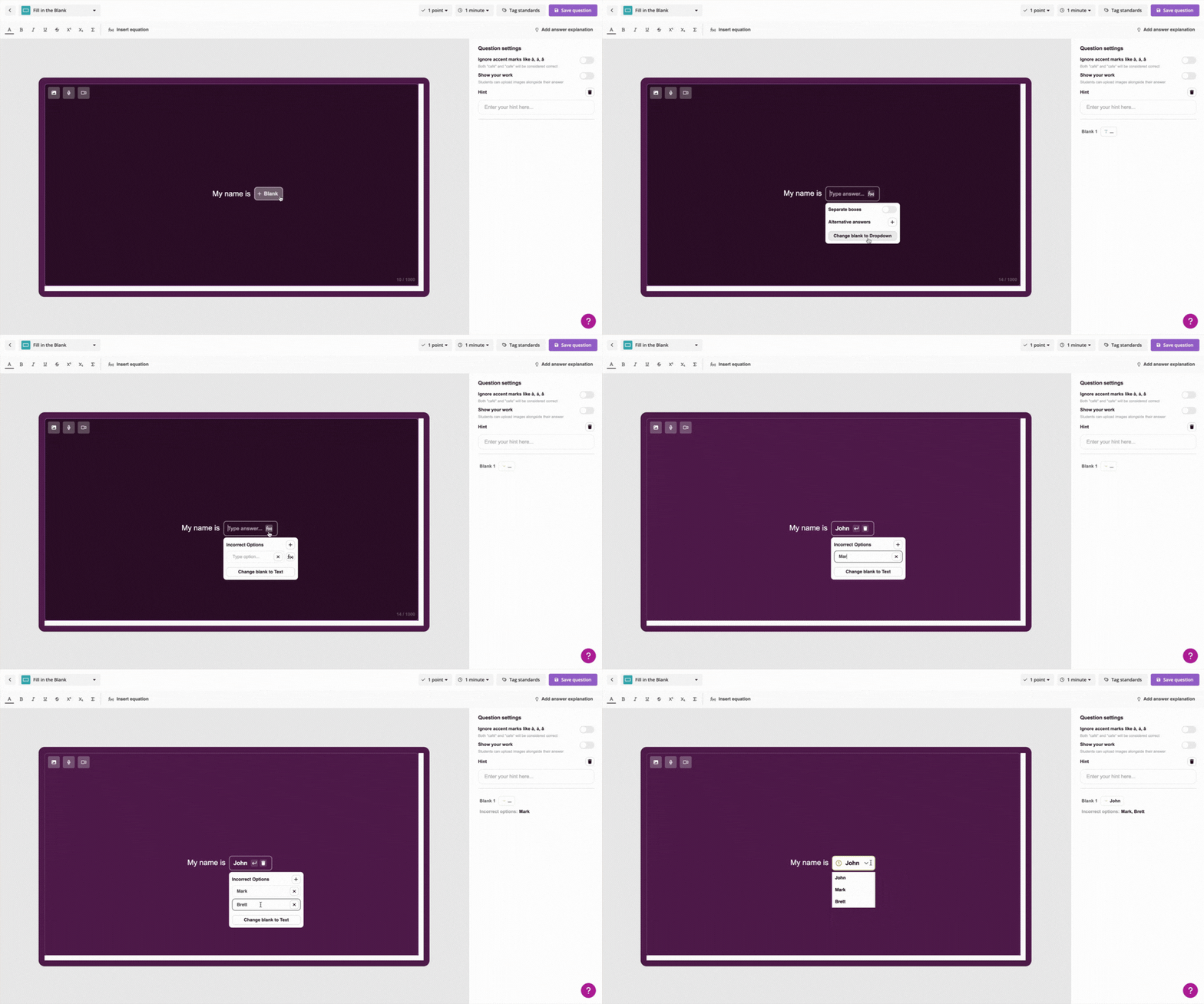
Correct answer: type the correct answer in the field at the top. To use a math expression, such as one with Greek letters or special symbols, click the f(x) button to open the Equation editor
Incorrect Options: click + to add wrong answers (distractors). Students see these alongside the correct answer in the dropdown. Each incorrect option field also has an f(x) button, so you can add math expressions as options
Change blank to Text: converts this blank back into a Text blank
Math blank
Students enter math expressions using an on-screen math keyboard. This works well for questions involving equations, formulas, or numerical calculations.
To create a Math blank:
Click a Text blank in the editor.
Click the f(x) button next to the answer field.
In the Math response window that opens, use the on-screen keyboard to enter the correct answer, for example 56 - 3.
Set these options as needed:
Advanced keyboard: turn this on to give students a keyboard with extra symbols like integrals, limits, and summation. When this is off, students see a simpler keyboard
Mathematical equivalence: turn this on to accept answers that are mathematically equal. For example, if the correct answer is 1.5, students who type 1½ or 3/2 are also marked correct
Click Insert to add the Math blank to your question.
Equation editor
The Equation editor is a separate tool for writing math expressions using LaTeX or on-screen buttons. It has Basic, Greek, and Advanced tabs with a wide range of symbols.
You can open the Equation editor in two places:
In a Dropdown blank, click the f(x) button next to the correct answer or any incorrect option to use a math expression as that option
To add an equation to your question text, click f(x) Insert equation in the formatting toolbar
Question settings
The panel on the right shows Question settings that apply to the whole question, along with a summary of all blanks.
Ignore accent marks
When this is on, accented and unaccented letters are treated as the same. For example, both “café” and “cafe” are accepted.
Show your work
When this is on, students can upload an image along with their answer. This is useful when you want them to show their working, such as a photo of a handwritten solution.
Hint
Write a custom hint for students who are stuck. For example: “The answer starts with the letter R.” Click the trash icon to remove it.
Blank summary
Below the settings, you see a list of all the blanks in your question. Each entry shows the blank number (Blank 1, Blank 2, and so on), its type icon (T for Text, ⌄ for Dropdown, or f(x) for Math), the correct answer, and any extra details such as alternative answers, incorrect options, or whether Mathematical equivalence and Advanced keyboard are on.
Student experience
When students take the question, each blank appears right in the question text. The way students answer depends on the blank type.
Text blank (single input field)
Students click the dashed field and type their answer.
Text blank (separate boxes)
Students see one box per letter. They click the first box and type, and the cursor moves to the next box automatically. Any punctuation or spaces in the answer are pre-filled, so students do not need to type them.
Dropdown blank
Students see a Select answer field. Clicking it opens a list of options in the order the teacher set, and students click an option to select it.
Math blank
Students see a field with the placeholder Type on math keyboard… and a small calculator icon. Clicking it opens a math keyboard on the right and shifts the question to the left. The blank updates as students type, and the question returns to full width once the keyboard closes.
The keyboard has numbers, operators, and common math symbols, plus a Deg° / Rad toggle. If Advanced keyboard is on, more symbols appear. Hovering over a key shows its physical-keyboard shortcut.
Submitting and resetting answers
Once all blanks are filled in, students click Submit in the bottom-right corner. They can click Reset any time before submitting to clear all answers and start over.
Important notes
Answers are not case-sensitive. “rome” is marked correct if the answer is “Rome”
You can add as many alternative answers to a Text blank as you want
Question text has a 1,000-character limit
Fill-in-the-Blank questions support partial grading and Accommodations
Was this article helpful?
That’s Great!
Thank you for your feedback
Sorry! We couldn't be helpful
Thank you for your feedback
Feedback sent
We appreciate your effort and will try to fix the article