TABLE OF CONTENTS
- Who This Is For
- How Keyboard Navigation Works
- Getting Started: Launching an Activity
- Navigating Each Question Type
- After the Last Question: Redemption Questions
- Tips for Teachers
- Frequently Asked Questions
Students can complete any Wayground activity, including assessments and presentations, using only the keyboard. No mouse or trackpad required. This article walks you through exactly how it works for each question type, so you can confidently support students who navigate with a keyboard.
Who This Is For
This guide is for teachers and administrators who support students who need or prefer keyboard-only access. That includes:
Students with motor impairments or physical disabilities who can’t use a mouse or trackpad
Students using assistive technology devices that rely on keyboard input
Students with temporary injuries (such as a broken arm) who need a mouse-free option
Any student who simply prefers keyboard navigation
If a student’s IEP or 504 plan specifies keyboard-only access as an accommodation, this article confirms that Wayground supports it across all interactive question types.
How Keyboard Navigation Works
The core concept is simple: two keys do almost everything.
What the Outline Looks Like
The outline is the visual indicator that shows which element is currently selected. It’s how students know where they are on the page.
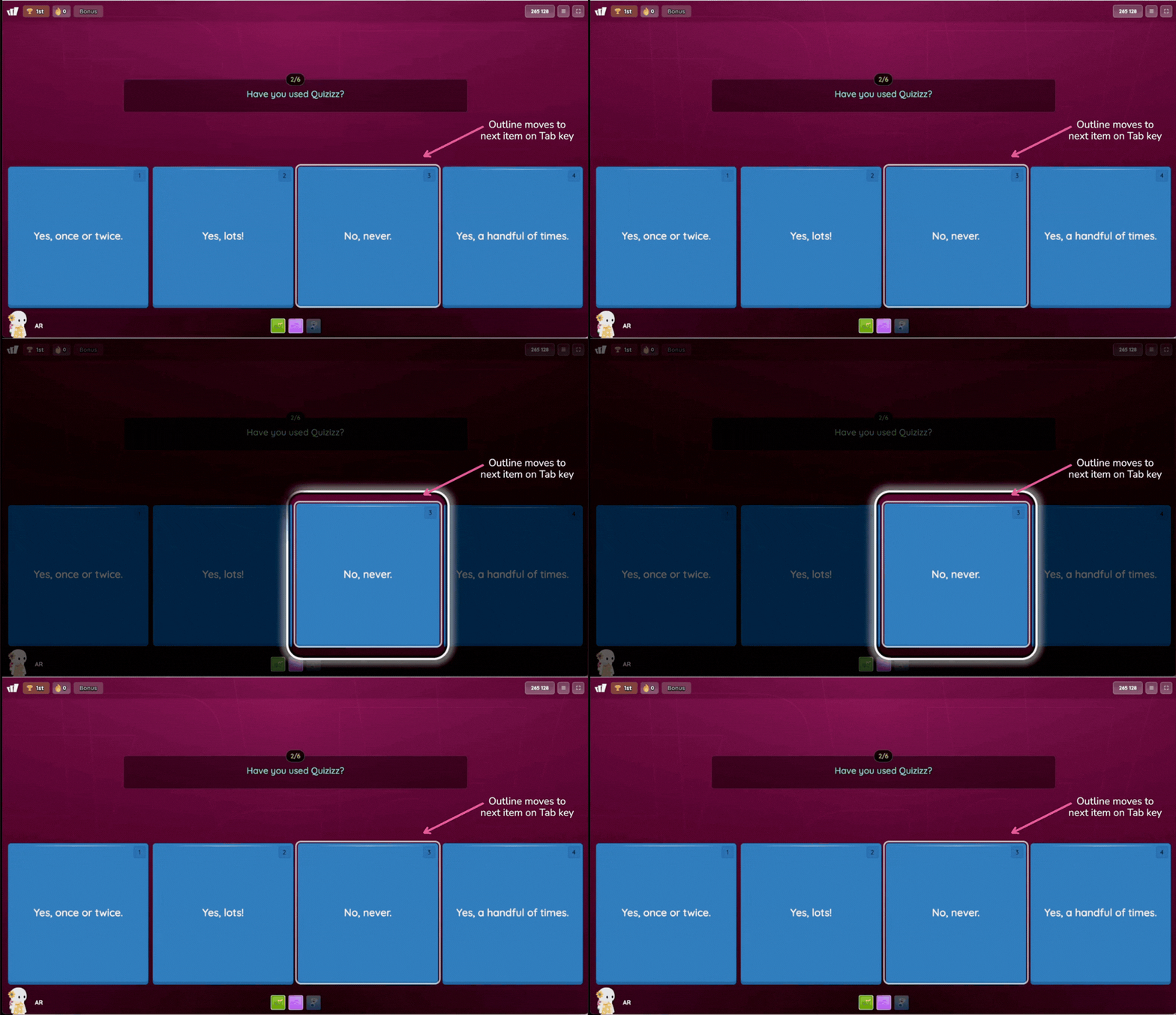
The outline appears as a visible outline or border around the focused element. Its appearance varies slightly by element type: a light rectangular outline on answer cards, a subtle border on dropdown buttons, and a cursor inside input boxes.
Getting Started: Launching an Activity
Students join a Wayground activity the same way they always do. Visit joinmyquiz.com and entering the join code, or by clicking a direct link. Once the activity starts, the first question loads automatically. From here, the student never needs to touch a mouse.
Navigating Each Question Type
Wayground supports keyboard-only navigation across all six interactive question types. Each section below shows exactly how a student navigates that question type.
Multiple Choice
Multiple Choice questions show a prompt with four colored answer cards. The student selects the correct answer.
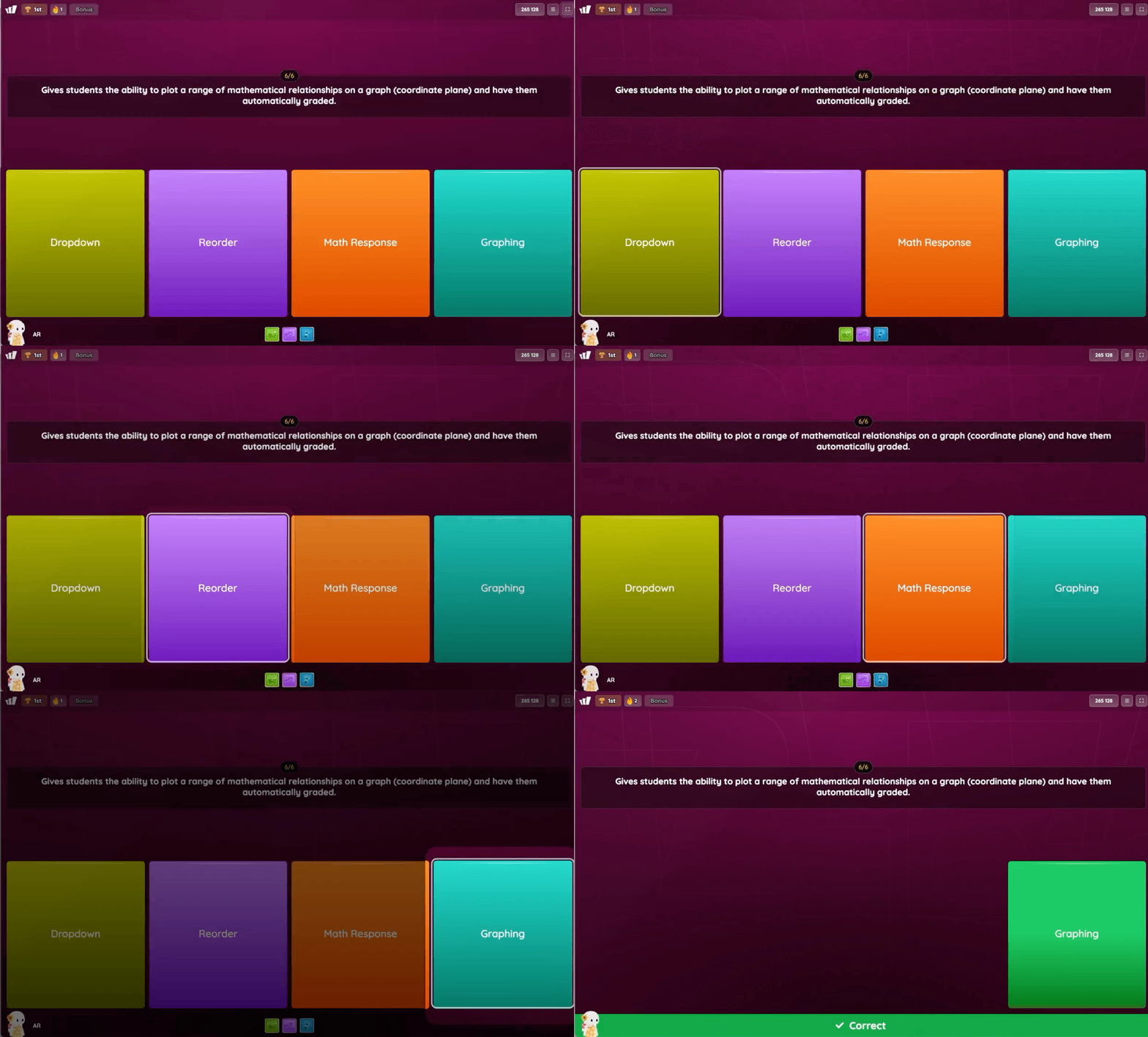
How to navigate with keyboard:
Students have two options:
Option A, Tab and Enter:
Press Tab to move focus through the answer cards. The outline appears around each card. When the outline highlights your choice, press Enter to select it.
Option B, Number key shortcut:
Look at the numbered badge (1, 2, 3, or 4) in the top-right corner of each card. Press the corresponding number key to select that answer instantly.
Both options auto-submit the answer. The result screen appears immediately, showing the correct answer highlighted in green.
Fill in the Blank (Type Answer)
Fill in the Blank questions display a prompt and a row of individual letter-input boxes. The student types their answer one letter at a time.

How to navigate with keyboard:
When the question loads, press Tab to move focus to the first letter-input box. A cursor appears inside the box.
Type the first letter of your answer. Focus automatically advances to the next box.
Continue typing each letter. Focus moves forward with each keystroke.
After filling in all boxes, submit your answer using either method: press Enter directly to submit, or press Tab to move focus to the Submit button, then press Enter.
Drag and Drop
Drag and Drop questions show a sentence with blank slots and a set of word tiles. The student places each tile into the correct blank.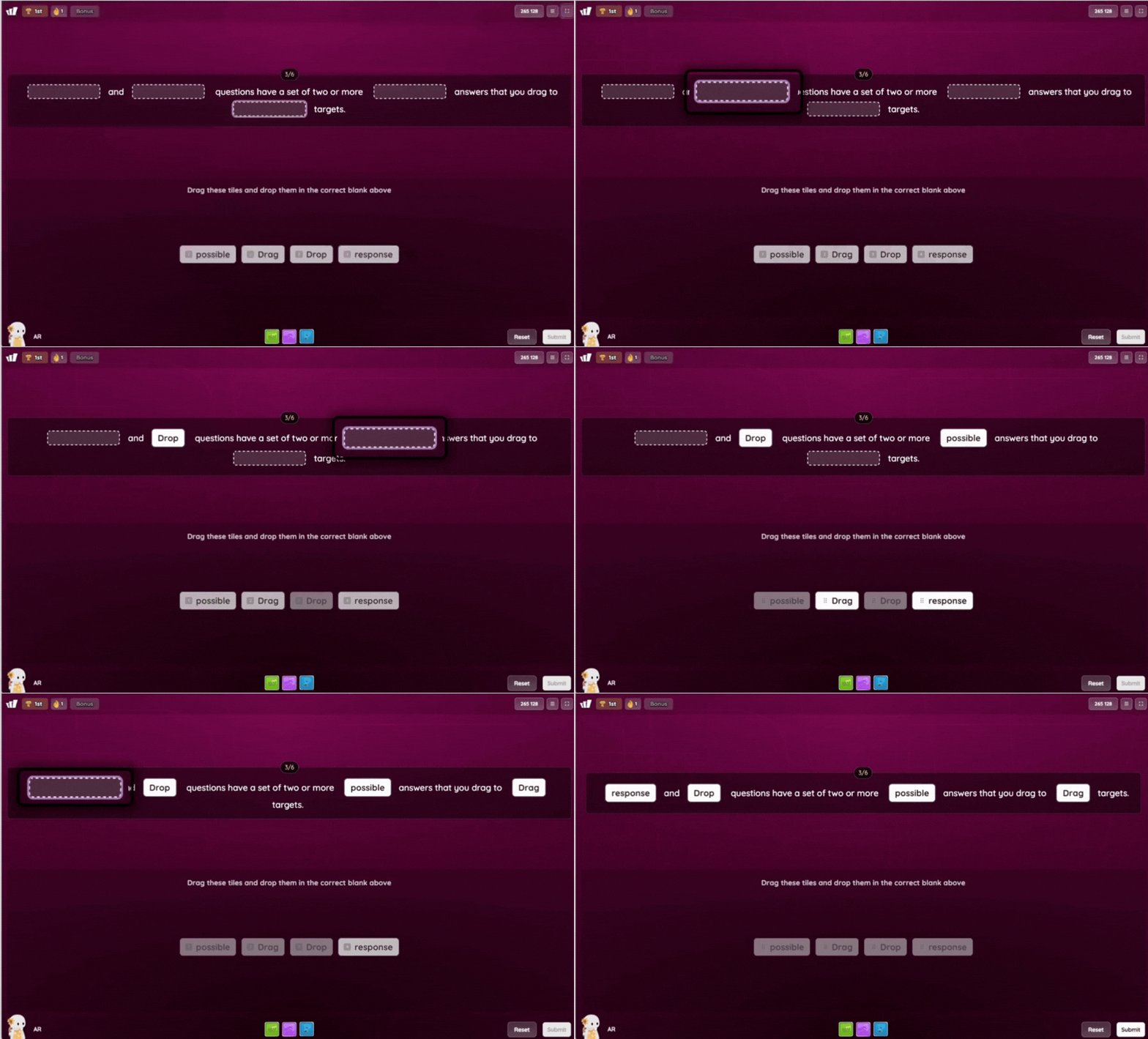
How to navigate with keyboard:
When the question loads, press Tab to move focus to the first blank slot. The outline appears around the blank.
As soon as the blank is selected, the word tiles below display numbered badges (1, 2, 3, 4): one number per tile, from left to right.
Press the number key that matches the tile you want to place. For example, if "Drop" is tile 1, press 1 to fill "Drop" into the blank.
Press Tab to move focus to the next blank slot.
Repeat steps 2–4: check the numbered tiles, press the correct number to fill the next blank.
Once all blanks are filled, submit your answer: press Enter directly, or press Tab to move focus to the Submit button, then press Enter.
Dropdown
Dropdown questions show a sentence with an inline dropdown menu. The student opens the menu, selects an answer, and submits.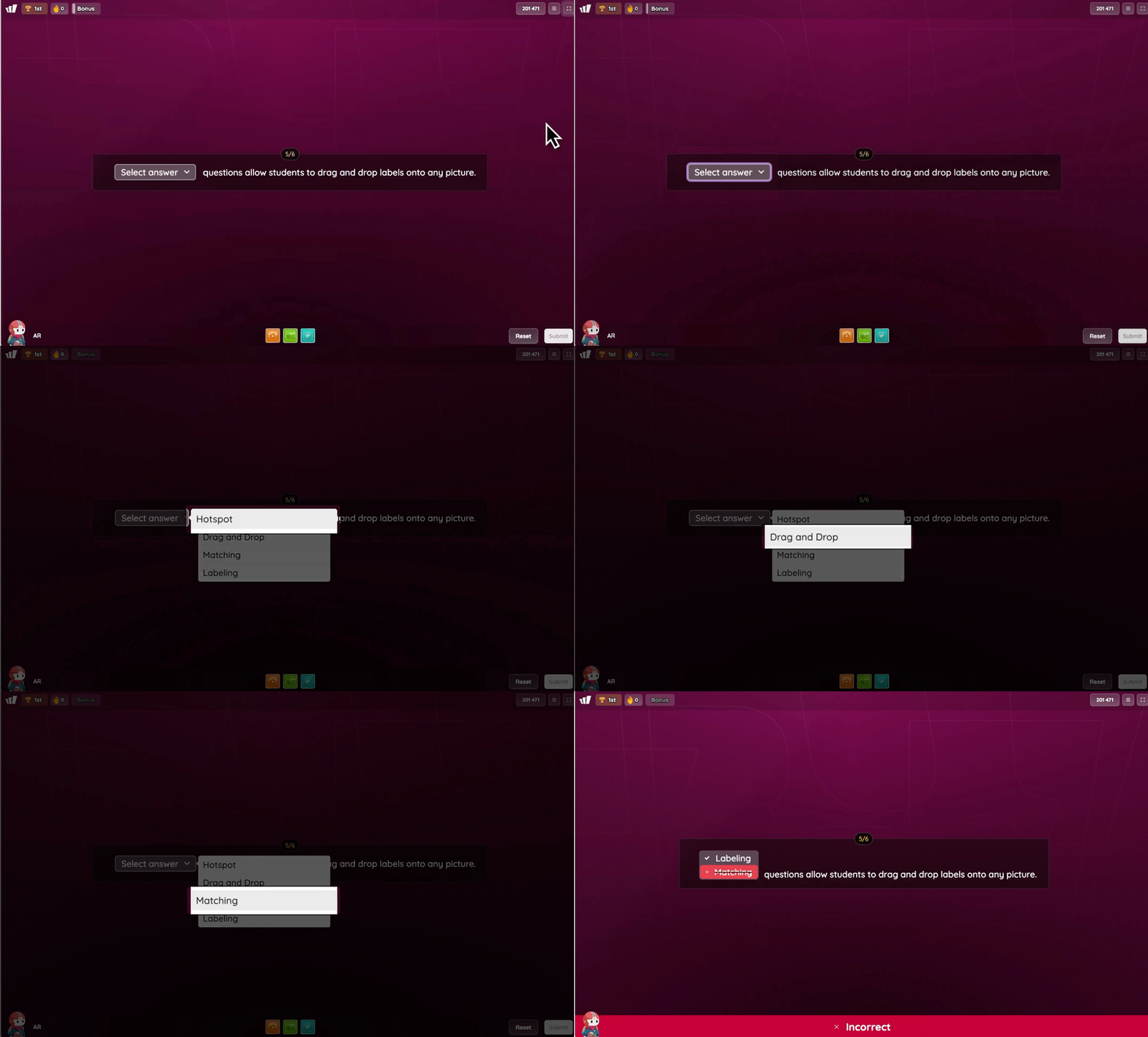
How to navigate with keyboard:
When the question loads, press Tab to move focus to the dropdown button (labeled "Select answer ∨").
Press Enter to open the dropdown menu.
Press Tab to move forward through the options, or Shift + Tab to move backward.
When the desired option is highlighted, press Enter to select it. The dropdown closes and displays your selection.
Submit your answer: press Enter directly, or press Tab to move focus to the Submit button, then press Enter.
Match
Match questions display a set of definition cards and a set of labels. The student rearranges the definition cards to align with the correct labels.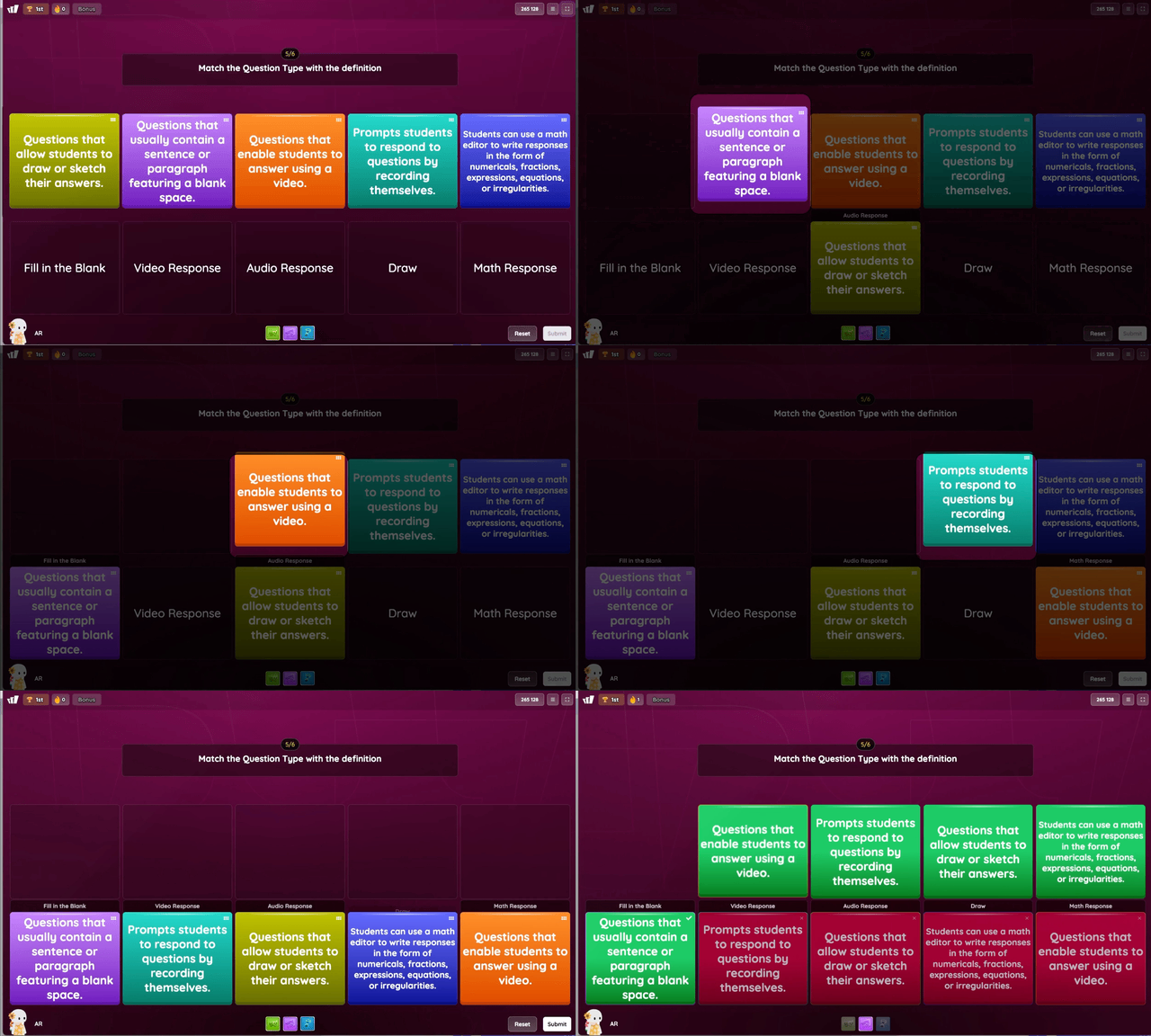
How to navigate with keyboard:
When the question loads, press Tab to select the first definition card in the top row. The selected card slightly moves up to show it has focus.
Look at the labels in the bottom row and count their position from left to right (1, 2, 3, 4, 5).
Press the number key that matches where you want to place this card. For example, if the card defines "Draw," press 4.
The card moves from the top row down into that label position.
Press Tab to move focus to the next unplaced card in the top row.
Repeat steps 2–5 for each remaining card until all definitions are matched with labels.
Once all cards are placed, submit your matches: press Enter directly, or press Tab to move focus to the Submit button, then press Enter.
Poll
Poll questions display an opinion question with answer cards. There’s no correct or incorrect answer. The student simply selects their response.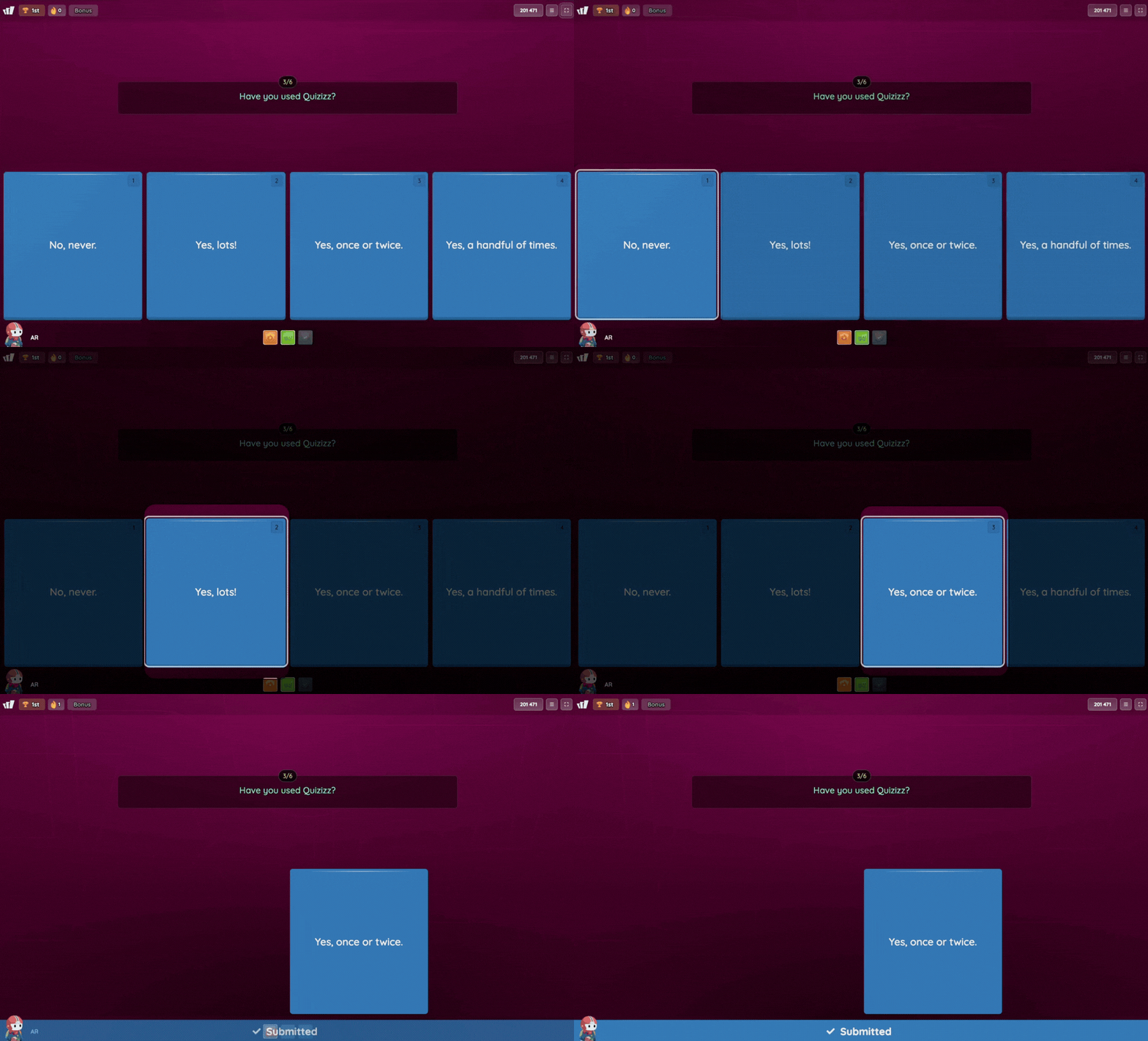
How to navigate with keyboard:
Students have two options (same as Multiple Choice):
Option A, Tab and Enter: Press Tab to move focus through the answer cards. When the outline highlights your choice, press Enter to select it.
Option B, Number key shortcut: Press 1, 2, 3, or 4 to select the answer card in that position (left to right).
Both options auto-submit. A "✓ Submitted" confirmation appears at the bottom.
After the Last Question: Redemption Questions
If a student answers any questions incorrectly during the activity, a Redemption Question screen may appear after the last question.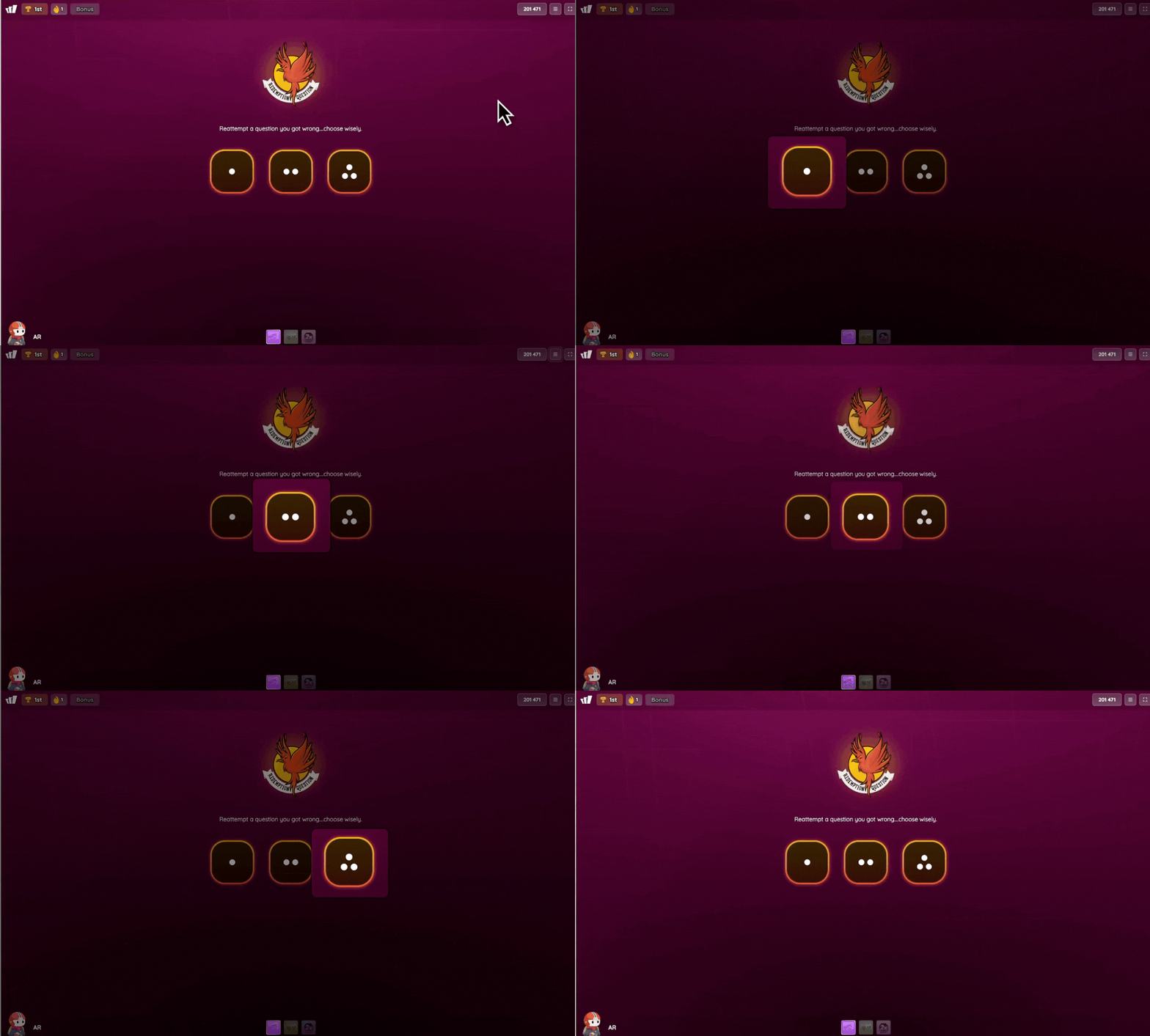
The Redemption Question shows a phoenix badge with the message: "Reattempt a question you got wrong...choose wisely." A set of mystery boxes appears in a dice style, with dots showing one dot, two dots, three dots, and so on. The number of boxes matches the number of questions the student got wrong.
How to navigate with keyboard:
Students have two options:
Option A, Tab and Enter: Press Tab to move focus between the mystery boxes. When the outline highlights your choice, press Enter to select it.
Option B, Number key shortcut: Press the number key that matches the dot count on the box. For example, press 1 for the box with one dot, 2 for the box with two dots, and so on.
The selected box reveals a question the student can reattempt for additional points.
Tips for Teachers
Before assigning an activity:
Navigate the activity yourself using only Tab and Enter. This takes about two minutes and helps you anticipate any questions your student might have.
Note which question types are in the activity. Drag and Drop and Match require more Tab presses than Multiple Choice or Poll.
Setting up the student’s workstation:
Remind the student of the two-key concept: Tab moves, Enter selects.
Make sure the student knows the two-key concept: Tab moves, Enter selects.
Show the student what the outline looks like so they know how to track where they are on screen.
During the activity:
Keyboard-only students may take slightly longer on complex question types. Consider enabling the Extra Time accommodation if the activity is timed.
If a student gets stuck, remind them: "Press Tab to move to the next thing. Press Enter to choose it."
Combining with other Accommodations: Keyboard-only navigation works alongside all other Wayground Accommodations. You can enable Extra Time, Read Aloud, Focus Mode, Dyslexia Font, or any other accommodation. They all work together.
Frequently Asked Questions
Q. Does keyboard navigation work for all question types?
A. Yes. All six interactive question types (Multiple Choice, Fill in the Blank, Drag and Drop, Dropdown, Match, and Poll) are fully navigable using only Tab and Enter.
Q. Do I need to enable keyboard navigation somewhere?
A. No. Keyboard navigation is always available. There’s nothing to turn on or configure. Any student can use it in any activity, at any time.
Q. Can my student use keyboard navigation on a Chromebook?
A. Yes. Keyboard navigation works on any device with a physical keyboard, including Chromebooks, laptops, and desktops. It works in Chrome, Firefox, Safari, Edge, and Brave browsers.
Q. What if my student also needs other Accommodations?
A. Keyboard navigation works alongside all Wayground Accommodations. You can combine it with Extra Time, Read Aloud, Focus Mode, Dyslexia Font, or any other support. They all work together without conflict.
Q. Is this compliant with Section 508 and WCAG 2.1?
A. Wayground’s keyboard-only navigation supports WCAG 2.1 Level AA Success Criterion 2.1.1 (Keyboard), which requires that all functionality be operable through a keyboard interface. This supports district compliance with Section 508 and ADA digital accessibility requirements.
Q. What should I do if a student reports they can’t navigate a question with the keyboard?
A. Contact Wayground Support. Our team has completed a keyboard accessibility audit and actively monitors keyboard operability across all question types. If you encounter an issue, we want to know about it.
Was this article helpful?
That’s Great!
Thank you for your feedback
Sorry! We couldn't be helpful
Thank you for your feedback
Feedback sent
We appreciate your effort and will try to fix the article