TABLE OF CONTENTS
- Add a Wayground Resource to a Content Folder
- View the Resource as a Content Page
- Edit the Resource Settings
- Embed the Activity on the Page
- Good to Know
You can add Wayground activities directly to the Content area in your Brightspace course. This is the recommended way to share Wayground resources with your students in Brightspace. It lets you organize activities inside your existing unit folders (such as Week 1, Week 2, or any topic-based folder) so students can find and complete them alongside your other course materials.
With this method, you can:
Place Wayground activities inside any unit or sub-folder in the Content area
Choose to embed the activity directly on the page or have it open in a new tab
Control grading, due dates, start/end dates, and release conditions from within Brightspace
Let students access the activity right where they find the rest of your course content
Add a Wayground Resource to a Content Folder
Follow these steps to add a Wayground activity to the Content area in your Brightspace course:
Step 1. Open your Brightspace course and click Content in the top navigation bar.
Step 2. In the left sidebar, click the unit folder where you want to add the Wayground resource (for example, “Week 2”). You can also create a new folder by clicking + New Unit at the top of the sidebar. If needed, you can create sub-folders within a unit folder to further organize your content.
Step 3. Click the Add Existing button in the top-right corner of the page.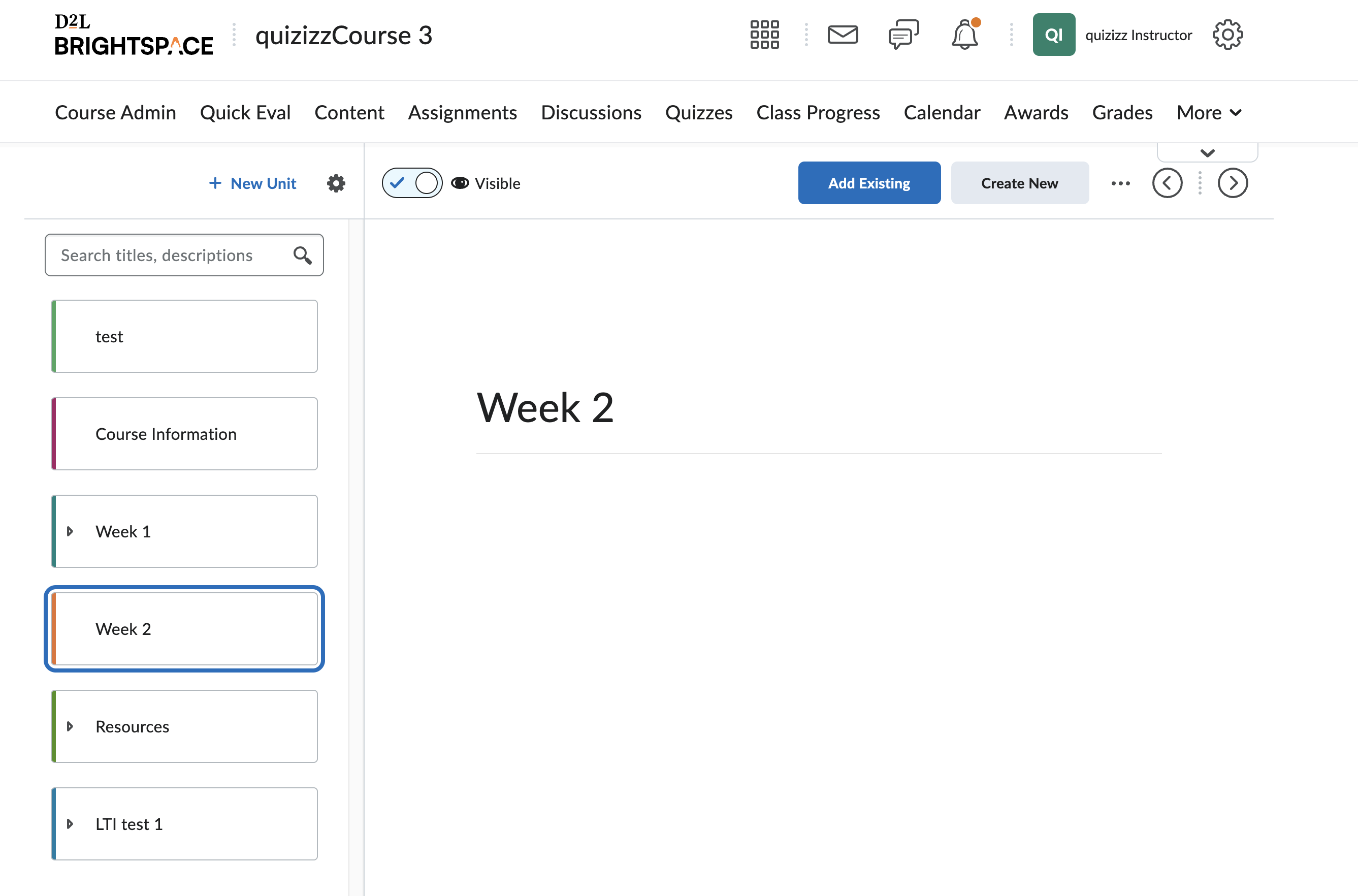
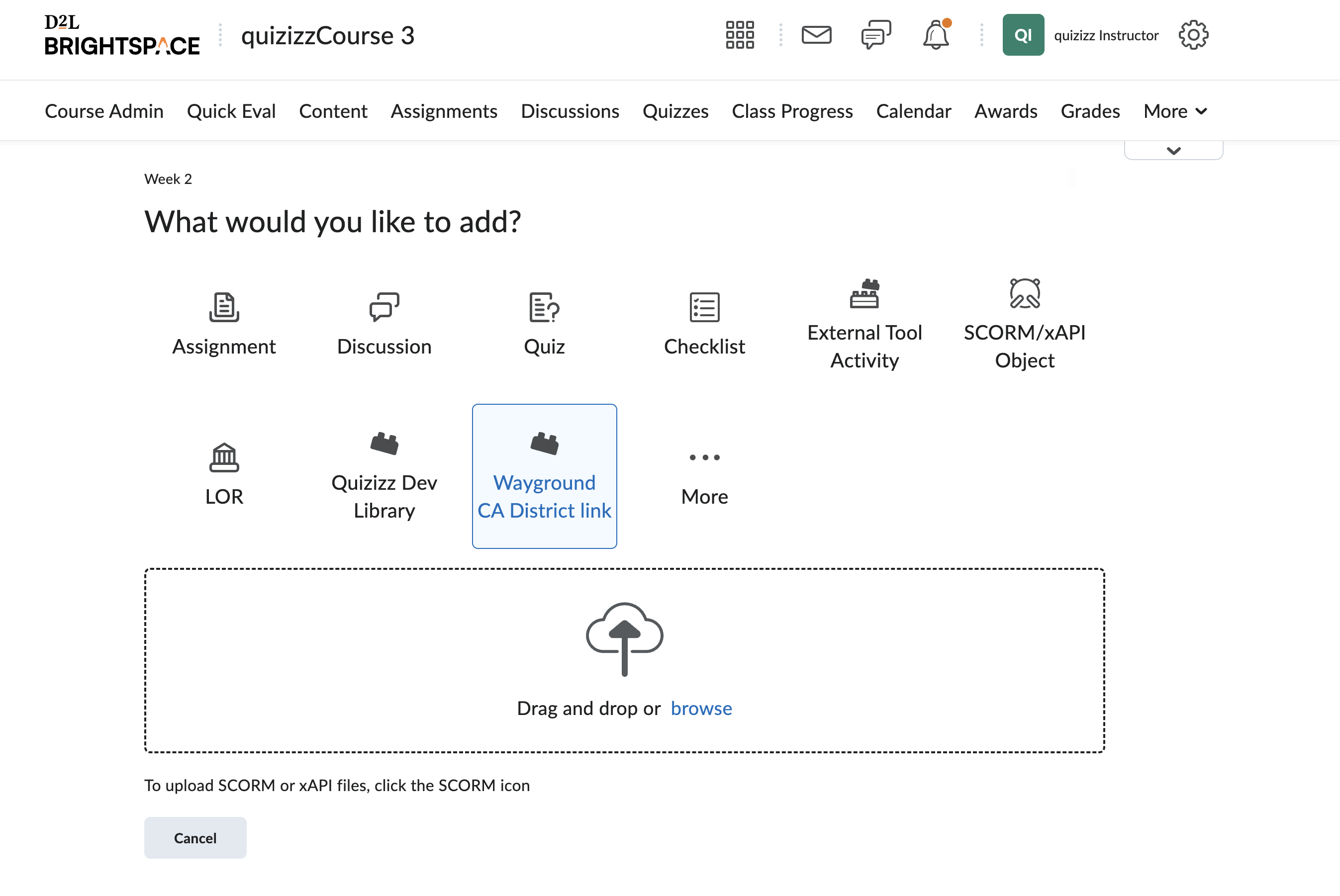
Step 4. A toolbar appears with the heading “What would you like to add?”, showing options such as Assignment, Discussion, Quiz, and more. Click the Wayground LTI option set up by your district admin.
Step 5. A pop-up window opens, showing your Wayground library. Browse or search for the activity you want to add. You can filter by Created, Previously used, Shared with me, Collections, Teams, or District library.
Step 6. Select the activity and configure the assignment settings (such as due date, time limit, and other options) as you normally would on Wayground. Once ready, assign and post the activity.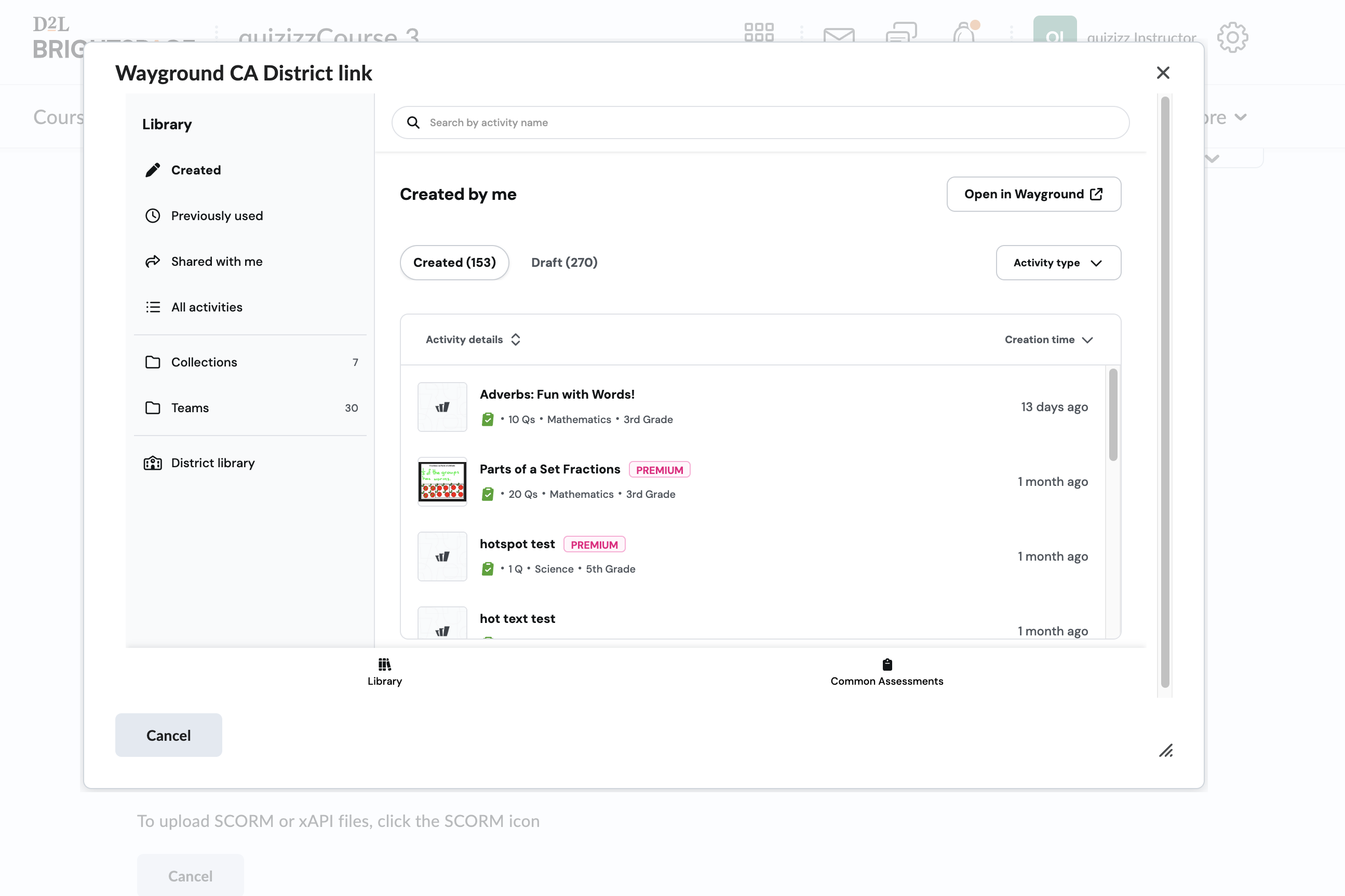
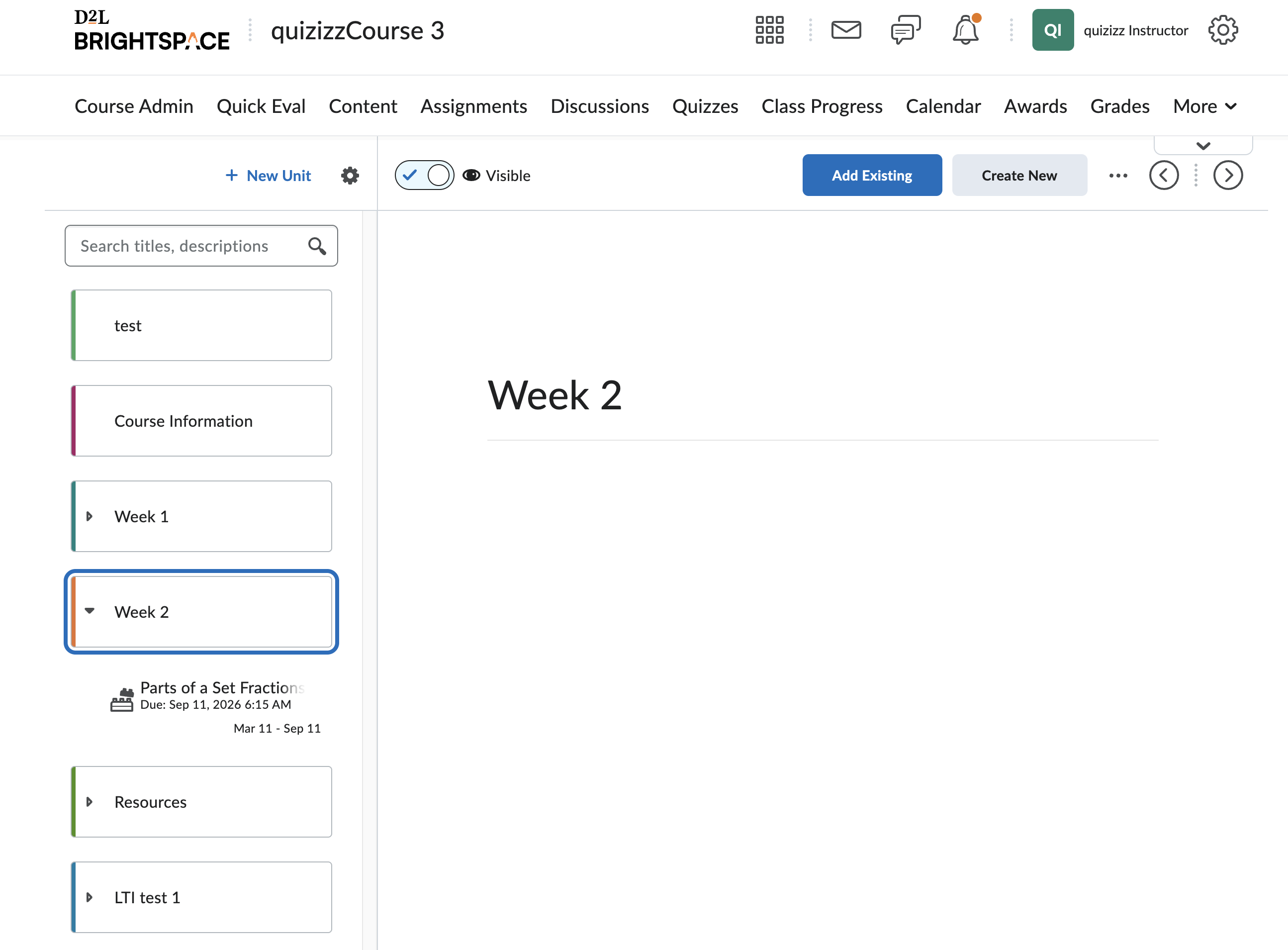
Step 7. The Wayground resource now appears as a page inside your selected unit folder in the Content area sidebar.
View the Resource as a Content Page
When you (or your students) click the Wayground resource in the Content area, it opens as a content page. By default, Brightspace displays a link icon with the message “Open link in a new web browser tab” and an Open Link button. Clicking this button launches the Wayground activity in a separate browser tab.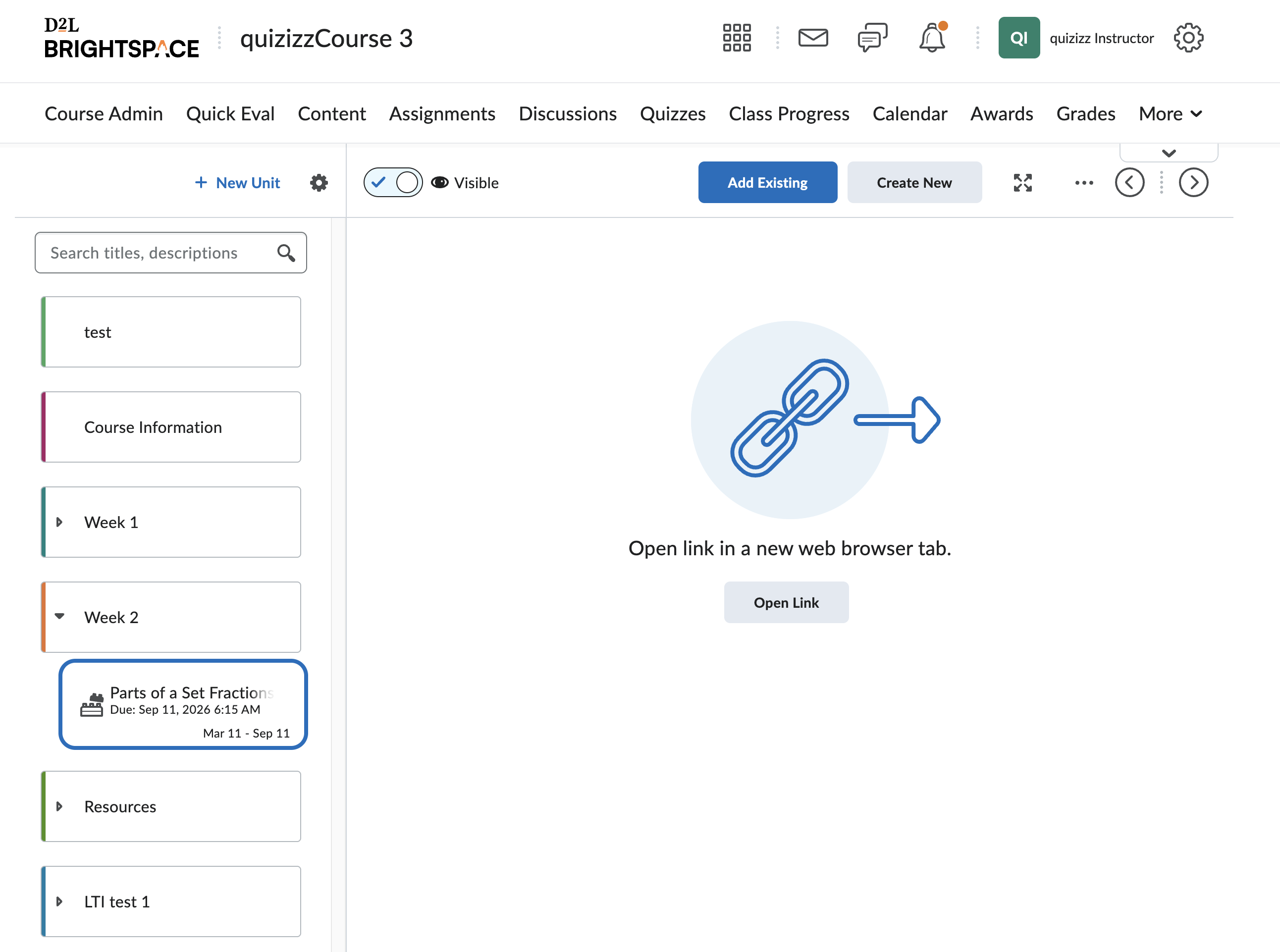
Edit the Resource Settings
After adding a Wayground resource, you can edit its settings to control grading, dates, and how the activity is displayed to students.
Step 1. Navigate to the Wayground resource in the Content area and click on it.
Step 2. Click the three-dot menu (⋯) in the top-right corner of the content page.
Step 3. Select Edit from the dropdown menu.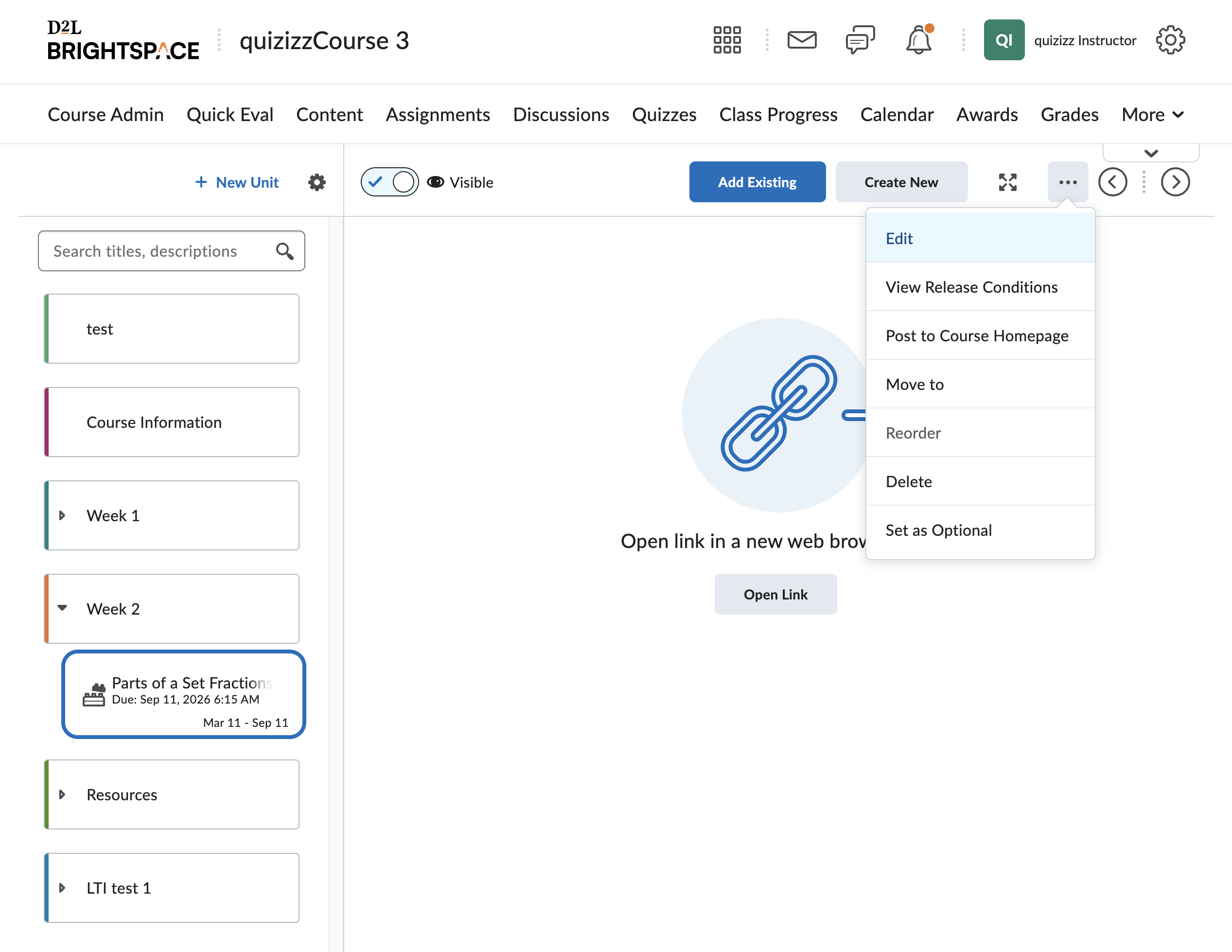
Step 4. The Edit page opens, giving you access to several important settings: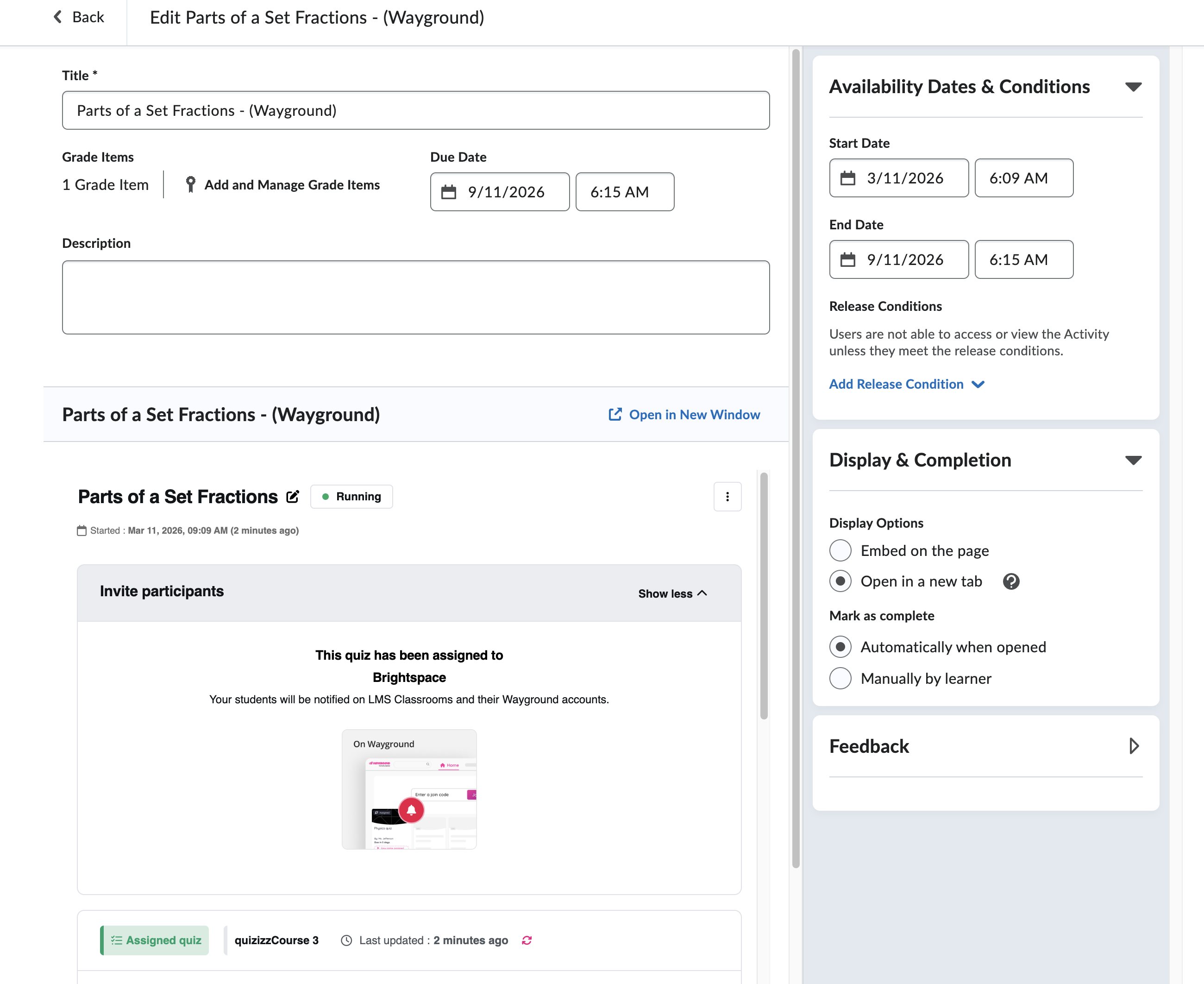
Here’s what you can configure on this page:
Grade Items
Control the activity as a grade item in your Brightspace gradebook. You can set it to ungraded, or manage it as a grade item for things like weightings in the Brightspace gradebook.
Due Date
Set or adjust the due date for the activity directly from this page.
Availability Dates & Conditions (right panel)
Control when students can access the activity by setting a Start Date and End Date. You can also add Release Conditions to restrict access based on specific criteria (such as completing a previous module first).
Display & Completion (right panel)
Choose how the activity appears to students:
Embed on the page: The Wayground activity is embedded directly within the Brightspace content page. Both you and your students can interact with the activity without leaving the page.
Open in a new tab (default): Students click a link to open the Wayground activity in a separate browser tab.
You can also set the Mark as complete preference:
Automatically when opened: Brightspace marks the activity as complete as soon as the student opens it.
Manually by learner: Students manually mark the activity as complete.
Step 5. After making your changes, click < Back at the top of the page to return to the Content area.
Embed the Activity on the Page
If you want students to see and interact with the Wayground activity directly within Brightspace, without opening a new tab, change the display setting to Embed on the page.
After making this change (see Step 4 above), the content page displays the full Wayground activity inline. As an educator, you can view real-time student data, including accuracy, participation rate, number of participants, and class insights, directly within the Brightspace Content area. Students see the activity embedded on the page and can interact with it right there.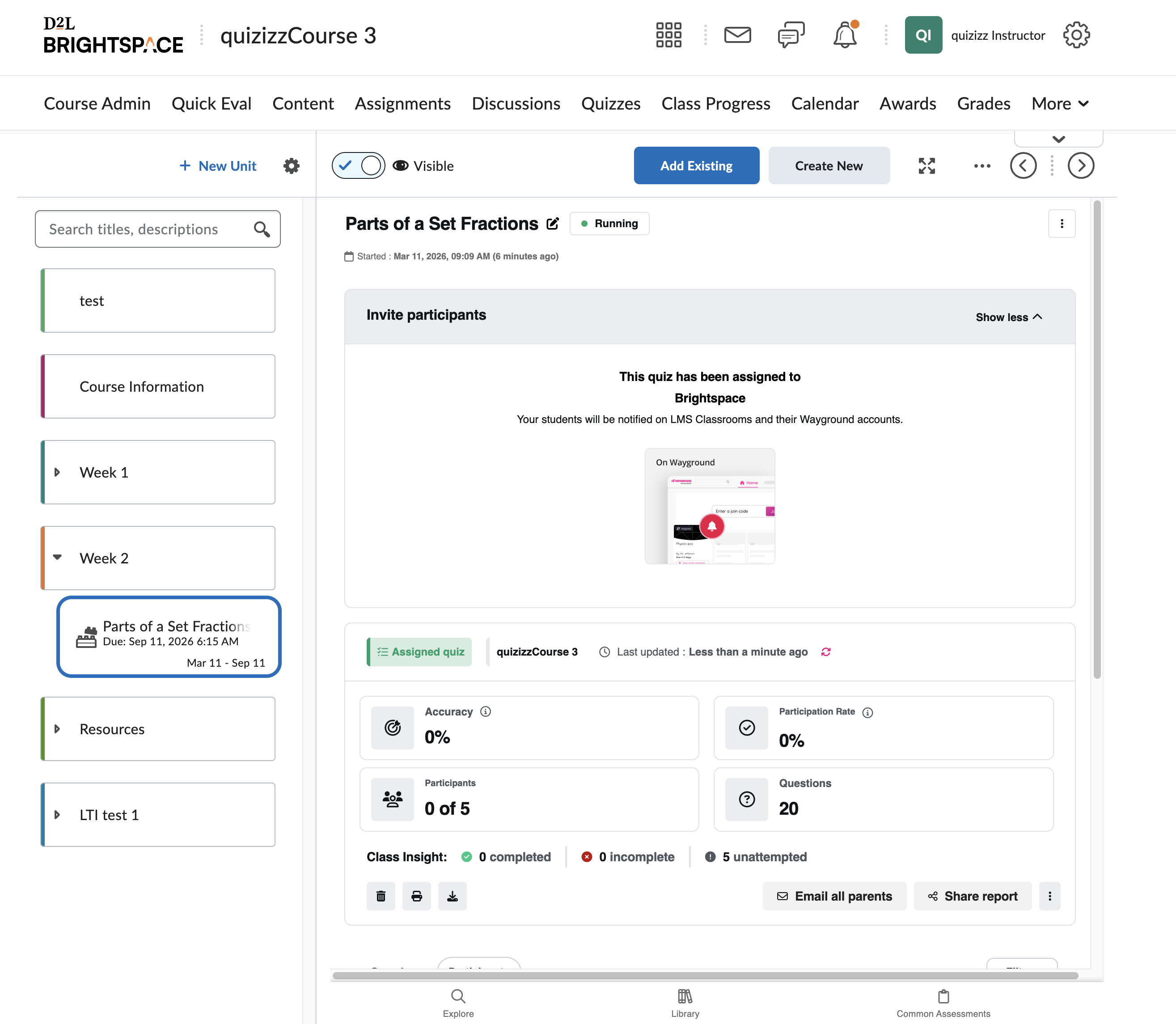
Good to Know
District admin setup required: The Wayground LTI option only appears in the “Add Existing” toolbar if your district administrator has completed the LTI integration setup. If you don’t see it, reach out to your admin.
Custom naming: The Wayground option in the toolbar may have a custom name chosen by your district admin (for example, “Wayground CA District link”). It may not simply say “Wayground.”
Content area vs. Assignments area: You can also add Wayground resources through the Assignments area in Brightspace. The Content area method described in this article is the recommended approach for most K-12 workflows because it keeps activities organized alongside your other course materials. For the Assignments area method, see Assign a Wayground Resource on Brightspace via LTI as a Teacher.
Embedding is optional: The default display mode is “Open in a new tab.” Switching to “Embed on the page” is optional and depends on your preference. Both options provide full functionality for students.
Was this article helpful?
That’s Great!
Thank you for your feedback
Sorry! We couldn't be helpful
Thank you for your feedback
Feedback sent
We appreciate your effort and will try to fix the article