If you’re setting up a new Brightspace course for a new term or section, you can easily import Wayground LTI activities from an existing Brightspace course. This saves time and makes sure that your students can access the same assignments you’ve already created.
With this feature, you can:
Import Wayground LTI assignments from one Brightspace course to another
Retain assignment structure and content without recreating them manually
Adjust due dates or remove them while importing
This feature is handy if you teach multiple sections of the same course or are preparing for a new term.
Follow these steps to import Wayground LTI assignments from one course to another on Brightspace:
Open the Brightspace course where you want the assignment(s) to be imported
Go to ‘Course Admin’
Click on ‘Import/ Export/ Copy Components’
Select ‘Copy Components from another Org Unit’
Click on ‘Search for offering’
Use the text field to search for the course from which you want to import the assignment(s)
Select the correct course
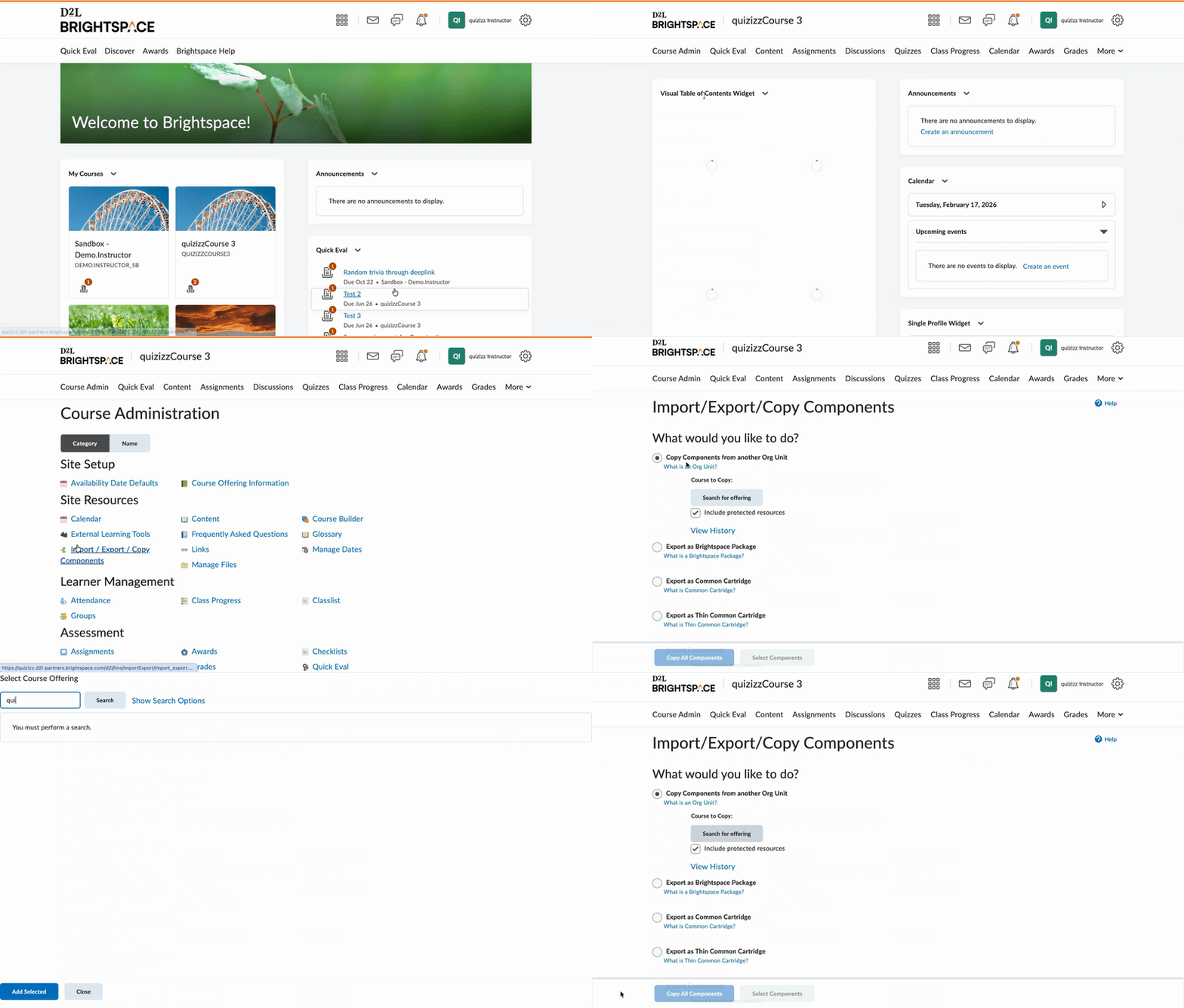
Click on ‘Add Selected’
Click on ‘Select Components’ followed by ‘Yes’
Select (✓) ‘External Learning Tools Links’, and select (⏺) ‘Individual items to copy’
Select (✓) ‘Assignments’, select (⏺) ‘Individual items to copy’, and select (✓) ‘Include associated files’
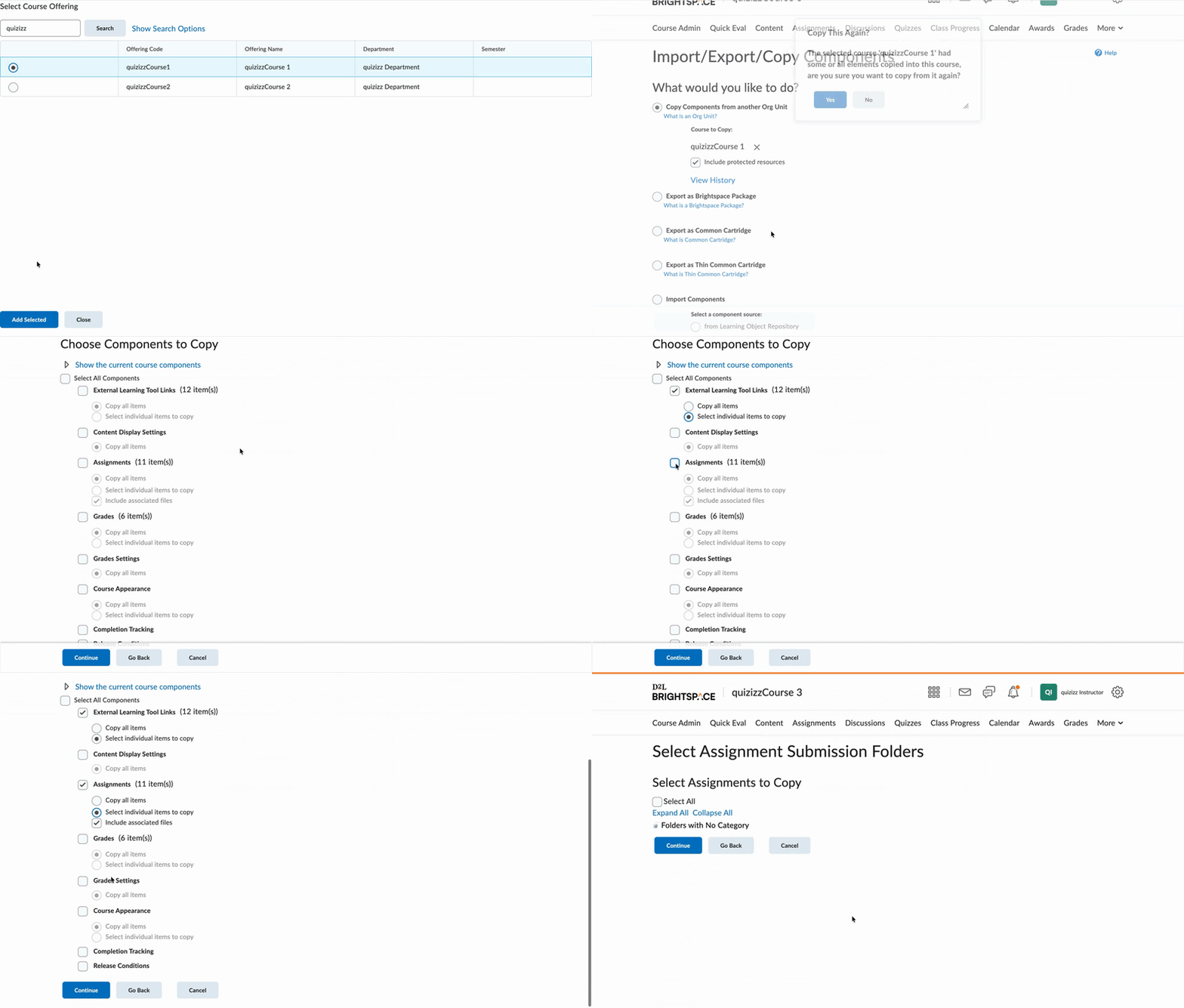
Click on ‘Continue’
Click on ‘Expand all’
Select (✓) the specific assignment(s) you want to import to the new course
Click on ‘Continue’
Select the assignment(s) again
Note: If you didn’t rename the Wayground LTI assignment in Brightspace, the names in this step will match. If you did rename it, the names will be different. In that case, select the Wayground LTI activity name here
Now, review and confirm the assignment(s) that you want to copy
If the original assignment has a due date, you can offset dates to match the new course timeline or leave dates unchanged
Click on ‘Finish’
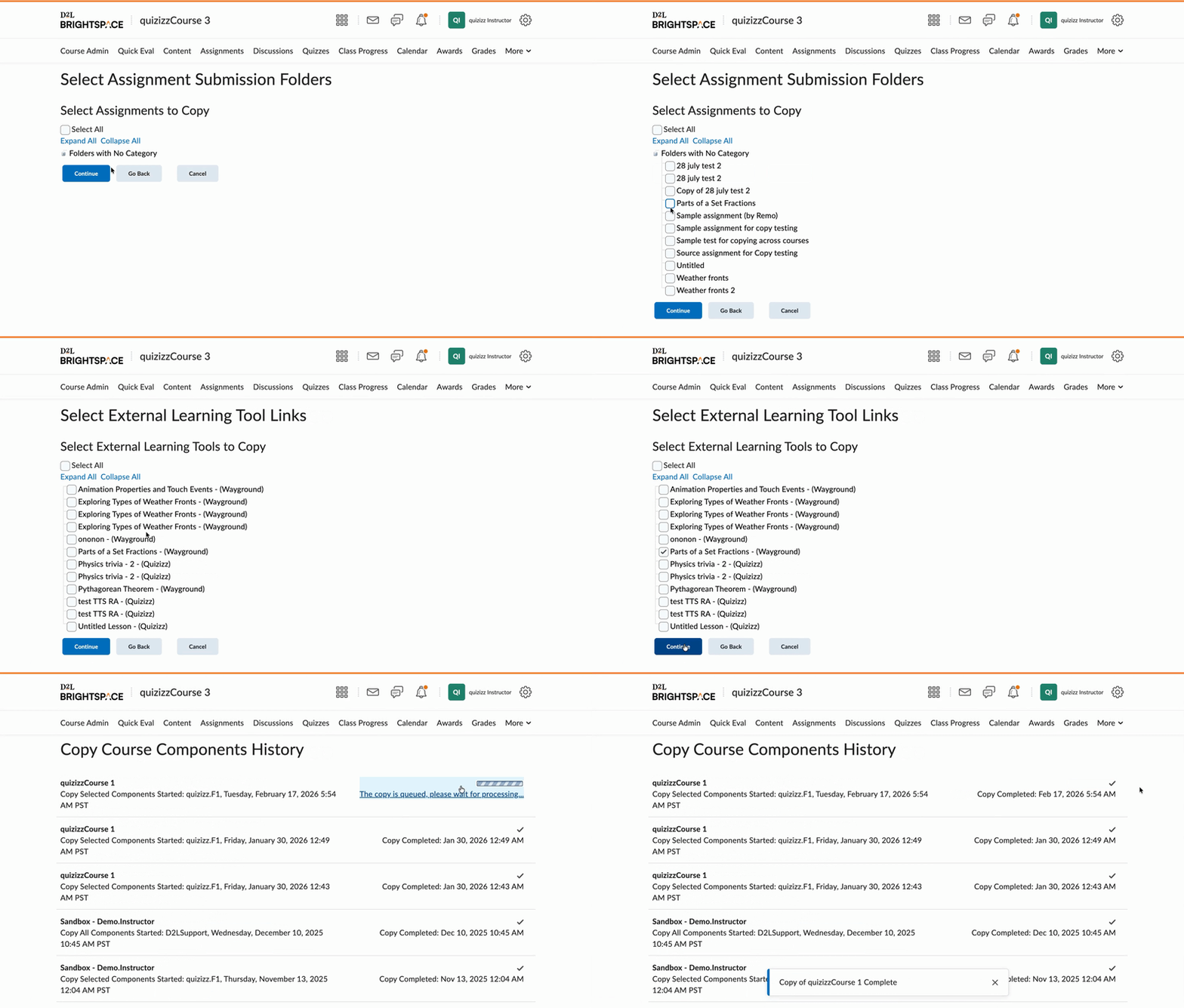
Your assignment(s) will now be successfully imported into the new Brightspace course!
Important: Enable access for your students
After importing, your assignments will appear for students, but they won’t be able to open them until you enable access.
To enable access,
Go to ‘Assignments’ in the course where you imported the assignment
Click on the copied assignment
Click on ‘Edit Assignment’
Wait for the Wayground window to load
Click on ‘Save and Close’
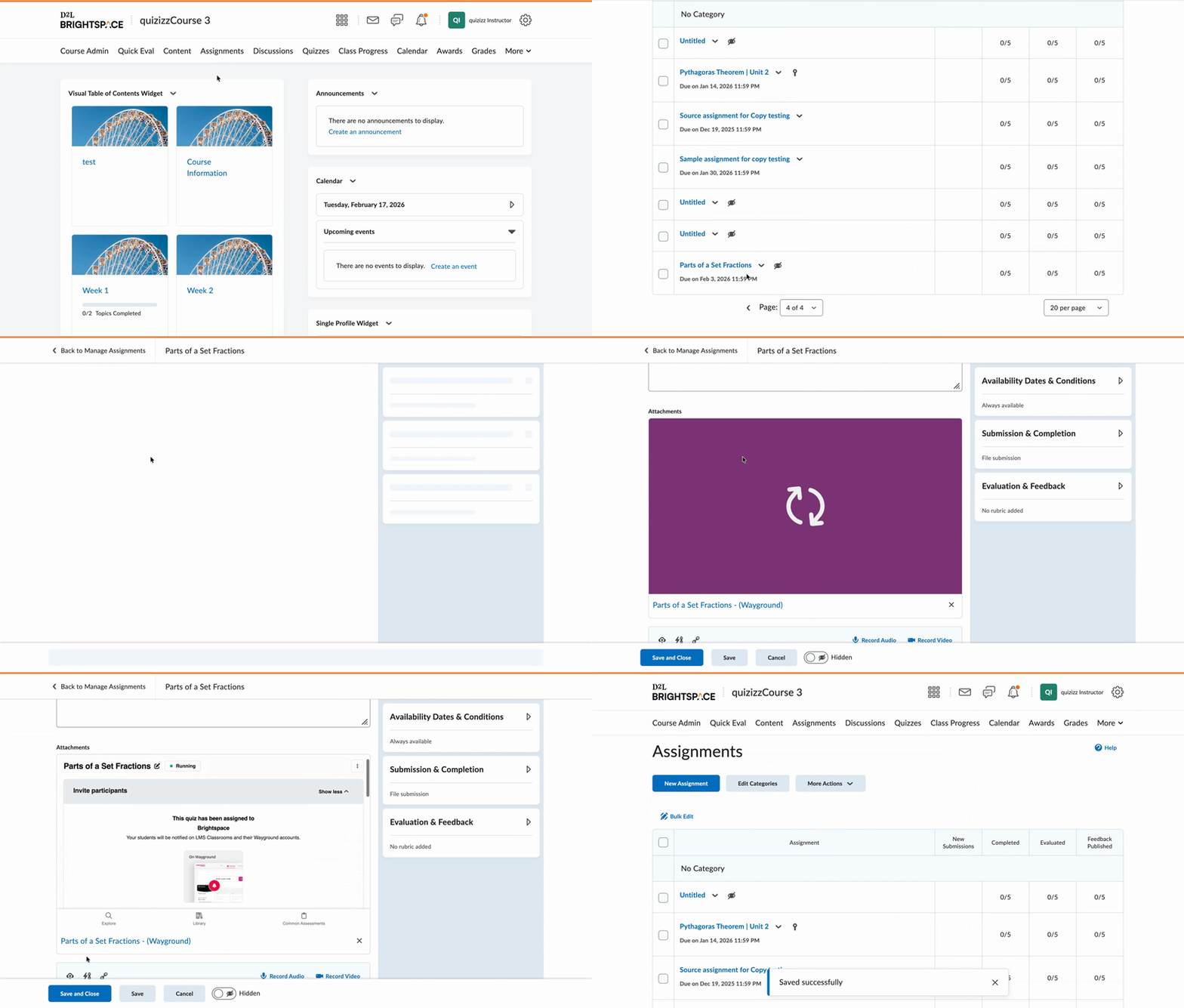
This step establishes the LTI connection. Skipping this step may result in access errors for students.
Was this article helpful?
That’s Great!
Thank you for your feedback
Sorry! We couldn't be helpful
Thank you for your feedback
Feedback sent
We appreciate your effort and will try to fix the article