With Hot Text, students answer questions by highlighting parts of a text passage. Instead of choosing A, B, C, or D, they select their answer directly from the text, just like using a highlighter on paper. It's faster for you to create and aligns with how students are assessed in real test scenarios. For students, it feels like working on a real worksheet, not just clicking buttons on a screen.
Follow these steps to create a Hot Text question:
When you add a question, select the 'Hot Text' question type
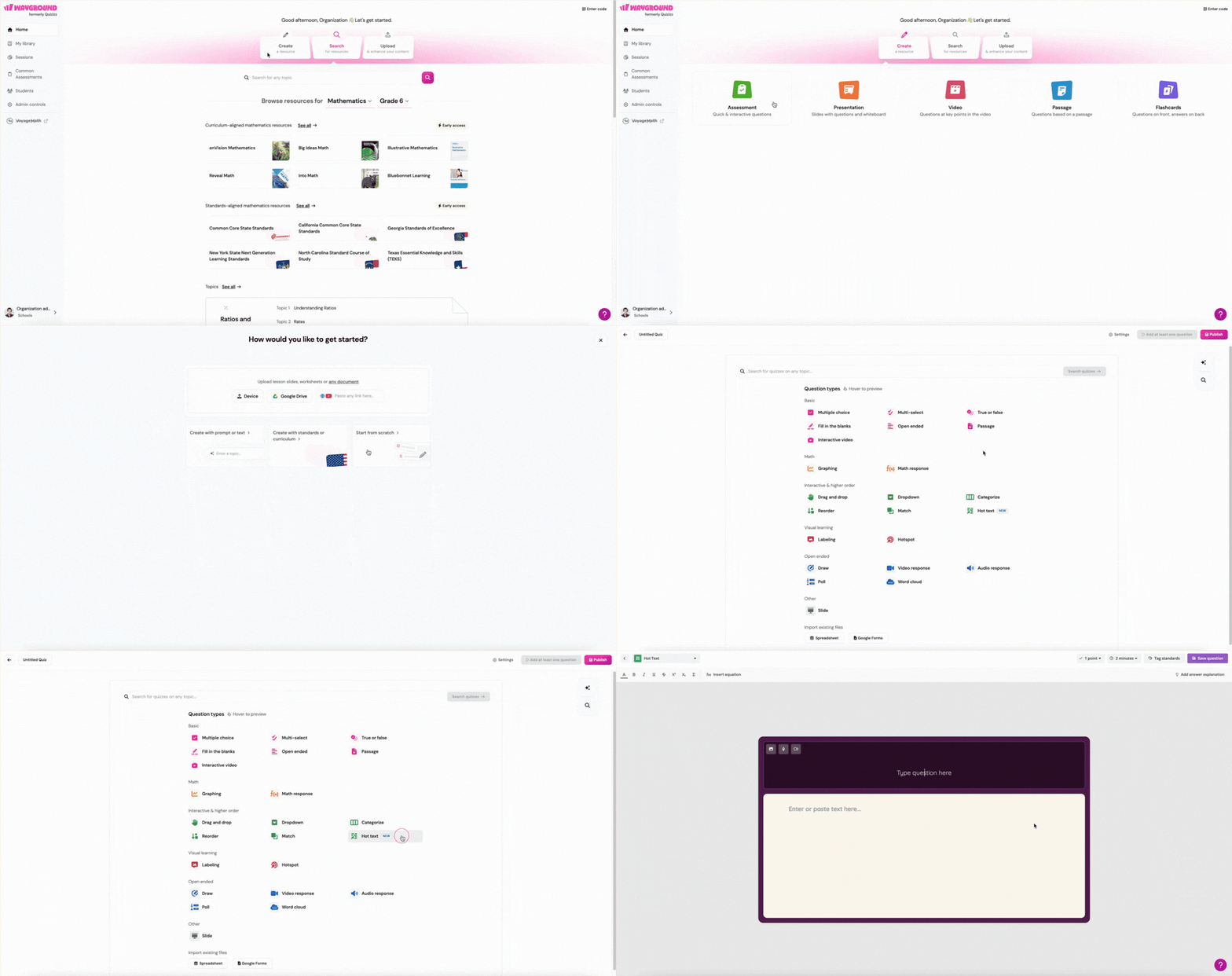
Enter your question in the ‘Type question here’ field. You can also add an image, audio clip, video, or equation to your question
Enter your text passage in the ‘Enter or paste text here…’ area
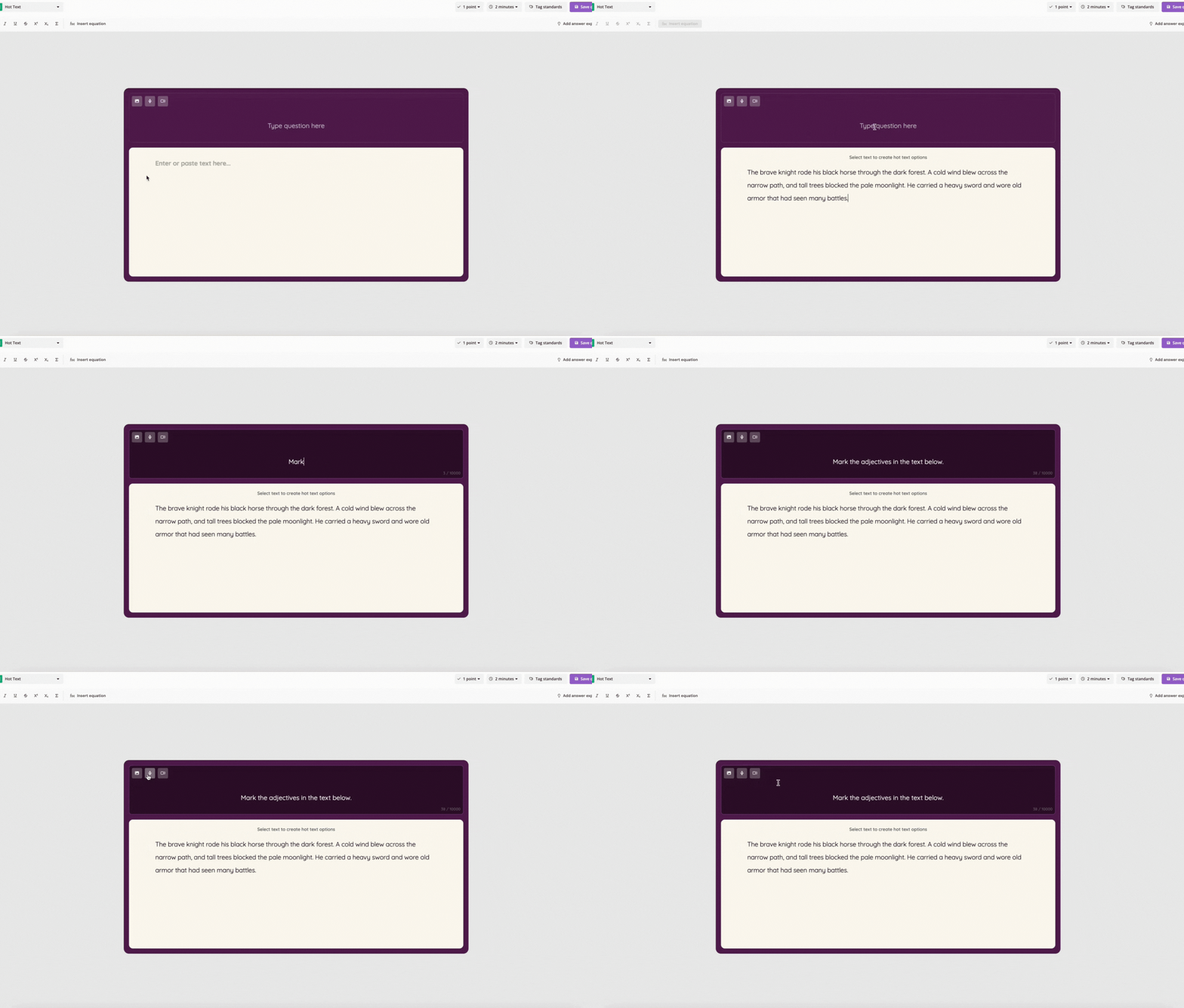
Set up your Hot Text options: These are the parts of the passage that students can tap or click to answer
Select text: Click on and drag over the words you want students to be able to choose. You can select a single word, a phrase, a sentence, or a whole paragraph
Add it as an option: Click on the ‘+ Add as option’ button that appears above your selection. That part of the text is now a Hot Text option
Repeat for any other parts of the passage you want to add as options
Mark the correct answer(s): Hover over an option and click on the ‘Correct’ button that appears above it
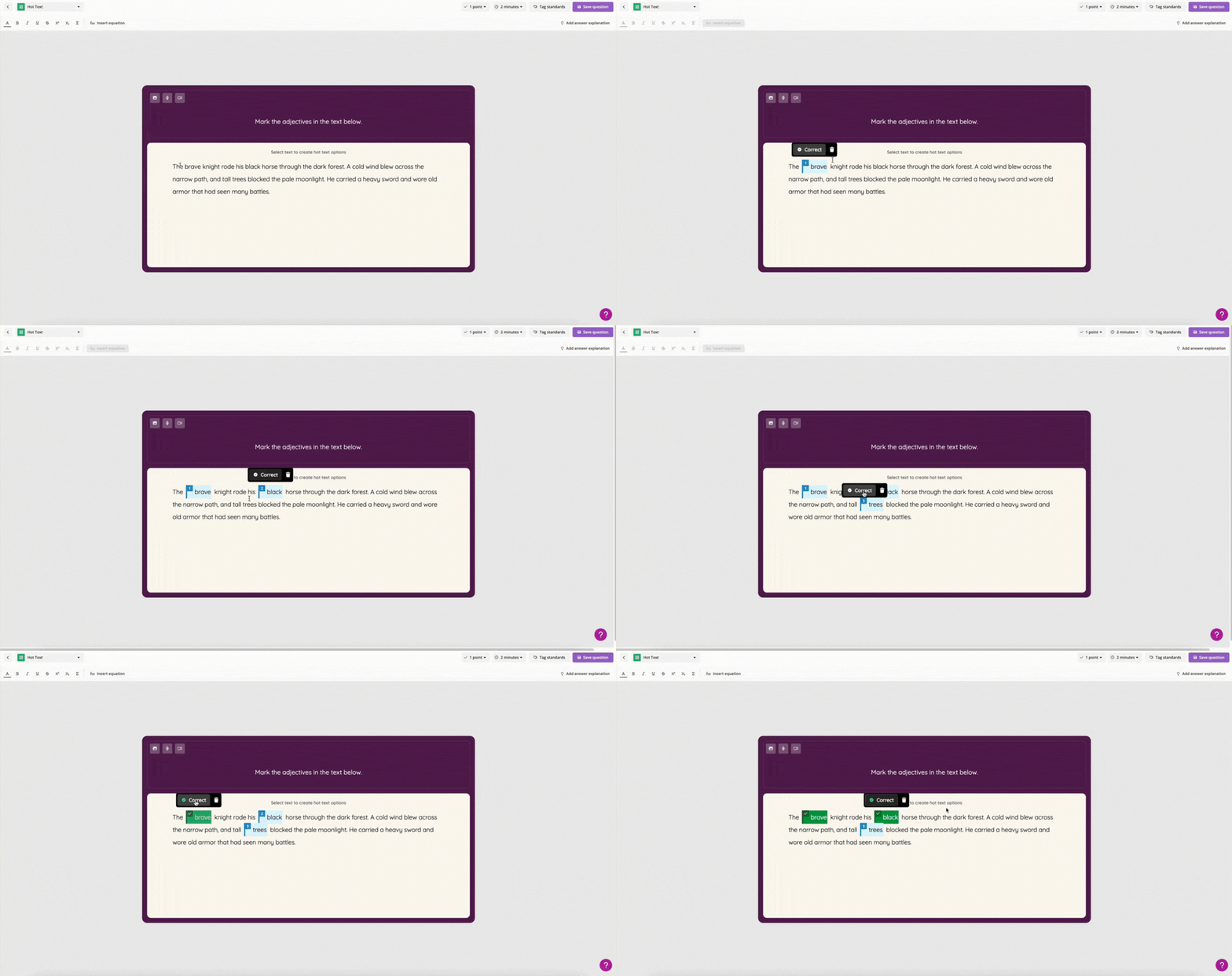
Delete an option: Hover over a Hot Text option and click the bin (delete) icon to remove it
Once done, click on the 'Save question' from the top right corner
Note:
Each Hot text option appears as a numbered, color-coded section in the student view. Students select their answer by clicking on the highlighted section(s)
You must add at least 2 Hot Text options. There is no upper limit; you can add as many options as you need
Student Experience
During a session, students see the text passage with all Hot Text options displayed as numbered, color-coded sections. The question appears at the top of the screen.
Students interact with the question by:
Reading the passage and the question
Clicking on the highlighted section(s) they believe are the correct answer
Selecting some—but not all—correct answers earns partial credit
Tapping again to deselect if they change their mind
Clicking on 'Submit' when they're confident in their answer
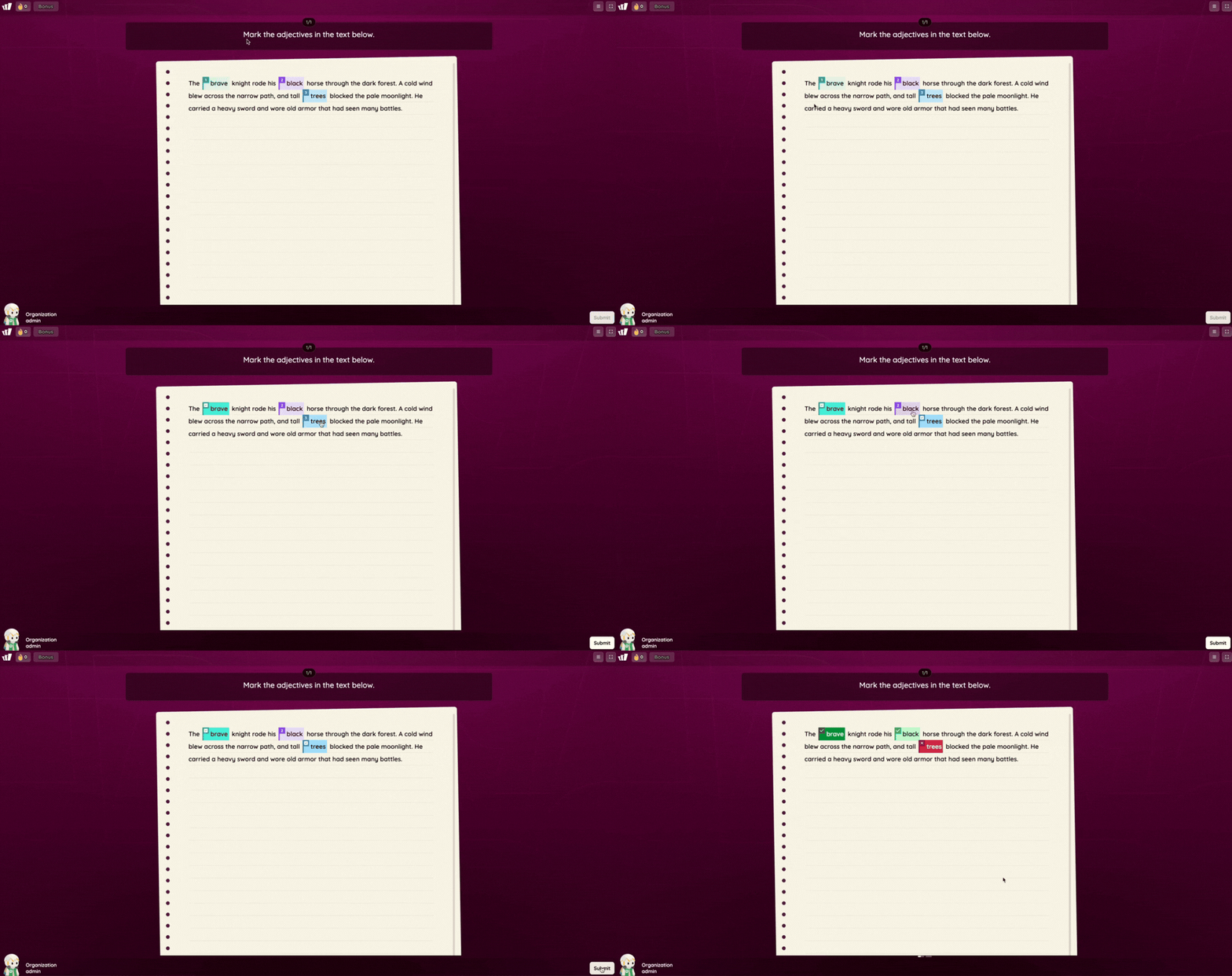
Tip: The interface is designed to feel like a paper worksheet; students highlight their answers just like they would with a physical highlighter.
Was this article helpful?
That’s Great!
Thank you for your feedback
Sorry! We couldn't be helpful
Thank you for your feedback
Feedback sent
We appreciate your effort and will try to fix the article