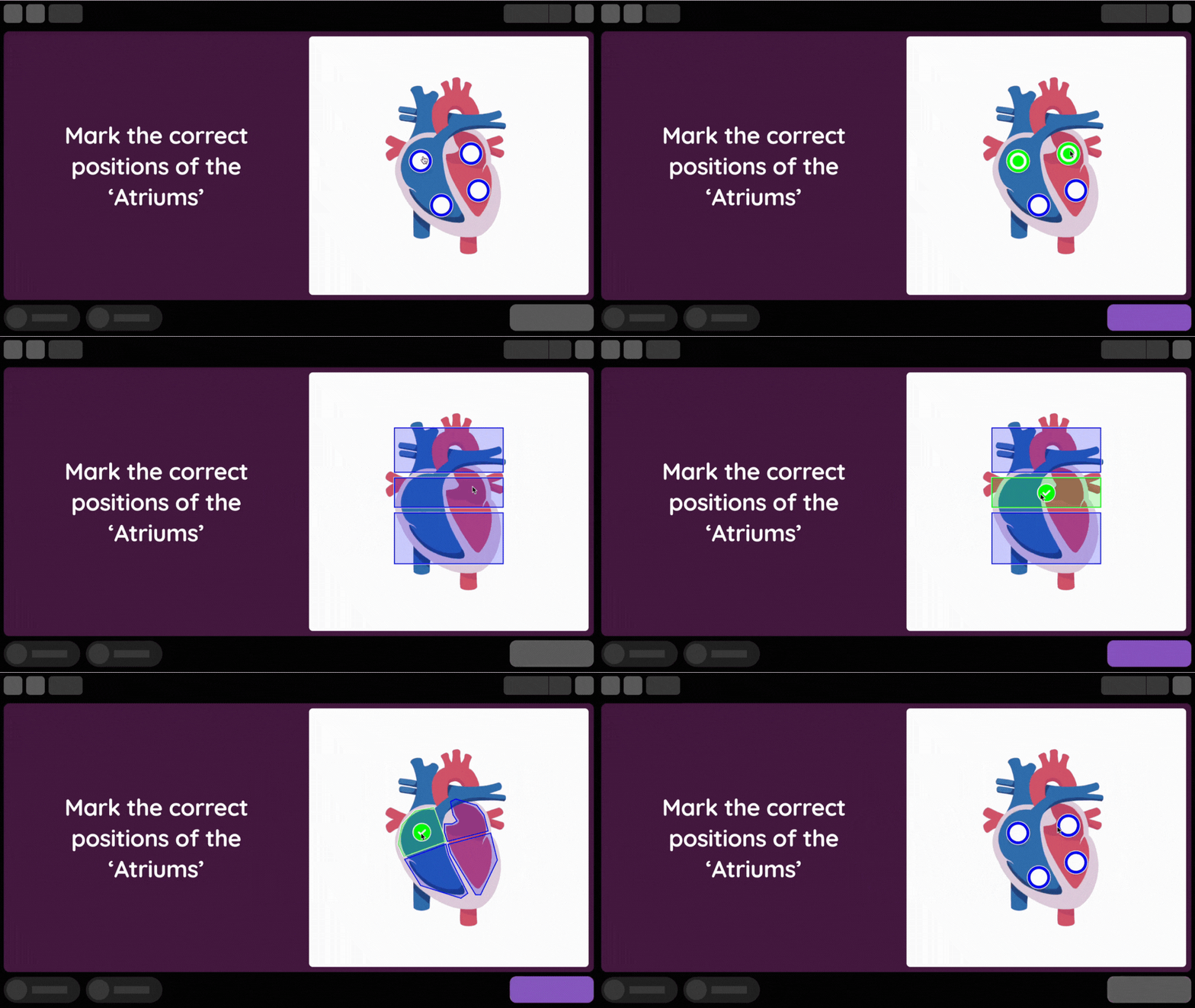
With Hotspot, students can select specific areas or regions on an image based on the question asked. Similar to the Labeling question type, Hotspot is auto-graded, supports partial grading, and works especially well for visual concepts and early students.
You can mark one or more correct regions on an image and award partial points when students identify some, but not all, correct hotspots.
To use this question type, enter your question and select the image to be marked with hotspots. Then, choose between circular, rectangular, or freeform hotspots. The freeform option lets you draw a custom polygon shape on the image.
The Hotspot question type is available on the Wayground Individual (Super) and School & District Plans.
How to create a Hotspot question
- 1. Click on 'Create' and select the 'Assessment' option
- 2. Choose 'Start from scratch' and select the 'Hotspot' question type
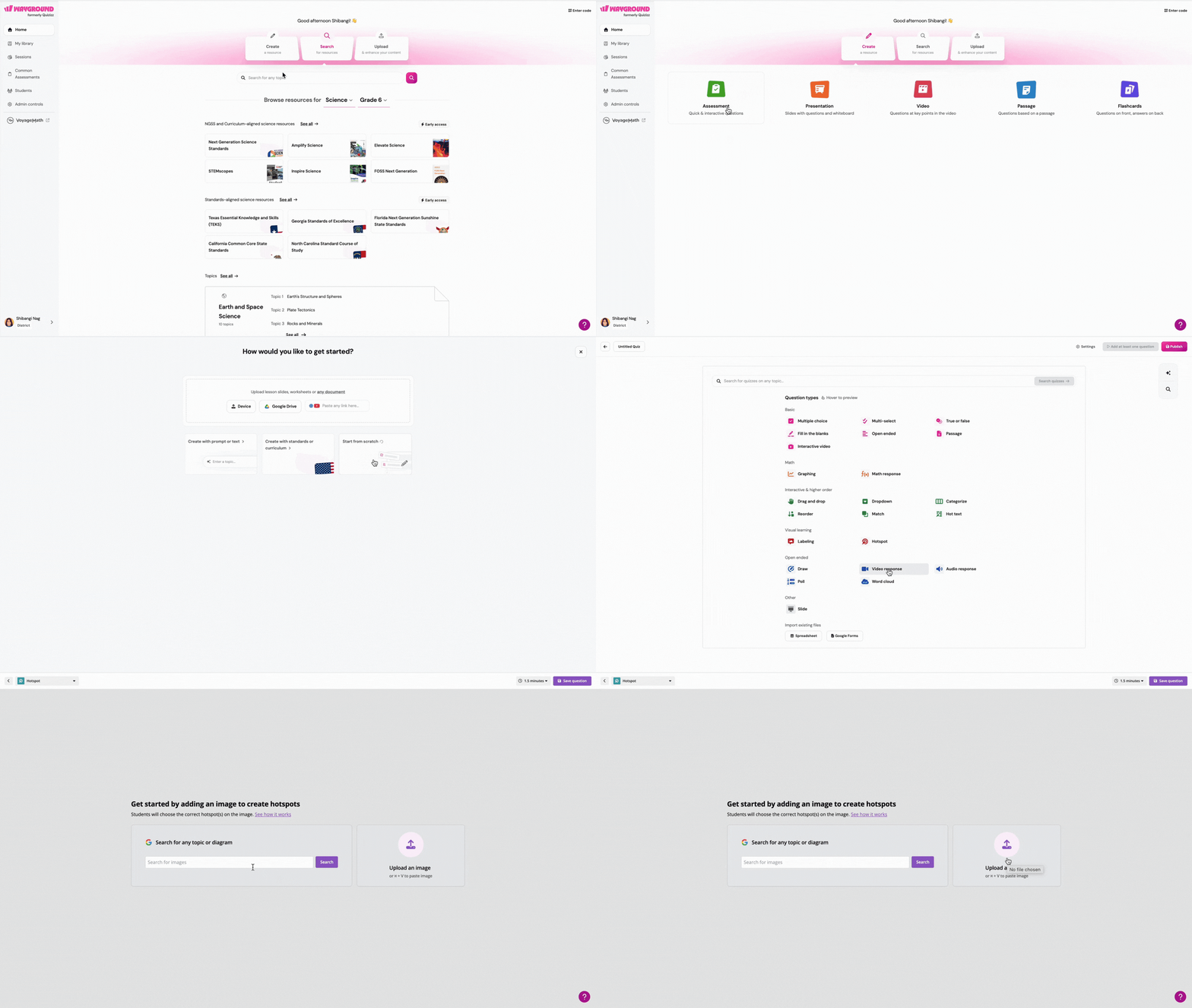
- 3. Add an image for Hotspot. You can:
- 1. Search for an image via Google search, or
- 2. Upload an image directly from your device
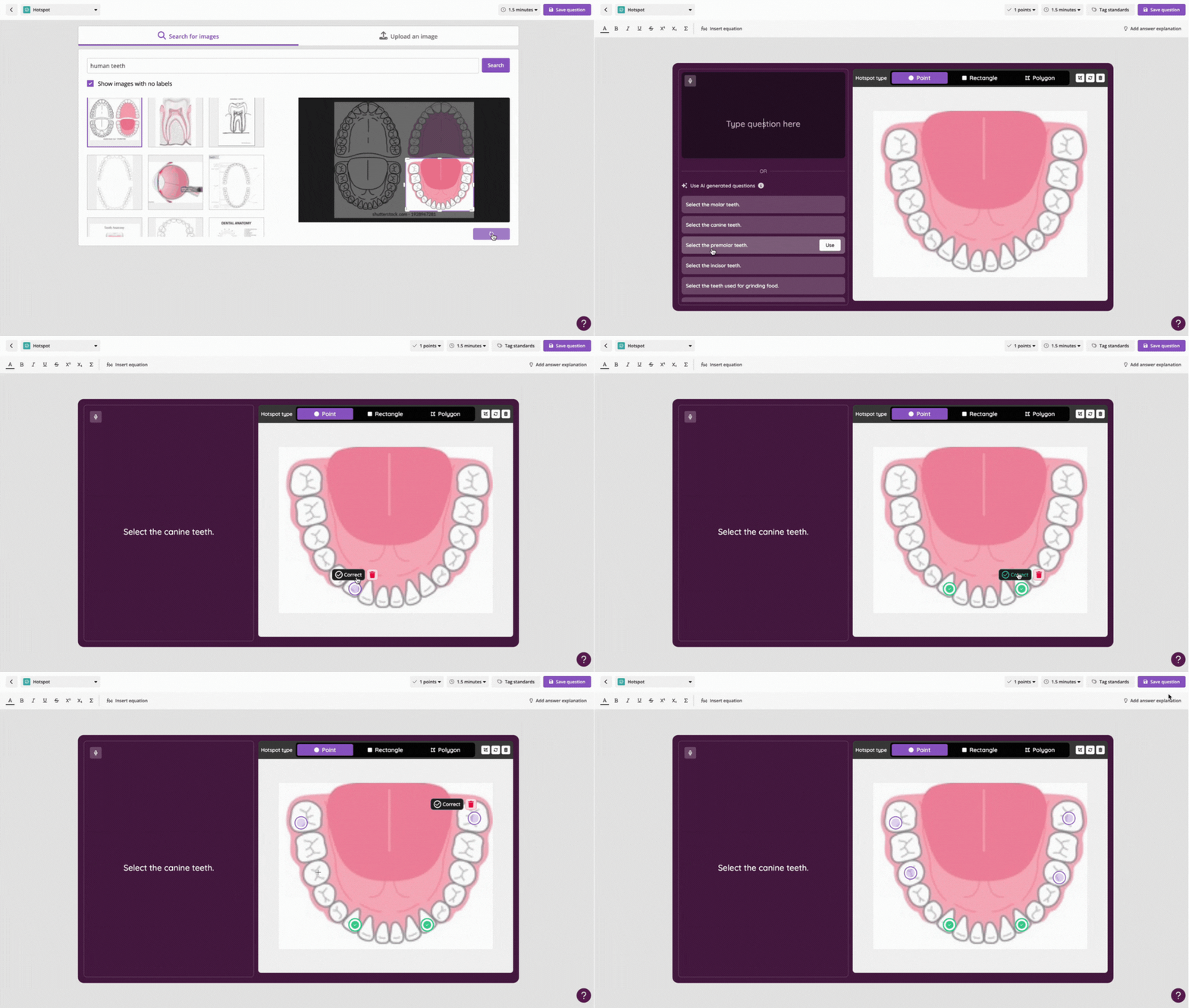
- 4. Select or upload the image, crop it as desired, and click on 'Use image'
Now, add a question and labels for the image.
- 1. Type your question in the text box
- Alternatively, you can use one of Wayground AI's auto-generated questions based on the uploaded image. To choose a generated question, click on the 'Use' button placed next to the question
- 2. Click anywhere on the image to add a hotspot to that area. Three Hotspot types are available: point, rectangle, or polygon hotspots
- Note that all hotspots for a given question must be of the same type. After marking a few hotspots, if you switch from one type to the other — for instance, from circle to rectangle — you must begin marking them from scratch
- You can add up to 10 hotspots and mark multiple hotspots as correct
- 3. Optionally, add incorrect hotspot options to increase the complexity of the question
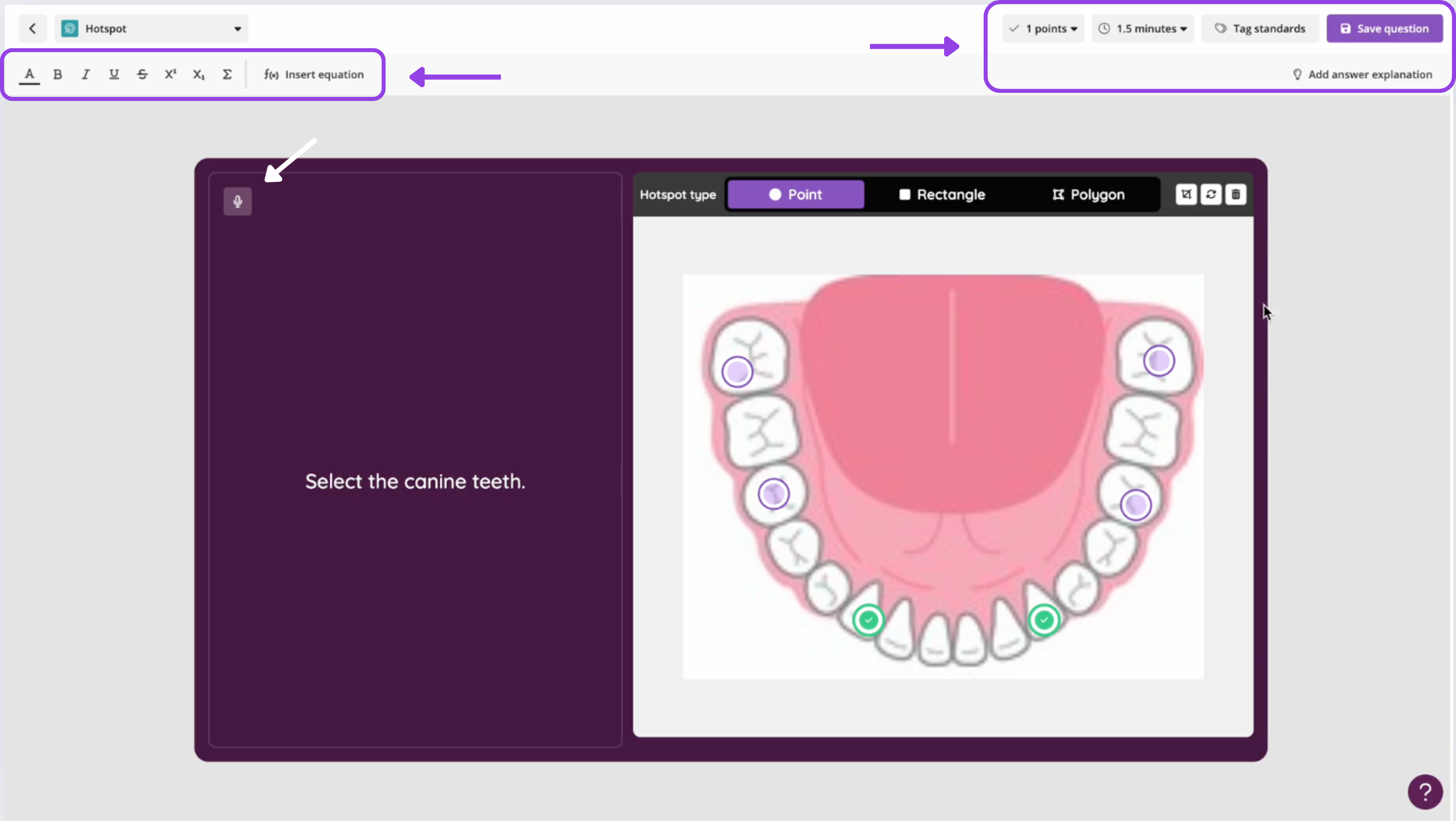
Once you're happy with the question and the hotspots, you can choose to add an audio, mathematical equation, answer explanation, set the number of points awarded, modify the time allotted, tag relevant standards, etc. Finally, click on 'Save question' and publish the Assessment/Quiz. You can go ahead and add more questions to your Assessment/Quiz using the same question type or more.
New! ✨
When you add two or more questions, Wayground AI will suggest similar questions that you can add to the Assessment/Quiz. Simply scroll down, review the AI-recommended questions, and choose the one you want to add by clicking on the '+ Add Question' button next to the question.
Once your Assessment/Quiz is ready, click on the 'Publish' button, and it is ready to be started live or assigned as homework.
Student experience
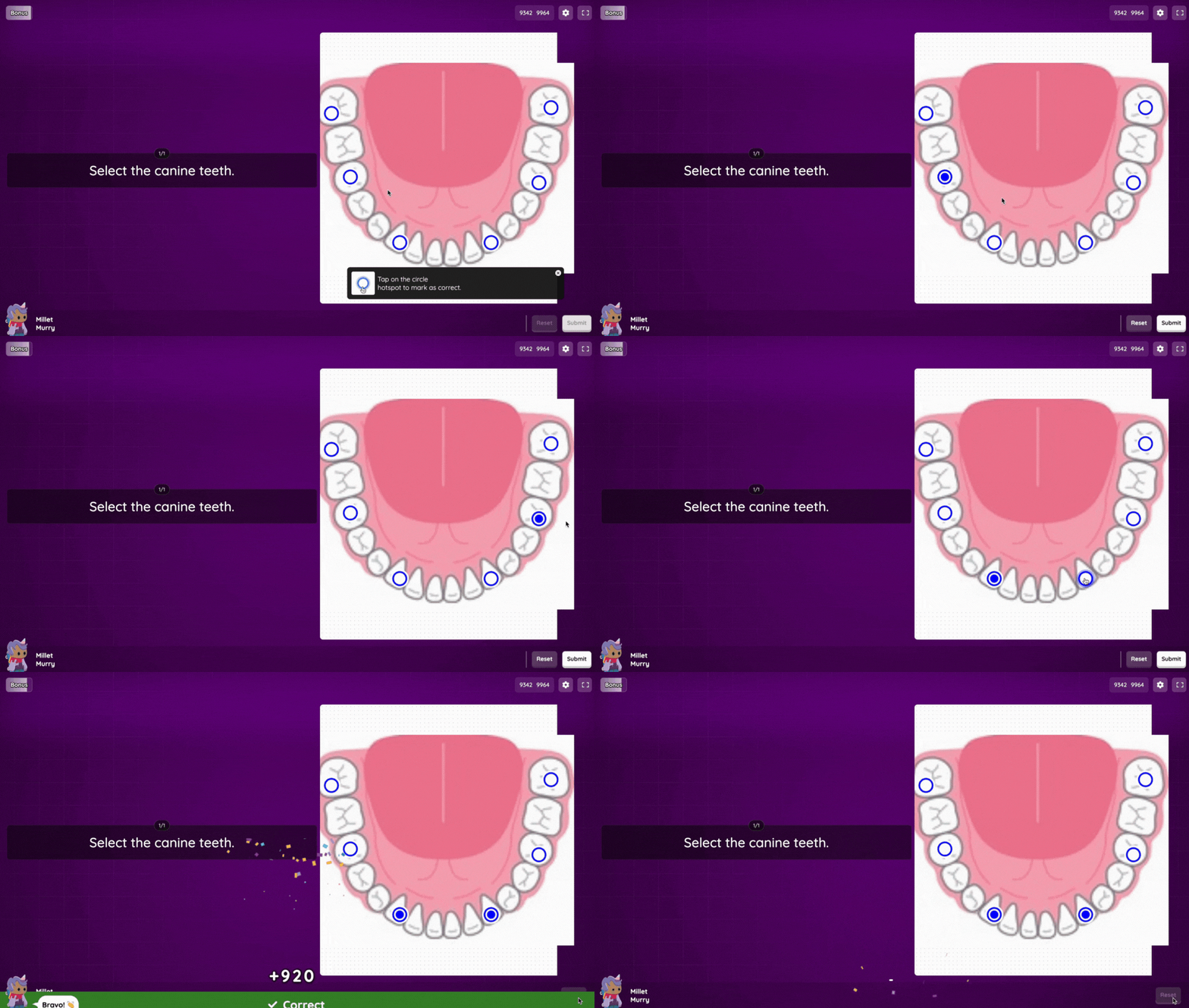
To answer a Hotspot question, students tap the correct areas on the image and then click on 'Submit'.
- Selecting a correct hotspot earns points
- Selecting some—but not all—correct hotspots earns partial credit
- Tapping the same hotspot again will deselect it
Was this article helpful?
That’s Great!
Thank you for your feedback
Sorry! We couldn't be helpful
Thank you for your feedback
Feedback sent
We appreciate your effort and will try to fix the article