What is a Multi-part question?
Multi-part is a question type that groups two to five related questions under one prompt. Each part (Part A through Part E) can use a different question type, like Multiple Choice in Part A and Open-Ended in Part B.
Use Multi-part to check how students reason through a problem step by step, all in one question. It mirrors the multi-step items students see on state and standardized tests.
When to use Multi-part questions?
Evidence-based reading pairs: Ask a question about a passage in Part A, then ask students to pick the supporting evidence in Part B.
Multi-step math problems: Break one problem into steps so you can see exactly where students get stuck.
Claim, evidence, and reasoning in science: Have students make a claim, support it, and then explain their thinking.
How to create a Multi-part question?
To create a Multi-part question:
Open the Wayground Question Editor.
Select Add question.
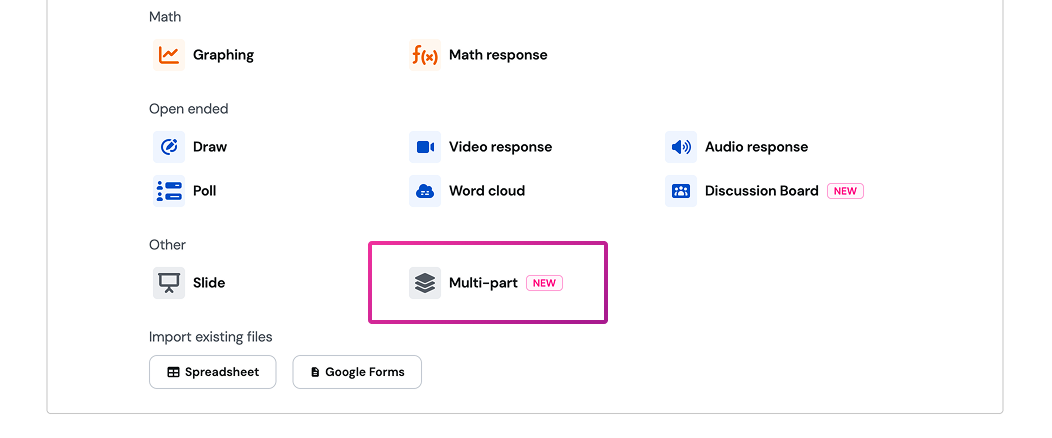
Choose Multi-part from the list of question types.
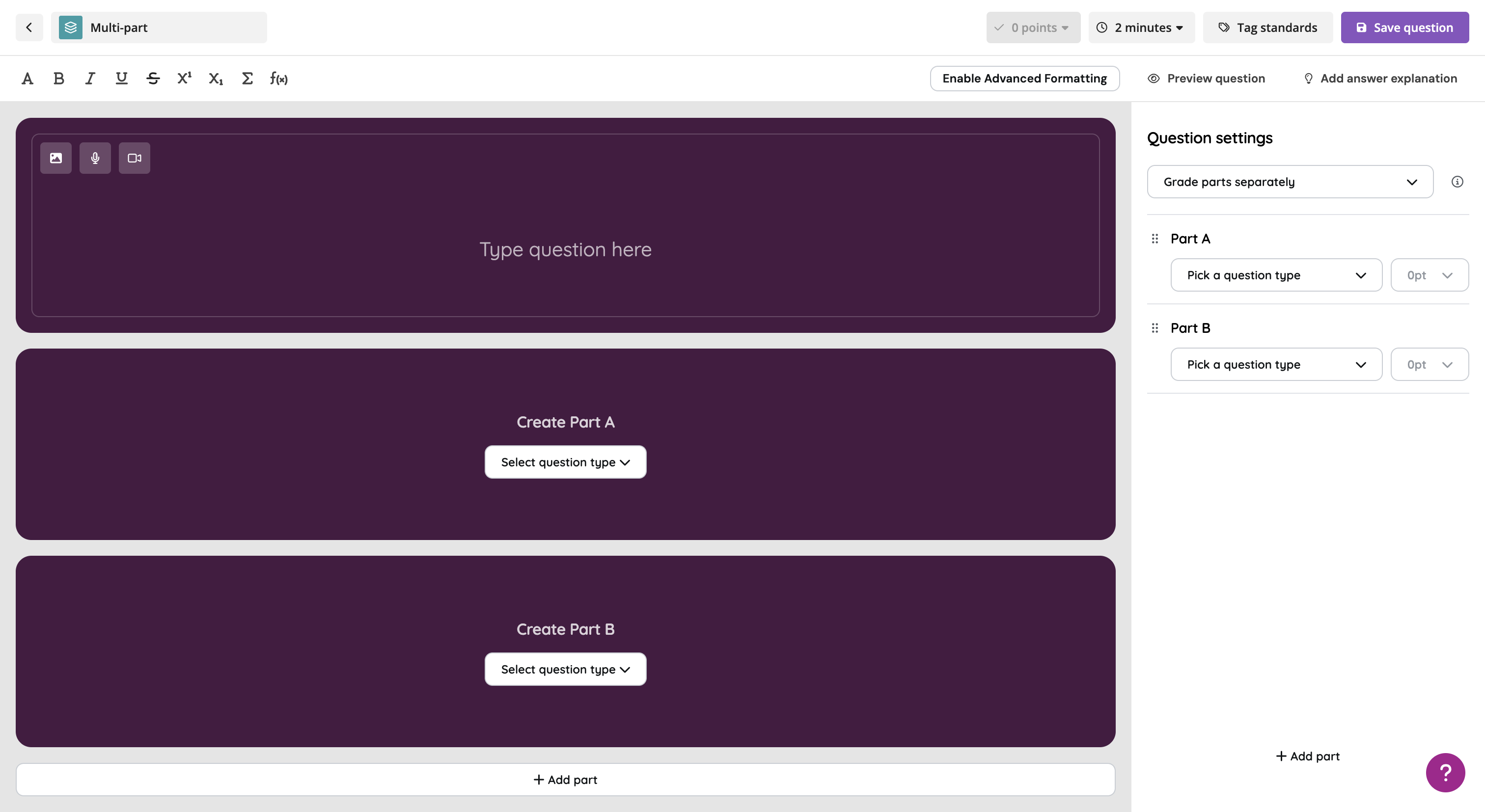
Enter the main prompt. This is the shared context for every part, like a passage, scenario, image, or data set.
In Part A, choose a question type and build it as you normally would.
In Part B, choose a question type and build it as you normally would. Every Multi-part question needs at least two parts.
To add more parts, click Add Part to add another. Repeat for each part you need, up to Part E.
Set the correct answer for each part.
Save the question and add it to your assessment.
Reorder or delete parts
To change the order, drag a part to a new spot. Part labels update automatically, so Part C moved to the top becomes Part A. To remove a part, select the [ ╳ ] icon next to it. The remaining parts relabel in order.
Which question types can you use in each part?
Each part can use a different question type, the full list below:
- Multiple Choice
- Multiple Select
- Fill-in-the-Blank
- Drop-Down
- Drag & Drop
- Match
- Match Table Grid
- Reorder
- Categorize
- Hotspot
- Labelling
- Hotspot
- Math Response
- Graphing
- Hot Text
- Open-Ended
You can't add a Multi-part question inside another Multi-part question. Draw, Audio Response, Video Response, Poll, and Word Cloud aren't available as parts.
You can add Multi-part questions inside a Passage. Students see the text alongside every part, which works well for evidence-based reading pairs.
How does scoring work?
Multi-part questions have three scoring methods. Choose one in the question editor. Grade parts separately is the default.
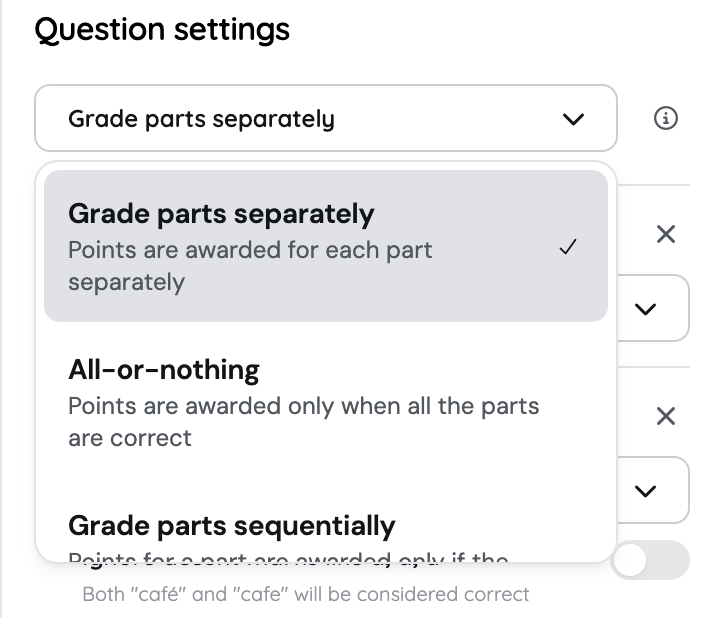
Grade parts separately
Each part is scored on its own. Students earn points for every part they get right, even if they miss another part. Use this when the parts test separate skills.
Grade parts sequentially
Students earn points for a part only if the part before it is correct. Once a student misses a part, the parts after it earn no points. Use this when each part builds on the last, like an evidence-based reading pair where Part B depends on Part A.
All-or-nothing
Students earn points only when every part is correct. If any part is wrong, the question scores 0. Use this when the question only counts as mastered if the whole thing is right.
Example
A question has 3 parts worth 1 point each. A student gets Part A right, Part B wrong, and Part C right.
| Scoring Methods | Points Earned | Why |
|---|---|---|
| Grade parts independently | 2 of 3 | Parts A and C are correct |
| Grade parts sequentially | 1 of 3 | Part B is wrong, so Part C earns nothing |
| All-or-nothing | 0 of 3 | Not every part is correct, so Part A and C earn nothin |
Good to know
- Partial grading: If a part's question type supports partial grading, like Match Table Grid, that setting still applies within the part. A partially correct part still shows as partially correct, but it counts as correct for sequential and all-or-nothing scoring. In sequential scoring, that means the next part can still earn points.
- Open-Ended parts: Turn on AI evaluation to grade Open-Ended parts automatically, or grade them yourself in reports.
In reports, you can see each student's answer to every part, so you can spot exactly which step caused trouble.
Student experience
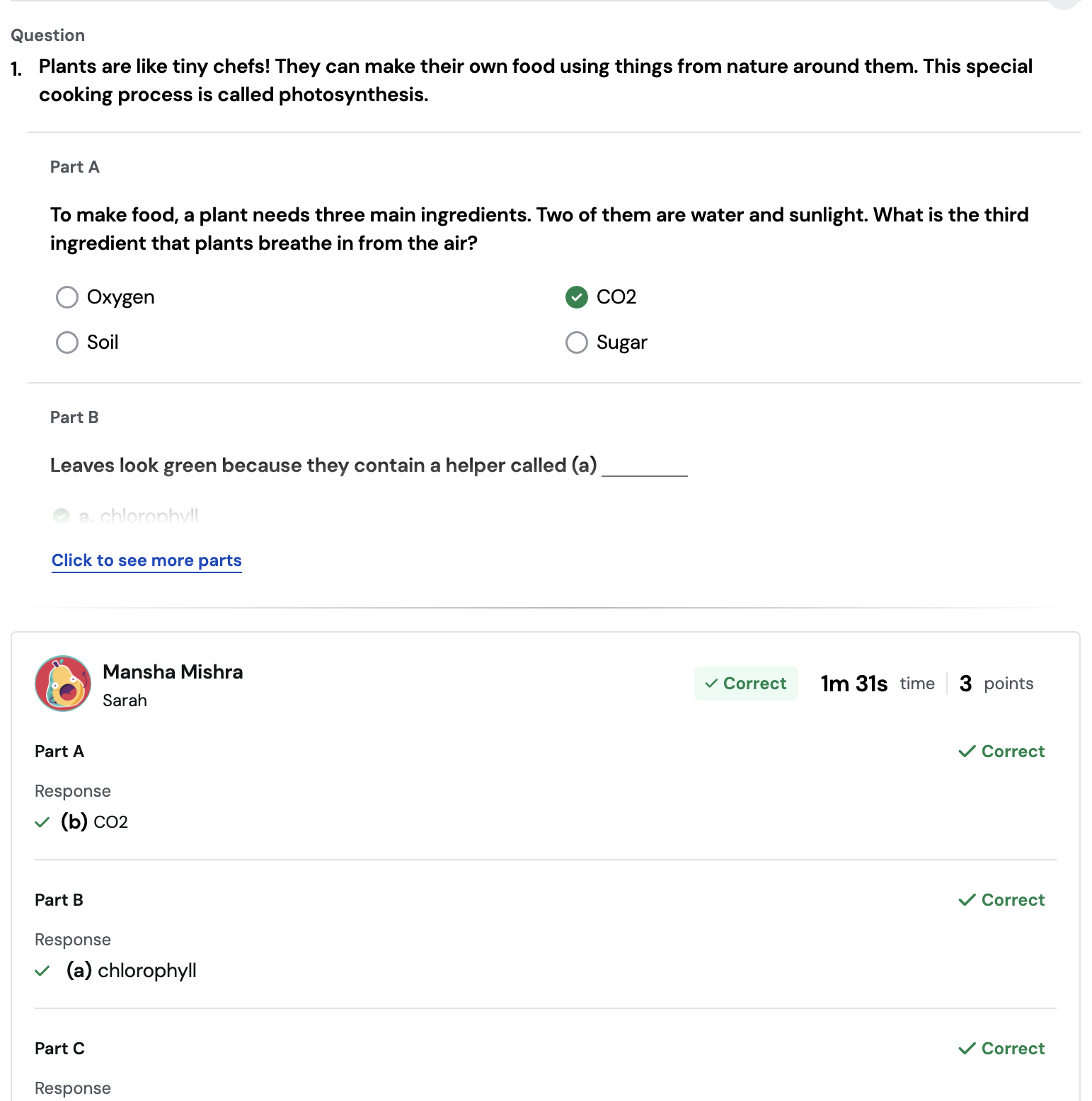
Students see a Multi-part question as one question. The shared prompt stays at the top, and each part is labeled Part A, Part B, and so on.
- Students answer the parts in any order, but submission happens together.
- Students can move between parts and change answers before they submit the question.
- Students can navigate through the different parts either by scrolling through them or through the tabs on the side of the question.
- If you shuffle questions in your session settings, the Multi-part question moves as one unit. The parts inside it always stay in order.
Accommodations apply to every part of a Multi-part question, just like they do for other question types.
Multi-part question examples
| Subject | Prompt | Parts |
|---|---|---|
| ELA | A short passage about a character who changes her mind | Part A (Multiple Choice): What causes the character to change her mind? Part B (Multiple Choice): Which sentence best supports your answer to Part A? |
| Math | A recipe that serves 4 people | Part A (Math Response): How much flour do you need to serve 10 people? Part B (Open-Ended): Explain how you found your answer. |
| Science | A data table of plant growth under different light levels | Part A (Graph): Plot the data. Part B (Multiple Choice): Which light level led to the most growth? Part C (Open-Ended): Why do you think that happened? |
| Social Studies | A map of trade routes in 1500 | Part A (Hotspot): Select the busiest port. Part B (Categorize): Sort the goods into imports and exports. Part C (Reorder): Put these events in order. |
| World Languages | An audio clip of a short conversation | Part A (Drop-Down): Complete the sentence with the right verb. Part B (Open-Ended): Write a reply to the speaker. |
Was this article helpful?
That’s Great!
Thank you for your feedback
Sorry! We couldn't be helpful
Thank you for your feedback
Feedback sent
We appreciate your effort and will try to fix the article