TABLE OF CONTENTS
- Where to find your Common Assessments
- Common Assessment details page
- Common Assessments with LockDown Browser
As an admin or coordinator, you can track every Common Assessment you have access to, manage its settings and access, and view each assessment’s Organization reports.
Where to find your Common Assessments
For Admins Click the Common Assessments button in the side navigation panel to see the full list of Common Assessments.
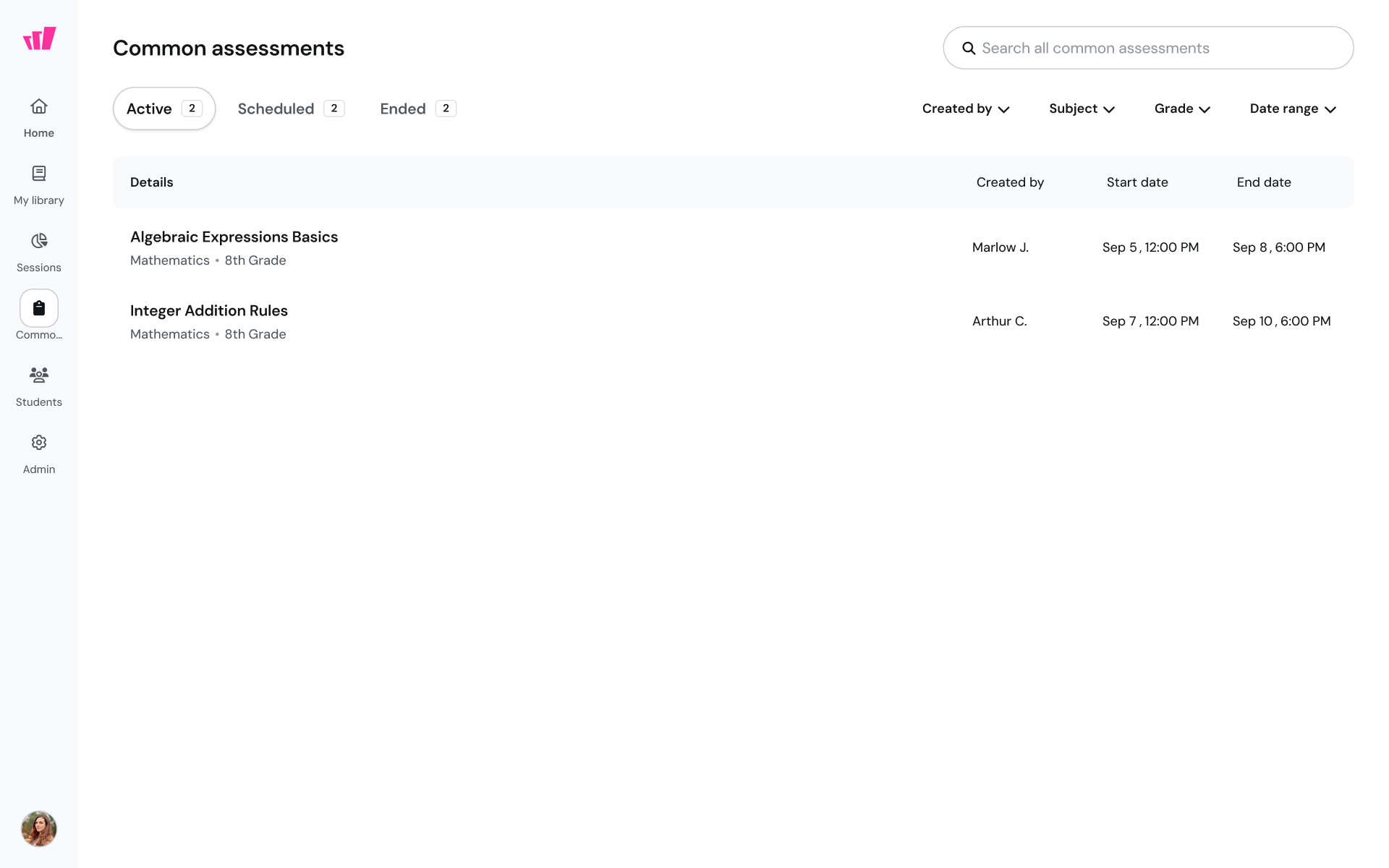
For Teachers Open the Sessions tab from the side navigation panel, then click the Common Assessments button to view your list.
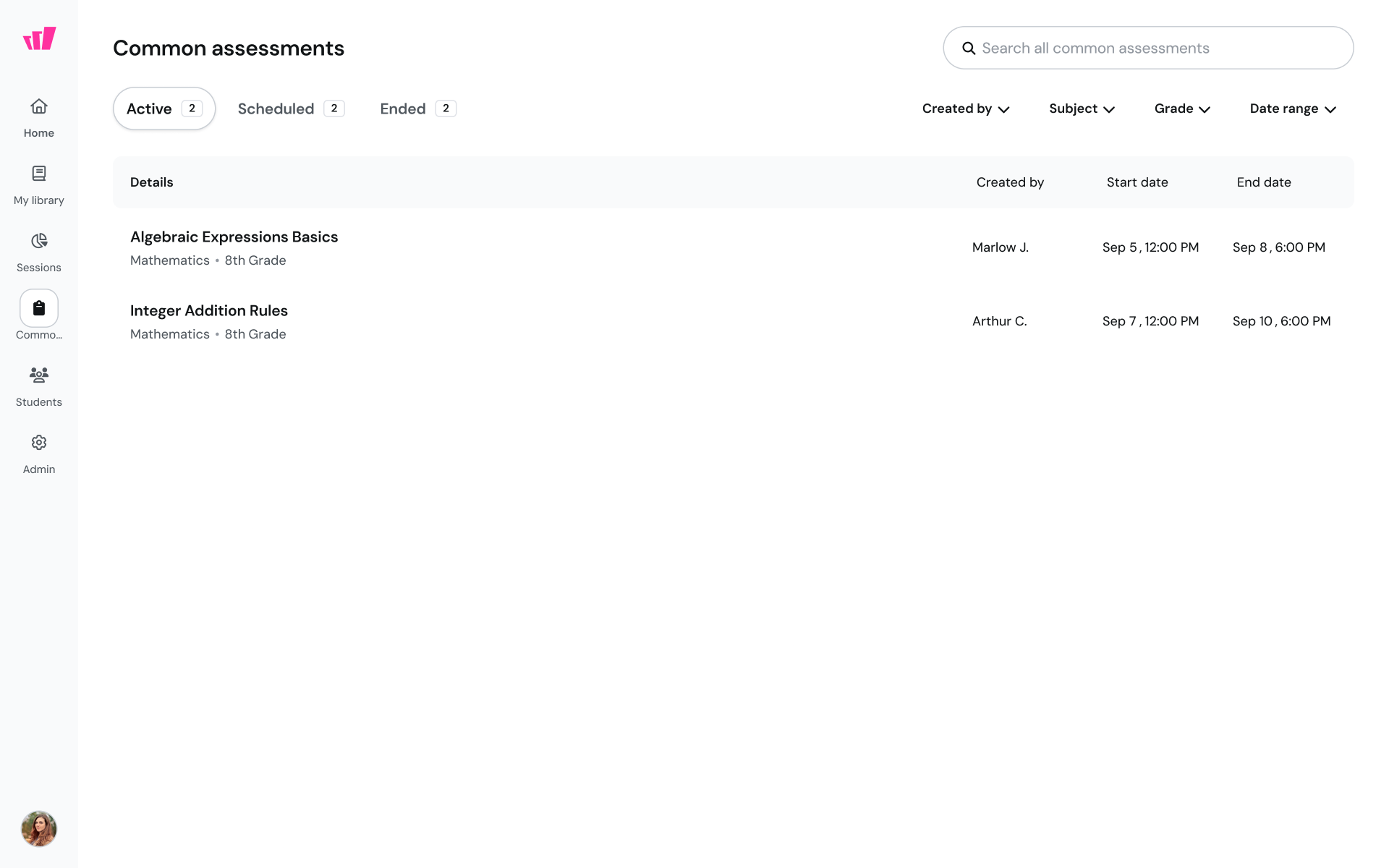
Each assessment appears under one of three status tabs:
Active: The testing window is open. Teachers can administer the Common Assessment in their classes, and Organization reports show participation and performance data.
Scheduled: The testing window has not started yet, and students cannot access the assessment.
Ended: The testing window is closed. No one can start new sessions, and reports show final data.
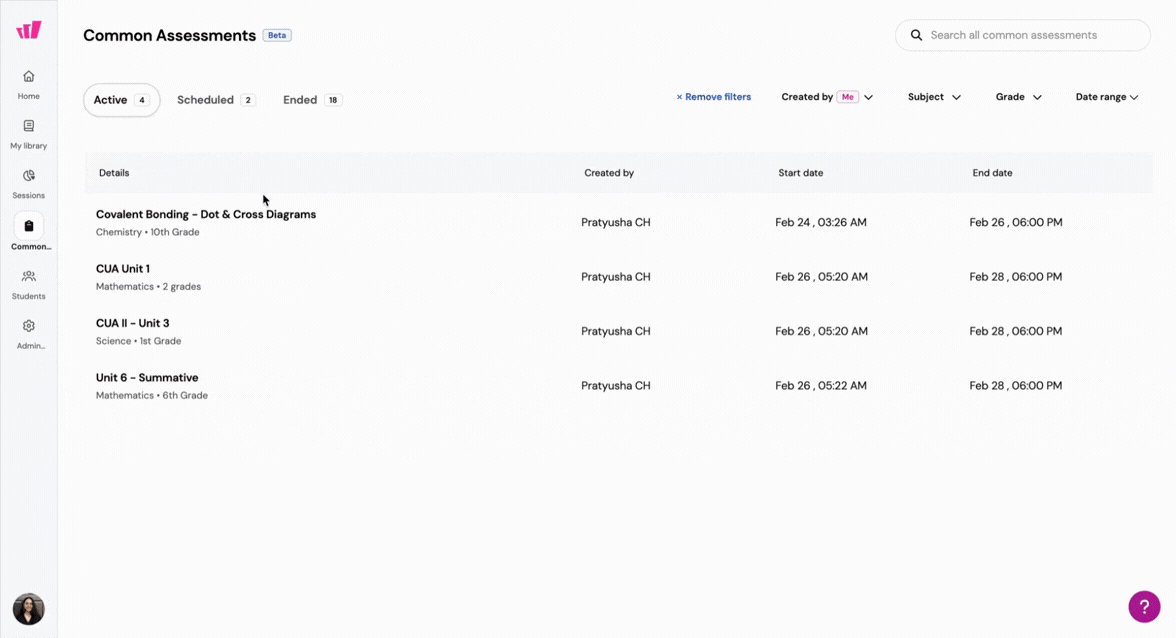
Searching and filtering
Use the search bar and filters at the top of each tab to find assessments quickly:
Created by: Show assessments created by you or by others.
Subject: Filter by subject.
Grade: Filter by grade level.
Date range: Filter by start or end date.
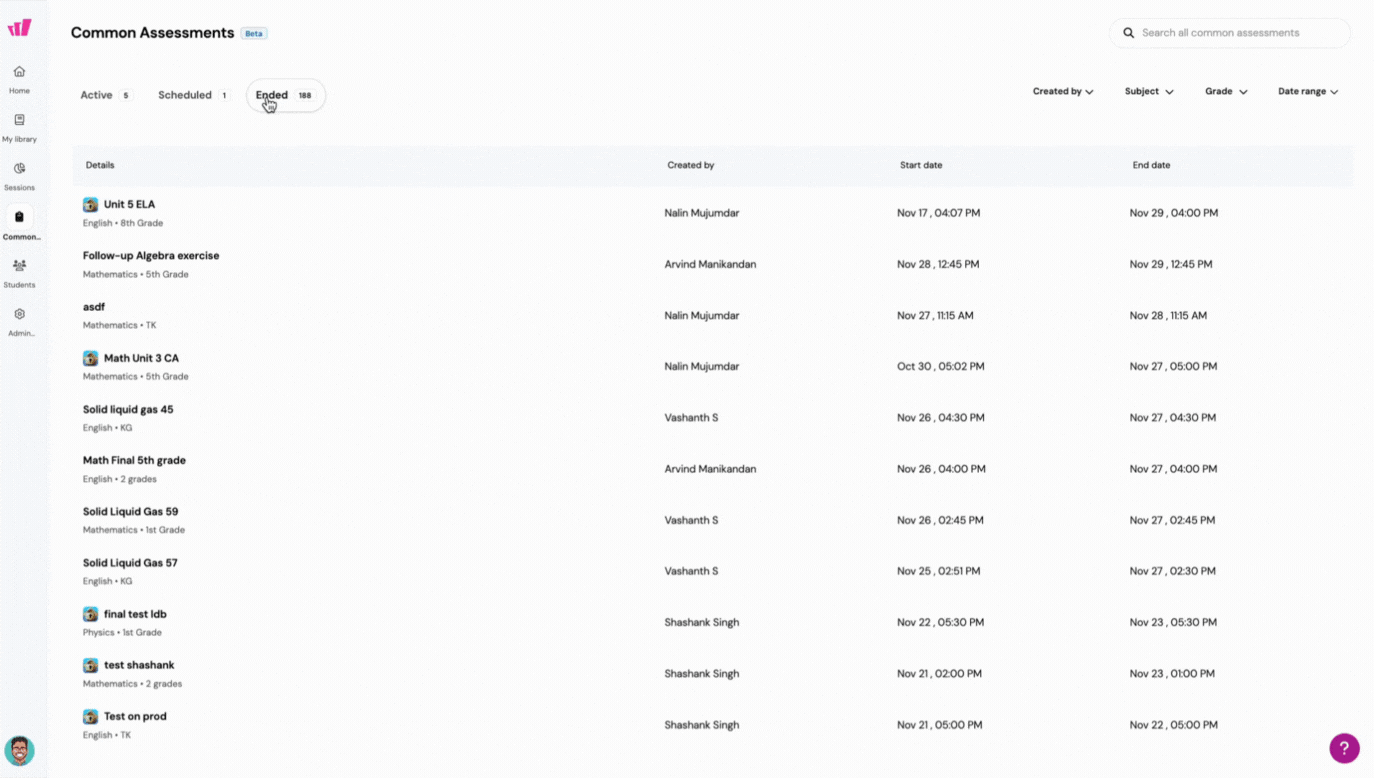
Common Assessment details page
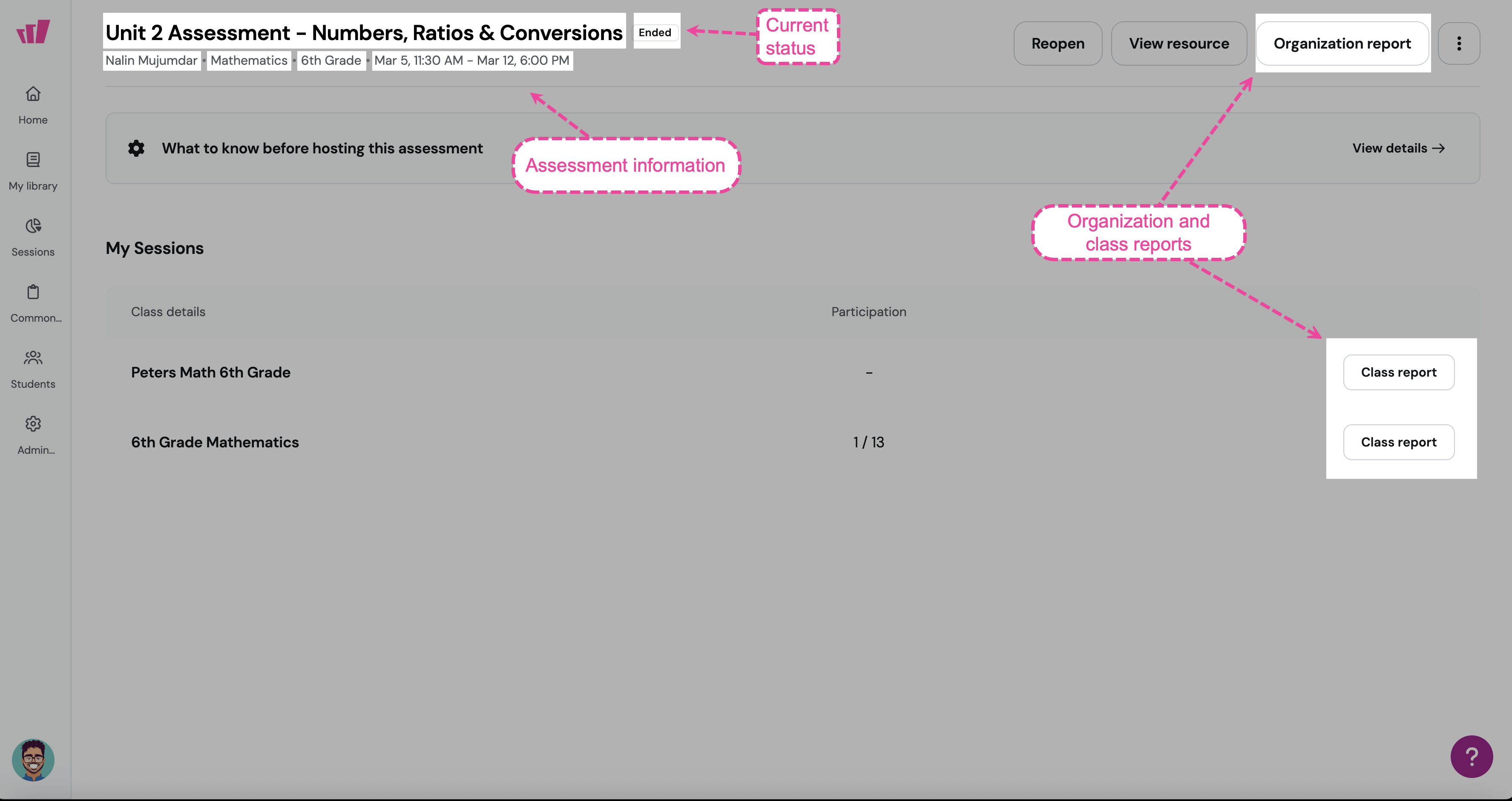
Click any assessment to open its details page, where you can:
View assessment information, including title, subject, grade, schedule, and creator.
Open district-level and school-level reports.
Check the current status: Active, Scheduled, or Ended.
See which teachers and admins have access.
Common Assessments with LockDown Browser
Common Assessments with LockDown Browser enabled display an icon next to them, signaling to teachers that students must take the assessment in LockDown Browser. For setup details, see Installing and Using LockDown Browser by Respondus with Wayground
Was this article helpful?
That’s Great!
Thank you for your feedback
Sorry! We couldn't be helpful
Thank you for your feedback
Feedback sent
We appreciate your effort and will try to fix the article