TABLE OF CONTENTS
This guide shows you how to join and take a Common Assessment on Wayground. Follow these steps so you can focus on your test.
How to join a Common Assessment
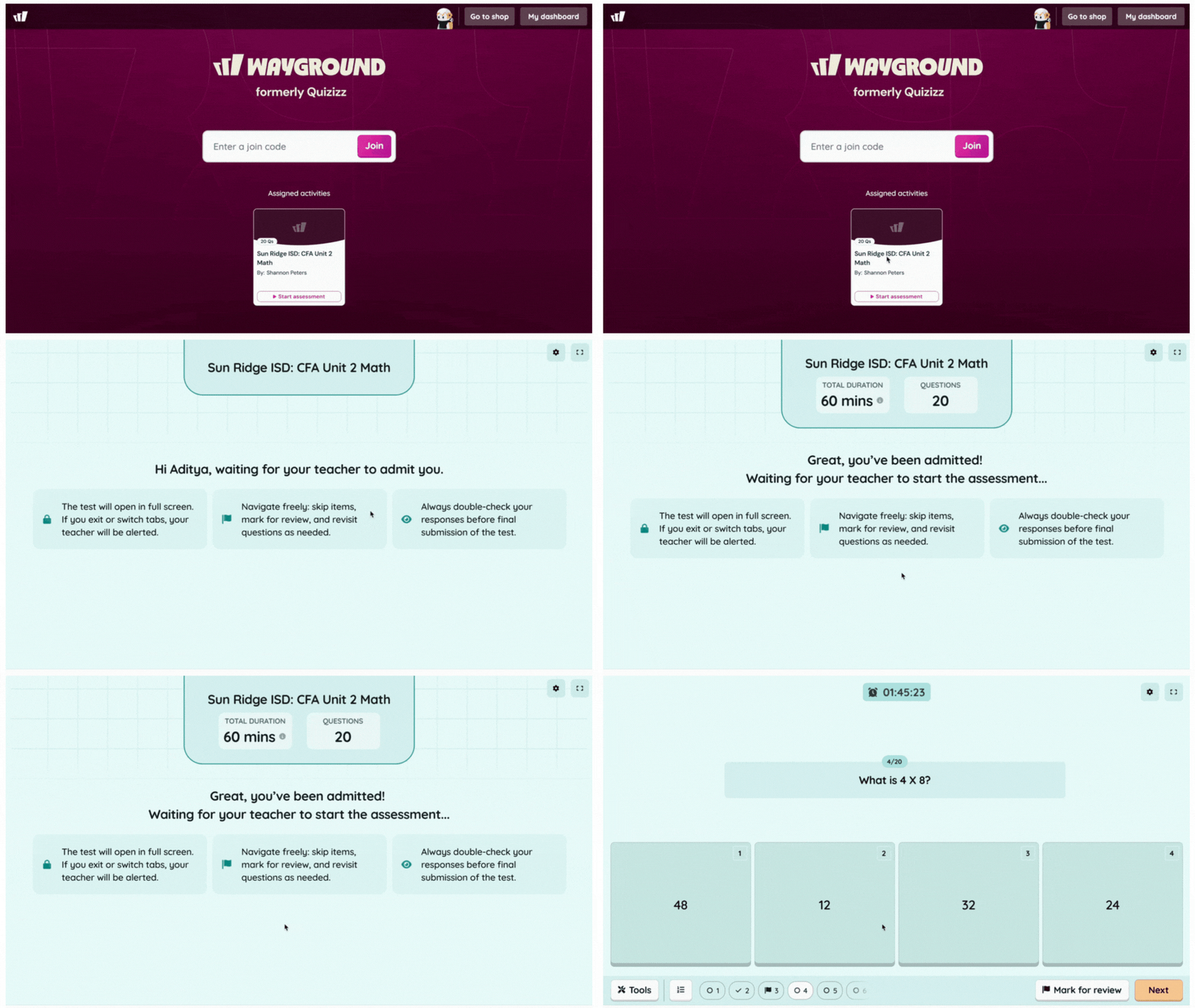
Your teacher tells you how to join. You usually join in one of these ways:
From your Wayground dashboard: Log in to Wayground. If your teacher assigns the Common Assessment to your class, you see it on your dashboard. Click Start assessment to join
From your class page: If the Common Assessment is in Google Classroom, Canvas, or Schoology, click the link your teacher posts on your class page
After you click the link, you wait in the lobby. Your teacher lets you in when it is time to start.
Using LockDown Browser
Some Common Assessments use LockDown Browser. If yours does, you see a message when you join.
Install it: If LockDown Browser is not on your device, follow the steps on screen to download and install it
Check your device: On the launch screen, click Test to make sure your device is ready
Stay in the test: Once the test starts, you cannot open other websites or apps. You also cannot copy or print anything
Answering questions
You have a few tools to help you move through the assessment and manage your answers:
Skip: Not sure about a question? Click Next to move on. Skipped questions are marked, so you can come back to them later
Mark for review: Want to look at a question again before you submit? Click Mark for review. Marked questions are easy to find at the end
Navigate to any question: Use the question panel to go to any question at any time
Submit: When you are done and happy with your answers, click Submit Test to save & turn in your work. You will not be able to continue your attempt after submission, but you can start a new one with your teacher’s consultation.
Tools you can use during the test
Your teacher and school choose which tools you can use. You might see some of these:
Calculator and graphing tools: Helpful for math questions
Language: Change the language of the screen
Dark or light mode: Pick the look that is easier on your eyes
Timer: Show or hide the countdown
Full screen: Make the test fill your whole screen so nothing else gets in the way
You find these tools in the toolbar at the top of the test.
If your test pauses
If your teacher pauses the test, or if you close the window by mistake, do not worry. Your answers are saved.
To get back in, follow these steps:
Open the test again from the same link or your dashboard
Wait for your teacher to let you back in
Pick up where you left off
Was this article helpful?
That’s Great!
Thank you for your feedback
Sorry! We couldn't be helpful
Thank you for your feedback
Feedback sent
We appreciate your effort and will try to fix the article