Student Profiles brings each student’s standards mastery and assessment history together on one page. You can see where a student stands on every standard, follow the evidence behind it, and plan the right support.
Student Profiles is part of Common Assessments and lists students rostered through Clever or ClassLink.
In this article, we will go over:
- For teachers
- For district administrators
- Explore a student’s standards mastery
- Choose what your organization sees
- How standards mastery is calculated
For teachers
Use Student Profiles to review students on your Clever or ClassLink roster. If your district enables '360° view of student performance', you can see Common Assessment results for students in your classes even when you don’t have direct access to the assessment.
Find a student
- Go to 'Students' > 'Student Profiles' in the left menu
- Search for a student on your roster and select their name to open their profile
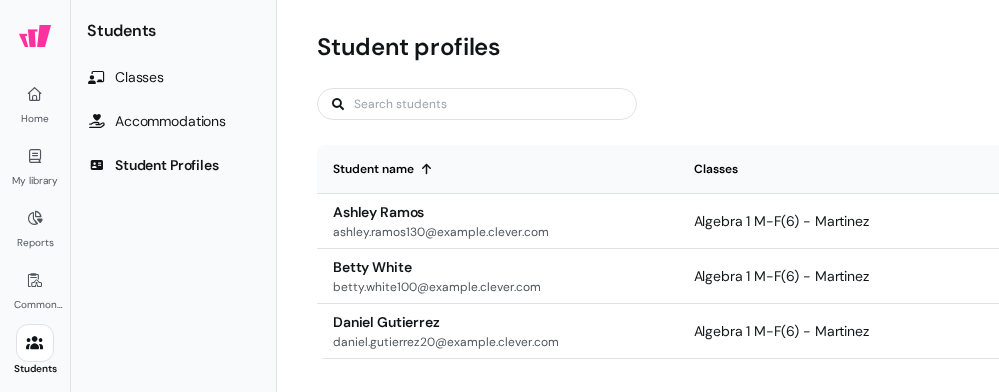
If a student is missing from your list, check their roster in Clever or ClassLink.
Review a student’s assessments
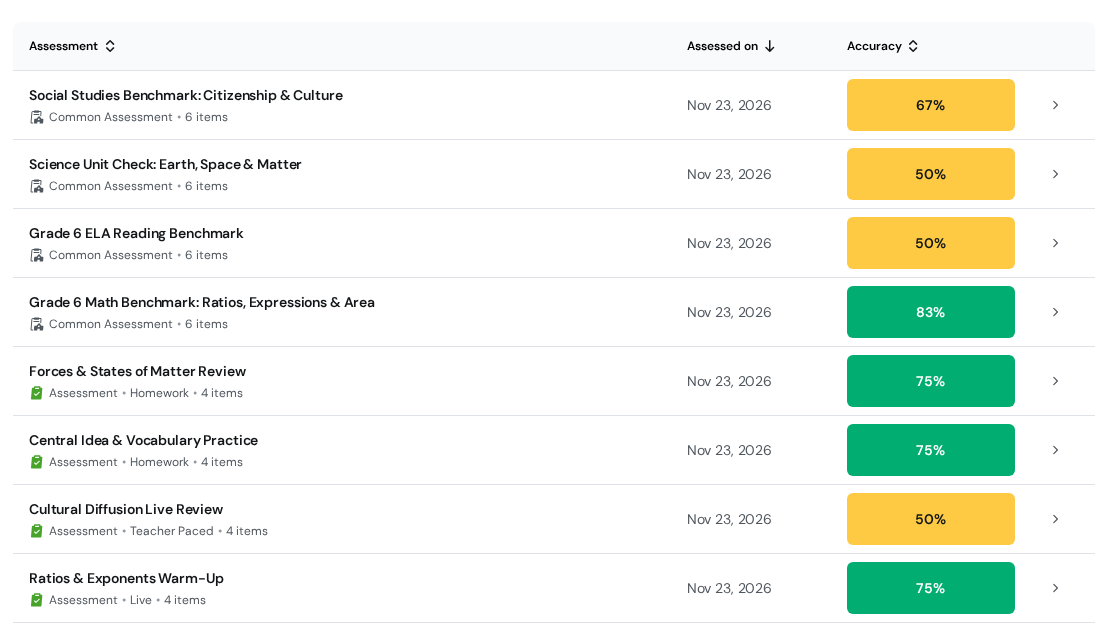
- Open 'Assessments' > 'Overview' and select a date range
- Use 'Type' to choose 'All activities', 'Common assessments', or 'Classroom activities'. Each row shows the date, item count, and accuracy. The classroom sessions you hosted also show their resource type and session mode
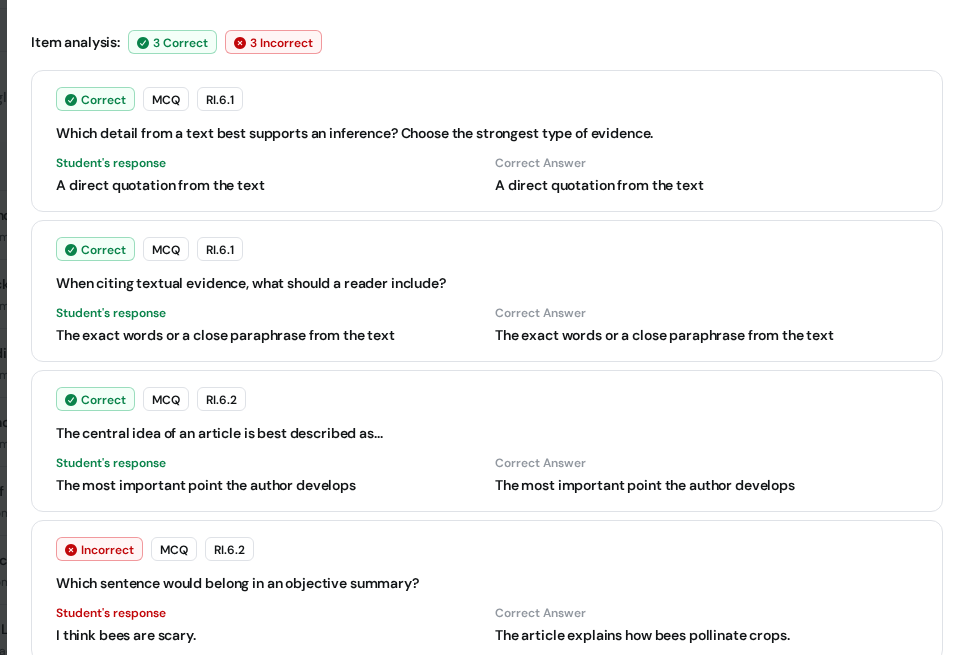
- Select a row to open 'Item analysis'. In the reading benchmark below, the student answered three of six items correctly. Compare the student’s response with the correct answer to see where they need support
Review standards
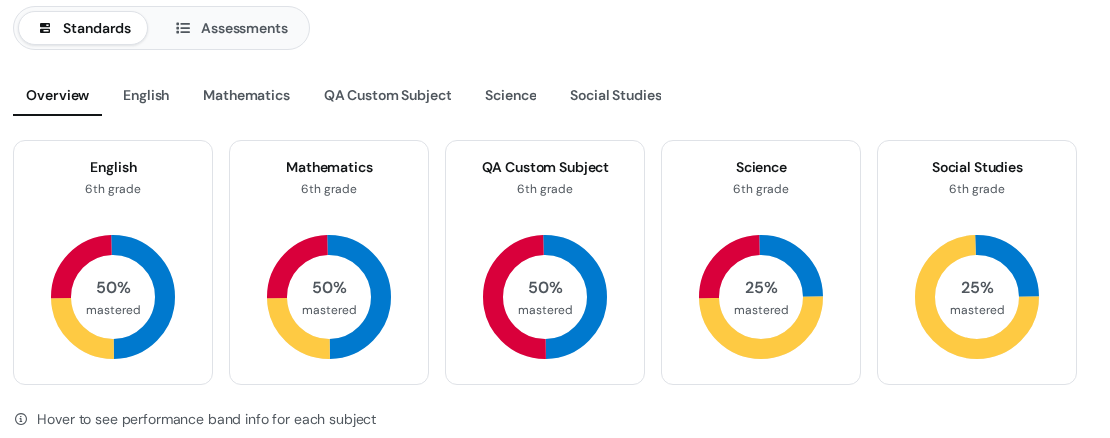
- Open 'Standards' > 'Overview' to compare the percentage of standards mastered across subjects. In this example, the student has mastered 50% of the standards in English and Mathematics, and 25% in Science and Social Studies
- Select a subject to see the performance band for each standard. In 'Mathematics', the student meets or exceeds two of four standards
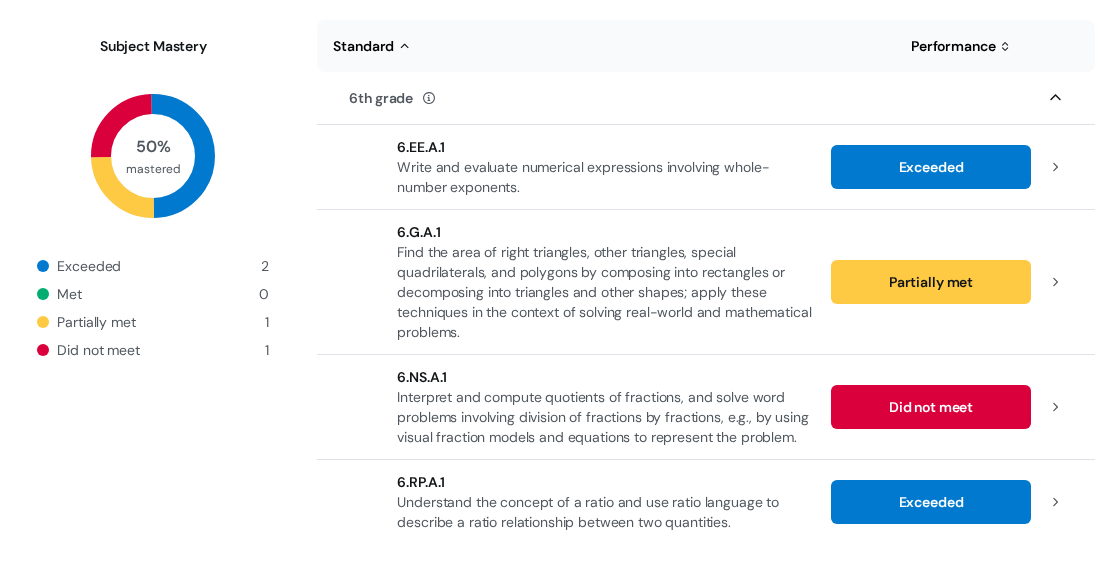
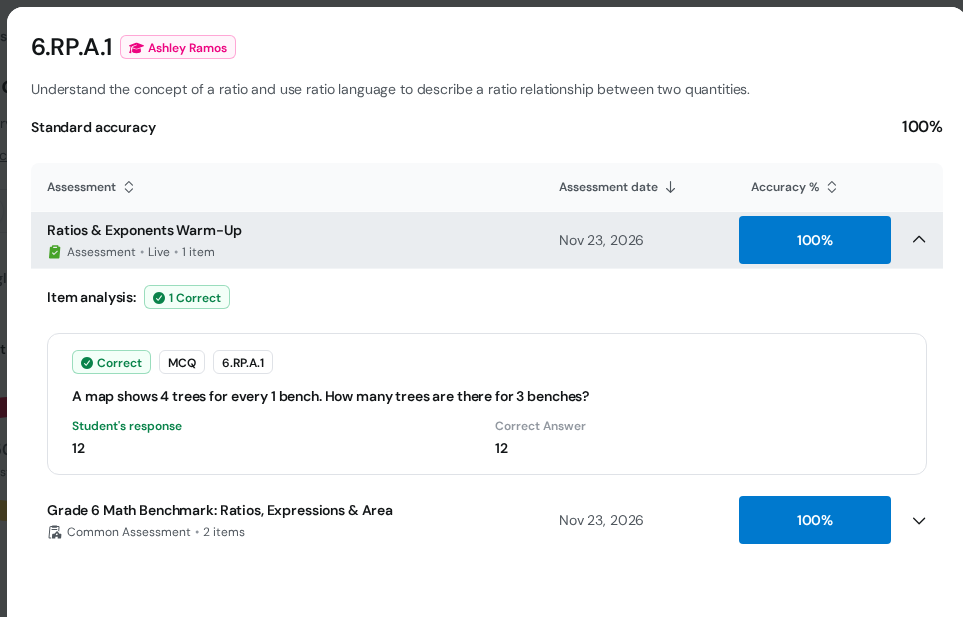
- Open a standard to see its 'Standard accuracy' and the assessments that measured it. For the ratio standard below, the teacher can see a Live assessment and a Common Assessment. Expand either result to see the items tied to that standard
For district administrators
Use Student Profiles to review results for students in the schools you can access. Use Student Profile Settings to manage teacher access and subgroup visibility.
Find a student
- Go to 'Students' > 'Student Profiles' in the left menu
- Find a student by name in 'Search students', or narrow the list with the 'School', 'Class', 'Grade', and 'Subgroup' filters

- Select the student’s name to open their profile
The 'Subgroup' filter uses your organization’s subgroup settings.
Review a student’s assessments
- Open 'Assessments' > 'Overview' and select a date range
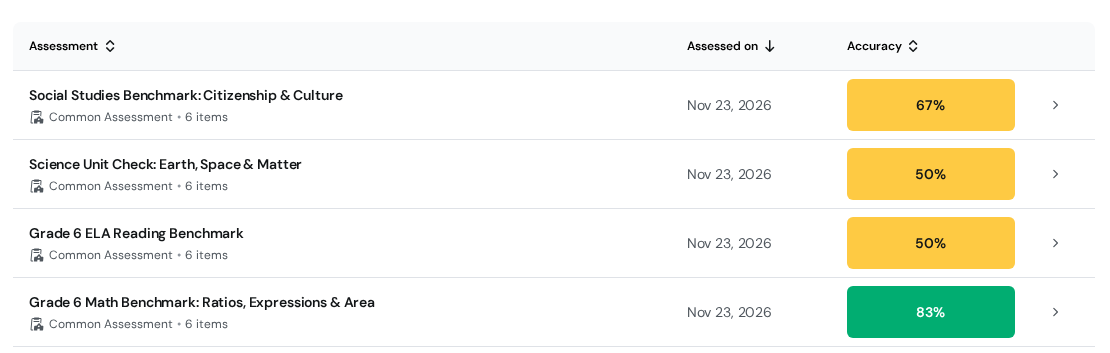
- Review the date, item count, and accuracy for each result. In the example below, the district administrator sees the student’s Common Assessments across four subjects. The teacher’s classroom sessions appear in the hosting teacher’s view
- Select an assessment to open 'Item analysis' and review the student’s responses
Review standards
- Open 'Standards' > 'Overview' to see mastery by subject and by the grade of the standards
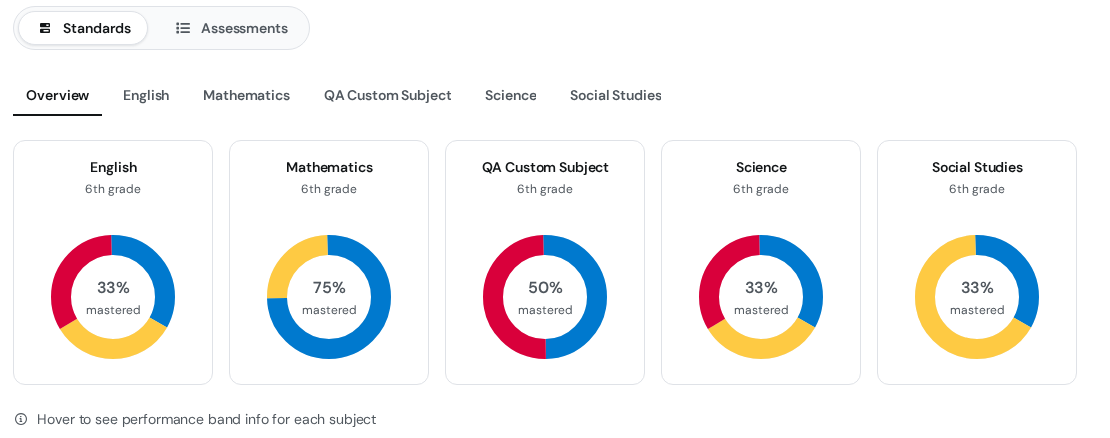
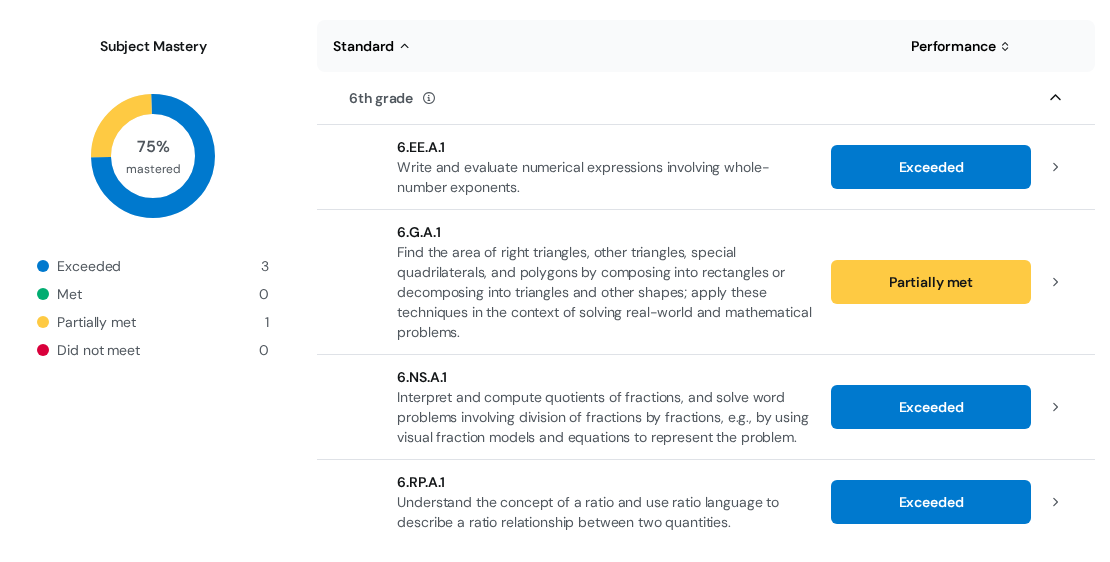
- Select a subject to see the performance band for each standard. The same student has mastered three of four 'Mathematics' standards in this administrator’s view
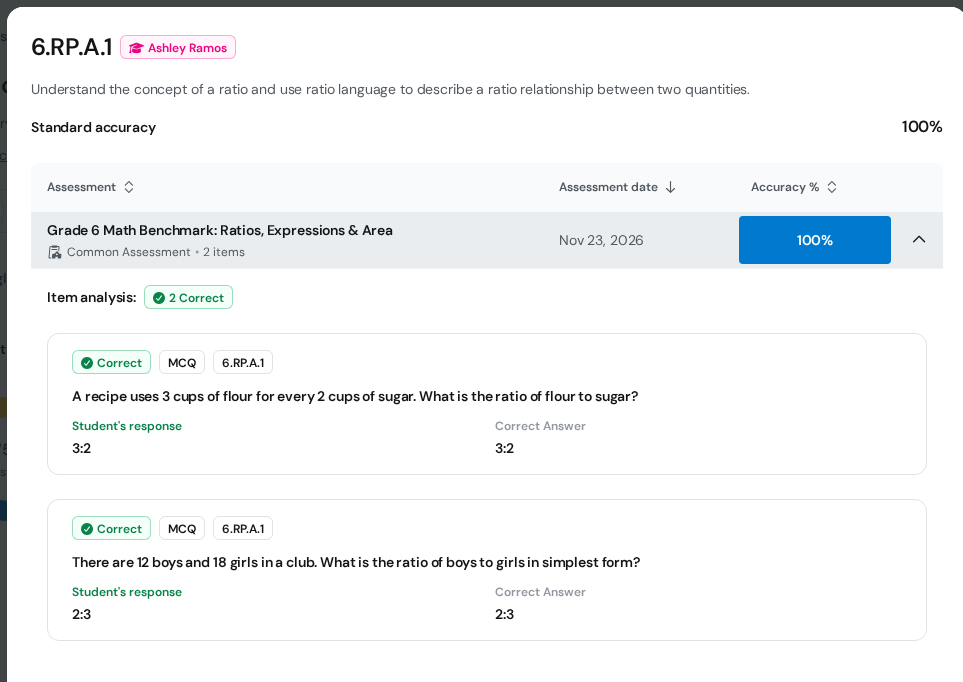
- Open a standard and expand a result to review its items. In this administrator’s view, the ratio standard shows the Common Assessment result
Explore a student’s standards mastery
Use the date picker, set to 'Current school year' by default, to change the period you’re reviewing. To hide demographics while reviewing the profile, select 'Hide demographics' when it’s available.
Read 'Standard accuracy' for the student’s result on one standard. Use the percentage mastered on a subject card to see how many of that subject’s standards count as mastered for the selected period. Hover over a card to see the performance bands.
Two people can see different mastery percentages for the same student when they can see different assessment results. In the Mathematics examples above, the administrator is reviewing Common Assessment evidence, while the teacher also sees results from classroom sessions they hosted.
Choose what your organization sees
Administrators decide who can see student data in Student Profile Settings. To open them, follow these steps:
- Go to 'Admin controls' > 'Student Profile Settings', or click 'Manage student profiles' on the Student Profiles page
- Review the settings under 'Student data access' and 'Student roster'
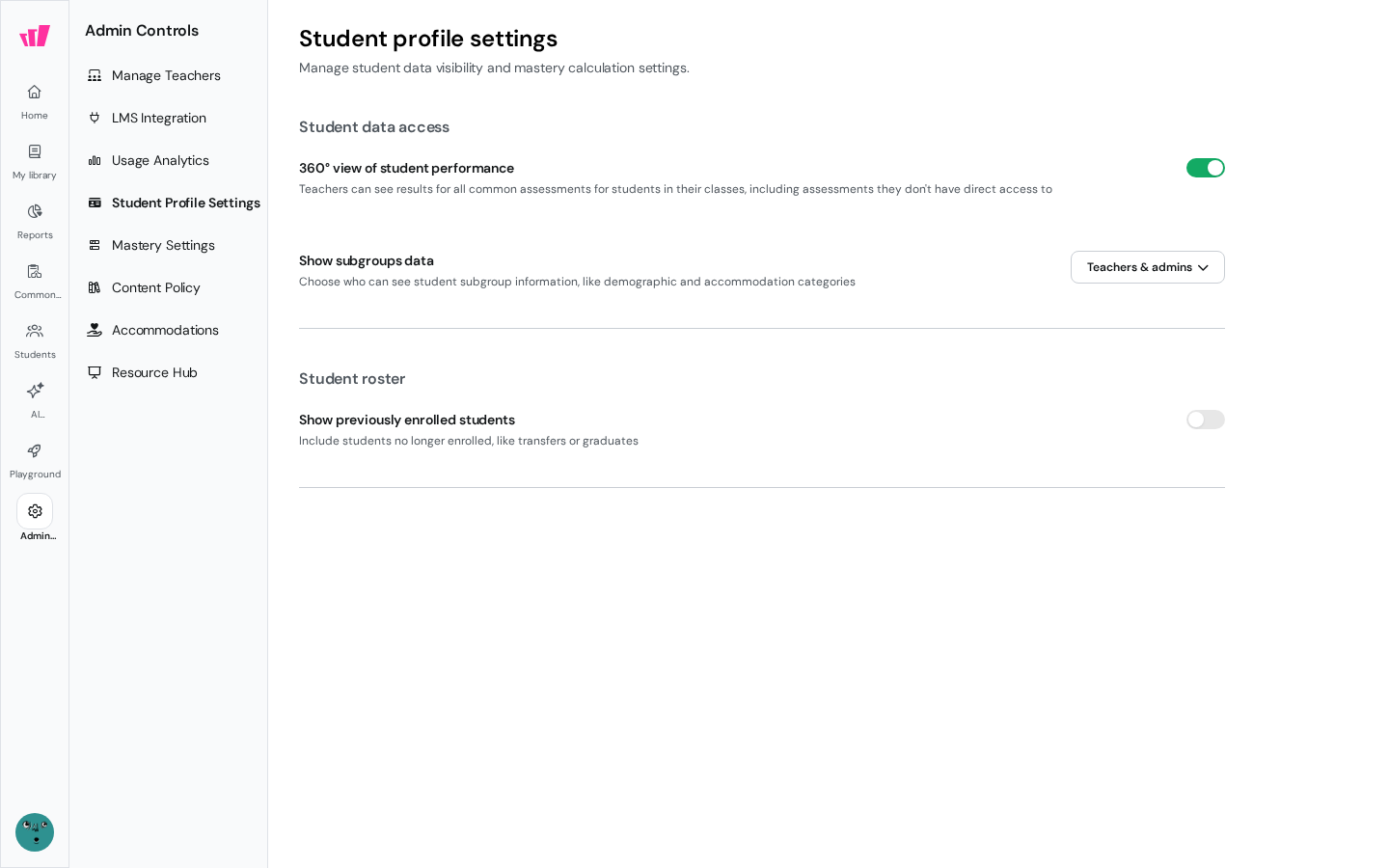
You’ll find three settings:
- '360° view of student performance': Teachers can see results for all common assessments for students in their classes, including assessments they don’t have direct access to
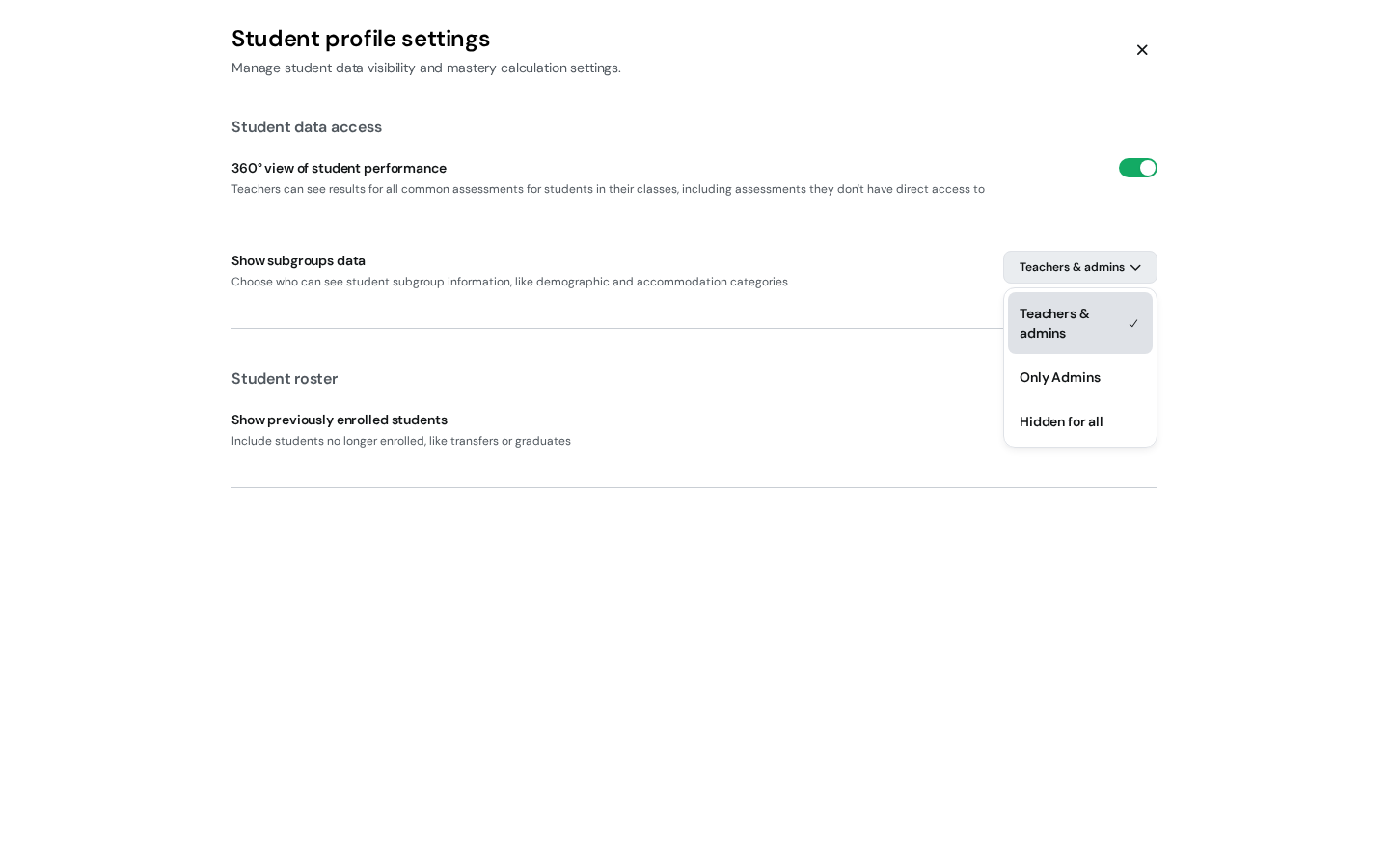
- 'Show subgroups data': choose 'Teachers & admins', 'Only Admins', or 'Hidden for all'
- 'Show previously enrolled students': Include students no longer enrolled, like transfers or graduates
Performance bands and the mastery formula live in 'Mastery Settings', covered in the next section.
How standards mastery is calculated
A student’s accuracy on a standard comes from the questions tagged to that standard. Wayground places that accuracy in a performance band, and some bands count as mastery.
Mastery calculation formulas
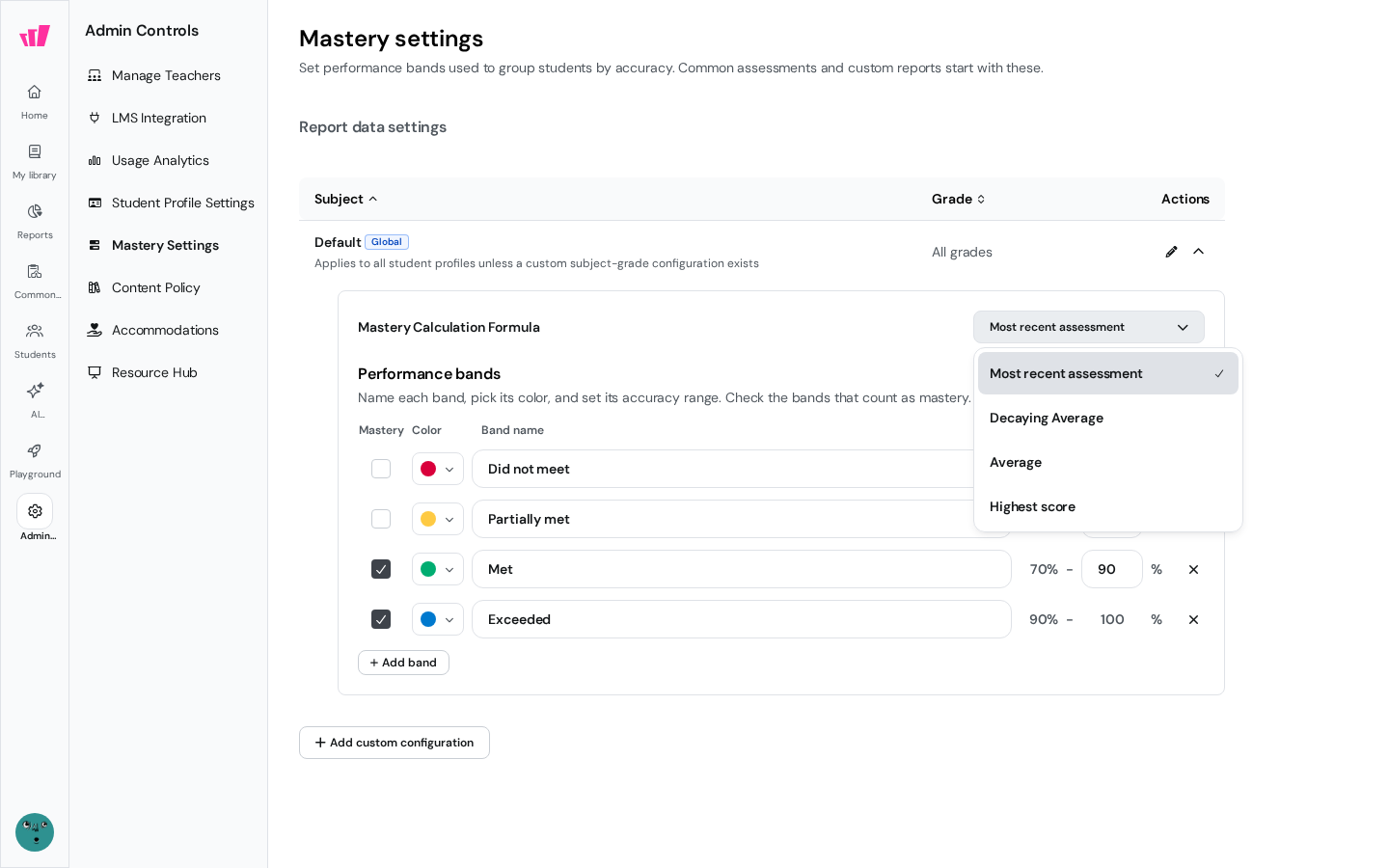
Your organization chooses one of four options in 'Mastery Calculation Formula':
- 'Most recent assessment' (the default): Use item accuracy from the latest assessment for each standard
- 'Decaying Average': For each standard, give 65% weight to the latest assessment and 35% to the others
- 'Average': Average accuracy of all tagged items across assessments for each standard
- 'Highest score': Use the highest accuracy across assessments
Performance bands
By default, there are four performance bands. Met and Exceeded count as mastery.
- 'Did not meet': 0–40%
- 'Partially met': 40–70%
- 'Met': 70–90% (mastery)
- 'Exceeded': 90–100% (mastery)
Set the formula and bands for your organization
Administrators set the formula and bands in Mastery Settings. The 'Default' configuration applies to all student profiles unless a custom configuration exists for a subject and grade. To change them, follow these steps:
- Go to 'Admin controls' > 'Mastery Settings'
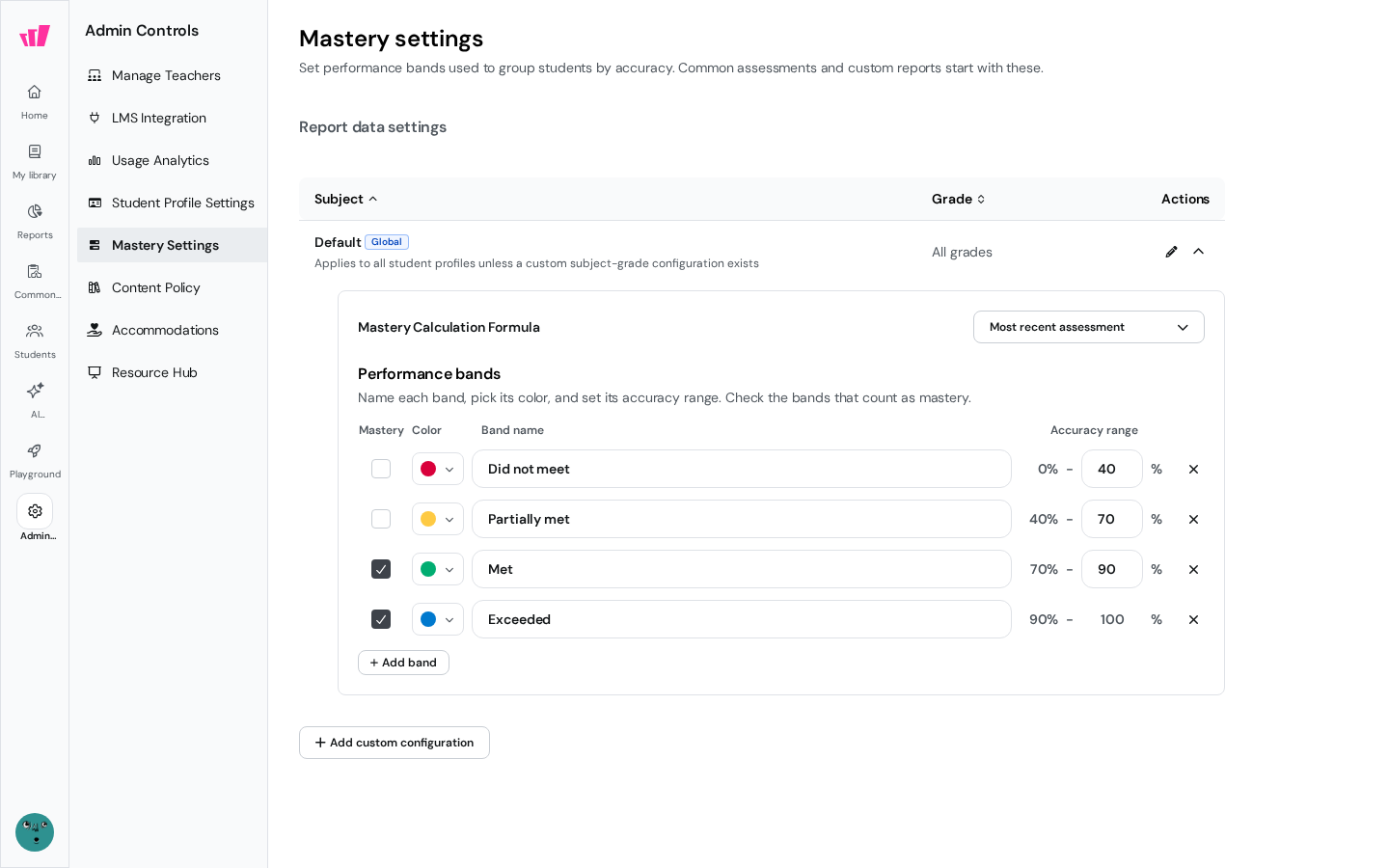
- To change the formula for everyone, choose an option under 'Mastery Calculation Formula' in the 'Default' configuration. Your change saves right away
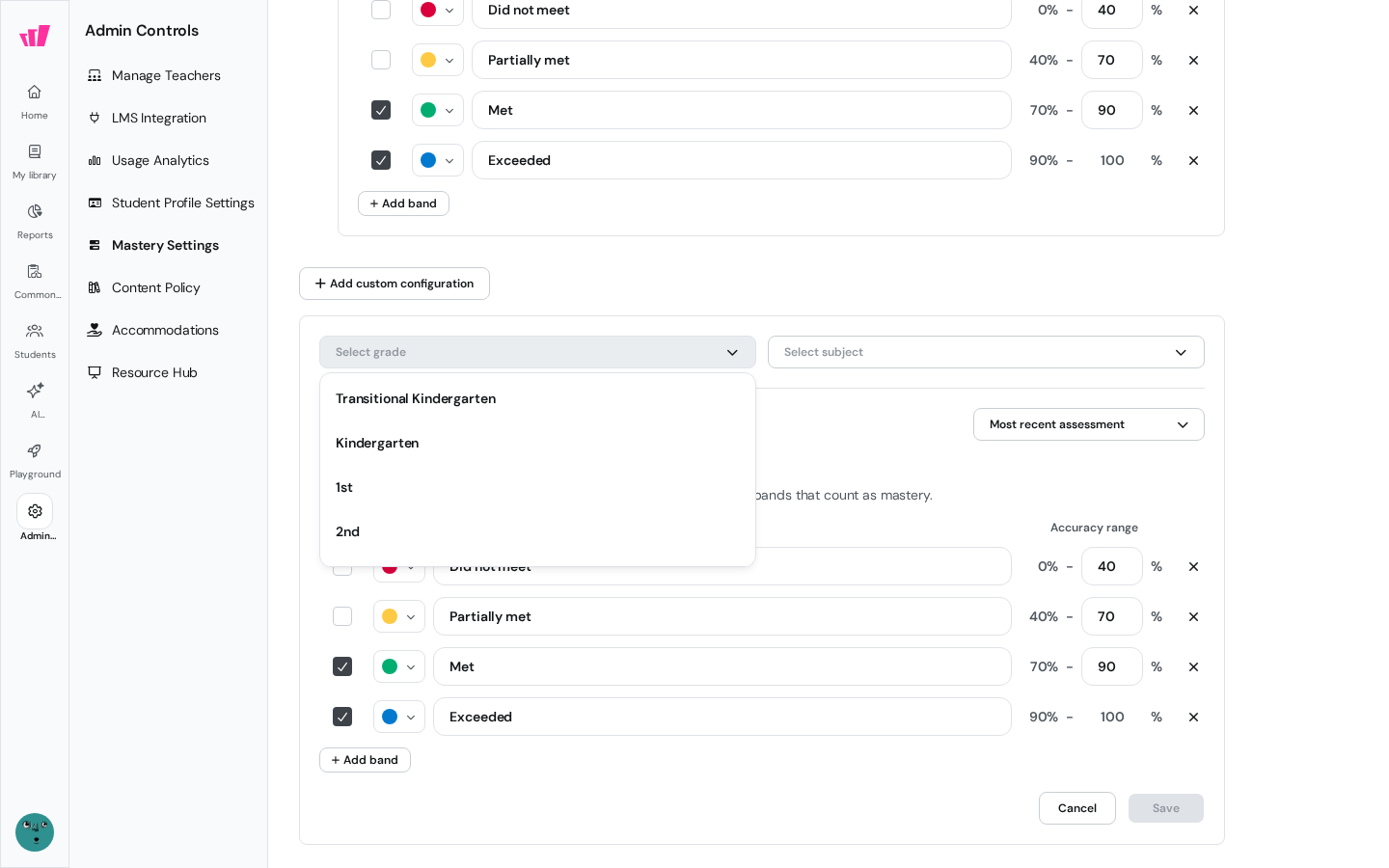
- To use a different formula or bands for one subject and grade, click 'Add custom configuration', choose a grade in 'Select grade' and a subject in 'Select subject', set the formula and bands, and click 'Save'
That’s it! With Student Profiles, you can see each student’s progress in one place and decide on the next step with confidence.
Related articles
- [Teachers] Create a Multi-Assessment Analysis report
- How to use a Multi-Assessment Analysis Report
- Custom Subjects on Common Assessments
Still have questions? Contact our support team at support@wayground.com.
Was this article helpful?
That’s Great!
Thank you for your feedback
Sorry! We couldn't be helpful
Thank you for your feedback
Feedback sent
We appreciate your effort and will try to fix the article