If the subject you need isn't listed, you can create a custom subject for a Common Assessment. You can add it while creating an assessment or from Mastery Settings.
After a student takes a Common Assessment with that subject, you'll find it in the student's Standards view in Student Profiles.
In this article, we will go over:
- When to create a custom subject
- Create a subject while setting up a Common Assessment
- Add a subject in Mastery Settings
- View the subject in Student Profiles
When to create a custom subject
Create a custom subject when you want to track a course on its own, such as Algebra 1, Algebra 2, Environmental Science, or a course unique to your district. In 'Mastery Settings', administrators can set performance bands once for that subject and grade. Student Profiles uses those bands to show mastery for the subject in the matching grade.
Once students have taken Common Assessments with that subject, use 'Set filters' when creating a Standards Mastery report in 'Custom Reports'. Choose the subject, grade, and date range, then select 'Apply filters' to automatically include matching Common Assessments.
Create a subject while setting up a Common Assessment
You can add a subject from the Subjects field as you set up a Common Assessment. To create one, follow these steps:
- Start creating a Common Assessment and open 'Subjects'
- Type the subject name in the search box and select the option to create that subject
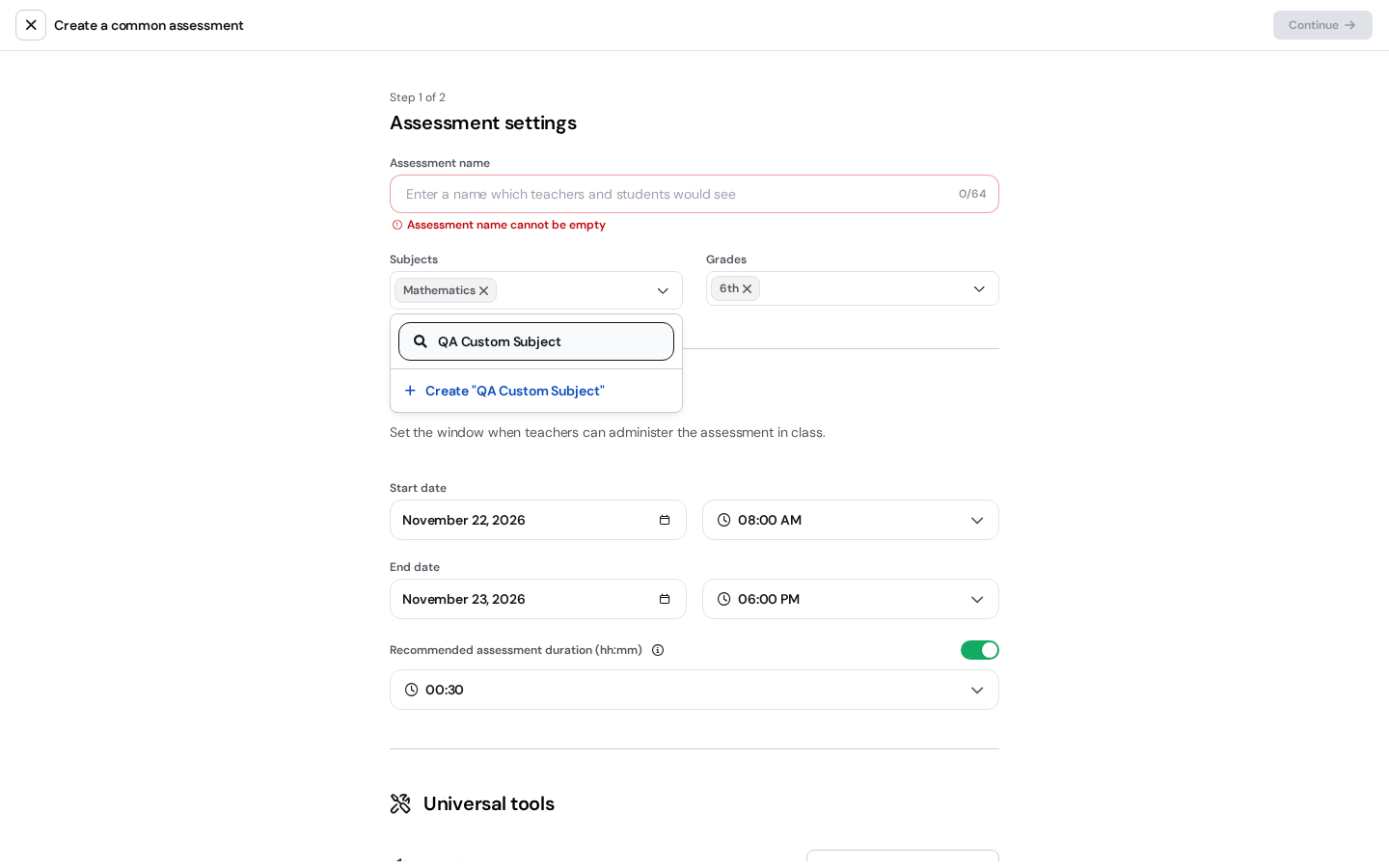
- Finish setting up the Common Assessment
Add a subject in Mastery Settings
You can also create a subject while adding a custom configuration. To add a subject and set its grade-level mastery configuration, follow these steps:
- Go to 'Admin controls' > 'Mastery Settings'
- Click 'Add custom configuration', then open 'Select subject'
- Type the subject name and select 'Add [subject name]'
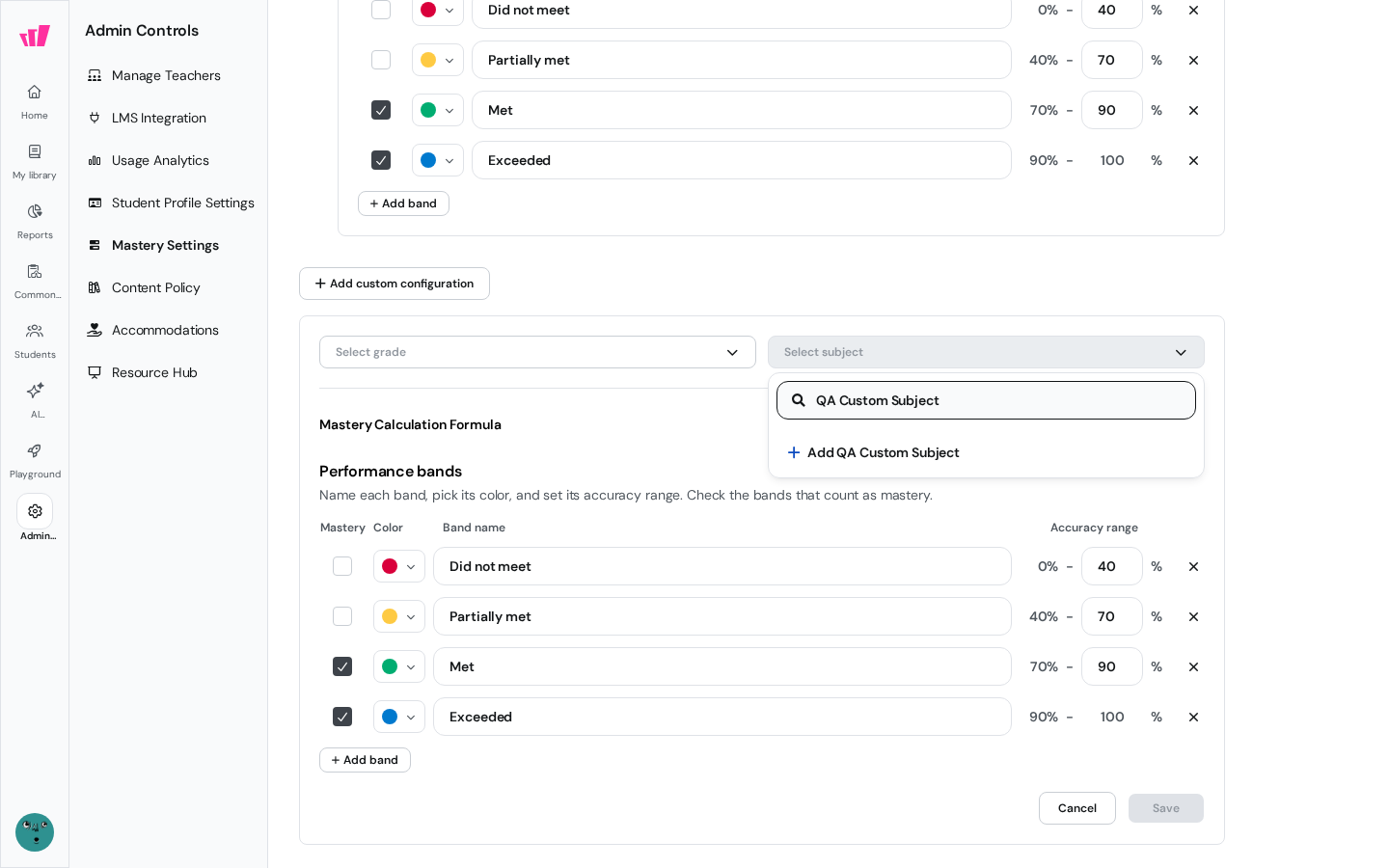
- Choose a grade, then set the formula and performance bands for that subject and grade
- Click 'Save'
View the subject in Student Profiles
When a student takes a Common Assessment with the custom subject, the subject appears in the student's Standards view. To find it, follow these steps:
- Go to 'Students' > 'Student Profiles'
- Open the student's profile and select the 'Standards' tab
- Select the custom subject tab to view the standards tagged in that Common Assessment
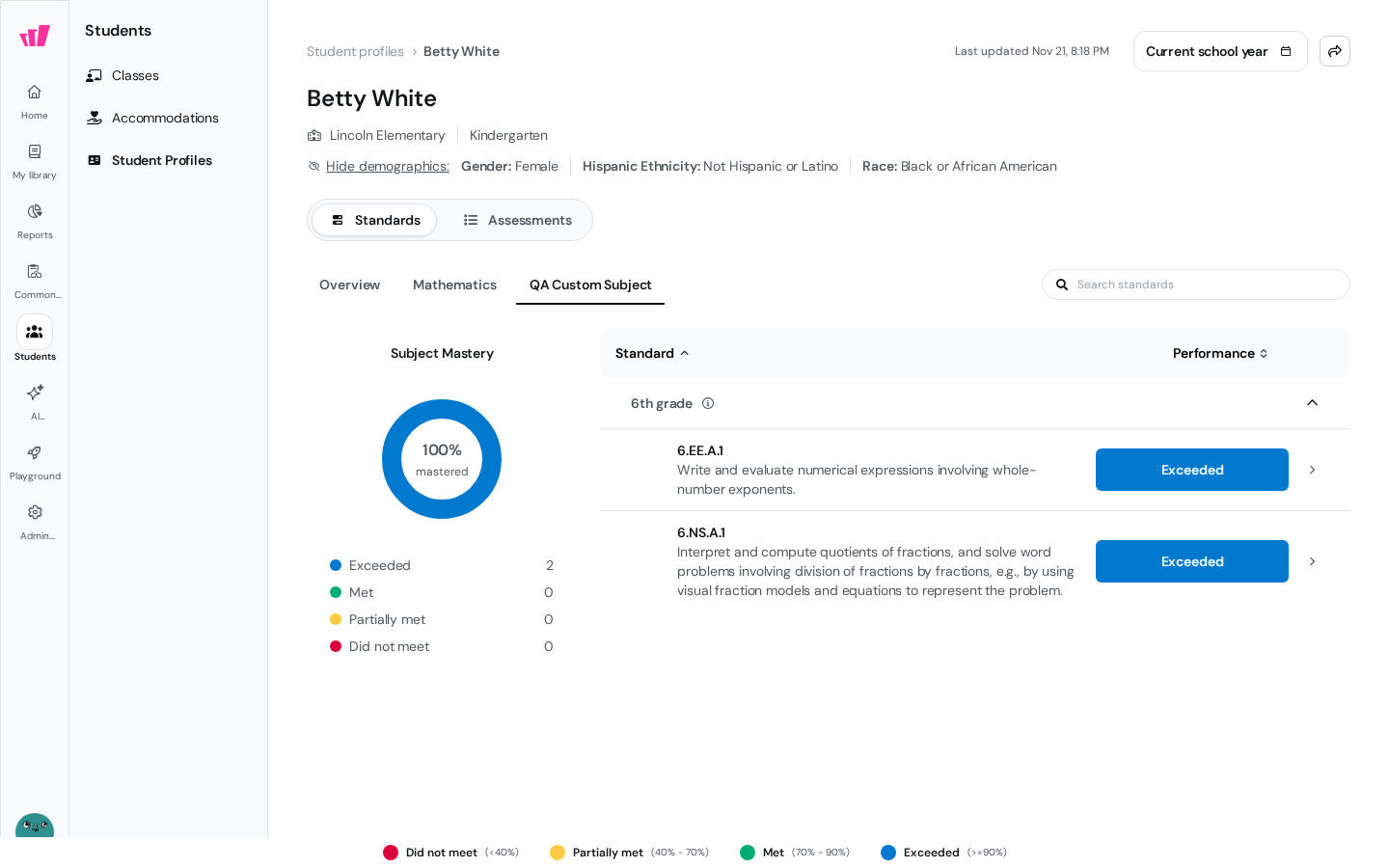
That's it! You can now use a custom subject for a Common Assessment and review its tagged standards in Student Profiles.
Related articles
- View a student's progress with Student Profiles
- [For Admins & Assessment Coordinators] Create a Common Assessment
- [Admins] [Quick Start] Create a Standards Mastery Report
Still have questions? Contact our support team at support@wayground.com.
Was this article helpful?
That’s Great!
Thank you for your feedback
Sorry! We couldn't be helpful
Thank you for your feedback
Feedback sent
We appreciate your effort and will try to fix the article