Use Mastery Settings to choose how Wayground calculates standard accuracy in Student Profiles and which performance bands count as mastery. The organization’s default applies across grades. You can set different rules for a particular subject and grade.
The performance bands you set here are also shown when you create a Common Assessment, so new Common Assessments start with your organization’s bands.
Set the default for Student Profiles
- Go to 'Admin controls' and select 'Mastery Settings'.
- Under 'Report data settings', expand the 'Default' row to open the editor.
- Under 'Mastery Calculation Formula', select 'Most recent assessment', 'Decaying Average', 'Average', or 'Highest score'. Your formula choice saves when you select it.
- Under 'Performance bands', set each band’s name, color, and accuracy range. Select the 'Mastery' checkbox for each band that should count as mastery. Select 'Add band' to include another band. Changes to valid bands save automatically.
Add settings for a subject and grade
Student Profiles uses the custom configuration for the matching subject and grade and the default for other combinations.
- Select 'Add custom configuration'.
- Use 'Select grade' and 'Select subject' to choose where these settings apply.
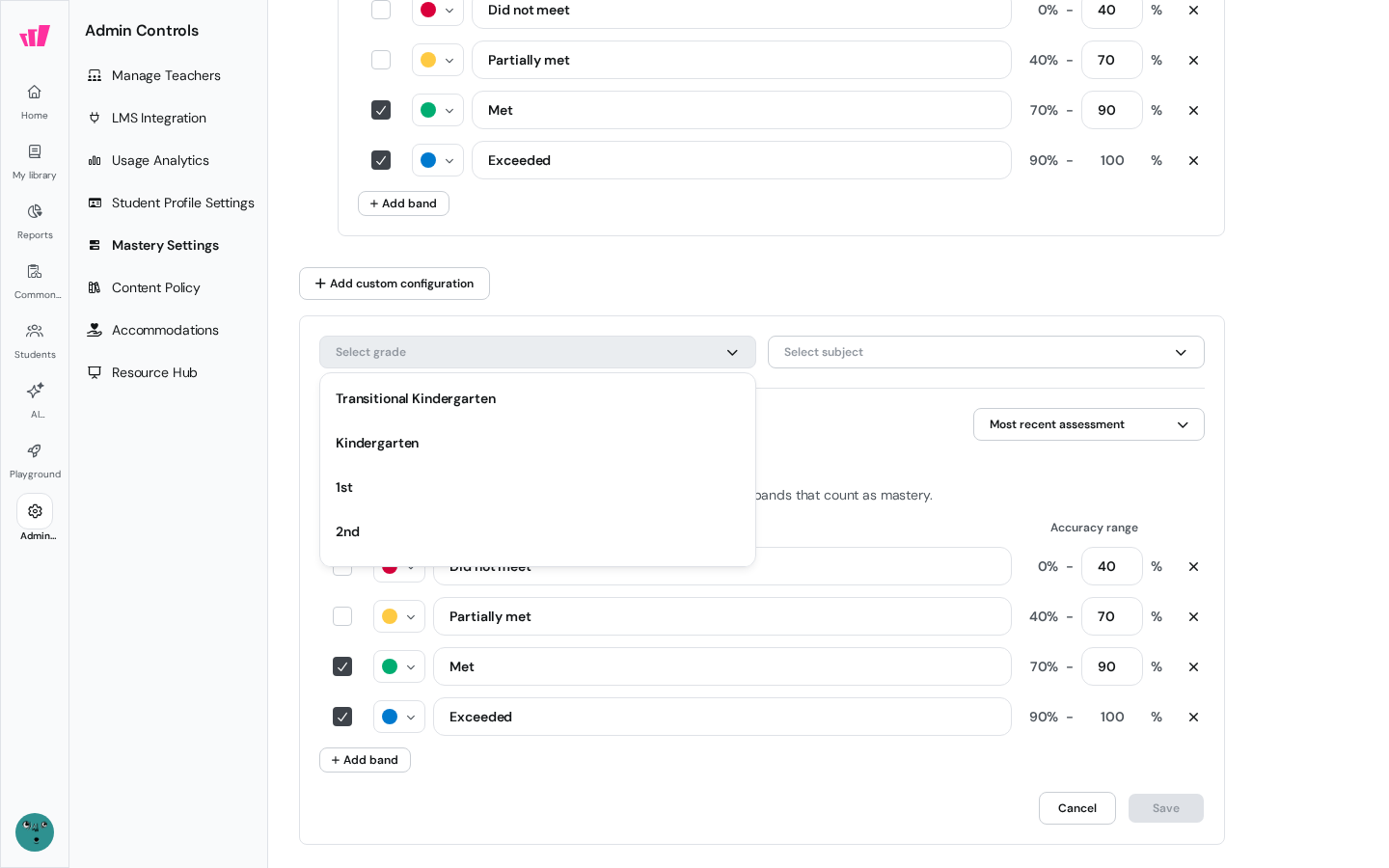
- Choose a 'Mastery Calculation Formula' and set the 'Performance bands' for this subject and grade.
- Select 'Save'.
Related articles
Still have questions? Contact our support team at support@wayground.com.
Was this article helpful?
That’s Great!
Thank you for your feedback
Sorry! We couldn't be helpful
Thank you for your feedback
Feedback sent
We appreciate your effort and will try to fix the article