Note: Custom Reports are available as a part of Common Assessments add-on. To access this feature and learn more about Common Assessments add-on and the Schools & Districts plan, please email sales@wayground.com
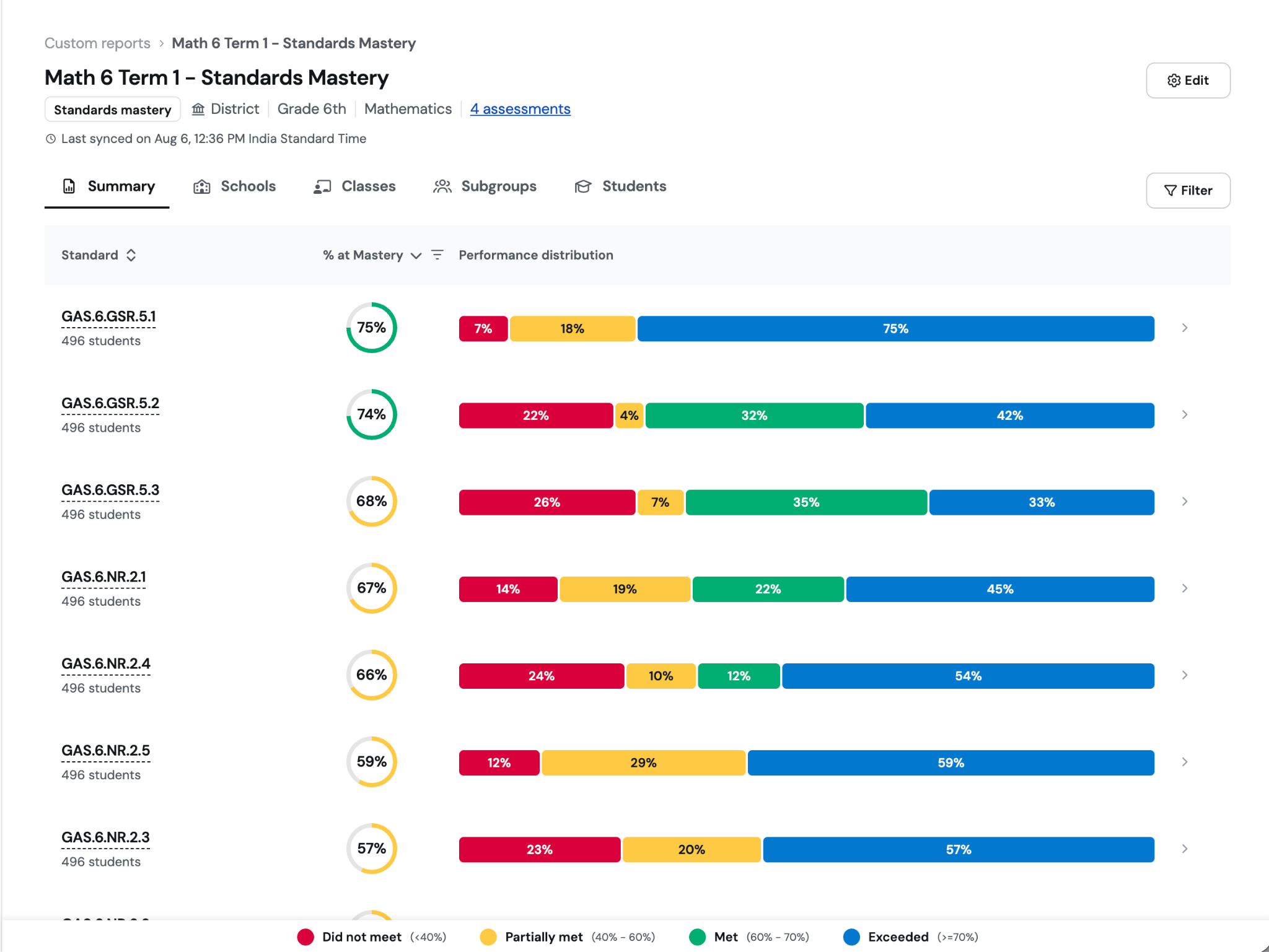
A Standards Mastery Report helps teachers see which standards students have mastered across two or more common assessments and where they may need additional support.
The report can help answer questions such as -
Which standards are strengths, and which would benefit from reteaching?
Which students fall into each performance band?
Which group can benefit from practice, next-level application, or extension?
Step 1: Name your report and select type of report
Go to Sessions → Custom Reports
Click Create new report
Enter a descriptive name
Select “Standards mastery report”
Step 2 - Part 1: Choose how to select classes
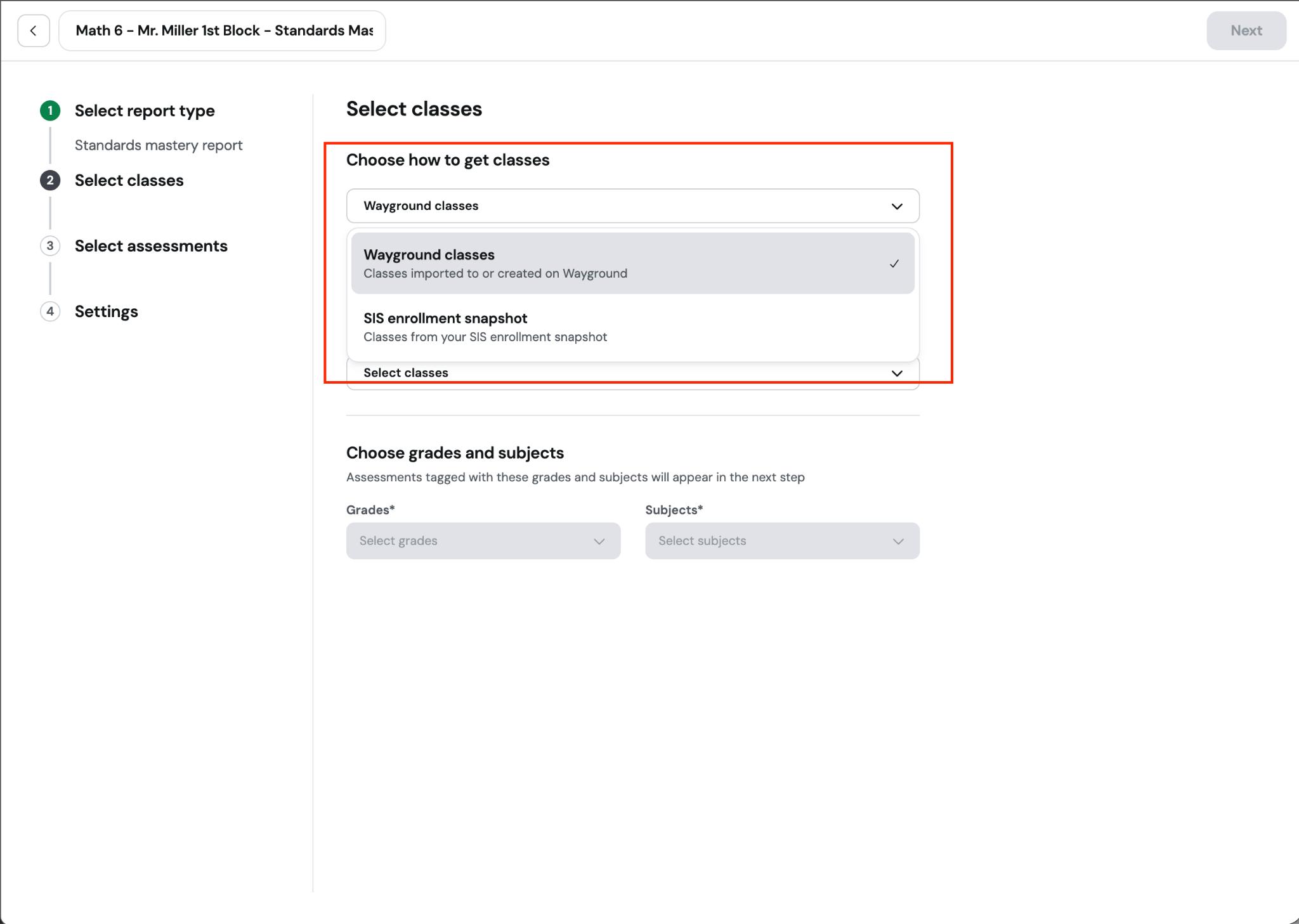
Choose which class roster Wayground should use to select students for the report.
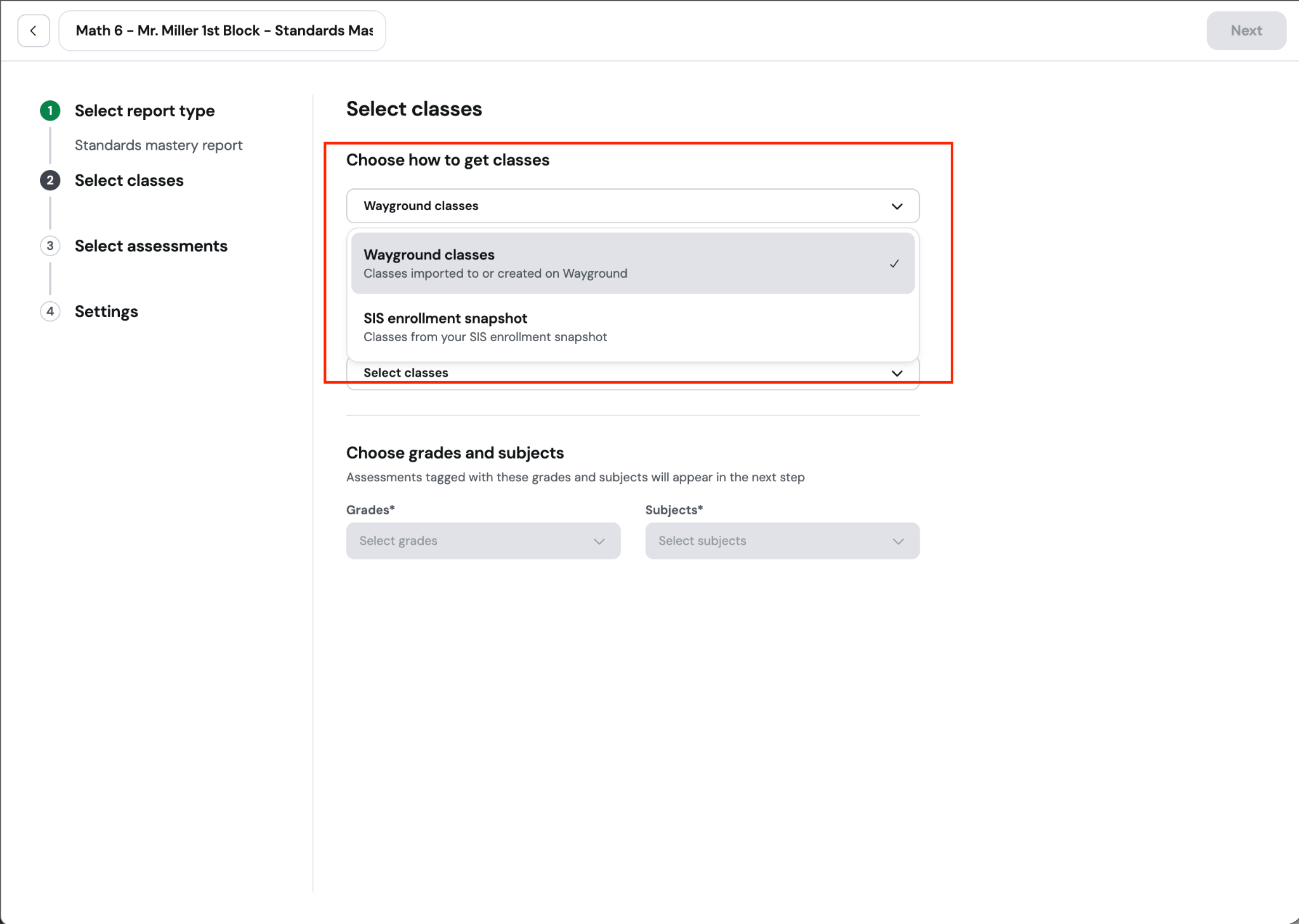
Wayground classes
Uses classes created or imported in Wayground — the same classes used to assign common assessments. Choose this option when your Wayground class roster reflects the students you want to analyze.
SIS enrollment snapshot
Available when your district connects Clever/Classlink to Wayground, choose this option when you want the report to follow your student roster from a particular date.
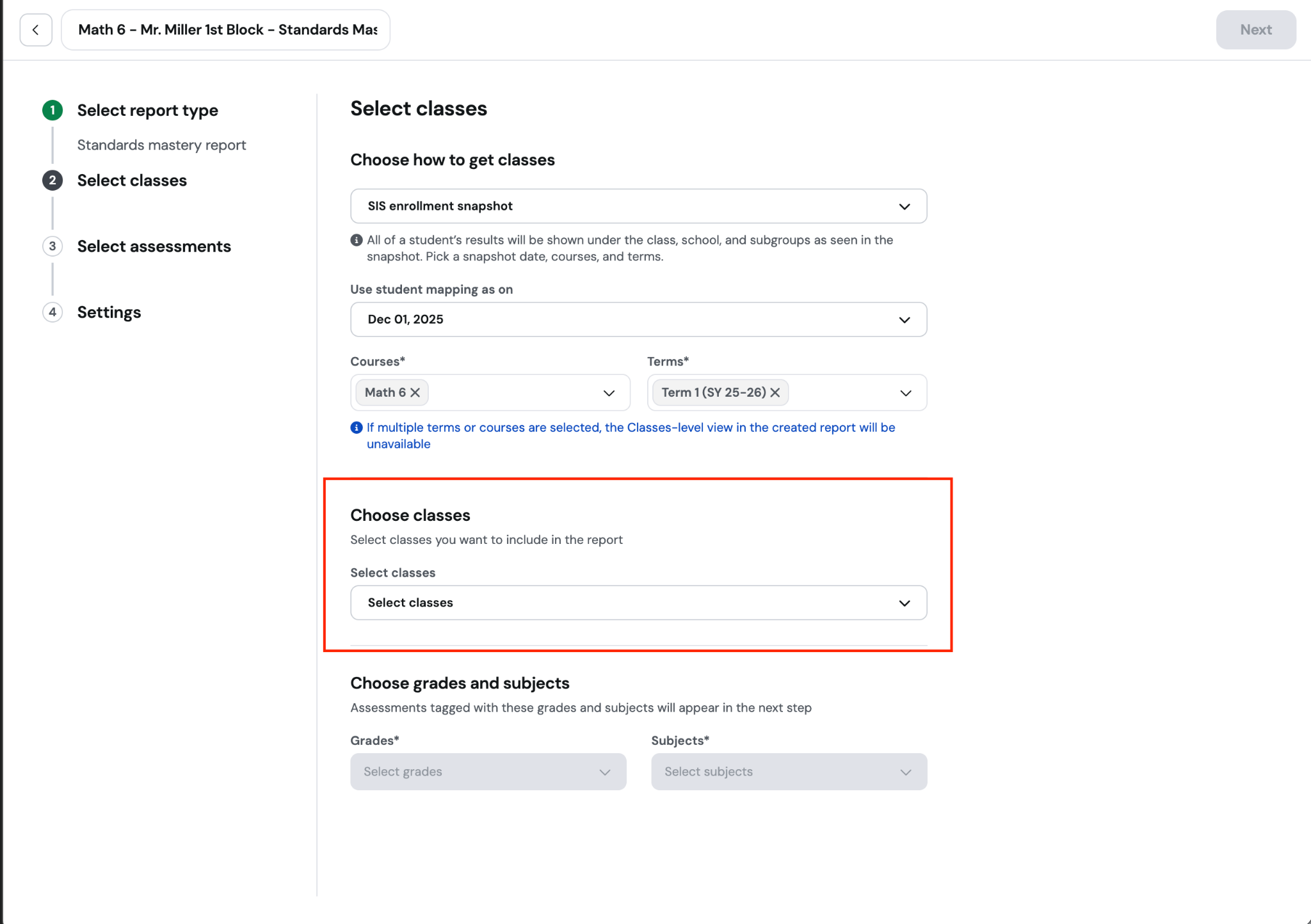
After selecting SIS enrollment snapshot, choose:
Choose a snapshot date. Wayground will use each student’s school and class assignments as they appeared on that date. The most recent available snapshot is selected by default.
Select one or more courses.
Select one or more terms.
The selected snapshot determines each student’s class placement in the report.
Note: If you select multiple courses or terms, a student may be associated with different classes across those selections. To prevent results from being attributed to or combined under the wrong class, Wayground hides the class-level breakdown in the completed report. To view results by class, select one course and one term.
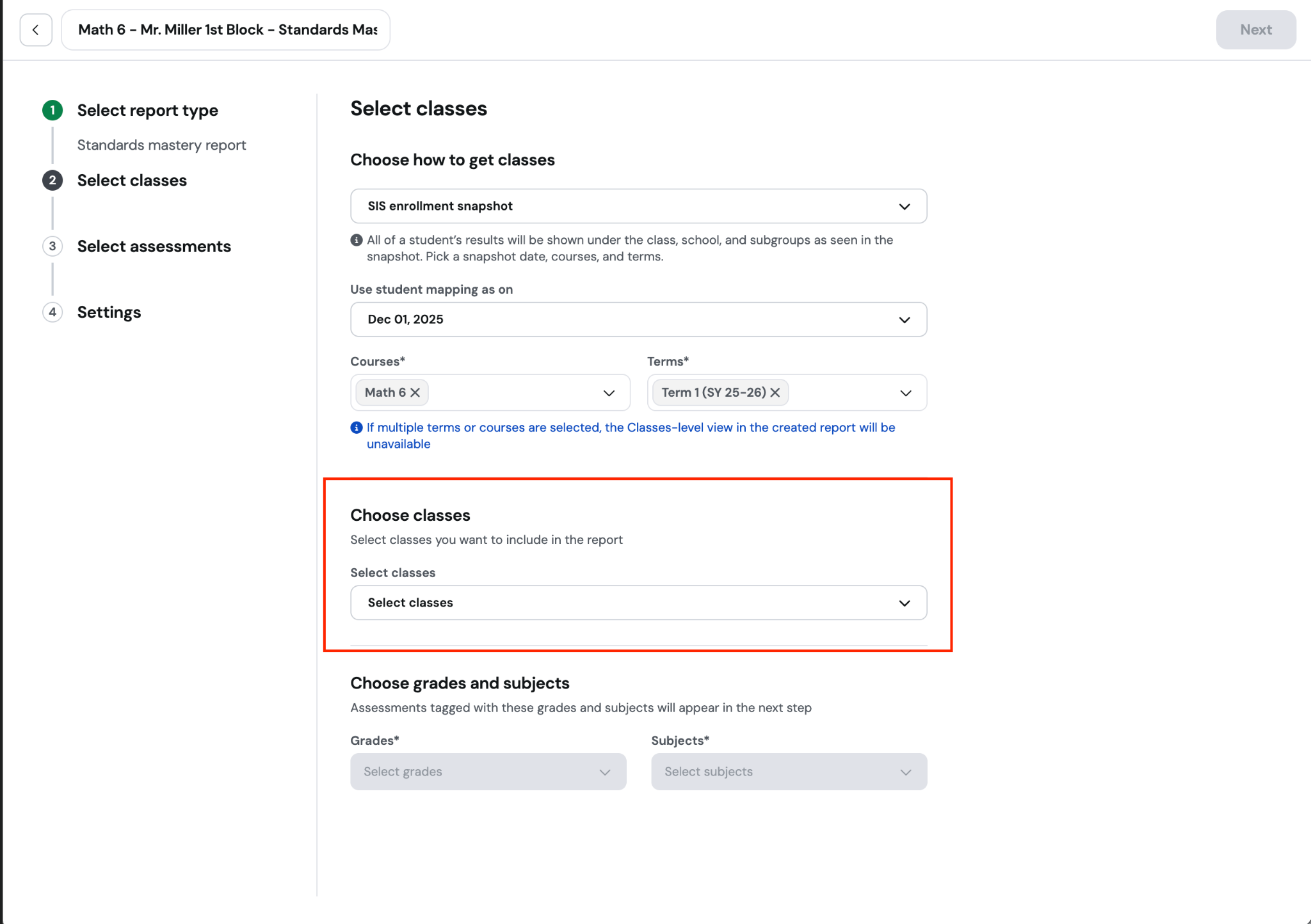
Step 2 - Part 2: Select classes
Select one class when planning instruction for a single roster, or select multiple classes to compare shared strengths and needs across your classes. The available classes are based on the roster source selected in the previous step.
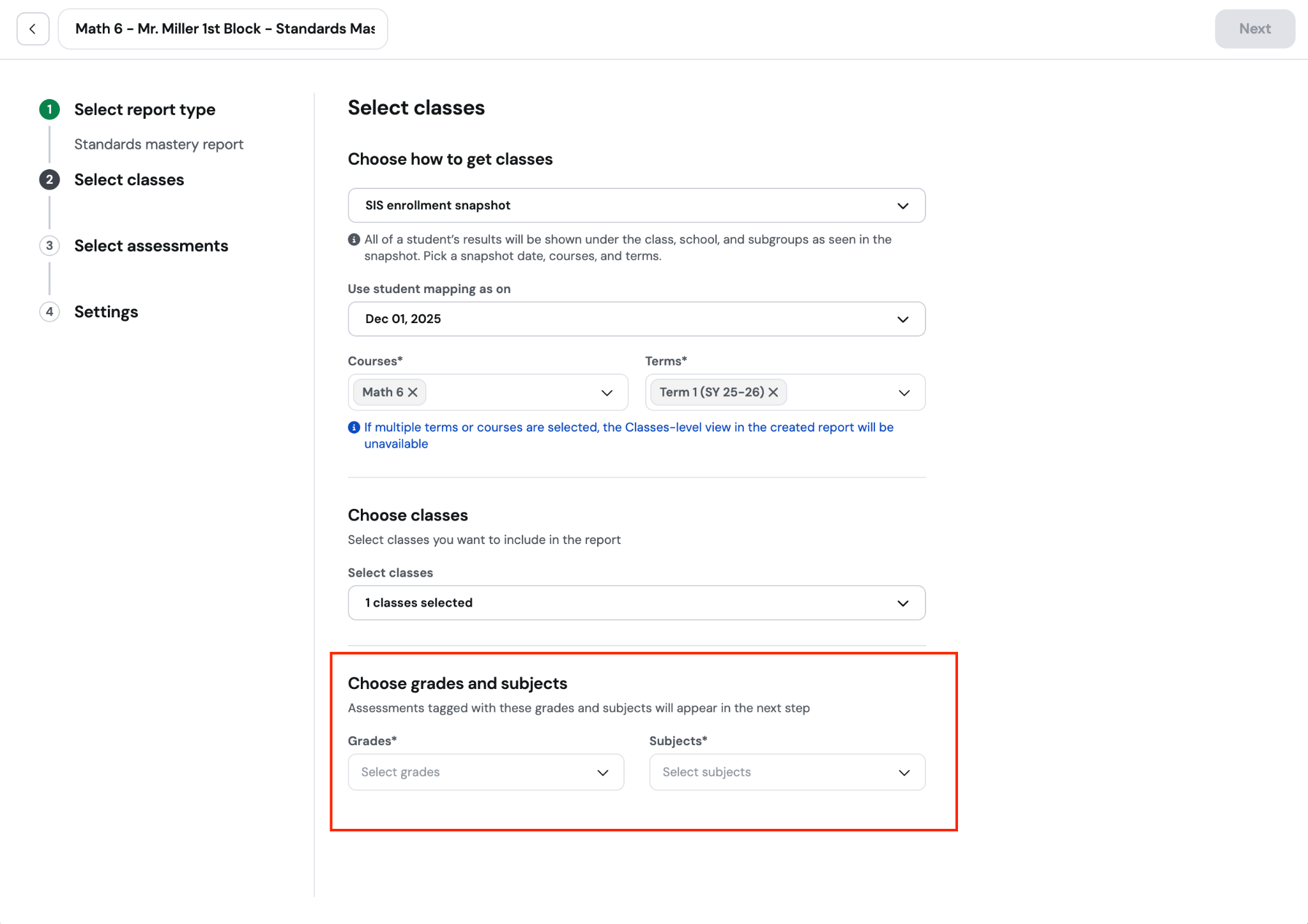
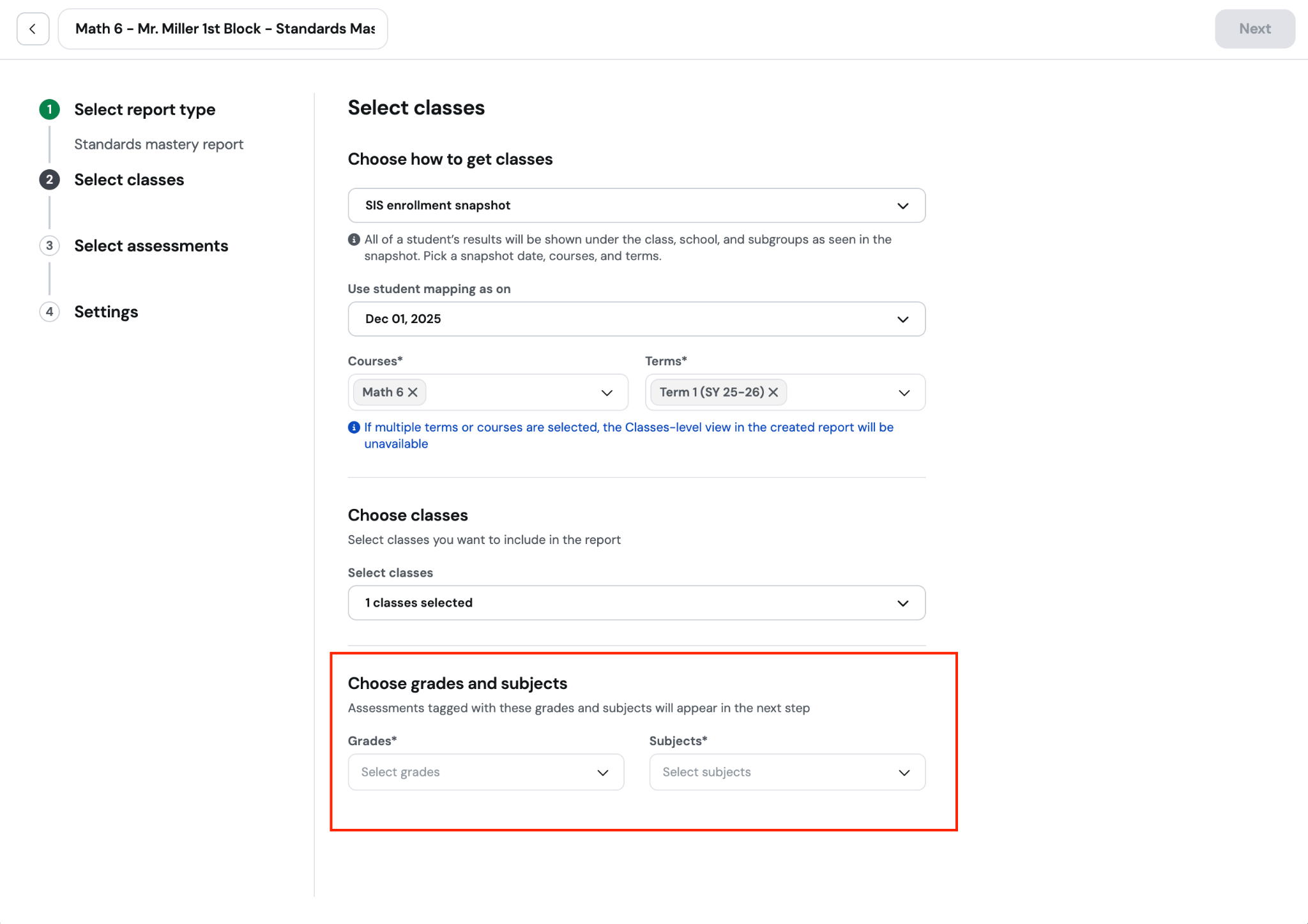
Step 2 - Part 3: Choose grades and subjects
These selections narrow the assessment list in the next step. Select the grade and subject for the report, then click Next.
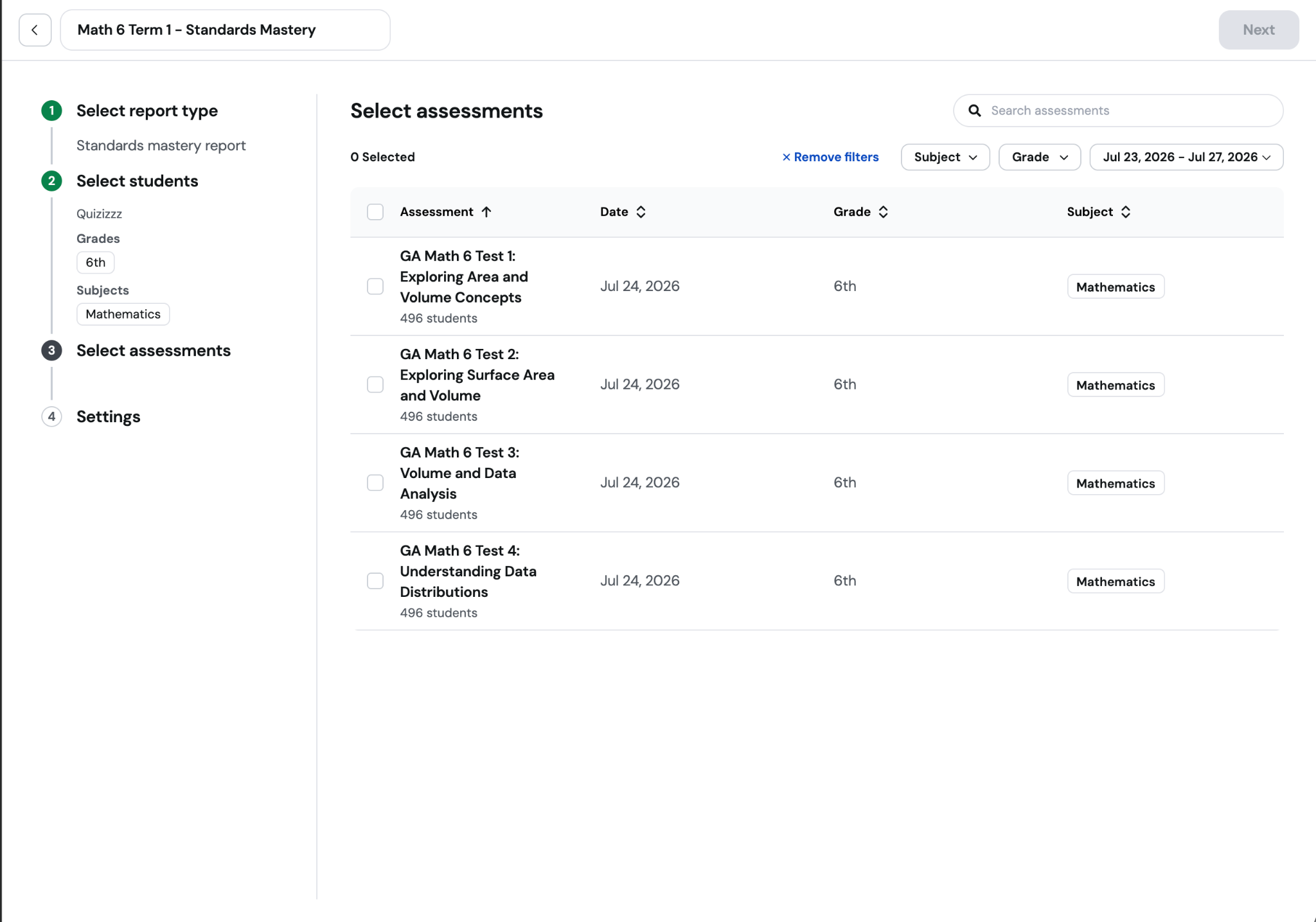
Step 3: Select assessments
Select at least two common assessments that measure the standards you want to analyze. Use search and filters to find them, then click Next.
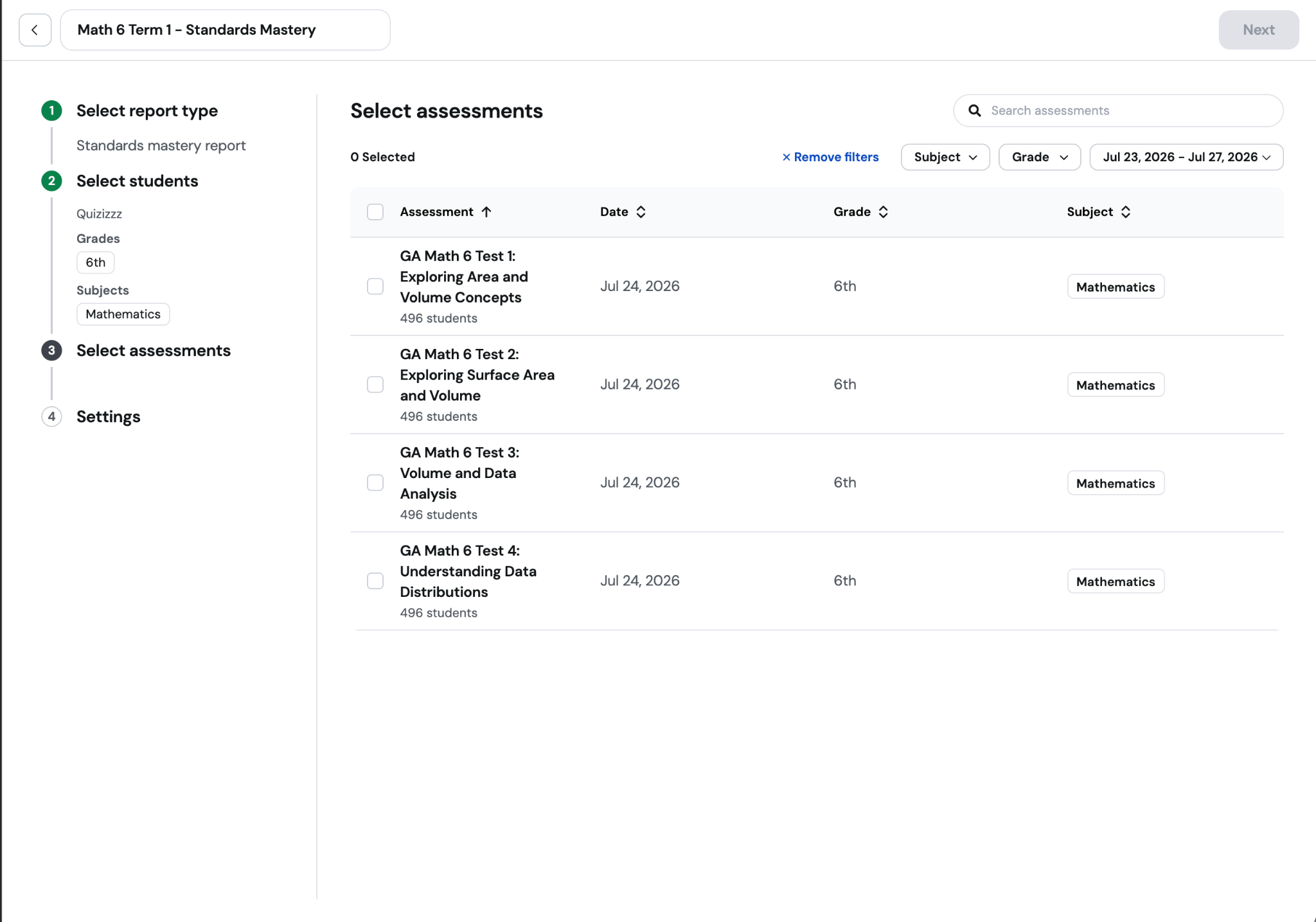
Step 4 - Part 1: Choose how to calculate standard accuracy
This step lets you select how standard accuracy should be calculated if a standard appears in multiple assessments.
Choose the calculation that matches the purpose of the report. Each option answers a different question:
Most recent assessment: Uses accuracy from the latest selected assessment that includes the standard. Choose this to understand current mastery and plan the next move from the most recent evidence.
Decaying Average: Gives 65% weight to accuracy from the latest assessment and 35% to combined accuracy from earlier assessments. Choose this when recent learning should matter most while earlier evidence still provides context.
Average: Calculates accuracy using all tagged items across all selected assessments. Choose this for an overall view of performance across assessments.
Highest score: Uses the highest accuracy achieved for the standard across the selected assessments. Choose this to focus on the strongest performance a student has demonstrated among the selected assessments.
Go to Sessions → Custom Reports
Click Create new report
Enter a descriptive name
Select “Standards mastery report”
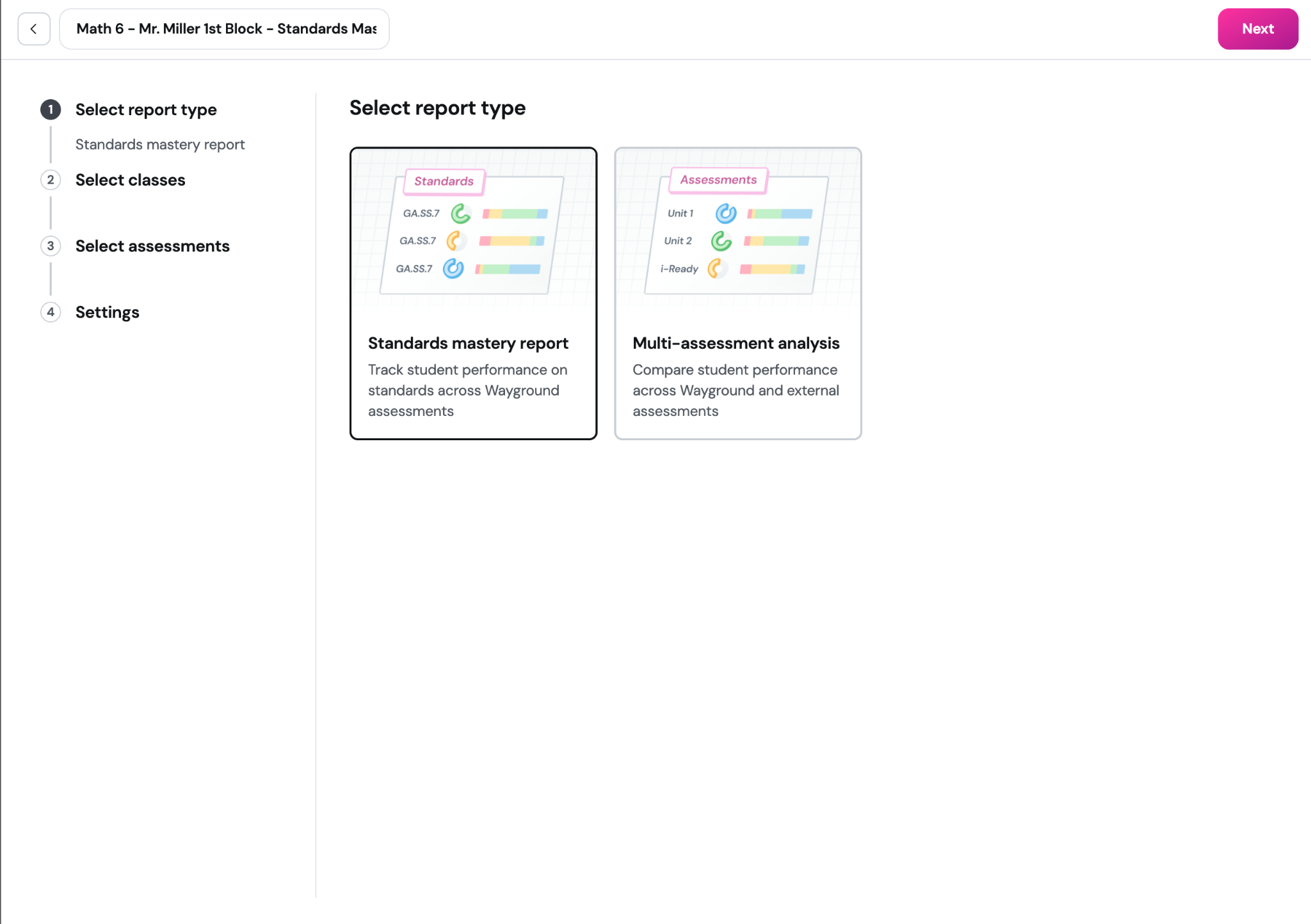
Step 2 - Part 1: Choose how to select classes
Choose which class roster Wayground should use to select students for the report.
Wayground classes
Uses classes created or imported in Wayground — the same classes used to assign common assessments. Choose this option when your Wayground class roster reflects the students you want to analyze.
SIS enrollment snapshot
Available when your district connects Clever/Classlink to Wayground, choose this option when you want the report to follow your student roster from a particular date.
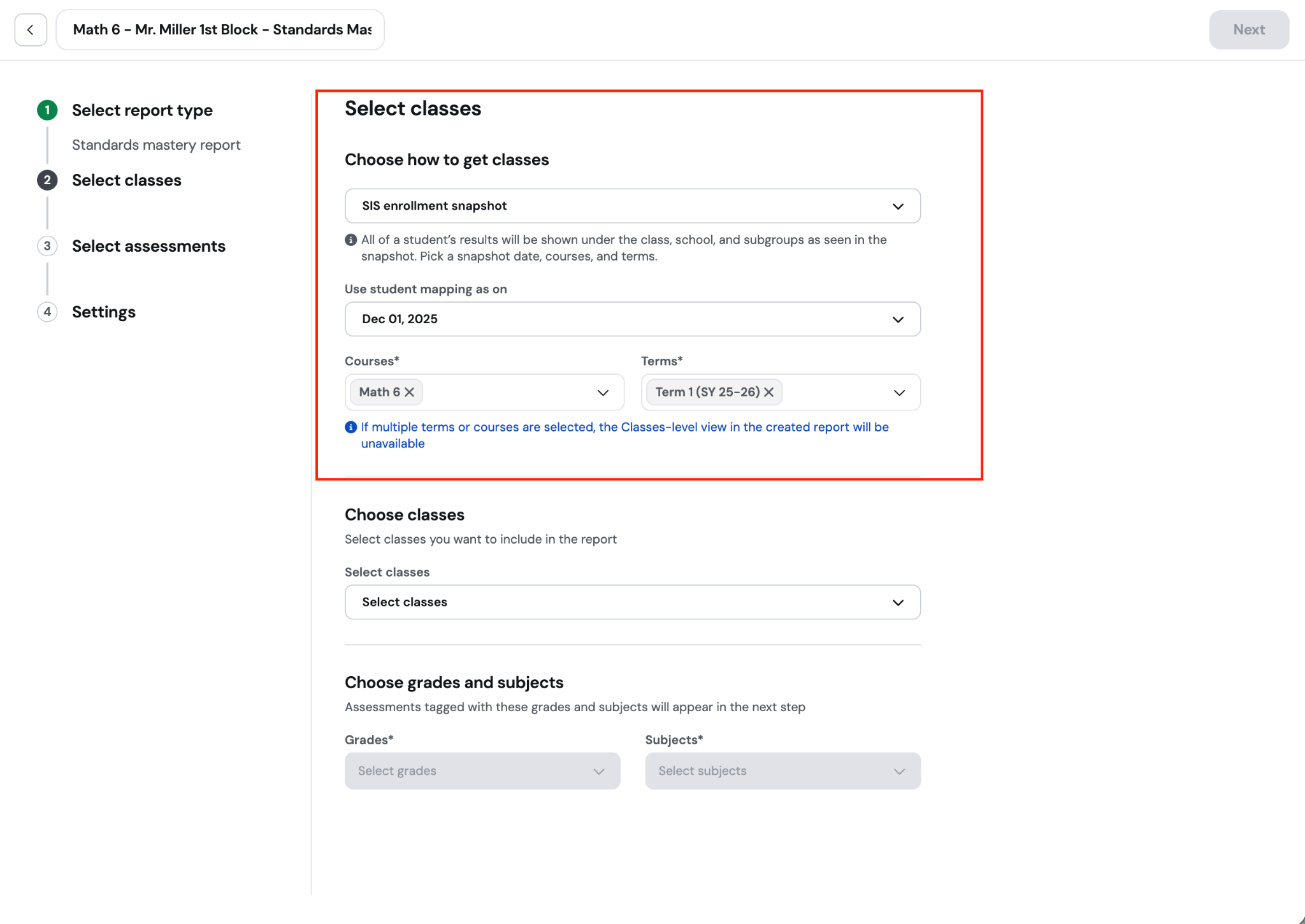
After selecting SIS enrollment snapshot, choose:
Choose a snapshot date. Wayground will use each student’s school and class assignments as they appeared on that date. The most recent available snapshot is selected by default.
Select one or more courses.
Select one or more terms.
The selected snapshot determines each student’s class placement in the report.
Note: If you select multiple courses or terms, a student may be associated with different classes across those selections. To prevent results from being attributed to or combined under the wrong class, Wayground hides the class-level breakdown in the completed report. To view results by class, select one course and one term.
Step 2 - Part 2: Select classes
Select one class when planning instruction for a single roster, or select multiple classes to compare shared strengths and needs across your classes. The available classes are based on the roster source selected in the previous step.
Step 2 - Part 3: Choose grades and subjects
These selections narrow the assessment list in the next step. Select the grade and subject for the report, then click Next.
Step 3: Select assessments
Select at least two common assessments that measure the standards you want to analyze. Use search and filters to find them, then click Next.
Step 4 - Part 1: Choose how to calculate standard accuracy
This step lets you select how standard accuracy should be calculated if a standard appears in multiple assessments.
Choose the calculation that matches the purpose of the report. Each option answers a different question:
Most recent assessment: Uses accuracy from the latest selected assessment that includes the standard. Choose this to understand current mastery and plan the next move from the most recent evidence.
Decaying Average: Gives 65% weight to accuracy from the latest assessment and 35% to combined accuracy from earlier assessments. Choose this when recent learning should matter most while earlier evidence still provides context.
Average: Calculates accuracy using all tagged items across all selected assessments. Choose this for an overall view of performance across assessments.
Highest score: Uses the highest accuracy achieved for the standard across the selected assessments. Choose this to focus on the strongest performance a student has demonstrated among the selected assessments.
Was this article helpful?
That’s Great!
Thank you for your feedback
Sorry! We couldn't be helpful
Thank you for your feedback
Feedback sent
We appreciate your effort and will try to fix the article