Note: Custom Reports are available as a part of Common Assessments add-on. To access this feature and learn more about Common Assessments add-on and the Schools & Districts plan, please email sales@wayground.com
A Standards Mastery Report enables tracking mastery on all the evaluated standards across the selected Common Assessments.
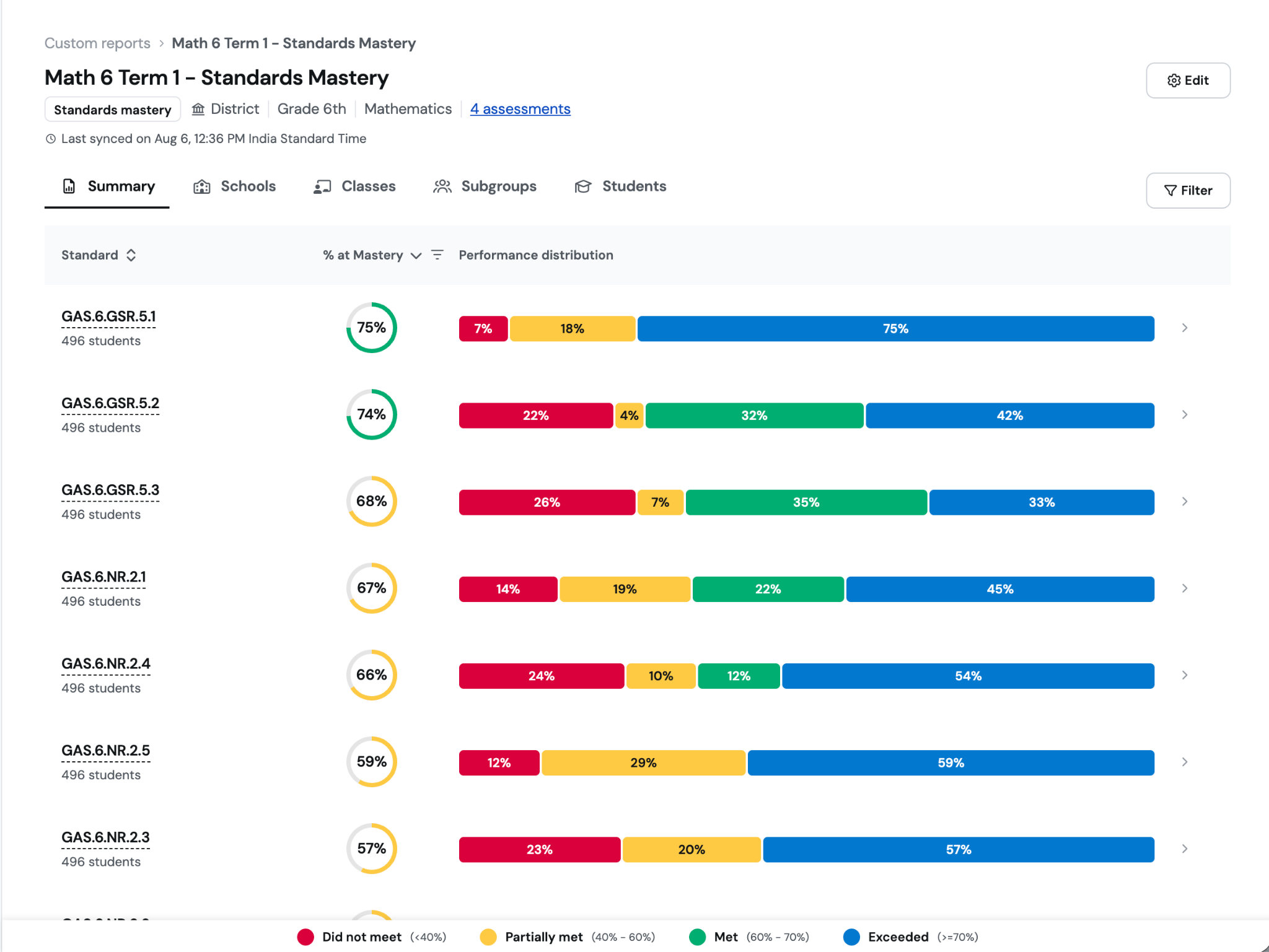
This quick-start setup is designed for a districtwide view of current mastery and corresponding school, class, subgroup, or student deepdives. All the default settings support that purpose; review them as you go.
To customize student grouping method or accuracy calculation, use the detailed guide: [Admins] [Detailed] Create a Standards Mastery Report
Step 1: Name your report and select the report type
Go to Sessions → Custom Reports
Click Create new report
Enter a descriptive name
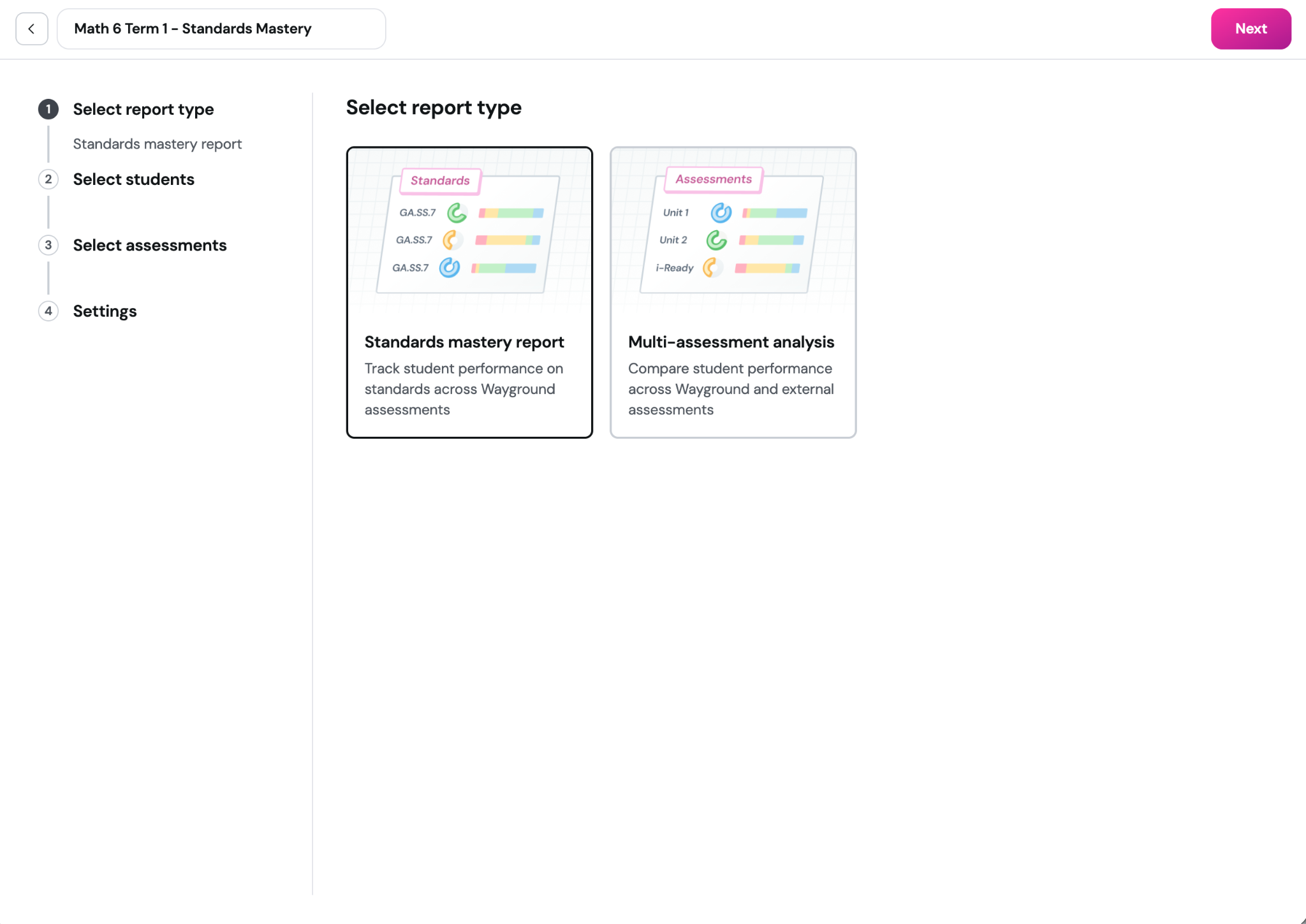
Select “Standards mastery report”
Step 2 - Part 1: Review student grouping and school scope
Grouping based on “Most recent assessment” places each student’s results under the school, class, and subgroup associated with that student’s latest selected assessment. (Depending on the assessments you choose in Step 3, this can support both current and historic analysis of standards mastery.)
The school filter is optional. “All schools” supports districtwide comparison for all relevant schools and classes for selected assessments.
Select specific schools when that is the population you want reflected throughout the report.
Note: If your district has configured subgroups, subgroup views and filters appear automatically in the completed report. No additional configuration needed.
Step 2 - Part 2: Choose a grade and subject
These selections narrow the assessment list in the next step. Select the grade and subject for the report, then click Next.
Step 3: Select assessments
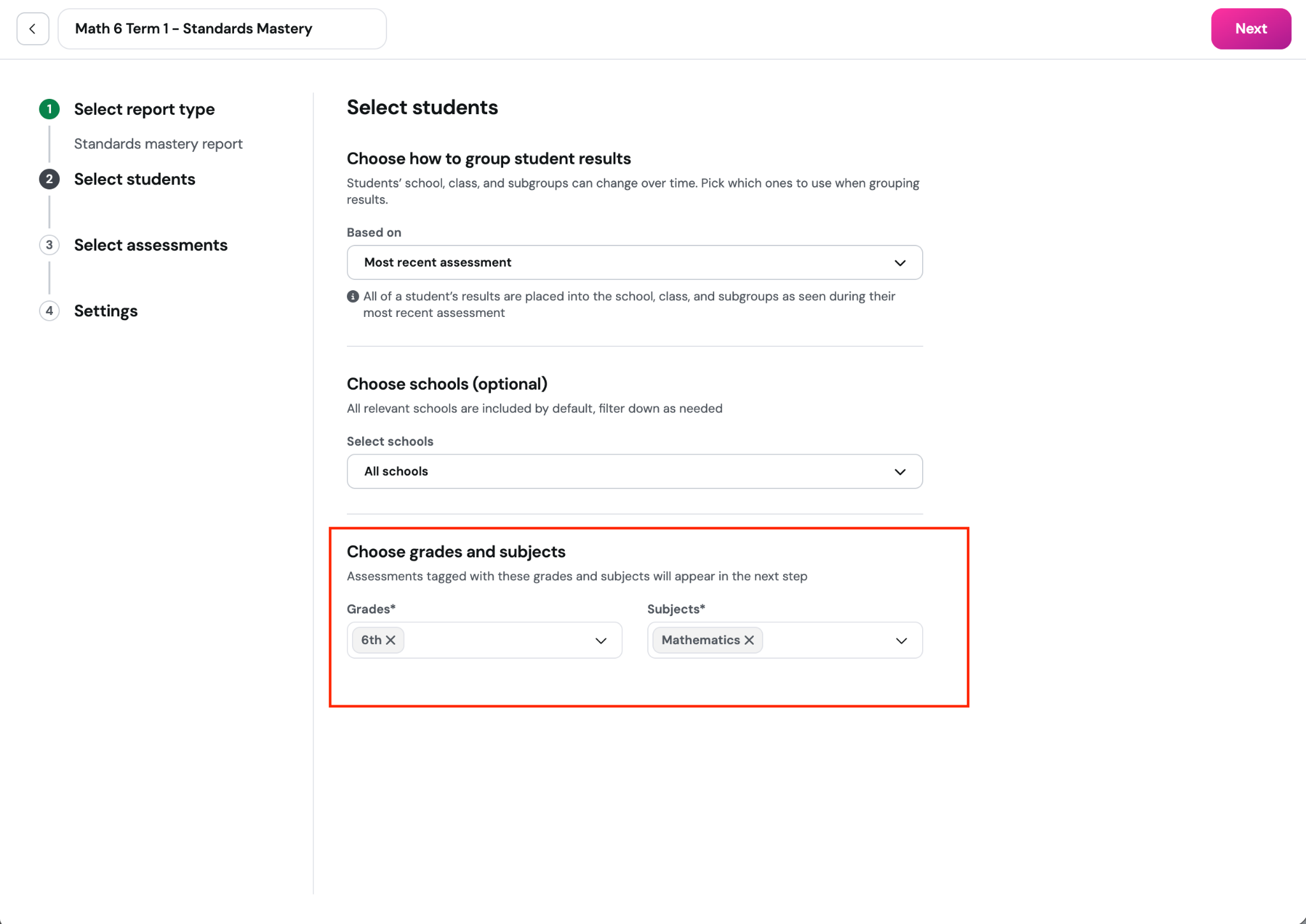
Choose Common Assessments from the instructional period you want to review. For current mastery, use the current period. For a historical view, choose an earlier period.
- 'Pick from list'. Select 'Add Common Assessments'. Use search and filters to find and add at least two Common Assessments, then select 'Next'.
- 'Set filters'. Choose your grades, subjects, and date range, then select 'Apply filters'. Wayground adds matching Common Assessments automatically. Select 'Next'. If you have access to Classroom activities, you can add them under 'Pick from list'.
Step 4: Review accuracy and performance-band settings, then Save
The accuracy calculation method defines how Wayground combines results when a standard appears in multiple assessments. “Most recent assessment” uses the latest selected assessment that includes each standard and answers “Where were the students when they were last assessed?” The detailed guide explains the other calculation options.
Performance-band settings define the score ranges for Did not meet, Partially met, Met, and Exceeded. The thresholds determine which band each student appears in, the Mastery checkboxes determine which bands contribute to % at Mastery, and “Edit labels” changes the band names. Review these settings and adjust them when your district uses different names and ranges.
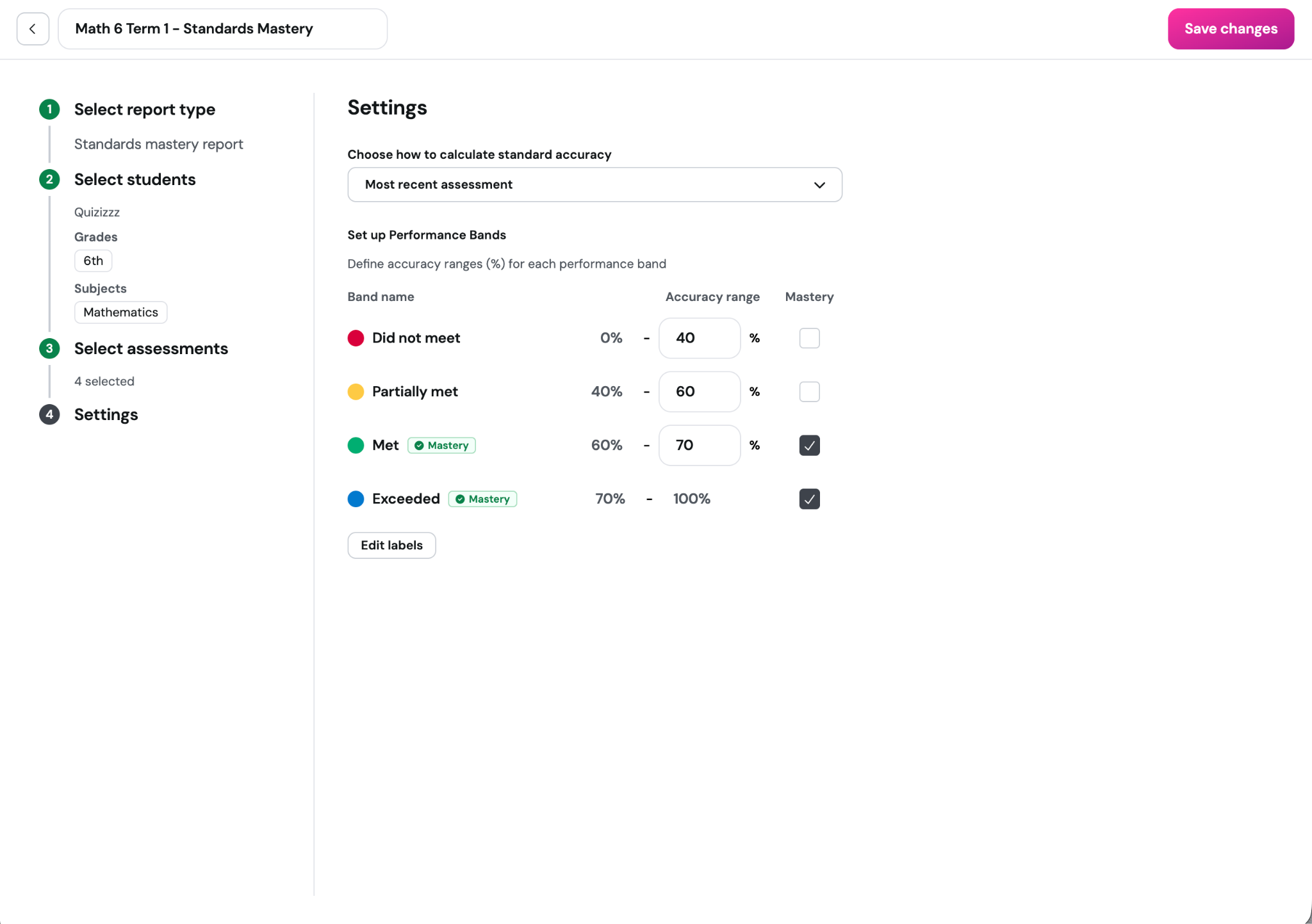
Click Save to create the report.
Refer to this article to learn more about how to use the Standards Mastery Report, go here: How to use a Standards Mastery Report
Was this article helpful?
That’s Great!
Thank you for your feedback
Sorry! We couldn't be helpful
Thank you for your feedback
Feedback sent
We appreciate your effort and will try to fix the article