Note: Custom Reports are available as a part of Common Assessments add-on. To access this feature and learn more about Common Assessments add-on and the Schools & Districts plan, please email sales@wayground.com
A Multi-Assessment Analysis report compares student performance across two or more Wayground or external assessments (iReady, NWEA MAP, Renaissance Star, state tests, etc.) in one view.
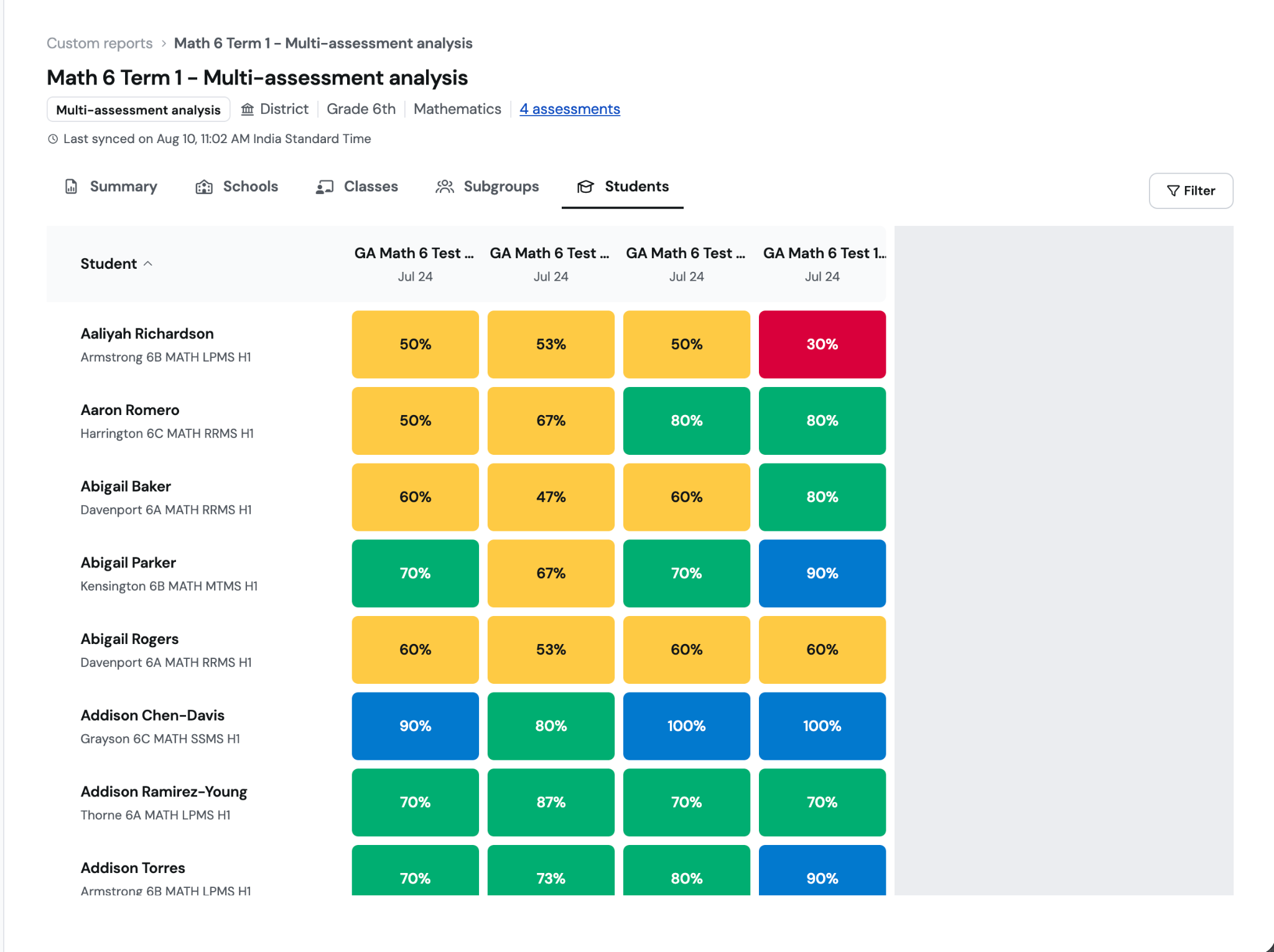
Step 1: Select report type
To start a Multi-Assessment Analysis report, follow these steps:
In the left menu, go to 'Reports' > 'Custom reports'
Click 'Create new report'
Under 'Select report type', choose 'Multi-assessment analysis'
Click 'Next'
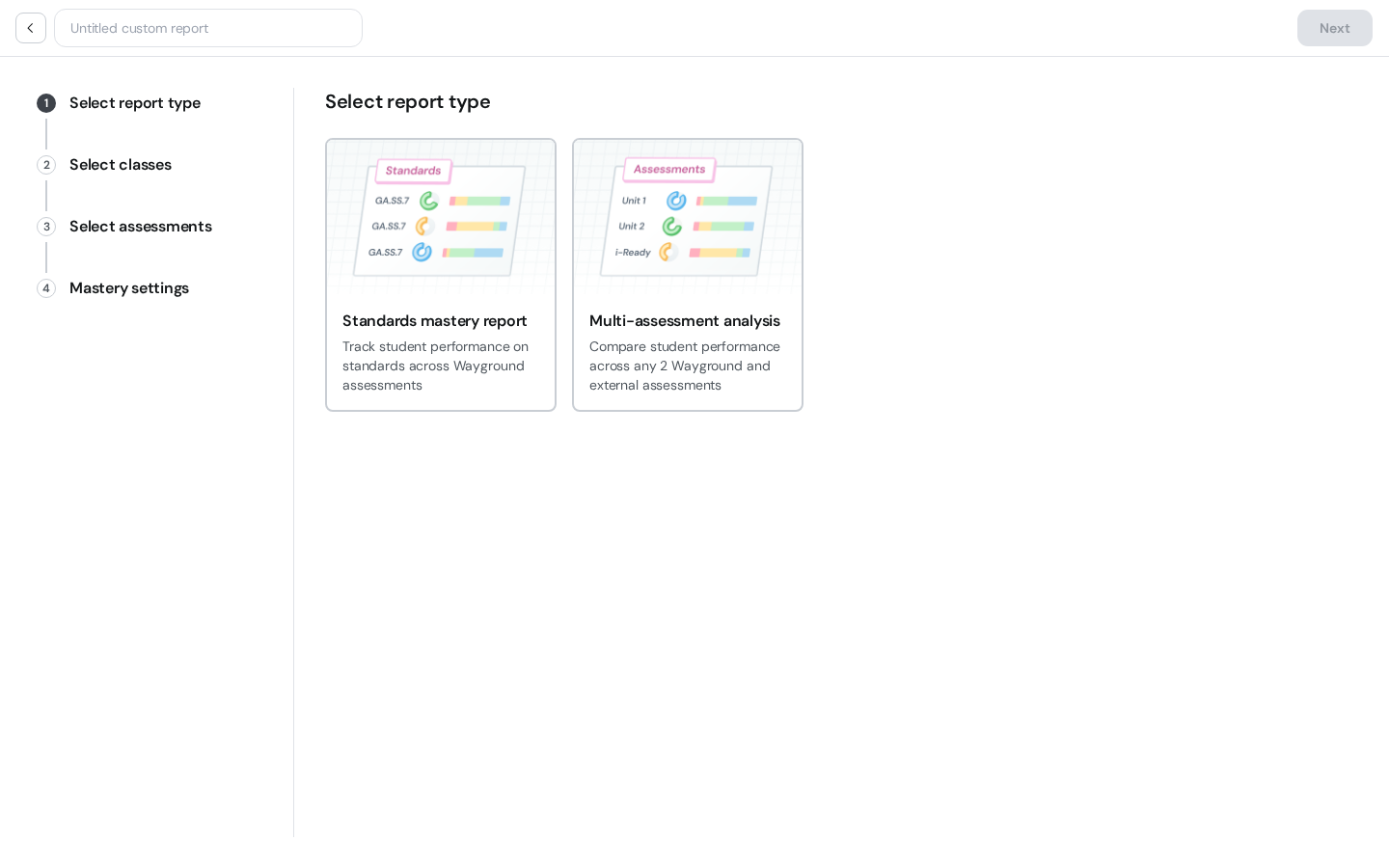
Step 2: Select classes
Choose which class roster Wayground should use to select students for the report, then pick your classes. To select classes, follow these steps:
Under 'Choose how to get classes', select 'Wayground classes' or 'SIS enrollment snapshot'
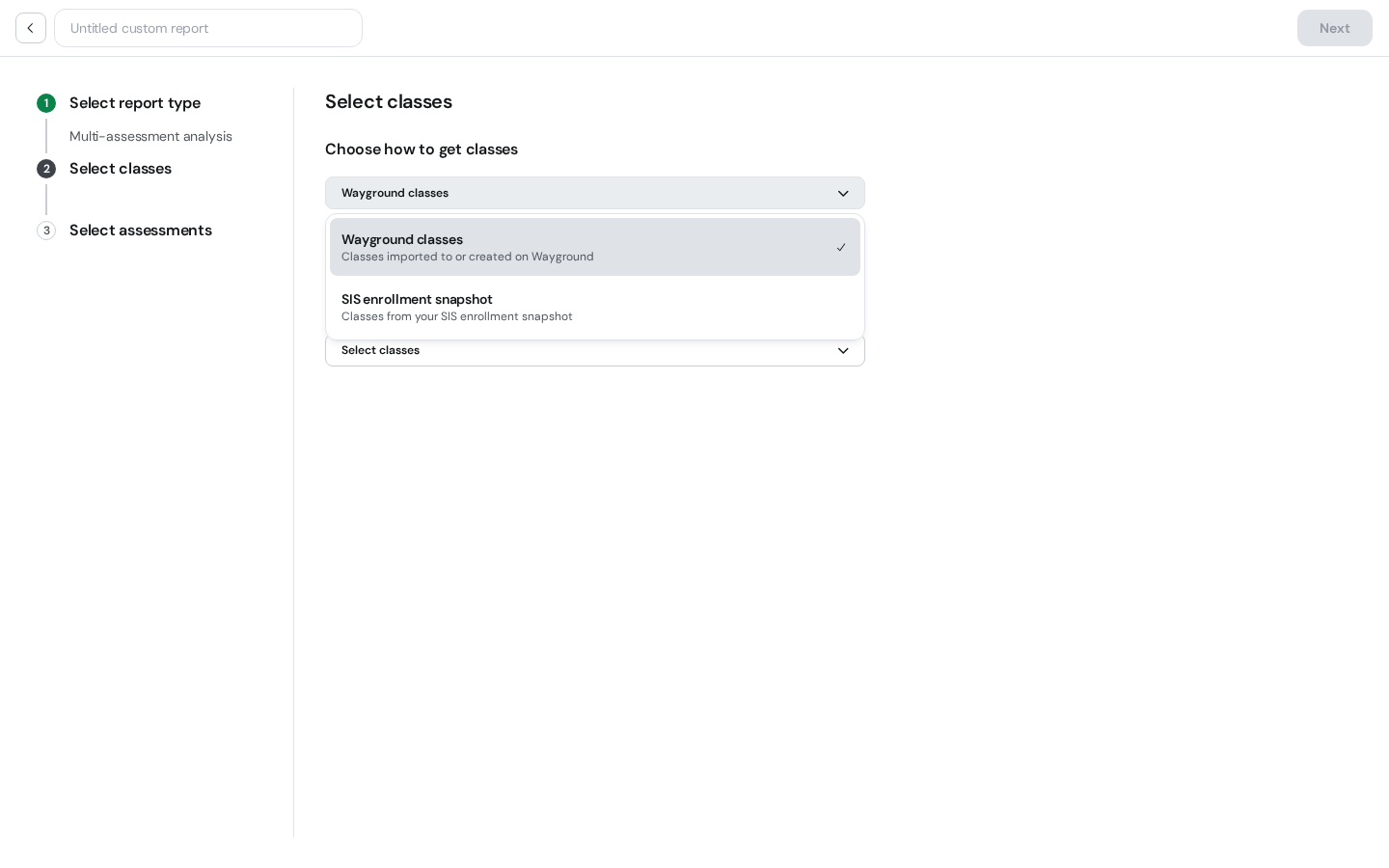
Under 'Choose classes', pick one class when planning instruction for a single roster, or several classes to compare shared strengths and needs across your classes, then click 'Select classes'
Wayground classes
Uses classes created or imported in Wayground, the same classes used to assign common assessments. Choose this option when your Wayground class roster reflects the students you want to analyze.
SIS enrollment snapshot
Available when your district connects Clever/Classlink to Wayground, choose this option when you want the report to follow your student roster from a particular date.
After selecting SIS enrollment snapshot, choose:
Choose a snapshot date. Wayground will use each student’s school and class assignments as they appeared on that date. The most recent available snapshot is selected by default.
Select one or more courses.
Select one or more terms.
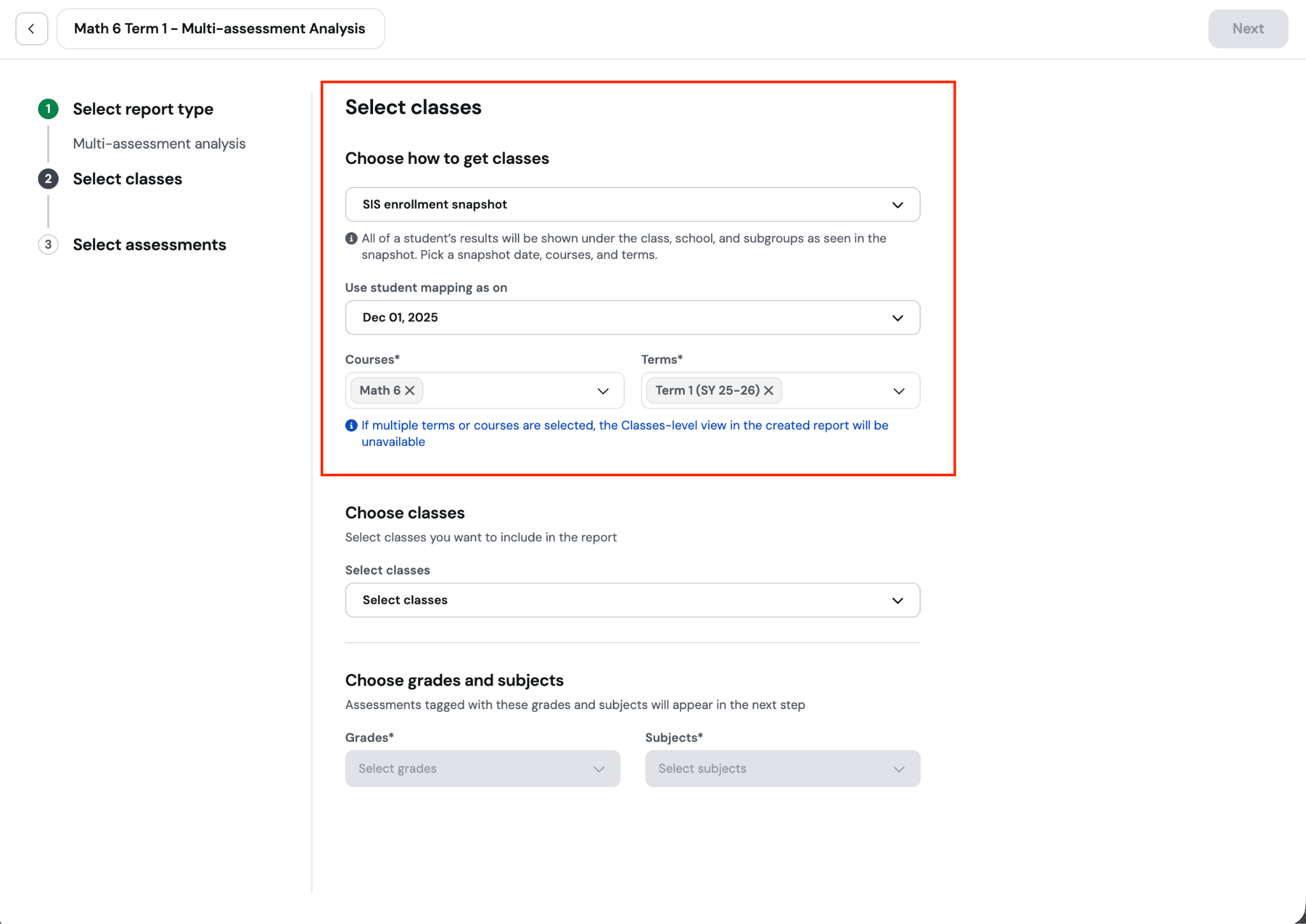
Note: If you select multiple courses or terms, a student may be associated with different classes across those selections. To prevent results from being attributed to or combined under the wrong class, Wayground hides the class-level breakdown in the completed report. To view results by class, select one course and one term.
Step 3: Select assessments
Select at least two assessments that are related enough to interpret together. Common selections include assessments from the same grade and subject across one instructional cycle, a Wayground and external assessment covering similar content, or a related common assessment series.
You can add assessments from one or both sources: Common Assessments and classroom activities you've given in your own classes. Choose them yourself on the 'Pick from list' tab, or add Common Assessments by grade, subject, and date on the 'Set filters' tab.
Pick from list
The 'Pick from list' tab opens first. To pick assessments, follow these steps:
Click 'Add Common Assessments', narrow the list with 'Date range', 'Subjects', 'Grades', and 'Participants', select the assessments you want, and click the add button (for example, 'Add 1 assessment')
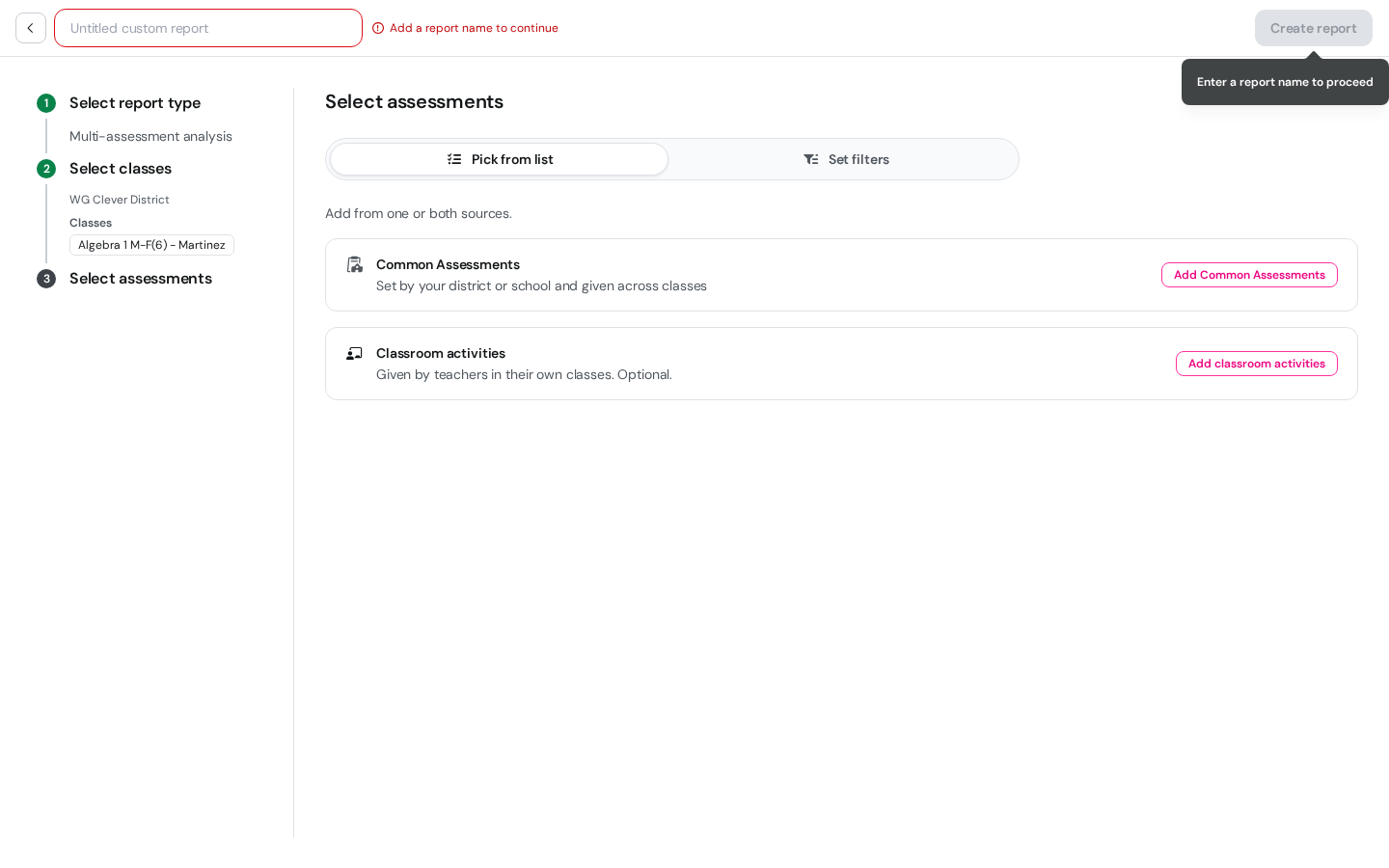
To include classroom activities, click 'Add classroom activities'. The list shows the sessions you've hosted, each with its resource type, session mode, number of students, date, and teacher
Narrow the list with 'Date range', 'Resource type' (Assessment, Presentation, Passage, or Interactive Video), 'Session mode' (Live, Homework, Teacher Paced, Test Mode, or Paper Mode), and 'Participants' ('All', 'With participants', or 'No participants')
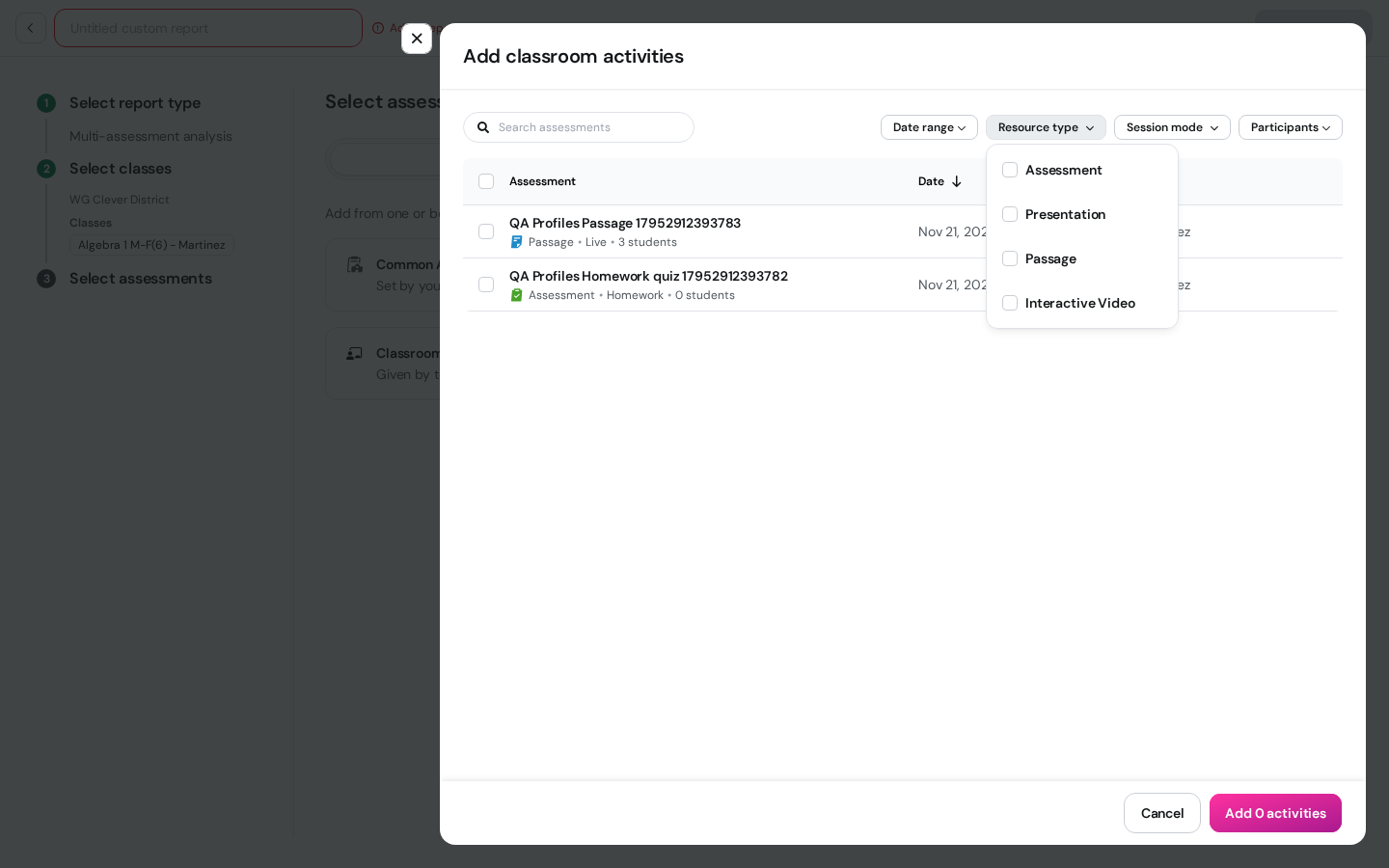
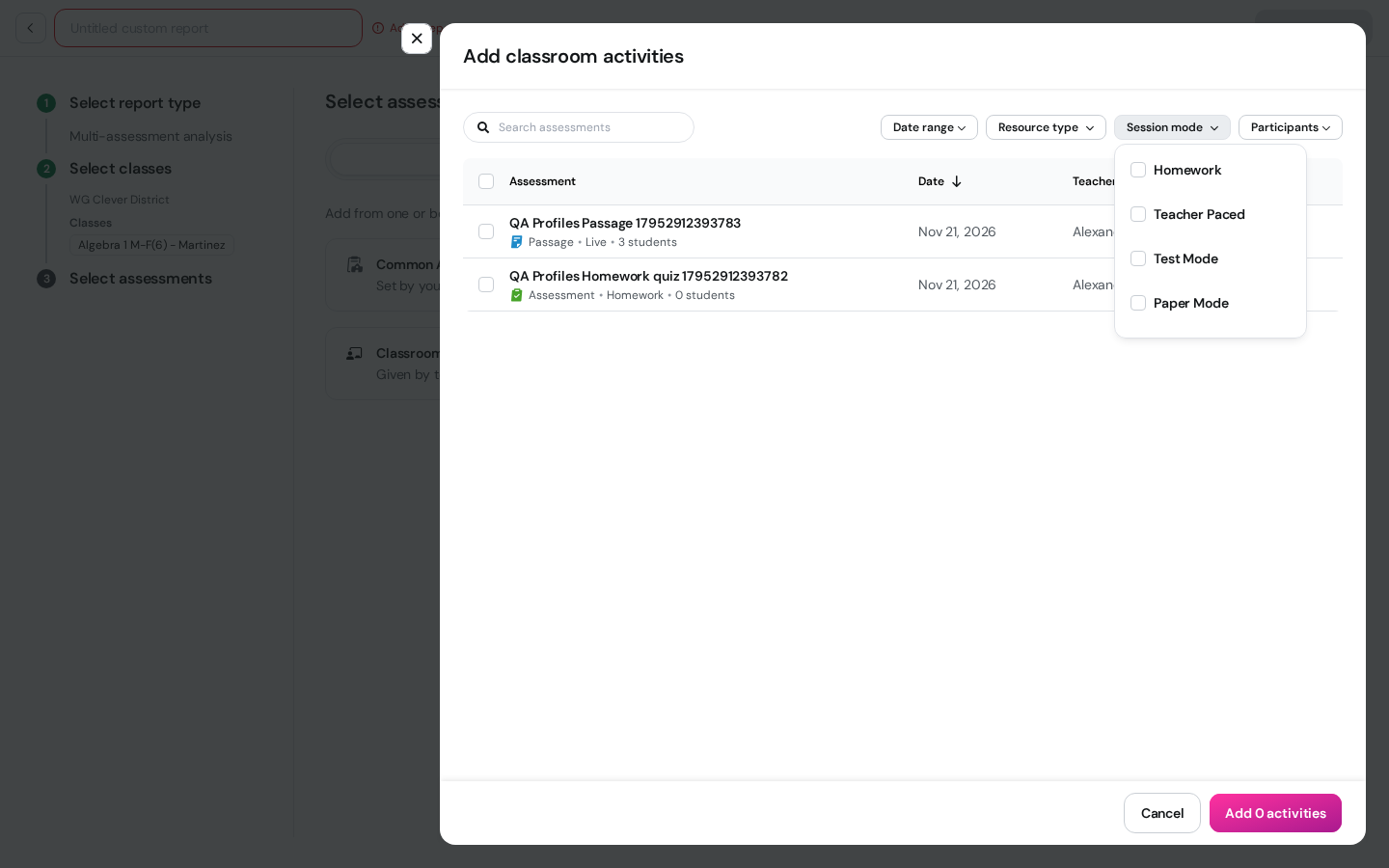
Select the classroom activities you want to add
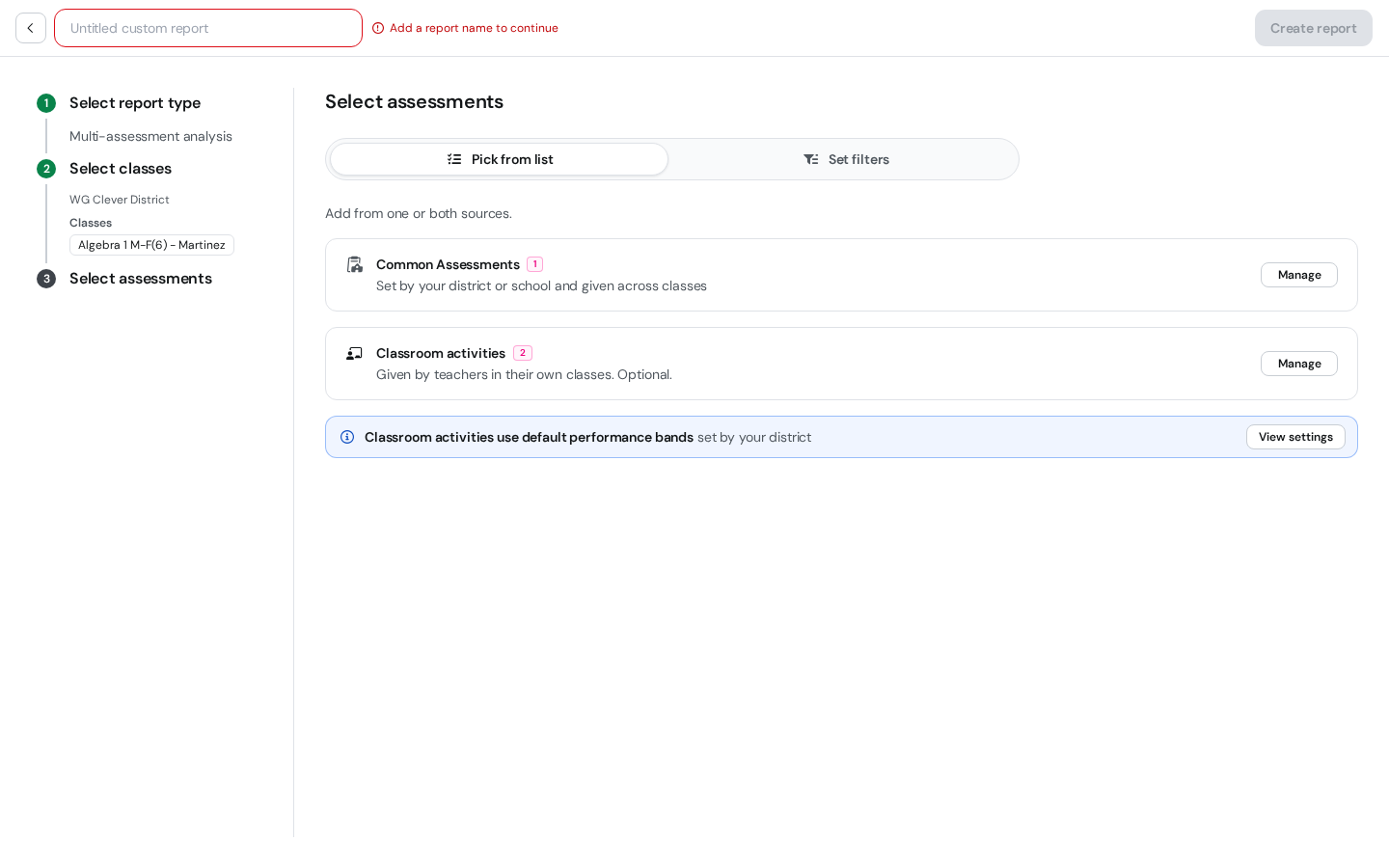
Note: Classroom activities use default performance bands set by your district. Each Common Assessment retains its own performance bands so its results remain grounded in that assessment’s context. This matters because assessments can differ in difficulty, rigor, and purpose. You can review each assessment’s bands in the completed report.
Set filters
To add every Common Assessment that matches a grade, subject, and date range, follow these steps:
Select the 'Set filters' tab
Choose 'Grades', 'Subjects', and 'Date range'. All three are required, and the date range defaults to the current school year
Click 'Apply filters'. Matching Common Assessments are added automatically
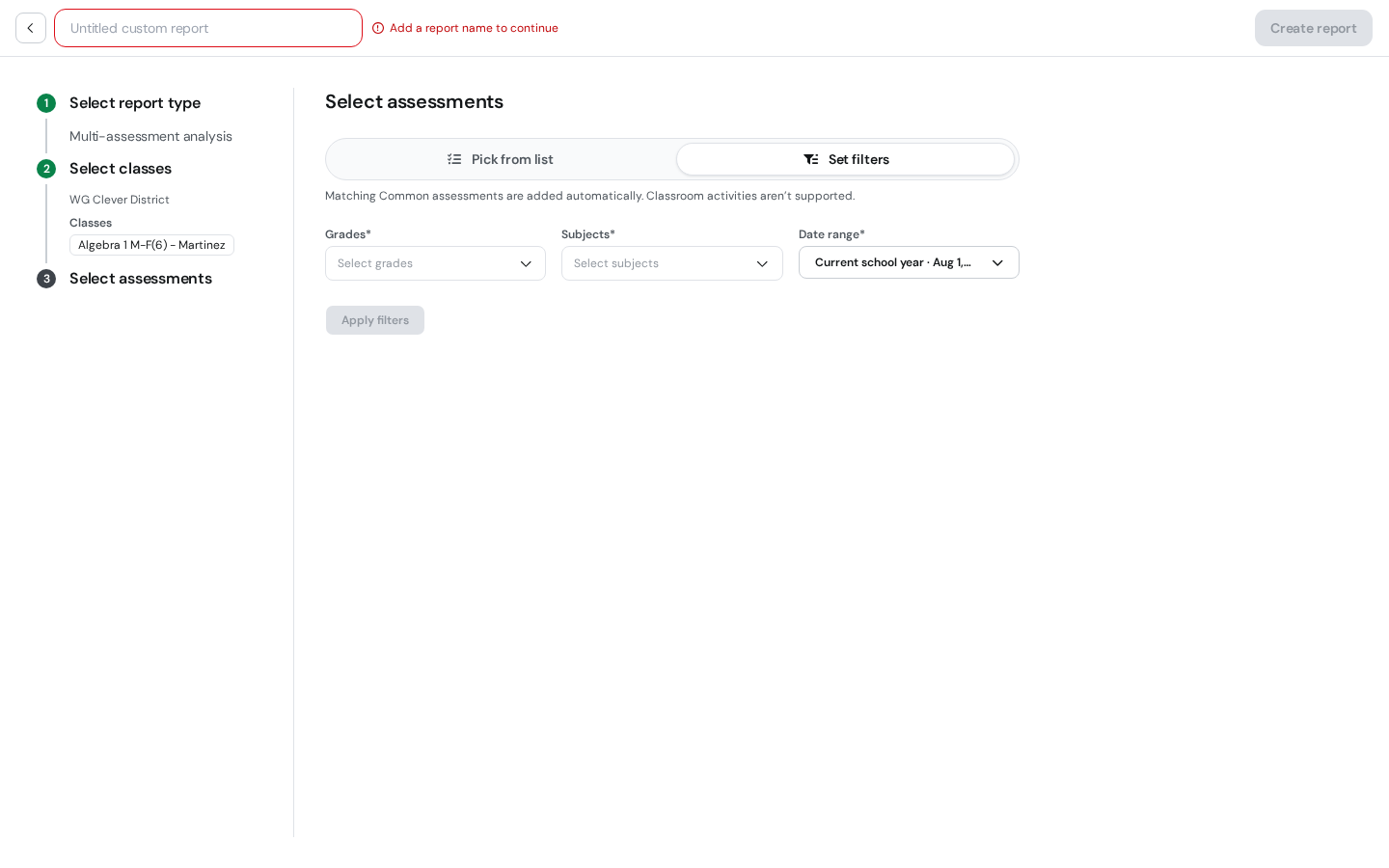
To include classroom activities, add them from the 'Pick from list' tab.
Name and create your report
When your assessments are in place, give your report a name. To finish, follow these steps:
Enter a descriptive name in the 'Untitled custom report' field at the top of the page
Click 'Create report'
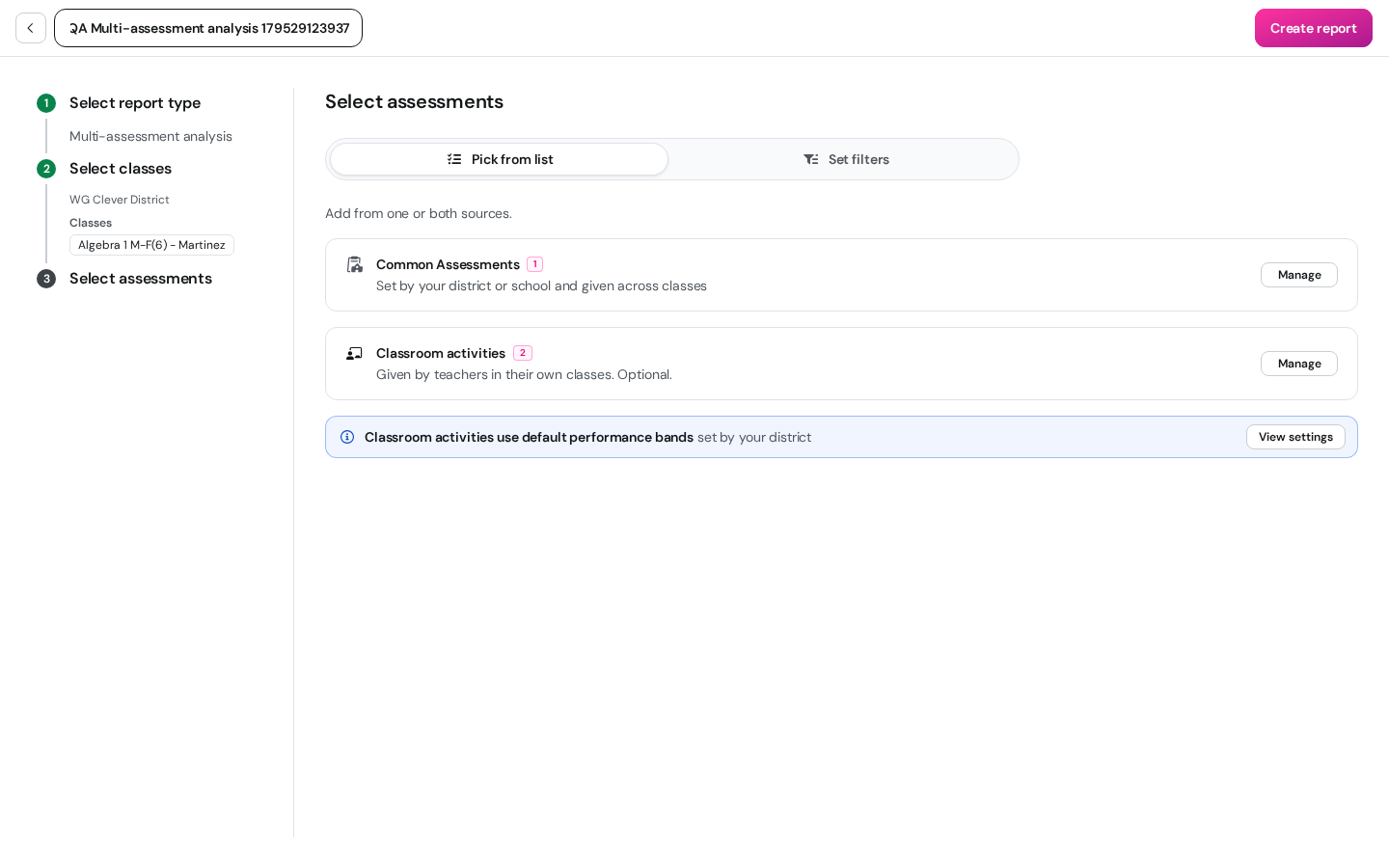
That's it! Your Multi-Assessment Analysis report is ready to explore. To learn how to read it, see How to use a Multi-Assessment Analysis Report.
Was this article helpful?
That’s Great!
Thank you for your feedback
Sorry! We couldn't be helpful
Thank you for your feedback
Feedback sent
We appreciate your effort and will try to fix the article