Worksheet Grading grades paper worksheets for you. Create the worksheet on the web, print it, and scan each student's paper with the Wayground Teacher app. Results land in the app and in your Wayground reports.
In this article we go over the full flow, from setting up a graded worksheet on the web to scanning student papers on your phone and reviewing results.
Available on all Wayground plans, including Free.
In this article
Before you begin
Here is what you need to have ready:
A Wayground teacher account
The Wayground Teacher app installed on your phone, available on the App Store and Google Play. To learn more, refer to Install the Wayground Teacher app
A worksheet saved in My Library, or one you pick from the Wayground Library
Choose a worksheet and enable grading
Grading starts on the web so Wayground knows which answer key to use when you scan. Here are the steps to follow:
Sign in to wayground.com on your computer.
Find the worksheet you want to grade. You can search My Library or browse the Wayground Library.
Open the resource and click on 'Worksheet' in the top toolbar.
In the "Do you want to grade this worksheet?" window, select 'Graded Worksheet', then click on 'Continue'.
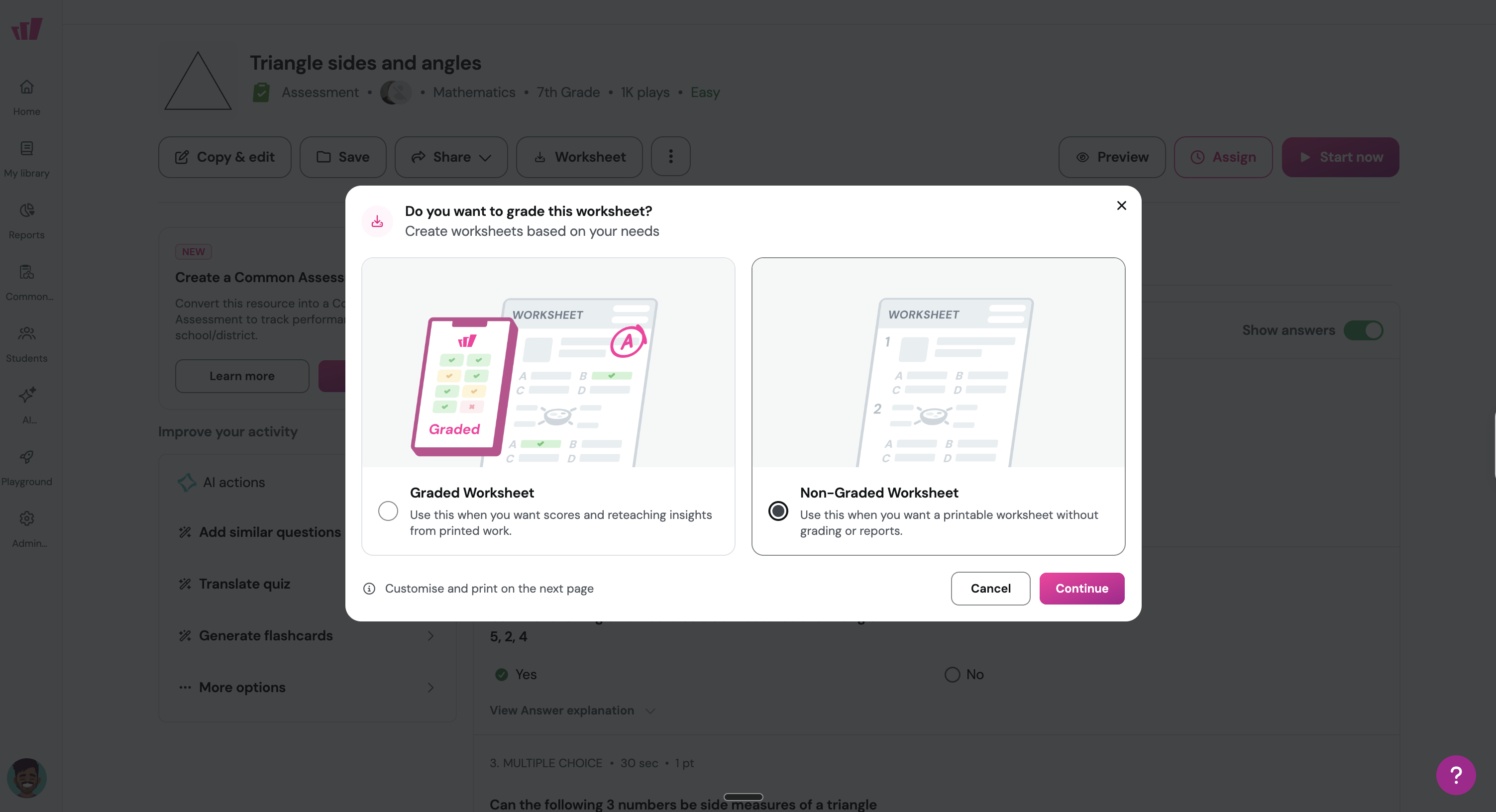
Note: Choose 'Non-Graded Worksheet' when you only want a printable copy without scores or reports.
Set up your grading session
The Assignment Details page controls how the worksheet gets graded. Every option here is optional, so you can move straight to printing if you prefer.
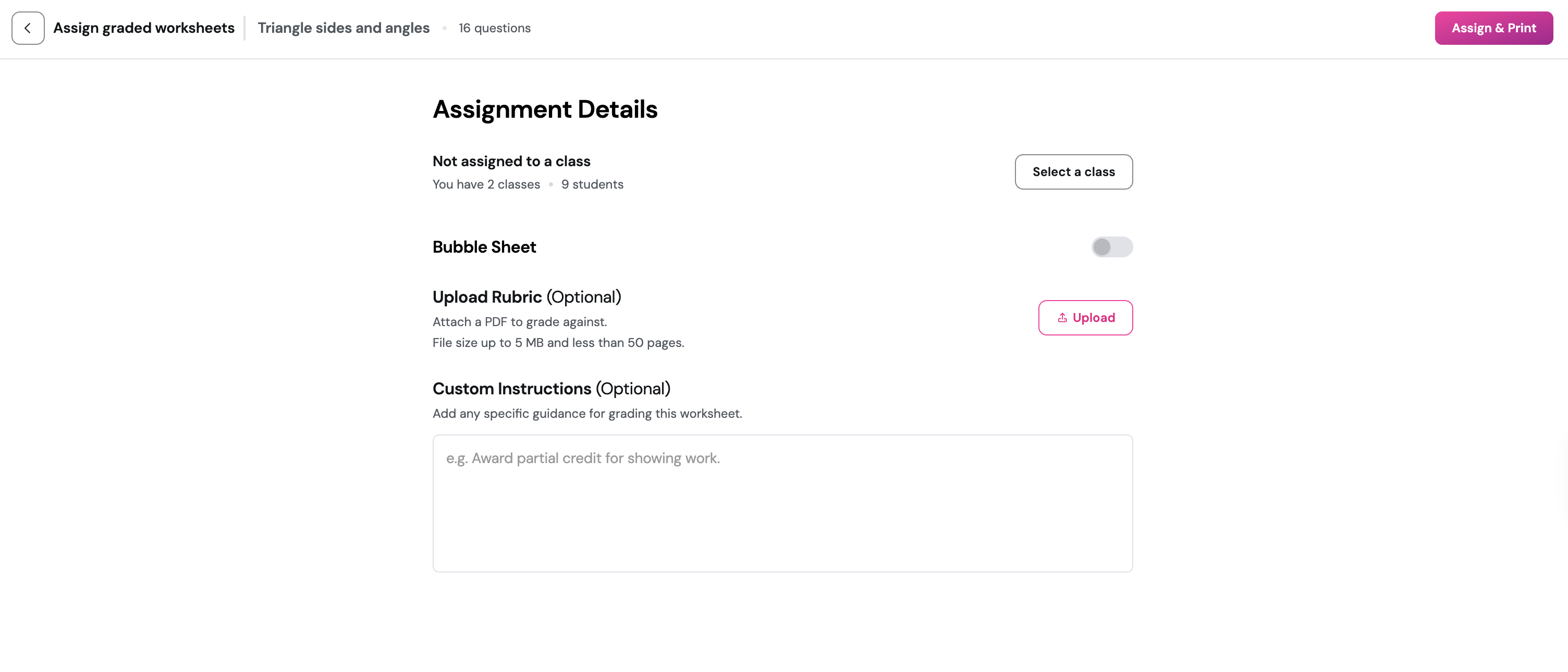
Click on 'Select a class' to attach the worksheet to a class. When a class is selected, student names from your roster become available while you scan. If you use Google Classroom, your class list syncs automatically.
Turn on the 'Bubble Sheet' toggle if your worksheet uses A, B, C, D bubbles instead of written answers. Bubble sheets need all Multiple Choice questions, up to a maximum of 80. To learn more, refer to Grade a bubble sheet.
Under 'Upload Rubric' (Optional), click on 'Upload' and choose a PDF to grade against. The file can be up to 5 MB and fewer than 50 pages. Wayground pulls the criteria from your rubric and applies them when evaluating student answers. To learn more, refer to Set up rubrics and grading instructions.
In the 'Custom Instructions' (Optional) box, add any specific guidance for grading this worksheet. For example: "Award partial credit for showing work".
Click on 'Assign & Print' in the top-right corner.
On the printable worksheet page, adjust settings as needed, then click on 'Print / Download'.
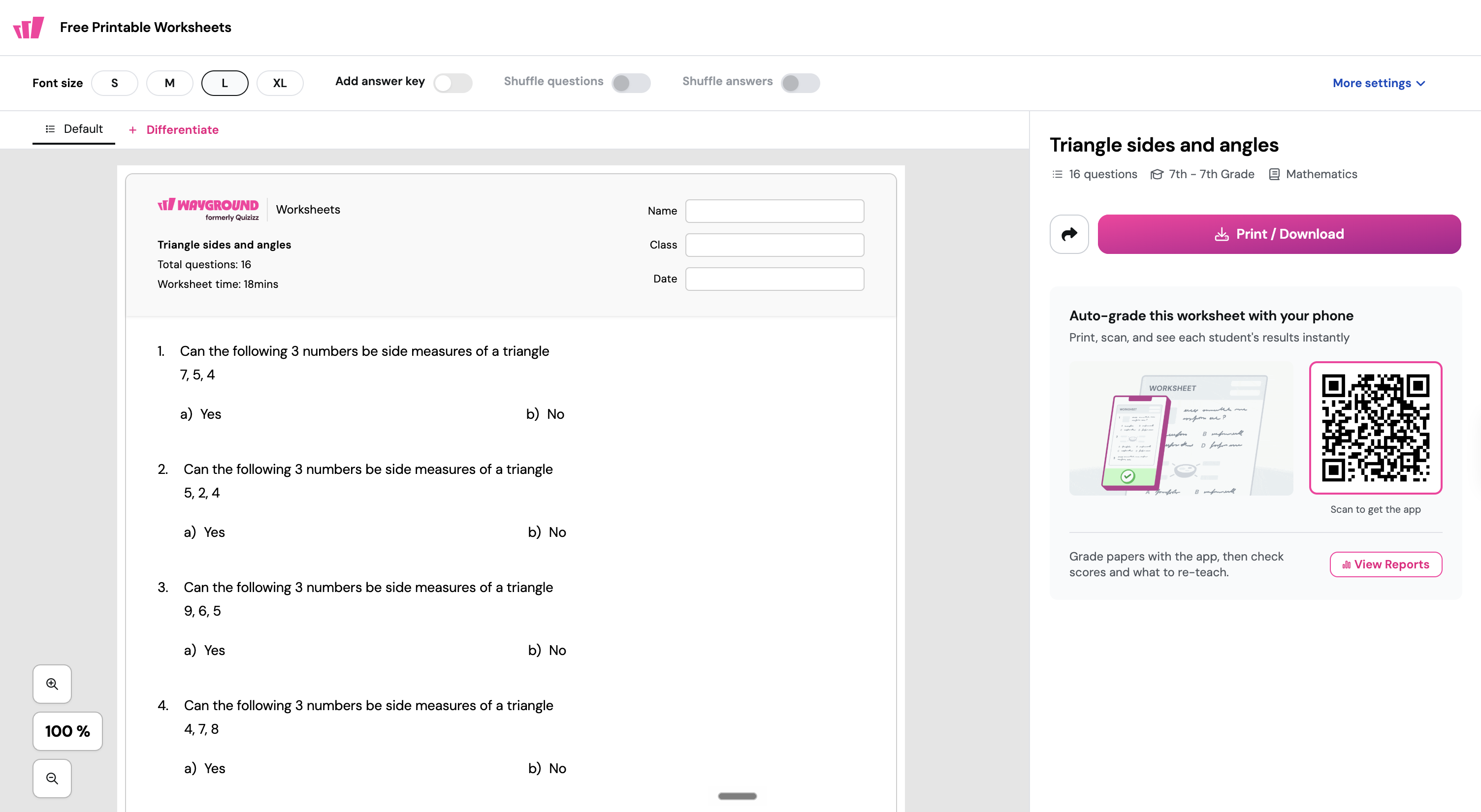
Your worksheet is ready to print. The grading session is created at the same time, so the worksheet shows up on your app automatically. The 'Auto-grade this worksheet with your phone' panel also includes a QR code you can scan to get the app, plus a 'View Reports' shortcut for later.
Open the worksheet on your app
Once students have finished writing on paper, pick up your phone.
Open the Wayground Teacher app on your phone.
Look for the 'Student Submissions' page. Your worksheet appears there as a card, listed under 'Assigned worksheets'.
Tap the worksheet to open the session. You will see the worksheet name, the confirmed answer key, and a 'Scan first student' button at the bottom.

Note: If the worksheet is not visible yet, pull down on the home screen to refresh.
Scan a student's paper
Tap 'Scan first student' to open the camera. For each student after that, tap 'Scan next student'.
Hold your phone flat over the student's paper so the whole sheet sits inside the frame. The camera finds the edges of the document for you.
Hold steady while the page captures on its own. A blue checkmark in the top-right corner confirms the page came through clearly.
Turn to the next sheet and repeat if the worksheet runs longer than one page. Each captured page is added to the same student. You can scan up to 20 pages per student.
Note: If the worksheet has more than one page, the camera stays open after each capture so you can scan the next page immediately.
For tips on getting the clearest scans, refer to Scanning tips.
Review and submit
After scanning, the 'Review & Edit' screen appears.
Student Name: Wayground reads the student's handwritten name from the paper and suggests it. Tap a suggestion pill to accept it, or type the name manually. If you assigned a class, the name may already be filled from your roster
Pages: Each scanned page uploads automatically. You will see progress circles while uploading. Once a page finishes, a green checkmark appears
To retake a blurry page, tap the camera icon on that page
To remove a page, tap the delete icon
To add more pages, tap '+ Add' in the top-right corner
Once all pages show a green checkmark, tap 'Submit for [student name]'. Wayground sends the scanned pages for evaluation. The student's answers are graded against the answer key, and any rubric or custom instructions you set up on the web are applied.
Continue scanning
You return to the session page. The student you just submitted now shows an 'Evaluated' status. Tap 'Scan next student' and repeat the process for each student in the class.
Students move through three statuses as they are processed.
Status | Meaning |
|---|---|
Scan | Not yet scanned, tap to start |
Processing | Scanned and being evaluated |
Evaluated | Grading complete, tap to view results |
These statuses appear in the class roster view. Scan shows as a magenta 'Scan' button next to each student on your roster.
View results in the app
Tap any student with an 'Evaluated' status to open the 'Student Responses' screen. The screen shows:
Accuracy, the overall percentage correct
Points, total points earned out of possible points
Per-question breakdown, each question marked as Correct or Incorrect, with the student's answer and the correct answer displayed
This gives you a quick check on how each student performed. For a deeper view across the whole class, use the web reports at wayground.com/reports on your desktop.
View detailed reports on the web
Sign in to wayground.com and open 'Reports' from the left sidebar.
Find and select your worksheet session.
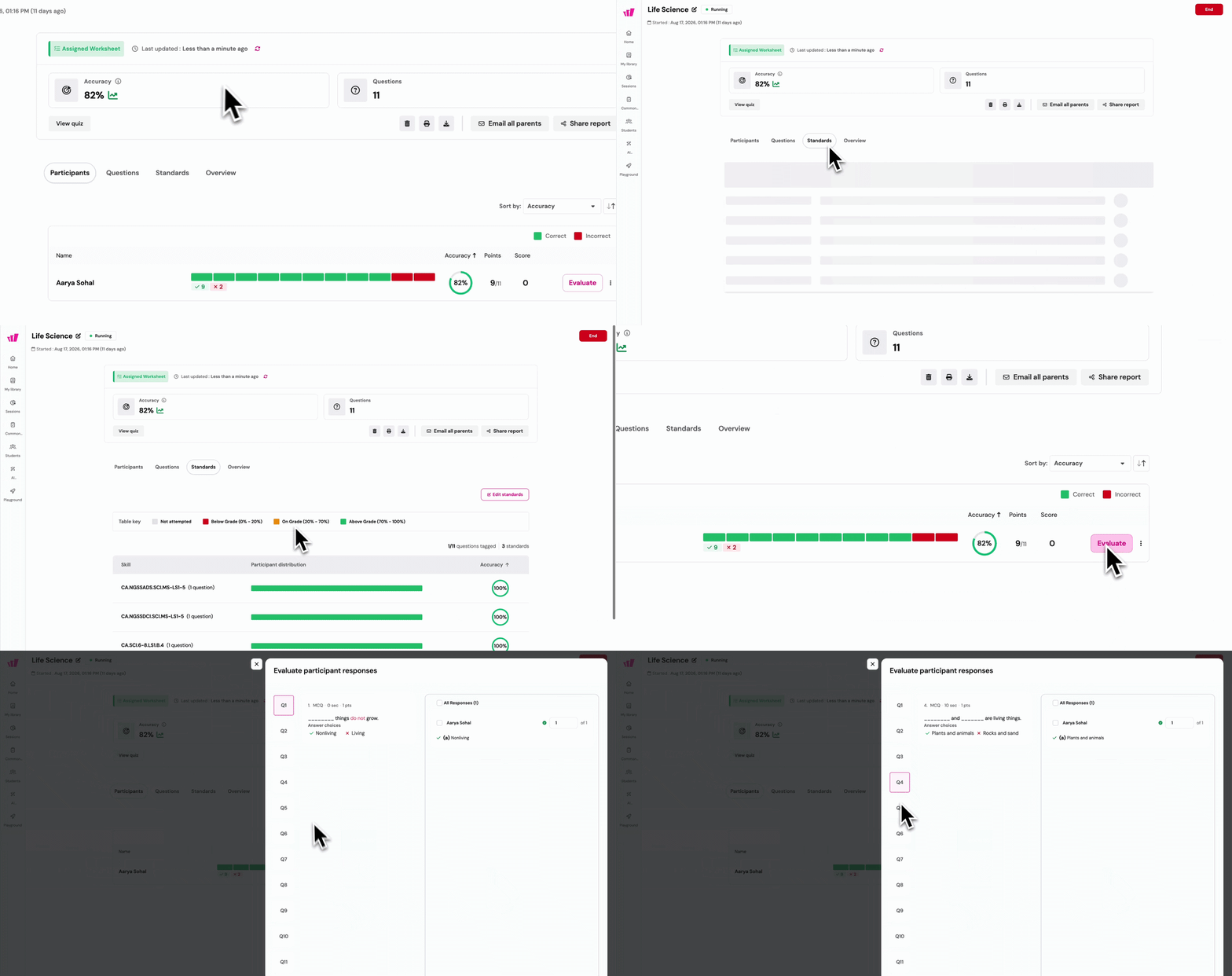
The web report has four tabs:
Participants: each student's accuracy bar, correct and incorrect count, points, and score. Select 'Evaluate' next to a student to review how each question was graded and override scores if needed
Questions: a per-question breakdown showing the question text, answer choices, and how each student responded, which helps you spot which questions the class found difficult
Standards: if questions are tagged to standards, this tab shows per-standard mastery with color-coded performance levels: Below Grade, On Grade, and Above Grade
Overview: a summary view of the session
From the report you can also email all parents to send results home, share a link to the report, and print or download the report. To learn how to review and change individual scores, refer to Review and change scores.
What happens next
After you submit all students, the grading session is complete. Results sync to your Wayground reports automatically. If you assigned the worksheet to a class, grades flow back to your LMS gradebook.
You can return to any session from the app's home screen to scan additional students or review existing results at any time.
Grading your own printed worksheet
If you have your own printed worksheet, not one from Wayground, you can still grade it. Instead of starting on the web, you start from the app:
Tap 'Start Grading' on the home screen.
Choose 'Worksheet' (for written answers) or 'Bubble Sheet' (for A, B, C, D bubbles).
Select 'External' as the source.
Scan your master worksheet first. Wayground extracts the answer key using AI.
Review and confirm the extracted answers.
Scan each student's paper as usual.
For a full walkthrough, refer to Grade your own worksheet (BYOC).
Troubleshooting
The worksheet does not appear on my app
Pull down on the home screen to refresh
Confirm you are signed in with the same account you used on the web
Check that you selected 'Graded Worksheet', not 'Non-Graded Worksheet', when setting up the worksheet
The camera does not detect the page
Place the worksheet on a flat, well-lit surface with good contrast against the background
Avoid shadows across the page and glare from overhead lights
Hold your phone directly above the page, not at an angle
Refer to Scanning tips for more guidance
The student's name was not detected
Type the name manually in the 'Student Name' field on the 'Review & Edit' screen
If you assigned a class with a Google Classroom roster, the name is pre-filled from your class list
A question shows as unsupported
Some question types are not yet supported for auto-grading. You will see a banner listing the affected question numbers
Grade those questions on the web using the 'Evaluate' option in Reports
I need to change a score after submitting
Open the session report on wayground.com
In the 'Participants' tab, select 'Evaluate' next to the student to review each question and override the score
Students cannot access the upload link
Confirm that you shared the correct link from the 'Share with Students' option on the session page
That is the whole loop: print, scan, and see each student's results without a stack of papers waiting for you at home.
Need more help? Submit a Wayground support ticket and our team will help you out.
Was this article helpful?
That’s Great!
Thank you for your feedback
Sorry! We couldn't be helpful
Thank you for your feedback
Feedback sent
We appreciate your effort and will try to fix the article