Use Wayground Teacher to scan and grade printed worksheets and bubble sheets from your phone or tablet. The app can identify students, grade responses, and sync results to your Wayground reports.
Before you begin
You need:
A teacher account at wayground.com
A phone or tablet with a working camera
Internet access
iPhone or iPad: iOS/iPadOS 15.5 or later
Android: a device that Google Play lists as compatible
If your school manages your device, your administrator may need to approve or install the app for you.
Download the app
On an iPhone or iPad
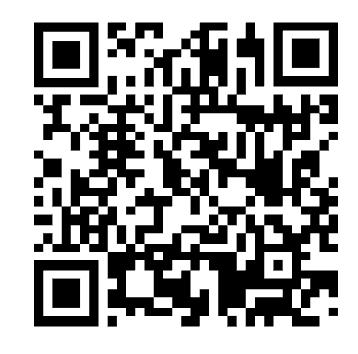
Open the Wayground Teacher App Store page, or scan the App Store QR code above.
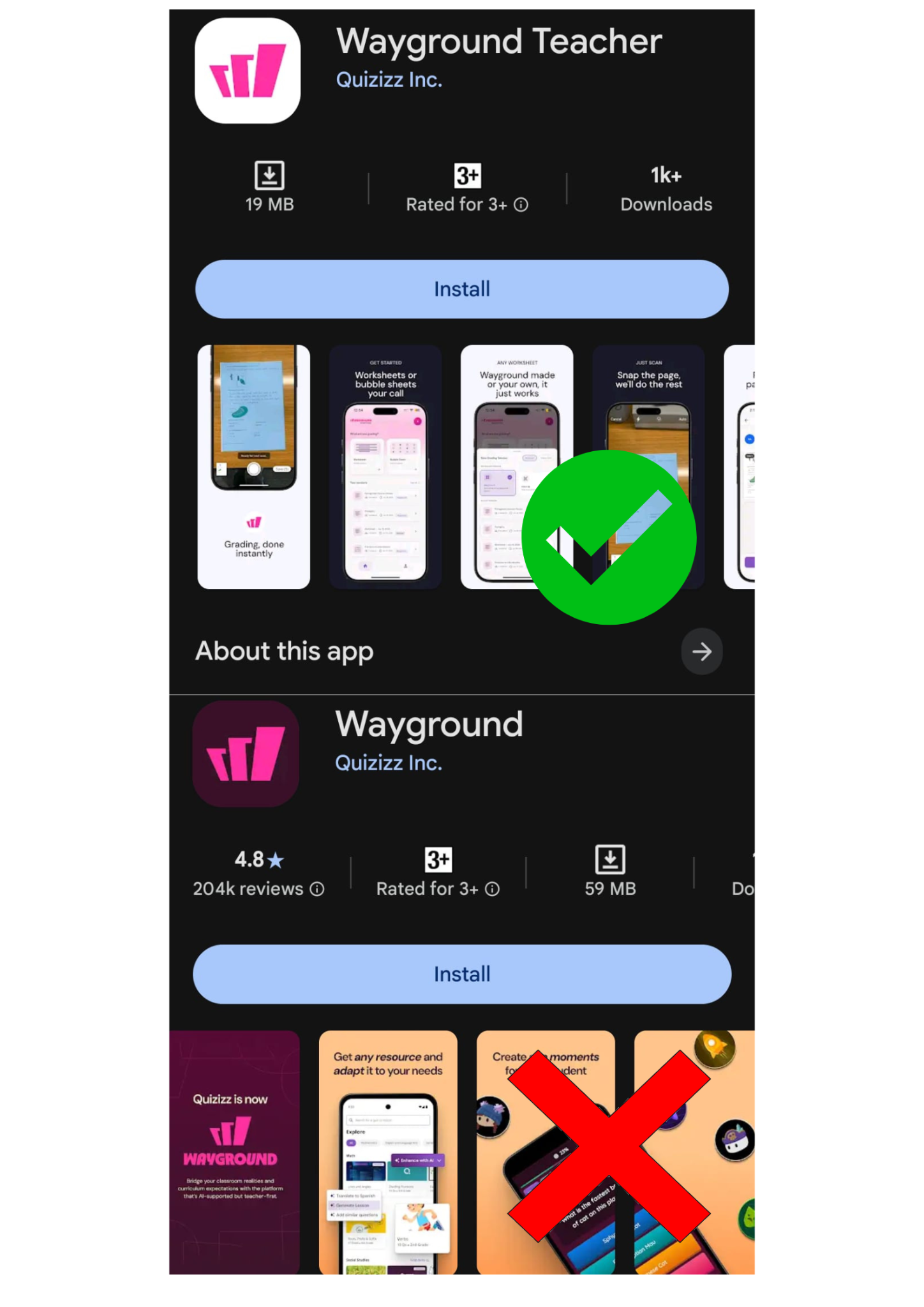
Confirm that the app is named Wayground Teacher and the developer is Quizizz.
Tap Get, then complete the App Store confirmation.
When installation finishes, tap Open.
On an Android device
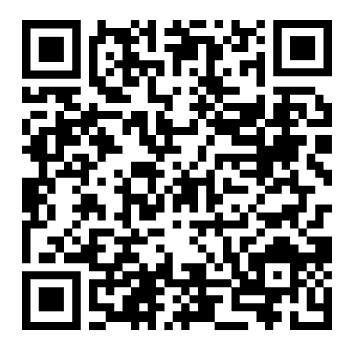
Open the Wayground Teacher Google Play page, or scan the Google Play QR code above.
Confirm that the app is named Wayground Teacher and the developer is Quizizz Inc.
Tap Install.
When installation finishes, tap Open.
Sign in
You can sign in with Google, Apple, or email. Sign in to the same Wayground account that you use on wayground.com so your grading sessions and reports sync correctly.
You can also sign in by QR code:
On a computer, sign in at wayground.com.
Open Wayground Settings.
Find the QR code for signing in to the Teacher app.
In the Wayground Teacher app, choose the QR-code sign-in option and scan the code on your computer screen.
Allow camera access
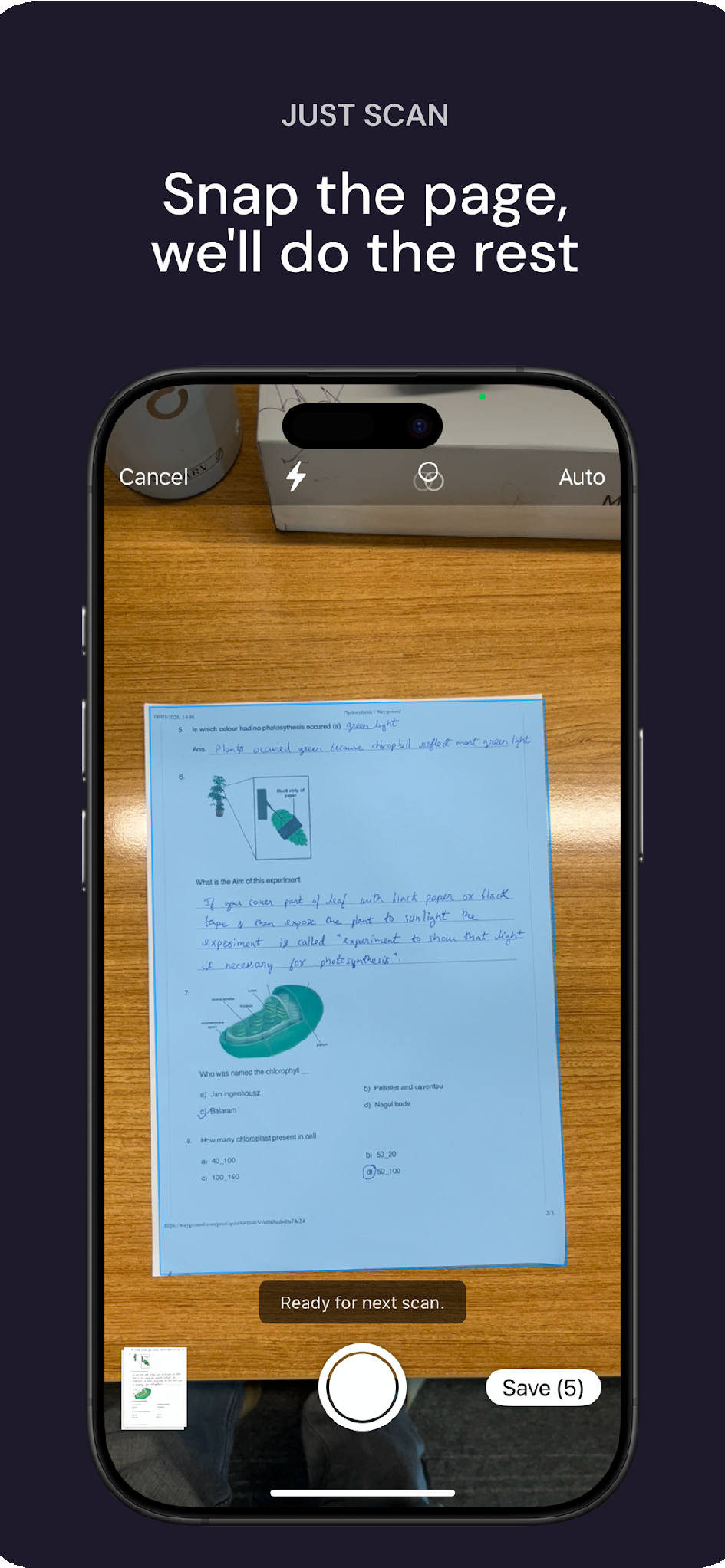
When prompted, allow Wayground Teacher to use your camera. Camera access is required to capture worksheets and bubble sheets.
If you previously denied access:
iPhone or iPad: Open Settings → Privacy & Security → Camera, then turn on access for Wayground Teacher.
Android: Open Settings → Apps → Wayground Teacher → Permissions → Camera, then choose Allow.
The exact menu names may vary by device or operating-system version.
Confirm that setup worked
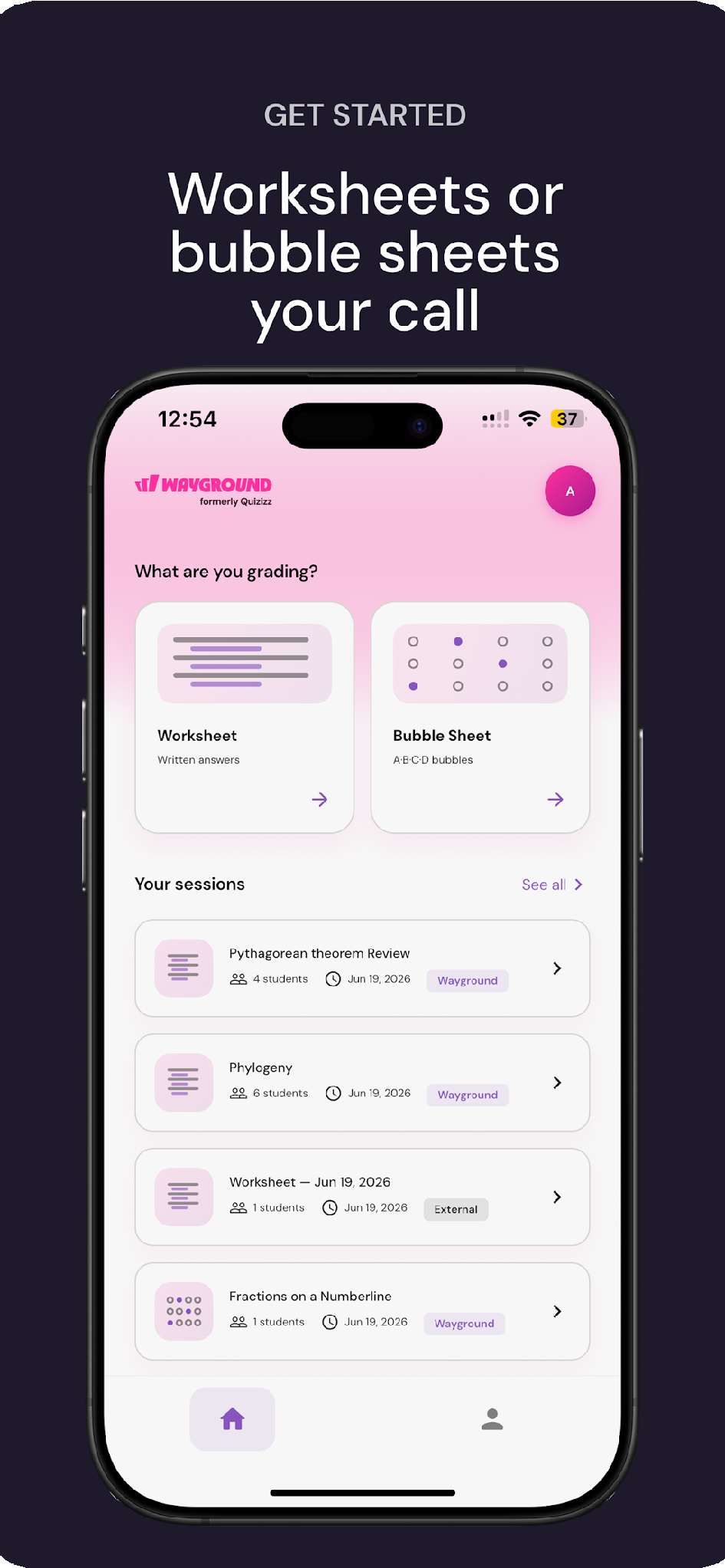
After signing in, the home screen should let you start a grading session by choosing Worksheet or Bubble Sheet.
Troubleshooting
Issue | What to do |
I cannot find the app | Search for Wayground Teacher, or use the store links in this guide.Confirm that the developer is Quizizz or Quizizz Inc. |
The app is unavailable or incompatible | Update your device and confirm that your store account can install apps. For a managed device, ask your administrator to approve Wayground Teacher (com.wayground.companion). If the app is unavailable in your region, submit a Wayground support ticket. |
I installed the regular Wayground app | Wayground and Wayground Teacher are separate apps. Install Wayground Teacher from the links in this guide to scan and grade printed work. |
| My sessions or reports do not appear | Sign out, then sign back in with the same Wayground account you use on the web. Open wayground.com on a computer for detailed reports. |
| The camera does not open or scans are unclear | Check camera permission, clean the lens, use bright and even lighting, keep the whole page in the frame, and restart the app. If the issue continues, submit a Wayground support ticket. |
Was this article helpful?
That’s Great!
Thank you for your feedback
Sorry! We couldn't be helpful
Thank you for your feedback
Feedback sent
We appreciate your effort and will try to fix the article