TABLE OF CONTENTS
- Who can access this report?
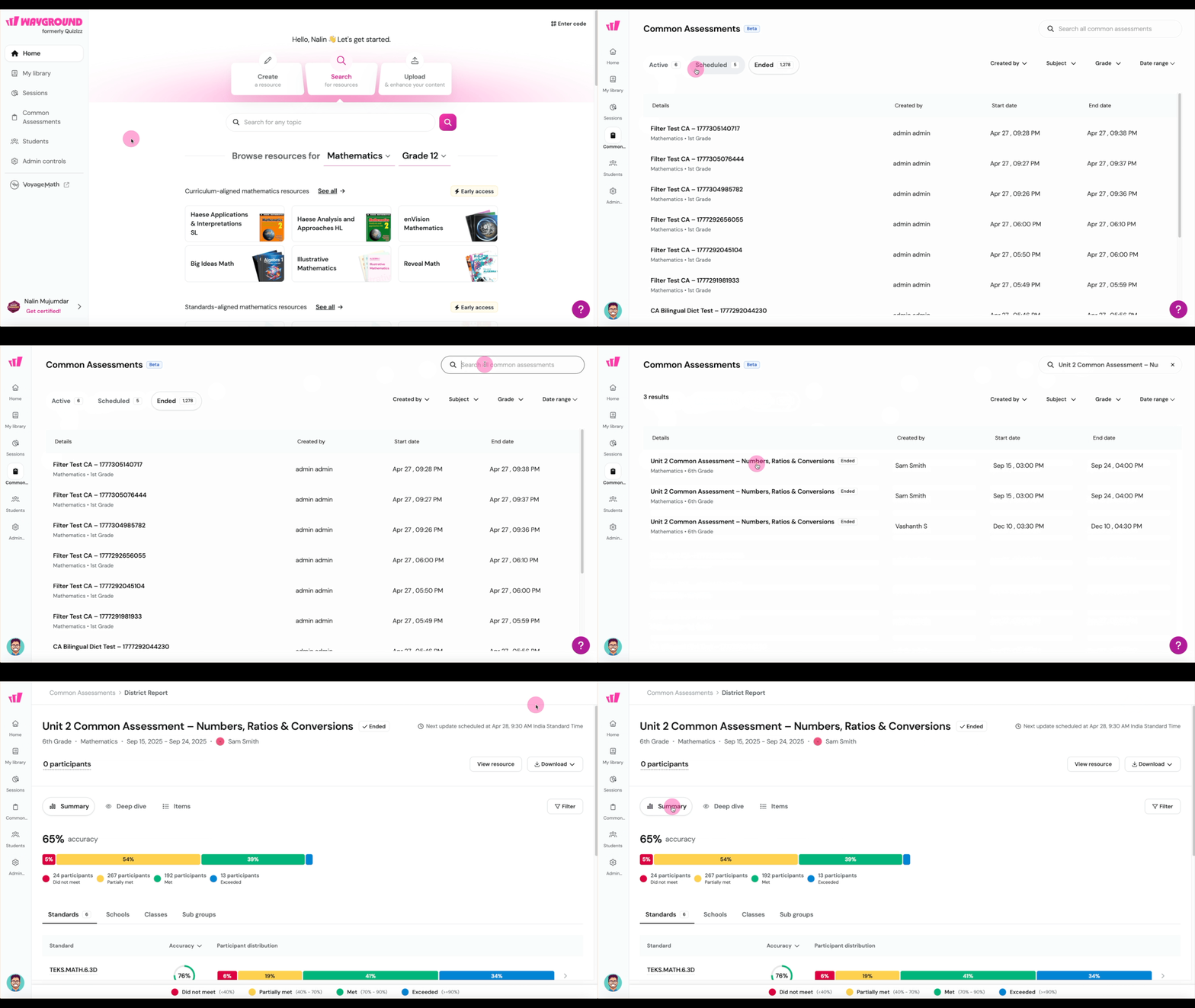
- How do I get to the report?
- Click Common Assessments in the left navigation.
- What’s the big picture?
- Which standards need attention?
- How are my schools performing?
- How are individual classes doing?
- Are there equity gaps?
- How can I explore performance patterns?
- How did students perform on each question?
- Are we meeting our accountability targets?
- How do I share this data with my team?
- What does “Pending Evaluation” mean?
- How are the numbers calculated?
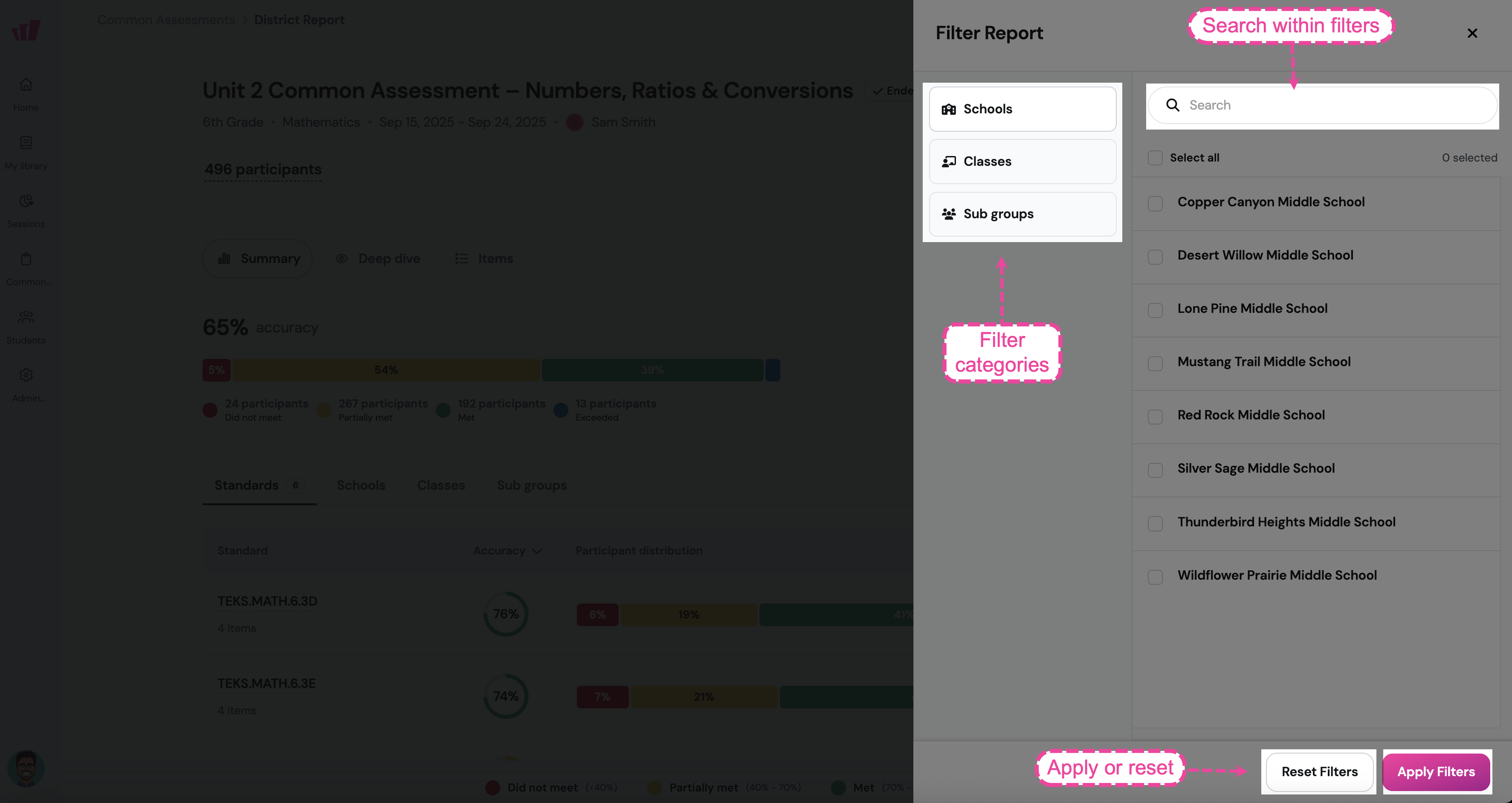
- Using the filter
After your district runs a Common Assessment, the Common Assessment Admin Report shows how students performed across standards, schools, classes, and demographic groups, all in one place.
Use it to prepare for Professional Learning Community (PLC) meetings, find schools that need support, spot equity gaps, track accountability targets, and find students who need extra help or more challenge.
This article is for: System Admins, School Admins, and Assessment Coordinators.
Who can access this report?
What you see depends on your role:
System Admins: every Common Assessment in the district
School Admins: Common Assessments shared with their school
Assessment Coordinators: the assessments they created or were assigned to
Teachers: only their own classes
For the full breakdown, see Roles and Permissions for Common Assessments.
How do I get to the report?
Click Common Assessments in the left navigation.
Click the assessment you want to open.
On the Common Assessment Details page, click Organization report.
The report opens to the Summary tab.
What’s the big picture?
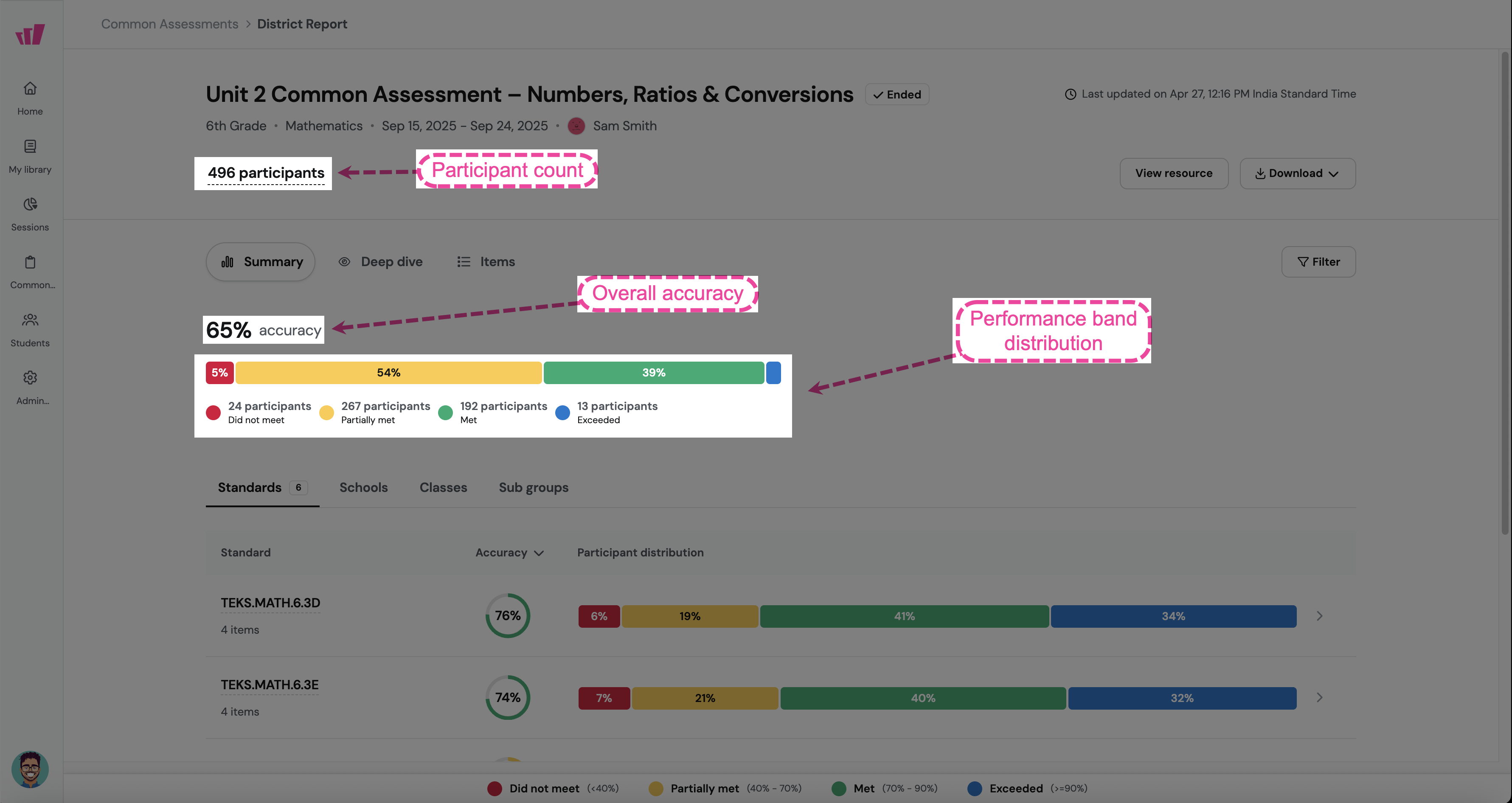
The top of the report shows three things: overall accuracy, the number of participants, and how students fall across performance bands.
Overall accuracy
A single percentage showing the average score across all students who took the assessment. For the formula, see How are the numbers calculated? below.
Performance band distribution
A color-coded bar showing where students land across performance bands.
The number of students in each band appears below the bar (for example, “24 students, Did Not Meet”). Hover over any part of the bar for details.
Participant count
The total number of students in the report (for example, “496 students”). Each student counts only once, even when they submit more than one attempt.
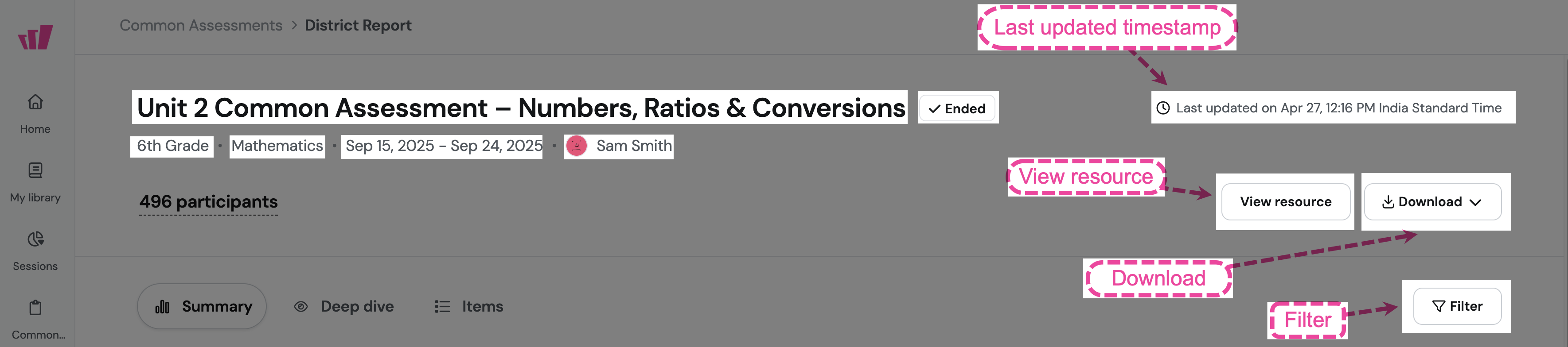
Report header
The header shows the assessment title, grade, subject, date range, who created it, the status (such as “Ended”), and the Last updated time. From the header, you can preview the assessment (View resource), Download the report as a PDF or CSV, or Filter to specific schools, classes, or sub-groups.
Which standards need attention?
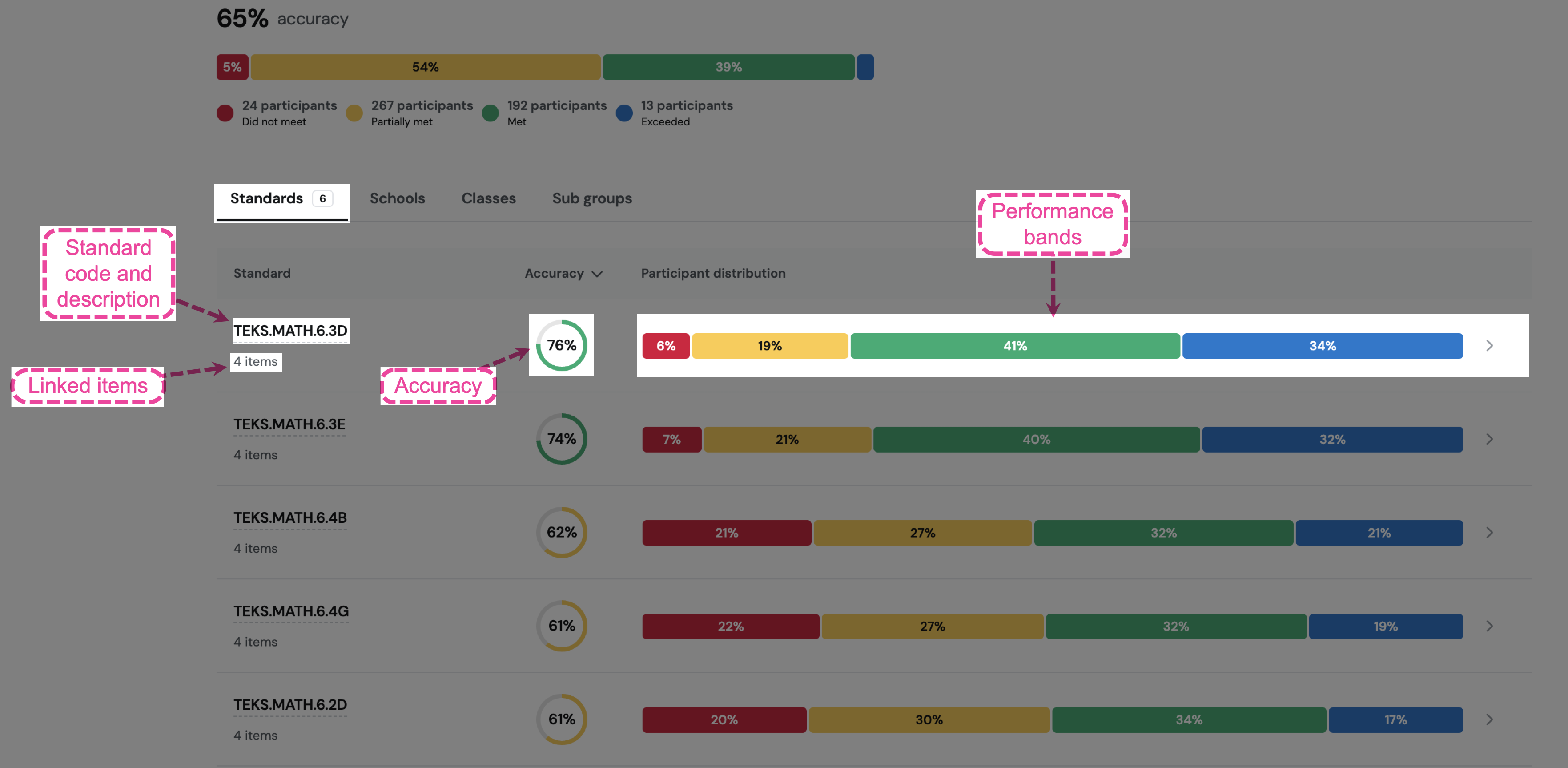
Go to Summary > Standards to see how students performed on each curriculum standard. Each standard shows:
Standard code and description (for example, “TEKS.MATH.6.3D”)
Number of questions linked to it (for example, “4 items”)
Accuracy percentage shown as a circle
A color-coded bar showing how students performed
Look for standards where many students fall into Did Not Meet or Partially Met. Those are your priority areas.
Drill down into a standard
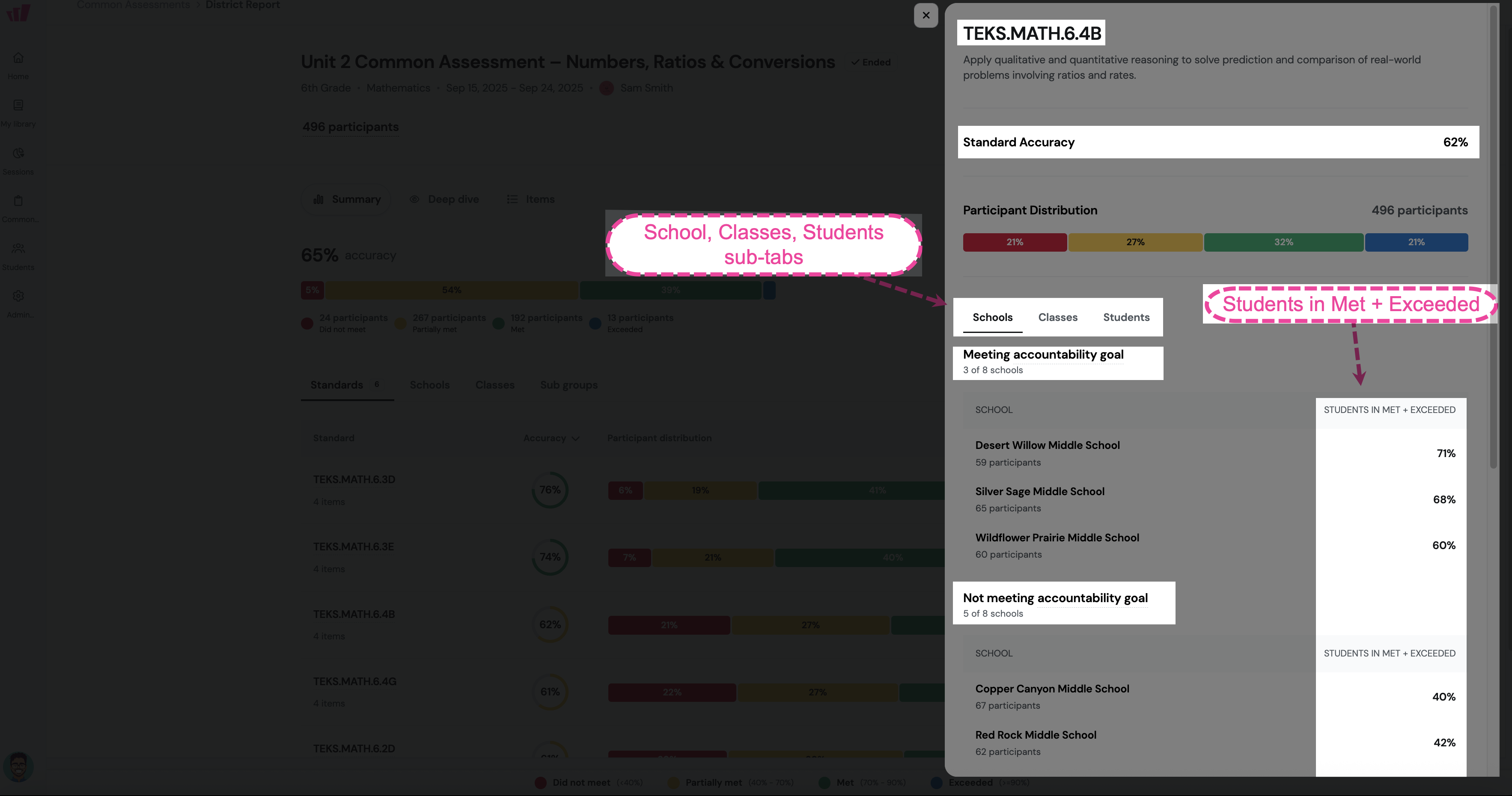
Click any standard row to open its details panel. This helps you go from “this standard isn’t doing well” to “here’s exactly where the issue is.”
The top of the panel shows the standard code and description, the accuracy percentage, and a color-coded bar with student counts. Below that, you’ll find three sub-tabs:
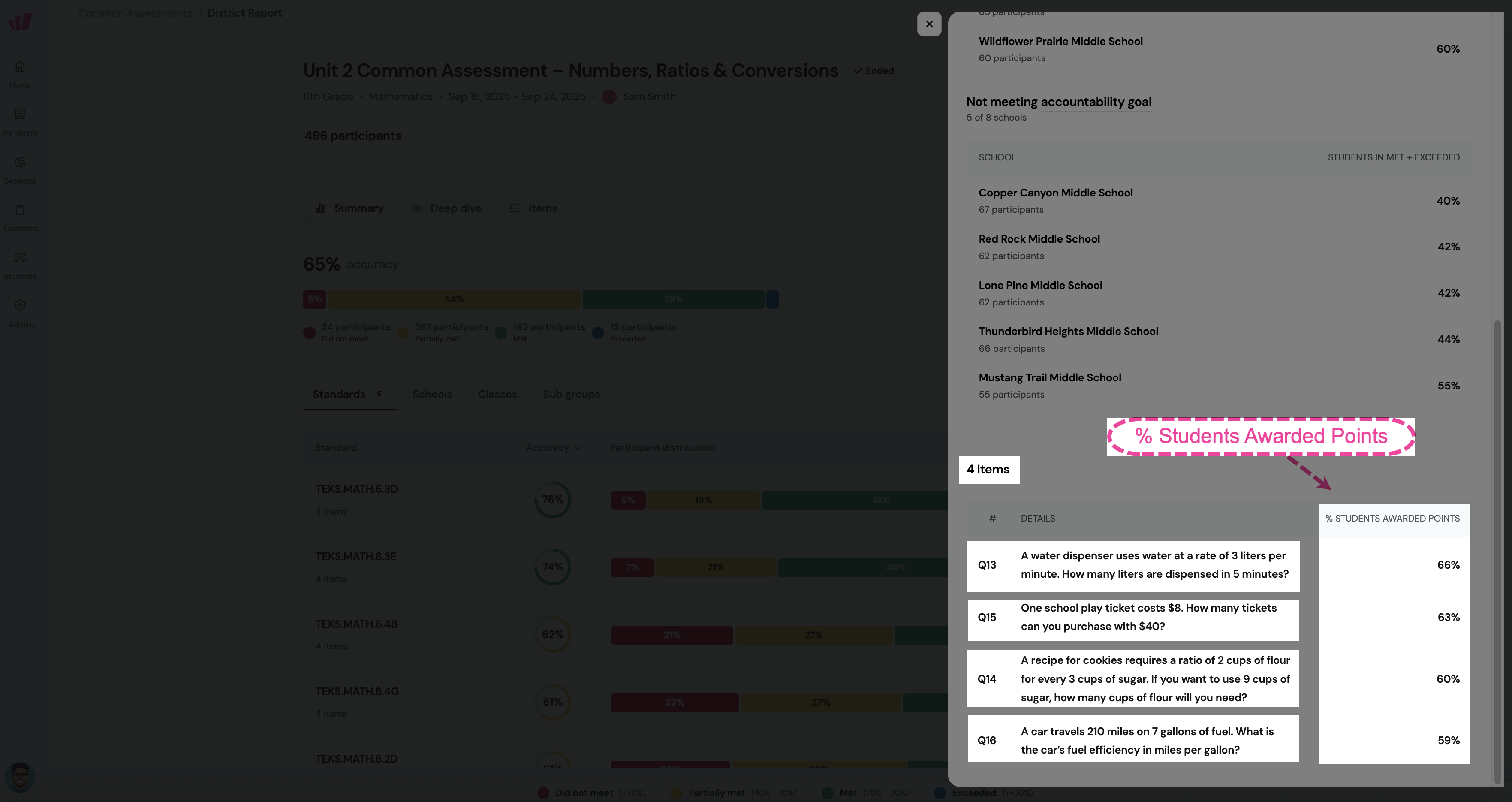
The panel also lists each question linked to the standard, with the “% Students Awarded Points” for each one.
If you set an accountability goal, schools and classes group into Meeting accountability goal and Not meeting accountability goal sections. See Are we meeting our accountability targets? below.
How are my schools performing?
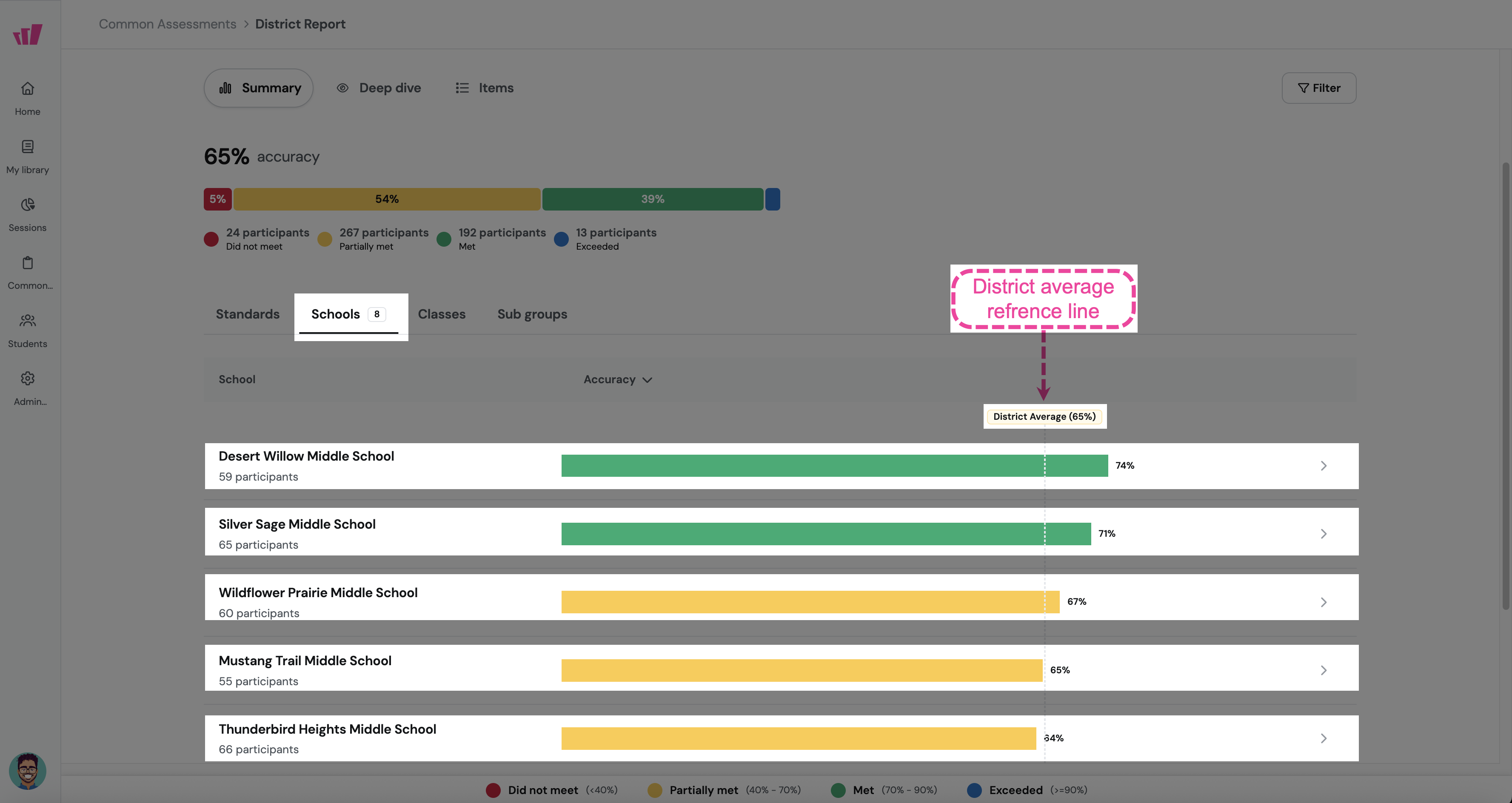
Go to Summary > Schools to see each school’s accuracy ranked against the district average. Each school shows:
School name and number of students
Accuracy percentage as a horizontal bar
A vertical dashed line showing the district average, for quick comparison
Schools are listed in order, so you can quickly see which are above or below average.
Drill down into a school
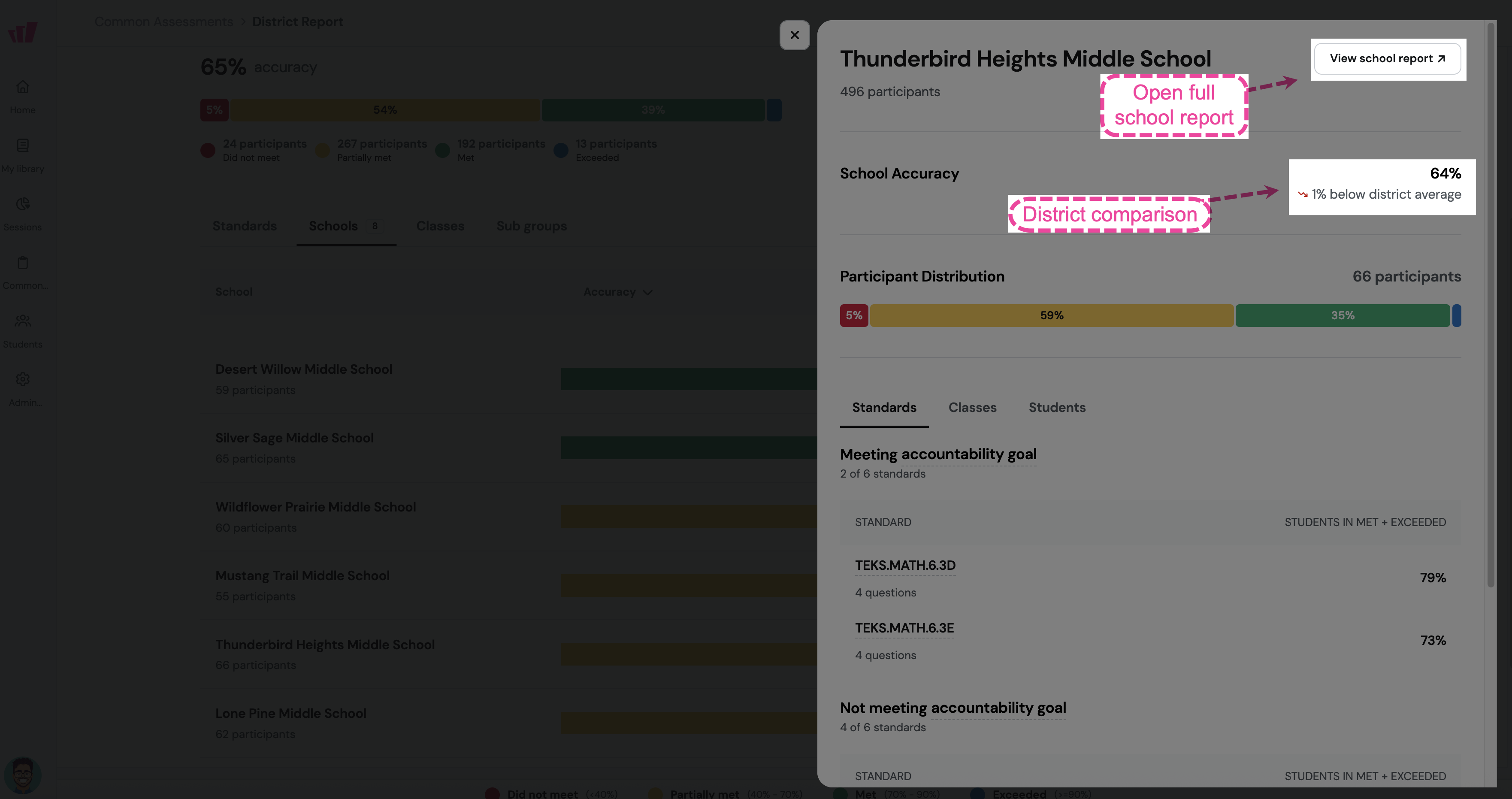
Click any school to open its details panel. This is where you go from “this school is below average” to “here’s exactly which standards and classes are causing the gap.”
The top of the panel shows the school name, number of students, accuracy compared to the district (for example, “↑ 6% above district average”), and a color-coded bar. The View school report → link opens the full school-level report in a new tab, useful for sharing with principals.
You’ll find three sub-tabs:
How are individual classes doing?
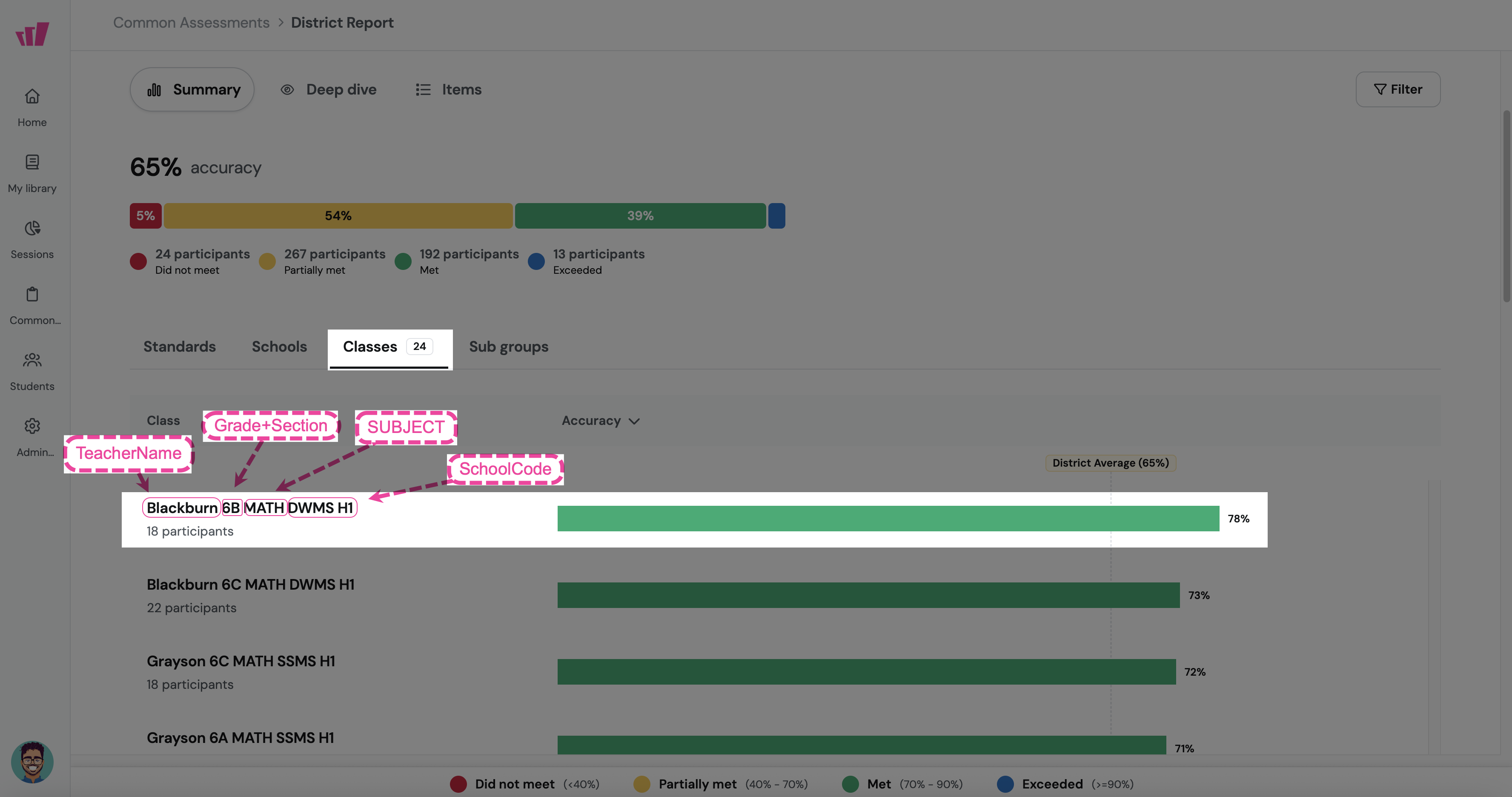
Go to Summary > Classes to compare classes side by side. Each class shows:
Class name (format: TeacherName Grade+Section SUBJECT SchoolCode)
Number of students
Accuracy as a horizontal bar
A reference line showing the district average
Use this view to plan coaching conversations, find classes doing well that others can learn from, or spot classes that may need extra support.
Are there equity gaps?
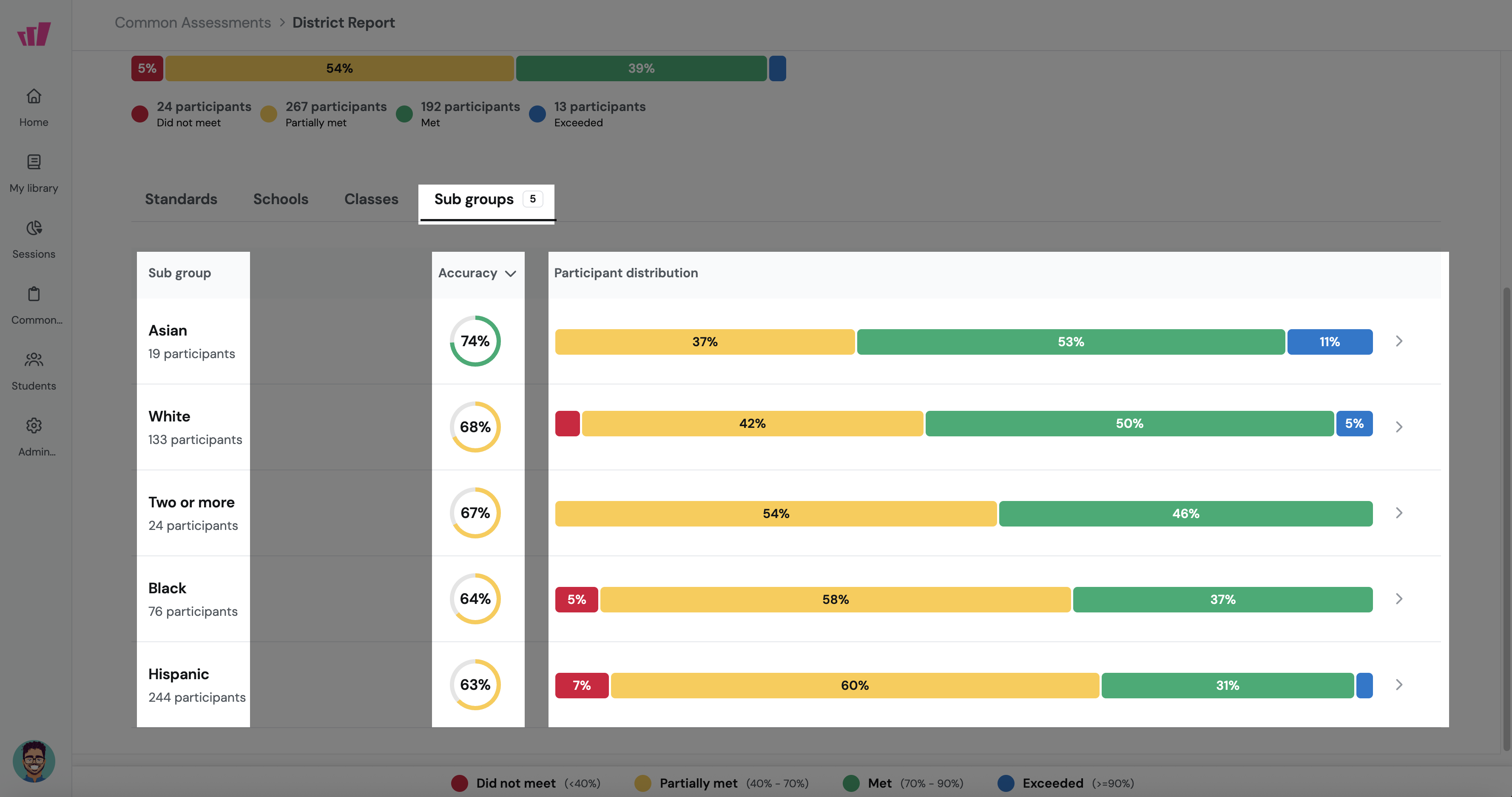
Go to Summary > Sub groups to see how different demographic groups performed. Each group shows:
Group name (for example, Asian, Hispanic, Two or More, English Learners, Special Education)
Accuracy percentage shown as a circle
A color-coded bar showing how students performed
Click any group to see its school-by-school and class-by-class performance.
Sub-group data also appears in other parts of the report:
Filter: narrow the entire report (Summary, Deep Dive, Items) to a single sub-group
Drill-downs: sub-group data shows in the Standards and Schools details panels
Deep Dive: filter the heatmap by sub-group to focus your analysis
Use this view to prepare equity reports, answer board questions about achievement gaps, or decide which students to help first.
How can I explore performance patterns?
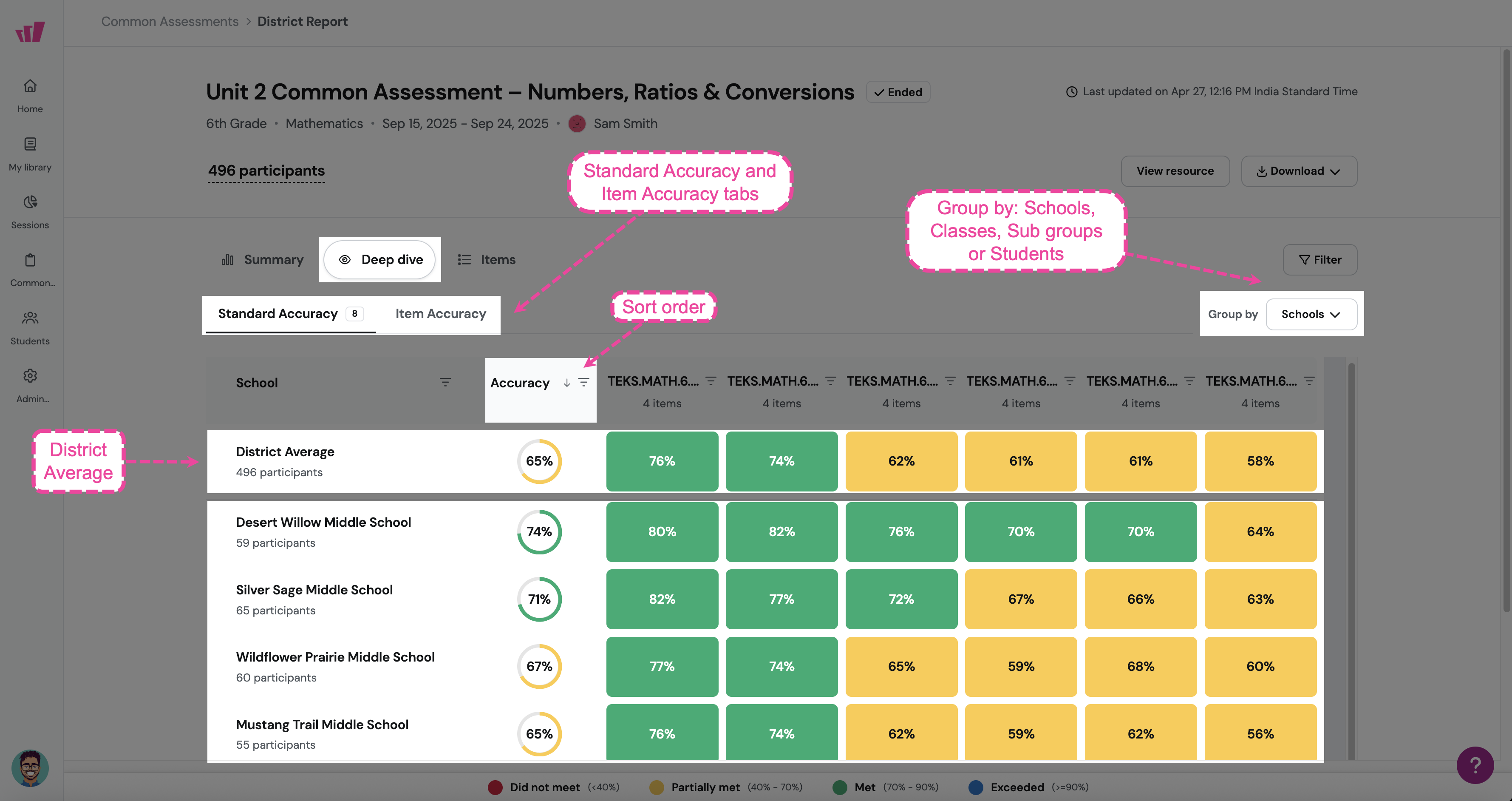
The Deep Dive is a heatmap that lets you spot patterns at a glance: how schools compare on each standard or question, or how students compare on each standard.
Click the Deep Dive tab to open it. You’ll see:
Sub-tabs: Standard Accuracy and Item Accuracy
Group by dropdown: Schools (default), Classes, Sub groups or Students
Sort dropdown: Ascending or Descending
A grid with rows for schools (or classes or students) and columns for standards (or questions)
The first row shows the District Average. Each cell shows accuracy and is color-coded by performance band: red (Did Not Meet), yellow (Partially Met), green (Met), and blue (Exceeded).
What patterns mean:
Use Filter (top right) to narrow the Deep Dive to a single sub-group before looking for patterns.
How did students perform on each question?
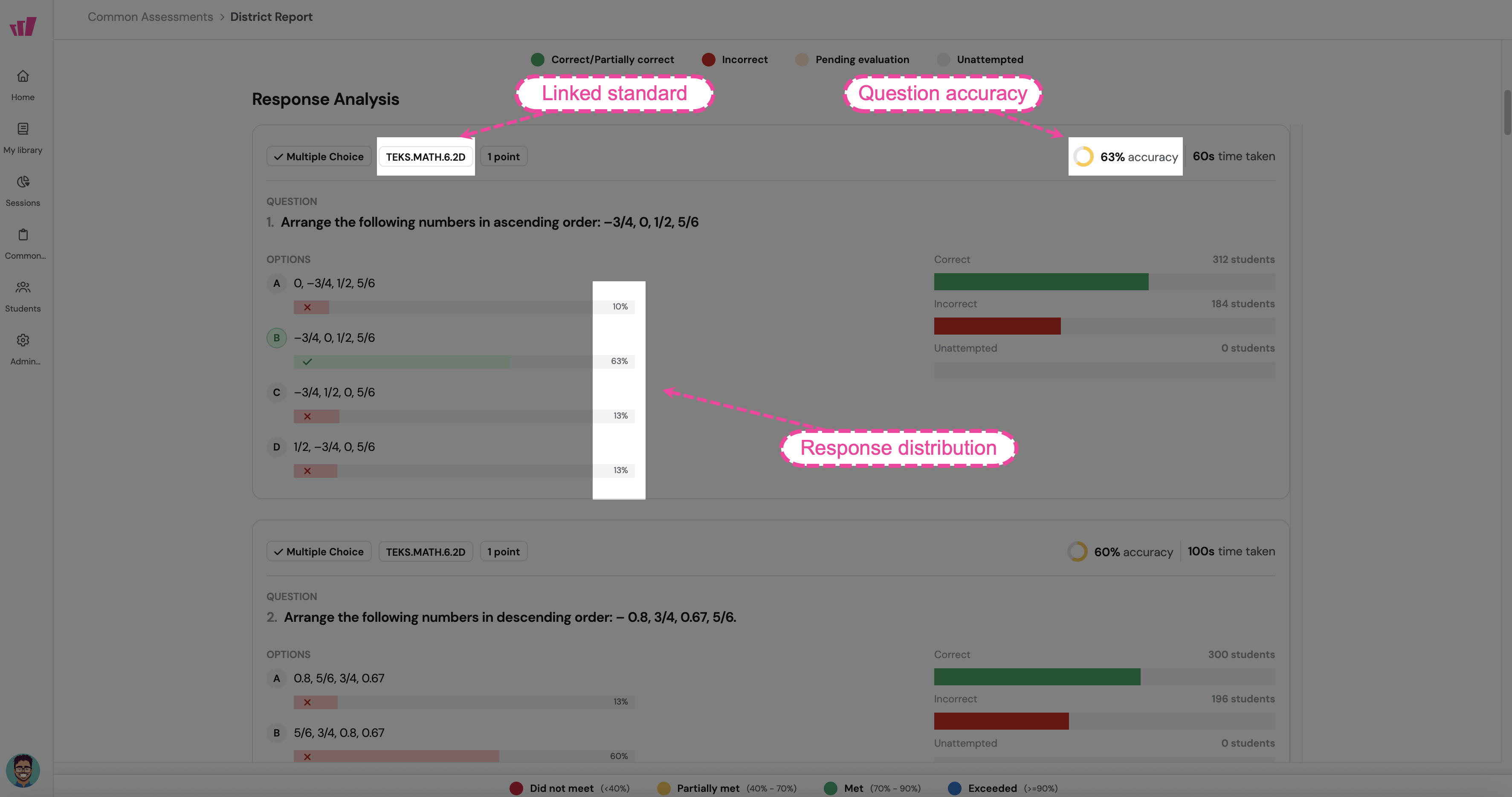
Go to the Items tab to see results question by question. You’ll see each question with its accuracy percentage, the standard it’s linked to, and how students answered across the district.
How to read the patterns:
Click the Response analysis area for any question to see the question type, the standard it’s linked to, the points, and the percentage of students who picked each option.
Are we meeting our accountability targets?
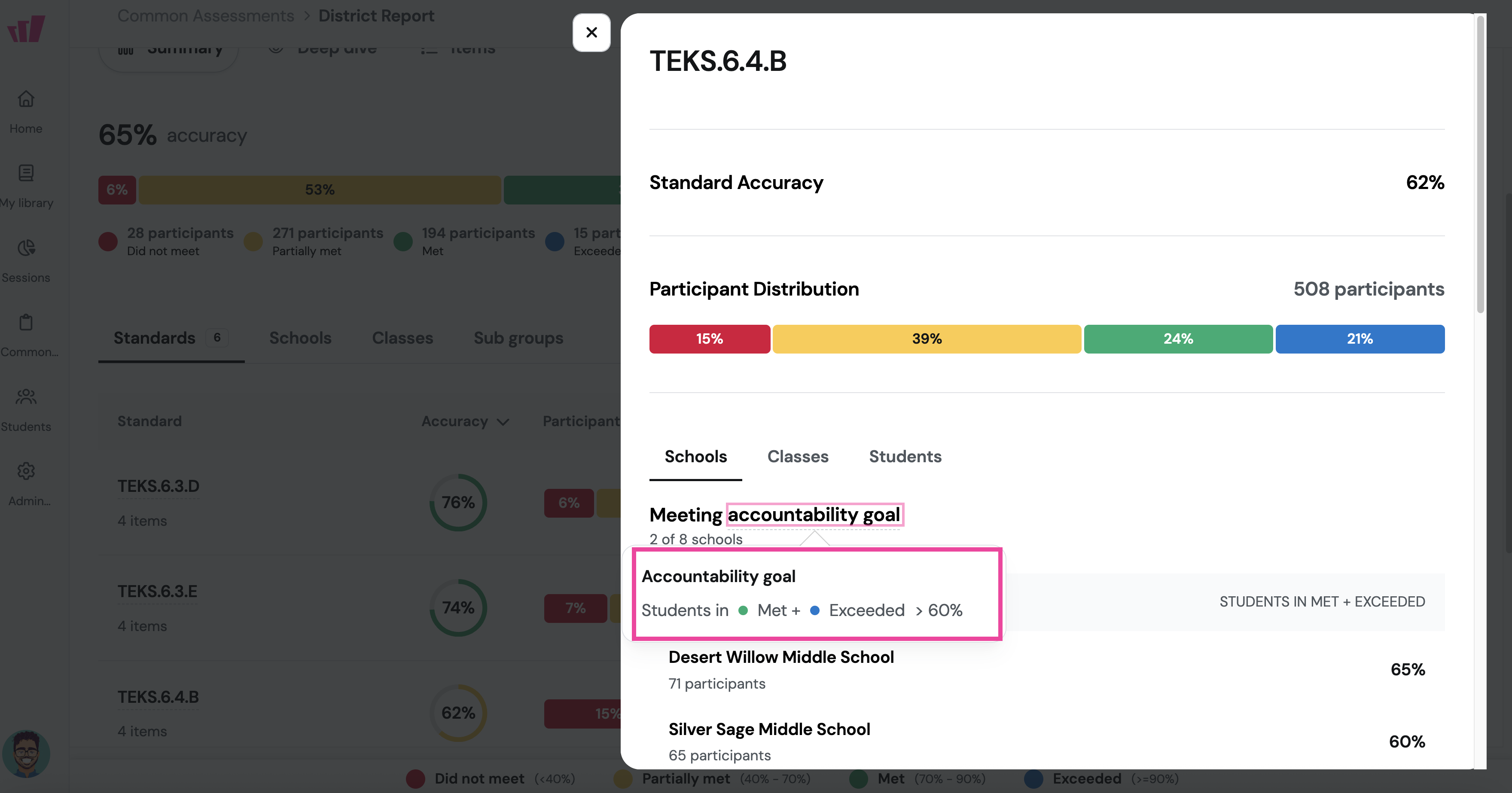
Accountability goals let you set a performance target (for example, “70% of students in Met or Exceeded”). The report then flags which schools, classes, and standards are hitting the target, and which are not.
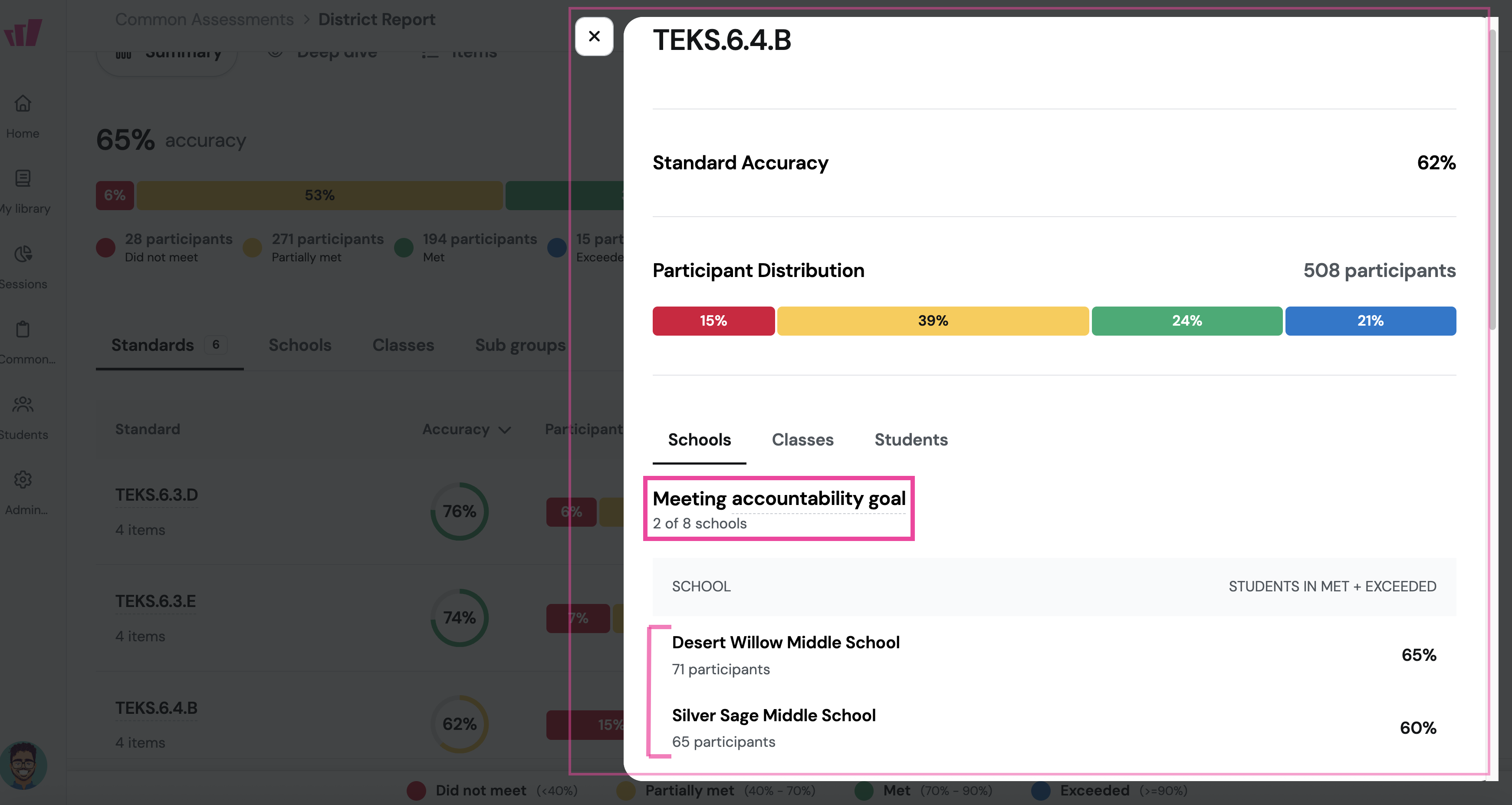
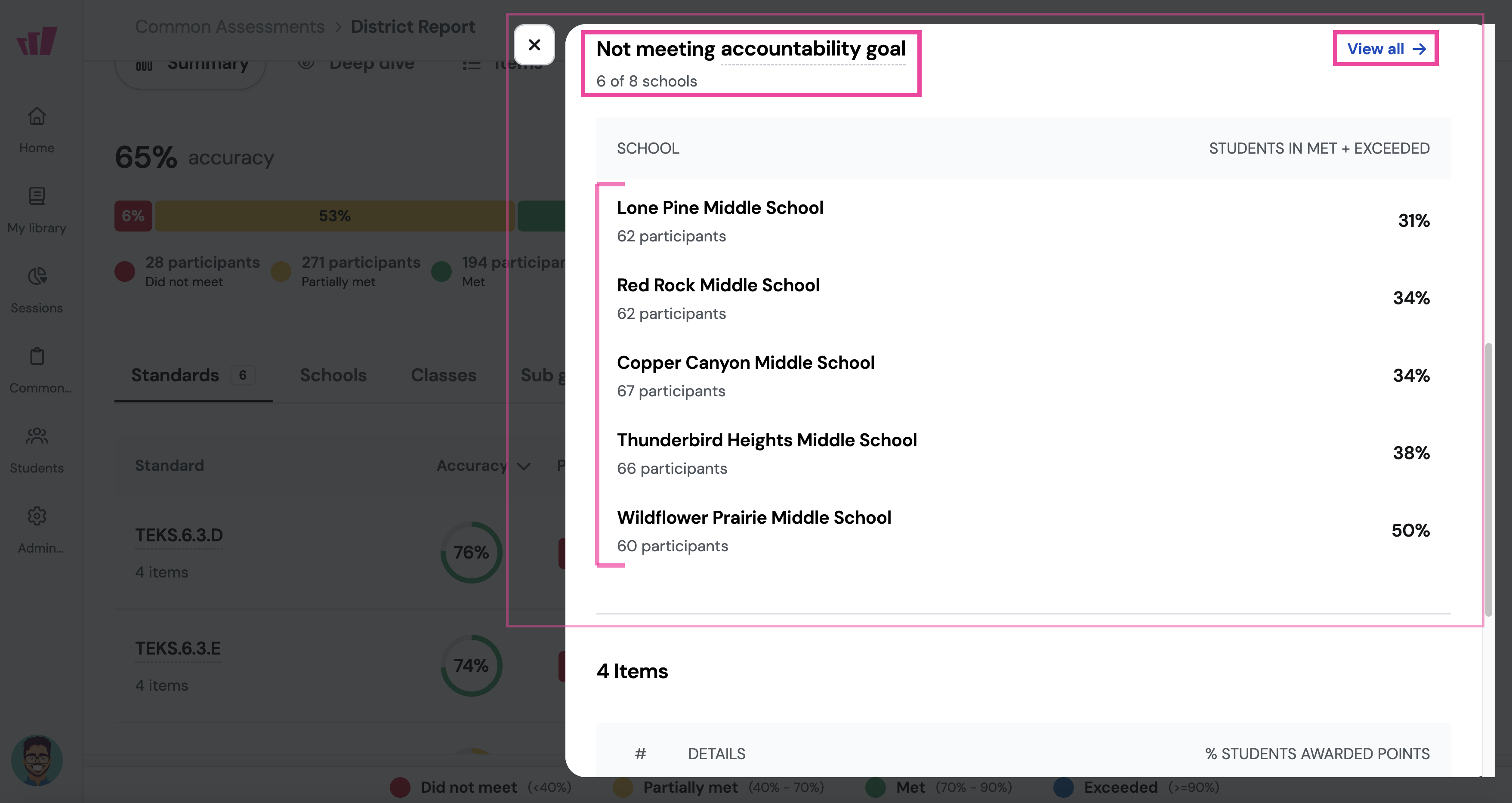
When you set a goal, it shows throughout the Summary tab and in the details panels:
Meeting accountability goal: schools and classes above your target, with a count (for example, eight of eight schools)
Not meeting accountability goal: schools and classes below your target, with a count and a View all → link
Each one shows its “Students in Met + Exceeded” percentage, so you can see how close (or far) it is from the target
Setting or updating goals: You set goals when you create a Common Assessment, under Reporting > Accountability Goals. You can update them at any time, and reports show the changes within a day.
Use this view to prepare for school board presentations, update your district improvement plan, or run a data review meeting.
How do I share this data with my team?
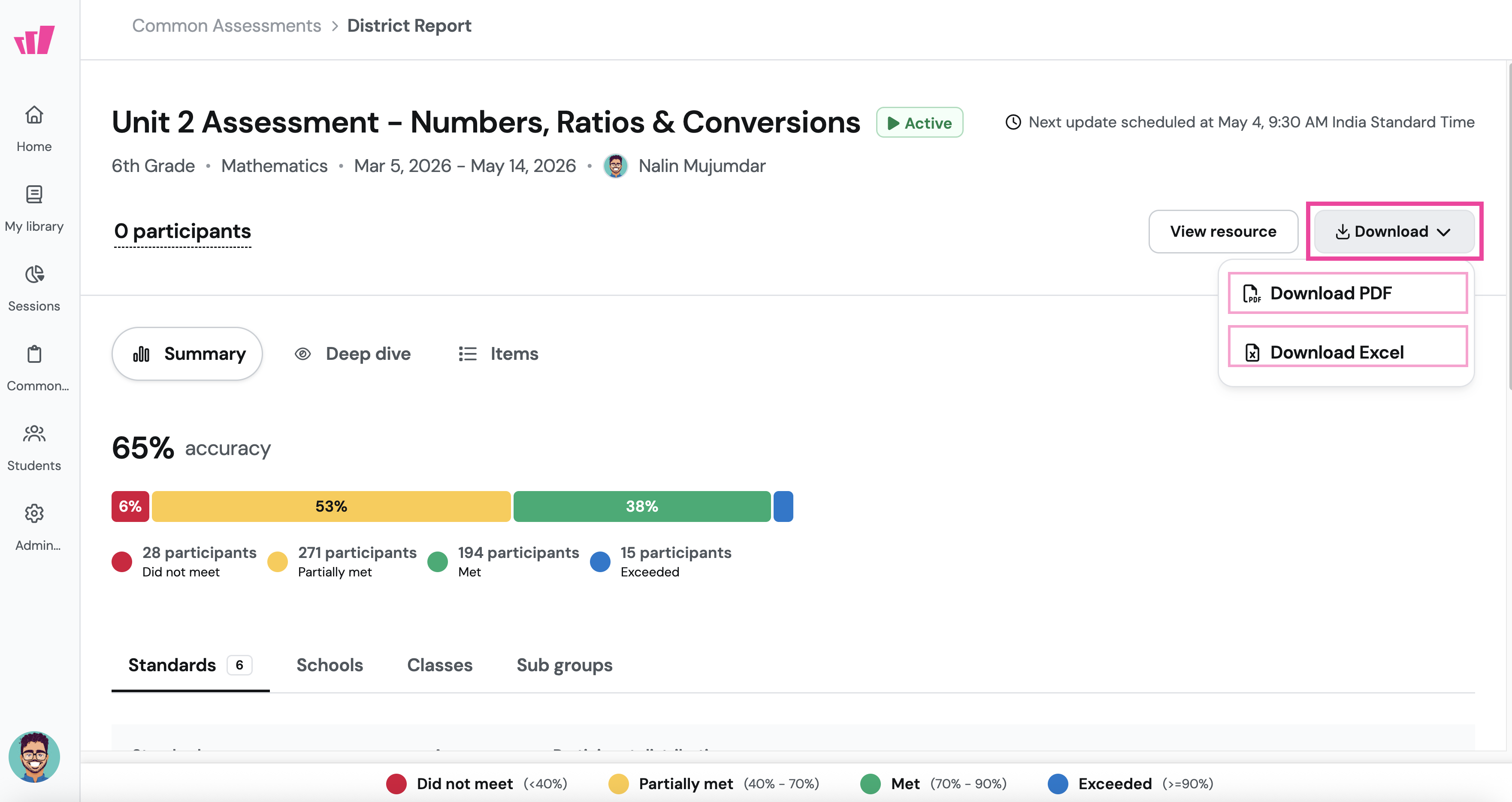
Click the Download button (top right) and choose:
PDF: a Wayground-branded report with summaries across Standards, Schools, Classes, Sub groups, and Item Analysis, ready for leadership meetings and improvement plans
CSV: the full data, ready to use in Excel or Google Sheets
Use the PDF for presentations and PLC discussions. Use the CSV when you need to combine Common Assessment data with other sources, or do your own analysis. To explore the drill-downs and Deep Dive, team members can log in to Wayground and view the report there.
What does “Pending Evaluation” mean?
Some assessments include Open-Ended questions (text, audio, video, or drawing responses). Teachers score these by hand before the report includes them in accuracy.
If you see “Pending Evaluation” in the report:
How are the numbers calculated?
Accuracy formula
Accuracy = (Sum of points earned by students) ÷ (Max points possible × Number of students)
Calculation rules:
Using the filter
Click Filter (top right) to narrow the report to specific groups.
Use the search box to find specific schools or classes. Click Apply Filters to update the report, or Reset Filters to clear your choices.
Filters apply across all tabs (Summary, Deep Dive, Items), so you can look at a specific group throughout the entire report.
Was this article helpful?
That’s Great!
Thank you for your feedback
Sorry! We couldn't be helpful
Thank you for your feedback
Feedback sent
We appreciate your effort and will try to fix the article