TABLE OF CONTENTS
- How to know you have pending evaluations
- How to open the evaluate panel
- Inside the evaluate panel
- Scoring with AI evaluation (when AI is ON)
- Scoring manually (when AI is OFF)
- Students with multiple attempts
- Saving and changing scores
- What you’ll see as you score
Open-Ended questions let students answer by typing, drawing, recording audio or video, or solving math problems. Because these answers need your judgment, Wayground can’t auto-grade them. Each response stays in Pending evaluation until you score it.
Until a student’s responses are scored, they’re left out of class accuracy at the assessment, standard, and item level. This keeps partial scoring from throwing off your numbers. It also means you may see 0% or unusually low accuracy while scoring is in progress. Once you finish, every number updates on its own.
How to know you have pending evaluations
When you open a class report that includes Open-Ended questions, an orange callout appears below the summary metrics:
“N participants have pending evaluations and are excluded from relevant aggregates.”
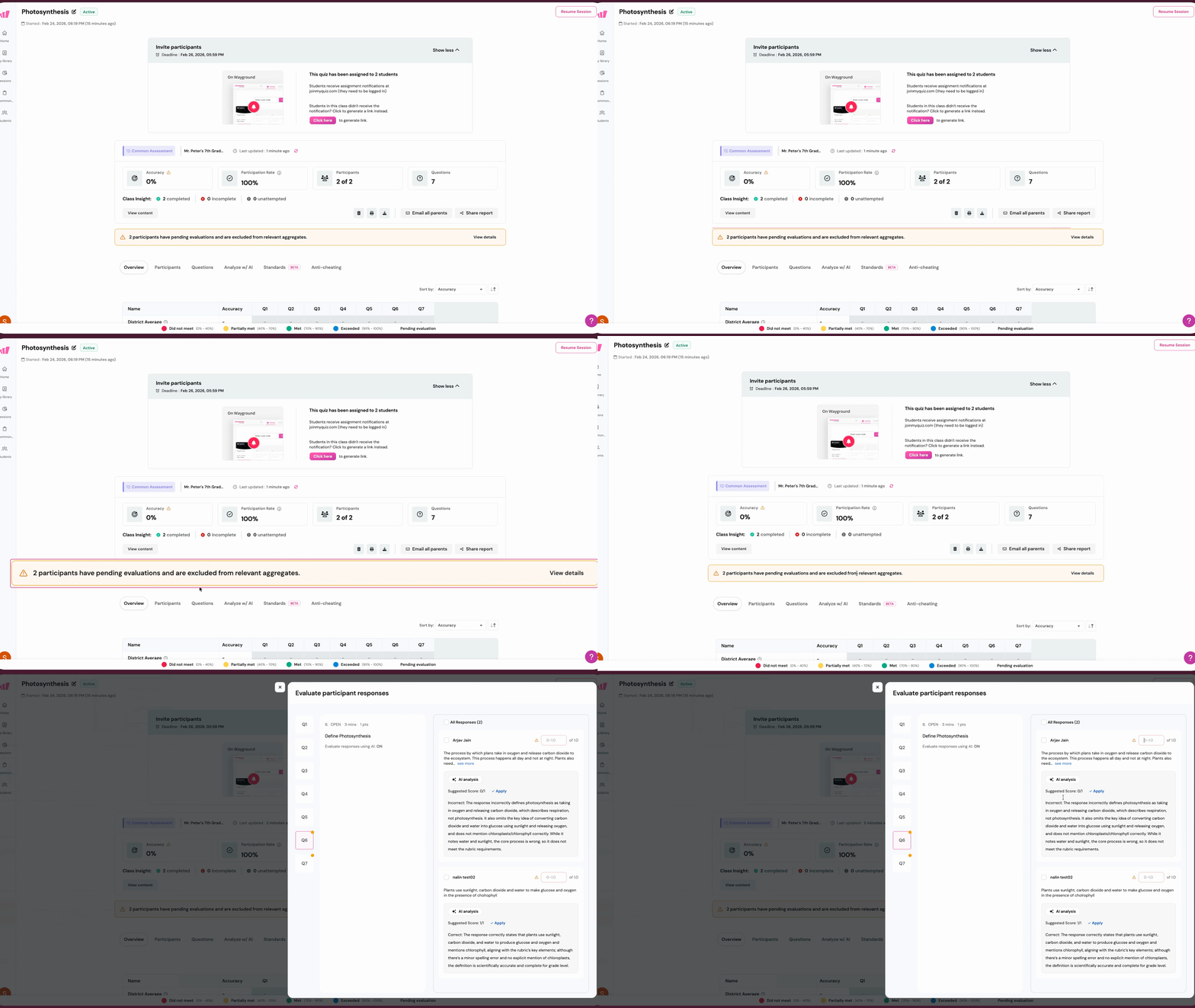
Click the View details link on the right side of the callout to jump straight to the evaluate panel.
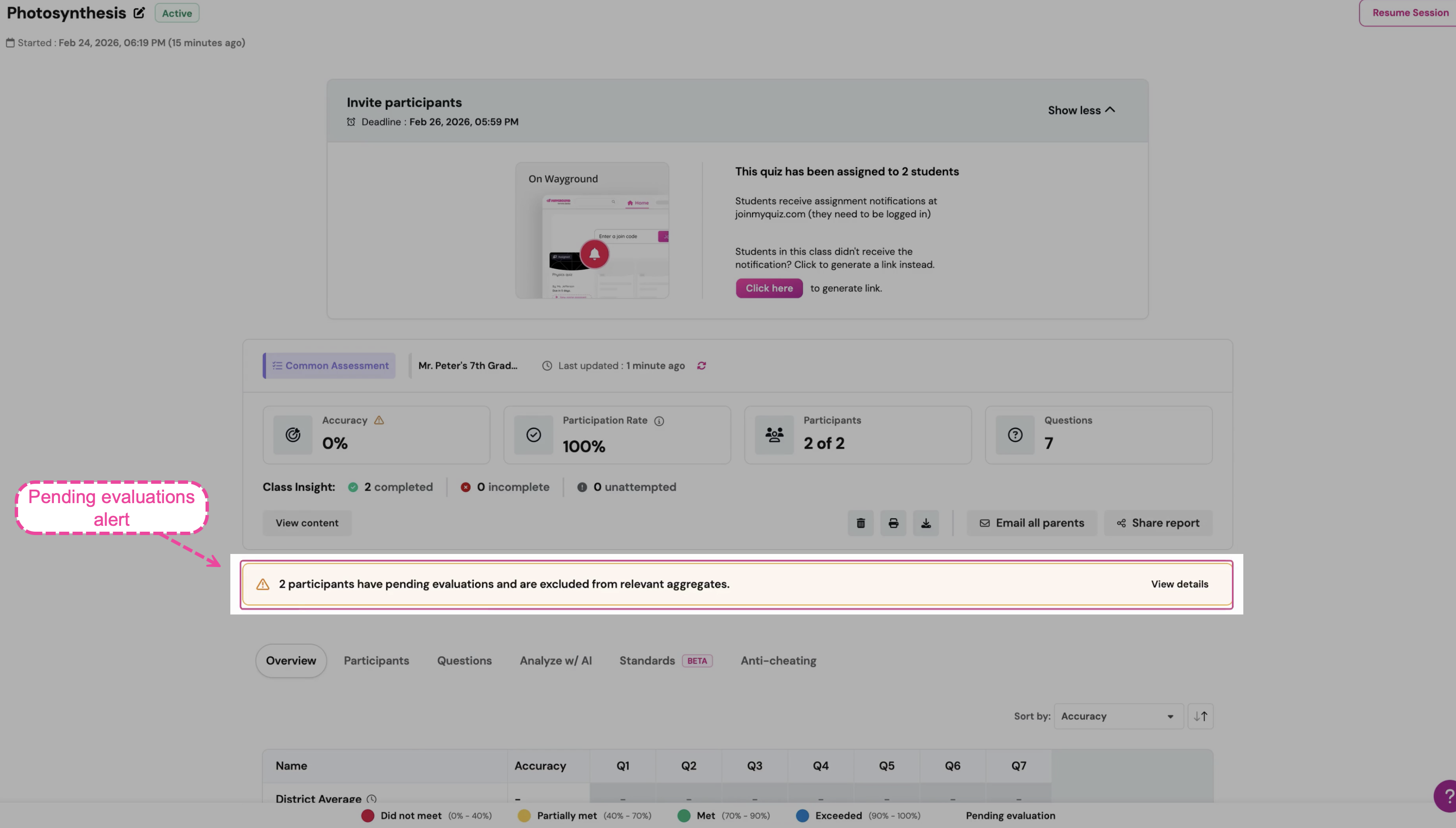
You’ll also see:
A warning icon on the Accuracy metric, with 0% shown until you score the responses
Grayed-out cells in the Overview and Standards tabs for questions still waiting to be scored. These cells fill with color-coded accuracy once you score the responses.
How to open the evaluate panel
You can reach the evaluate panel from three places in the Teacher Class Report:
From the pending callout. Click View details on the orange callout to jump to all pending items.
From the Participants tab. Click the Evaluate button on a student’s row to open the panel for that student.
From the Questions tab. Click the Evaluate button next to a question to open the panel for that question, with every student’s response lined up side by side.
All three paths open the same Evaluate participant responses panel.
Inside the evaluate panel
The Evaluate participant responses panel has three columns.
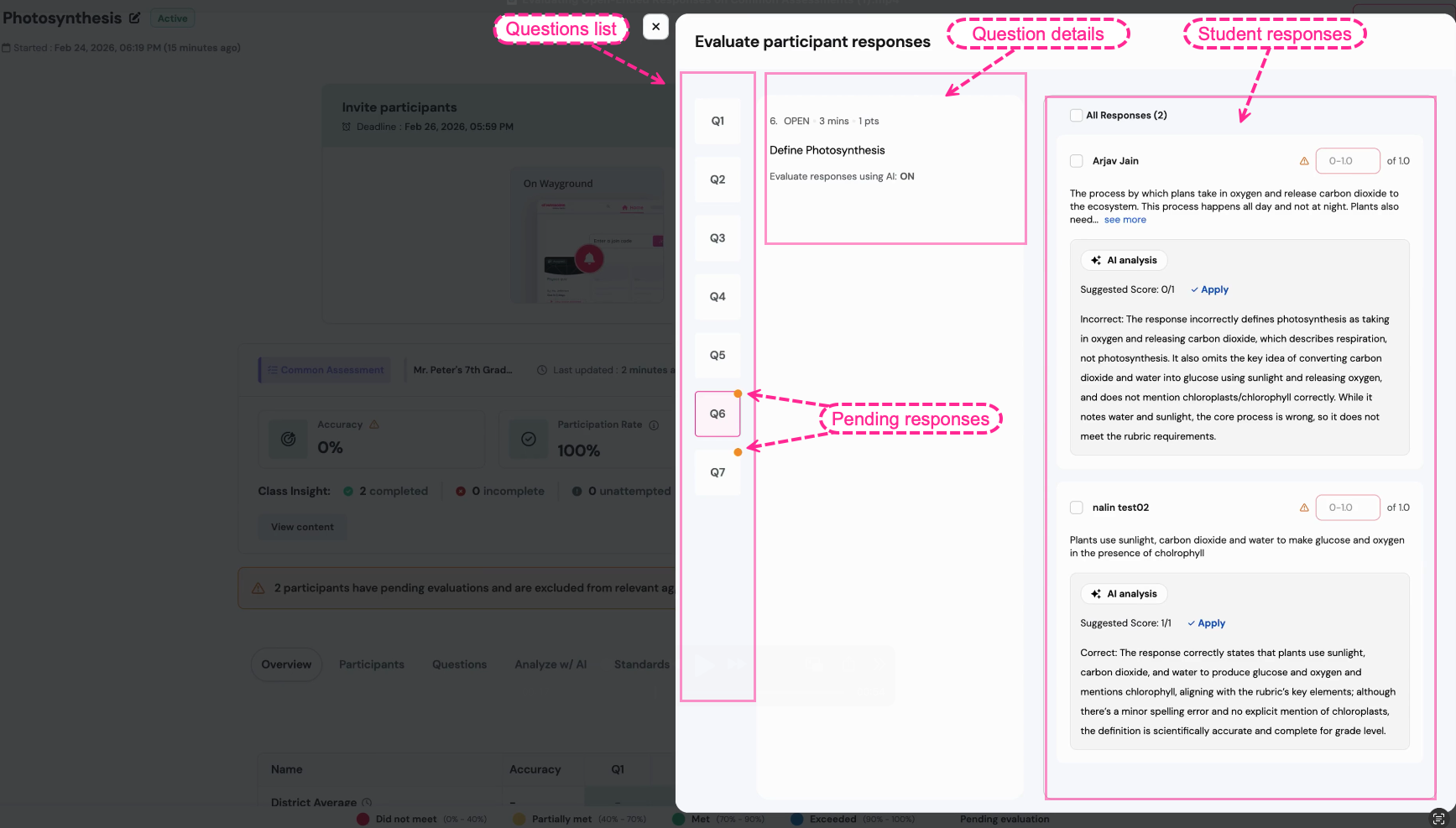
Left sidebar: questions list
Every Open-Ended question is listed as Q1, Q2, Q3… down the left side.
Questions with pending responses show an orange dot
Hover over a question to see the tooltip “Response yet to be evaluated”
The orange dot disappears once every response for that question is scored
Click any question to load its responses.
Middle column: question details
This column shows the question’s key details:
Question number, type (OPEN), time limit, and point value, shown in a single header line (for example, “6. OPEN · 3 mins · 1 pts”)
The question text
An Evaluate responses using AI indicator showing whether AI evaluation is ON or OFF (set when the assessment was created)
Right column: student responses
Each response card includes:
Scoring with AI evaluation (when AI is ON)
When AI evaluation is ON for a question, each response includes an AI analysis card with:
Suggested Score. The AI’s recommended score out of the question’s total, for example “Suggested Score: 0/1”
Apply button. Accepts the suggested score in one click.
AI feedback. A short paragraph explaining the score, usually starting with “Correct:” or “Incorrect:”, followed by reasoning against the rubric.
You have two options for each response:
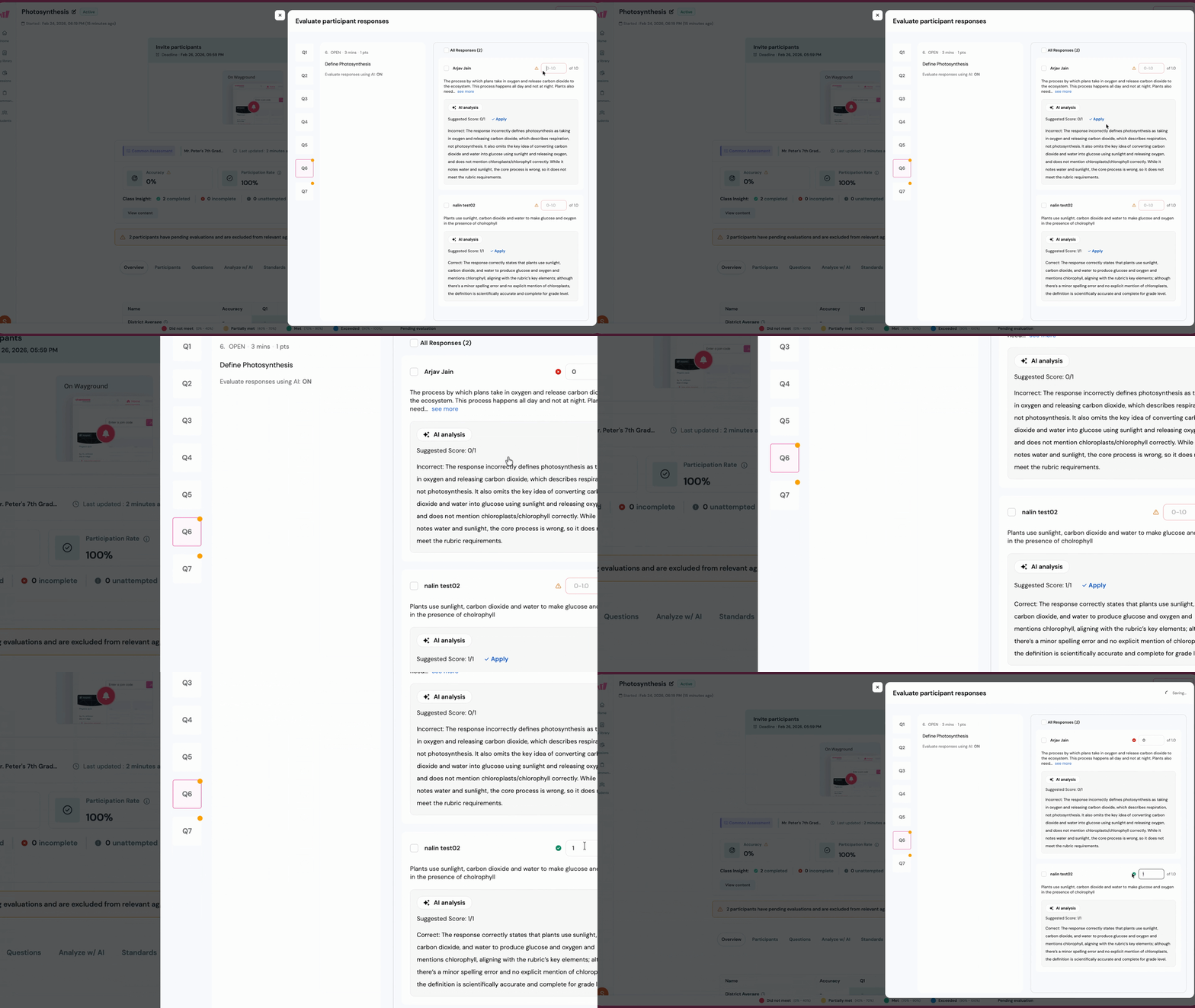
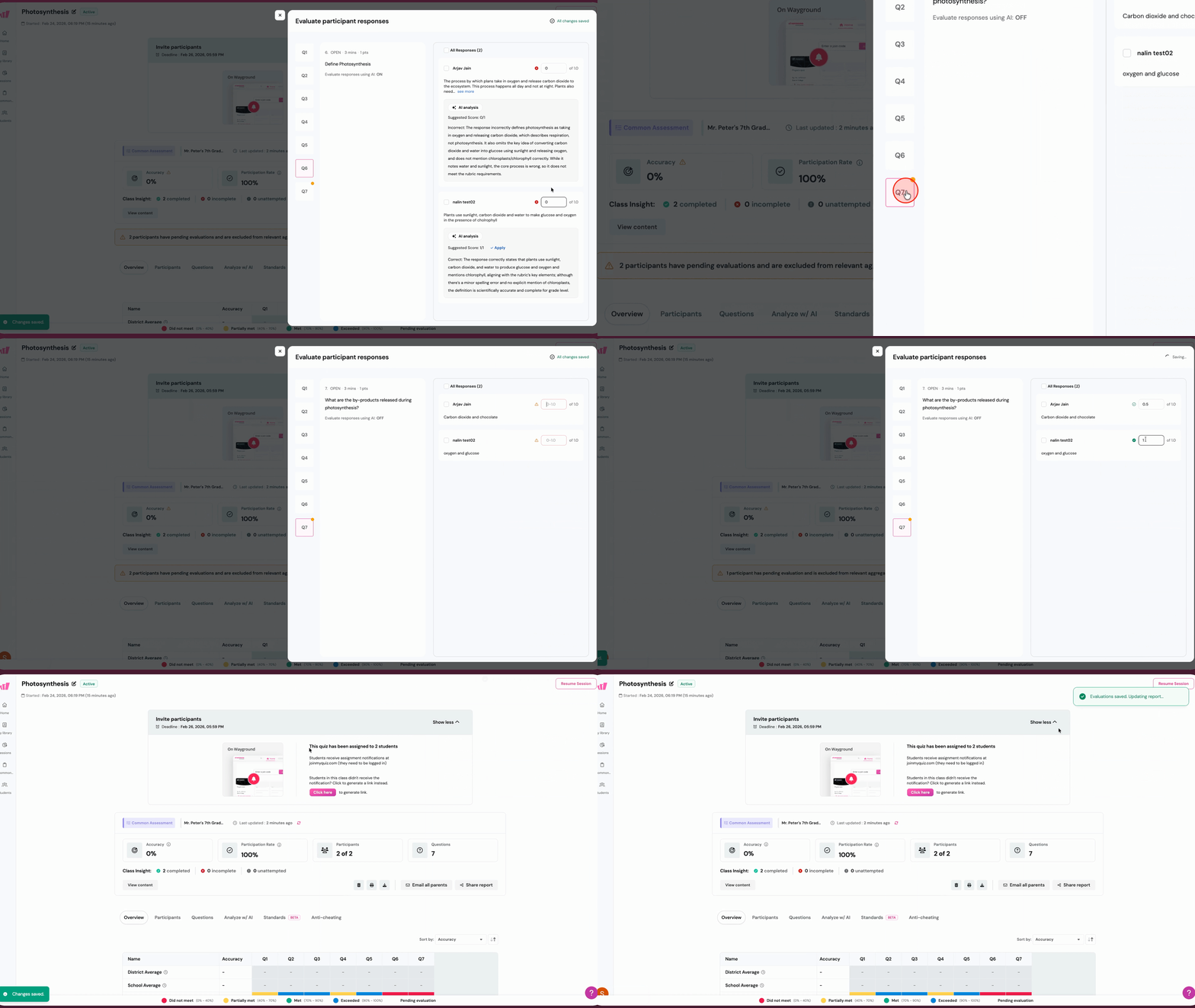
Accept the AI’s score. Click Apply. The suggested score fills the score field, the warning icon turns green, and the Apply button disappears.
Enter your own score. Type a value in the score field. The AI’s score is just a suggestion. The final score is always yours.
You can mix AI-assisted and manual scoring within the same question. Apply the AI score for some students and enter your own for others.
Scoring manually (when AI is OFF)
When AI evaluation is OFF for a question, each response shows only the student’s answer: no AI analysis, no suggested score, no Apply button.
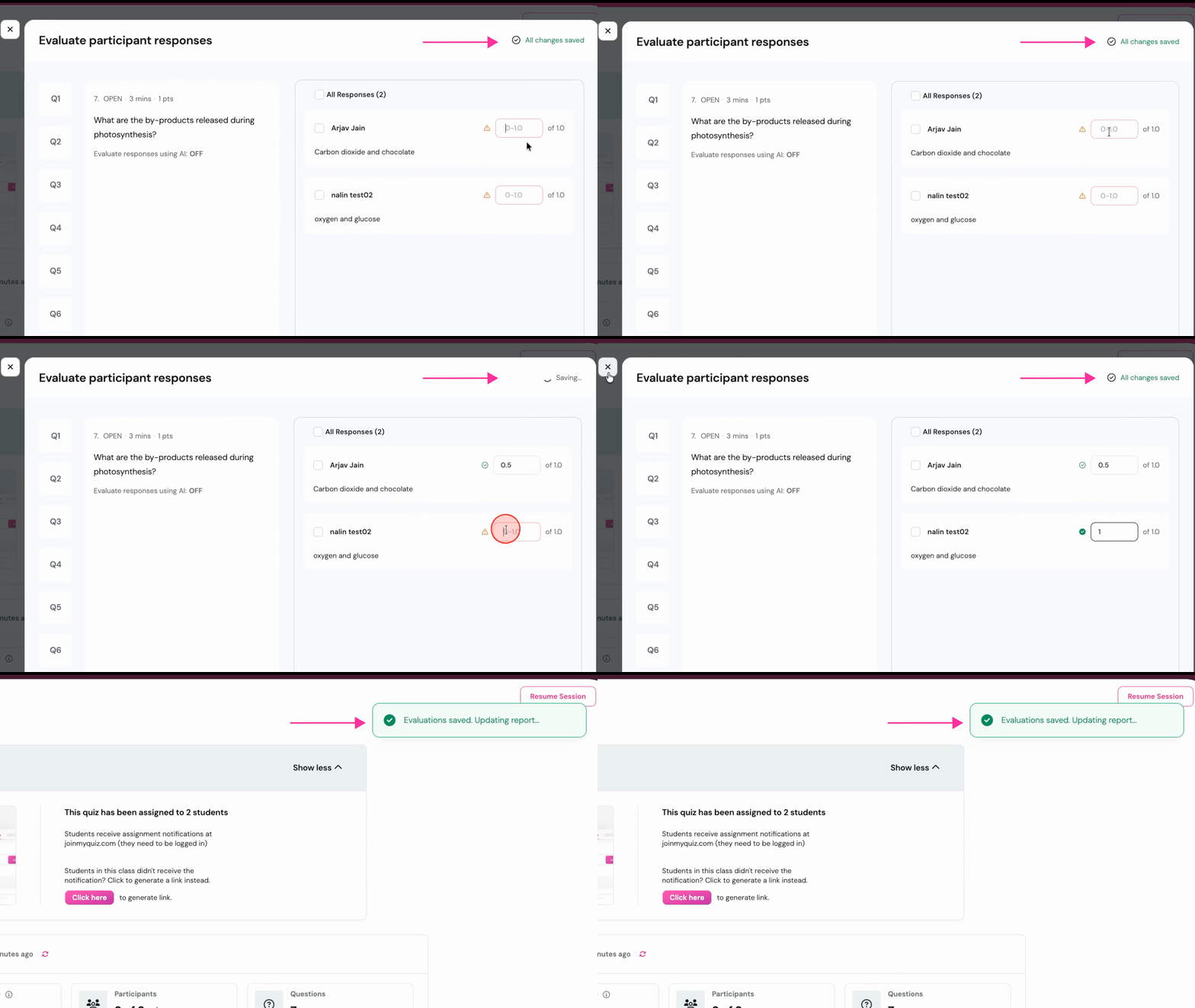
Type your score in the score field. The warning icon turns green once you enter a value, and the change saves automatically.
Students with multiple attempts
If a student took the assessment more than once, each attempt appears as its own response card, labeled with the attempt number.
Score every attempt. Wayground uses each student’s best attempt for accuracy, but it can only pick the best attempt once you’ve scored every response across all attempts. Until then, the student stays in Pending evaluation and is left out of assessment, item, and standard accuracy.
Saving and changing scores
Every score you enter or apply saves automatically. You’ll see “All changes saved” at the top right of the panel, and a brief “Changes saved” message at the bottom left after you close the panel. There’s no Save button.
Scores aren’t locked once entered. To change a score:
Reopen the panel, either through the View details link if any evaluations are still pending, or by clicking Evaluate on the student’s row in the Participants tab.
Find the student’s response under the right question.
Type a new score, or click Apply to use the AI’s suggestion.
The change saves automatically. Accuracy and the heatmaps update within a minute.
What you’ll see as you score
The report updates in real time as you go:
Orange dots disappear from the sidebar as each question is fully scored
The pending callout count drops with each scored student, and the callout disappears once everything is scored
The Accuracy metric loses its warning icon and shows your class’s actual performance
Heatmap cells fill with color-coded data on the Overview and Standards tabs
Last updated reads “Less than a minute ago”, showing the report is up to date
When you’re done, close the panel with the X at the top right.
Was this article helpful?
That’s Great!
Thank you for your feedback
Sorry! We couldn't be helpful
Thank you for your feedback
Feedback sent
We appreciate your effort and will try to fix the article