TABLE OF CONTENTS
Reference Materials let you attach documents to a Common Assessment. You can write one in the built-in editor or upload existing documents from your device or Google Drive. Students open them in a side panel while taking the assessment, so formula sheets, rubrics, and writing supports stay within reach.
Only System Admins, School Admins, and Assessment Coordinators can add Reference Materials. Teachers hosting the assessment cannot add or edit them.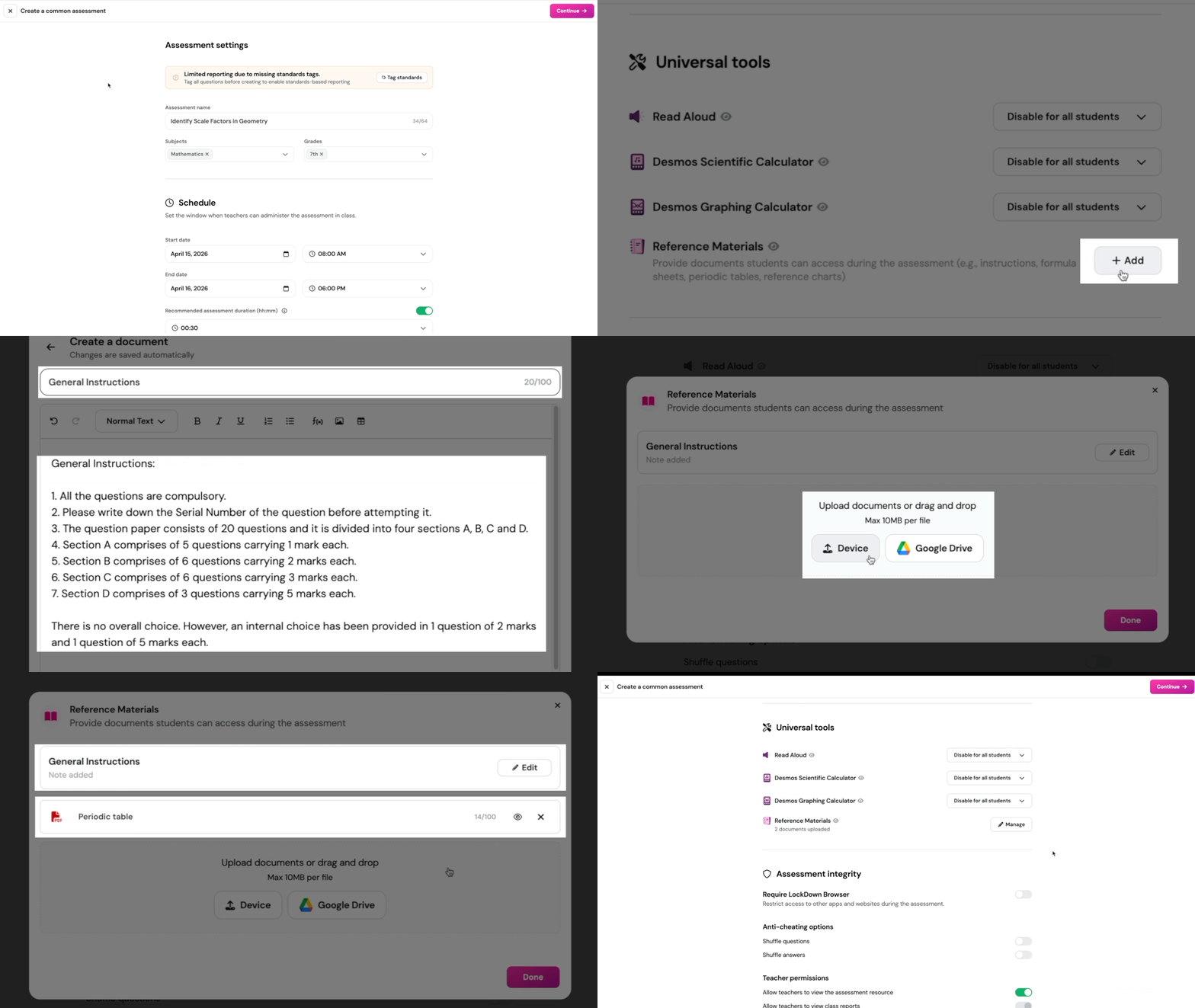
Add reference materials
Open your Common Assessment and scroll to Universal tools
Next to Reference Materials, click + Add
Create a document, upload existing ones, or both
Click Done to save
Create a document
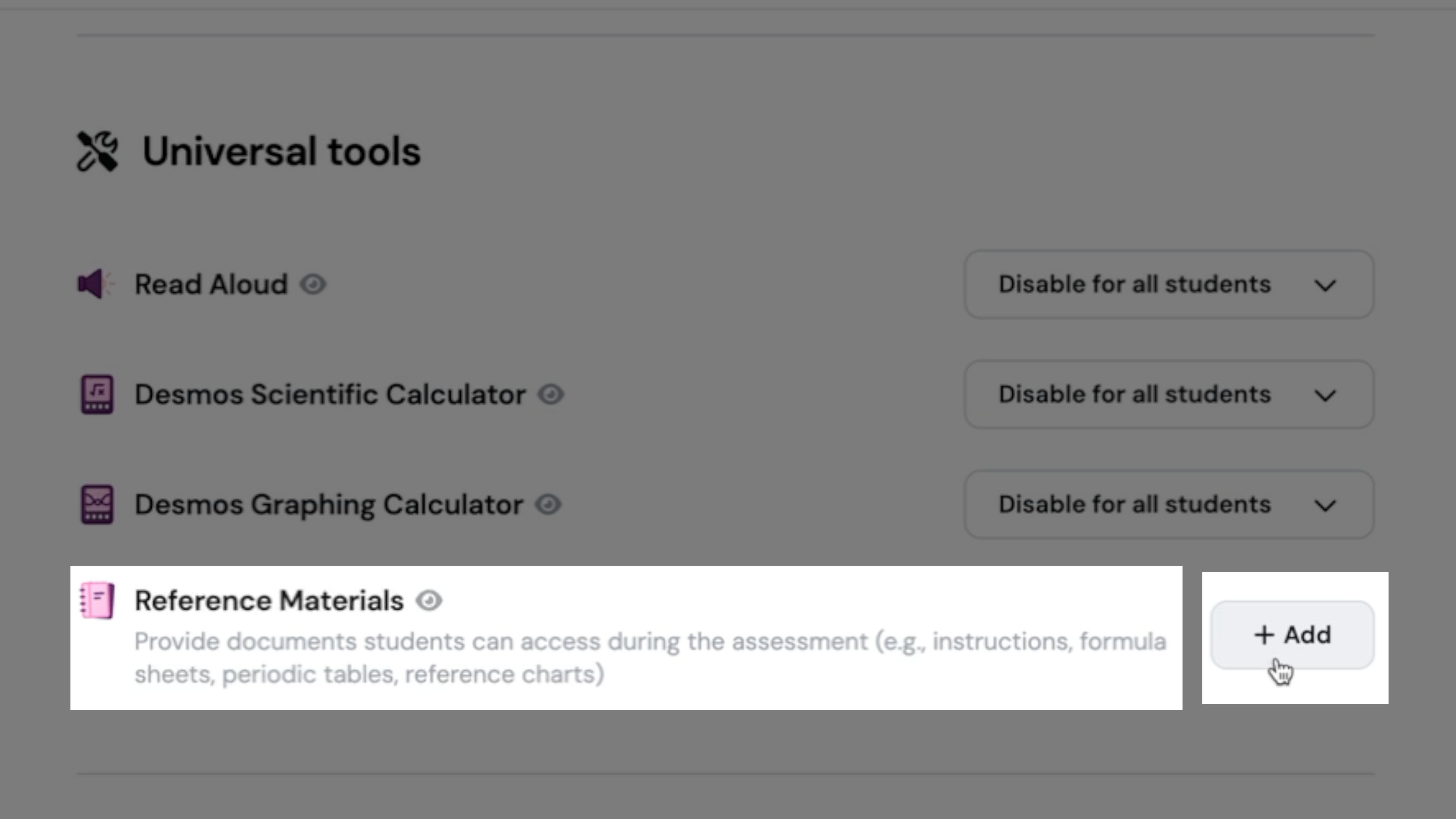
Use the built-in editor for instructions, sentence starters, writing checklists, or formula reminders. Anything you would usually print and hand out works here. Changes save automatically as you type, and you can create one document per Common Assessment.
In the Reference Materials window, click the + button on the Create a document card
Add a title (up to 100 characters)
Write your content. The editor supports headings, bold, italic, underline, lists, tables, math equations, and images
Click the back arrow to return to the Reference Materials window
Upload documents
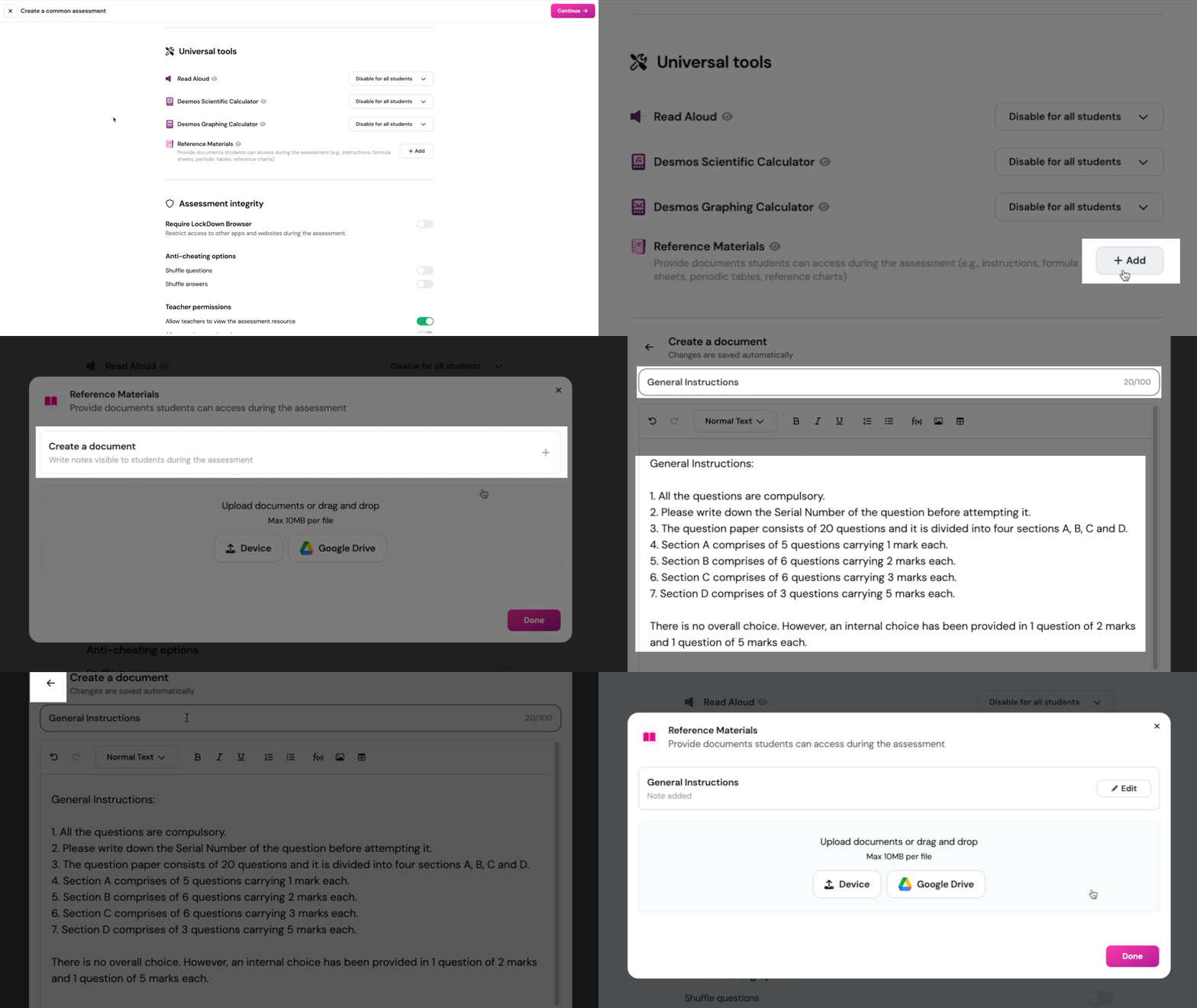
Add documents like formula sheets, periodic tables, primary source excerpts, or rubrics. Drag and drop files into the upload area, or click Device or Google Drive to browse.
File types: PDF, Google Docs, Google Slides
Size limit: 10 MB per file
Upload from: your device or Google Drive
Student experience
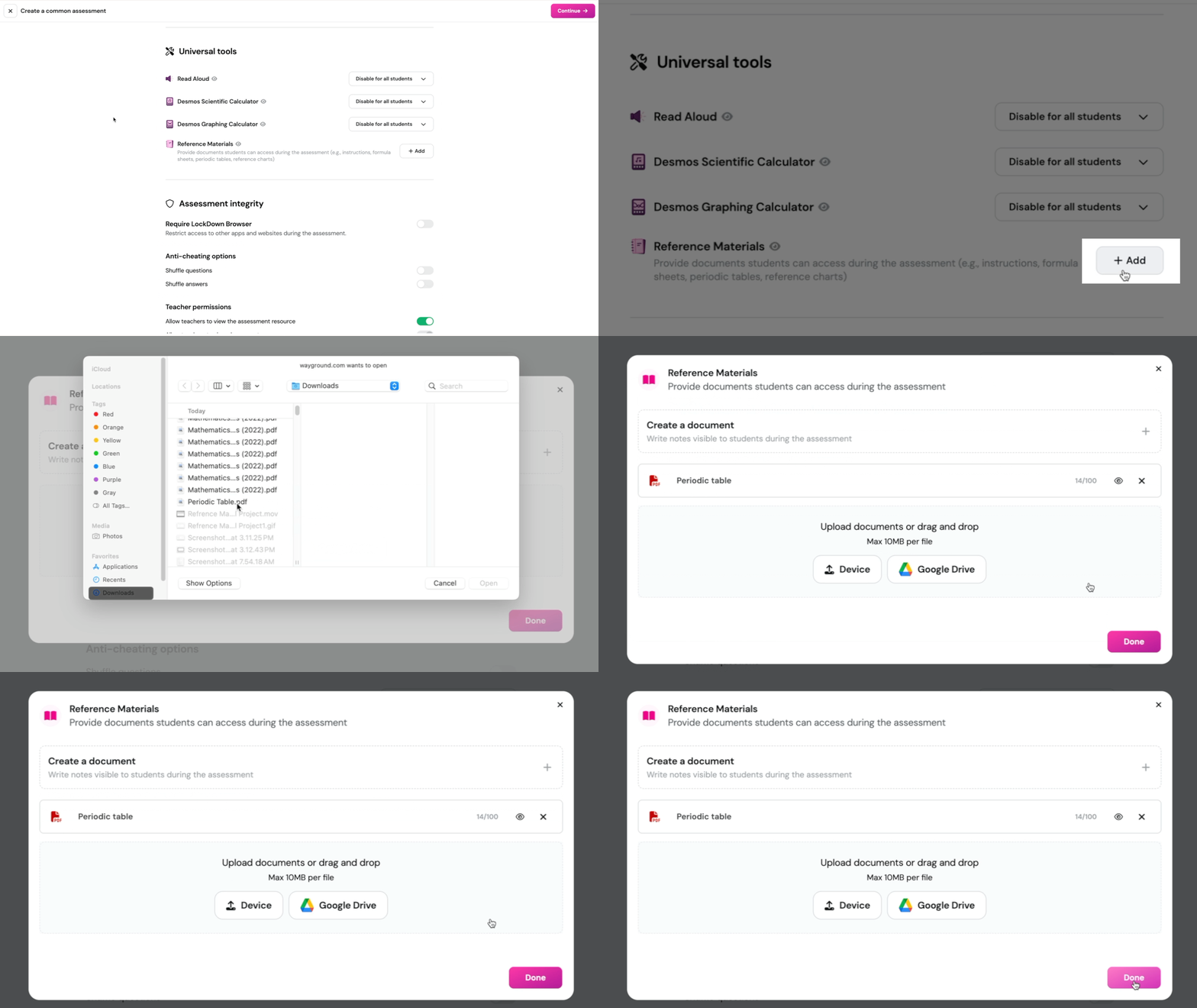
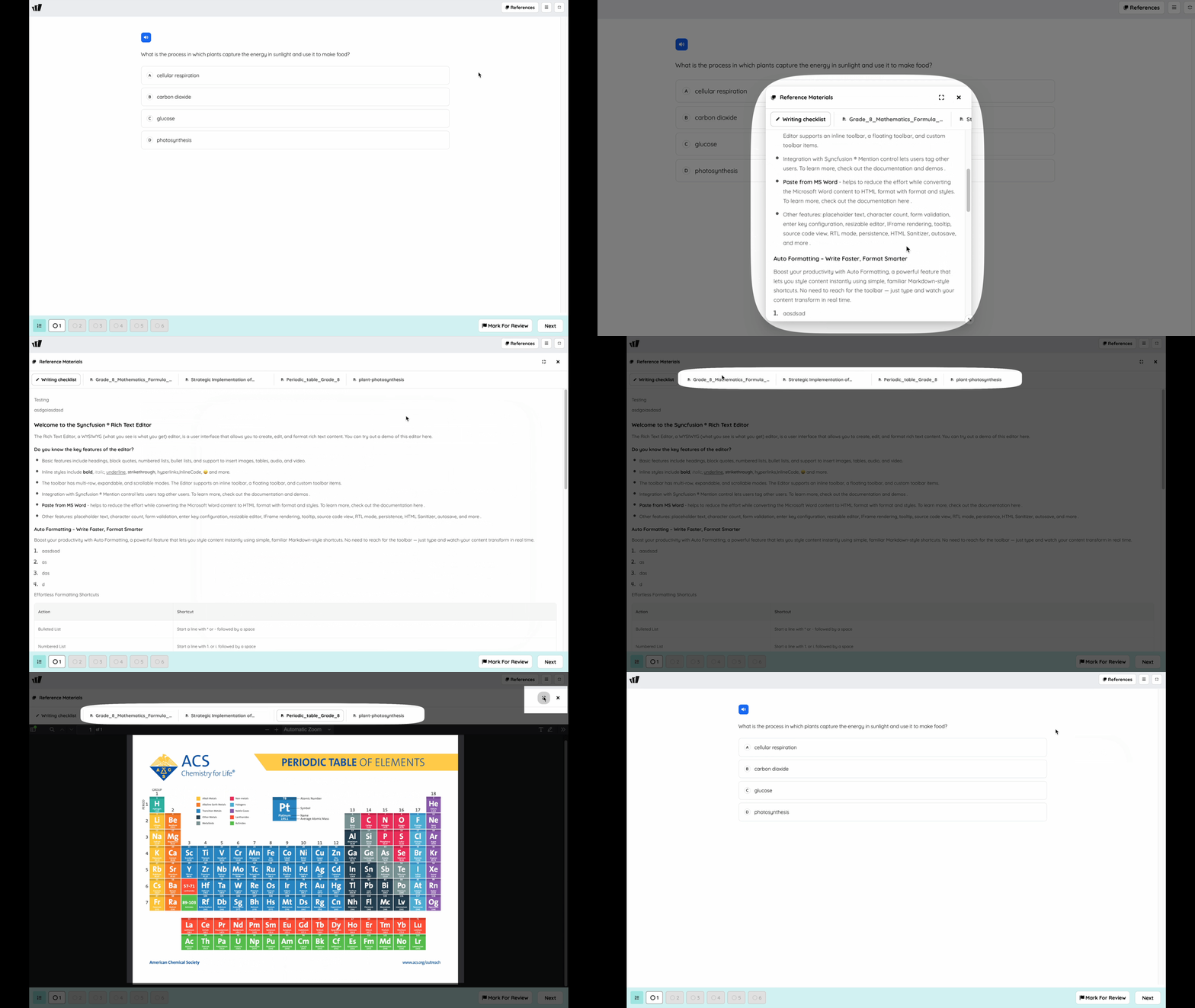
Students click the References button at the top of the screen to open the panel. It sits as its own button, separate from the tools menu.
Each document opens as its own tab
The panel stays open as students move between questions
On desktop, students can resize the panel or make it full screen, and on tablets, it opens from the bottom of the screen
Things to know
Materials lock at the assessment's scheduled start time. The lock applies to all classes at that moment, not when each teacher starts their session. Make all changes before then
You can preview materials after launch. From the assessment’s session page, open a read-only view of exactly what students see
Every student gets the same materials. No IEP or 504 plan is needed
Accommodations apply to the document you create. Students with dyslexia font, font size, or font spacing accommodations see those settings on that document
Was this article helpful?
That’s Great!
Thank you for your feedback
Sorry! We couldn't be helpful
Thank you for your feedback
Feedback sent
We appreciate your effort and will try to fix the article