TABLE OF CONTENTS
- How to enable auto-evaluation
- How to manage reports and grading
- How to manually change the grading of each response
At Wayground, we understand the importance of allowing students to express their understanding creatively. That's why we're thrilled to introduce this AI feature to help you grade open-ended questions!
You can use the power of AI to automate grading Open-Ended and Audio Response questions in Assessments (Quizzes) and Presentations (Lessons). All you need to do is set the subject and grade for the question and add evaluation criteria. Your AI-powered grading assistant will evaluate student responses based on your input, saving you tons of time!
This means you don’t have to spend all your time grading and can spend more time talking and learning with your students!
How to enable it
You can enable and configure this feature while creating or editing an Open-ended or Audio response question. Here’s how:
- 1. Create a question using the Open-ended or Audio response question type.
- 2. Type in the required question in the text field
- 1. In the case of Open-ended questions, you can also enable the 'Show your work' setting so students can upload images of their handwritten answers
- 2. In the case of Audio Response questions, select how long a response should be (5 seconds to 5 minutes)
- 3. Click on the ‘Enable’ button next to the ‘Auto-evaluate with Wayground AI’ option
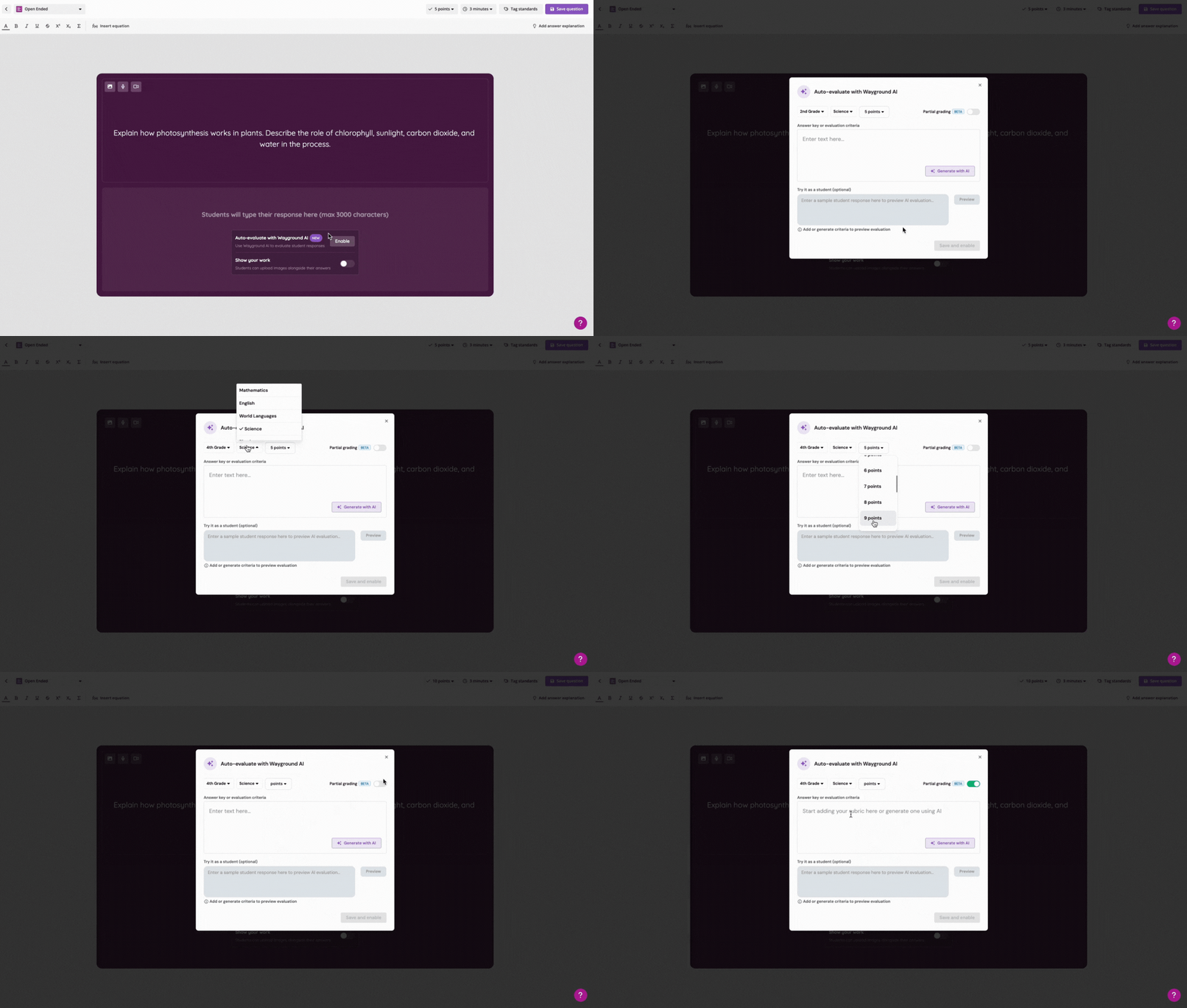
- 4. Choose the relevant subject, grade level, and points you want to allocate for this question
- 5. If you want Wayground AI to award partial grading, toggle on the 'Partial grading' option
- 6. Type in an answer key or evaluation criterion. Alternatively, you can generate the same with Wayground AI by clicking on the 'Generate with AI' button
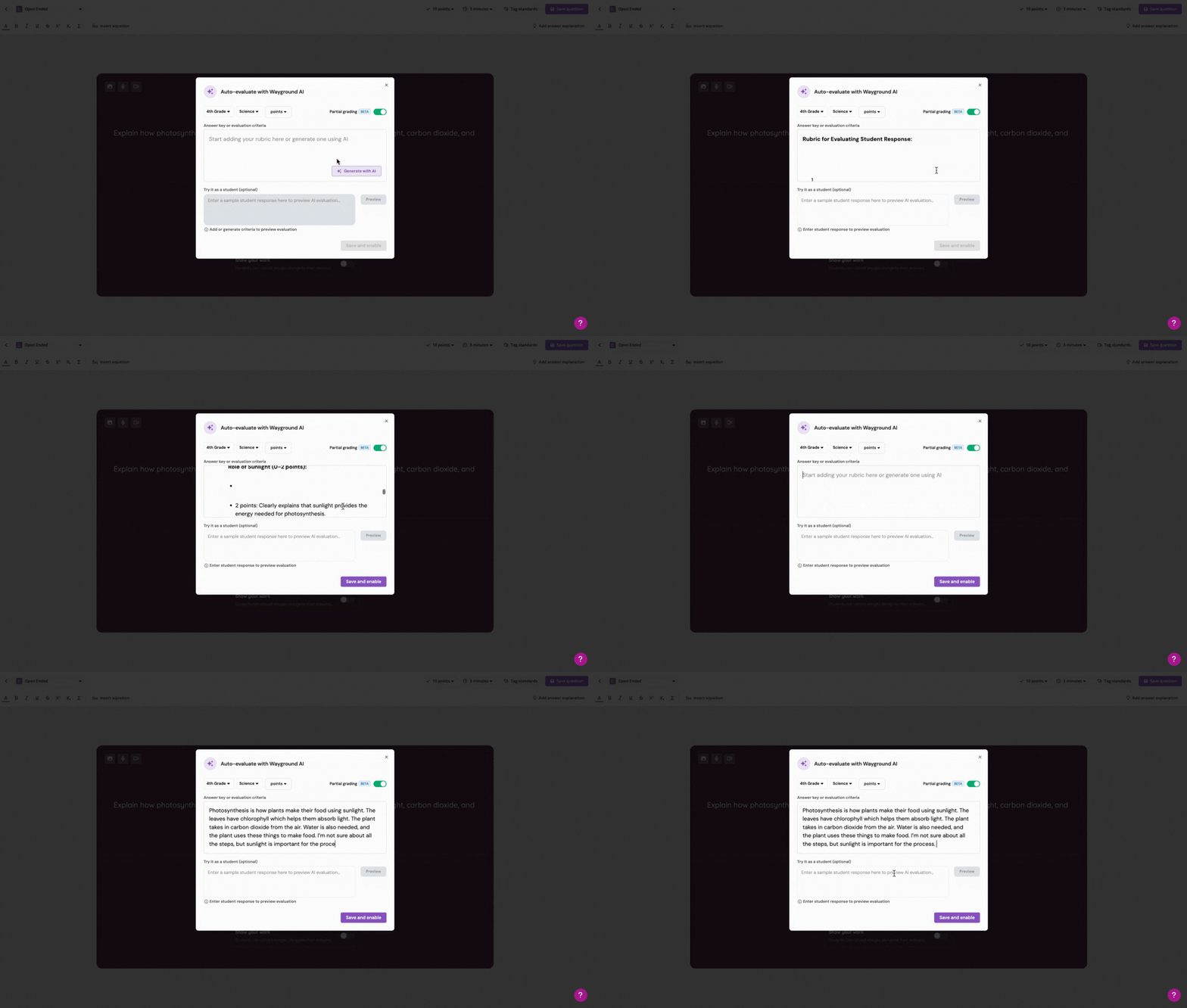 Wayground AI is still learning and evolving. In some cases, it may generate inaccurate results. Please ensure you review the content generated before publishing it.
 - 7. To gauge how answers may be evaluated, type in an example answer in the 'Try it as a student' field and then click on the 'Preview' button. This will give you an idea of how Wayground AI would evaluate a response. You can try multiple iterations and tweak your evaluation criteria accordingly.
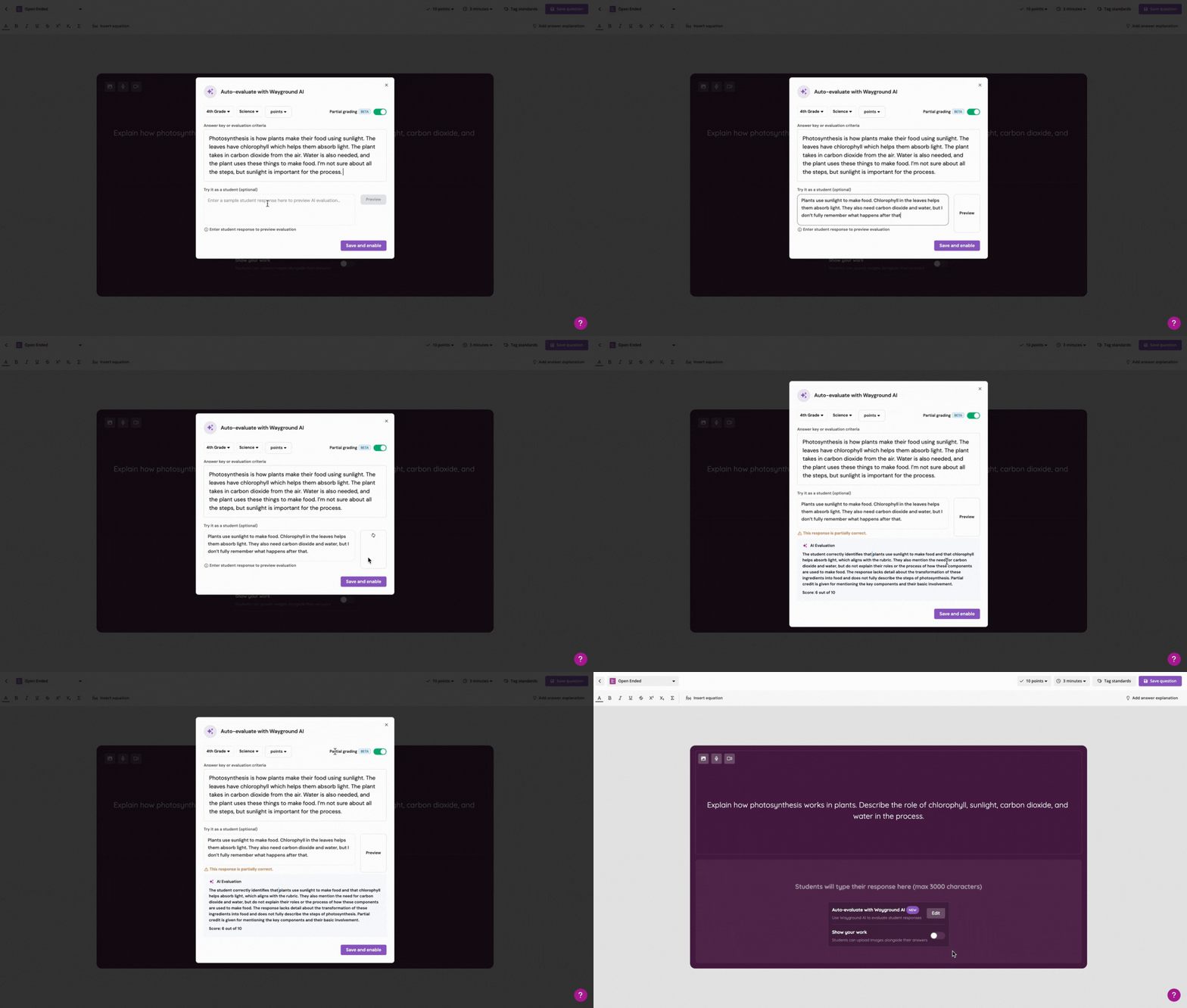
- 8. Once everything looks good, click on the ‘Save and enable’ button
- 9. To save the question, click on the 'Save question' located in the top-right corner of your screen
- 10. Add more questions or slides to your resource, hit 'Publish', and your resource will be ready to be assigned to your students
This feature will now be enabled for your Open-ended or Audio Response question!
When students respond to these questions, Wayground AI will automatically grade their answers based on the evaluation criteria you set, which will save you the time and hassle of manual grading.
How to manage reports and grading
Once your session is assigned, you can view the results for each participant in their report from your Sessions page. For graded questions, you can review the accuracy of the responses based on the evaluation criterion you had set.
You can also edit the evaluation criterion and disable AI evaluation at this stage.
- 1. Select your report and click on the ‘Questions’ tab
- 2. Click on the open-ended question to view how Wayground AI has assessed responses as correct or incorrect for individual participants
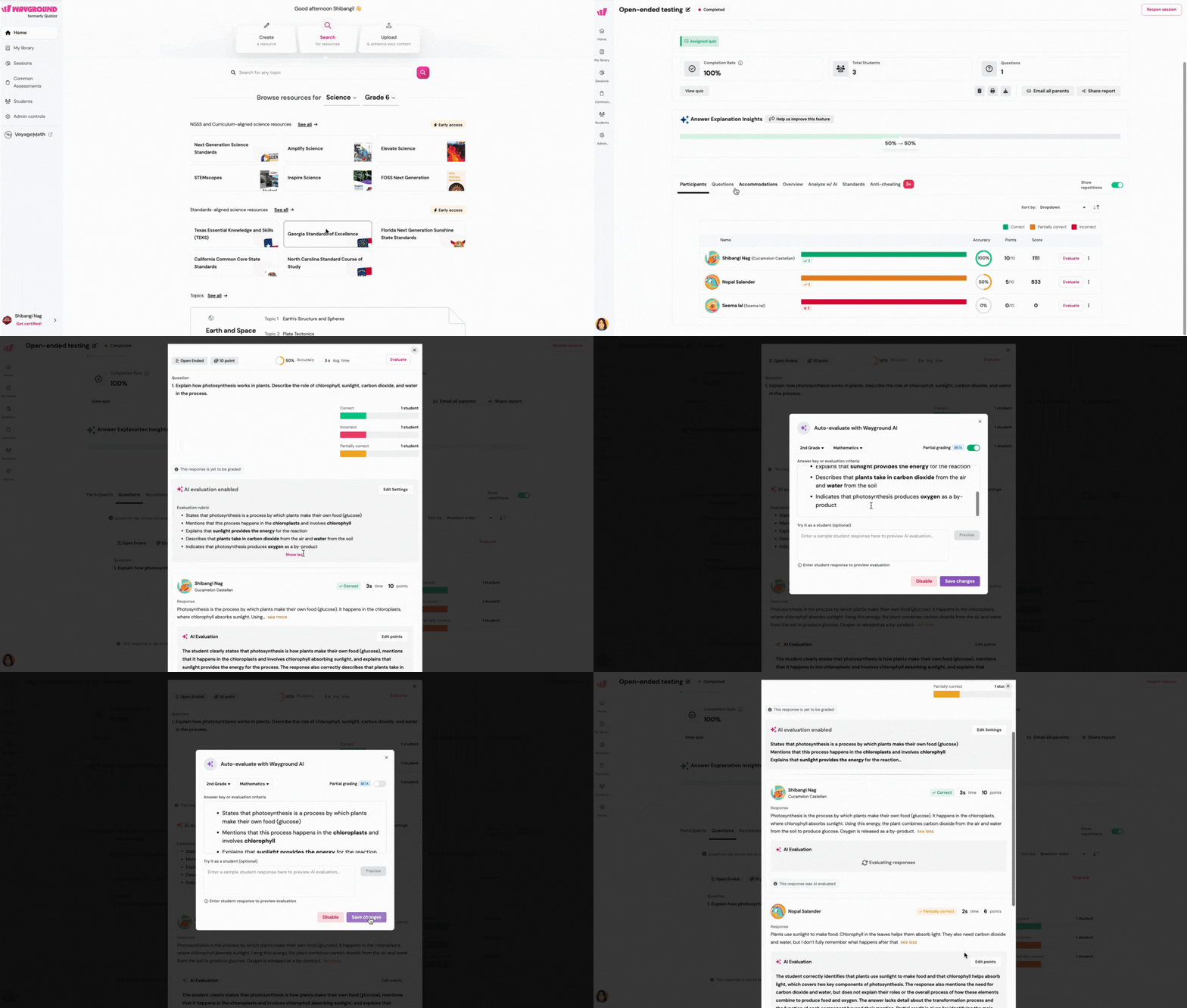
3. If you want to make changes to the evaluation criteria set for this question, click on ‘Edit Settings’
Here, you can modify the evaluation criteria, or
You can disable AI evaluation
- 4. After making the required changes, click on ‘Save Changes’
Additionally, you can manually change the grading of each response. To do that:
- 1. Select your report and click on the ‘Questions’ tab
- 2. Click on the question to view how Wayground AI has assessed responses as correct or incorrect for individual participants
- 3. Click on ‘Edit Points’ next to a response
- 4. Select the participant response you’d like to modify the grading for
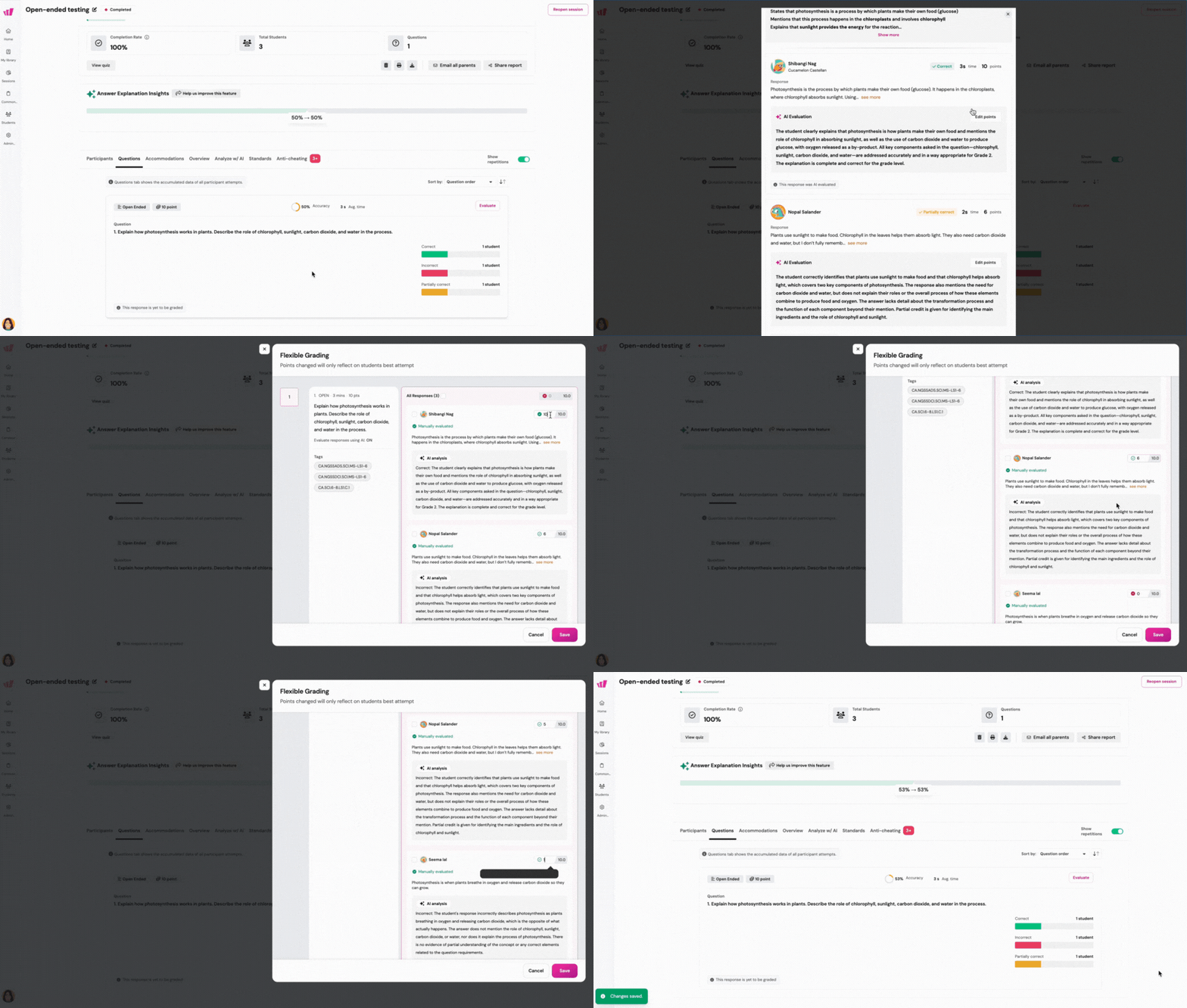
- 5. Change the selected points to the desired points
- 6. Click on ‘Save’
All these features will also apply to questions with answers submitted using the 'Show your work' setting for open-ended questions.
Note:
Wayground AI can auto-evaluate Audio Responses in multiple languages. However, please ensure that the question's language aligns with the language used in student responses for accurate evaluation. Here's the list of supported languages:
Afrikaans, Arabic, Azerbaijani, Basque, Bengali, Bosnian, Bulgarian, Cantonese (CN, HK), Catalan, Croatian, Czech, Danish, Dutch, English, Estonian, Filipino, Finnish, French, Galician, German, Greek, Hebrew, Hindi, Hungarian, Icelandic, Indonesian, Italian, Japanese, Kannada, Kazakh, Korean, Latvian, Lithuanian, Macedonian, Malay, Mandarin (CN, TW), Marathi, Nepali, Norwegian (Nynorsk), Persian, Polish, Portuguese, Punjabi, Romanian, Russian, Serbian, Slovenian, Slovak, Spanish, Swahili, Swedish, Tamil, Te Reo Māori, Thai, Turkish, Ukrainian, Urdu, Vietnamese, Welsh
Was this article helpful?
That’s Great!
Thank you for your feedback
Sorry! We couldn't be helpful
Thank you for your feedback
Feedback sent
We appreciate your effort and will try to fix the article