This guide shows teachers how to find a Common Assessment assigned to you, run it with your class, and manage the session from start to finish.
Find a Common Assessment assigned to you
When an administrator shares a Common Assessment with you, it appears on the Common Assessments list page. Read more on how to find the Common Assessment
Start a Common Assessment session
You can start a session only when the assessment status is Active. If its status is Scheduled or Ended, you cannot begin a session.
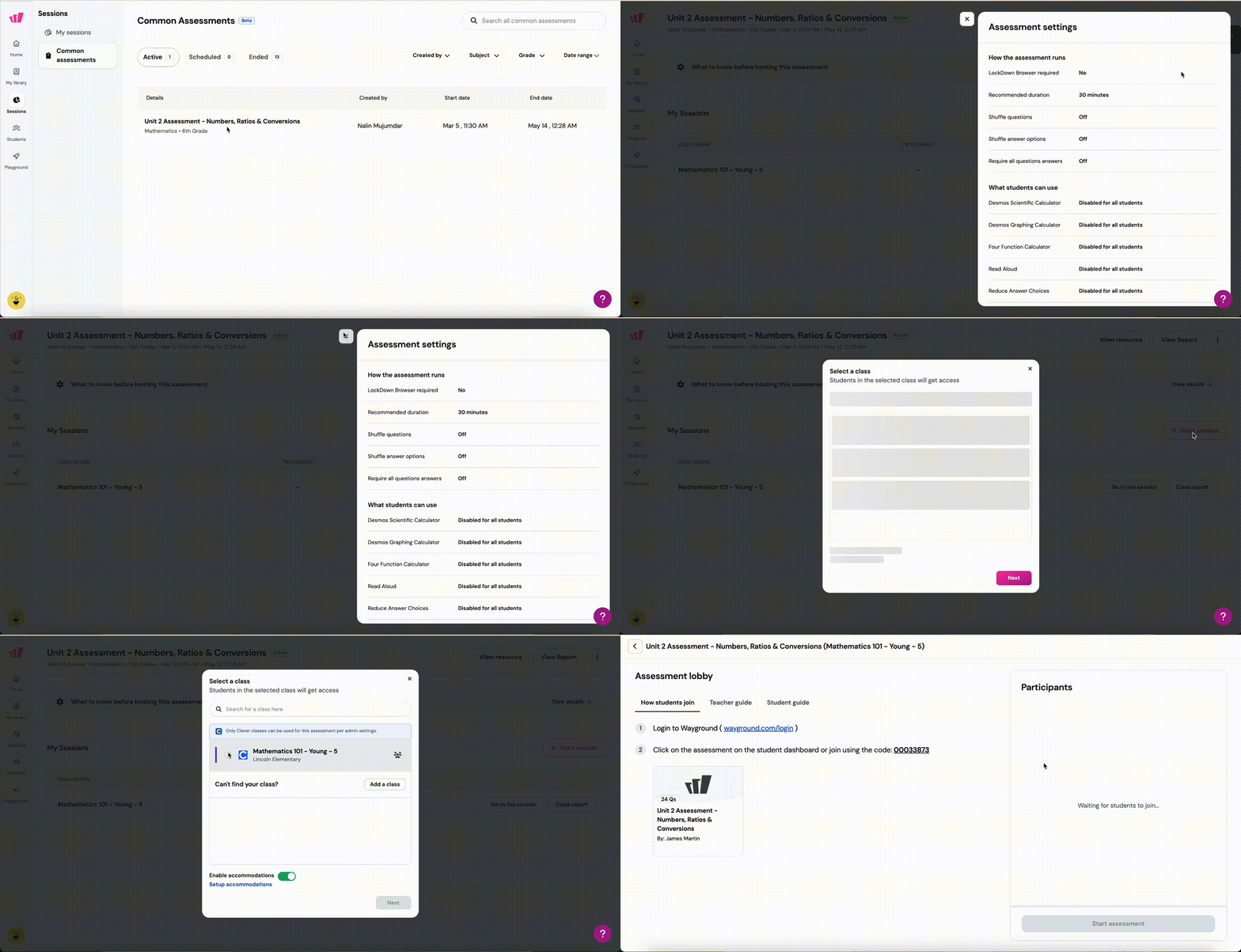
If you want to assign the assessment to your class via Canvas, follow these instructions.
To start:
On the common assessment details page, click Start.
Select the class taking the assessment, then click Next.
The assessment creator may have set up universal tools like a calculator or read-aloud. These tools apply to every student automatically. If the creator has turned on Teacher Set Accommodation, you can also add accommodations for individual students from their profiles.
If your district has multiple schools, you may be asked to tag the class to the right school. Classes synced from Clever or ClassLink are tagged automatically.
Wayground takes you to the assessment lobby, where students join.
As students join, their names appear on the right under Waiting for approval. Click Admit next to each student to add them individually, or click Admit all to let everyone into the session at once. This keeps access limited to students in your classroom.
Once everyone appears under Ready to start, click Start assessment.
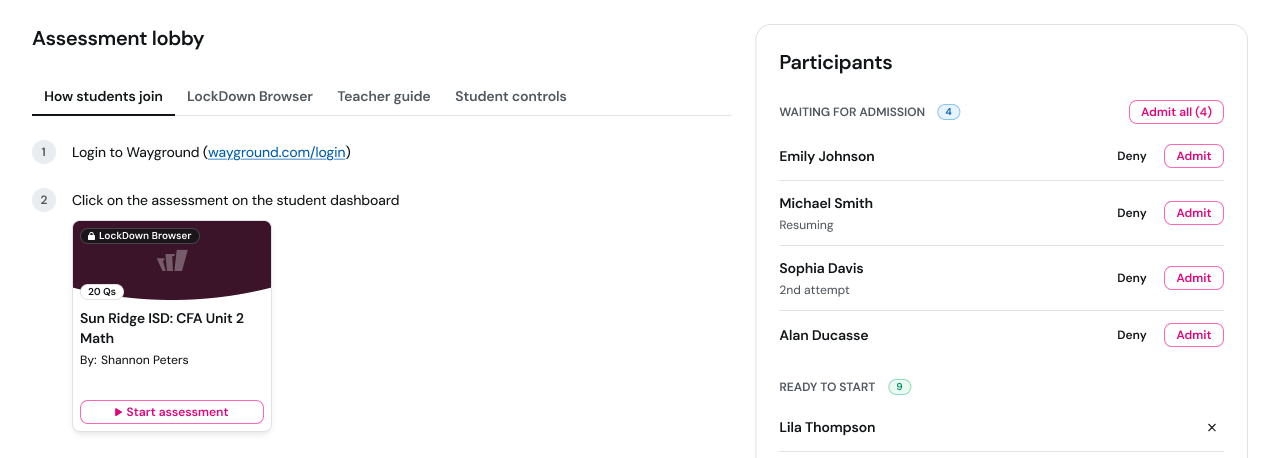
You will land in the live assessment dashboard, where you can monitor student progress and manage the session.
Manage a live session
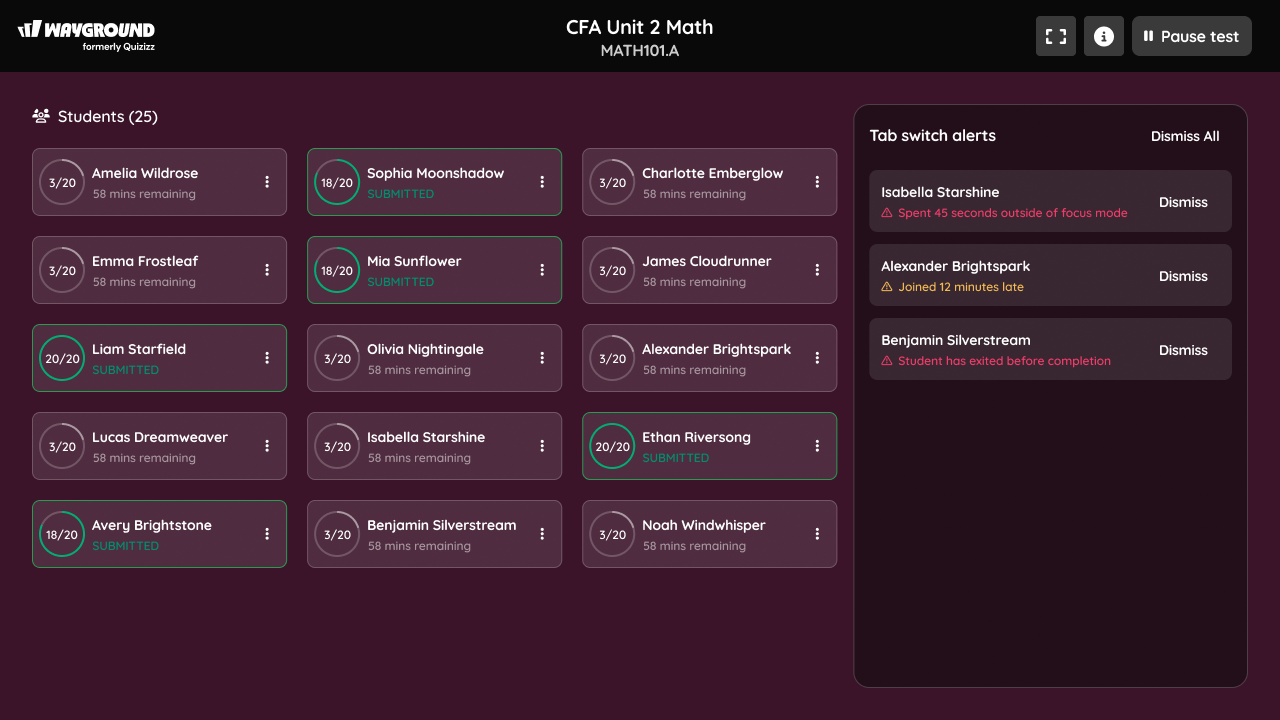
Live dashboard
The live dashboard shows each student’s progress in real time. Every student card shows:
Progress: questions answered out of total.
Status: time remaining, or Completed once the student submits.
You also see how many students have finished out of the total.
Save & End a student’s session from the dashboard
Click the three-dot icon next to a student’s name, then select Save & End assessment. This saves the student’s progress and submits their responses. Students cannot resume this session afterward, but can start a new attempt.
Pause and resume
Pausing helps when an assessment runs across multiple class sessions, or when class gets interrupted — for example, by a fire drill, a power cut, or an internet outage.
When you pause, each student’s progress is saved and they are sent back to the lobby. They cannot access the assessment again until you resume. You see three options:
Resume: students pick up right where they left off. Use this when pausing and resuming inside the same class period.
Resume Later: use this at the end of a class period. Students need to rejoin and be admitted again when you start the session back up.
Submit & End: saves and submits every student’s responses. Students cannot return to this session, but they can start a new attempt later.
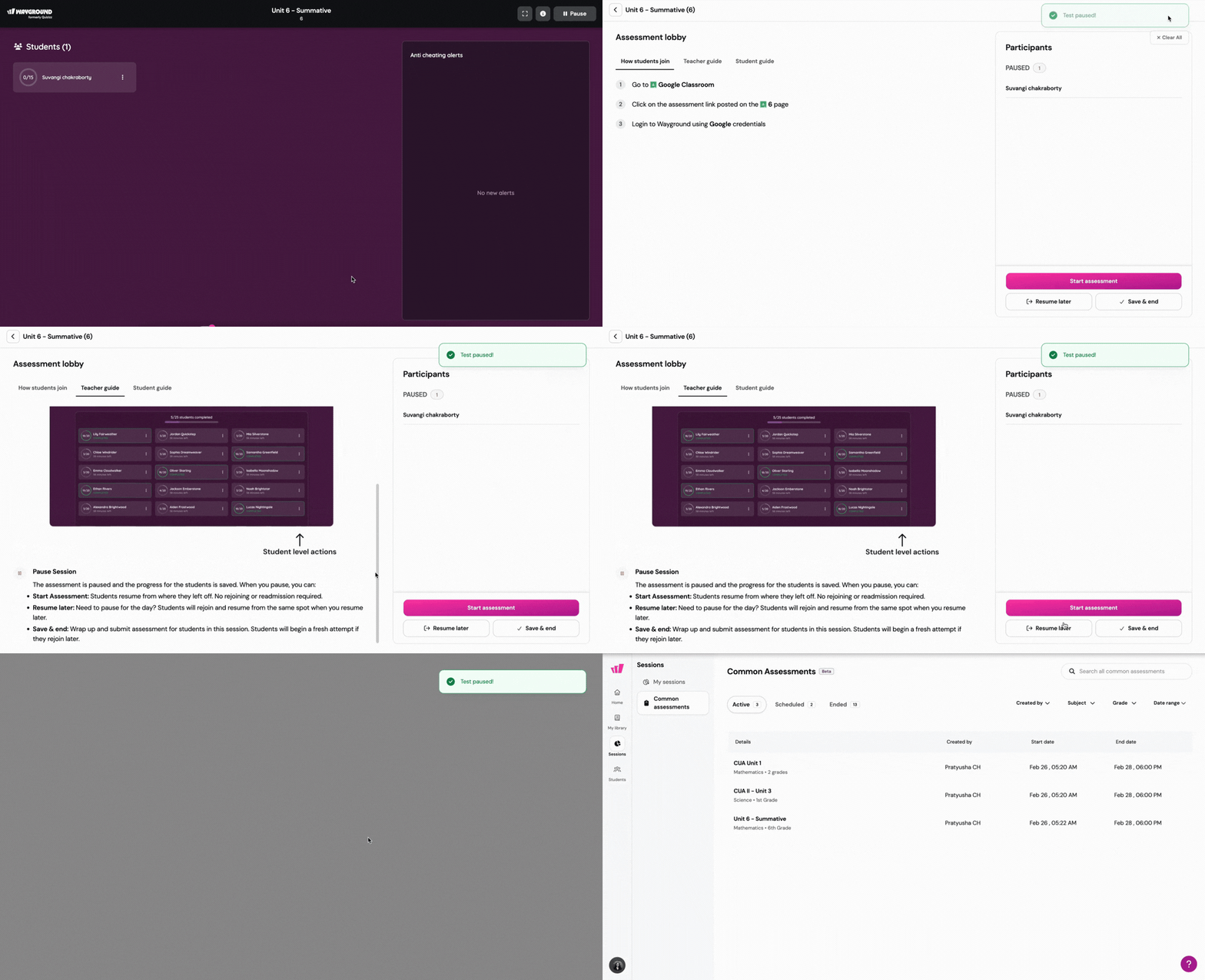
Resume or rejoin a session
From the assessment details page:
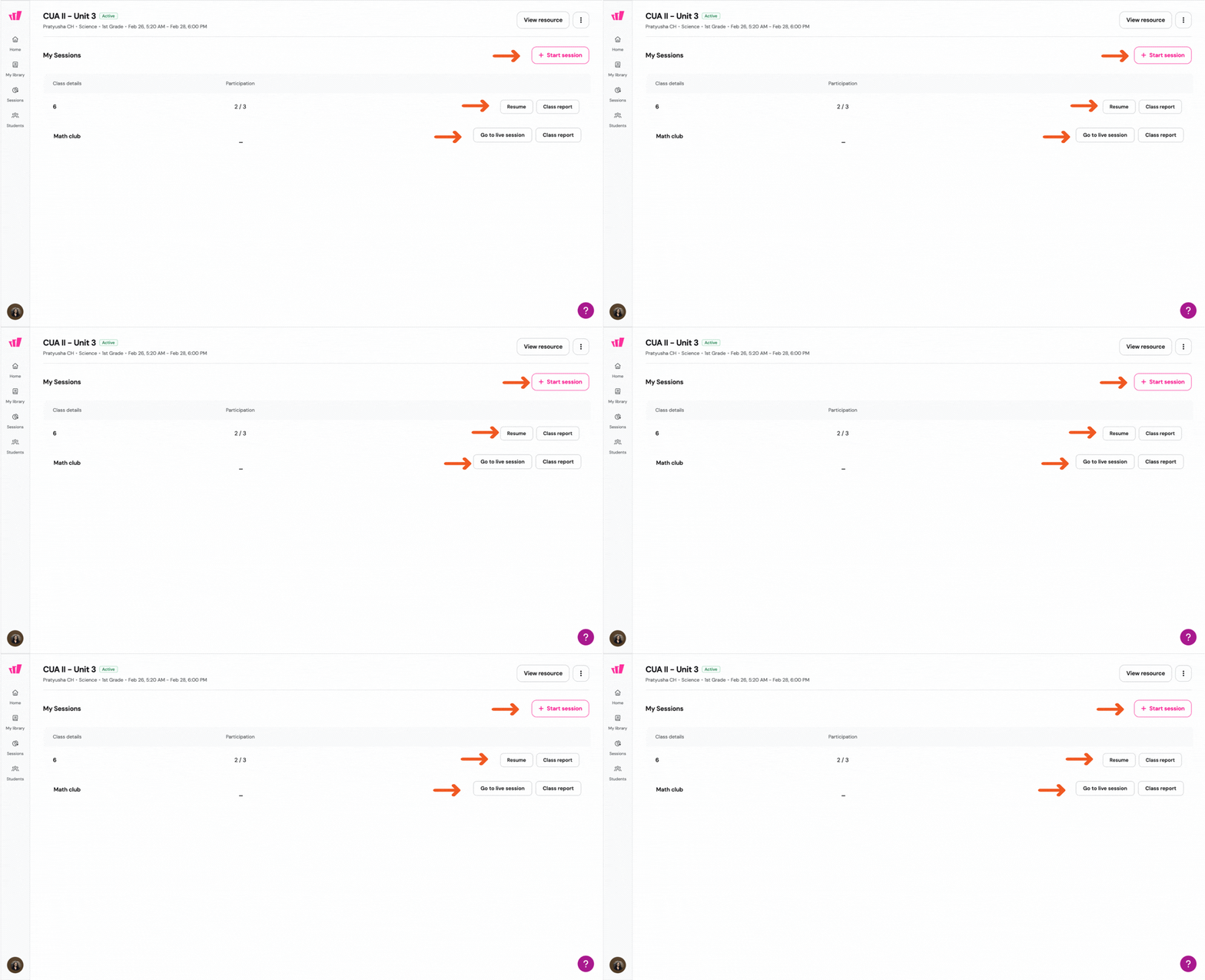
Resume a paused session: click View my sessions, find the class, and click Resume. You return to the lobby, where you can continue with paused students or admit new ones — like absentees or retakes.
Rejoin a live session: if you closed the window while students were still testing, click Go to live session to return to the dashboard.
Keep the test secure in your classroom
How you handle test security depends on what your administrator has set up.
If LockDown Browser is on:
Students install and use the LockDown Browser.
Proctor the session as usual.
If LockDown Browser fails, share the Backup Link so students can continue in a regular browser. Note that this offers fewer security measures.
If LockDown Browser is off:
The test runs in full-screen mode.
You get a notification if a student leaves full screen or switches tabs, and you can remove them from the session.
A few things to keep in mind:
Pause the session at the end of class so students cannot reach the test outside supervised hours.
Wayground pauses sessions automatically overnight.
All paused sessions close on the date the Common Assessment is scheduled to end.
Keep your class roster up to date
Keep your rosters current so the right students can access the assessment.
For synced classes (LMS, Clever, ClassLink):
Add or remove students in your LMS or SIS.
Return to Wayground and open the class you updated in the Classes section.
Click Refresh Roster to sync the changes.
For Wayground classes:
Go to the Classes section.
Open the class you want to update.
To add students, click Add students and share the class join link. Anyone who joins through the link is added to the roster automatically.
To remove a student, click the trash icon next to their name, then click Remove to confirm.
Related tasks
There are a couple of related tasks you may need to handle alongside administering a Common Assessment:
Record a student’s response on their behalf (Scribe mode): if a student needs a scribe, took the assessment offline, or has another accommodation, you can record their responses from the class report. See Record on behalf of students: For Teachers.
View the class report: track scores, review individual student responses, and evaluate open-ended questions after the session. See Understanding Your Common Assessment Class Report: For Teachers.
Was this article helpful?
That’s Great!
Thank you for your feedback
Sorry! We couldn't be helpful
Thank you for your feedback
Feedback sent
We appreciate your effort and will try to fix the article