TABLE OF CONTENTS
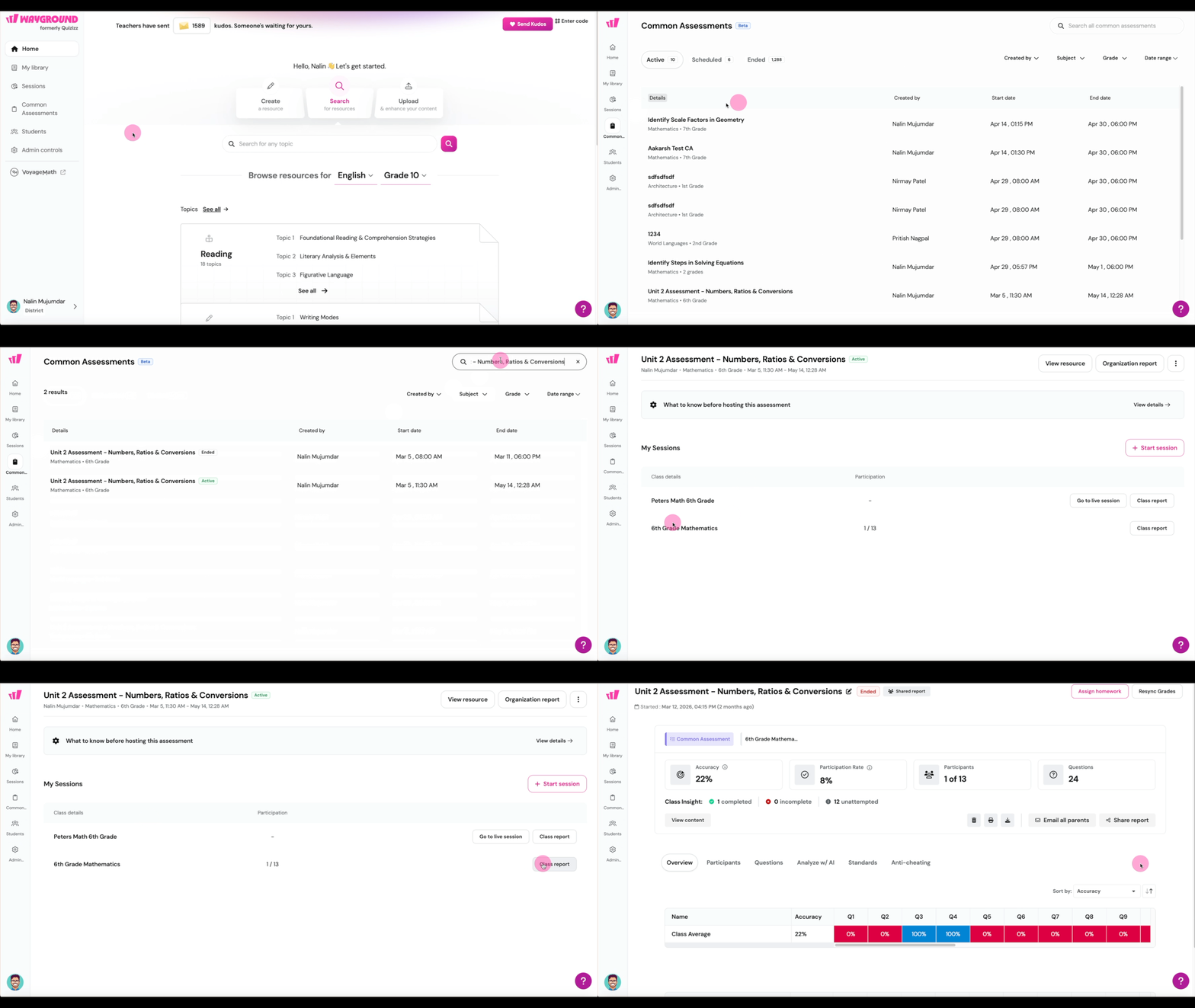
- Accessing the class report
- Report header
- How report metrics are calculated
- The tabs in your report
- Overview tab
- Participants tab
- Questions tab
- Standards tab
- Anti-cheating tab
- Student status and in-session actions
- Tips for using your class report
Your Common Assessment class report shows how your class performed on every question and standard, flags responses that need scoring, and helps you act on the data.
This guide walks you through every tab, explains how the numbers are calculated, and covers the workflows you’ll use most often.
This article is for: Teachers who proctor Common Assessments.
Accessing the class report
You can open the class report in two ways:
From the Home page: in the left navigation, click Common Assessments, find the assessment, and click Class report next to the class you want to open.
From a live session: on the live session dashboard, click Class report to open that class’s report.
Reports are available as soon as the first student submits an attempt.
If you run the assessment across multiple days or sessions, you still get one combined report for the class, not separate reports per session.
Report header
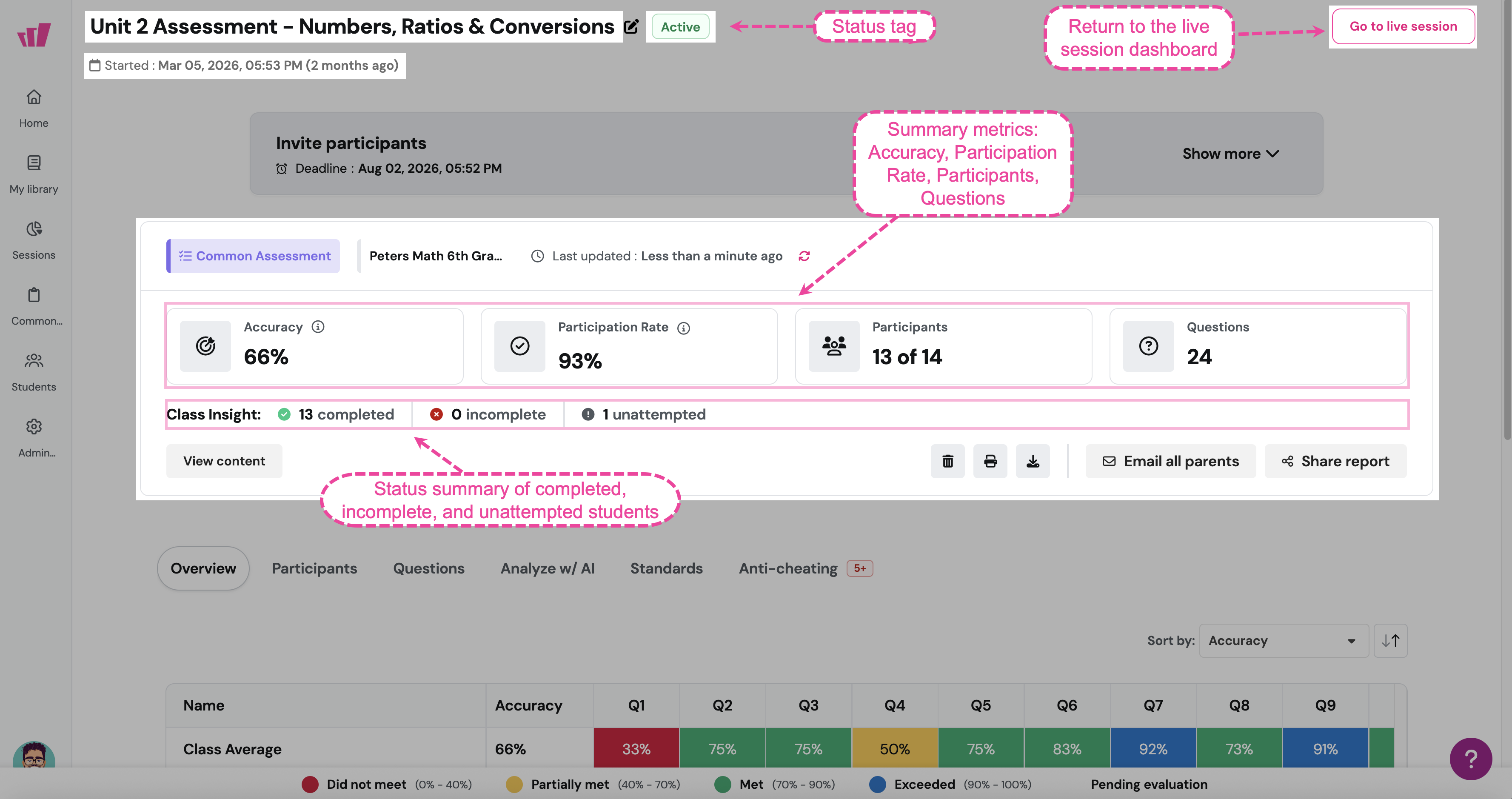
At the top of every class report, you’ll see:
Assessment title with a status tag (Active between the start and end dates, Ended after) and a pencil icon to rename the session
Started date and how long ago the assessment began
Go to live session button (top-right) to return to the live dashboard. If the session is paused, this changes to Resume Session
Invite participants panel with the deadline, a join code, and a Click here link to generate a shareable link for students who didn’t get the notification
Summary metrics
Below the invite panel, four metric cards appear:
Hover over the ⓘ icon on any metric for its exact definition.
Class Insight
A one-line summary shows how many students have completed, how many are incomplete, and how many are unattempted.
Header actions
View content: preview the assessment as students see it
Print, Download as Excel, Delete
Email all parents: send performance emails to parents
Share report: share with colleagues or set visibility for “Everyone in [your District]”
Pending evaluations callout
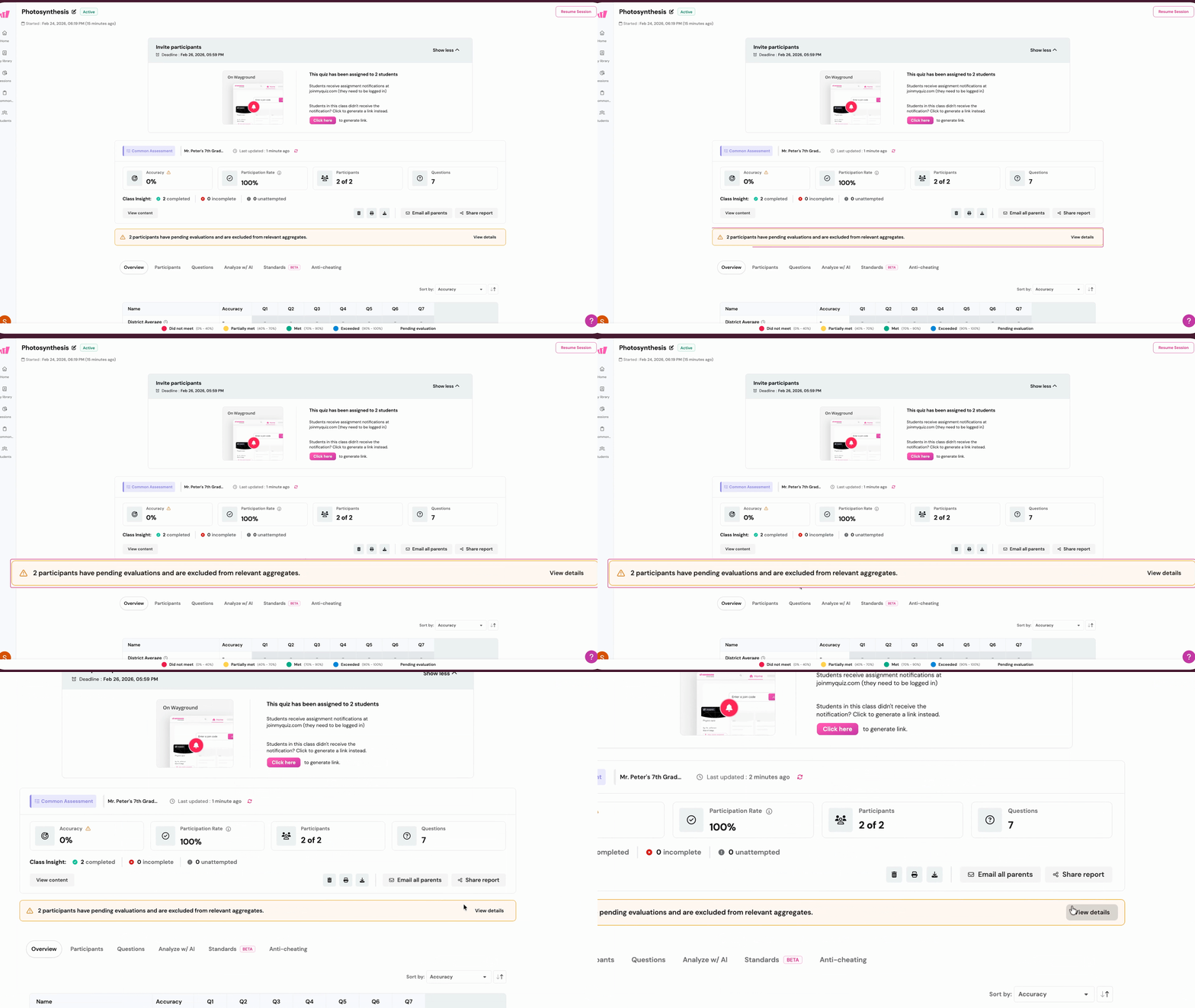
If your assessment has Open-Ended questions that haven’t been scored yet, an orange callout appears below the metrics:
Click View details to open the evaluation panel. Students with unscored Open-Ended responses are temporarily left out of accuracy calculations, so unevaluated work doesn’t skew your numbers.
How report metrics are calculated
Each student counts once. A student who takes the assessment three times still counts as one participant, not three.
Best attempt is what counts. When a student has multiple attempts, only their highest-scoring attempt is used for question and standard accuracy. If any of their responses are still being scored, the student is temporarily left out of the numbers (Wayground needs every response scored to know which attempt is best).
Accuracy formula:
As evaluations are completed, accuracy updates automatically.
The tabs in your report
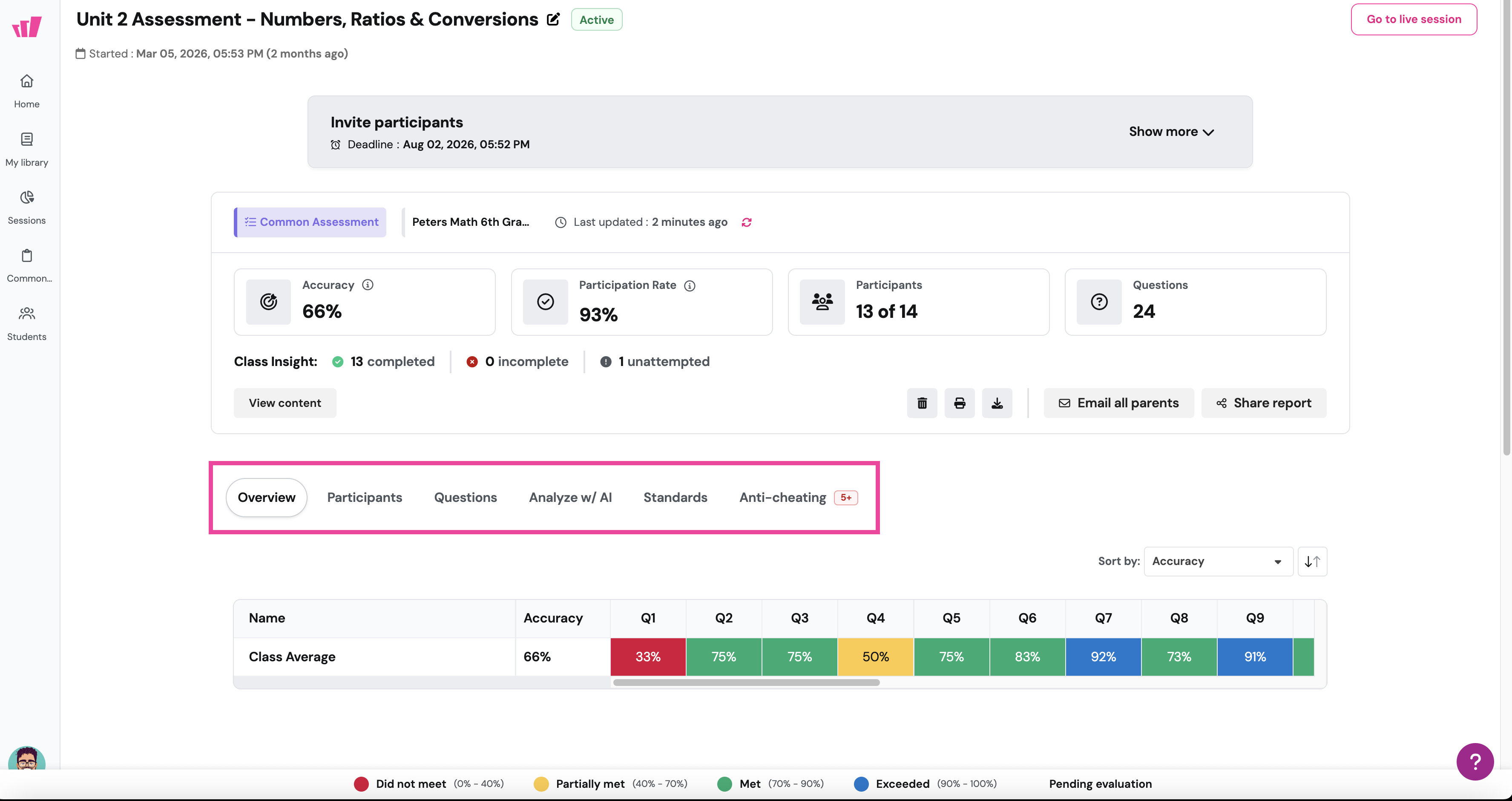
Your class report is organized into five tabs:
Overview tab
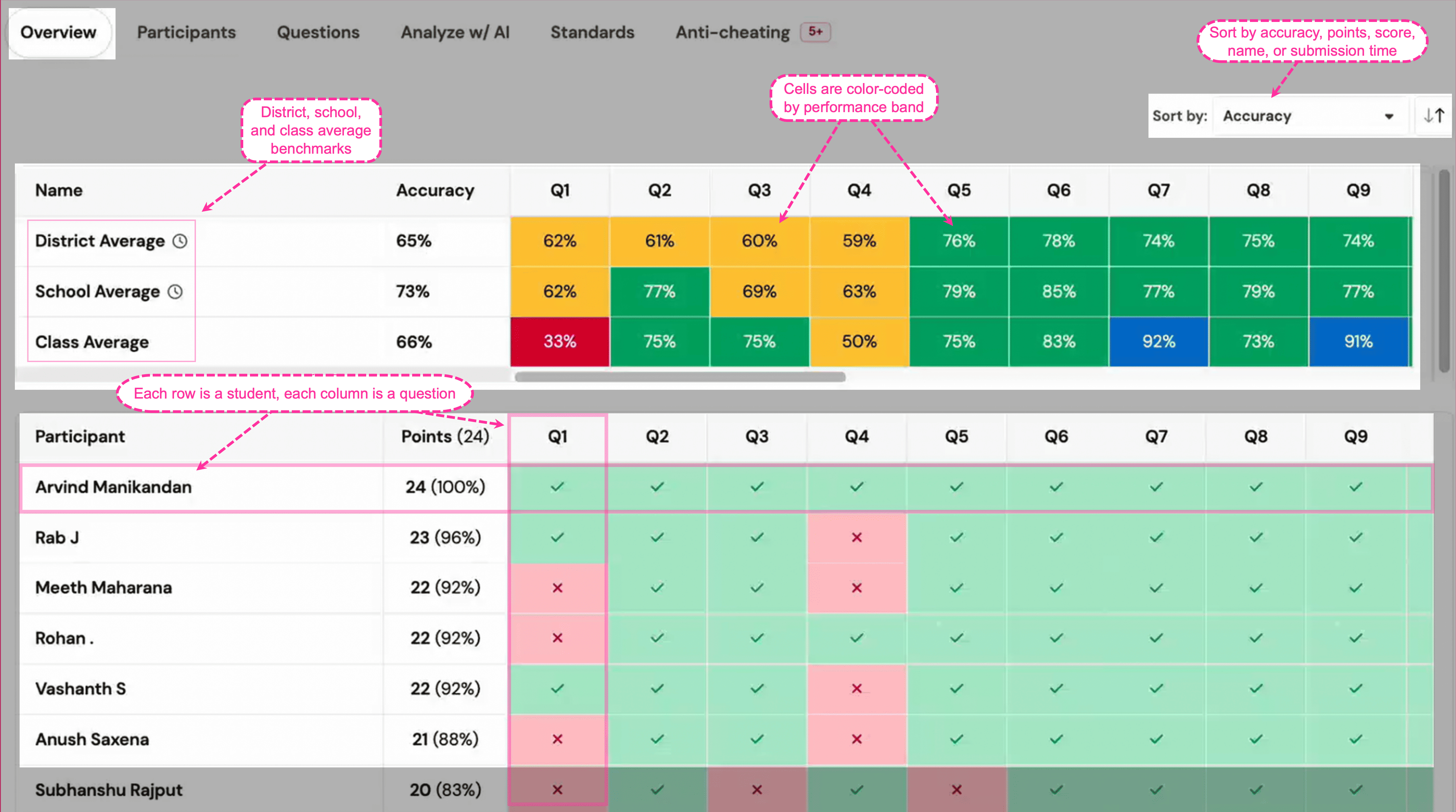
The Overview tab shows a question-by-question heatmap compared to school and district averages.
Comparison grid
Three benchmark rows appear for every question in the assessment:
District Average: how students across the entire district performed on each question
School Average: how students across your school performed on each question
Class Average: how your class performed on each question
Each cell is color-coded by performance band, making it easy to spot questions where your class is above or below the school or district benchmark.
Student heatmap
Below the comparison grid, each row is a student and each column is a question. Cells show a check mark for correct or a cross for incorrect.
Students are sorted by accuracy by default. You can change the sort order using the Sort by dropdown at the top-right: Accuracy, Points, Score, First name, Last name, Submission time.
Performance bands
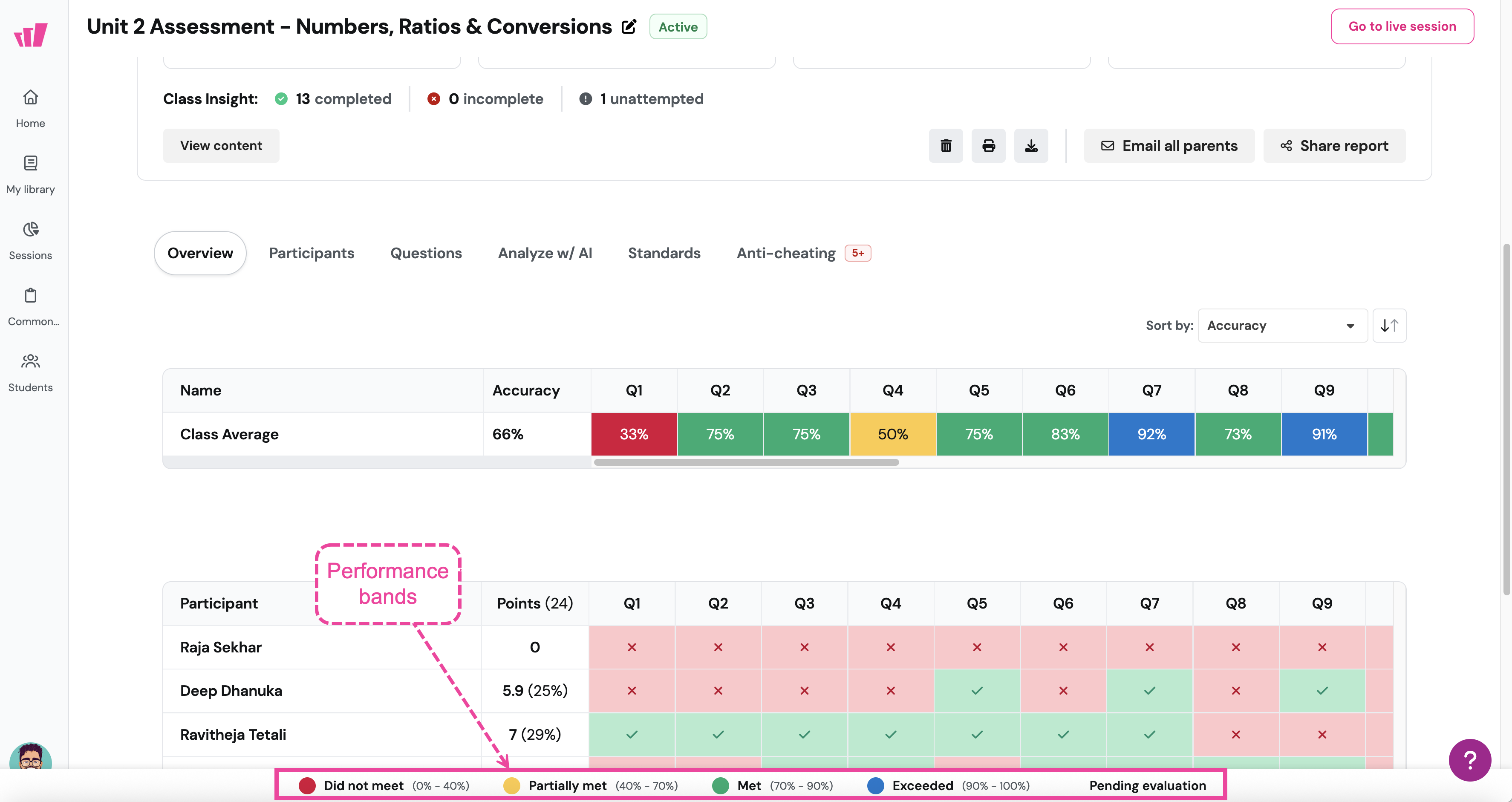
Performance bands group accuracy into four levels:
You’ll see performance bands in two places in your report:
Overview tab: coloring the cells in the comparison grid (District, School, and Class Average rows)
Standards tab: showing how students are distributed across the four bands for each standard
A color-coded legend at the bottom of the report shows the default ranges: Did not meet (0% to 40%), Partially met (40% to 70%), Met (70% to 90%), Exceeded (90% to 100%). Your Common Assessment creator may have set different ranges during setup.
Participants tab
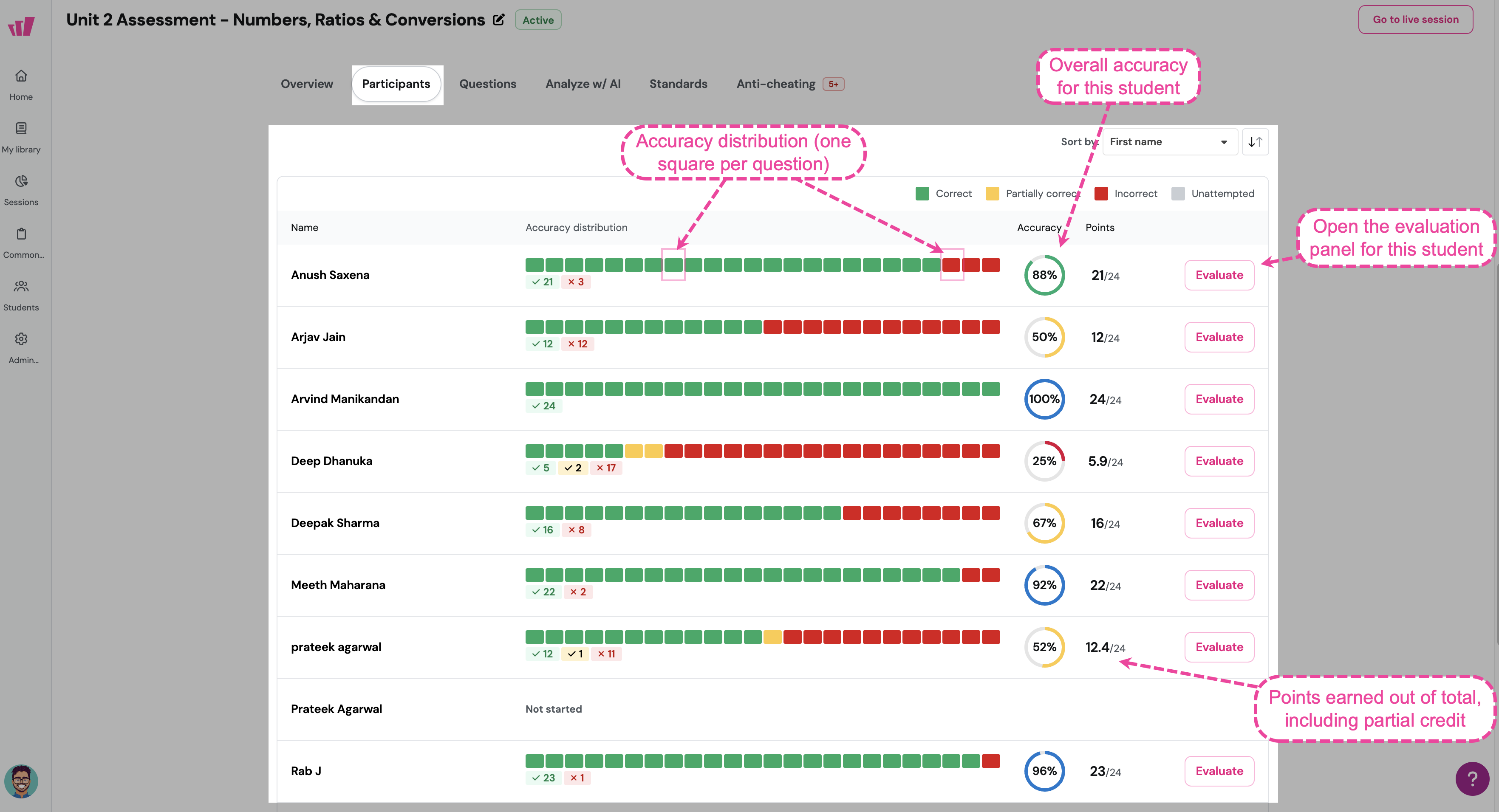
The Participants tab gives you a student-by-student list for evaluation and follow-up.
Each row shows:
Student name
Accuracy distribution: a colored bar showing how the student answered each question (■ Correct, ■ Partially correct, ■ Incorrect, ■ Unattempted), with totals below (e.g., “✓22 ✗2”)
Accuracy percentage
Points earned out of total (e.g., “22/24”); partial credit shows where applicable (e.g., “12.4/24”)
Evaluate button: opens the Open-Ended evaluation panel for that student
Students who haven’t started show Not Started in place of the bar.
Sort by: Accuracy, Points, Score, First name, Last name, Submission time.
The individual student view
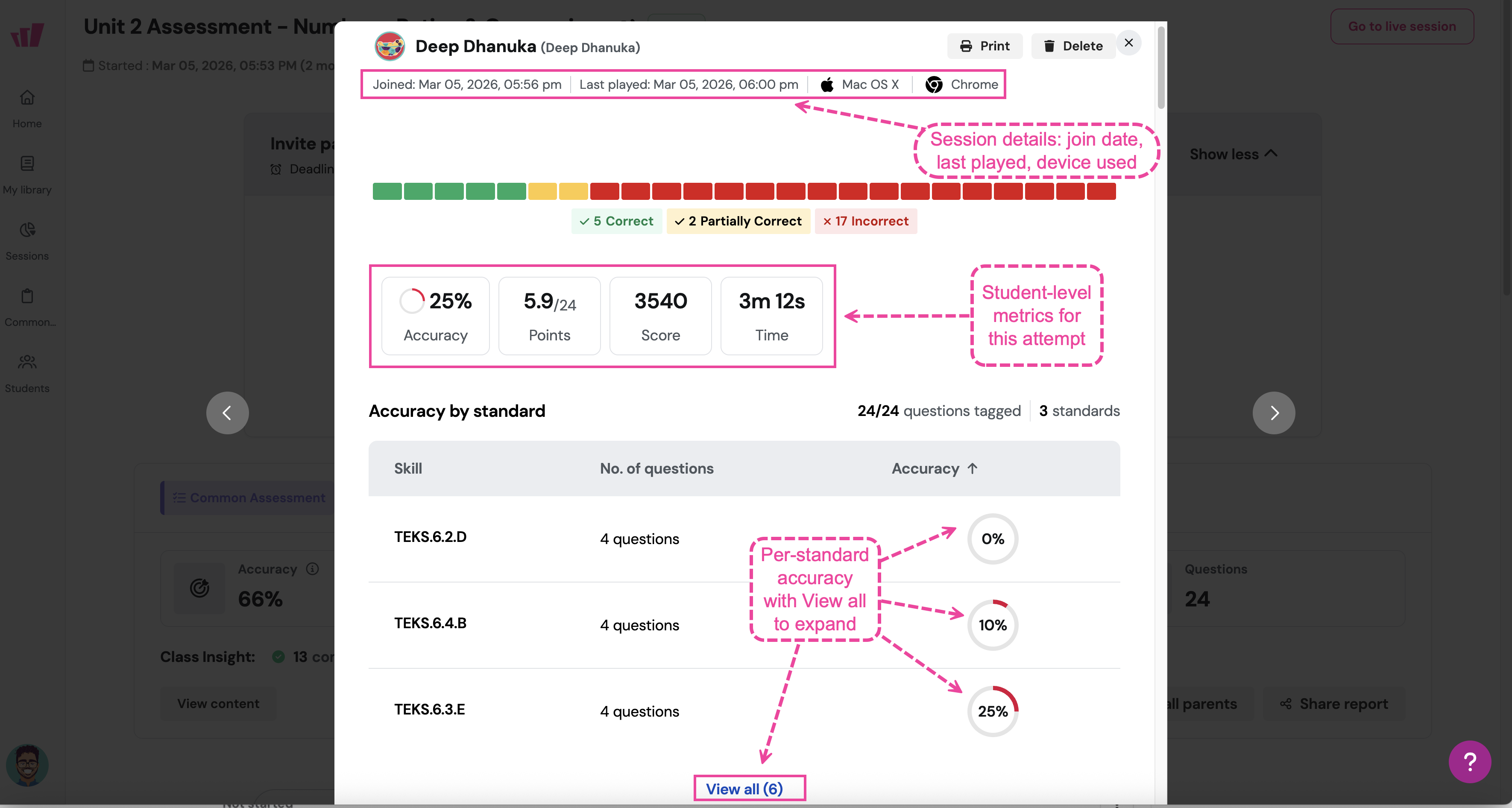
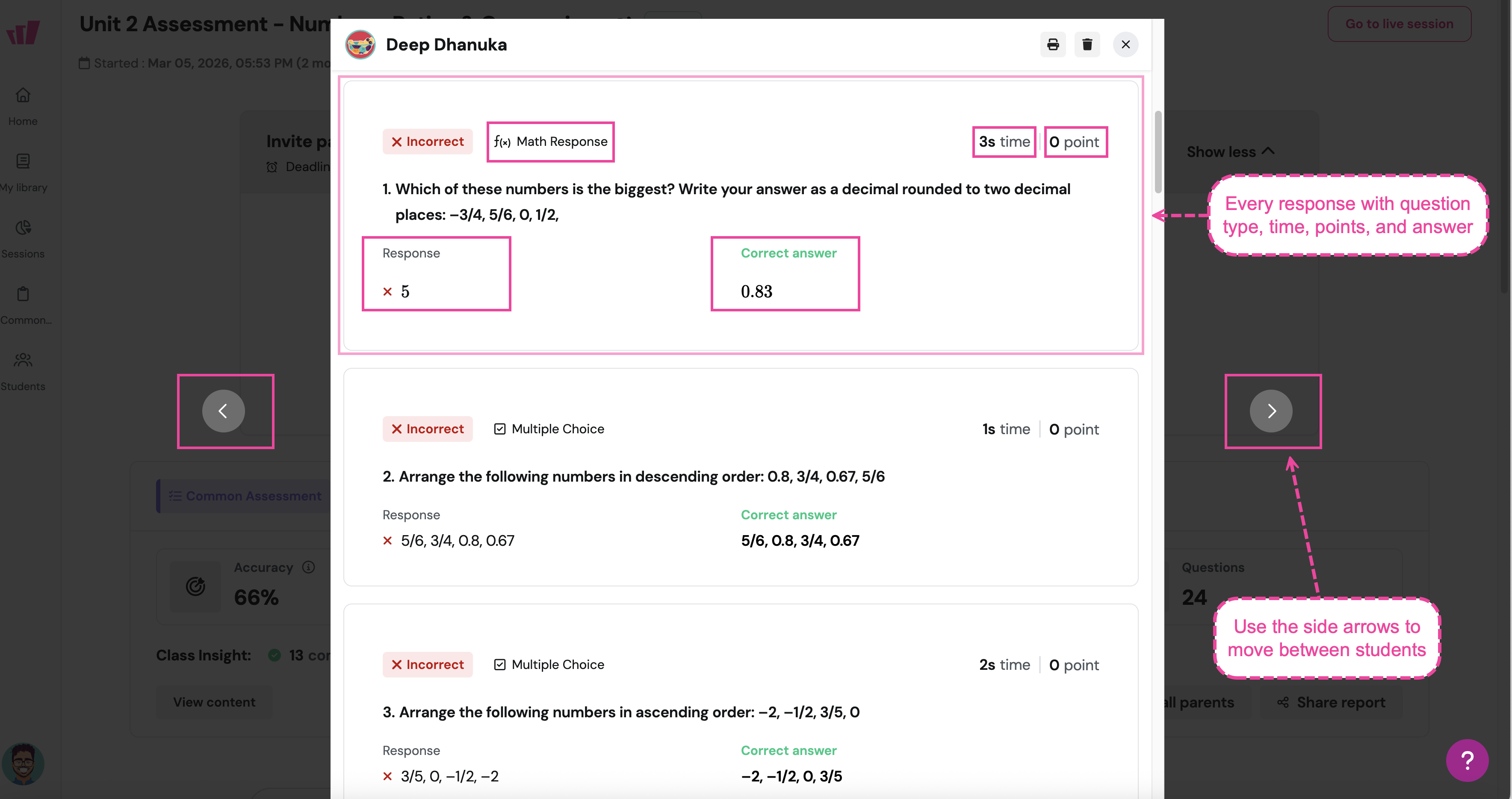
Click any student’s row to open their detail view. You’ll see:
Join date, last played time, and device used
Accuracy, Points, Score, and Time spent
Accuracy by standard, with View all for the full list
Every response: question type, time taken, points, the student’s answer, and the correct answer
Use the side arrows to move between students.
Questions tab
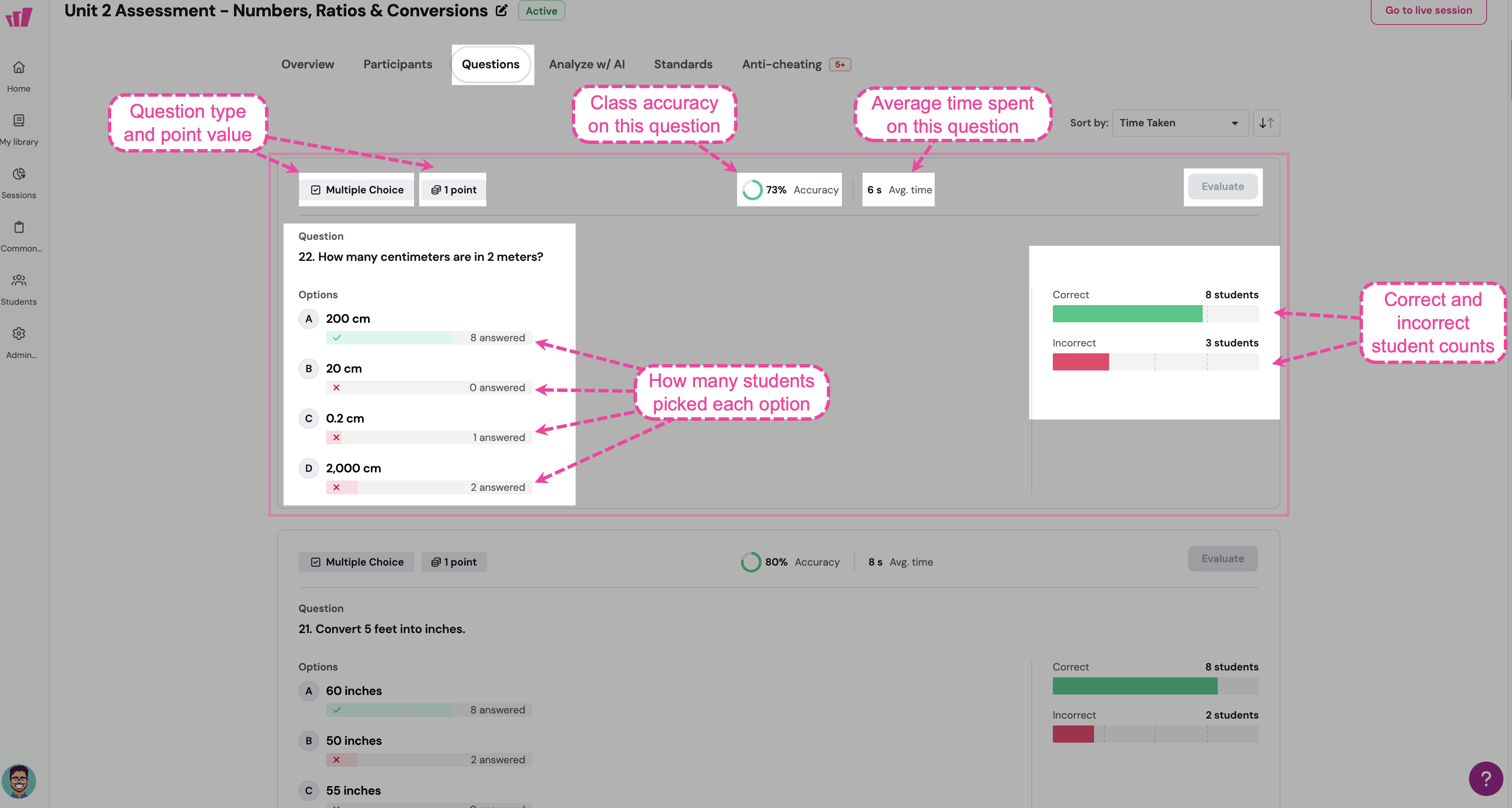
The Questions tab shows performance on each question, one card per question.
Each question card includes:
Question type badge (Multiple Choice, Math Response, Open-Ended, etc.)
Point value
Accuracy percentage and Average time spent on the question
The question text and correct answer
For Multiple Choice: each option with ✓/✗ and the number of students who picked it
Correct / Incorrect bars showing student counts
Evaluate button (active for Open-Ended questions that need scoring; grayed out for auto-scored ones)
Sort by: Question order, Accuracy, Time Taken.
The individual question view
Click any question card to open its detail view. You’ll see every student’s response with their correctness, time taken, and points. Use the arrows to move between questions.
Standards tab
The Standards tab shows standard-by-standard performance.
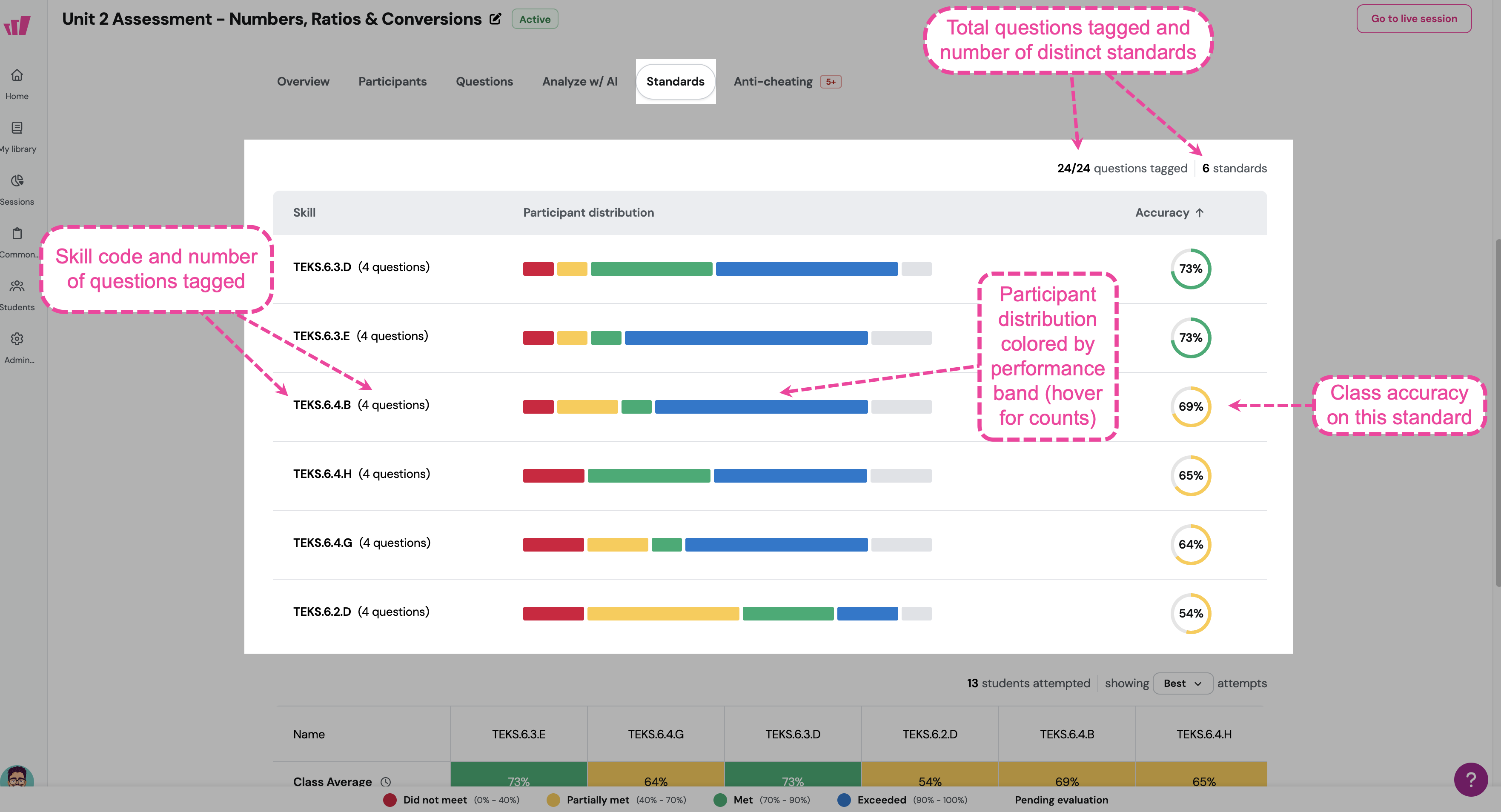
Standards summary
A header shows how many questions are tagged with standards (e.g., “24/24 questions tagged”) and how many distinct standards appear.
Each standard row shows:
Standard code and the number of questions tagged to it (for example, TEKS.6.3.D with four questions)
Participant distribution bar, color-coded by performance band
Accuracy percentage
Click any standard to open its detail view, where you’ll see every question tagged to that standard and how students answered.
Student-by-standard heatmap
Rows show District Average, School Average, Class Average, and each individual student. Columns are the standards. Each cell shows the accuracy percentage, color-coded by performance band.
Use the attempts dropdown to switch between:
Anti-cheating tab
If integrity monitoring is enabled, the Anti-cheating tab shows students who triggered alerts during the assessment.
Each row shows:
Student name
Alert type tags (e.g., Left fullscreen, Tab switch, Window resize)
Total alerts for that student
Last alert timestamp
Actions: option to remove the student from the session
Click any student to see device and browser information, an alert summary table, and a question-by-question view with warning banners on questions where alerts were detected.
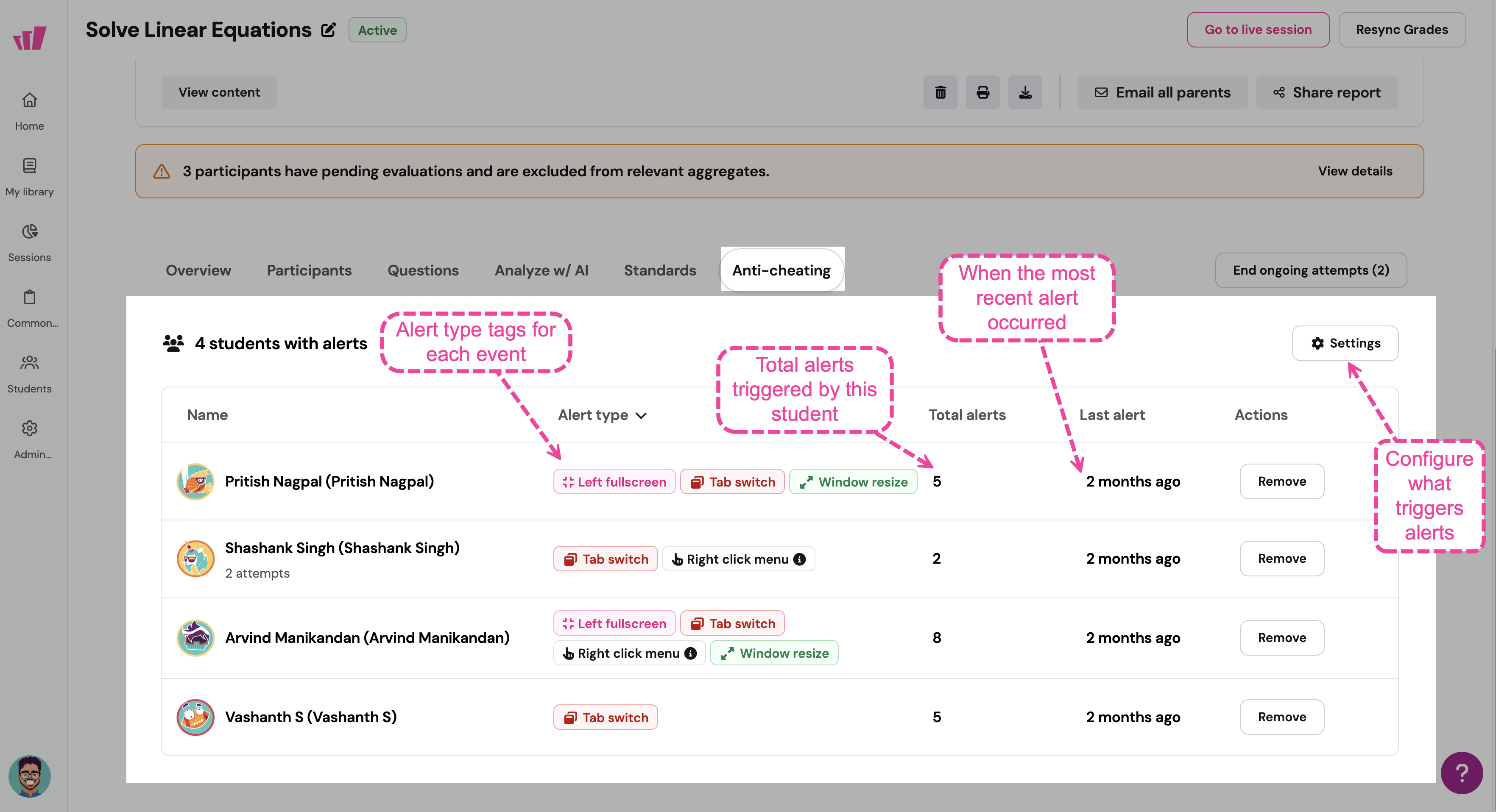
A settings gear icon in the top-right of the tab lets you adjust anti-cheating preferences.
Student status and in-session actions
Student status tags
On the Participants tab and the Overview tab, students with unresolved states show a status tag:
Students whose submissions are fully scored show their accuracy percentage, points (for example, 22/24), and an accuracy distribution bar for each question, with no status tag.
Ending ongoing attempts
If students have active attempts from a previous session (for example, students who didn’t submit before you paused), an End Ongoing Attempts button appears on the Participants tab.
Click it to save each student’s current responses and submit on their behalf. The button shows up only when active attempts exist and disappears once every attempt is submitted or ended.
This is helpful at the end of the testing window so no student is left with an unsubmitted, ungraded attempt.
Adding a student record
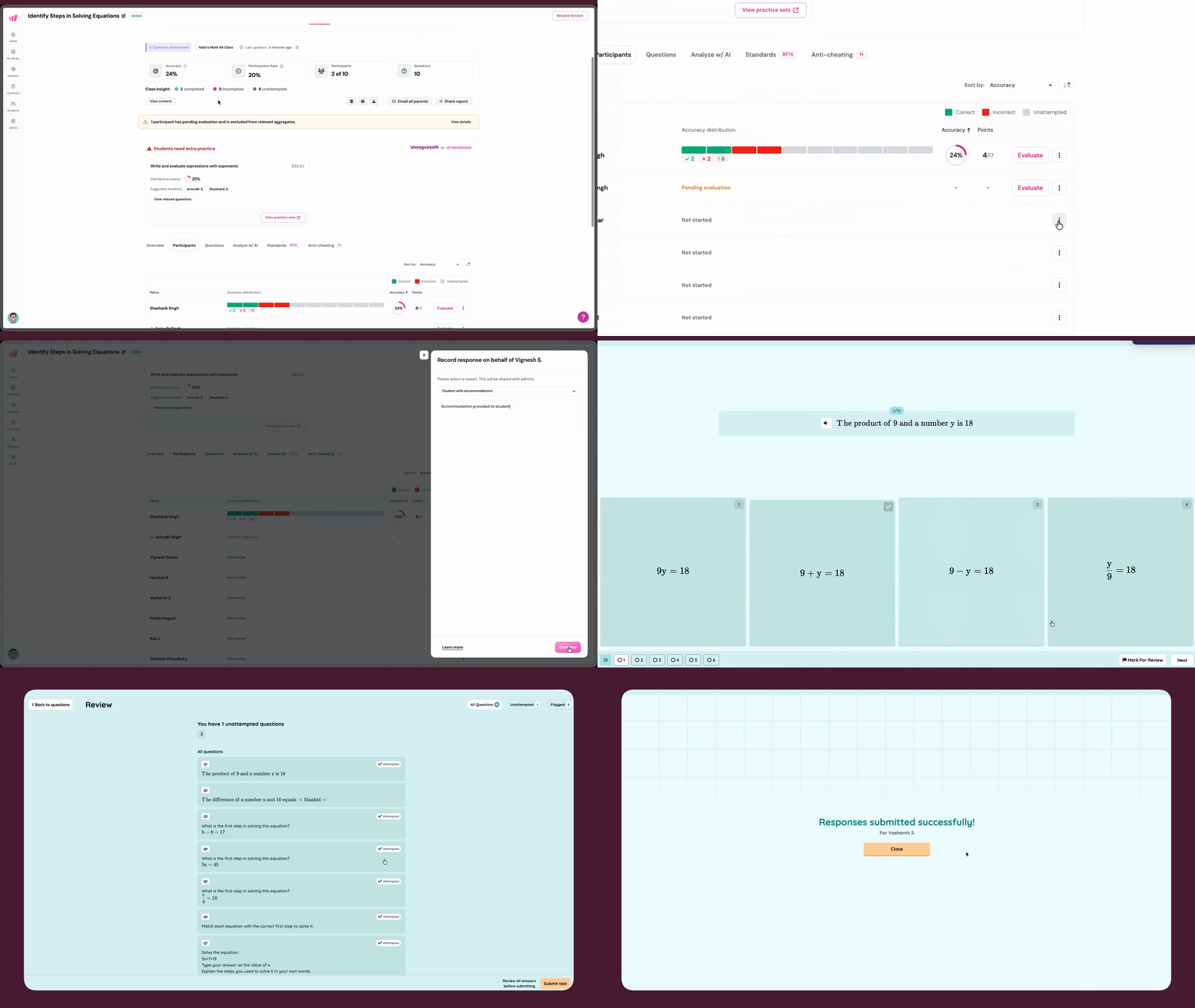
If the assessment creator has enabled the Allow Teacher to Add Student Records setting, you can record responses on behalf of students who need accommodations (such as a scribe) or who completed the assessment offline.
To add a student record:
Go to the Participants tab.
Find the student in the list, click the three-dot menu next to their name, then select Record student response.
In the Record response on behalf of Student_name panel, select a reason from the Select reason dropdown. The reason is logged and visible to admins in the Admin Report.
Enter the student view, work through the assessment, and enter answers on their behalf.
Submit the record.
To learn more, see Record on behalf of students: For Teachers.
Tips for using your class report
Evaluate Open-Ended questions promptly: pending evaluations delay accurate metrics, so score Open-Ended responses as soon as you can
Use school and district averages for context: a 65% class accuracy means different things when the district average is 60% versus 80%. Use the benchmarks to see where your class stands relative to peers
Use performance bands to group students: quickly spot students who need support (Did not meet, Partially met) and those ready for enrichment (Exceeded)
Start with the Overview tab: scan the student heatmap for patterns before diving into specific tabs. Red columns reveal hard questions, red rows reveal struggling students
Use the Standards tab for instructional planning: standards where your class is below the school or district average may need reteaching. The Best, First, Last toggle helps you see whether retakes improved understanding
Address Not Submitted students: use End Ongoing Attempts when students have unsubmitted attempts, so their data is captured in the report
Was this article helpful?
That’s Great!
Thank you for your feedback
Sorry! We couldn't be helpful
Thank you for your feedback
Feedback sent
We appreciate your effort and will try to fix the article