Note: Custom Reports are available as a part of Common Assessments add-on. To access this feature and learn more about Common Assessments add-on and the Schools & Districts plan, please email sales@wayground.com
A Comparison Report shows how the same students moved between performance bands on two Wayground assessments, a PRE and a POST. You can see at a glance how many students improved, declined, or stayed in the same band, then look more closely by school, class, or student. Comparison Reports are available to U.S. district and school administrators with Common Assessment access.
This quick-start setup uses the default settings, so you can create a report in a few clicks and review each setting as you go. For advanced student grouping, such as grouping by SIS enrollment snapshot, or for editing performance bands, use the detailed guide: [Admins] Detailed: Create a Comparison Report.
Step 1: Select the report type
- In the left menu, go to 'Reports' > 'Custom reports'
- Click 'Create new report'
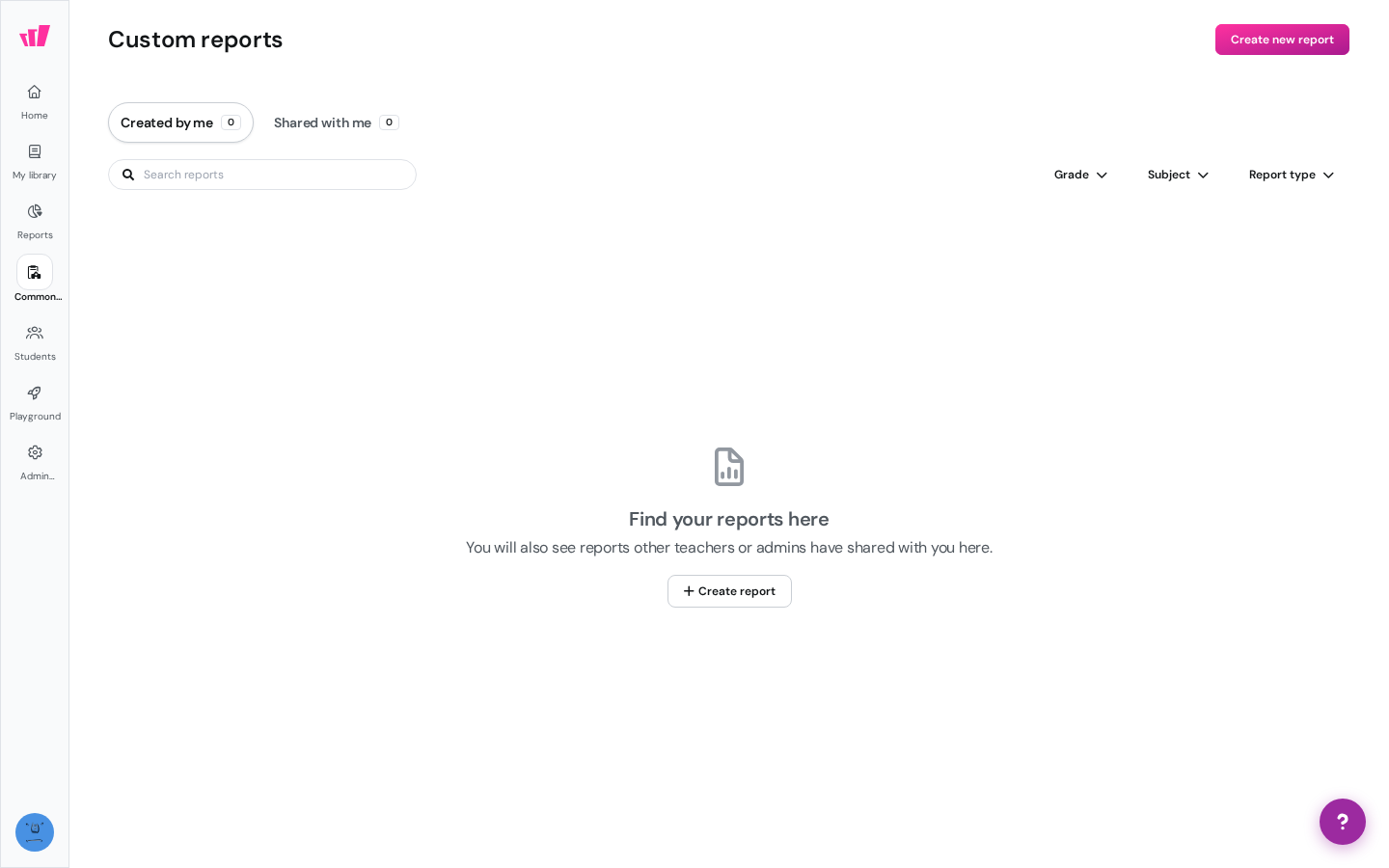
- Enter a name for the report in the 'Untitled custom report' box at the top of the page
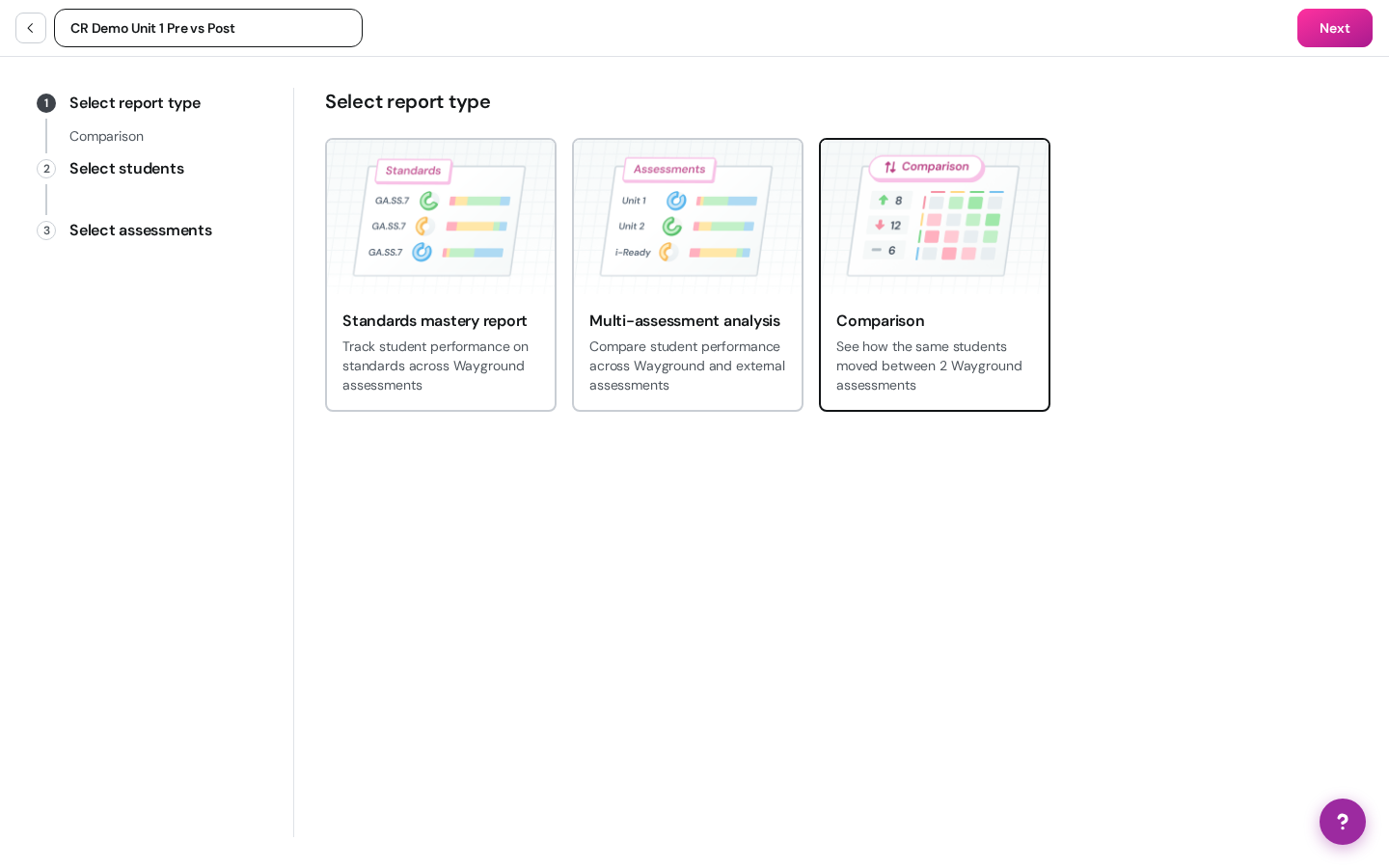
- Select 'Comparison'
- Click 'Next' at the top right
Step 2: Select students
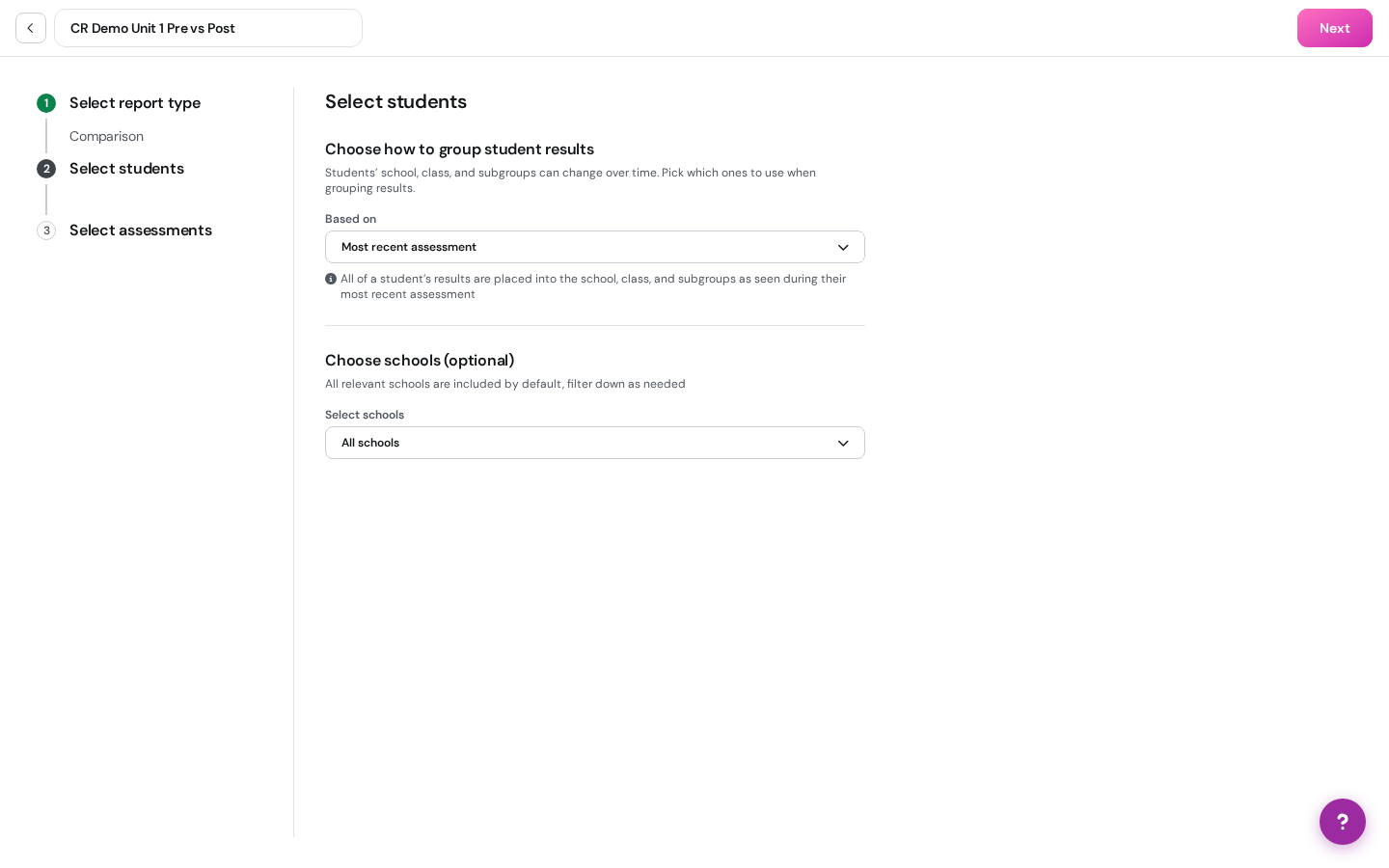
- Under 'Based on', keep 'Most recent assessment', the default, to group each student by the school, class, and subgroups from their most recent assessment in the report
- Under 'Choose schools (optional)', keep 'All schools' for a districtwide view, or open 'Select schools' and pick the schools you want
- Click 'Next'
Step 3: Select assessments and review performance bands
Choose two Wayground assessments the same students took, such as a unit pre-assessment and post-assessment.
- Find your assessments with 'Search assessments' or the 'Date range', 'Subjects', and 'Grades' filters
- Click your starting assessment to fill 'PRE', then click your follow-up assessment to fill 'POST'
- Check the count of students who took both assessments, for example '18 students took both assessments'
- Review the 'Performance bands' table. Bands marked 'Mastery' count toward mastery
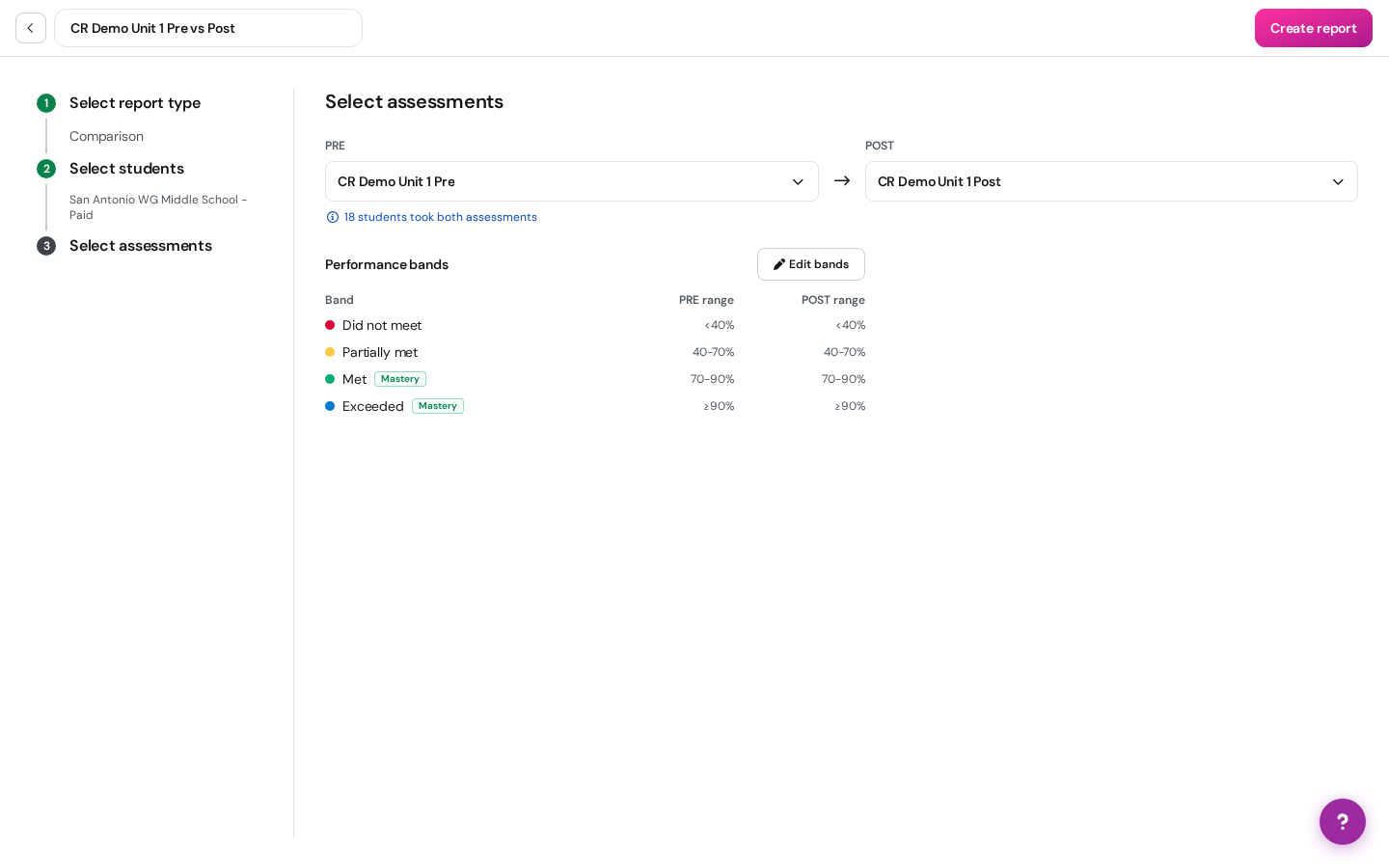
- Click 'Create report' at the top right
Your report opens on its 'Summary' tab. The 'Improved', 'Declined', and 'No movement' cards show how many students changed bands. You'll also find the report in 'Custom reports' whenever you want to come back to it.
That's it! You're ready to see how your students moved between bands.
Related articles
- How to use a Comparison Report
- How to use a Multi-Assessment Analysis Report
- Set up Mastery Settings for your organization
For help, contact our support team at support@wayground.com.
Was this article helpful?
That’s Great!
Thank you for your feedback
Sorry! We couldn't be helpful
Thank you for your feedback
Feedback sent
We appreciate your effort and will try to fix the article