After you've created a custom report, you can share it with other members in your district using the "Share" option -
- Locate Share button in the top right corner of the report you want to share.
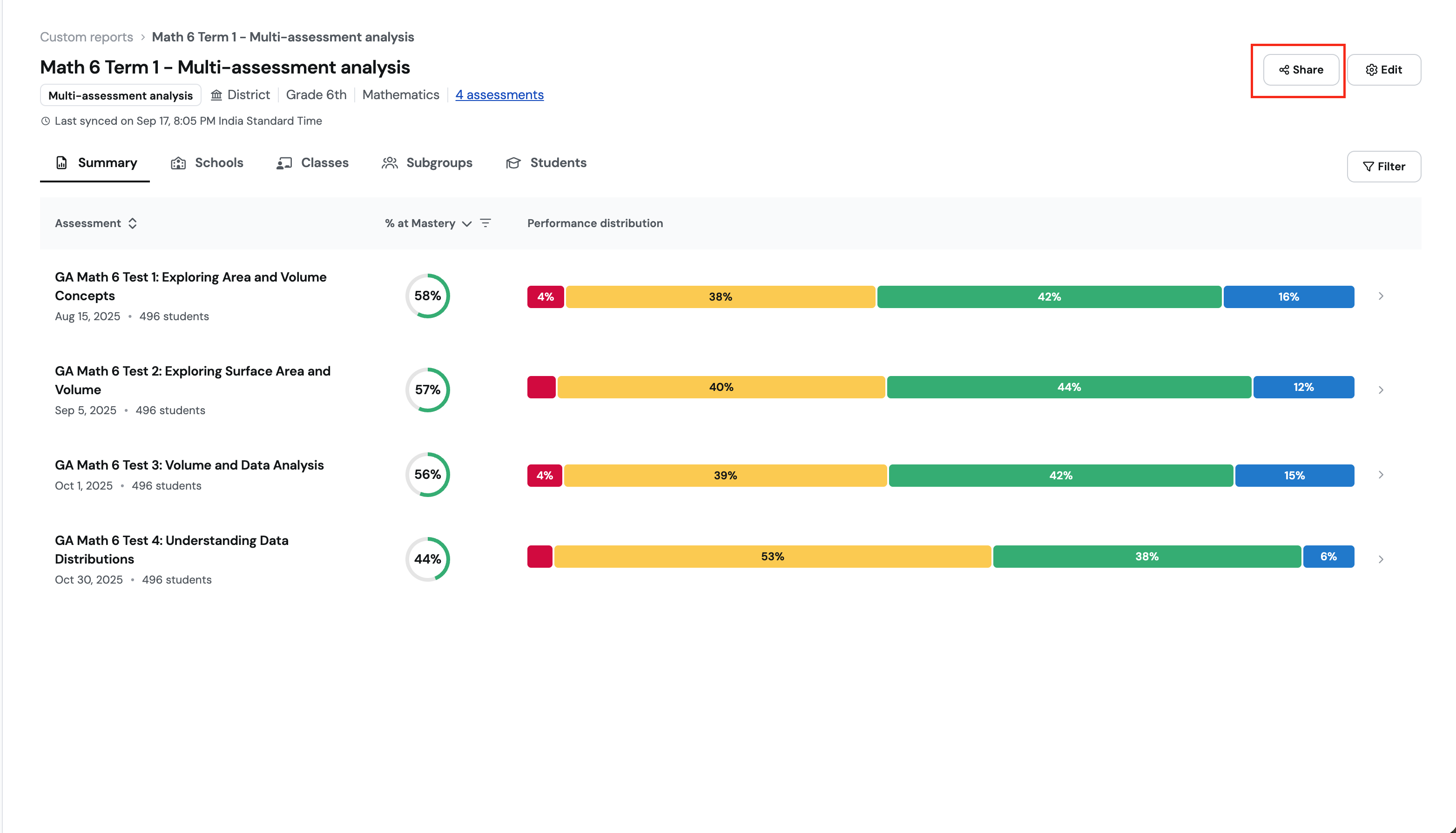
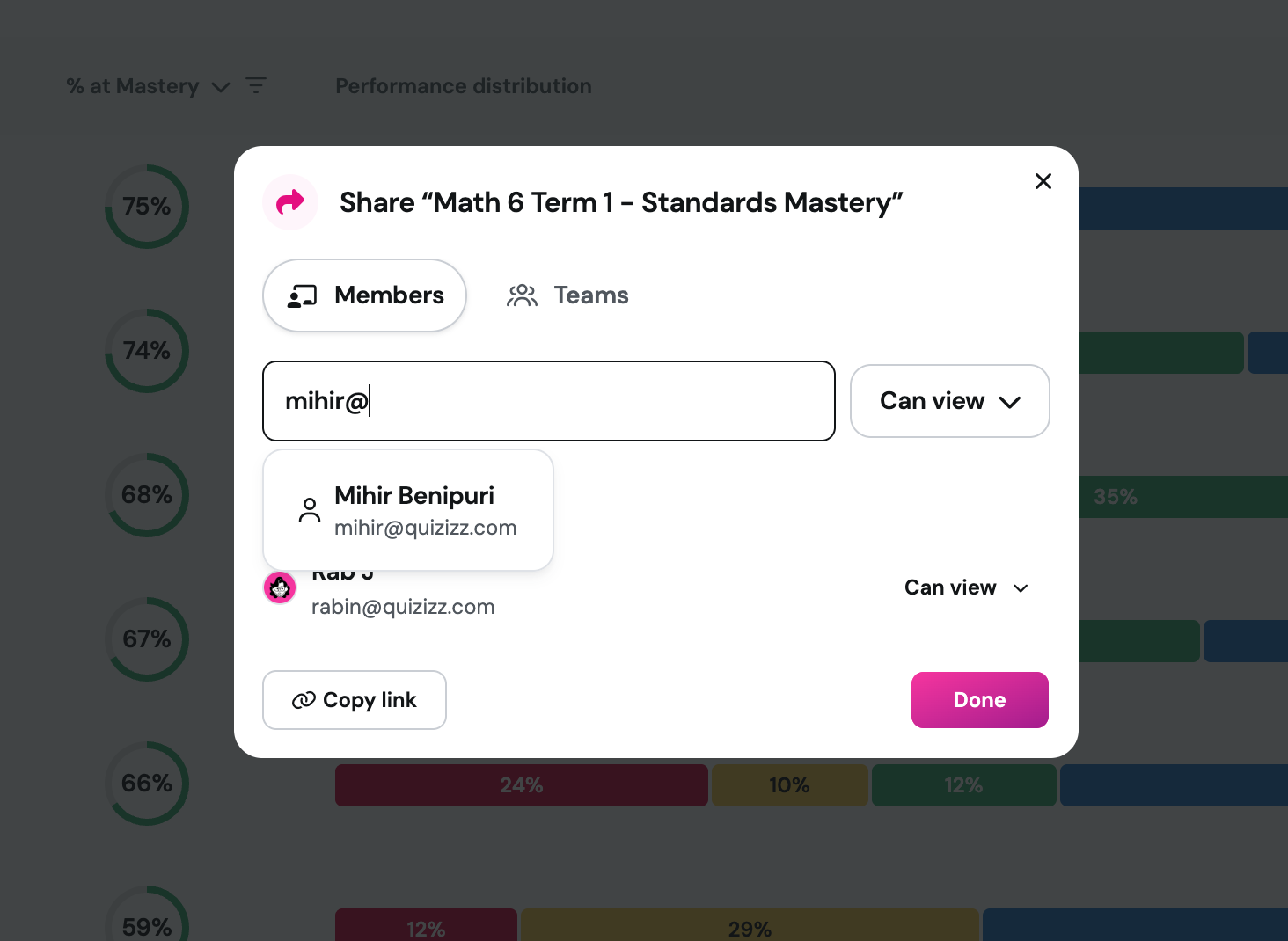
- There are two ways of sharing the report: through email and through a Wayground team you've created.
- Through email: type the email into the box (the email has to belong to a member in your organization)
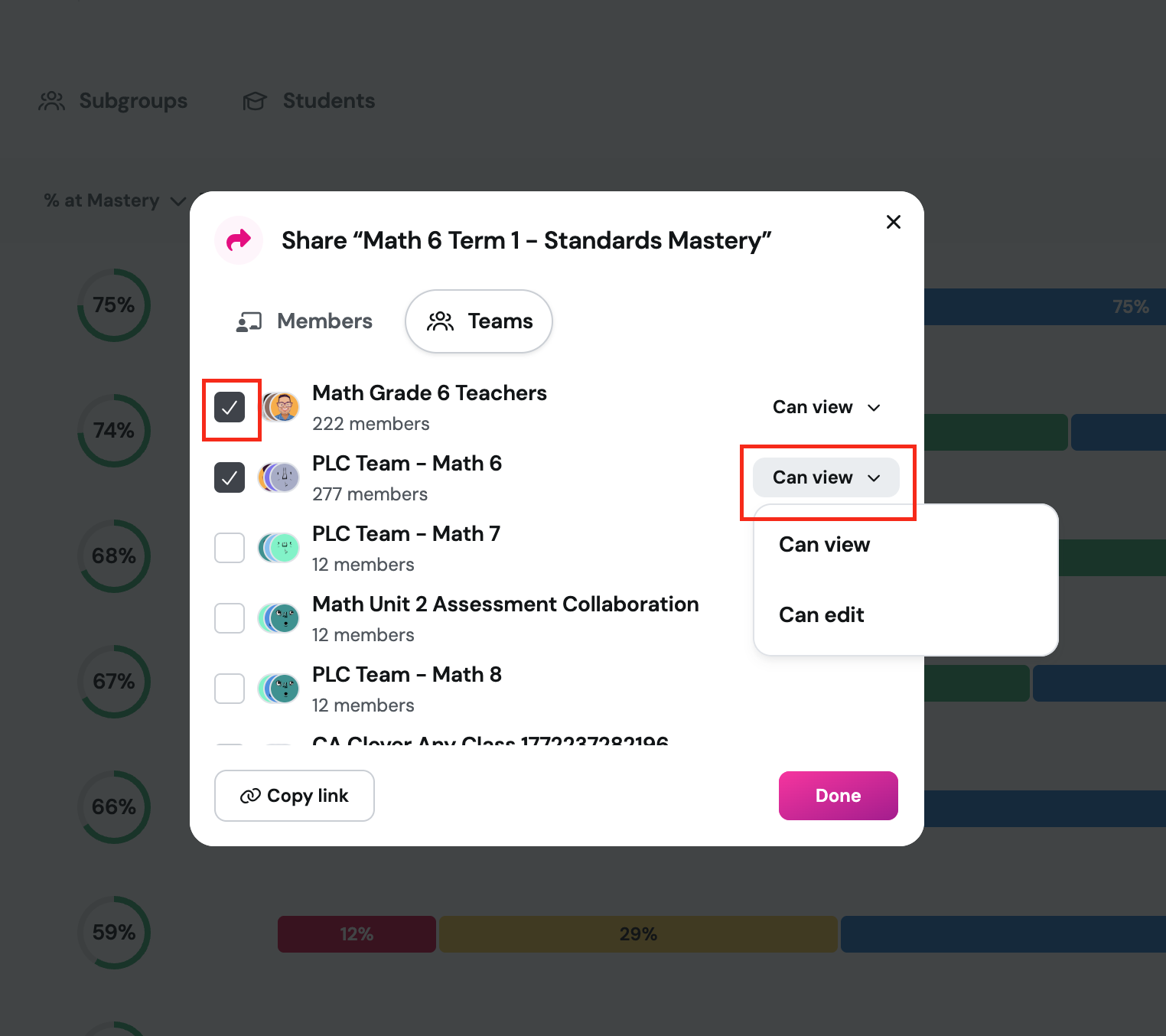
- Through a Wayground team: select all the Wayground teams you want to share this with
- Through email: type the email into the box (the email has to belong to a member in your organization)
- Determine whether you want to give them "View" access or "Edit" access. Members with edit access to the report will be able to change the settings of the report, such as adding assessments, changing accuracy calculation strategies, etc.
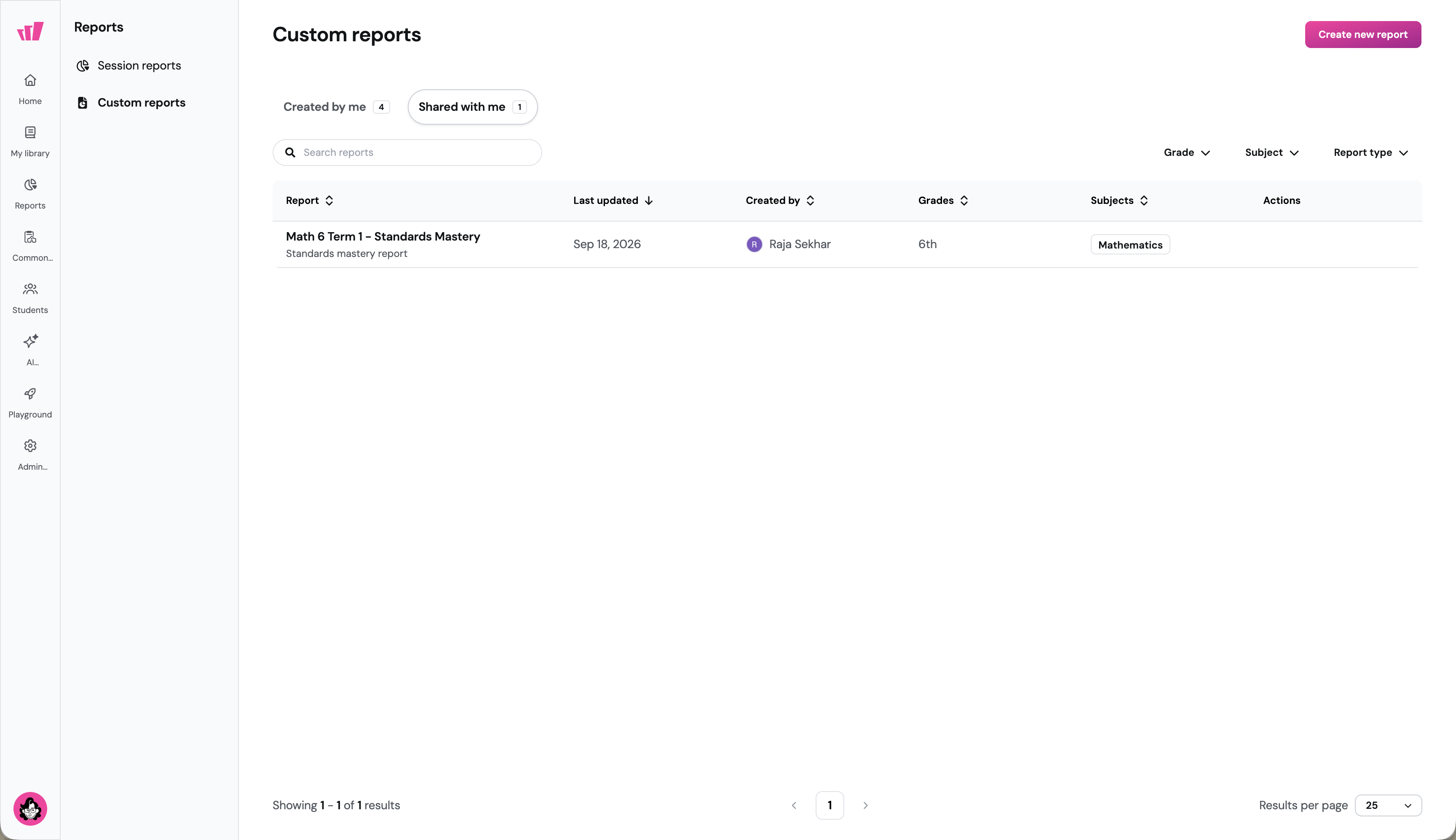
- Once the report is shared with members, it will appear in their "Shared with me" list. ("Reports" → "Custom Reports" → "Shared with me")
Note: Custom Reports are available as a part of Common Assessments add-on. To access this feature and learn more about Common Assessments add-on and the Schools & Districts plan, please email sales@wayground.com
Was this article helpful?
That’s Great!
Thank you for your feedback
Sorry! We couldn't be helpful
Thank you for your feedback
Feedback sent
We appreciate your effort and will try to fix the article