Thanks for partnering with Wayground! Here's a quick overview of administrator account management tools.
Once your subscription is activated, you will receive a confirmation email from Wayground. After that, log in to Wayground, and you will see the 'Admin Controls' tab on the left navigation pane.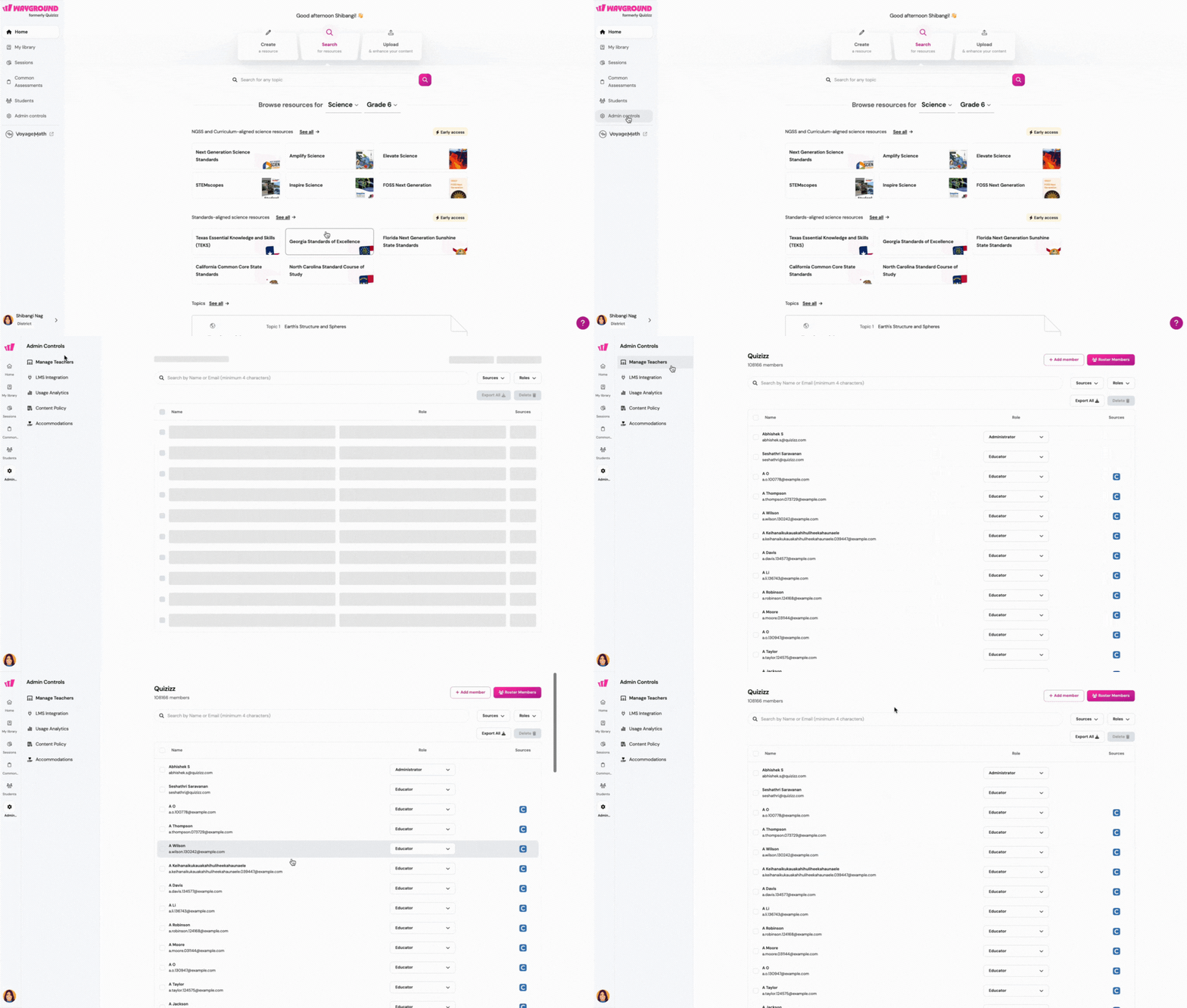
- Click on the 'Admin controls' button and select 'Manage teachers' to access your administrator dashboard.
- On the administrator dashboard, you can view the current list of active members and whether their accounts have permissions as educators or administrators.
- Users with administrator accounts can add and remove teachers from the organization's members list. They can also export or download the entire member list from this dashboard.
- Additionally, users can use the dashboard's search box and filtering options for sources and roles to find specific members and view their details.
Please note that only administrators can view and manage this dashboard.
To grant administrator permission to an educator, click on their role in the dashboard and select 'Administrator'.
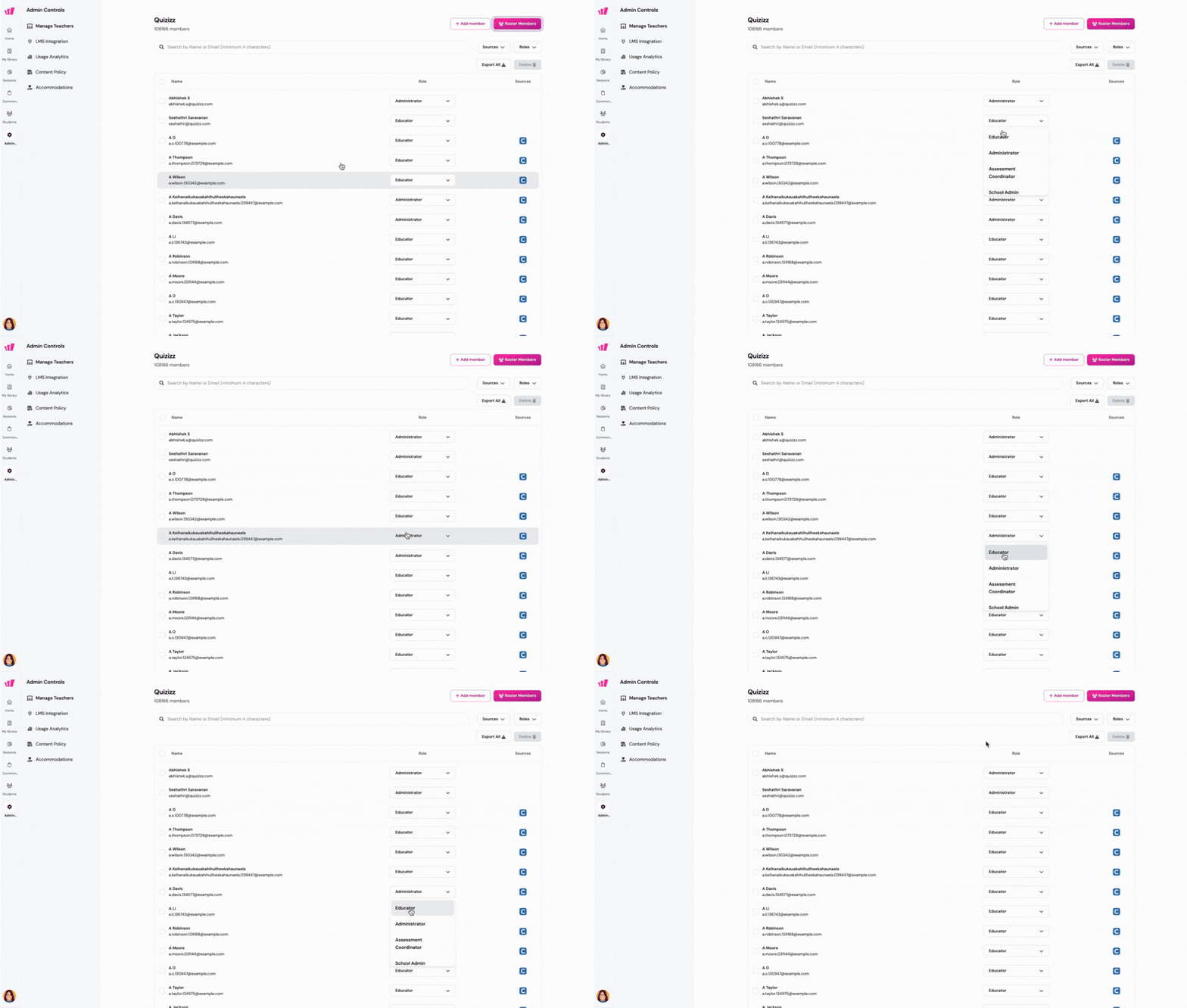
If your school/district has the Common Assessments add-on, the administrator(s) will see other role options like Assessment Coordinator, School Admin, etc. Learn about this here: Roles and Permissions for Common Assessments
To add teachers and staff to the list, you can:
- ✔️ Upload a spreadsheet, or
- ✔️ manually invite your staff/teachers by entering their email addresses, or
- ✔️ sync rosters with Clever or ClassLink
To remove staff members/teachers from the list,
- 1. Select one or multiple staff members by checking the boxes before their names
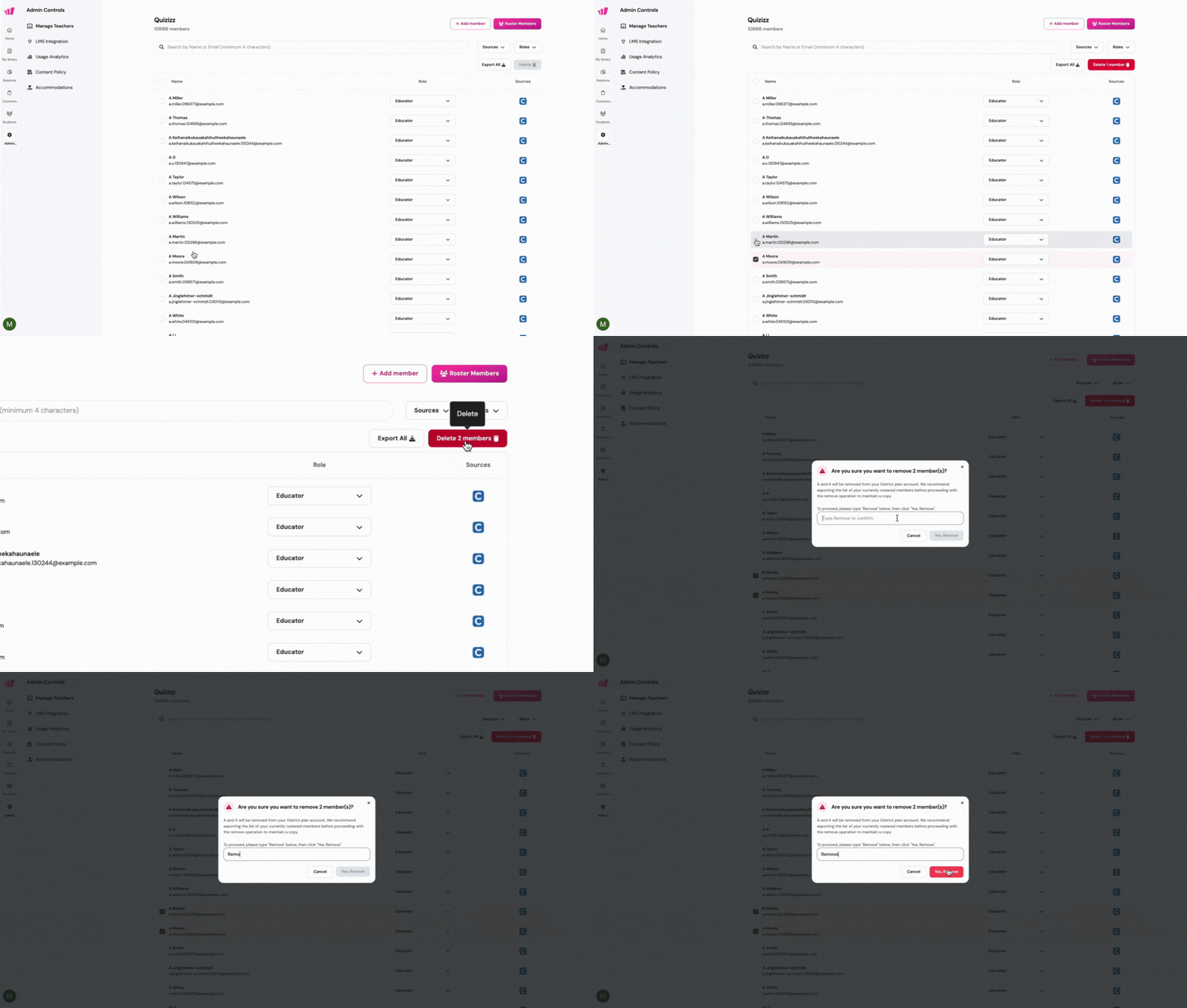
2. Click on the 'Delete member(s)' button
- 3. Type 'Remove' to confirm
4. Click on 'Yes, Remove'
To export/download the members list in a spreadsheet format:
- 1. Click on the 'Export all' button
- 2. After clicking the icon, the export process will start, and you will receive a download link via email
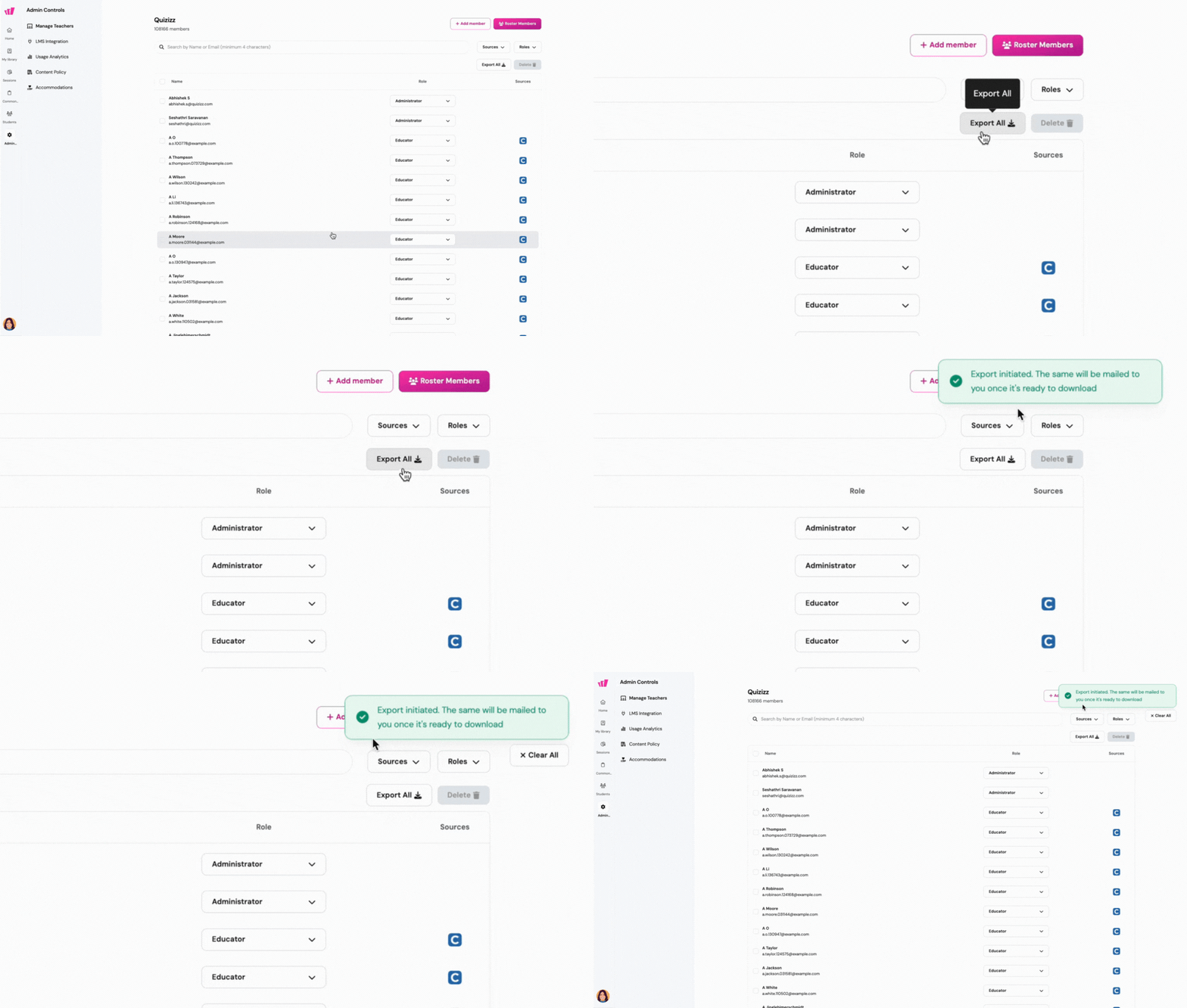
- 3. Once you receive the email with the download link, click on the 'Download' button. Keep in mind that the download link will be valid for 7 days
Was this article helpful?
That’s Great!
Thank you for your feedback
Sorry! We couldn't be helpful
Thank you for your feedback
Feedback sent
We appreciate your effort and will try to fix the article