TABLE OF CONTENTS
- Open the Custom Tags panel
- Create a custom tag
- Apply a tag to a question
- Find a saved tag
- Delete a custom tag
- FAQs
Custom Tags let you label questions with your own codes: skills, units, or internal tracking labels. Save a tag once, then reuse it instead of retyping it. This helps when your course doesn’t line up neatly with formal standards.
In the Assessment editor, custom tags sit alongside framework standards, so you can tag a question with curriculum standards, your own labels, or both.
Open the Custom Tags panel
Open your Assessment in the editor.
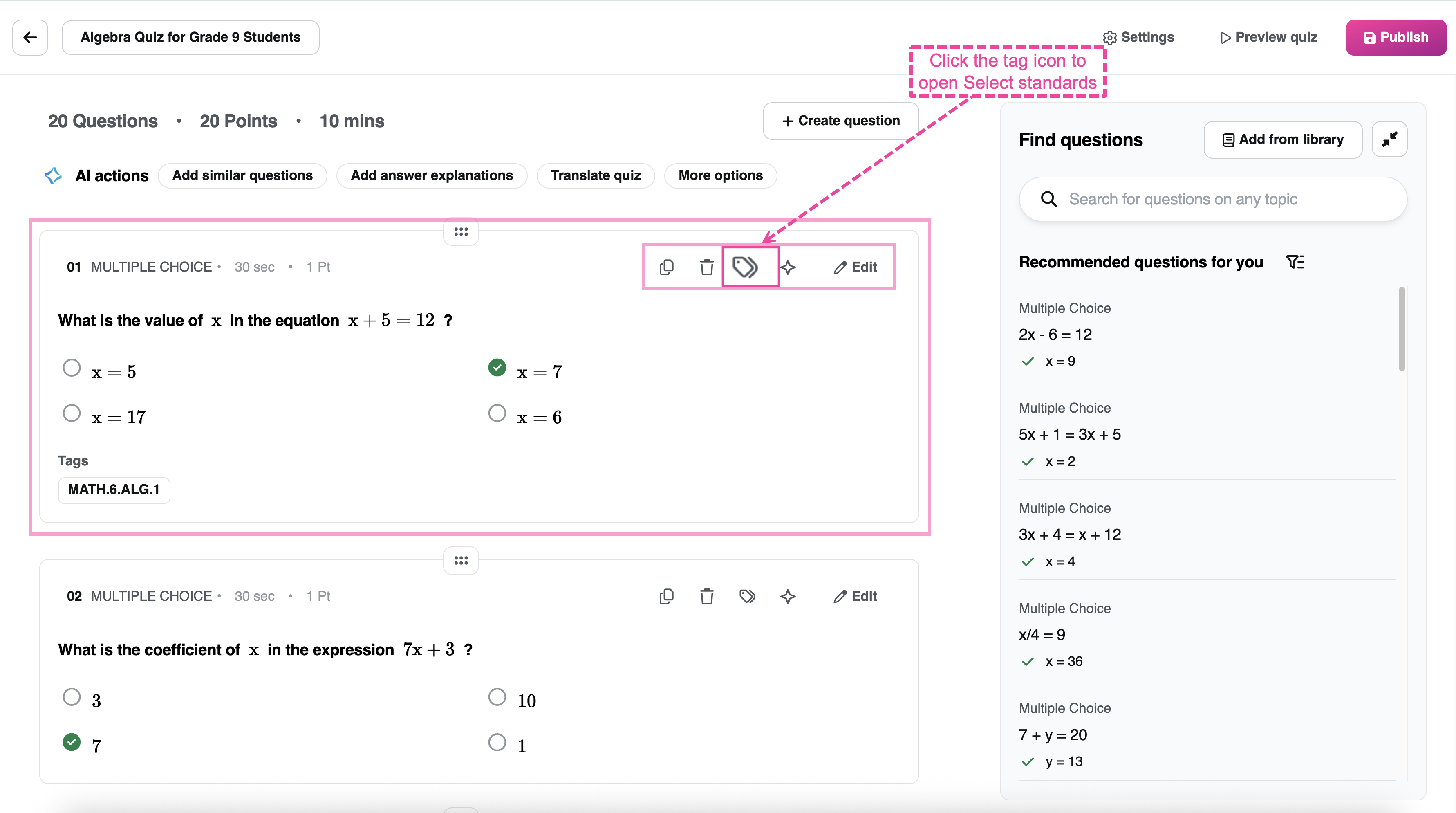
On the question you want to tag, select the tag icon to open the Select standards window.
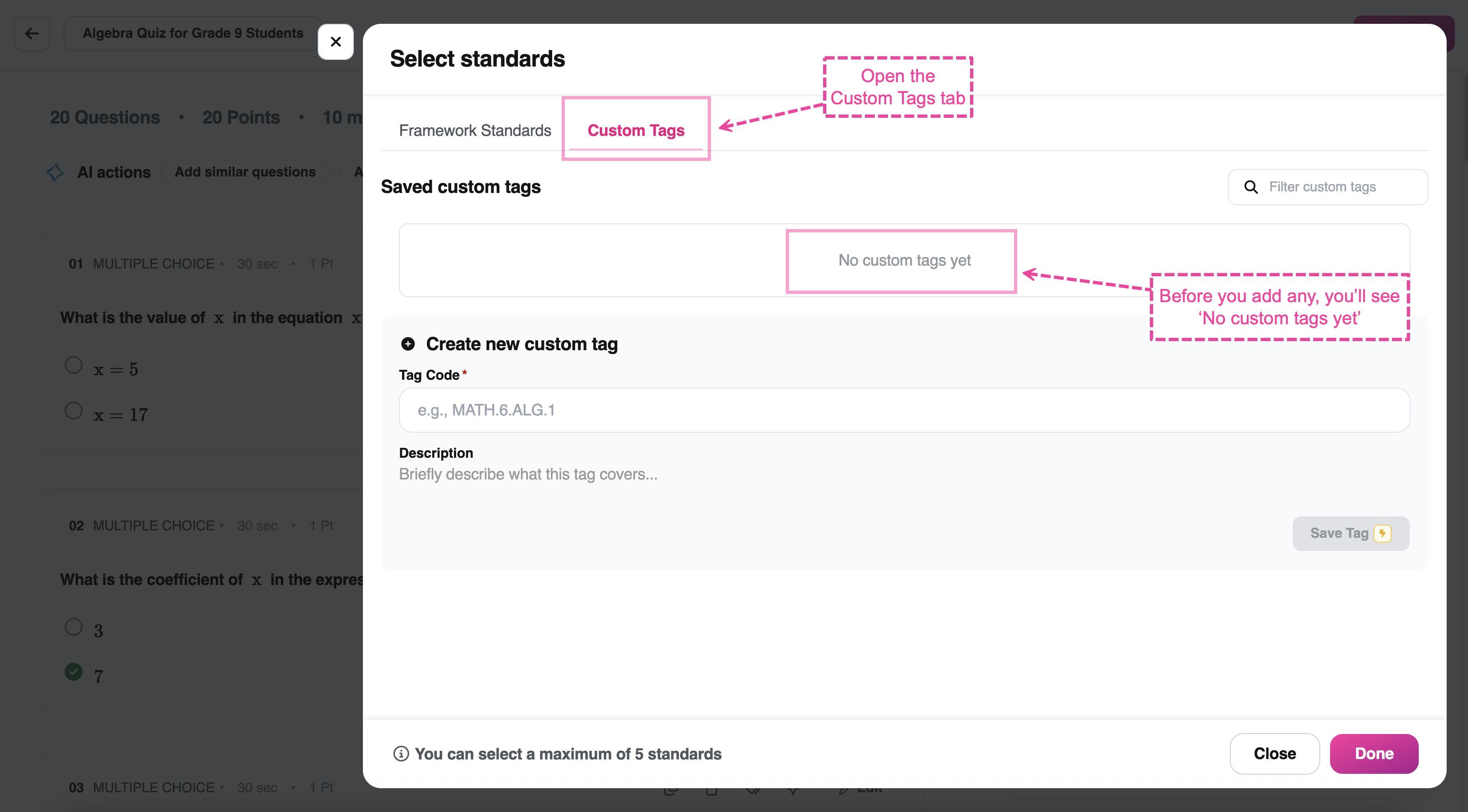
At the top of the window, select the Custom Tags tab. (The Framework Standards tab beside it is for curriculum standards.)
If you haven’t created any tags yet, you’ll see No custom tags yet. Once you’ve created some, they appear under Saved custom tags.
Create a custom tag
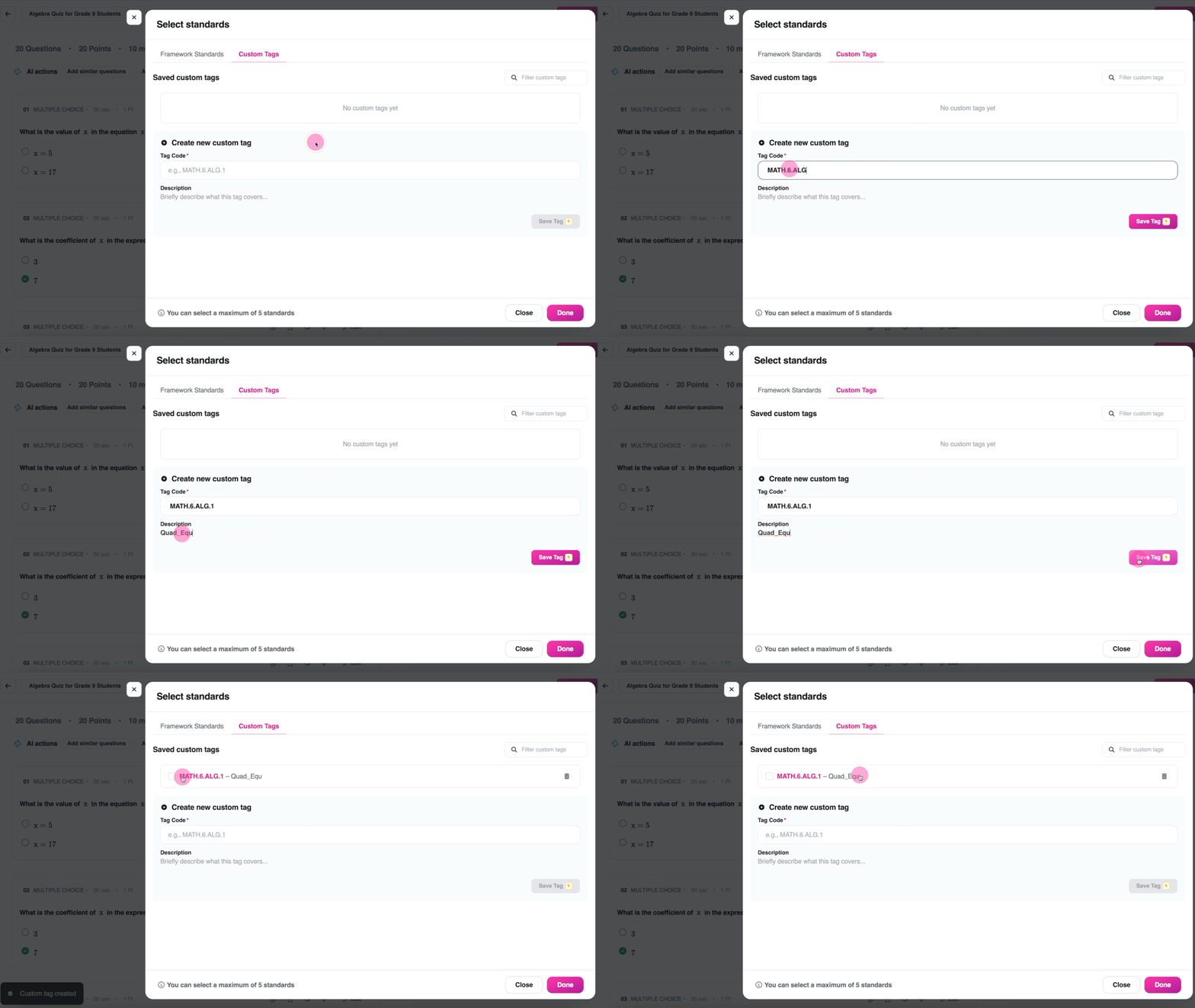
In the Custom Tags tab, open Create new custom tag.
In the Tag Code field, enter your label, like MATH.6.ALG.1 or whatever skill or unit code you use. This field is required.
(Optional) Add a Description so you know what the tag covers. It appears next to the tag code in your list (for example, MATH.6.ALG.1: Quadratic equations).
Select Save Tag.
Your new tag is added to Saved custom tags, and the form clears so you can add another.
Apply a tag to a question
In the Custom Tags tab, find the tag under Saved custom tags.
Select its checkbox. You can select more than one.
Select Done.
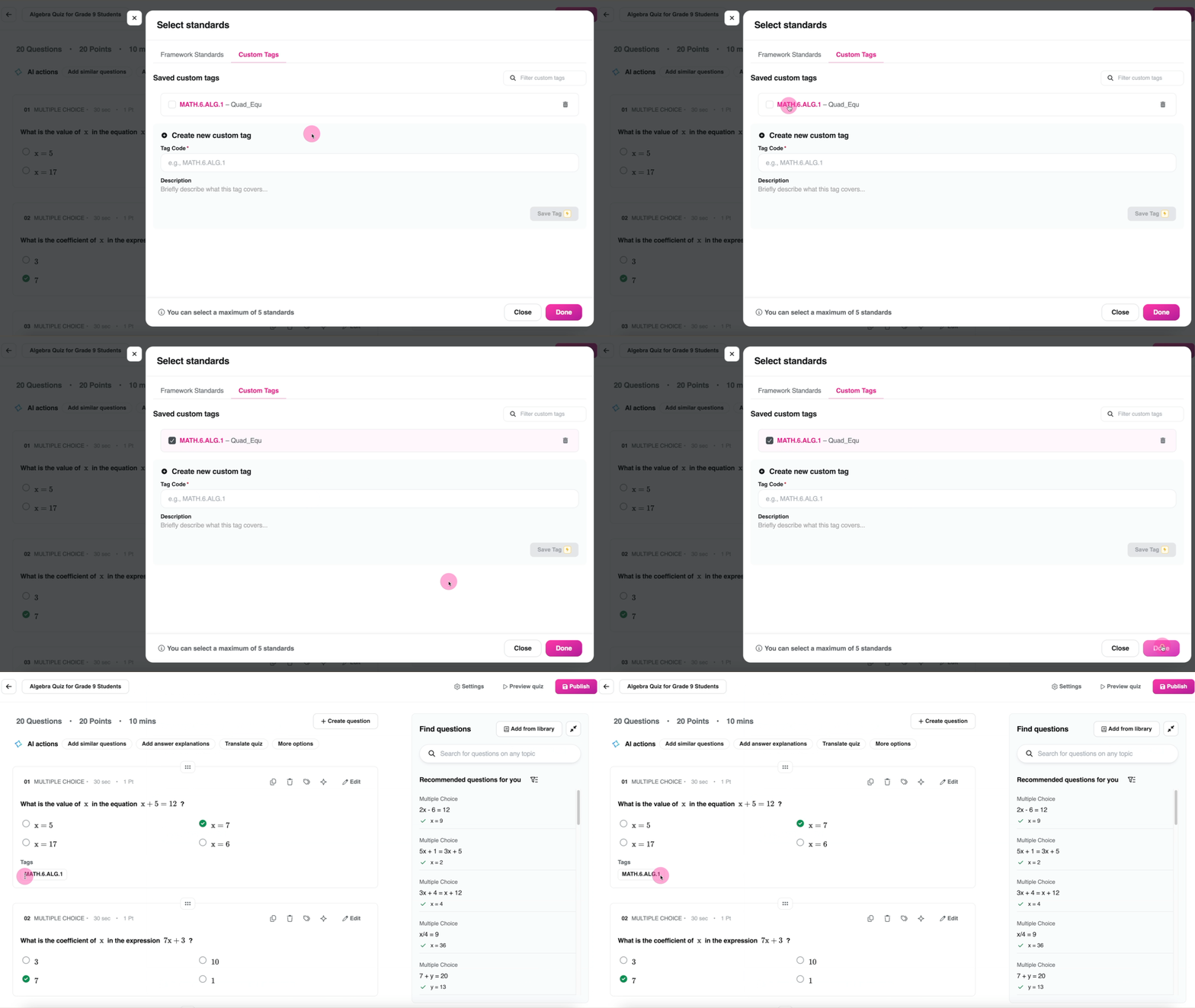
Your tags appear beneath the question, labeled Tags. Framework standards and custom tags share a combined limit of five per question.
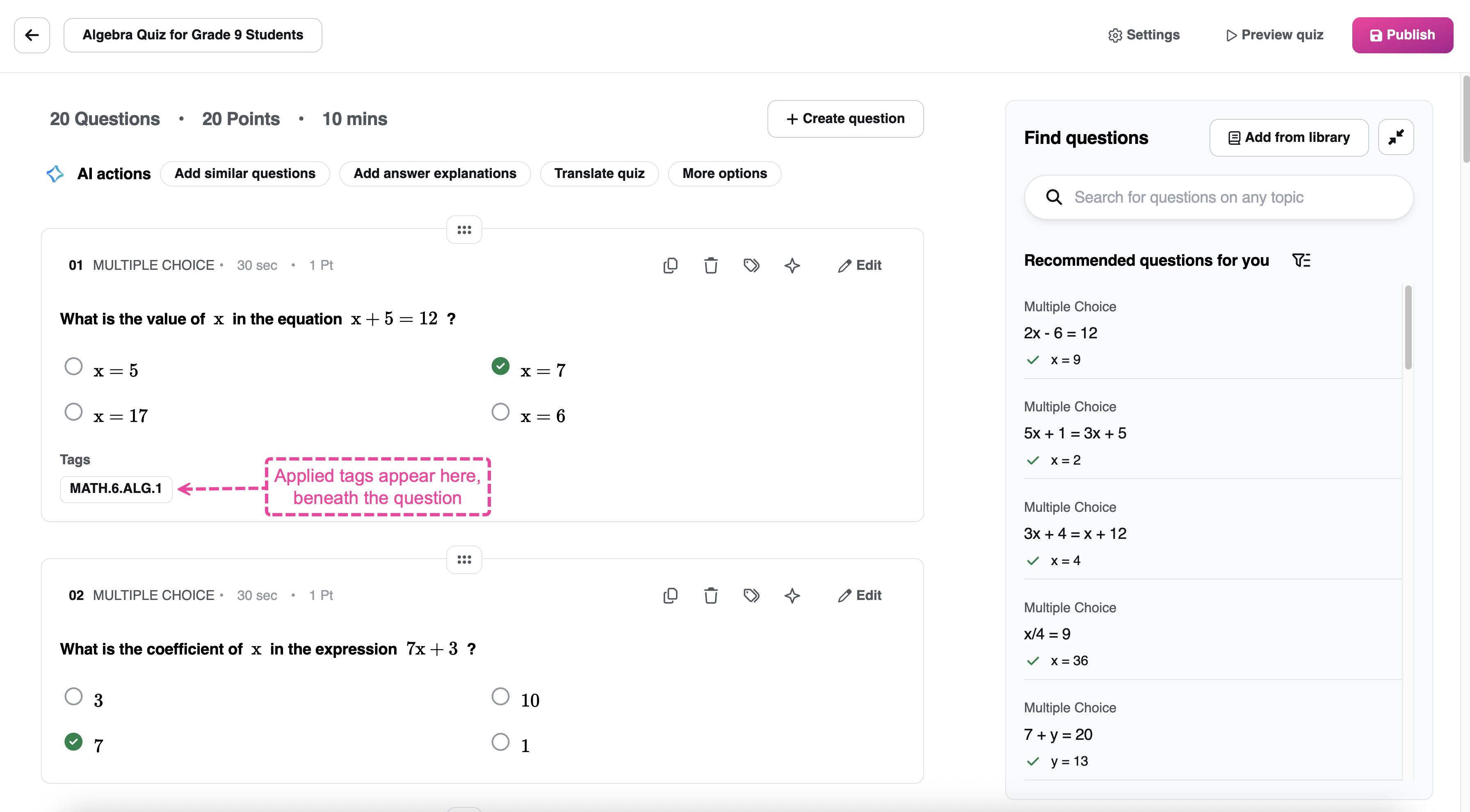
To remove a tag, reopen the Select standards window, clear its checkbox, and select Done.
Find a saved tag
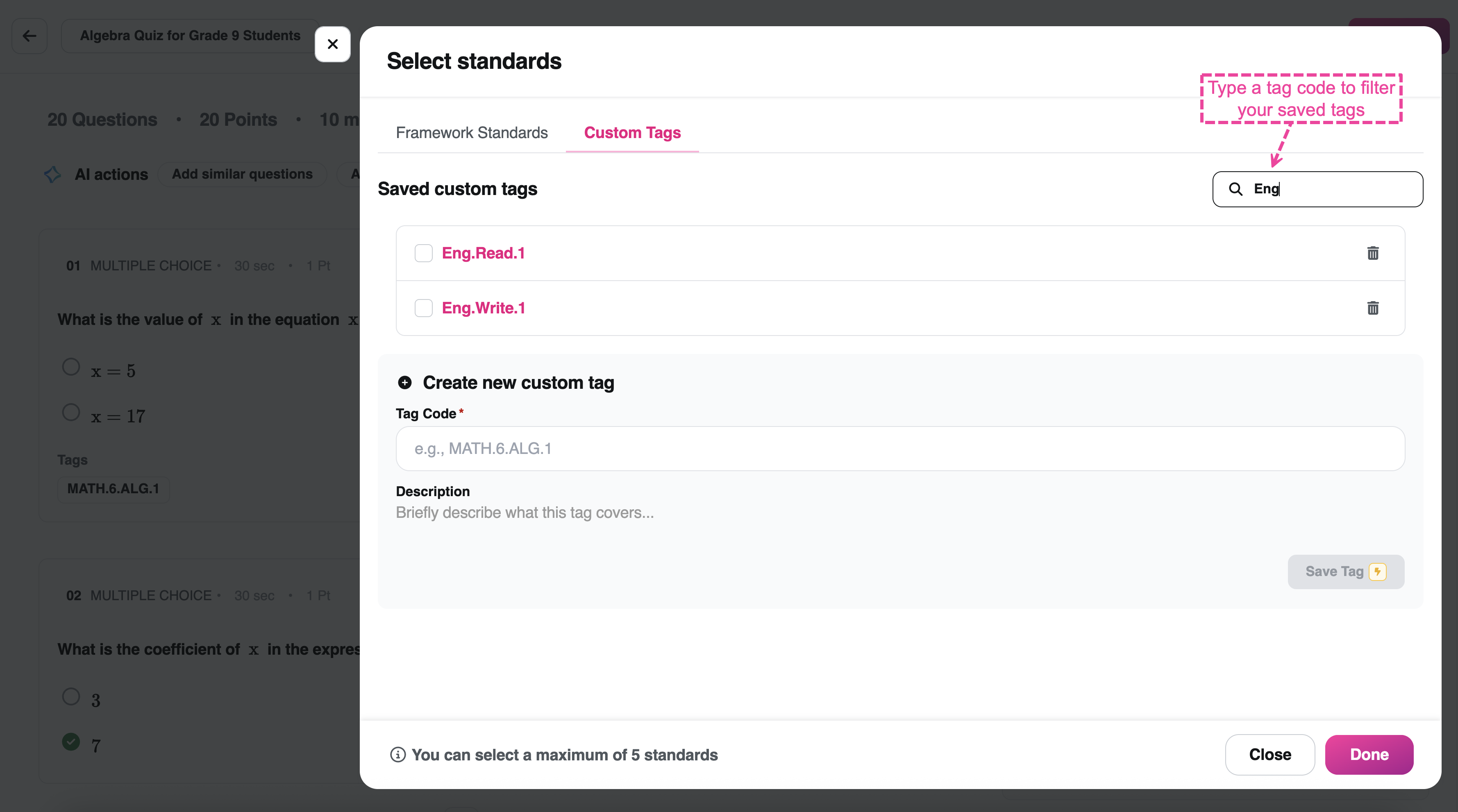
As your list grows, use the Filter custom tags box at the top right of the Custom Tags tab to find a tag by its code. Matching tags appear in the list, ready to apply.
Delete a custom tag
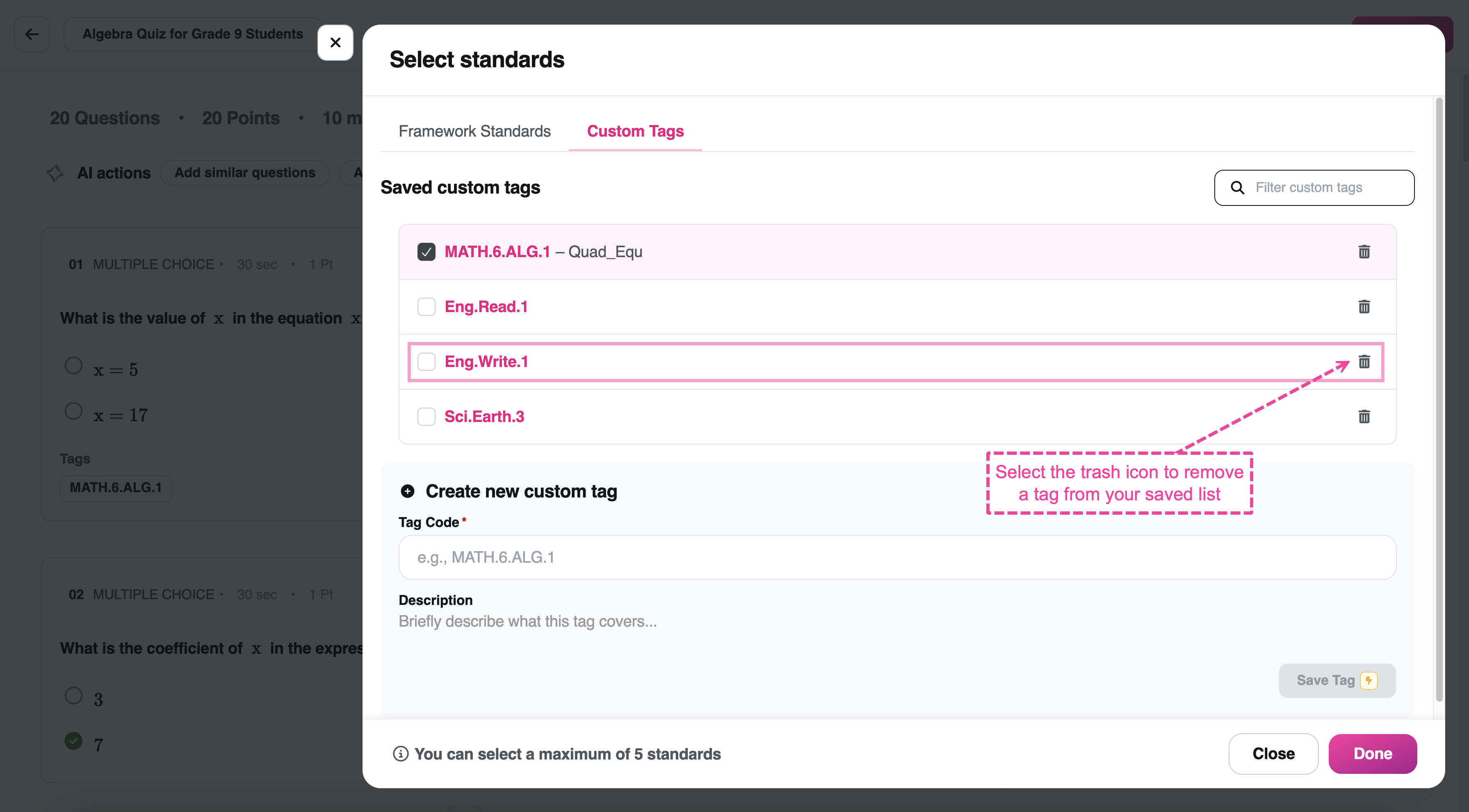
To remove a tag from your saved list for good, select the trash icon beside it under Saved custom tags.
FAQs
Who can see my custom tags?
Custom tags are personal to your account. You can reuse them across your own Assessments, but they aren’t shared with anyone else in your school or organization.
Can I edit a tag after I create it?
You can’t edit a saved tag. To change its code or description, delete it and create a new one.
Can I use custom tags outside of Assessments?
Custom Tags are currently available for Assessment questions.
How many tags can I apply to one question?
Up to five standards and custom tags combined.
What’s the difference between the two tabs?
The Framework Standards tab is for curriculum standards. The Custom Tags tab is for your own labels. You can use either or both on the same question, up to five combined.
Was this article helpful?
That’s Great!
Thank you for your feedback
Sorry! We couldn't be helpful
Thank you for your feedback
Feedback sent
We appreciate your effort and will try to fix the article