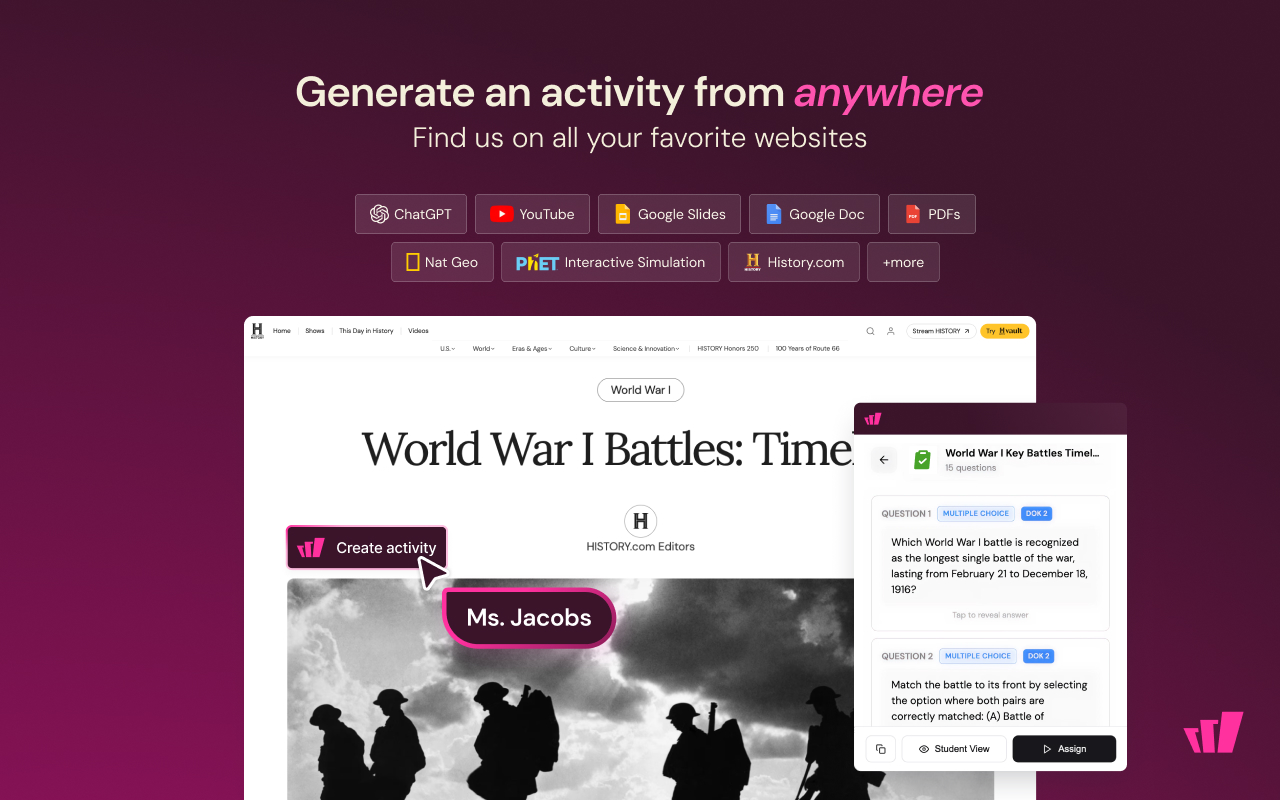
Open almost any page you teach with (a YouTube video, a Google Doc, a PDF, a ChatGPT response, an article) and turn it into a ready-to-assign resource in seconds. The AI does the first draft; you do the fine-tuning.
This article covers what you can create, how the generation form works, and every source the extension supports.
What you can create
Depending on the page you're on, you can generate any of these:
The side panel only shows the formats that fit your current page. On a YouTube video you'll see Interactive Video; on Google Slides you'll see Presentation; on an article you'll see Assessment, Passage, and Flashcards.
The basic flow
Every source follows the same five steps:
Open a supported page and click the Wayground icon to open the side panel (or use the Create activity button when it appears on the page).
Under What would you like to create?, pick a format.
Set your options: subject, grade, how many questions, which question types, and anything else you want to specify.
Click Create Questions (or Create Flashcards).
The content streams in live and saves to your library automatically. Click View on Wayground to open it for editing or assigning.
The generation form, option by option
When you pick a format, you'll see a short form. Here's what each control does.
Subject & Grade
Pick the subject and grade band so the AI pitches the content at the right level. Wayground remembers your last selection and pre-fills it next time, so you usually only set this once.
Number of questions / flashcards
Options: Automatic, 2, 5, 10, 15, 20, 25, 30, and 40. Automatic lets the AI decide based on how much content your source contains.
Question Types
Pick the style of questions with the pills:
Automatic: the AI mixes types to fit the content (the default)
Multiple Choice
Fill in Blank
Open Ended
You can select more than one. Flashcards skip this control; they're always term/definition pairs.
DOK Level (optional)
Set a Depth of Knowledge target from DOK 1 (recall) to DOK 4 (extended thinking) to control how demanding the questions are. Leave it off to let the AI choose.
Custom instructions (optional)
A free-text box for anything specific: "focus on chapter 3," "avoid questions about dates," "write at a 6th-grade reading level," "emphasize vocabulary." The AI follows these alongside your other settings.
Output language
Generated content defaults to English. The extension can produce resources in 16 languages; see Output languages below.
When everything's set, click Create Questions (or Create Flashcards). You'll see a brief "Reading…" state while the AI works through your source, then questions appear one by one.
Worked example: a YouTube video → Interactive Video
This is the flow shown in the Wayground demo, start to finish.
Open an educational video on YouTube (in the example, a Crash Course biology video on plant cells).
Click Make it interactive on the video player, or click the Wayground icon, to open the side panel.
Choose Video to build an Interactive Video. (You could also choose Assessment or Flashcards from the same video.)
Set Subject & Grade (Science, Middle 6th-8th), Number of questions (5), and your Question Types.
Click Create Questions.
The panel shows "Reading…", then five questions stream in, a mix of Multiple Choice and Open-Ended questions, each tagged with the timestamp in the video where it belongs.
"Saved to your library" appears.
Click View on Wayground. The Interactive Video opens in the Wayground editor, where you can Preview, Assign, or Start it live with your class.
Worked example: a ChatGPT response → Flashcards
You can turn an AI chat response into a resource without copying or pasting anything.
In ChatGPT (or Gemini, or Claude), ask for the content you want. For example, "an introduction to plant cells for grade 6."
When the response appears, a Wayground button shows up on the response itself.
Click it to open the side panel, then choose Flashcards.
Set Subject & Grade and the Number of flashcards (the example uses 10).
Click Create Flashcards.
The flashcards open in a viewer. Click a card to flip it, use the arrows to navigate.
Click View on Wayground to open the deck in the Wayground editor, where you can add cards, fix wording, translate, Preview, or Assign.
Every source you can create from
The extension works across the web. Here's where it can generate resources and what each source produces.
Beyond the named sites, the Create activity button appears on most article-style pages, including Wikipedia, Britannica, National Geographic, Khan Academy, CommonLit, ReadWorks, NASA, Smithsonian, History.com, TED, and major news sites. If you're reading something teachable, there's a good chance you can turn it into a resource.
A few source-specific notes
Google Forms must be open in edit mode (the URL ends in /edit). A published form won't import; see Troubleshooting the Wayground AI Chrome Extension
Selected text: highlight text and use the floating button that appears, or right-click the highlight and choose Create activity from selection. Selections need to be 100 to 10,000 words, and a highlight clears after about 60 seconds, so create promptly
PDFs must be publicly accessible and opened online (for example, from Google Drive or a public link). PDFs opened from your computer (a file:// address) and PDFs behind a login or paywall aren't supported; Troubleshooting the Wayground AI Chrome Extension covers the alternatives
Google Slides → Presentation imports your whole deck into Wayground. Large decks can take a few minutes
ChatGPT, Gemini, and Claude responses are captured the moment you click the Wayground button, and the capture is held only briefly. Create your resource soon after the response appears
Very long sources are trimmed before processing, so an extremely long document may not be captured in full. If a source is too large, you'll see a "too large" message
Reviewing and editing what you create
The side panel is for quick review: read through the questions or flip the flashcards right there. For real editing (rewording, adding or removing questions, changing answers, restyling), click View on Wayground to open the resource in the full Wayground web app, which has the complete editing toolset.
Depending on the screen, the panel's footer also offers quick shortcuts: copying the resource, jumping into edit, previewing the Student View, or Assigning it directly.
Output languages
Generated content defaults to English. Wayground can also produce resources in:
Spanish, Portuguese, Indonesian, Filipino, Hindi, Malay, Thai, Vietnamese, Polish, French, German, Arabic, Chinese (Simplified), Japanese, and Korean.
Note: this controls the language of the AI-generated content. The extension's own menus and buttons are in English.
Related articles
Record Your Screen Into a Lesson (Beta)
Give AI Feedback on Student Google Docs
Troubleshooting the Wayground AI Chrome Extension
Was this article helpful?
That’s Great!
Thank you for your feedback
Sorry! We couldn't be helpful
Thank you for your feedback
Feedback sent
We appreciate your effort and will try to fix the article