School and district admins can now control what resources are available to teachers using content moderation settings. With these tools, you can:
* View all resources created and run as sessions in your district and choose to filter (restrict) them
* Filter (restrict) resources having specific restricted keywords
* Restrict access to selected resources
* Ensure a safe and consistent experience across your schools
Once keyword filters and resource restrictions are set, they are automatically enforced across your district/school.
Keyword restriction
Keyword moderation lets you filter (restrict) any resource that contains restricted words.
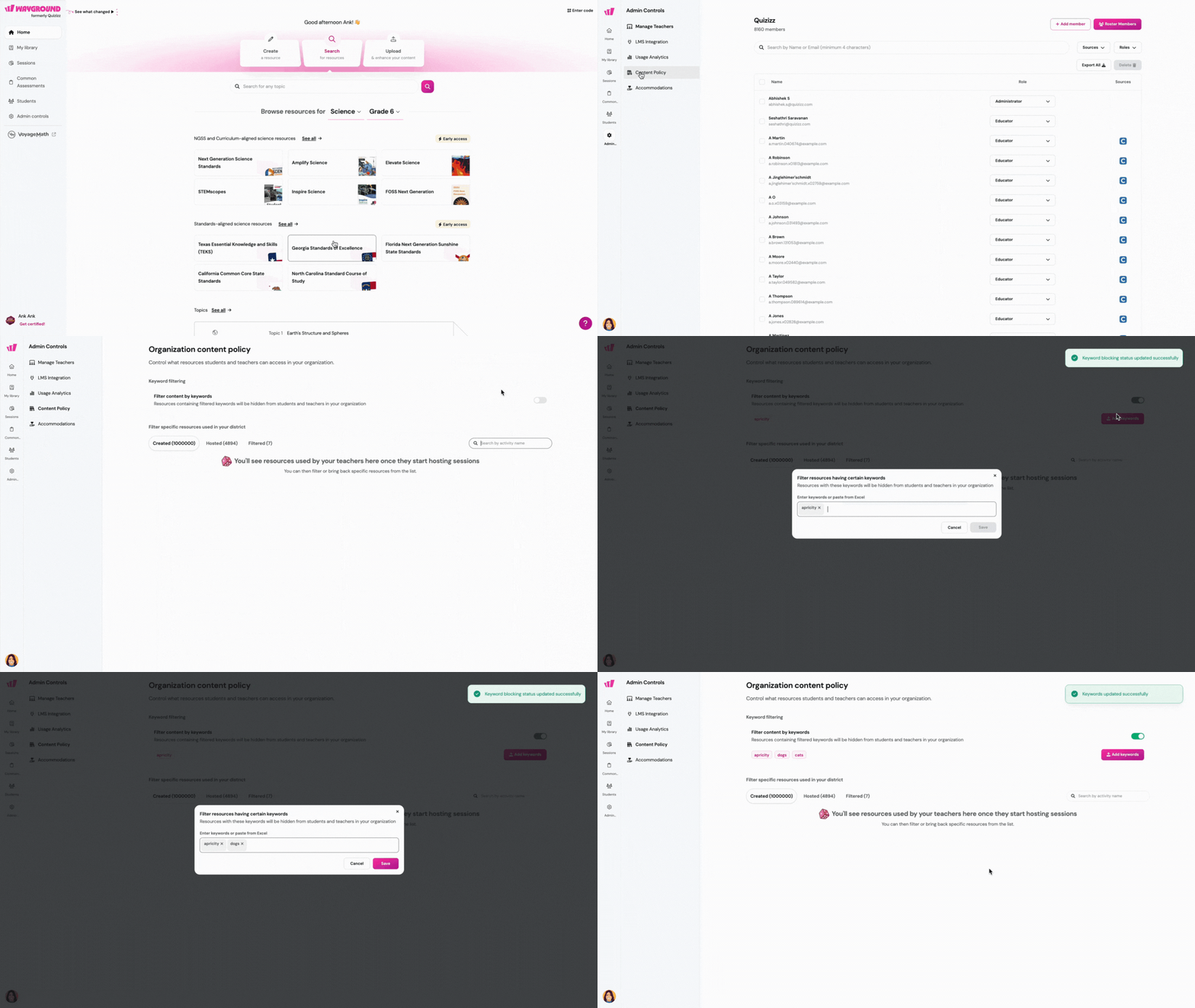
Follow these steps to set restricted keywords:
- 1. Log in to Wayground
- 2. Click on 'Admin controls'
- 3. Click on 'Content policy'
- 4. Toggle on the 'Filter content by keywords' option
- 5. Click on the 'Add keywords' button
- 6. Type in your desired keyword and press enter
- 7. Repeat for as many keywords as needed
- 8. Click on 'Save'
Resource moderation
Resource moderation allows you to filter specific resources within your school or district. Follow these steps to restrict a resource:
- 1. Log in to Wayground
- 2. Click on 'Admin controls'
- 3. Click on 'Content policy'
- 4. Scroll down to the 'Filter specific resources created in your district' section
- 5. Click on the relevant tab to filter the list of resources (created, hosted, filtered)
- 6. Alternatively, use the search bar to find the resource
- 7. Click on the 'Filter' button next to the resource
- 8. Click on the 'Bring back' button to remove a resource from the filtered list

Was this article helpful?
That’s Great!
Thank you for your feedback
Sorry! We couldn't be helpful
Thank you for your feedback
Feedback sent
We appreciate your effort and will try to fix the article