TABLE OF CONTENTS
- When to use Open-Ended questions
- Create an Open-Ended question
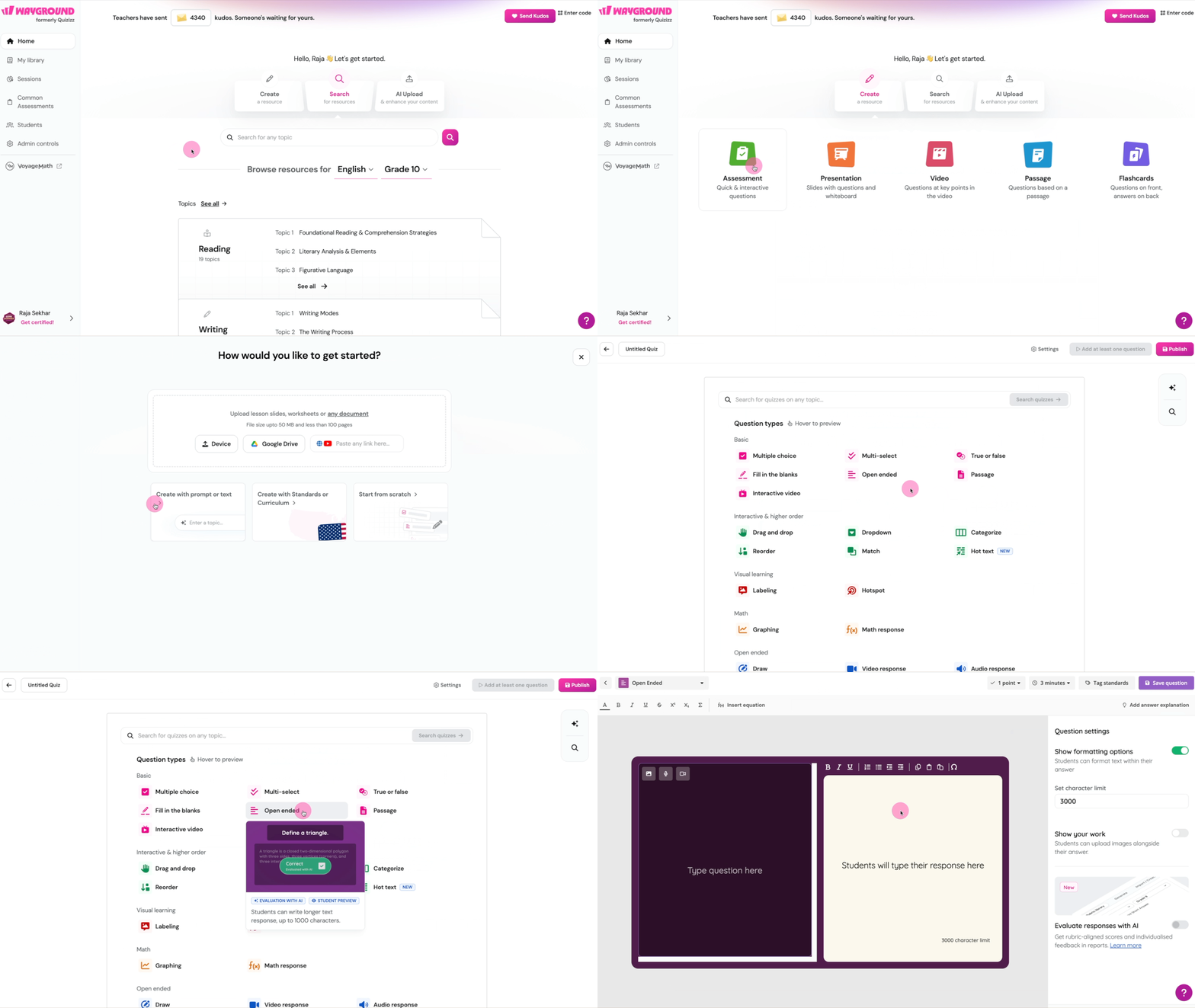
- Select Open-Ended when adding a new question to your resource
- Question settings
- Choose a rubric
- Test your rubric
Open-Ended questions let students type their answers in their own words. Use them for short answers, explanations, or longer writing tasks. Turn on Evaluate responses with AI, and Wayground scores each answer against a rubric and adds personalized feedback in your reports, so you spend less time grading.
Open-Ended questions are available on all Wayground plans. Audio and video media, along with some rubric options, require the Individual (Super) plan or the School and District plan.
When to use Open-Ended questions
Pick Open-Ended when you want students to explain their thinking, build a written argument, or show understanding that a Multiple Choice question can't capture. With AI rubric scoring, it's also a good fit when you need to grade written responses at scale without losing feedback quality.
Create an Open-Ended question
Select Open-Ended when adding a new question to your resource
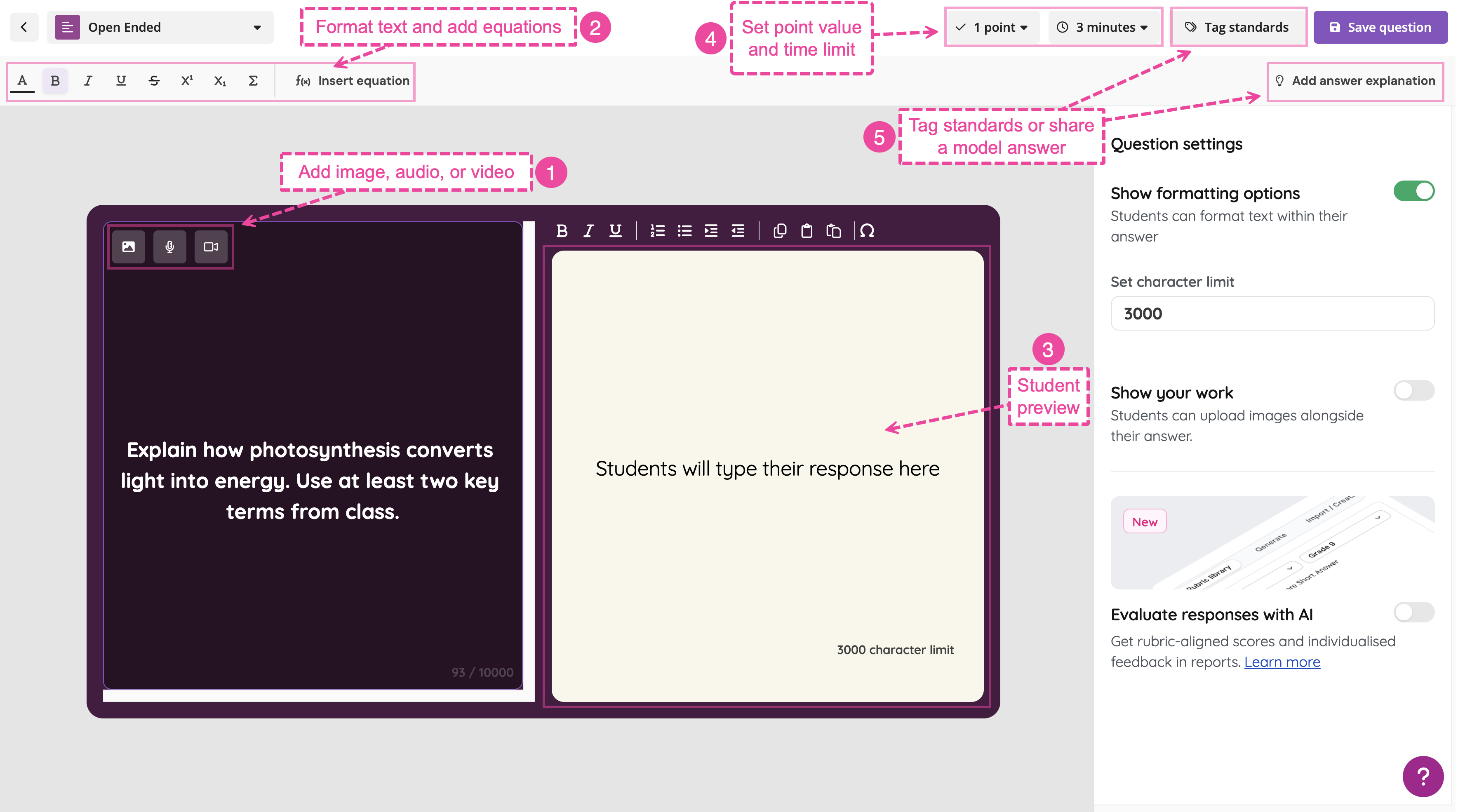
Type your question in the left panel. Use the media icons at the top to add an image, audio, or video (audio and video require the Individual (Super) plan or the School and District plan). A formatting toolbar is also available for text styling and equations
The right panel shows a preview of what students will see: a text box with a 3,000-character limit for their response
In the top-right corner, use the two dropdowns to set the point value and time limit. The defaults are one point and three minutes
(Optional) Click Tag standards to align the question to a learning standard, or click Add answer explanation to share a model answer with students after they submit
Click Save question
Question settings
The Question settings panel on the right side of the editor includes two settings specific to Open-Ended questions.
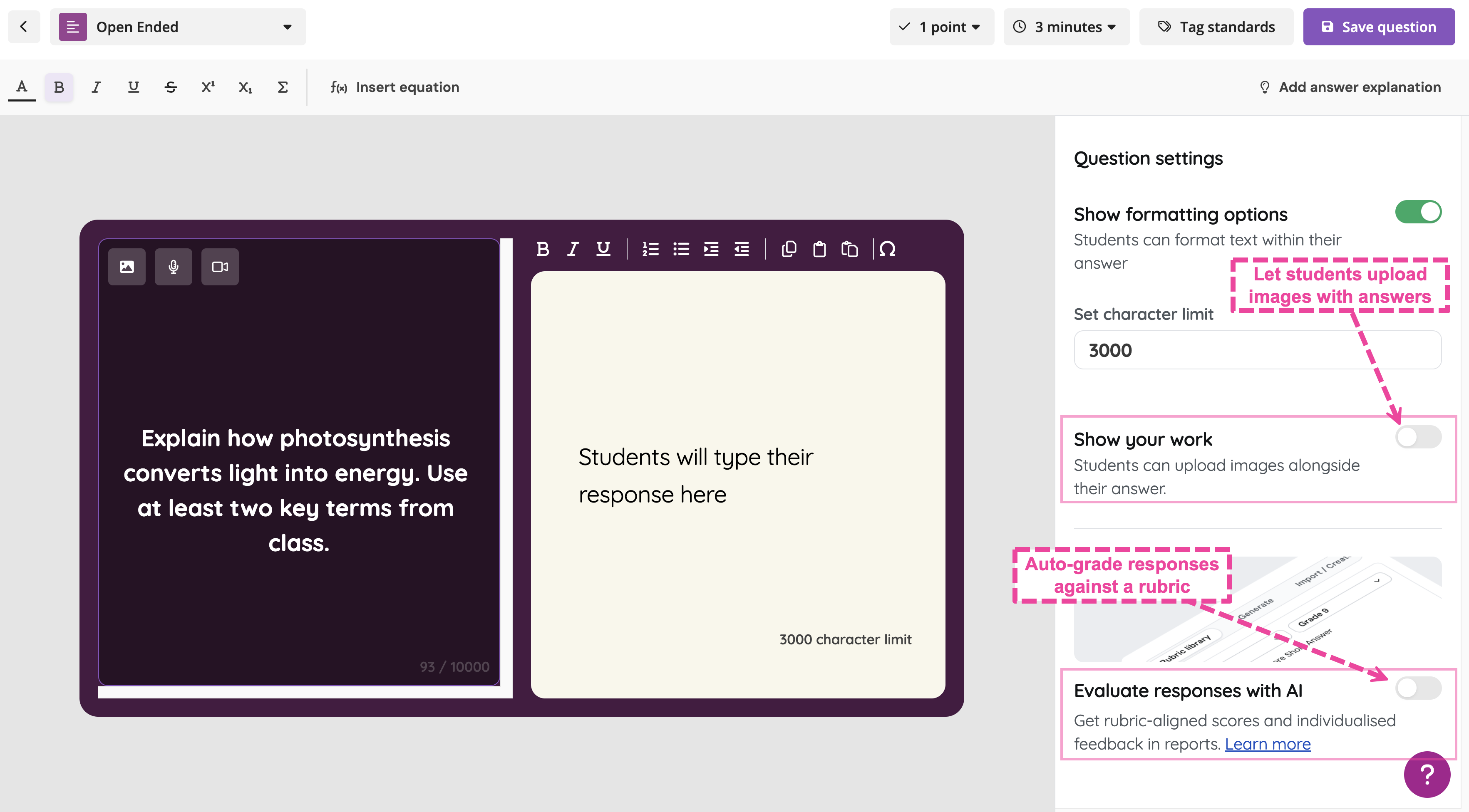
Show your work
Turn this on to let students upload images along with their typed answer. It's helpful for subjects like math or science, where students may need to share handwritten work, diagrams, or photos.
Evaluate responses with AI
Turn this on to score student responses automatically against a rubric. Wayground's AI evaluates each answer and adds a score plus written feedback to your reports.
Once enabled, a Choose a rubric section appears with four options: State rubrics library, Generate with AI, Create your own, and Upload a rubric.
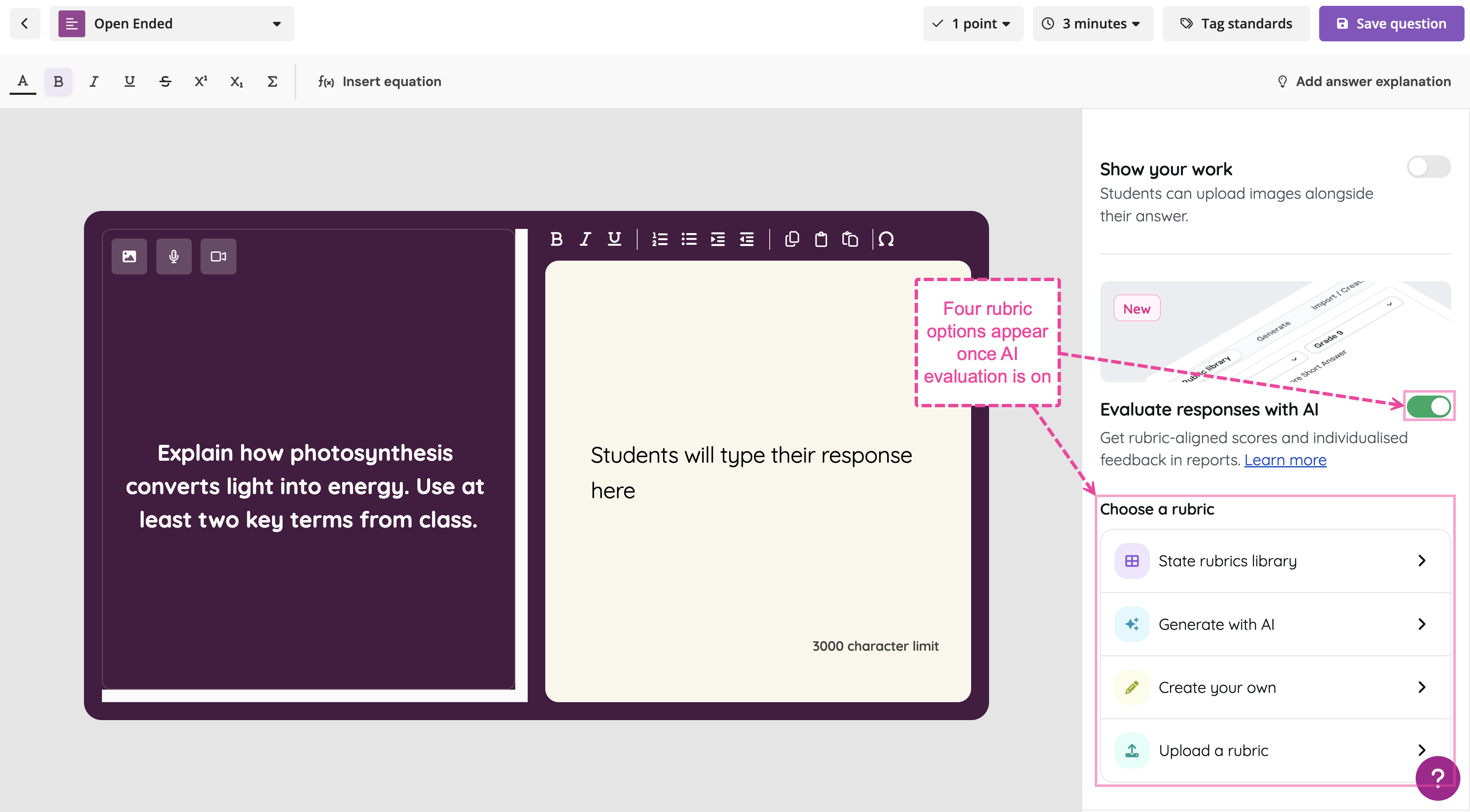
Choose a rubric
After you turn on Evaluate responses with AI, attach a rubric so the AI knows how to score student responses. You have four options.
Option 1: State rubrics library
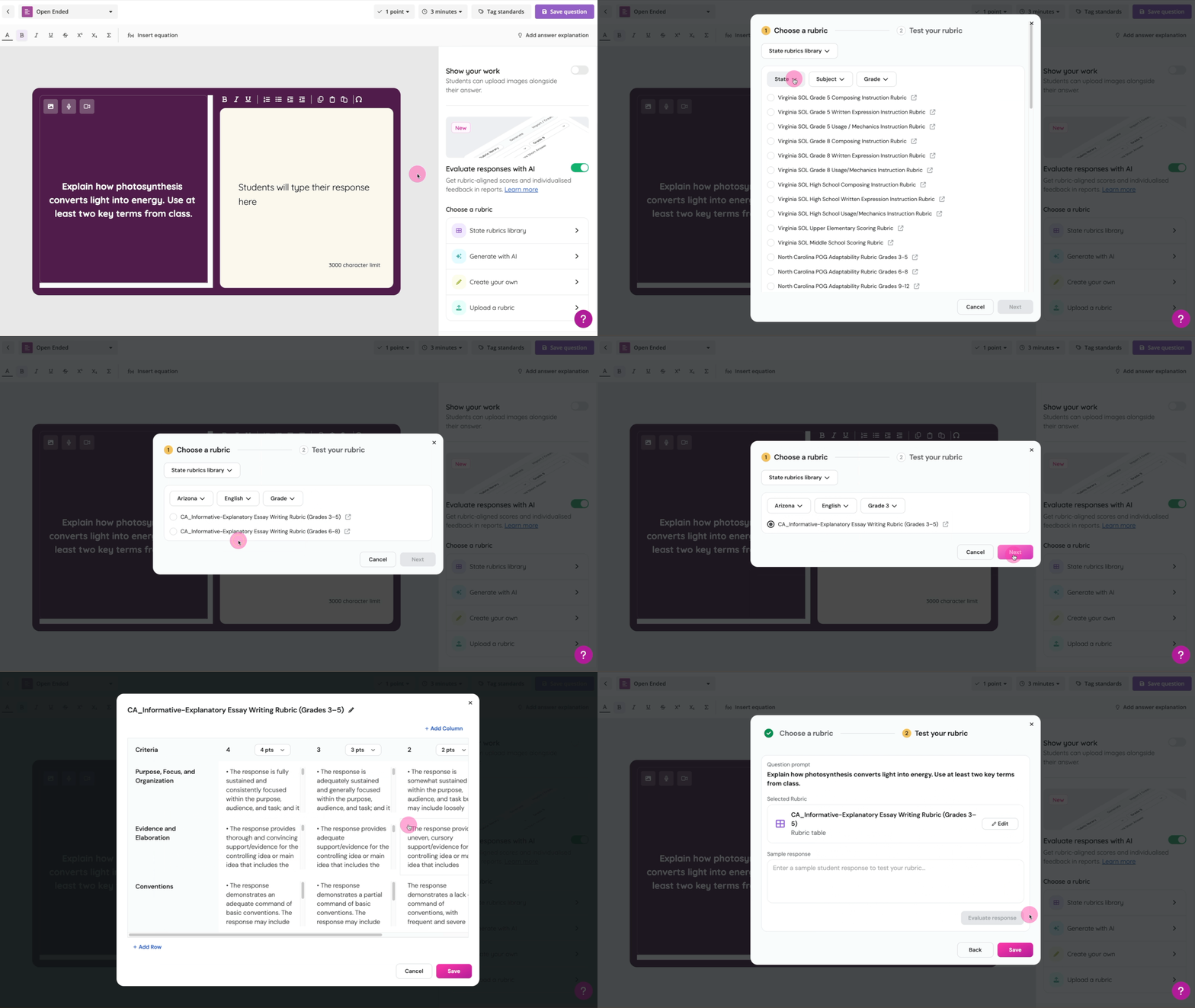
Pick from a curated collection of standards-aligned rubrics, organized by state, subject, and grade. This is the fastest option if your school or district uses a state-mandated rubric.
Click State rubrics library
Use the State, Subject, and Grade dropdowns to filter the list
(Optional) Click the external link icon on a rubric to preview the original
Select the rubric and click Next to test it with a sample response
Option 2: Generate with AI
Let Wayground build a custom rubric for your question.
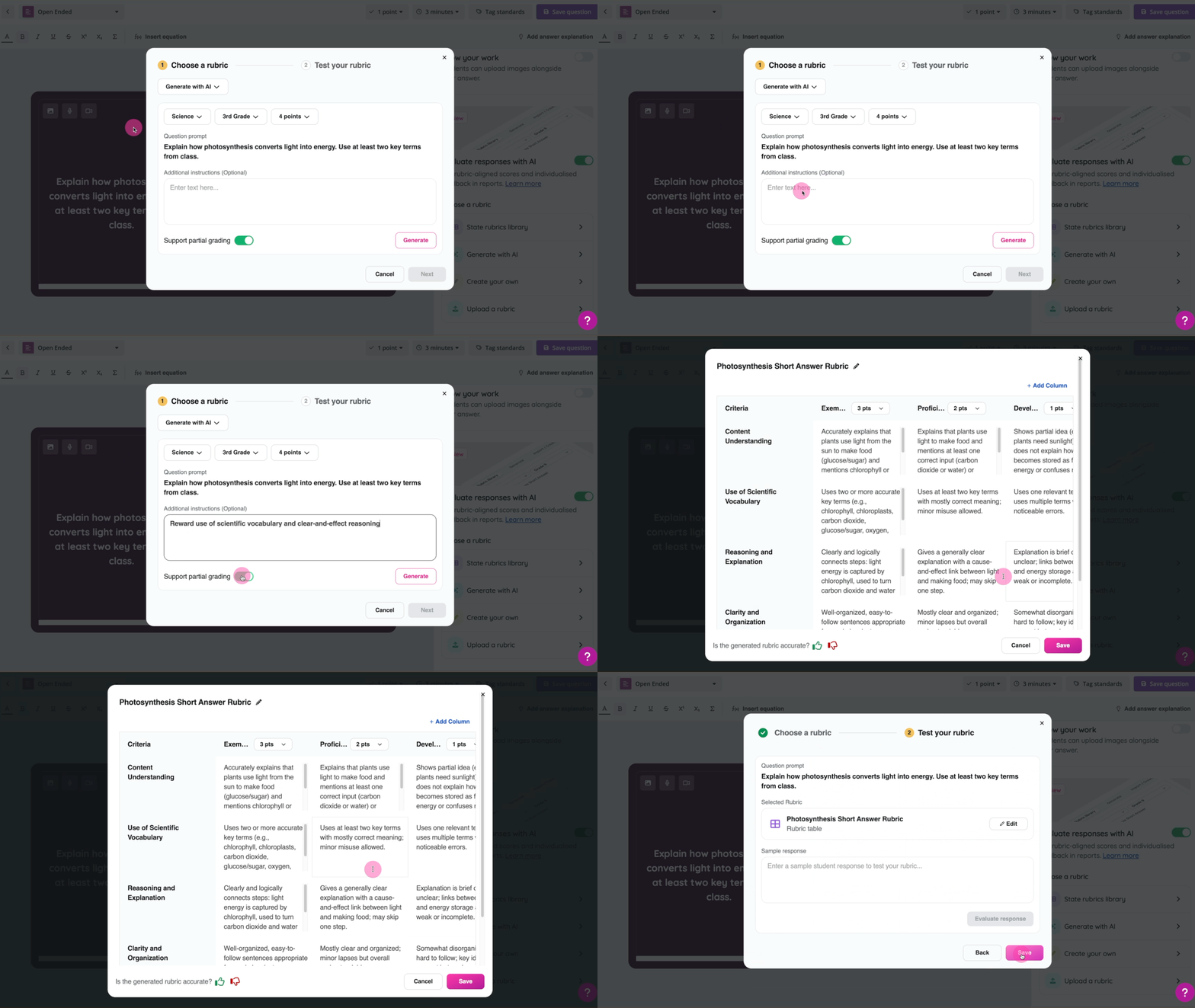
Click Generate with AI
Use the three dropdowns at the top to set the subject, grade level, and point value for the question. Your question prompt fills in automatically below them
(Optional) In Additional instructions, you can tell the AI what to focus on, such as accuracy, vocabulary, or organization
The Support partial grading toggle is on by default so the AI can award partial credit instead of an all-or-nothing score
Click Generate. Wayground creates a rubric with scoring levels (for example, Excellent, Good, Developing, Needs Improvement), each with its own point value and description
Review the rubric. Click Edit to change any criteria, levels, points, or descriptions
Click Next to test it with a sample response
Option 3: Create your own
Write your own rubric, either as free text or using the rubric table builder.
Free-text rubric
- Type your scoring criteria in the text area. For example:
4. Excellent: Clear, organized, and easy to understand
3. Good: Mostly clear and understandable
2. Developing: Somewhat unclear or disorganized
1. Beginning: Very unclear or hard to follow
Click Next when you're ready to test it with a sample response.
Rubric table builder
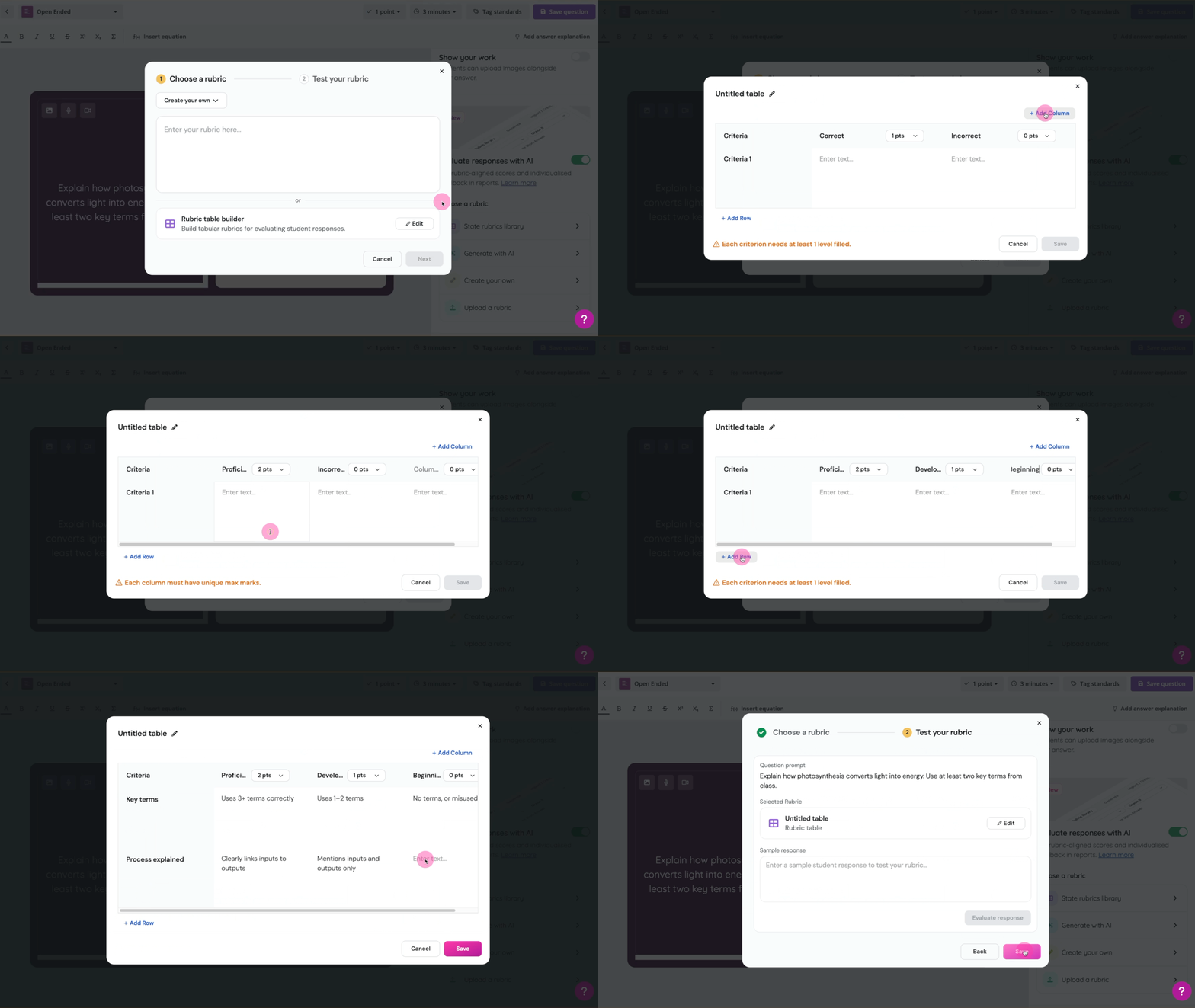
- Click Edit next to Rubric table builder to open the table editor. The default layout has one row of criteria and two columns: Correct (1 pt) and Incorrect (0 pt). From here, you can:
Rename the rubric using the pencil icon next to the title
Click + Add Column to add more scoring levels with custom point values
Click + Add Row to add more criteria
Type a description in each cell to show what that score level looks like for each criterion
Click Save when your rubric is ready, then test it with a sample response.
Option 4: Upload a rubric
Use a rubric you already created outside Wayground.
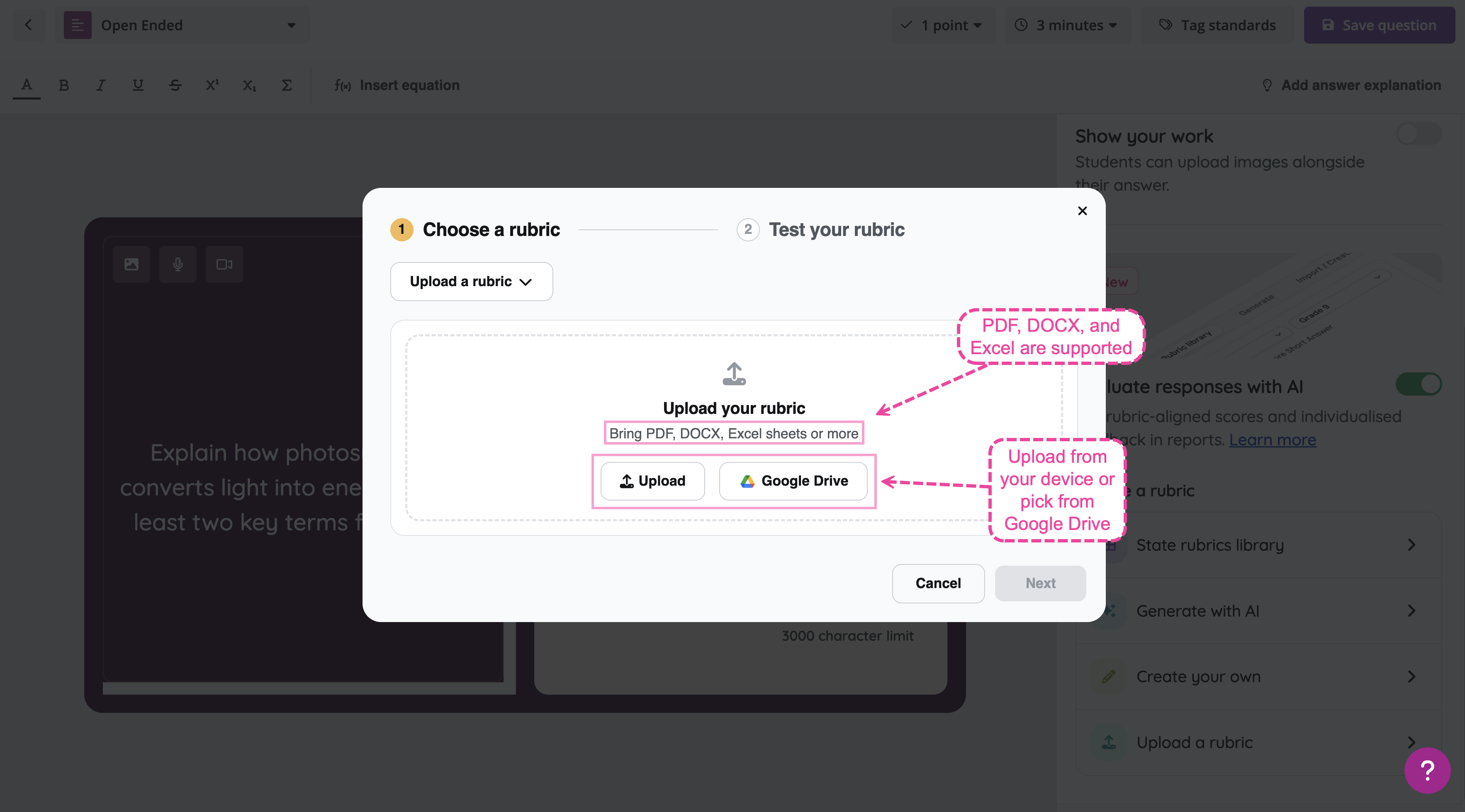
Click Upload a rubric
Click Upload to pick a file from your device, or click Google Drive to pick one from your Drive. Supported formats include PDF, DOCX, and Excel
Wayground turns your file into an editable rubric. To make changes, click Edit (pencil icon) next to the rubric name, update it, and click Save
Click Next to test it with a sample response
Test your rubric
Whichever option you use, Wayground lets you test your rubric before saving, so you can make sure it scores the way you expect.
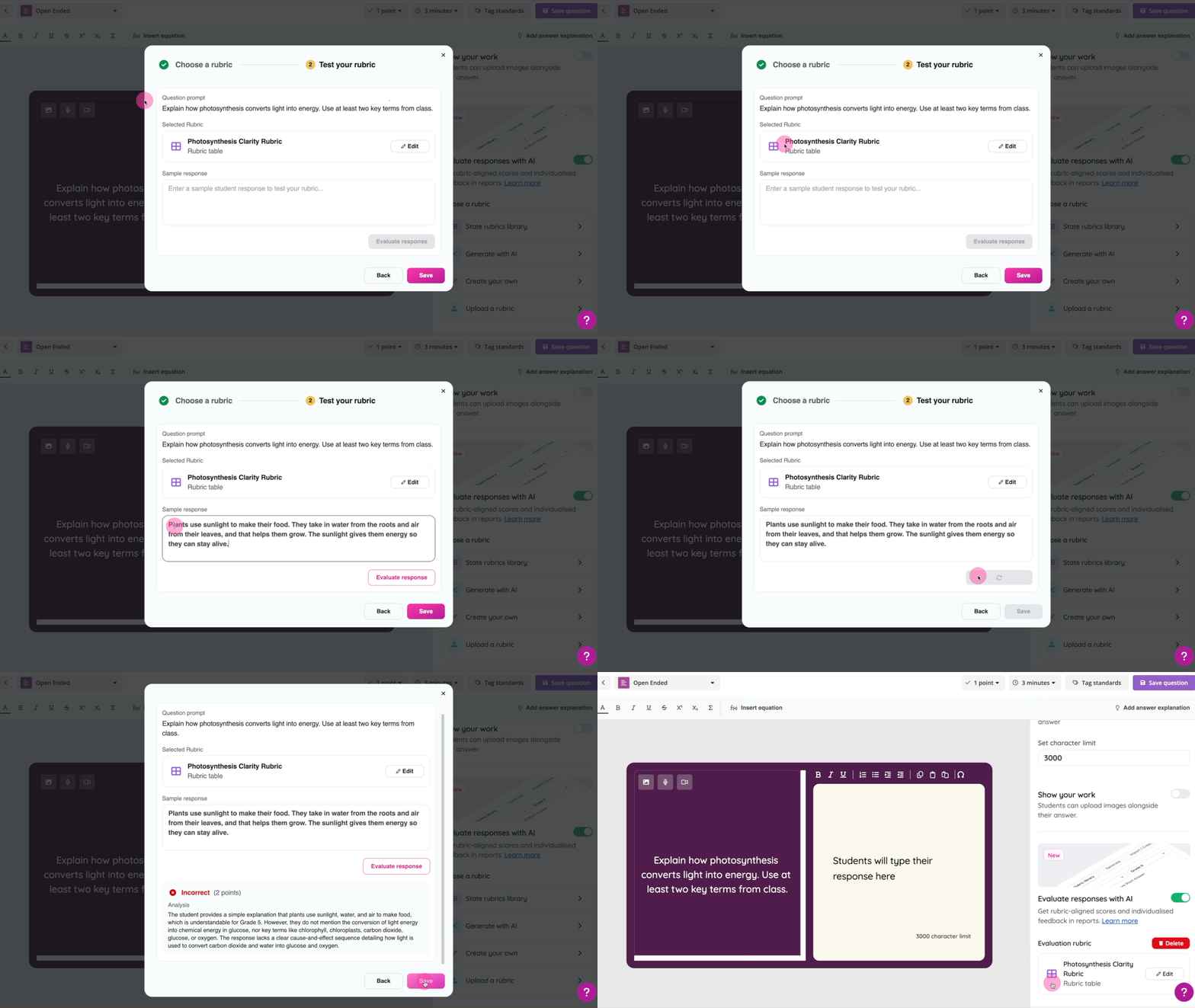
On the Test your rubric screen (step two), you'll see your question prompt at the top and the selected rubric with an Edit button.
In the Sample response box, type or paste a sample student answer
Click Evaluate response. Wayground scores the sample and shows a correctness label (like “Correct”), a numeric score, and an Analysis that explains how the rubric was applied
Repeat with two or three responses at different quality levels (strong, partial, and weak) to check that the rubric tells them apart
When you're happy with the results, click Save. The rubric attaches to your question and appears in the Question settings panel under Evaluation rubric, where you can edit or delete it anytime
Was this article helpful?
That’s Great!
Thank you for your feedback
Sorry! We couldn't be helpful
Thank you for your feedback
Feedback sent
We appreciate your effort and will try to fix the article