Deploying the Wayground AI Chrome Extension
Thanks for choosing Wayground AI! This guide walks you through getting the Chrome extension onto your teachers' browsers. It's designed for school and district administrators, IT teams, and tech coaches.
The Wayground AI Chrome extension lets teachers turn any web content into interactive activities right from their browser. It works on ChromeOS, Windows, macOS, and Linux (Chrome 114 and above). The extension auto-updates from the Chrome Web Store, so you never have to manage versions manually.
Installation & Access
Pick the deployment method that works best for your school or district:
 Allow teachers to install it themselves (lightest touch)
 Force-install via Google Admin Console (push to everyone)
 Deploy via JSON policy (for MDM or Group Policy environments)
Option 1: Allow teachers to install it themselves
If you don't want to push the extension to everyone, you can simply remove the block so teachers who want Wayground AI can add it from the Chrome Web Store on their own.
Sign in to admin.google.com with a Chrome admin account.
Go to Devices > Chrome > Apps & extensions > Users & browsers.
Select the organizational unit (OU) for the relevant teachers, or the top-level org to cover everyone.
If the extension is specifically blocked, find Wayground AI in the list (Extension ID: jnegnfbcjklhkmoihoakeijbealomipg) and change its Installation policy from Block to Allow install.
If your org uses a "block all" or allowlist-only default, click + > Add from Chrome Web Store, paste the Extension ID jnegnfbcjklhkmoihoakeijbealomipg, then set its Installation policy to Allow install.
Save. The "Your admin has blocked this item" message disappears, and "Add to Chrome" is re-enabled. Teachers can now install it themselves by searching for the extension in google or via the chrome webstore whenever they choose.
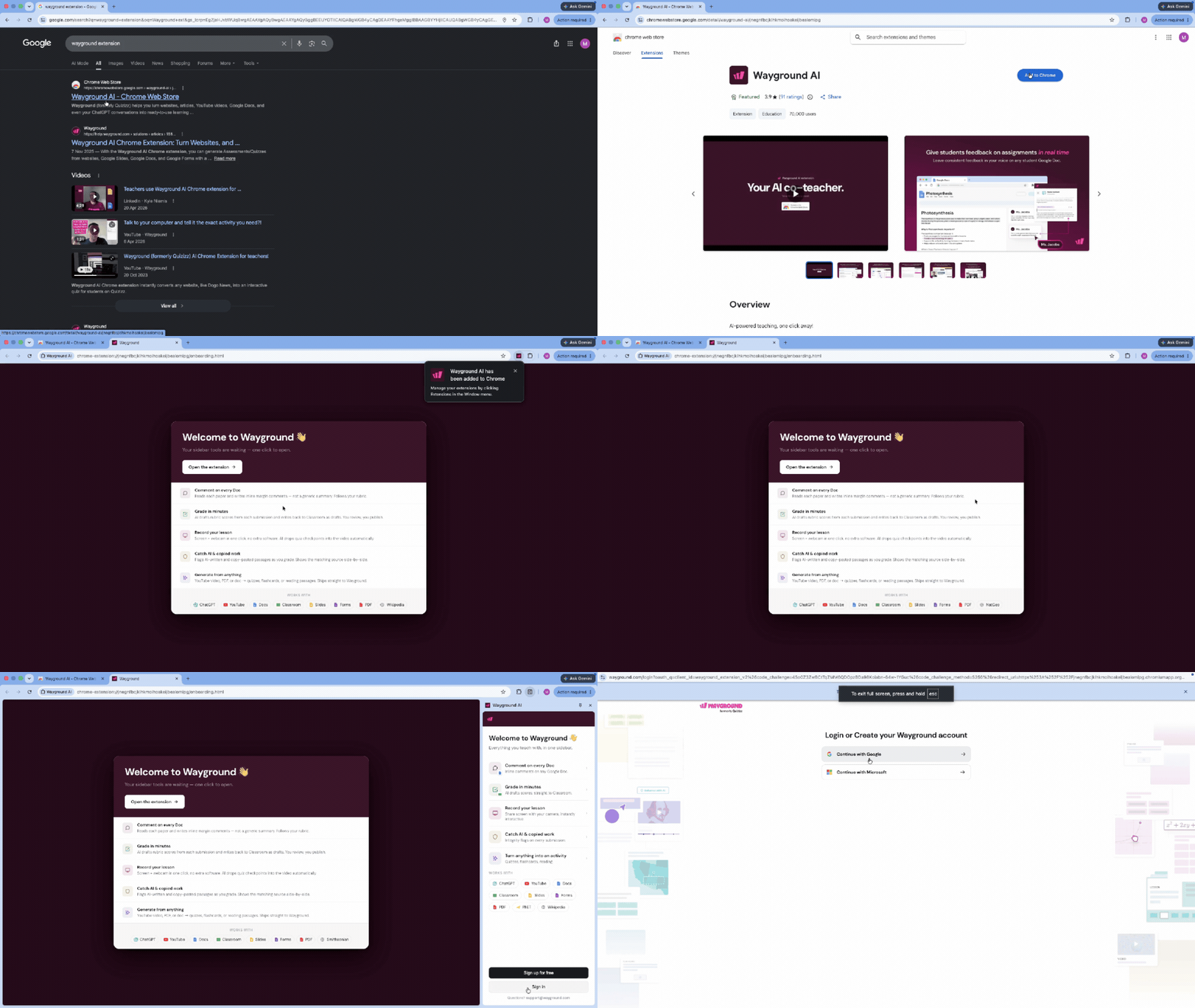
Option 2: Force-install via Google Admin Console
This pushes the extension to all teachers in the selected OU automatically.
Sign in to admin.google.com with a Chrome admin account.
Go to Devices > Chrome > Apps & extensions > Users & browsers.
Select the organizational unit (OU) for teachers.
Click + > Add from Chrome Web Store, then paste the Extension ID: jnegnfbcjklhkmoihoakeijbealomipg
Set Installation policy to Force install. You can also enable Pin to toolbar if you want the extension to be visible by default.
Save. Teachers will receive the extension at their next Chrome sync.
Option 3: Deploy via JSON policy
If you use Windows Group Policy (GPO), macOS Jamf or Intune, or any MDM that supports Chrome's ExtensionInstallForcelist policy, you can deploy the extension with this JSON:
{
"ExtensionInstallForcelist": [
"jnegnfbcjklhkmoihoakeijbealomipg;https://clients2.google.com/service/update2/crx"
]
}
System Requirements
Chrome 114 or newer, on ChromeOS, Windows, macOS, or Linux
Google sign-in for SSO. No separate teacher credentials needed.
Pilot & Rollback
We recommend deploying to a pilot OU first so a small group of teachers can test it before a wider rollout.
To remove the extension: delete it from Admin Console under Apps & extensions. Teachers will lose it at their next Chrome sync. No leftover files or settings.
Security & Privacy Review
Everything below is informational. No admin configuration is required for any of it. This section exists so your IT and security teams can evaluate what the extension accesses and why.
What Permissions Does the Extension Request?
Here's what each permission does in plain language:
identity: Lets teachers sign in with Google. No password or secret key is stored in the extension.
storage: Saves the teacher's local preferences (like UI settings) on their own device.
contextMenus, downloads: Adds a right-click option that says "Create activity from selection" and lets teachers save exports to their computer.
sidePanel, scripting, tabs, activeTab, webNavigation, alarms: Opens the Wayground interface in Chrome's side panel, places the "Create activity" button on supported pages, and handles background scheduling.
offscreen: Used for an experimental screen recording feature that is still in limited preview. Not active in normal classroom use.
Host all_urls: Lets the "Create activity" button appear on any page. However, page content is only read when a teacher actively selects text, clicks the button, or opens the side panel. It never reads pages in the background.
Content scripts automatically appear on: YouTube, ChatGPT, Google Classroom, Google Docs, Google Slides, Google Forms, Google Drive, and PhET simulations. On all other pages, a lightweight script checks if the page has article-like content but skips social media, search engines, Google apps with their own integrations, developer sites, and video conferencing tools.
What Google Classroom and Drive Access Does It Have?
The extension only touches the teacher's own classes. Here's what each scope means:
Drive read-only: When a teacher opens a Doc, Slide, PDF, or Drive file to create an activity, the extension reads that file. It cannot browse or open anything else in their Drive.
Drive file-scoped: When a teacher opens an Office file (like a PPTX or DOCX), the extension creates a temporary PDF copy to process it, then deletes that copy afterward. It cannot access any other Drive files.
Classroom courses read-only: Shows the teacher's course list so they can pick which class to grade or send feedback to.
Classroom rosters read-only: Displays student names in the grading and feedback screens.
Classroom student submissions read-only: Reads student responses so the AI can help with grading and document feedback.
Classroom coursework: This is the only write permission. It posts AI-generated grades and comments back to Classroom. Nothing is ever written without the teacher clicking to confirm.
Privacy & Compliance
Teacher tool only: Student accounts see a "For Teachers Only" gate and cannot access any features. No student data is collected from student sessions.
Explicit action only: The extension never reads a page unless the teacher selects text, clicks the button, or opens the side panel. Nothing happens automatically in the background.
Data in transit: All data is encrypted with TLS. Generated content is not used to train third-party AI models.
Compliance frameworks: FERPA, COPPA, GDPR, CCPA/CPRA, PIPEDA, LGPD, and UK DPA 2018. ISO 27001 certified. EU-U.S., Swiss-U.S., and UK Data Privacy Framework participant.
Third-party processor: Pangram is used for originality analysis (plagiarism checking). It only activates when a teacher opens the Integrity Dashboard. All Pangram API calls go through the Wayground backend, so the extension never talks to Pangram directly.
A signed Data Processing Agreement (DPA) is available on request.
Network Allowlist
If your school firewall restricts outbound traffic, make sure these domains are allowed:
*.wayground.com
cf.quizizz.com
media.quizizz.com
*.amazonaws.com (for file, PDF, and recording uploads via pre-signed URLs)
*.googleapis.com
accounts.google.com
clients2.google.com (for Chrome Web Store updates)
Need Help?
Teacher support: support@wayground.com
Security and DPA requests: privacy@wayground.com
Privacy policy: wayground.com/privacy
Was this article helpful?
That’s Great!
Thank you for your feedback
Sorry! We couldn't be helpful
Thank you for your feedback
Feedback sent
We appreciate your effort and will try to fix the article