Available with Wayground School & District Plans
Wayground now helps you support your students with differentiated instruction but without the guesswork. Using data shared via Clever, we highlight which students may benefit from Accommodations like Read Aloud, Translate, Dyslexia Font, etc.
As flagged by your district, you’ll see a curated, recommended list of students with IEP, 504, or ELL status. Since this information flows directly from Clever, you can trust it and act fast. Each recommendation includes a reason, making it easy to decide which supports to enable.
This article will show you how this integration works, what teachers see on their Accommodations dashboard, what fields districts should share, and how to set up and use these Accommodations.
What are Accommodations?
Accommodations help ensure that all students, including those with IEPs, 504 plans, or ELL (English Language Learner) designations, can access content and demonstrate their understanding effectively.
This means you can save time by assigning the same task to your whole class while ensuring you provide compliant, scaffolded experiences for your students.
Learn more about it here: Differentiate for Every Student’s Needs With Accommodations on Wayground
How do Accommodations work with the Clever integration?
- 1. Your district connects Clever and Wayground
- 2. Accommodation data (IEP, 504, ELL) flows from Clever into Wayground
- 3. Wayground maps each student’s status to relevant Accommodations
- 4. Teachers see a curated list of recommended Accommodations for each student
- 5. Students receive these Accommodations across all Wayground sessions
What do teachers see?
Here’s how it looks:
- * A ‘From Clever’ section highlights students who may benefit from Accommodations as per Clever data
- * When a teacher clicks on a student’s name, they’ll see which supports are suggested based on flags shared via Clever (e.g., IEP, 504, or ELL).
- * Teachers can now enable specific Accommodations (e.g., Translate, Read Aloud, Dyslexia Font) with a quick toggle
This ensures that students get the help they need without teachers needing to sift through long lists or guess what’s appropriate. Also, this way, districts stay compliant by ensuring IEPs and 504 plans are honored consistently in every classroom.
What fields should your district share via Clever?
To enable automatic Accommodations, districts must share the following defined fields via Clever:
- * ell_status
- * iep_status
- * section_504_status
These are standard fields supported by Clever. Learn more about sharing SPED data with Clever
Additionally, if your upstream systems store custom information about student Accommodations, this data can be synced via extension fields in Clever. Read Clever’s documentation on this
Important: These fields must be enabled by the district’s Clever admin. They are not shared by default.
How to use Clever-based Accommodations on Wayground?
Set up Accommodations
If your district has connected Clever to Wayground, Accommodations will be automatically recommended for students with IEP, 504, or ELL status. Here's how you can enable those supports in just a few clicks.
- 1. Log in to your Wayground account
- 2. Click on the 'Students' tab on the left navigation pane and select 'Accommodations'. If you're an admin, click on the 'Admin controls' tab on the left navigation pane and then select 'Accommodations'
- 3. From the left side of your screen, select the student(s) you would like to support with Accommodations
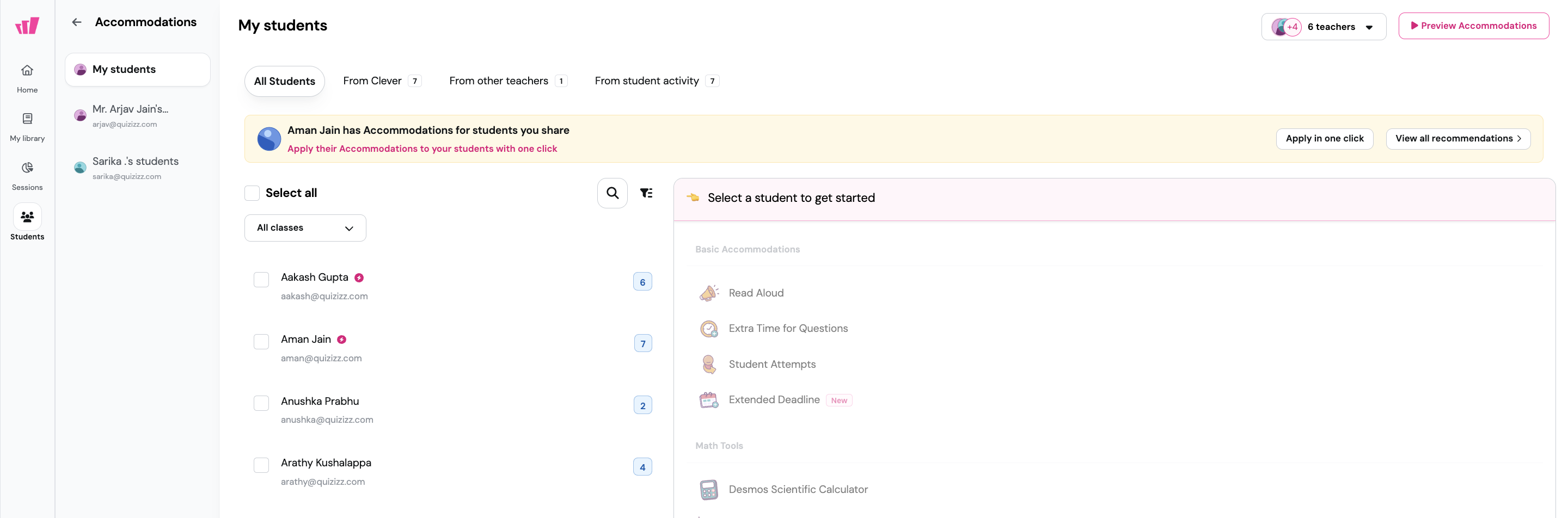
- 4. Click on 'From Clever' to view students with Accommodations shared via Clever
- 5. Click on a student’s name to view the specific Accommodations recommended for them
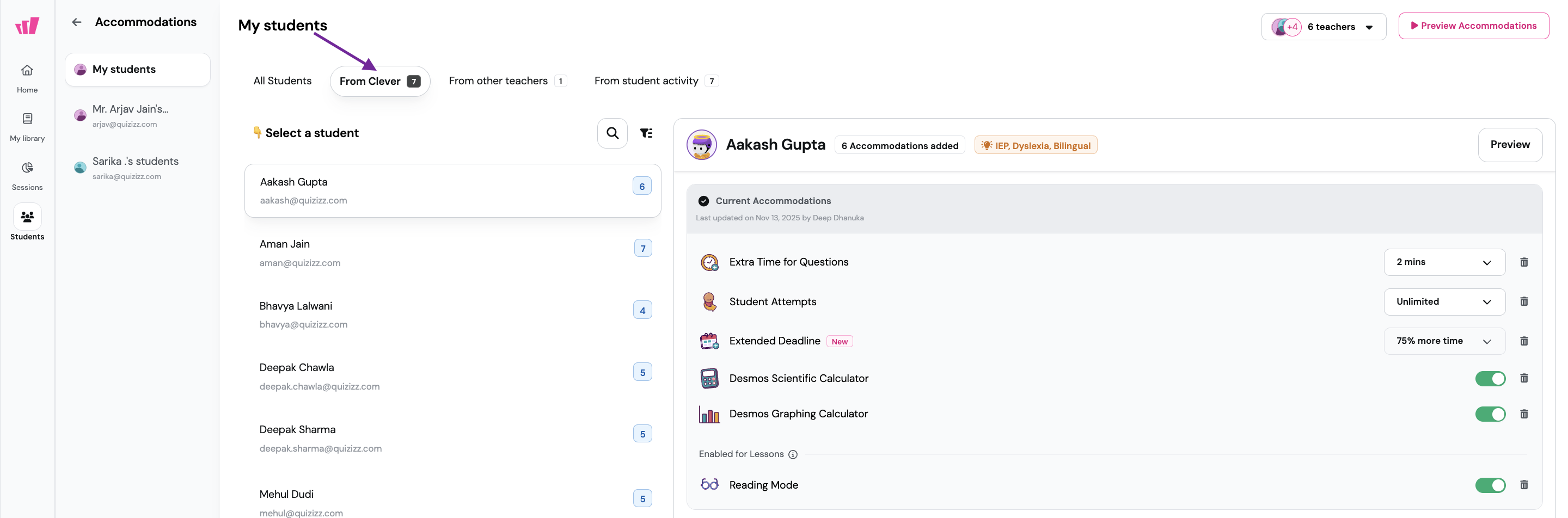
- 6. Toggle on or customize the Accommodations you’d like to enable for the selected students
- 7. Click on ‘Save settings’
Start or assign a session with Accommodations
- Select the Wayground resource (Assessment/Quiz, Lesson, Passage, Flashcards, etc.) you want to start a live session for or assign to your students
- Click on ‘Assign’ or 'Start now’
- Select the desired session mode and customize the session settings according to your requirements
- In the same session settings page, look for the 'Accommodations' section
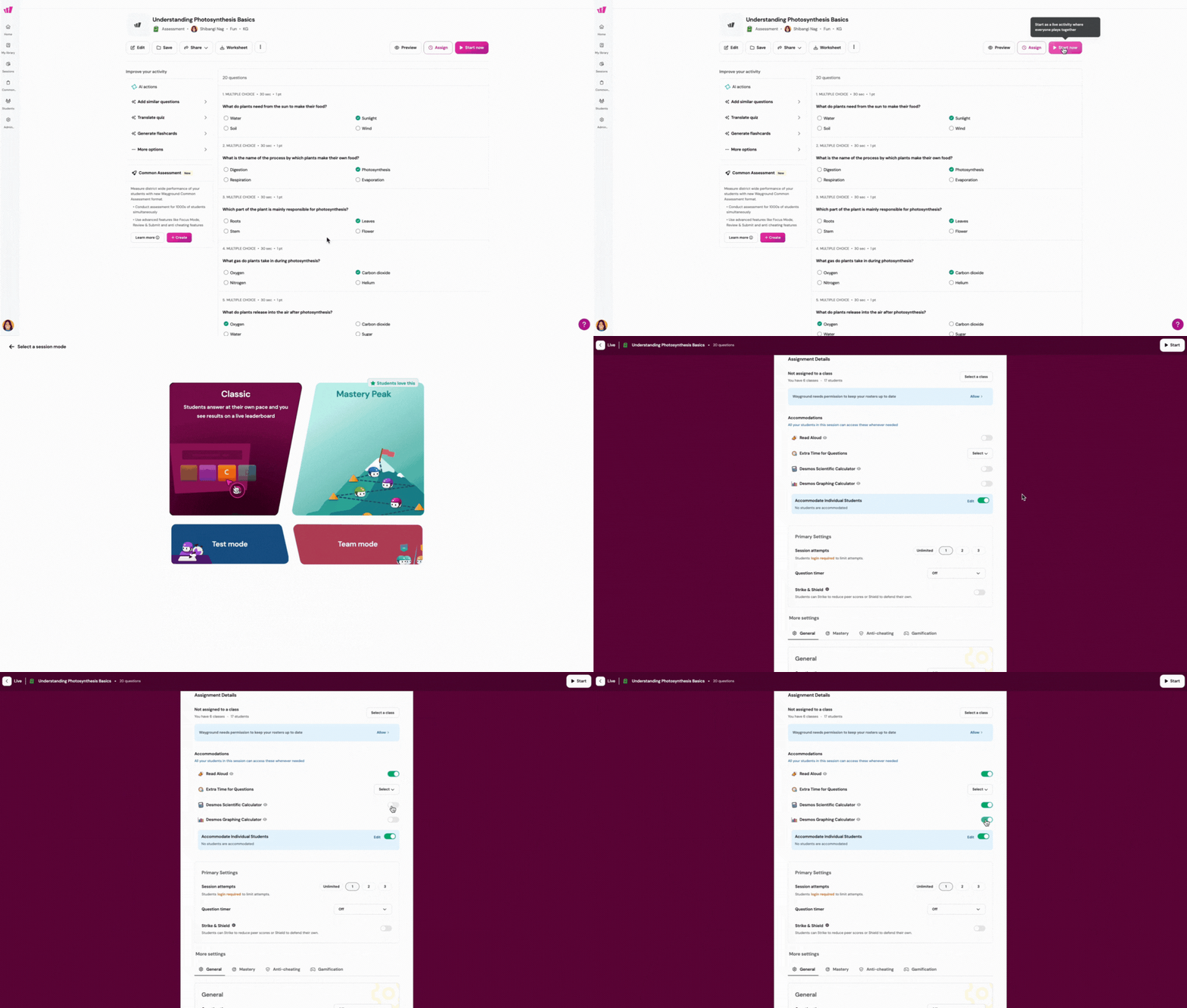
- There will be two options:
- Enable accommodations for all students using the toggle, or
- Accommodate individual students by turning on the corresponding toggle
- If you’ve already set up Accommodations earlier, toggling this on will automatically apply those settings to the same students
- To add more Accommodations or make changes, click on 'Edit'. This will open the Accommodations page:
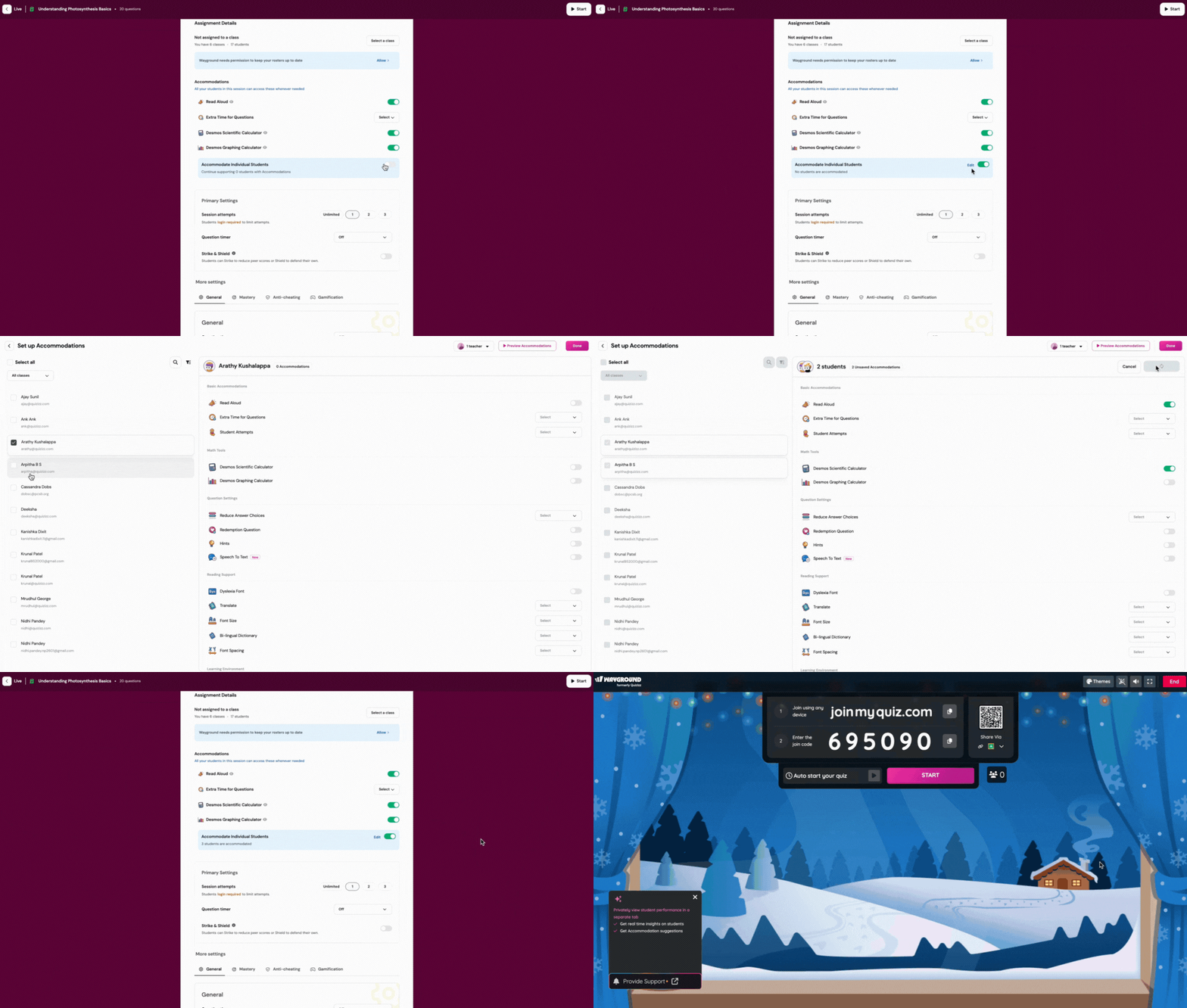
- From the left side of your screen, select the student(s) you would like to support with Accommodations
- From the right side of your screen, select the Accommodations you want to assign to the selected students
- Click on 'Save Changes'
- To assign Accommodations to the remaining students, unselect the selected students
- Then, select the student(s) you would like to support with a different set of Accommodations, as mentioned above
- Here, you can also view which students have been assigned which Accommodation by using the search box to find specific students, filtering the list of students by the classes they're part of, or by which Accommodations have been assigned to them
- Once you're happy with the setup, click on 'Done'
- Review and modify the remaining session settings
- Click on ‘Assign’ or 'Start,' and you’re all set! Once your class joins the session, selected students will experience the session based on the Accommodations assigned to them, and the remaining students will experience it with default settings
- Select the Wayground resource (Assessment/Quiz, Lesson, Passage, Flashcards, etc.) you want to start a live session for or assign to your students
Your students will not be made aware that there are unique experiences for some students, so they can all feel included while they focus on their own learning.
Was this article helpful?
That’s Great!
Thank you for your feedback
Sorry! We couldn't be helpful
Thank you for your feedback
Feedback sent
We appreciate your effort and will try to fix the article