TABLE OF CONTENTS
- Creating Differentiated Versions
- Editing a Differentiated Version
- Managing Differentiated Versions
- Assigning Differentiated Versions to your students
Note:
This feature is supported in Passages for English, Science, Biology, Chemistry, Physics, Social Studies, Geography, History, Arts, Moral Science, Philosophy, and Health Sciences, and in Quizzes/Assessments for English, Mathematics, Science, Biology, Physics, and Chemistry.
It is not available in teacher-led sessions.
It is not available for Passages or Assessments/Quizzes that use embedded content (such as embedded PDFs or websites).
The Create Differentiated Versions option is available after your account has been activated. To activate your account, host at least one meaningful session with at least 2 participants and 1 response submitted. Once completed, the differentiation option will become available.
Wayground now offers an exciting feature that allows you to create and assign differentiated versions of an Assessment/Quiz or Passage! With this feature, you can create variations of the same Assessment/Quiz or Passage with different reading difficulty levels and number of questions with just a few clicks. It's a great way to ensure every student gets the right level of challenge.
This guide will show you how to easily create, edit, and manage Differentiated Versions as well as assign them to your students.
Creating Differentiated Versions
Select the desired math, science, or ELA Assessment/Quiz or Passage
Choose one from your library or pick from the publicly available Assessments/Quizzes or Passages in the Wayground Library.
On the resource details page, click on the '+ Generate' button placed right above the questions.
Set the number of questions and difficulty level for the new version as desired.
Differentiated Versions are based on reading levels for math, science, and ELA.
You can move up to 4 levels down or 2 levels up from the default version.
Click on 'Generate'.
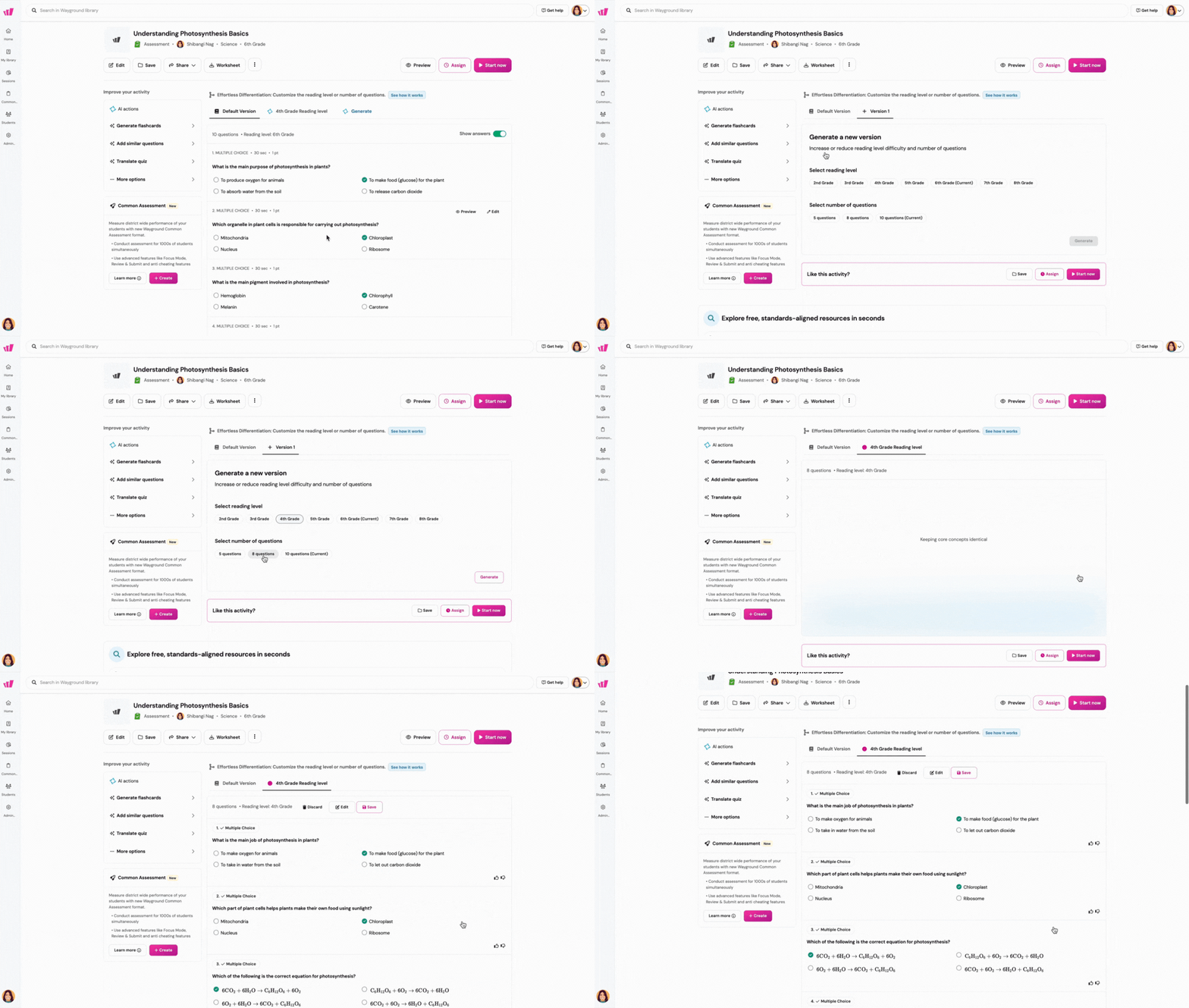
Once Wayground AI generates questions, review them.
Repeat these steps to create more versions. You can create up to 5 Differentiated Versions.
You can also create versions directly from the Manage dashboard.

Editing a Differentiated Version
After generating a Differentiated Version, you can manually edit questions.
Before clicking on 'Save', click on 'Edit', or
If you want to edit a Differentiated version that you have already saved, click on the 'Manage' button, and find and click on the version you want to edit
To edit a question, click the edit (pencil) icon next to the question
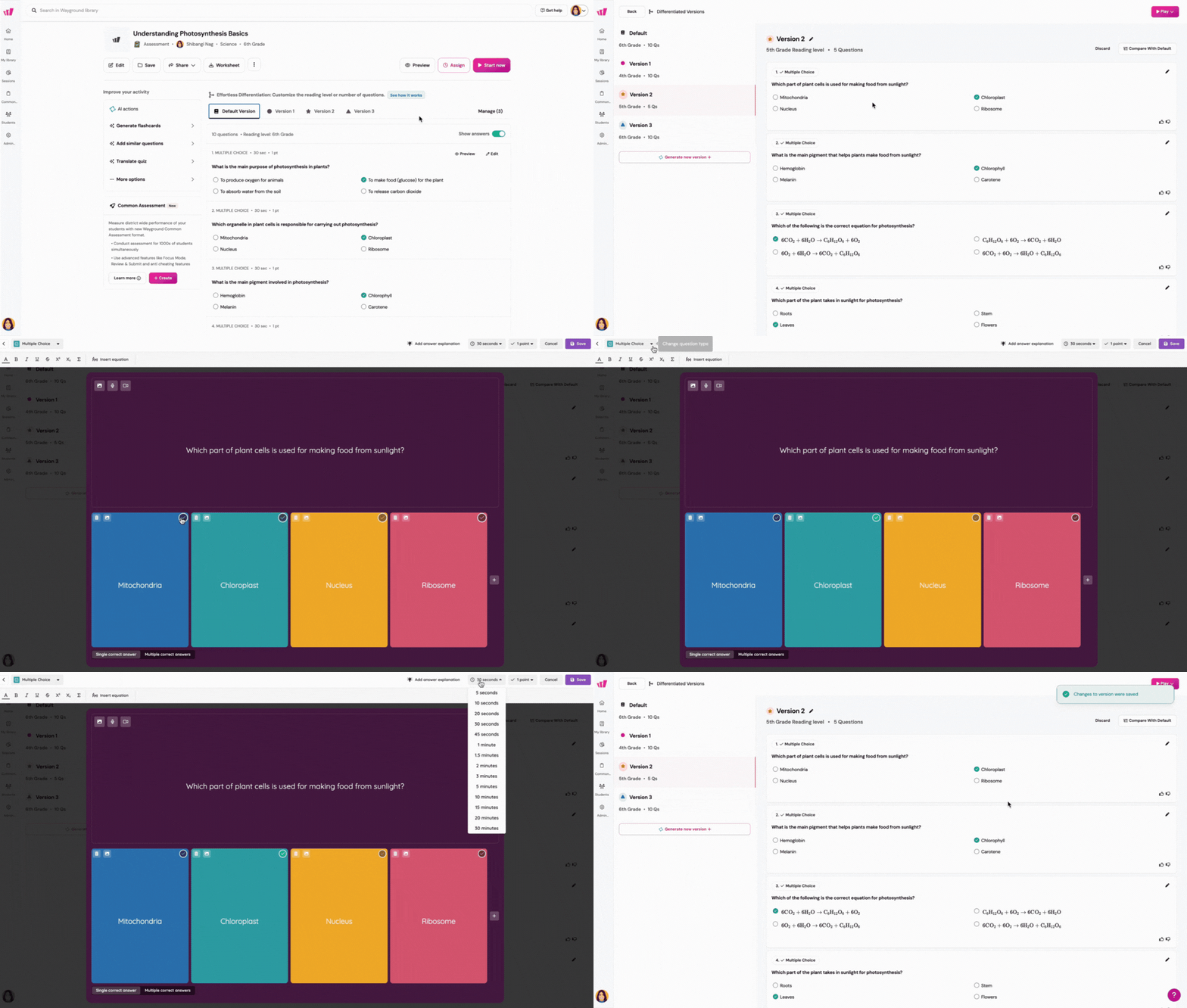
You can:
Change the question type
Change text color
Format text (bold, italics, underline, strikethrough)
Customize points
Edit or add explanations
Insert math equations
Add images to the question and options
Click 'Save' for changes to reflect.
To rename a version and change its tag, click the edit (pencil) icon next to the version name

Managing Differentiated Versions
Once you've created and saved one or more Differentiated Versions:
Go to the math, science, or ELA Assessment/Quiz or Passage whose Differentiated Versions you want to manage.
On the resource details page, click on 'Manage' above the questions.
This opens the Differentiated Versions dashboard, showing all versions you've created.
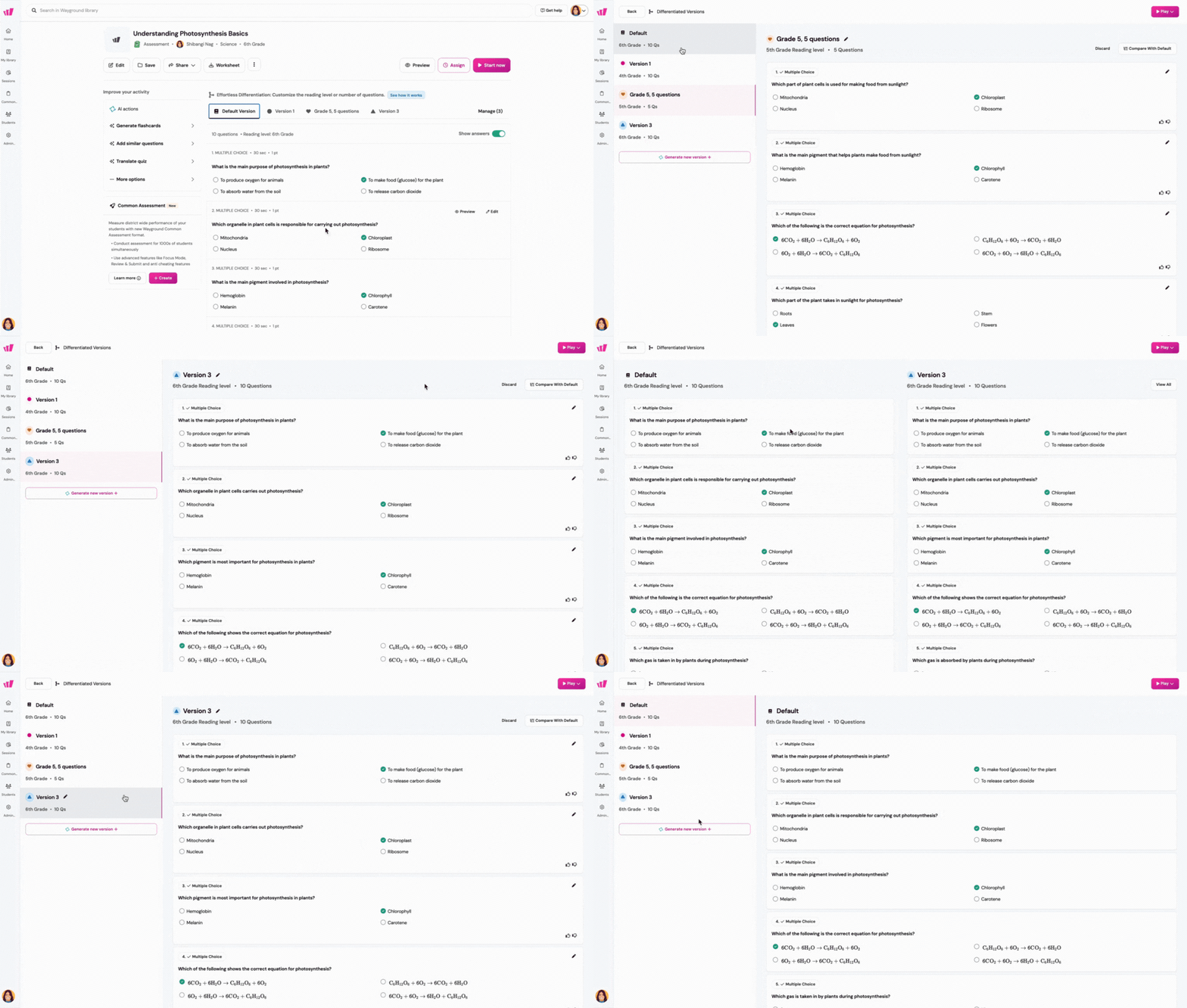
From this dashboard, you can:
Click on 'Discard' to delete a version
Click on 'Compare with default' to view a version alongside the original
This displays both sets of questions side by side
To create a new version from this dashboard:
Click 'Create new version'
Set the number of questions and difficulty level
Click 'Create version'
Review the generated questions
Click 'Regenerate' if you don’t like them, or 'Discard' to delete
Click 'Edit' to make manual edits
Click 'Save' when satisfied
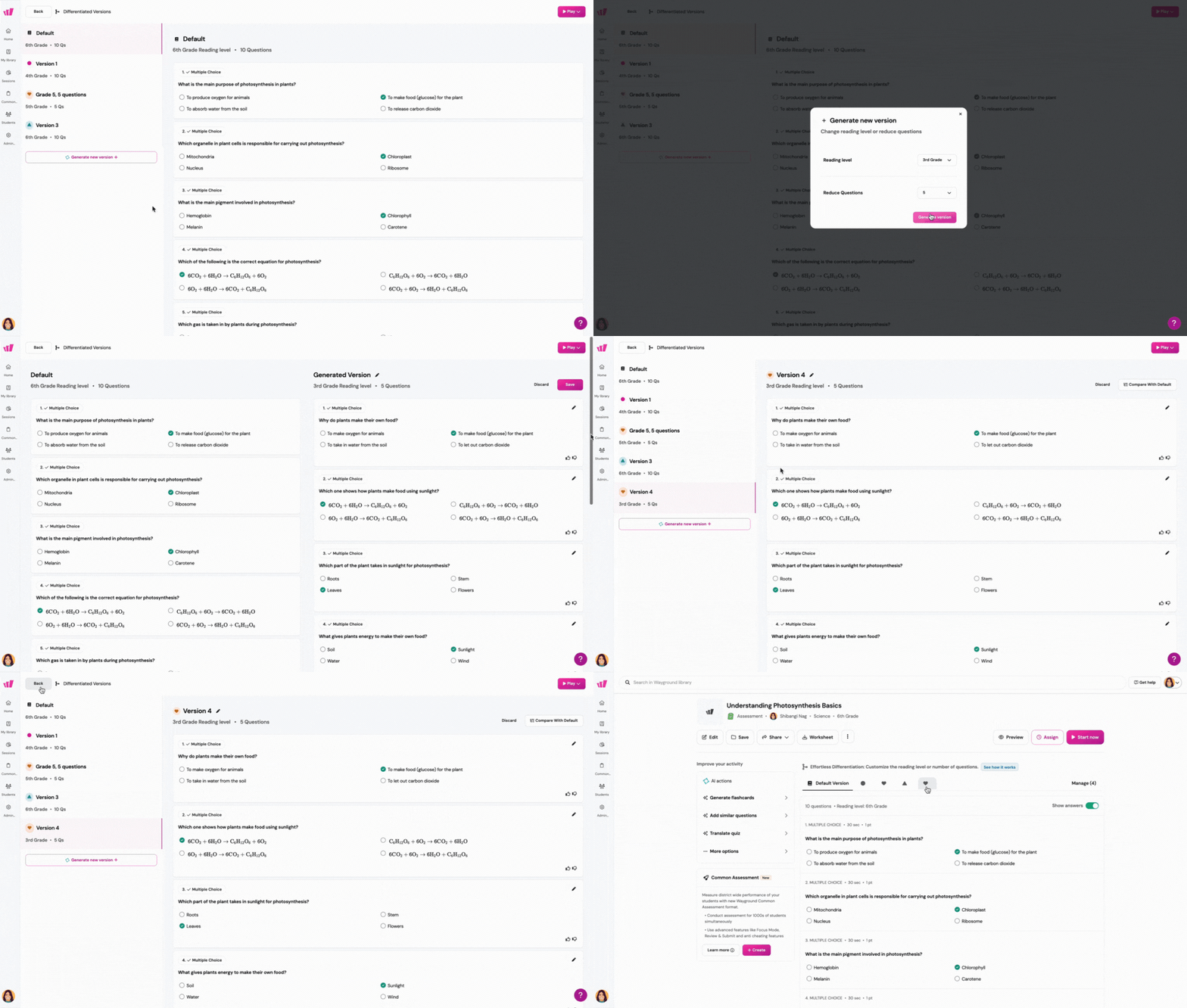
Once you're finished, click on the 'Back' button at the top left corner to exit.
Assigning Differentiated Versions to your students
Once you have created and saved the versions:
Click on 'Start now' to start a live session, or 'Assign' to assign as a homework session. Choose the desired session mode (any mode apart from 'Teacher-led')
Find the 'Differentiated Versions' option, and click on 'Assign versions'.
From the left panel, choose the students.
From the right panel, choose the version you wish to assign.
Repeat to assign different versions to different students.
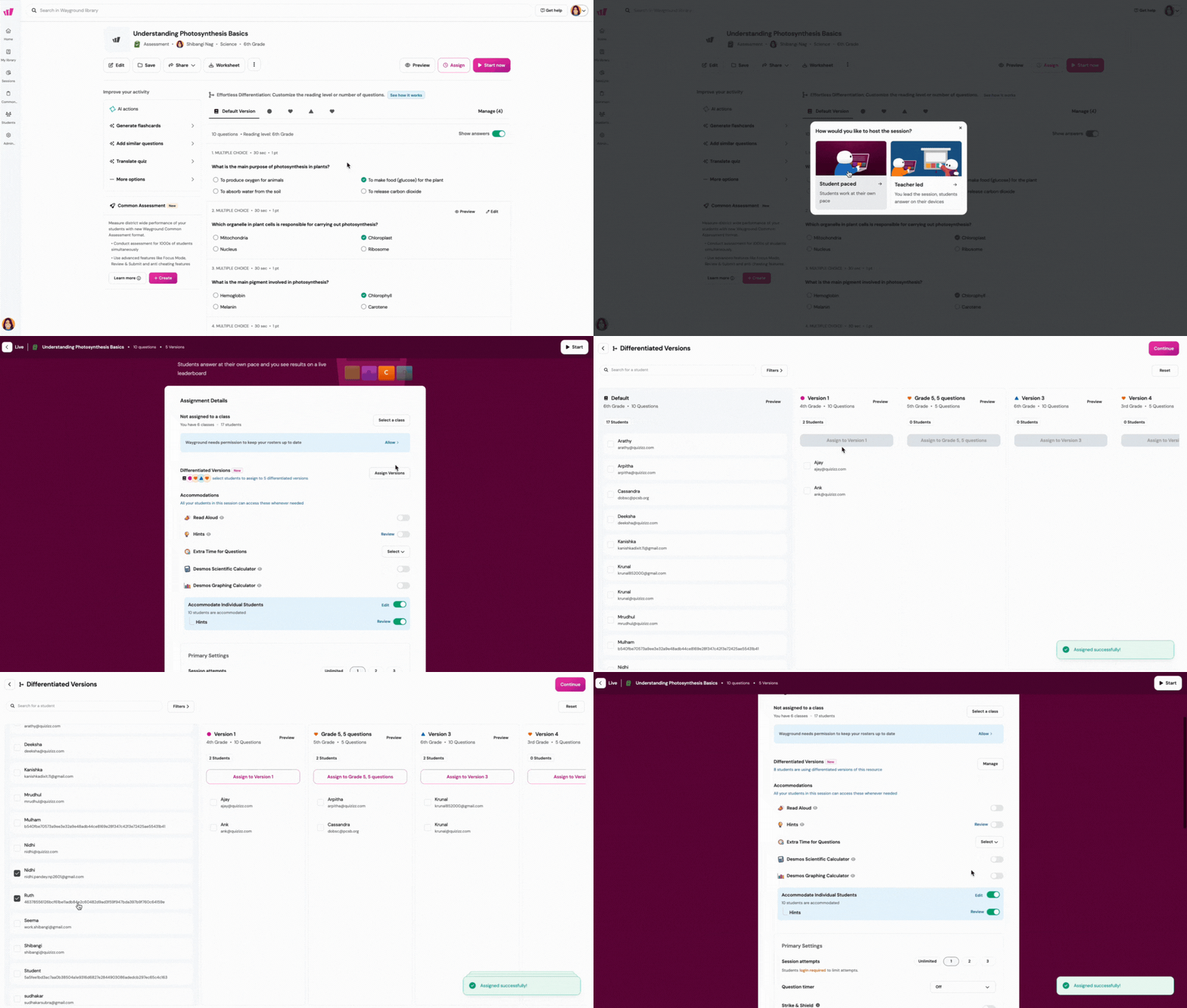
Click on 'Continue' in the top-right corner.
Customise the remaining session settings, and click on 'Start' or 'Assign'.
And done! Your students can now participate in their assigned Differentiated Versions of the same Assessment/Quiz or Passage.
Once the session is assigned, you can view results for each student on the report page of the session. You can also view results for each version.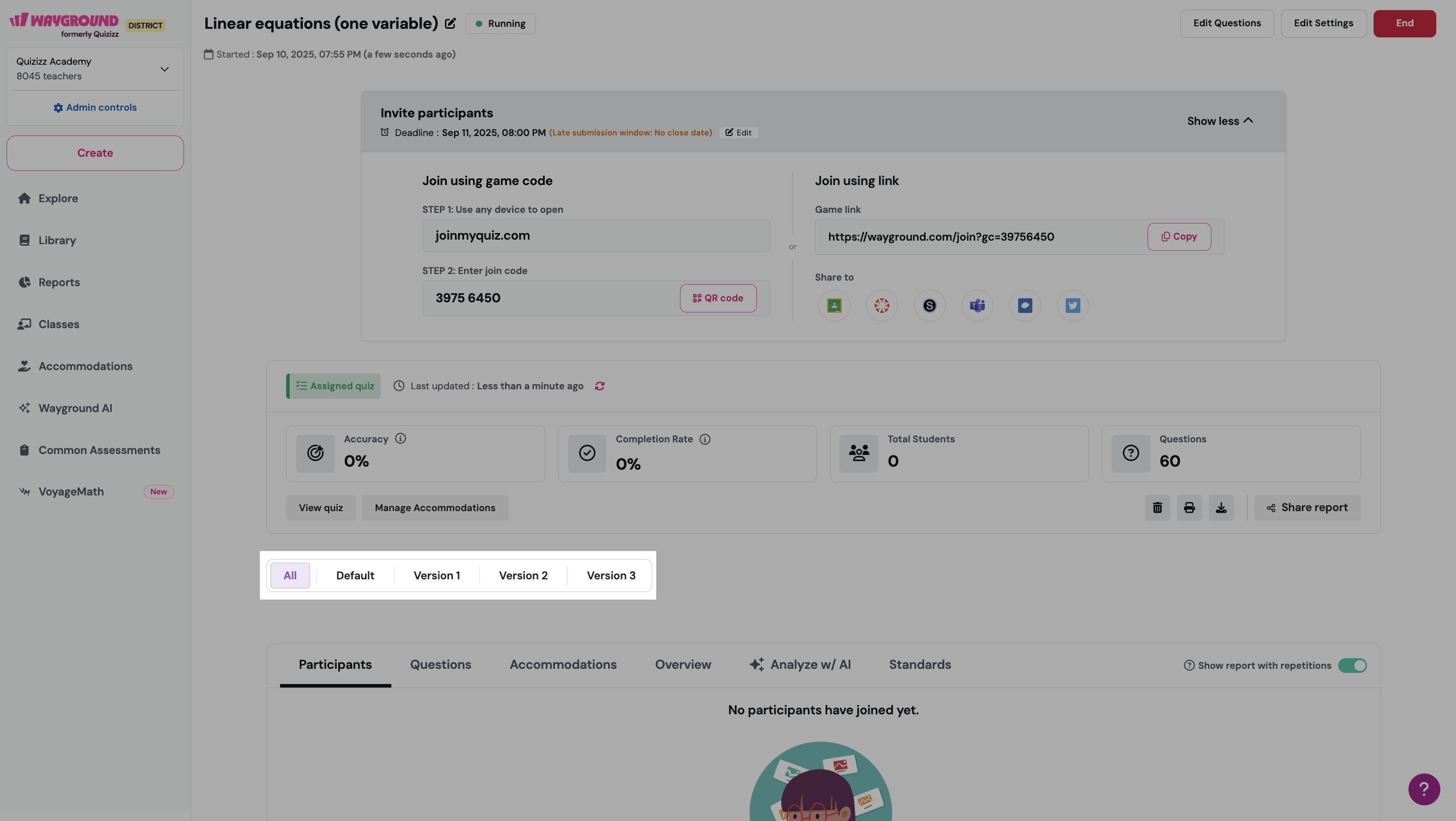
Was this article helpful?
That’s Great!
Thank you for your feedback
Sorry! We couldn't be helpful
Thank you for your feedback
Feedback sent
We appreciate your effort and will try to fix the article