TABLE OF CONTENTS
At Wayground, we recognise that every student can thrive if their unique learning needs are supported. And that is why we are pleased to introduce Accommodations!
With this feature, you can provide specific accommodations to students in your class. This means you can save time by assigning the same session to your whole class while ensuring you provide compliant, scaffolded experiences for your students.
To learn about the different Accommodations available on Wayground, check out this article: Explore Each Accommodation on Wayground.
How Accommodations work
Let’s say you’re assigning a Wayground session to your math class. With Accommodations, you can differentiate instruction within your class such that:
- Sue and Derik receive an extra 30 seconds while answering questions,
- Jamal has the Read Aloud feature enabled,
- Sanjay, Beth, and Jon see reduced answer choices,
- Ola, Ria, and Shankar can access reading mode during lessons and adjust font sizes and themes,
and the remaining students in your class will experience the session with regular session settings.
You can assign a student as many Accommodations as needed. These Accommodation settings will be saved for future reuse and can always be edited and modified.
To learn about the different Accommodations available on Wayground, check out this article: Explore Each Accommodation on Wayground.
How to assign Accommodations to students
You can assign Accommodations to your students in three ways:
- From the Accommodations page inside the 'Students' tab or the 'Admin controls' tab
- Before starting/assigning a session
- While managing your Classes
Once you have set up Accommodations for your students, you can reuse these settings for every activity you assign them without having to set them up again.
Assign Accommodations from the homepage
- Click on the 'Students' tab on the left navigation pane and select 'Accommodations'. If you're an admin, click on the 'Admin controls' tab on the left navigation pane and then select 'Accommodations'
- From the left side of your screen, select the student(s) you would like to support with Accommodations
- From the right side of your screen, select the Accommodations you want to assign to the selected students
- Click on 'Save Changes'
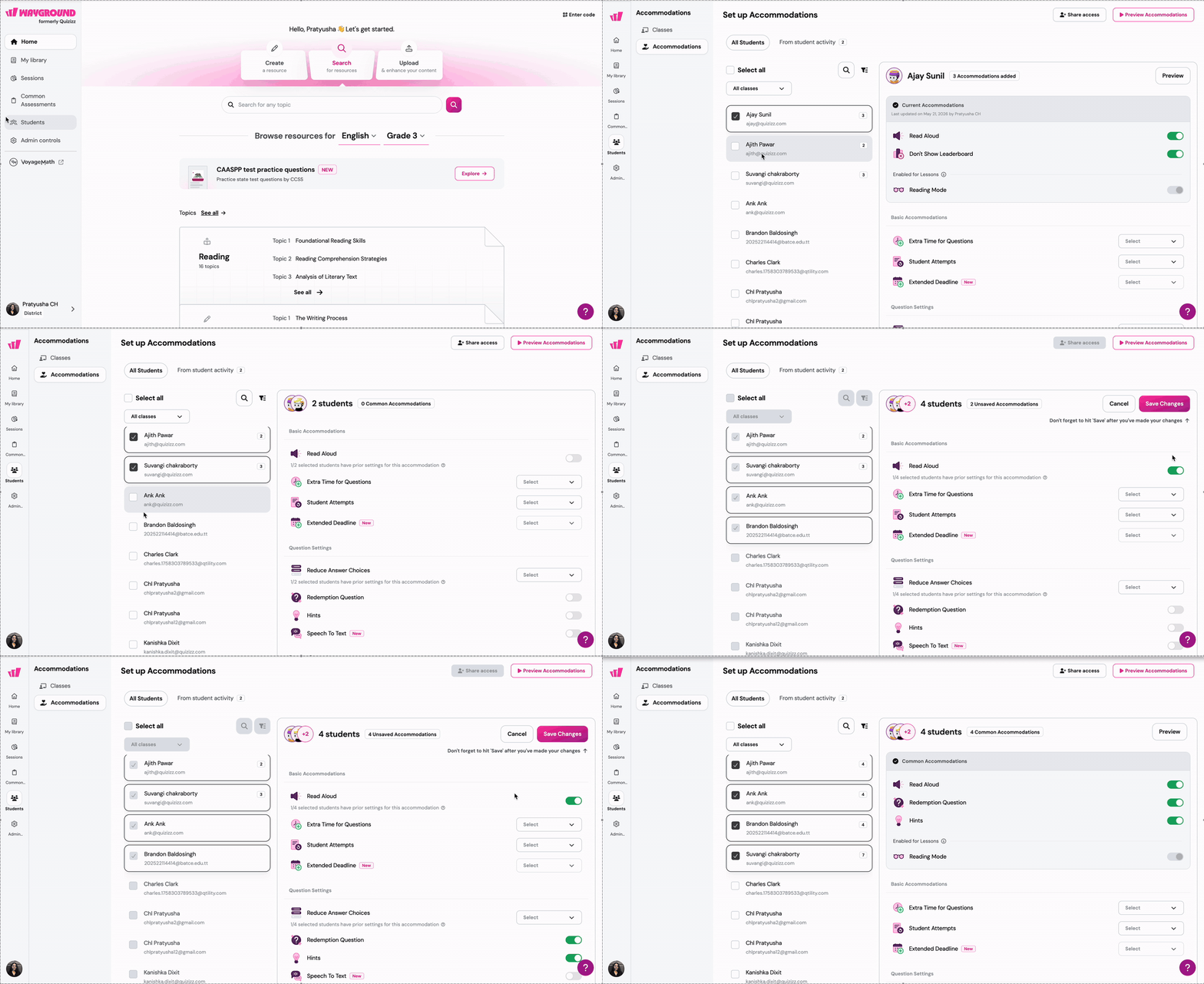
- To assign Accommodations to the remaining students, unselect the selected students
- Then, select the student(s) you would like to support with a different set of Accommodations by repeating steps 2, 3, and 4
- You can view which students have been assigned specific Accommodations by using the search box to find individual students, filtering the list of students with their assigned Accommodations, or using the sort option
- Once you're happy with the setup, click on 'Done'
Your students will not be made aware that there are unique experiences for some students, so they can all feel included while they focus on their own learning.
Assign Accommodations before starting/assigning a session
- From My library, open the resource (Assessment, Lesson, Passage, Flashcards, etc.) you want to assign or start.
- Click Assign or Start now.
- Choose the session mode and configure the session settings.
- Scroll to Student Support.
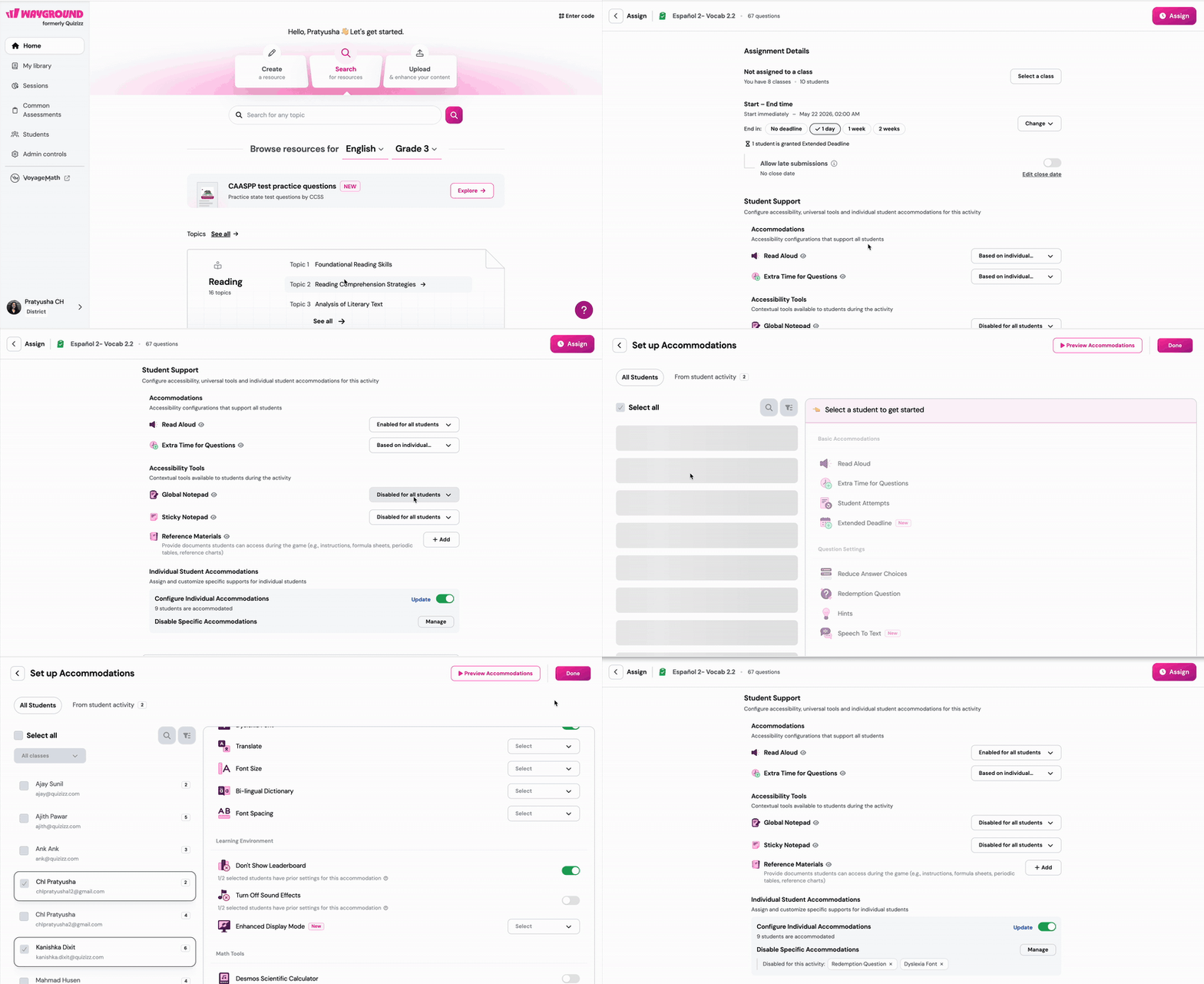
▸ Under Accommodations, set a state for each item (Read Aloud, Hints, Extra Time for Questions) using its dropdown:
- Enabled for all students: every student in the session receives it.
- Disabled for all students: turned off for the session.
- Based on individual accommodations: only students you have configured will receive this support.
▸ Under Accessibility Tools, set a state for each tool (Desmos Scientific Calculator, Desmos Graphing Calculator, Four Function Calculator, Global Notepad, Sticky Notepad) the same way.
(Optional) Next to Reference Materials, click + Add to attach documents students can open during the activity, such as instructions, formula sheets, periodic tables, or reference charts.
▸ Under Individual Student Accommodations:
- Turn on Configure Individual Accommodations to apply per-student supports. If you have set up accommodations earlier for these students, those settings load automatically and the count (for example, 7 students are accommodated) appears below.
- Use Update to add or modify accommodations, or Manage under Disable Specific Accommodations to turn off supports for the current session.
5. Finish configuring the remaining session settings.
6. Click Assign or Start.
Your students will not be made aware that there are unique experiences for some students, so they can all feel included while they focus on their own learning.
Assign Accommodations for a specific class
- Click on the 'Students' tab on the left navigation pane and select 'Classes'
- Click on the required class
- Click on 'Add Accommodations'. If you've already set up Accommodations for that class, that button will appear as 'Modify Accommodations'
- This will open the Accommodations page on your screen
- From the left side of your screen, select the student(s) you would like to support with Accommodations
- From the right side of your screen, select the accommodations you want to assign the selected students
- Click on 'Save Changes'
- To assign Accommodations to the remaining students, unselect the selected students
- Then, select the student(s) you would like to support with a different set of accommodations by repeating steps 5, 6, and 7
- Once you're happy with the setup, click on 'Done'
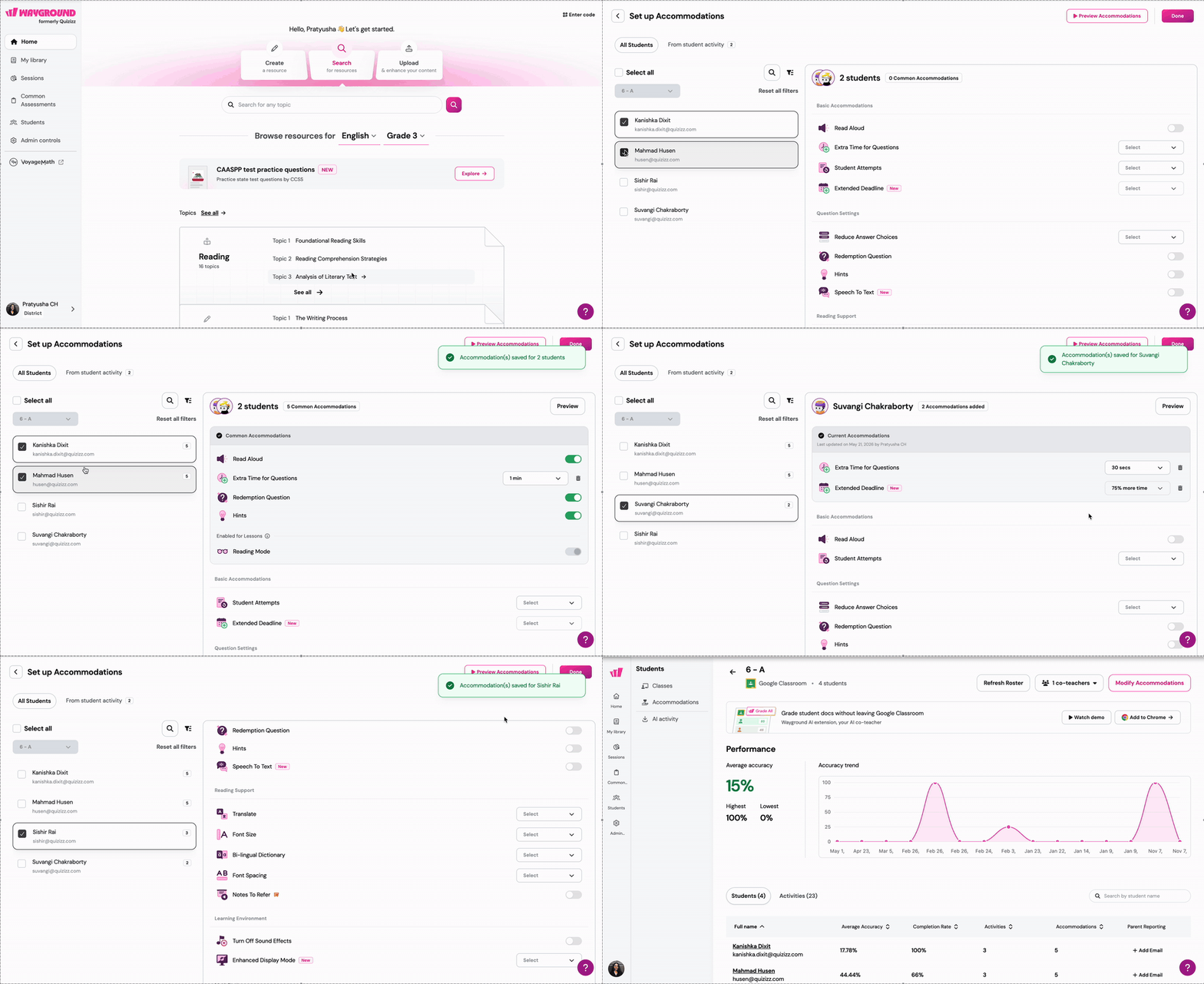
Once you set up these Accommodations for a Class, you can reuse these settings for every session you assign to that Class!
* Your class will not be made aware that there are unique experiences for some students, so they can all feel included while they focus on their own learning.
FAQs
Q. Why am I seeing 'Conflicting Accommodations'?
A. When you select multiple students who have been assigned different Accommodations, the Accommodation settings will conflict with each other. This means that the selected students have been assigned different Accommodations and not common ones. To resolve this:
- Click on 'Edit' on the 'Conflicting Accommodations' pop-up, and proceed to remove existing Accommodations assigned to the selected students
- Then, proceed to assign the selected students' Accommodations from the beginning
- Additionally, ensure that you unselect previously selected students when assigning new Accommodations to the rest of your students to avoid 'Conflicting Accommodations'
Q: Will students know they have accommodations?
A. No. Wayground never shows students whether they have accommodations enabled. All students see the session together — each with their own experience, invisibly.
Q: Do I have to set accommodations up before every session?
A. No. Once you save a student's accommodation profile, it automatically applies to all future sessions. You can update it at any time.
Q: Can I disable an accommodation for a specific session?
A. Yes. In Method 3 (session settings), use 'Disable Specific Accommodations' → Manage to turn off any individual support for that session only. The student's saved profile remains unchanged.
Q: Do state-specific calculators load automatically?
A. Yes. For California, Texas, Virginia, North Carolina, and South Carolina, the state-approved Desmos version loads automatically when the calculator accommodation is enabled. No extra setup needed.
Learn more:
Accommodations Available on Wayground
Was this article helpful?
That’s Great!
Thank you for your feedback
Sorry! We couldn't be helpful
Thank you for your feedback
Feedback sent
We appreciate your effort and will try to fix the article