For Administrators
If you're a new customer, "don't use this guide". This is the older, manual setup process. New integrations should use Set up the Wayground<>Canvas LTI integration, which uses Canvas's newer Dynamic Registration flow and is faster to set up. This article stays here only for administrators managing an integration that was already set up this way.
Welcome to the guide on integrating Wayground with Canvas using LTI! With Wayground embedded in Canvas through LTI, students can complete Wayground activities directly from Canvas, which will streamline their experience by minimizing any distractions and the need to navigate multiple systems. Teachers can assign activities and review grades for Wayground activities within Canvas, eliminating the need to toggle between platforms.
Wayground's LTI integration with Canvas offers:
- Single Sign-On SSO)
- Student class rostering
- Activity deep-linking
- Assignment grade synchronization
This article will demonstrate how you can set up this integration as an Administrator. Two major steps need to be completed during the setup:
- Getting the integration link from Wayground
- Completing the integration on Canvas
Please Note:
- This feature is available for users with Wayground Schools & District Plans.
- If you set up the integration before the rebrand to Wayground:
- Do not delete the existing Quizizz LTI key. Deletion is permanent and breaks grade sync for every assessment already assigned through that key. Instead, rename the tool in place by following the steps in the Rename your Quizizz LTI to Wayground. The rename is fully non-destructive and preserves all pre-assigned activities..
- Only teachers rostered on Wayground as part of your Wayground Schools & District Plans can use the Wayground–Canvas integration. Teachers not rostered and attempting to link a Wayground LTI activity in a Canvas course will receive a message prompting them to get rostered on the plan to access the Canvas integration.
- To ensure a smooth experience, we suggest installing Wayground LTI in Canvas in the root account of the district. This will allow all teachers rostered on the Wayground Premium plan to access the Wayground LTI app. Other teachers will be directed to Wayground Basic plan accounts.
- Even if you have a multi-school subscription, you only need to generate a single integration link from Wayground. After integrating this link with Canvas at the district's root account, the integration will automatically extend to all associated schools.
- If you install Wayground LTI in separate sub-accounts or schools within the district, you must generate individual integration links from wayground.com/lti/admin/canvas/integration using different Wayground school accounts and use those links for each Canvas sub-account. You can't use the same integration link for multiple installations.
Step 1: Getting the integration link from Wayground
- Log in to Wayground
- Click the 'Admin Controls' button located in the top left of your screen, then select 'LMS Integrations'
- Click on ‘Canvas’
- Go to your Canvas account in a new browser window and copy the entire URL (exclude anything after .com)
- Go back to Wayground, and paste the copied URL in the 'Enter URL' field (exclude anything after ‘.com’)
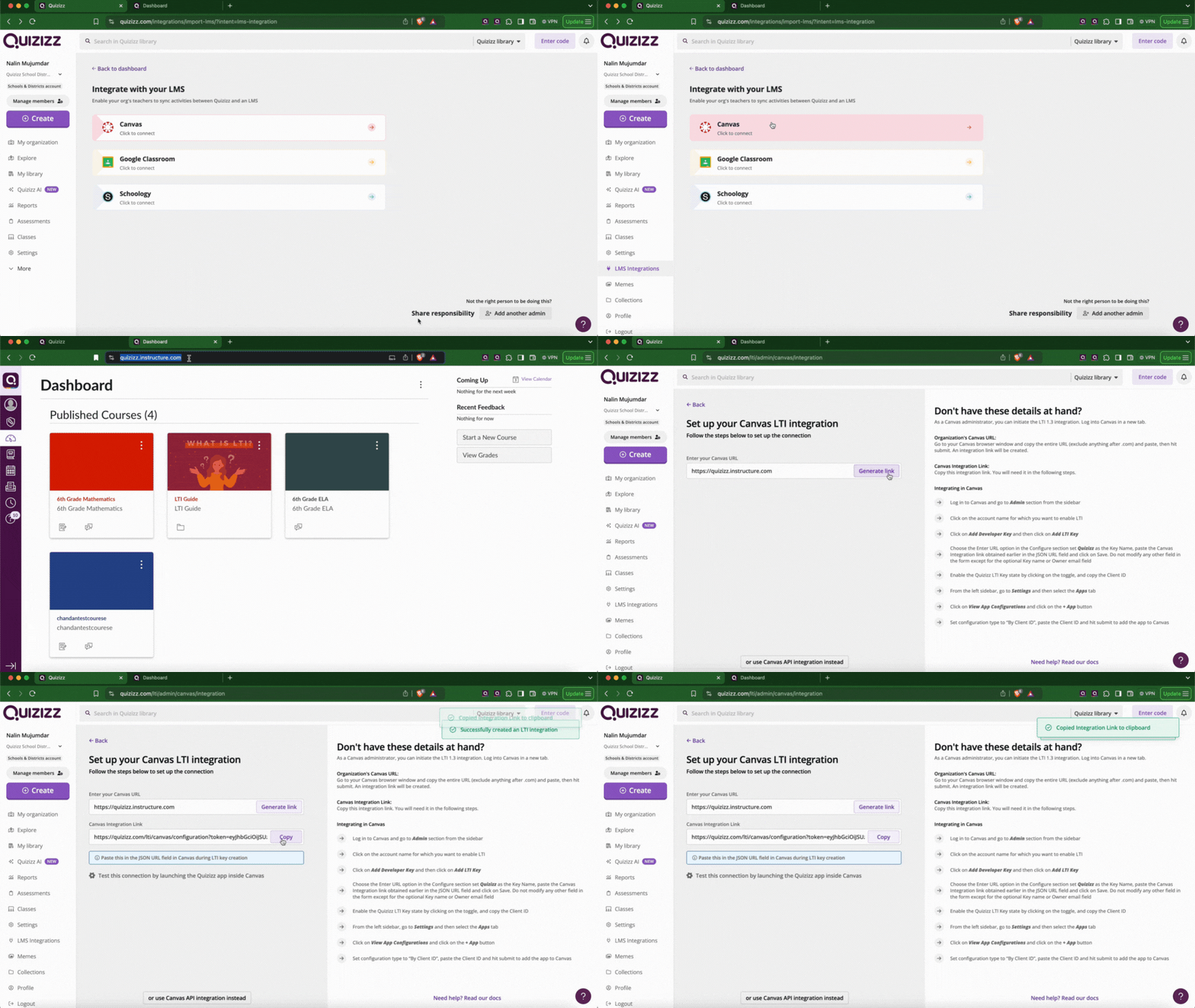
- Click on 'Generate link'. An integration link will be generated
- Copy the integration link
Use this link to complete the integration on Canvas!
Step 2: Completing the integration on Canvas
- Log in to Canvas
- Click on the Admin tab from the left navigation pane
- Select the name of the account
- Go to ‘Developer Keys’
- Click on ‘Add Developer Key’
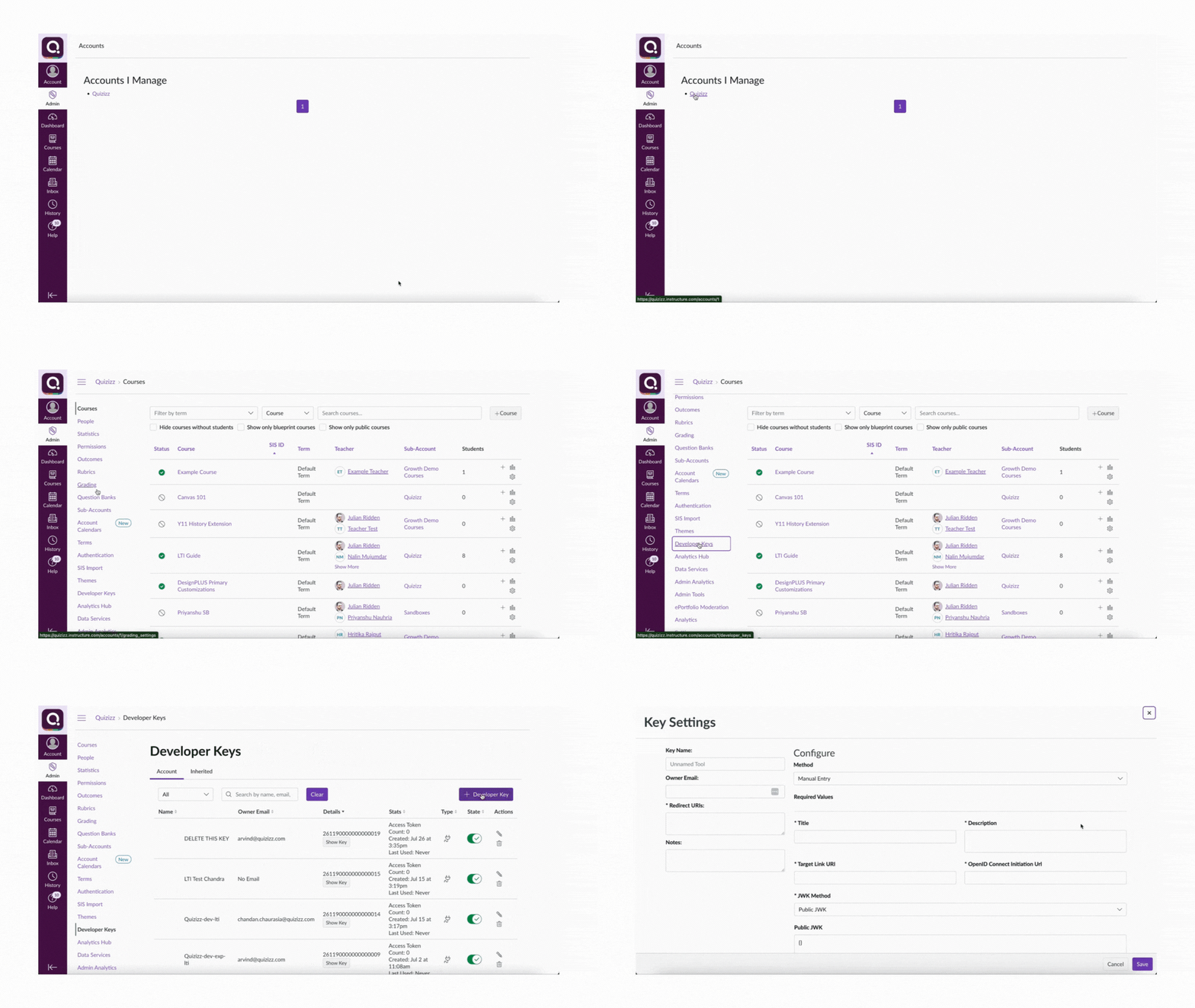
- Then, click on ‘+ Add LTI Key’
- Choose the 'Enter URL' option from the ‘Configure’ section
- Write 'Wayground' in the 'Key Name' field. Make sure not to enter anything apart from the key name in this field
- Paste the integration link you had copied earlier into the JSON URL field
- Click on ‘Save’
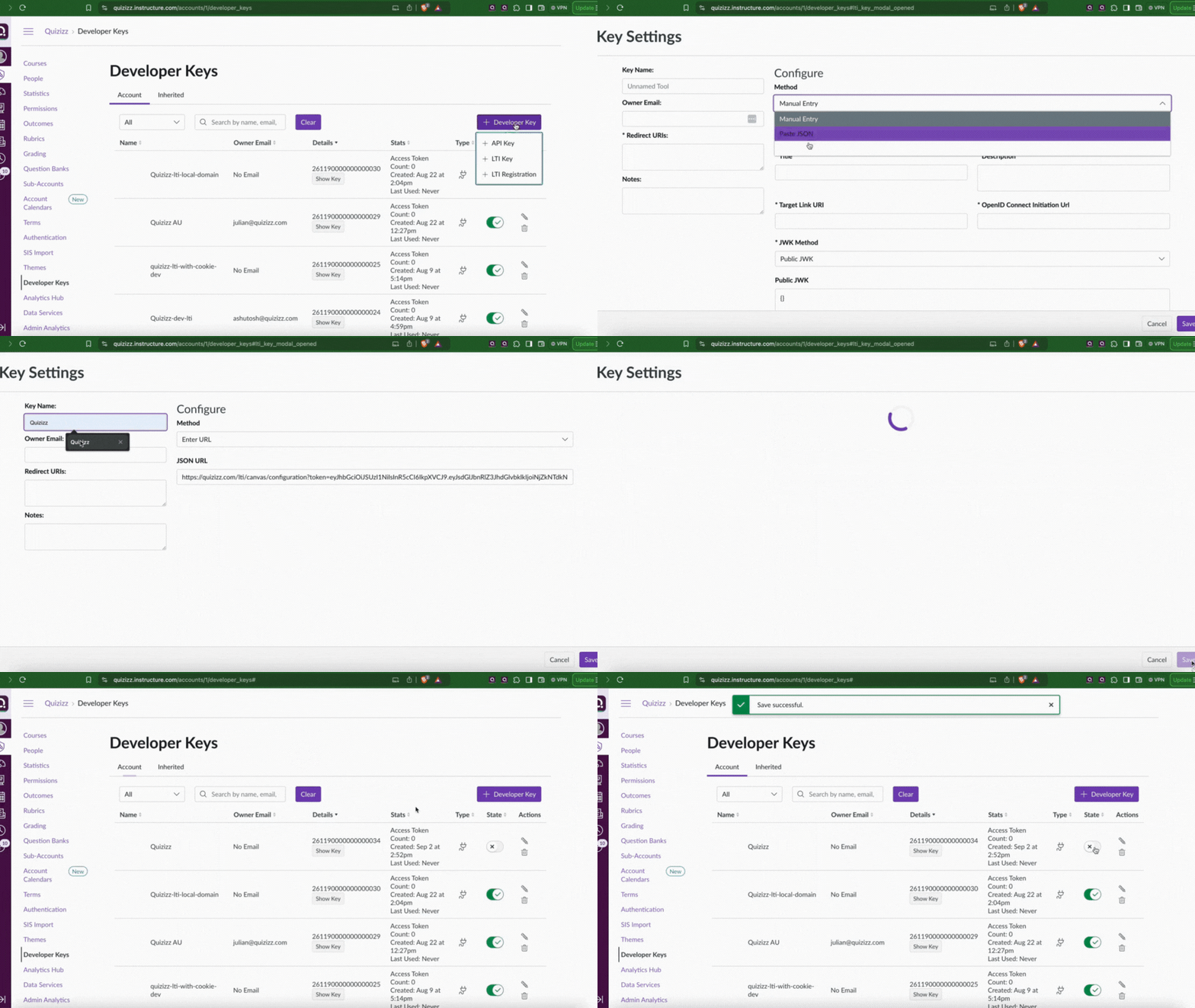
- Now, enable the 'Wayground Developer Key' state by clicking on the toggle
- Copy the Client ID
- Then, from the left navigation pane, go to 'Settings'
- Select the 'Apps' tab
- Select 'View App Configurations' and click on the '+ App' button
- Set the configuration type to 'By Client ID', and paste the Client ID you had copied earlier
- Click on 'Submit' to embed the Wayground into Canvas
- Click on 'Install' and then select 'Yes, Install Tool'
- Verify the integration: Ensure that Wayground is listed as an external tool in the ‘Developer Keys’ section and verify that the integration is active and functioning correctly
- Important: Test the integration: Add a Wayground activity in a Canvas course to ensure it launches correctly
Note: Once an activity on Wayground is assigned using LTI within a Canvas course, only that particular course is imported into the teacher’s Wayground account. All Canvas courses are not imported automatically.
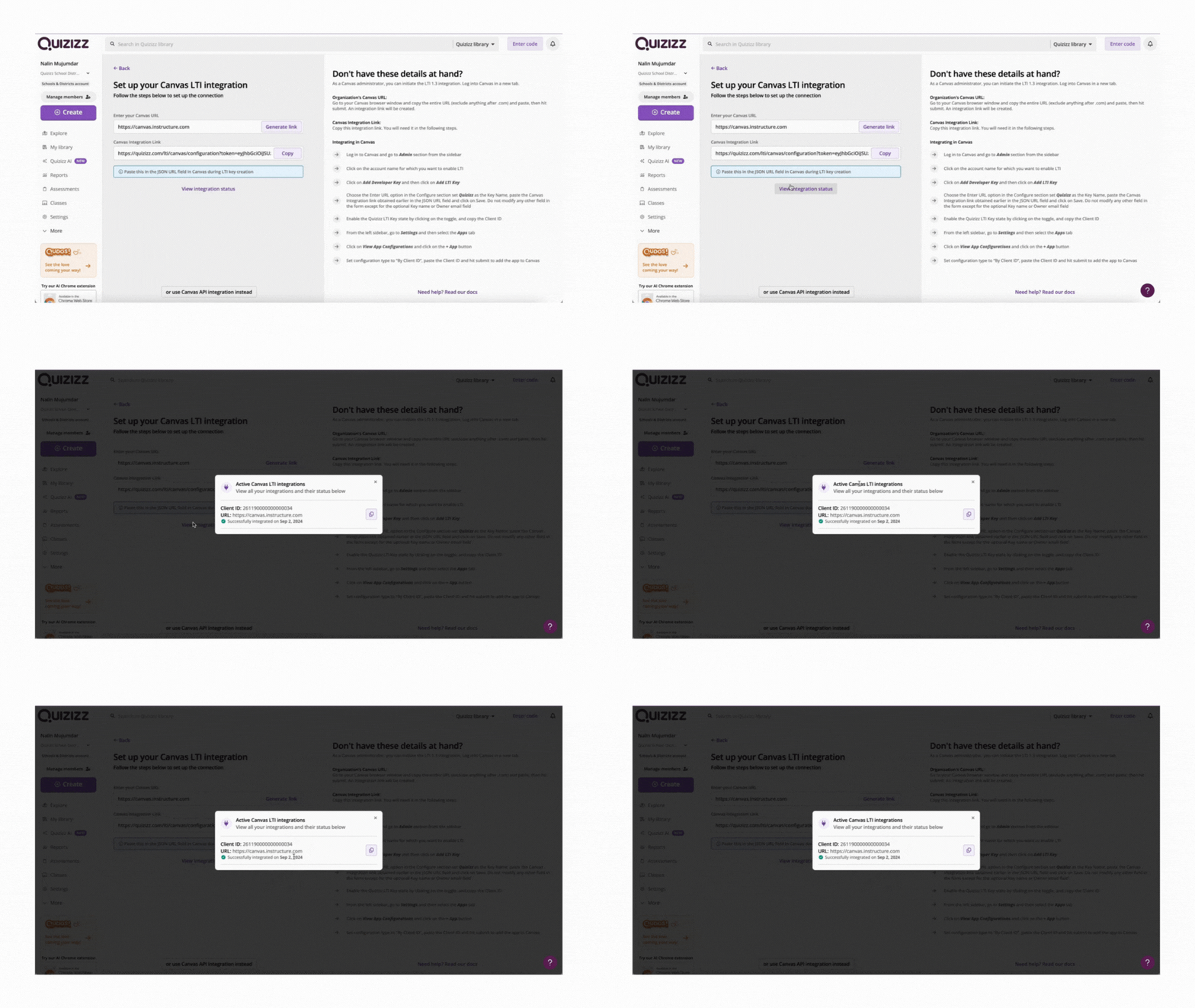
Wayground is now successfully embedded into your Canvas! You can check the integration status by clicking on 'View integration status' on the Canvas integration page on Wayground. The 'Integration status' will show as successful only after you test the integration (see step 20)
Once the integration is complete, teachers can assign Wayground activities directly to their Canvas courses.
Learn more about Wayground x Canvas LTI integration:
Set up the Wayground<>Canvas LTI integration as an Administrator
Rename your Quizizz tool to Wayground in Canvas
Assign a Wayground activity on Canvas via LTI (for teachers)
FAQs: Wayground x Canvas Integration via LTI
Was this article helpful?
That’s Great!
Thank you for your feedback
Sorry! We couldn't be helpful
Thank you for your feedback
Feedback sent
We appreciate your effort and will try to fix the article