Grading and AI Integrity in Canvas | Wayground Extension
The Wayground AI Chrome extension works directly inside Canvas LMS, so you can grade open-ended student work without leaving the assignment page. Generate a rubric, run integrity checks, push scores into the Canvas Gradebook, and pull up a class report, all from one sidebar.
Available on the Wayground Free, Individual (Super), School, and District Plans.
Note: This grading capability applies to native Canvas assignments with open-ended questions, such as text entry. Submissions completed through external tools or third-party integrations (LTIs) inside Canvas are not supported.
Launch Wayground in Canvas
Once the Wayground AI Chrome extension is installed, a grading entry point appears on your Canvas assignment pages. Here are the steps to follow:
Go to your Canvas course and open any assignment page.
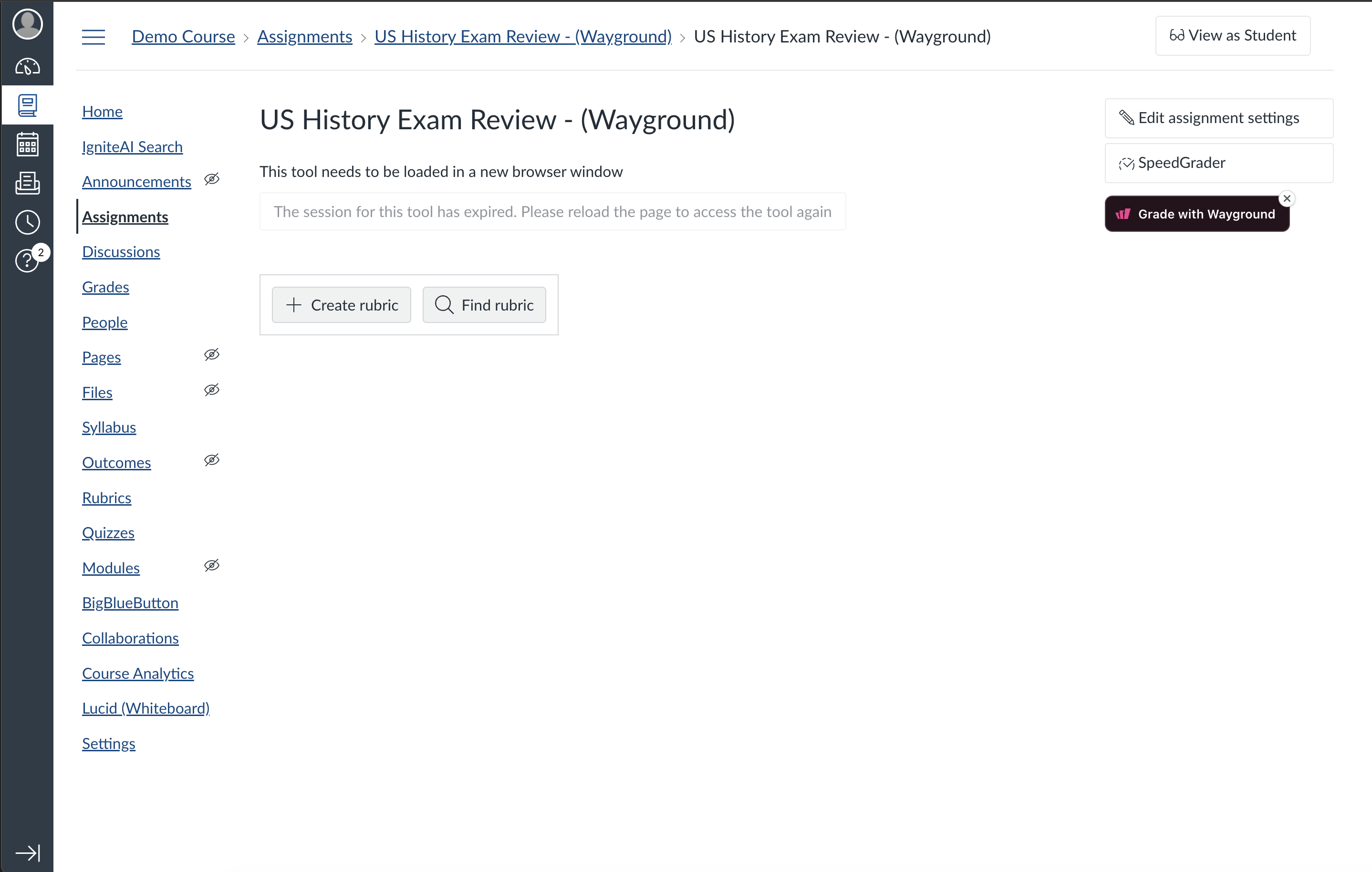
In the right sidebar under 'Related items', click on 'Grade with Wayground'. The Wayground AI panel expands on the right side of your browser window.
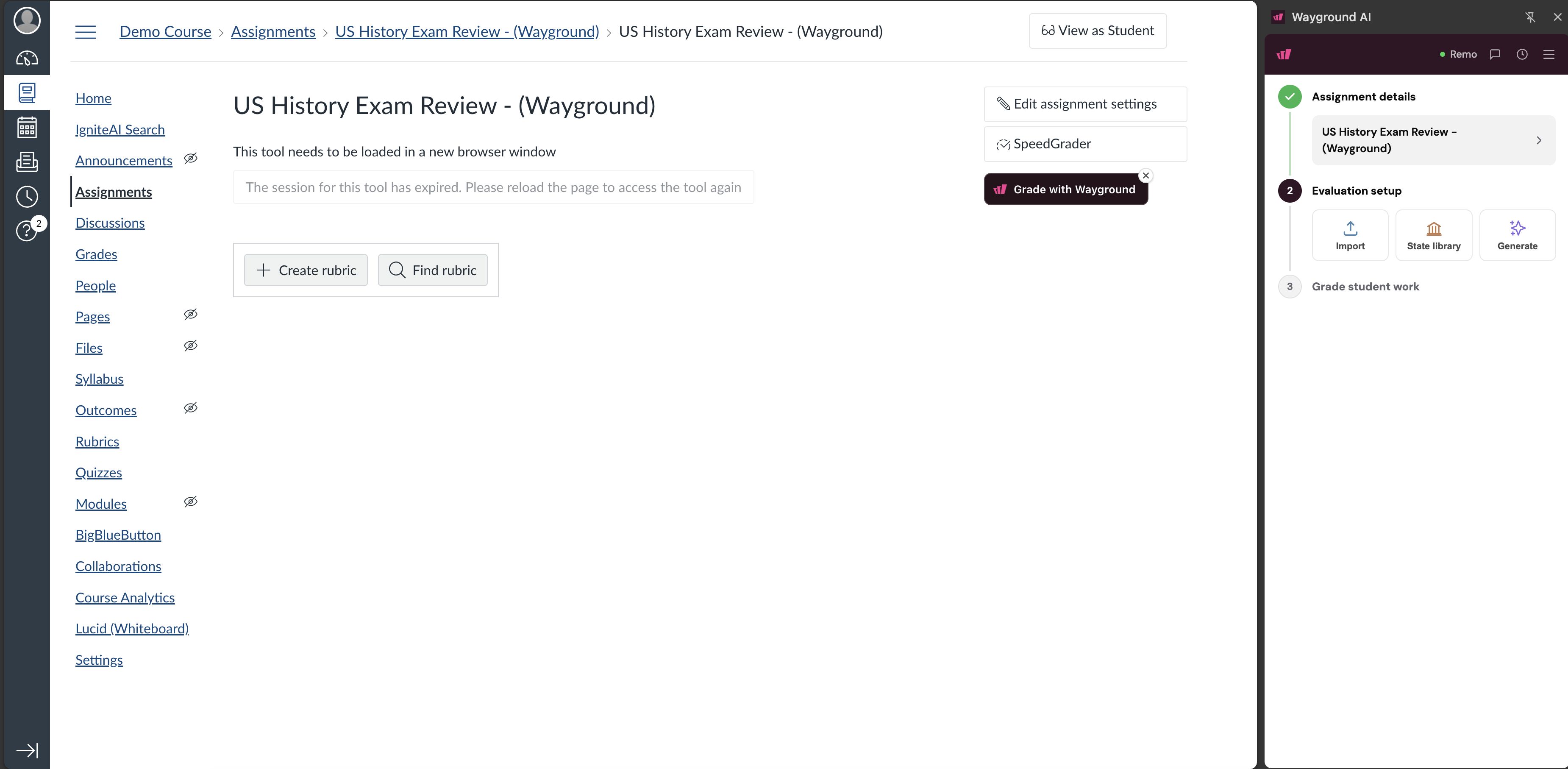
The panel walks you through three stages: 'Assignment details', 'Evaluation setup', and 'Grade student work'.
Configure evaluation settings and rubric
Wayground reads the assignment title and prompt straight from Canvas, so the setup is mostly confirmation. To finish it, follow these steps:
Check the assignment title and prompt shown under 'Assignment details'.
Under 'Evaluation setup', choose your 'Subject' and grade level, then add any custom feedback instructions you want the AI to follow.
Choose how you want to add a rubric:
Click on 'Generate' to build a rubric tailored to the prompt, then review the criteria and confirm your selection
Click on 'Import' to bring in a rubric you already use
Click on 'State library' to pull a standards-aligned rubric
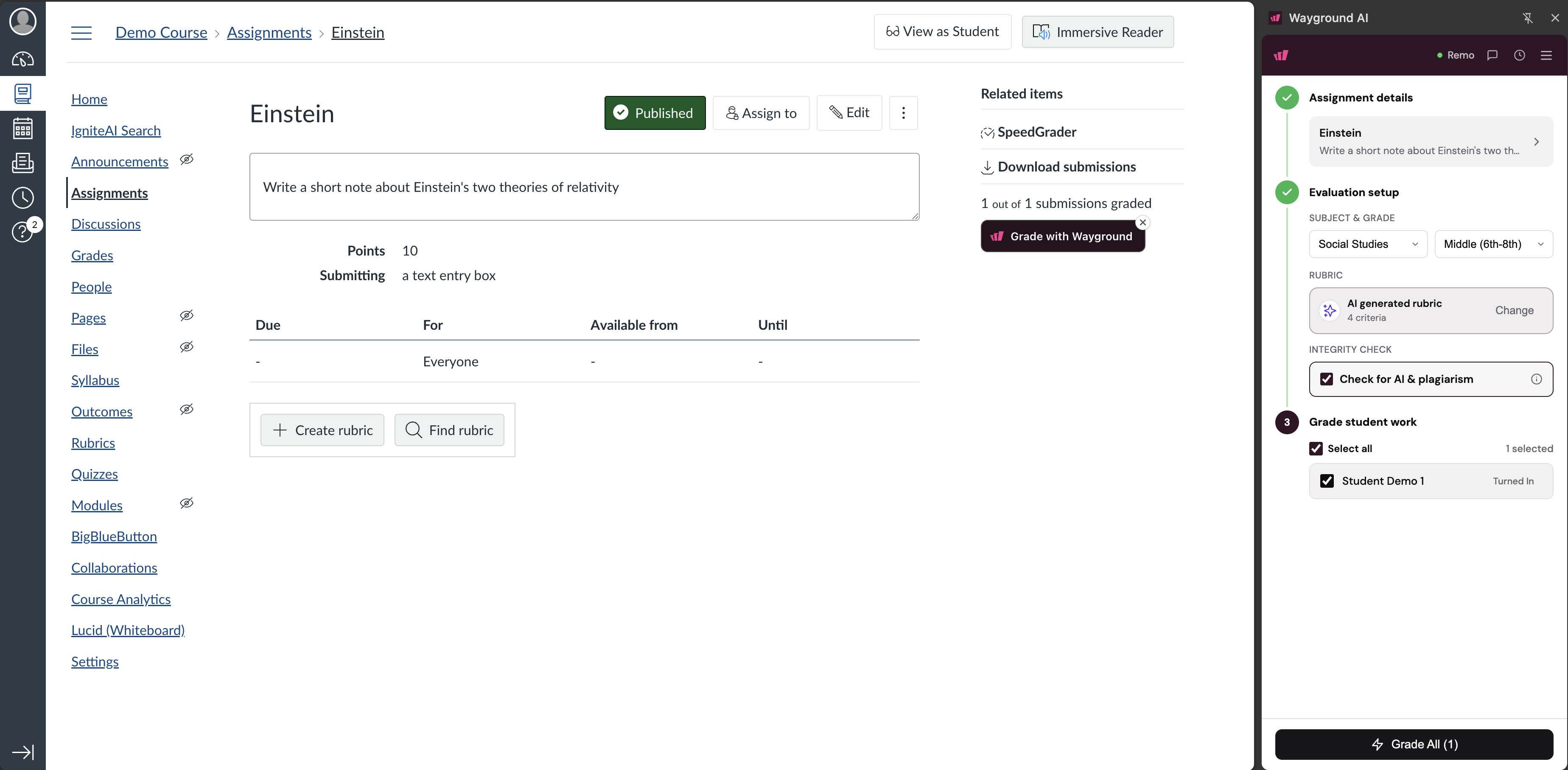
To swap rubrics later, click on 'Change' next to the rubric name.
Run the automated evaluation
With the rubric in place, pick the submissions you want scored. Here are the steps:
Scroll to 'Grade student work' and check individual students, or click on 'Select all' to include everyone who has turned in work.
Under 'Integrity check', select 'Check for AI & plagiarism' to run integrity scans alongside the evaluation. Note: The AI Integrity check feature is only available on the Wayground School and District plan.
Click on 'Grade All' at the bottom of the panel. Wayground AI reads each submission against your rubric and produces scores plus written feedback.
Note: The number in parentheses on the button, such as 'Grade All (1)', reflects how many submissions you have selected.
Review scores and integrity results
You stay in control of every score. The 'Evaluation results' view groups students by performance tier so you can scan quickly, then dig into details. To review the output, follow these steps:
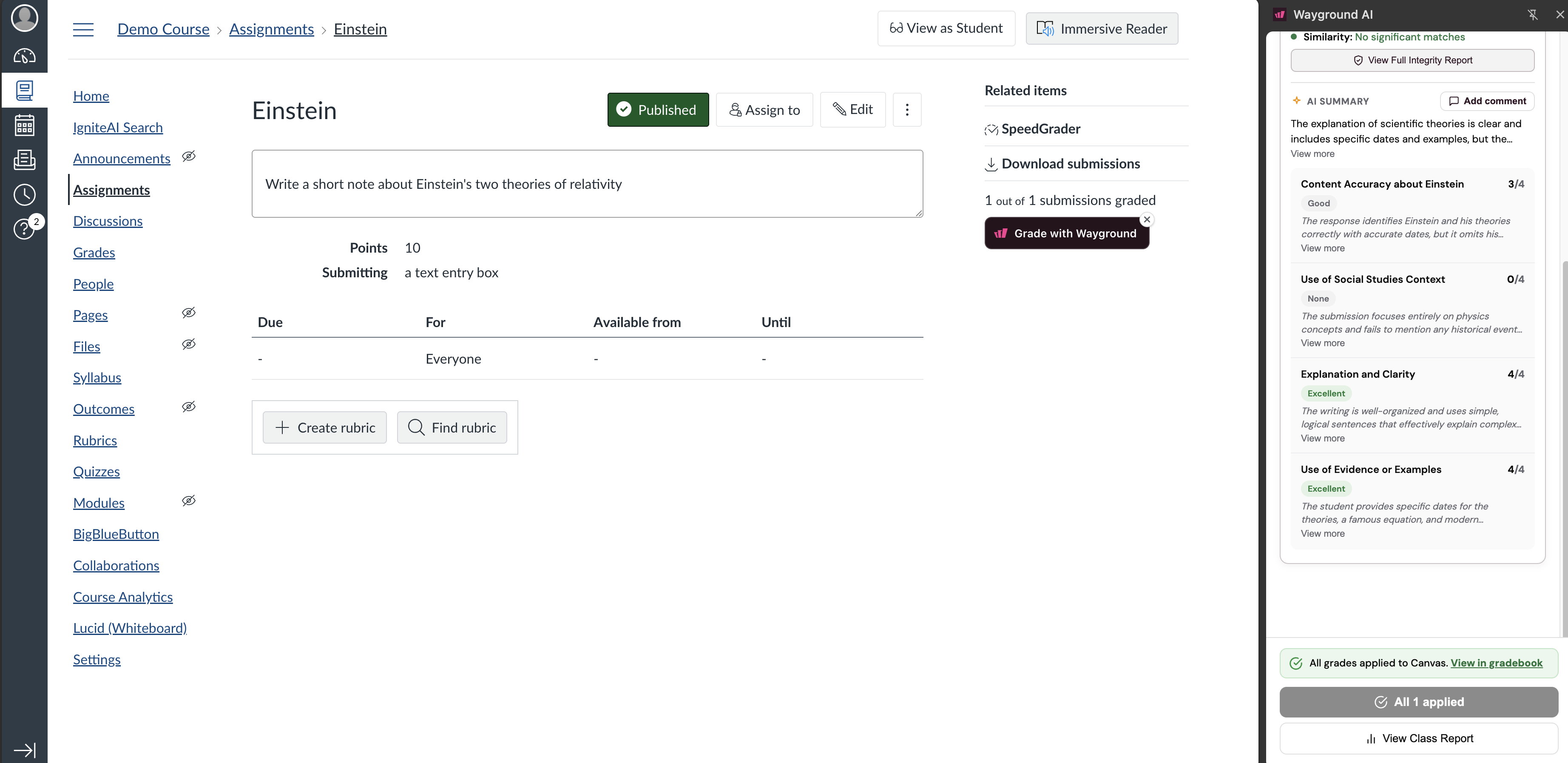
Click on a student's name to expand the criterion-by-criterion breakdown, including the points earned, the performance label, and the written comment for each rubric criterion.
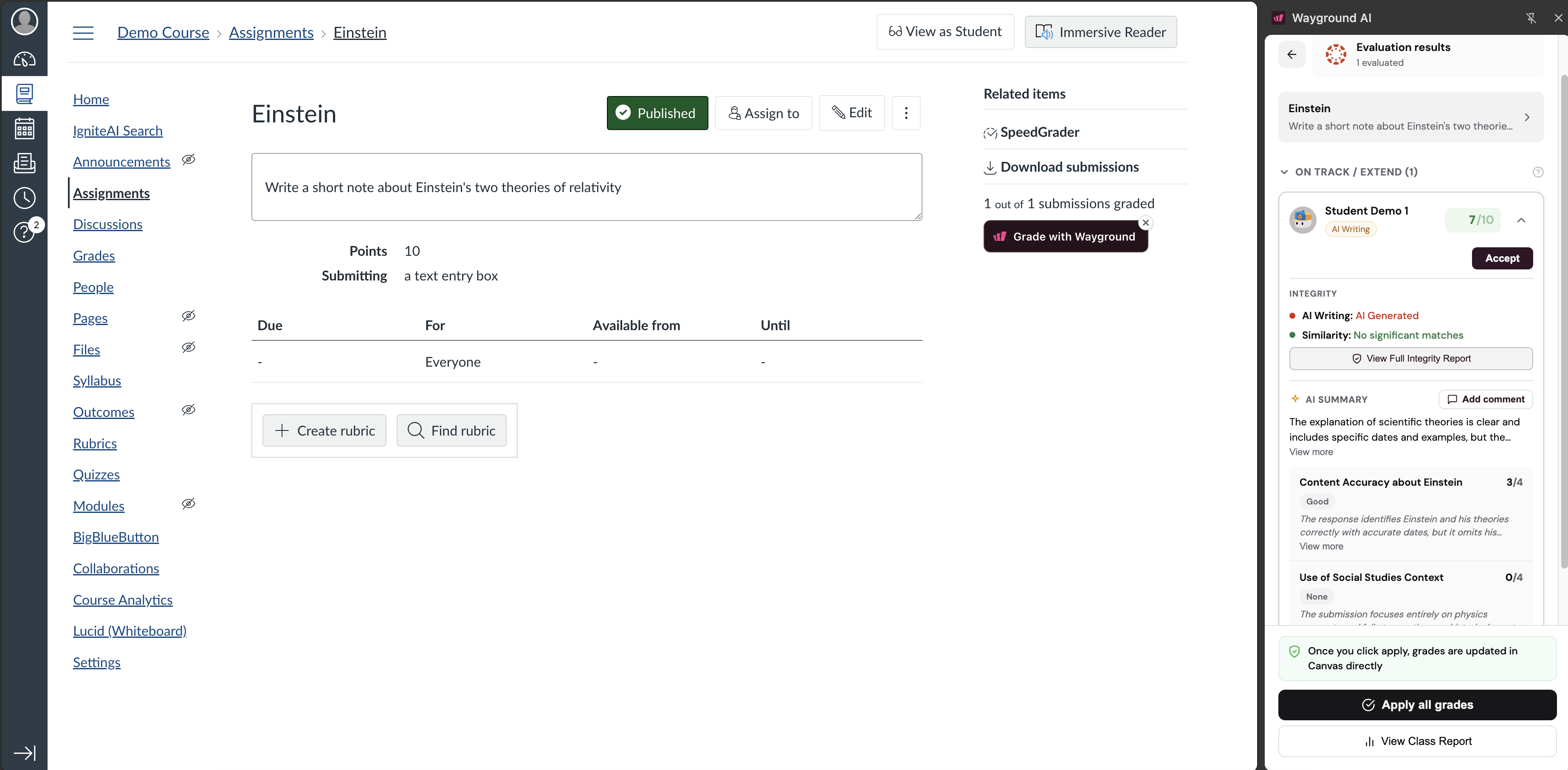
Read the 'AI summary' for a short overview of the response, and click on 'Add comment' if you want to include your own feedback.
Check the 'Integrity' section for AI writing and similarity findings, then click on 'View Full Integrity Report' to see flagged text segments highlighted on the submission.
Click on 'Accept' to confirm a score, or adjust it before applying grades.
Note: The AI and plagiarism report is available on the Wayground School and District Plans.
Sync grades to the Canvas Gradebook
When the scores look right, push them into Canvas in one move. Here are the steps:
Click on 'Apply all grades' at the bottom of the sidebar.
Wait for processing to finish. The button updates to show how many grades were applied, and a confirmation message appears.
Click on 'View in gradebook' to open your Canvas Gradebook and confirm that the calculated grades have populated in the assignment column.
Generate and analyze class insights
After grades are applied, click on 'View Class Report' at the bottom of the sidebar. A printable dashboard opens in a new tab with the following sections:
Class performance overview: class average, median, low, and high scores, plus a visual performance distribution chart
Criteria breakdown: class averages for each rubric criterion, sorted with the weakest areas first
AI analysis, patterns and next steps: qualitative insights on common student trends with concrete strategies for your next lesson
Intervention groups: students grouped into support tiers such as Need
Here is a video of how grading and the AI integrity check works on Canvas using the Wayground AI extension.
Was this article helpful?
That’s Great!
Thank you for your feedback
Sorry! We couldn't be helpful
Thank you for your feedback
Feedback sent
We appreciate your effort and will try to fix the article