Using the AI Integrity and Similarity Checker in Wayground AI
Checking student work for originality shouldn't mean bouncing between your grading rubric and a separate plagiarism tool. With the Wayground AI browser extension, you can run an AI writing and similarity check on a Google Doc while you generate feedback, all in the same sidebar.
Whether you're reviewing a short response or a longer research paper, the check runs in seconds and gives you a clear summary plus a full report you can download and keep.
Available on the Wayground School and District Plan.
In this article, we will go over the steps you can follow to run an integrity check and read the results.
- Before you start
- How to run an integrity check from Google Docs
- How to review the integrity results
- How to read the full Integrity Report
Before you start
Here's what you'll need to have ready:
The Wayground AI extension installed in Chrome or Microsoft Edge, and signed in with your Wayground teacher account. You can find and install it from the Web store here.
The student's Google Doc open in the active browser tab, with view or edit access
The integrity check runs as part of the 'Give student feedback' flow, so you'll get originality results and inline feedback comments from the same run.
How to run an integrity check from Google Docs
To check a student's document for AI writing patterns and similarity to online sources, follow these steps:
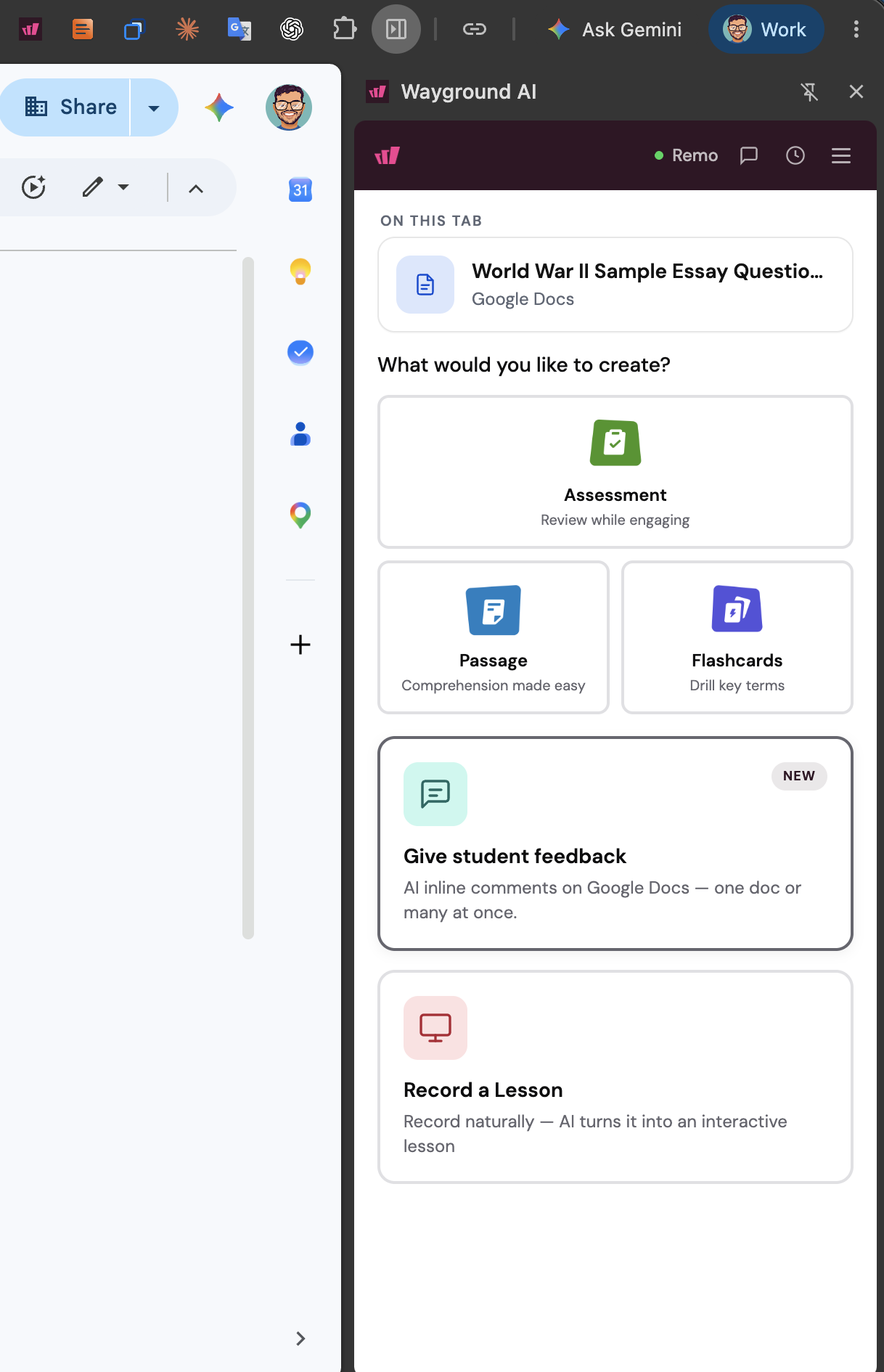
Open the student's Google Doc, then click on the Wayground AI extension icon in your browser toolbar to open the sidebar. The document you have open appears under 'ON THIS TAB'.
Under 'What would you like to create?', click on 'Give student feedback'.
Set the 'SUBJECT & GRADE' dropdowns to match the assignment, for example Social Studies and Middle (6th-8th).
Optional: Click on '+ Add more' under 'ADD MORE DOCS' to check and give feedback on several student documents in the same run.
Under 'INTEGRITY CHECK', select the 'Check for AI & plagiarism' checkbox. Click on the information icon next to it if you'd like a quick explanation of what gets scanned.
Optional: Add your own guidance in the 'INSTRUCTIONS FOR AI' box, or pick a tone chip such as '+ Encouraging', '+ Direct', or '+ Evidence'. You can also attach a rubric using 'Import' or 'State library'.
Click on 'Generate feedback' at the bottom of the sidebar.
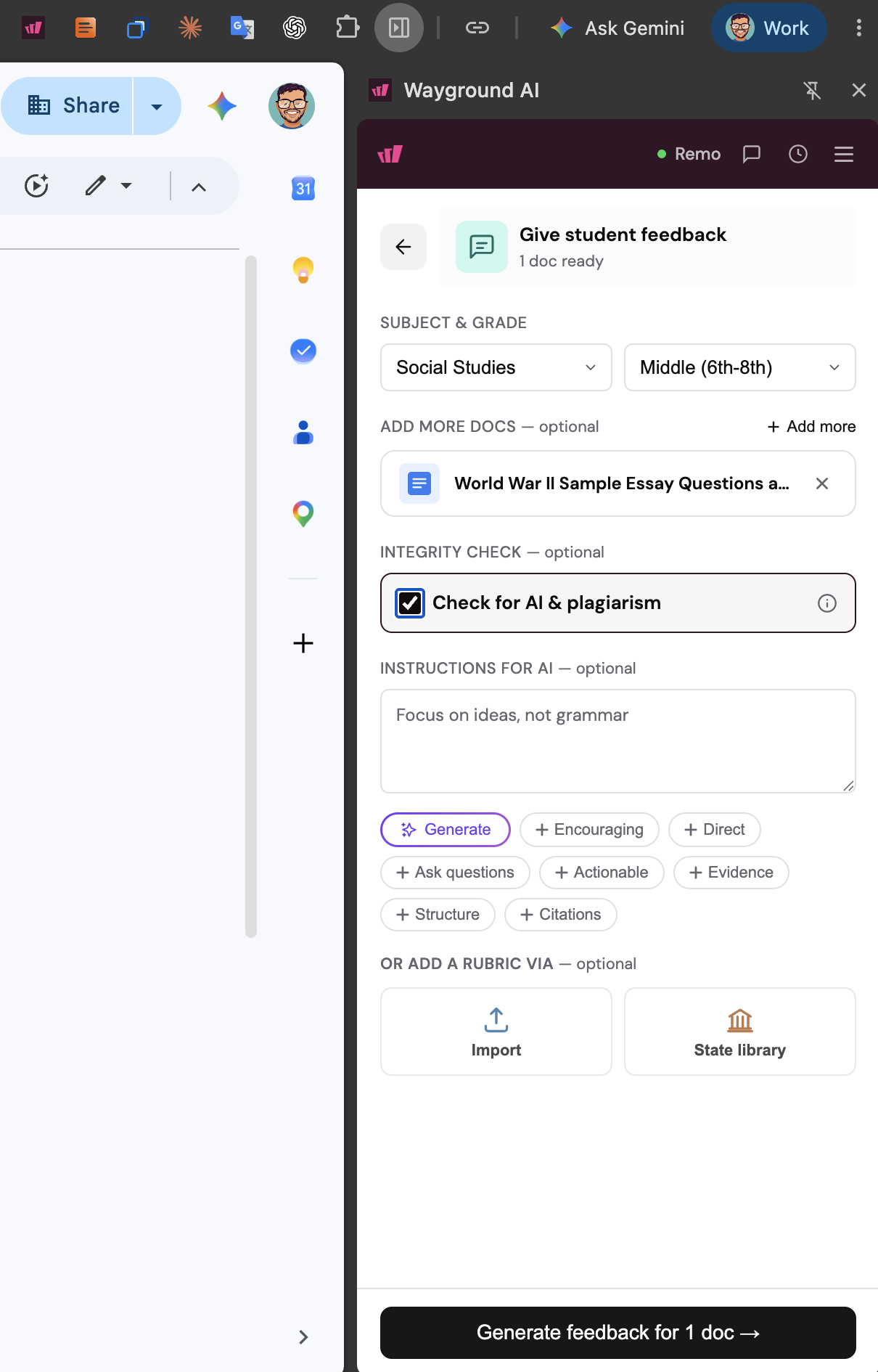
Pro Tip: If you added several documents, the button label updates to show the number of docs in the batch, so you can confirm the scope before you run the check.
How to review the integrity results
When the check finishes, the sidebar switches to 'Review feedback' and shows an 'INTEGRITY' summary above your generated comments. Here's how to work through it:
Read the two summary lines at the top: 'AI Writing' tells you whether the text shows AI writing patterns, and 'Similarity' tells you whether the text matches external online sources
Click on 'View Full Integrity Report' in the 'INTEGRITY' section of the sidebar to view a detailed report.
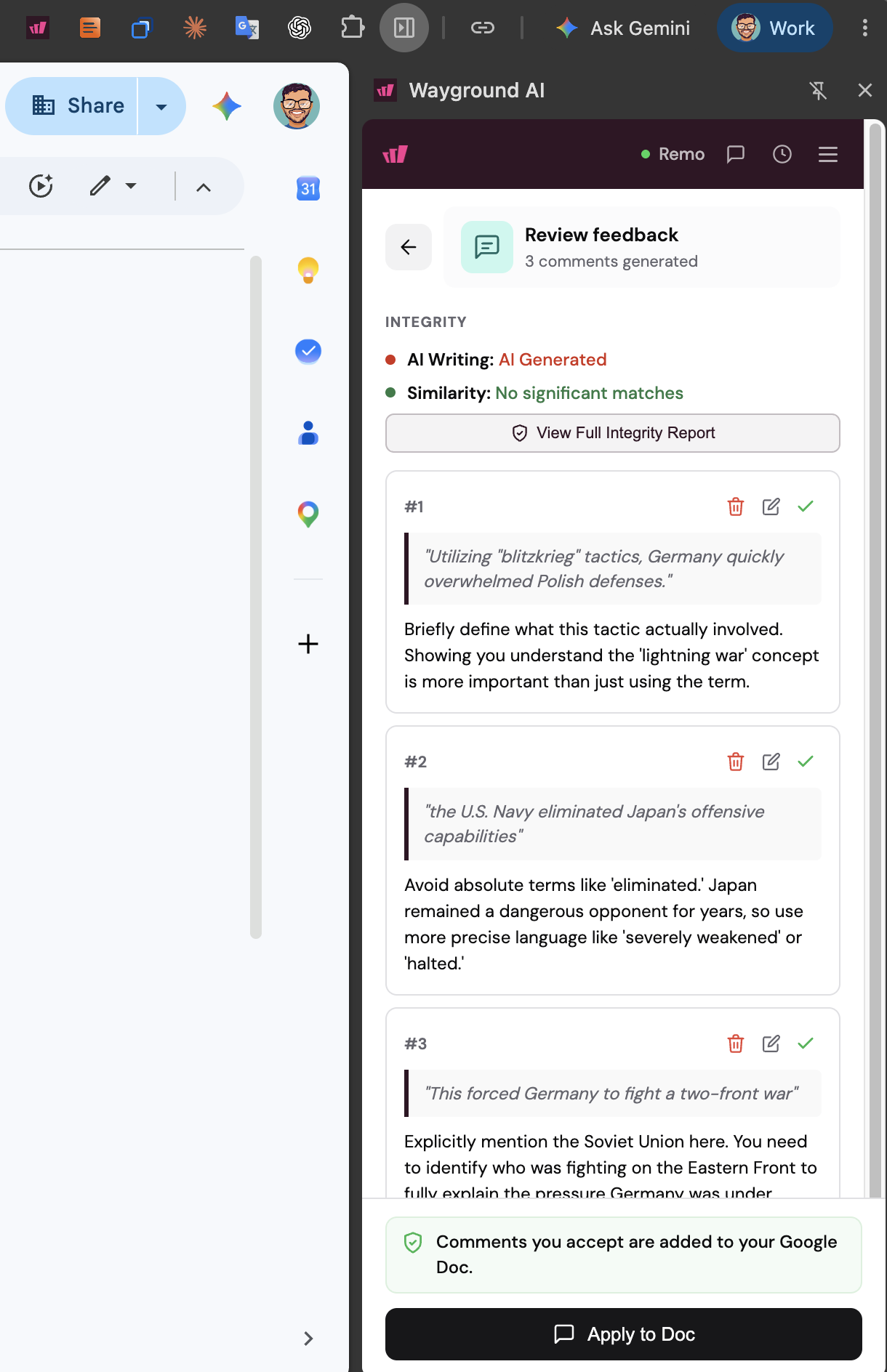
Note: Only the comments you accept are added to the Google Doc, so you stay in control of what the student sees.
How to read the full Integrity Report
For a closer look at which parts of the writing were flagged, open the full report from the sidebar:
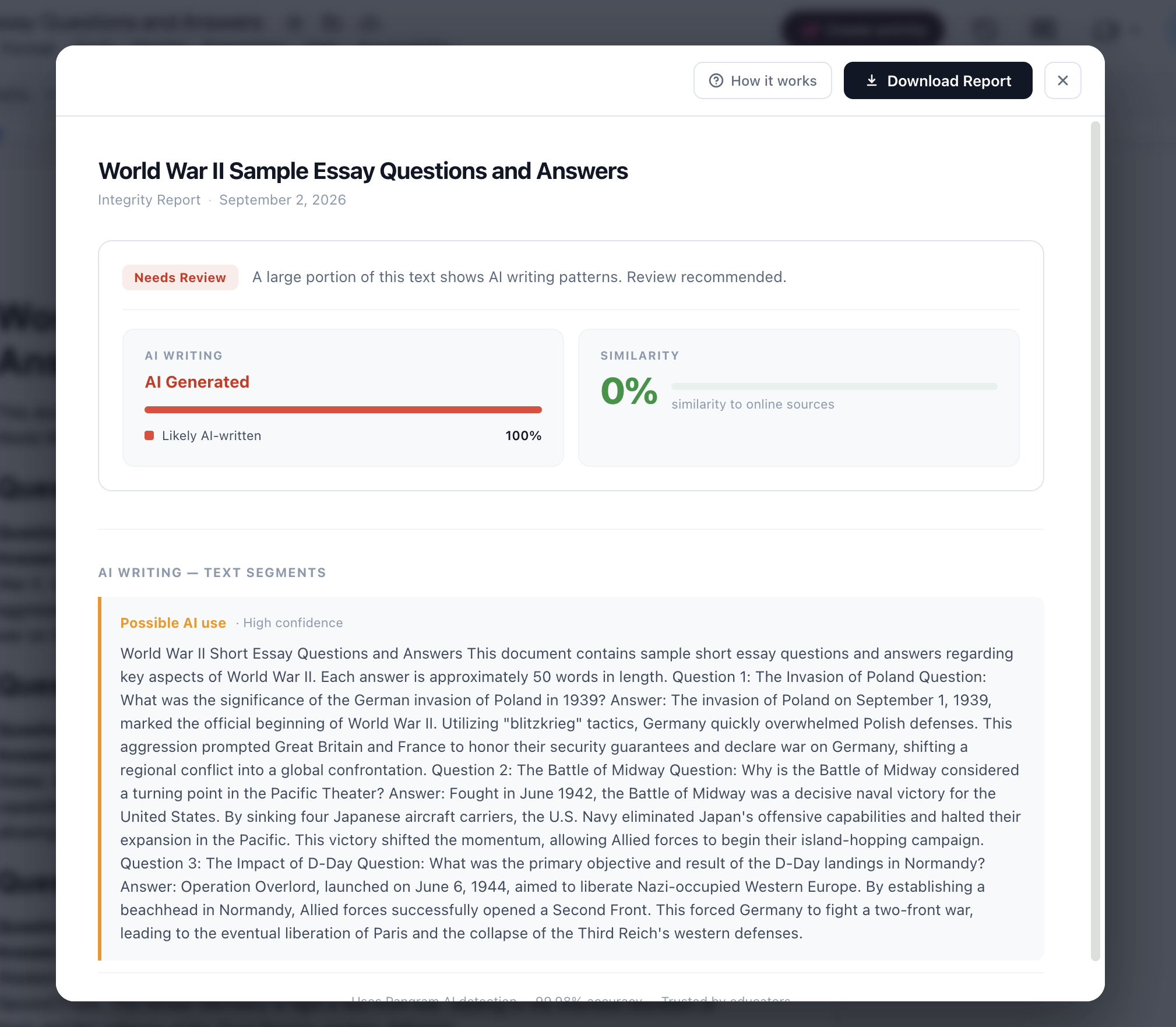
Click on 'View Full Integrity Report' in the 'INTEGRITY' section of the sidebar. The report opens over the document with the file name and report date at the top.
Review the status banner and the two score cards: 'AI WRITING' shows the share of text that is likely AI-written, and 'SIMILARITY' shows the percentage that matches online sources.
Scroll to 'AI WRITING' text segments to see the exact passages that were flagged, along with a confidence label such as 'Possible AI use'. This is the fastest way to decide which paragraphs deserve a closer read.
Click on 'How it works' for background on the detection method, or 'Download Report' to save a copy for your records or a family conversation.
Click on the close icon in the top right corner to return to the document and your feedback cards.
AI writing detection in the report is powered by Pangram, with a stated accuracy of 99.98%. Treat the results as a starting point for a conversation about digital citizenship and authentic writing, paired with what you already know about the student's work.
That's it. You now have an originality snapshot and a set of targeted comments for the student, all without leaving the document you were already grading.
Was this article helpful?
That’s Great!
Thank you for your feedback
Sorry! We couldn't be helpful
Thank you for your feedback
Feedback sent
We appreciate your effort and will try to fix the article