TABLE OF CONTENTS
- Before you start
- Connect Wayground to ChatGPT
- Add or remove Wayground in a chat
- Create an Assessment or Flashcards
- Example prompts
- Tips for better results
- Edit a resource
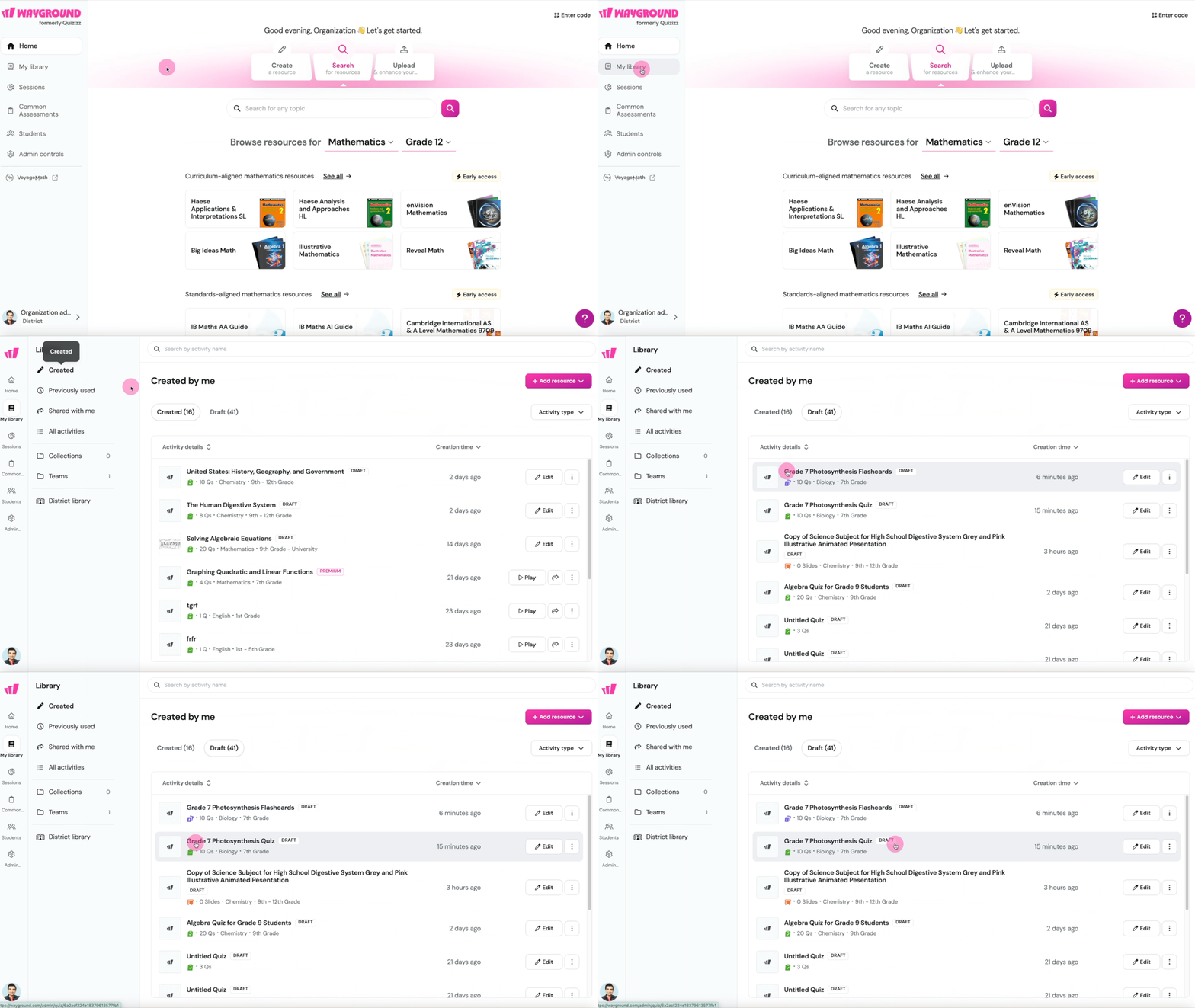
- Find your resources in Wayground
- Frequently asked questions
- Troubleshooting
- Contact and support
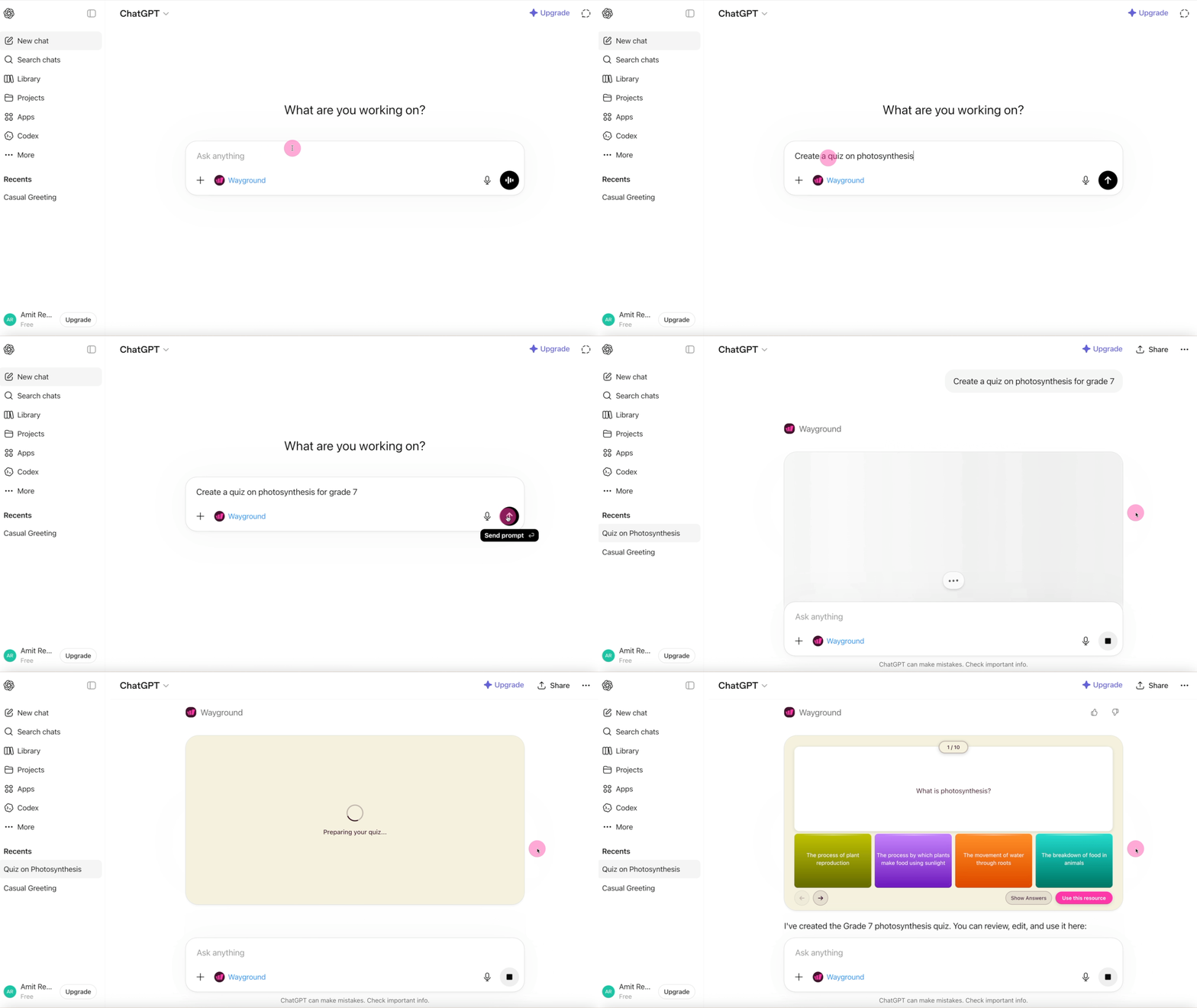
Create Assessments and Flashcards right inside ChatGPT. Describe what you need in your own words, and ChatGPT builds the resource with Wayground. It saves to your Wayground library automatically, ready to assign.
Before you start
You’ll need:
A Wayground account (free or paid)
A ChatGPT account (free or paid)
Chrome, Edge, Safari, or Firefox, or the ChatGPT desktop or mobile app
Connect Wayground to ChatGPT
You only need to do this once.
Open ChatGPT at chatgpt.com or in the ChatGPT app.
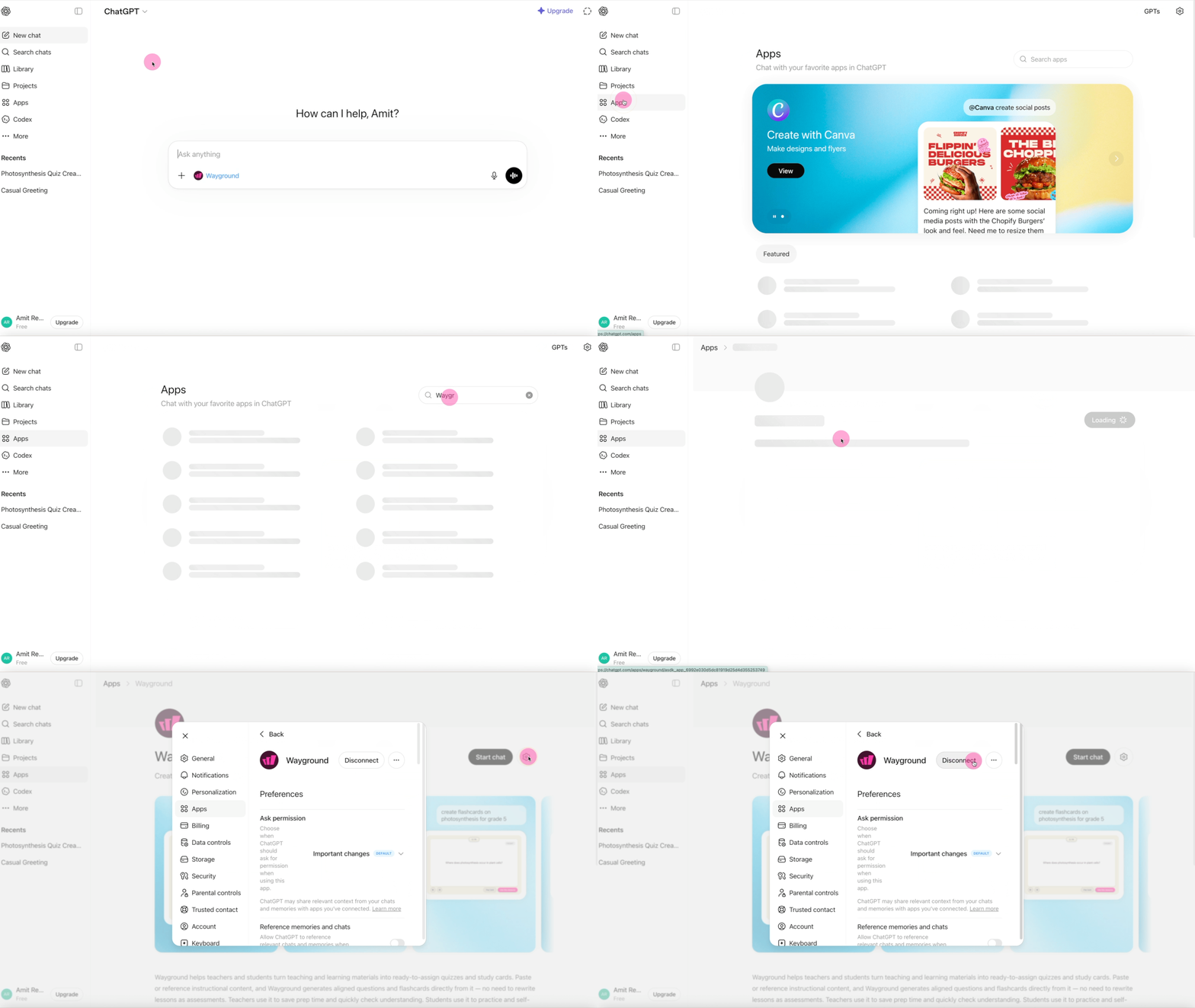
In the sidebar, click Apps (or go directly to chatgpt.com/apps).
Search for Wayground and open it.
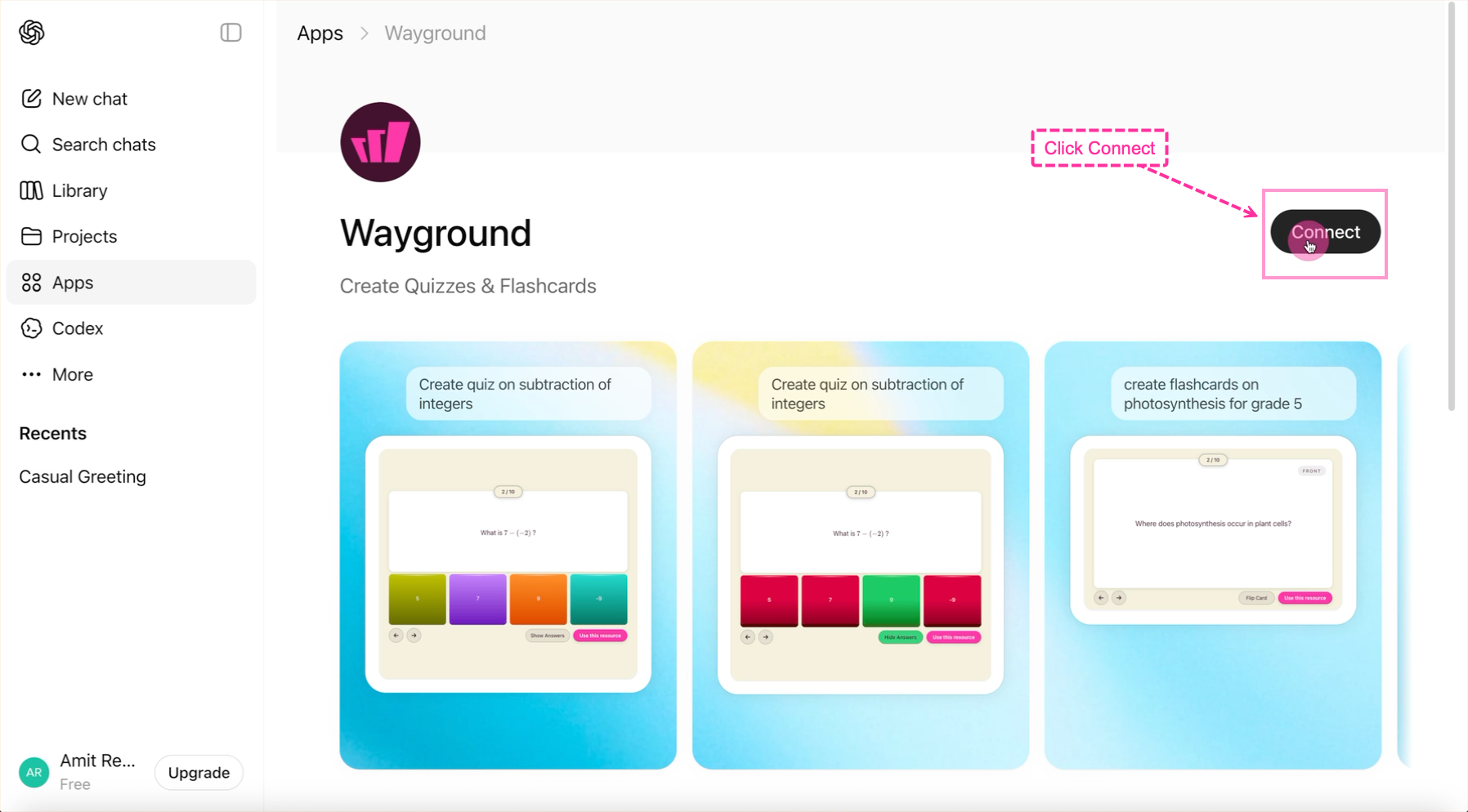
Click Connect.
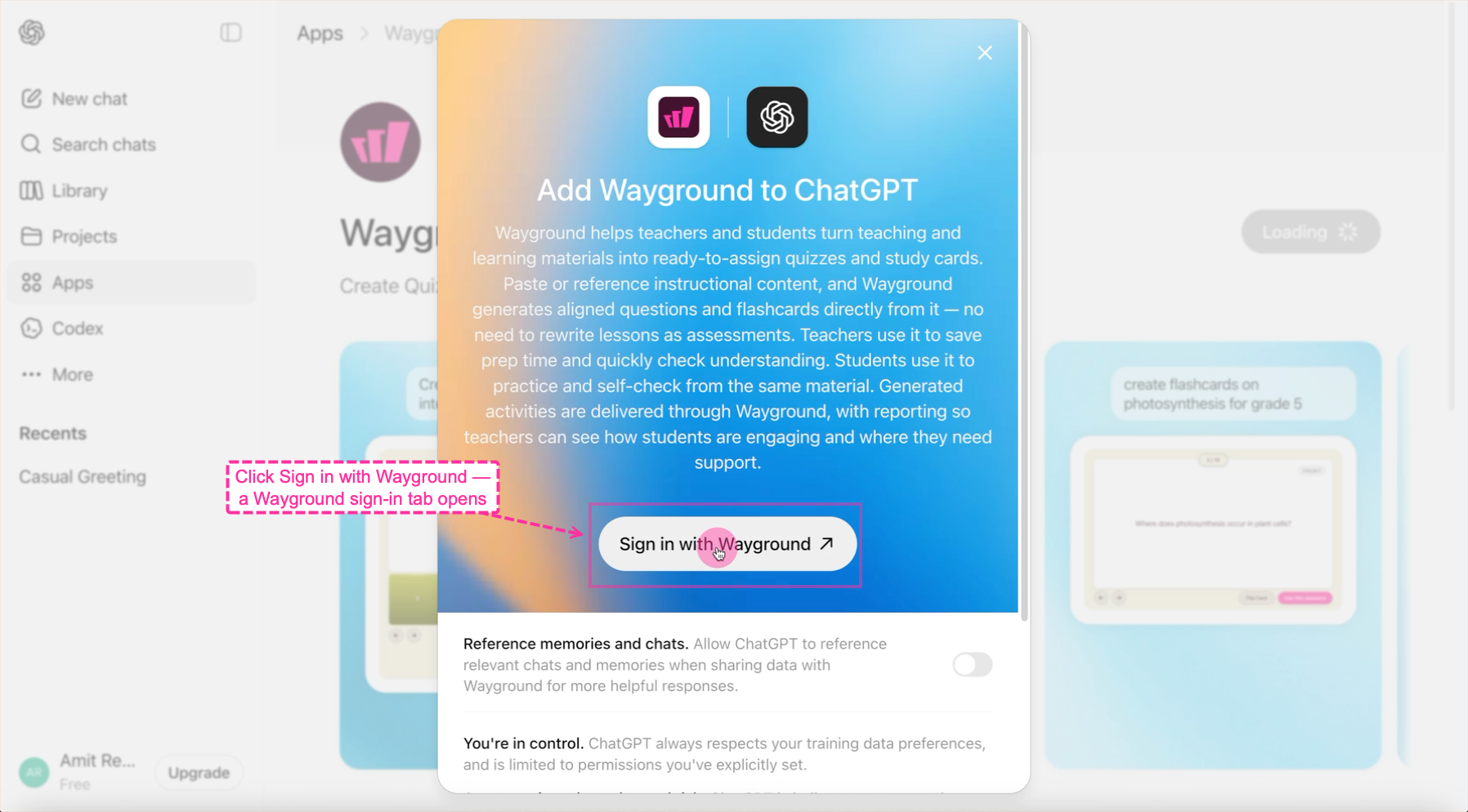
Review what ChatGPT shares with Wayground, then click Sign in with Wayground. A Wayground sign-in tab opens.
Sign in to Wayground using Continue with Google or Continue with Email.
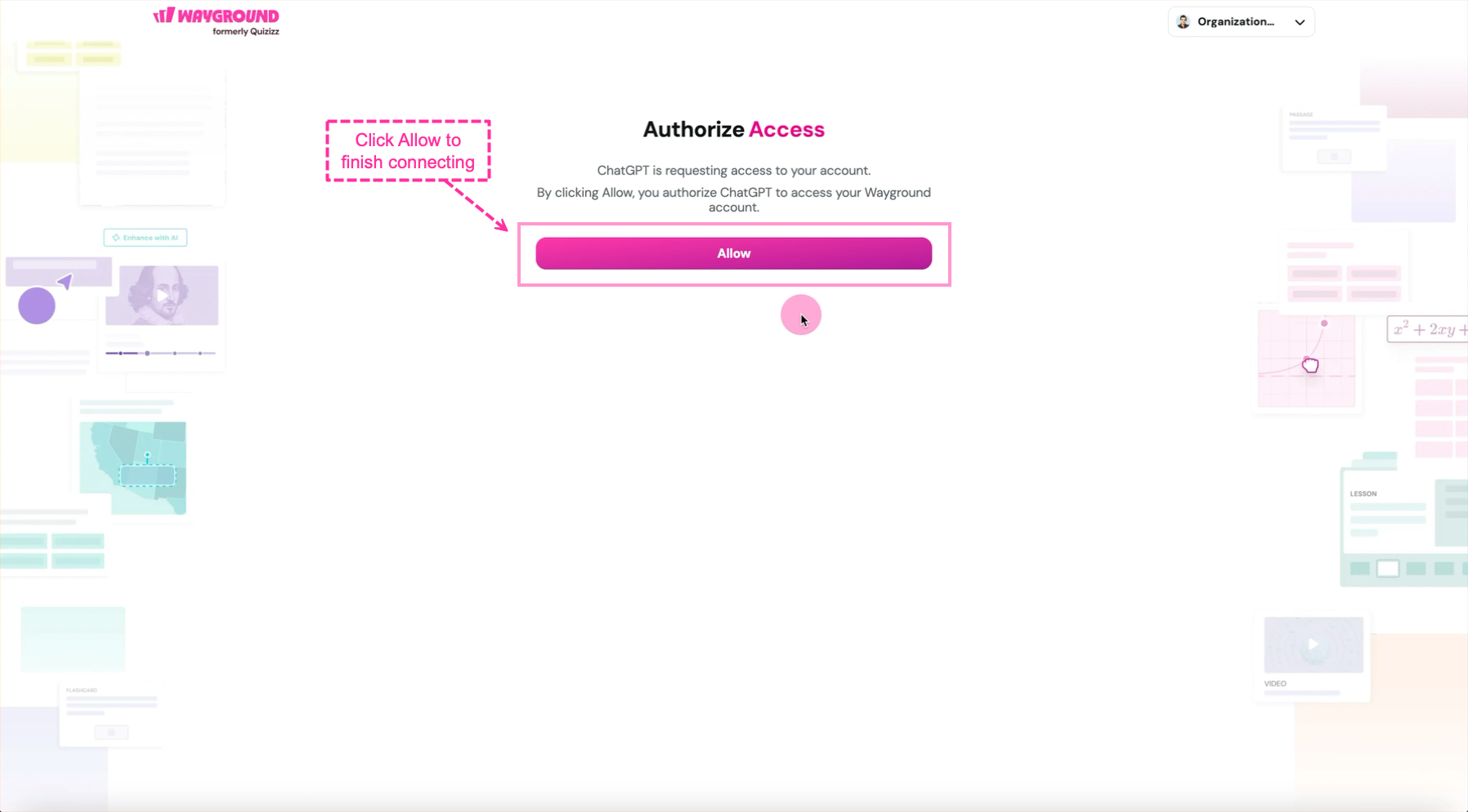
Click Allow. You land back in ChatGPT, and Wayground is now connected to your account.
Click Start chat on the Wayground app page. A new chat opens with Wayground attached to the message box, ready for your first request.
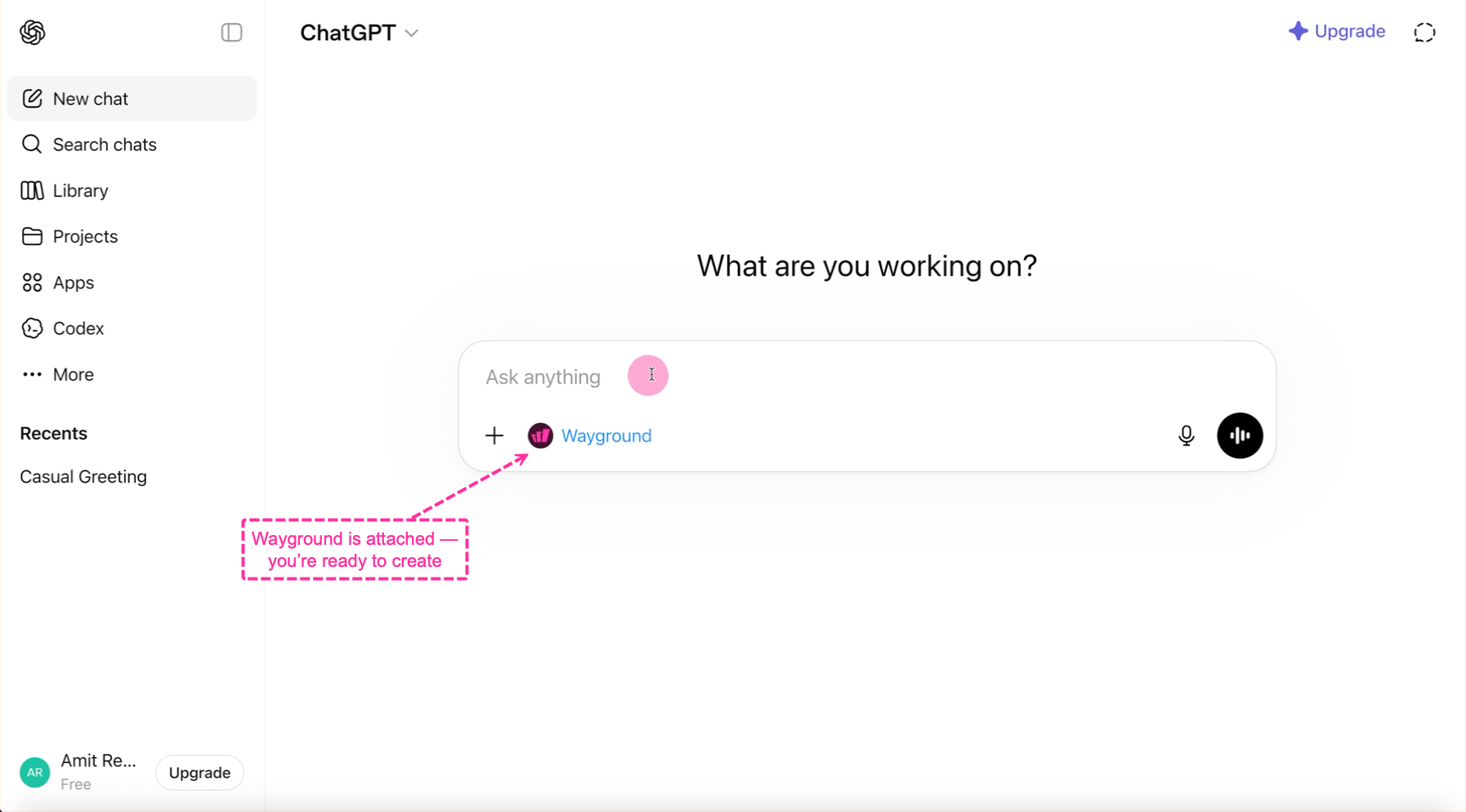
If the sign-in tab doesn’t open: your browser is likely blocking pop-ups. Allow pop-ups for chatgpt.com and try again.
Add or remove Wayground in a chat
Wayground works in a chat only when it’s attached to that chat. You’ll know it’s active when the Wayground chip shows next to the + button in the message box. Two ways to attach it:
From the app page: open Apps in the sidebar, select Wayground, and click Start chat. A new chat opens with Wayground attached.
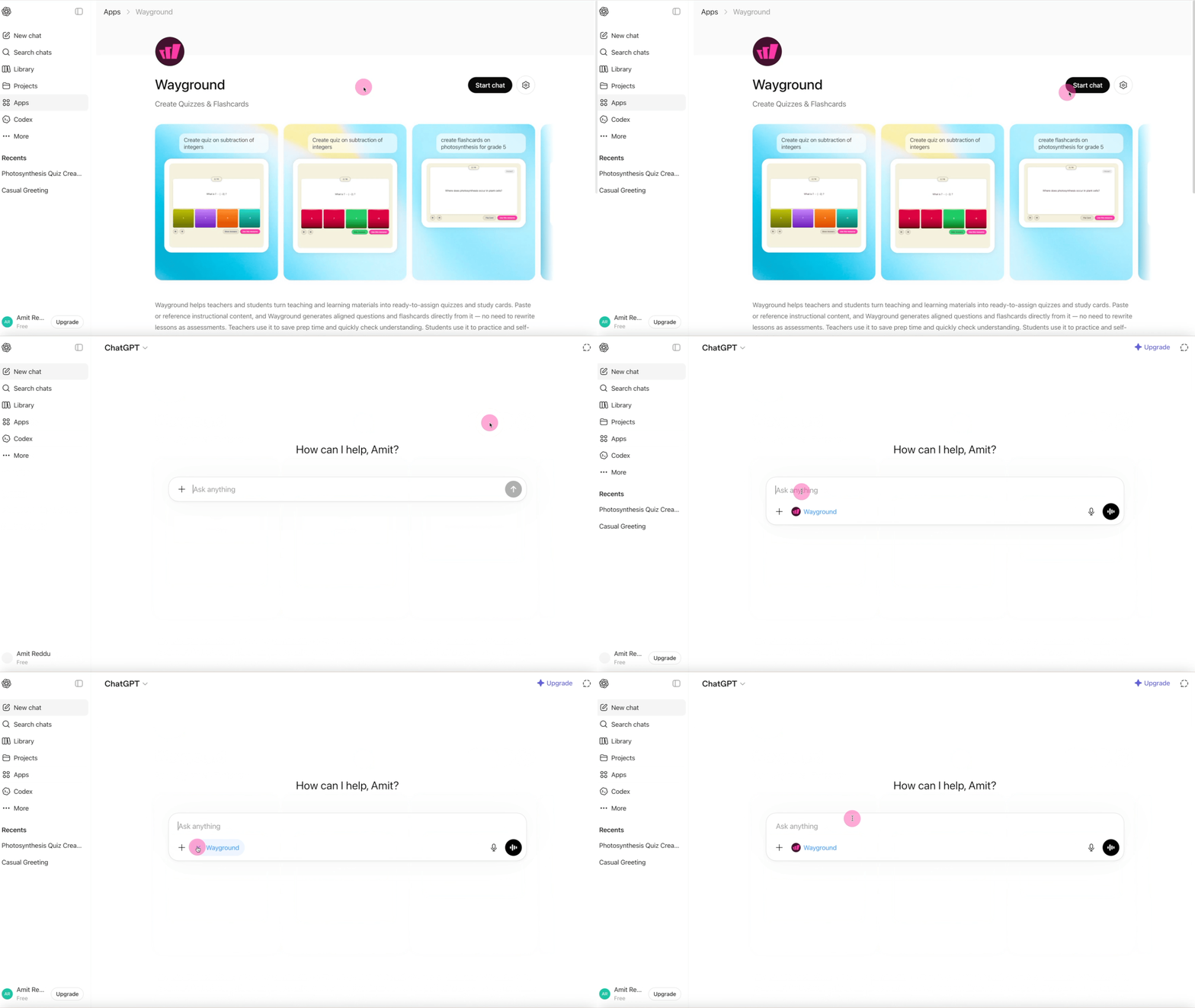
From any chat: click the + button in the message box, select More, and choose Wayground. The chip appears in the message box.
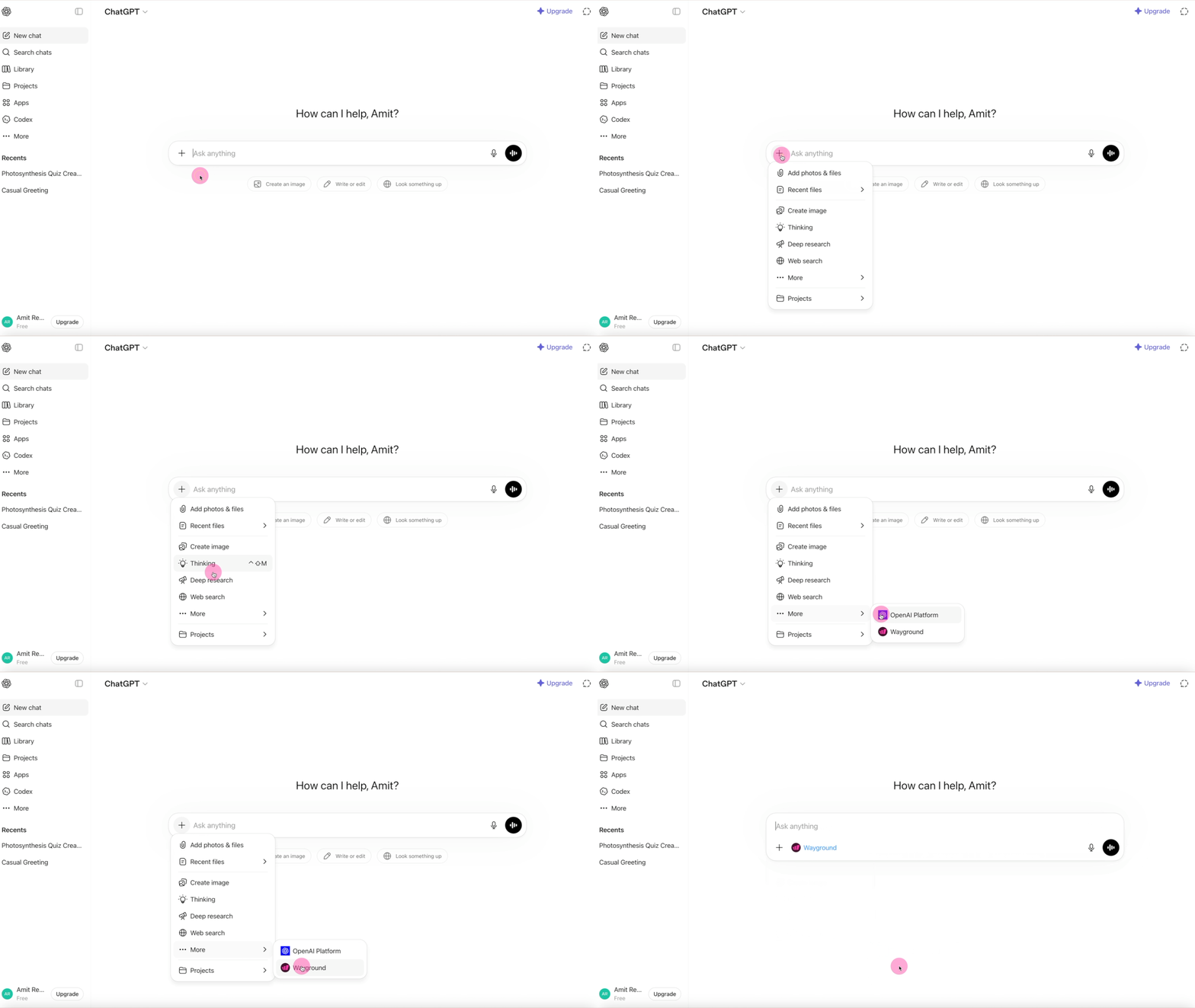
To remove Wayground from a chat: hover over the Wayground chip in the message box and click the X icon that appears. This only takes Wayground out of that chat. It stays connected to your account, so you can add it back anytime.
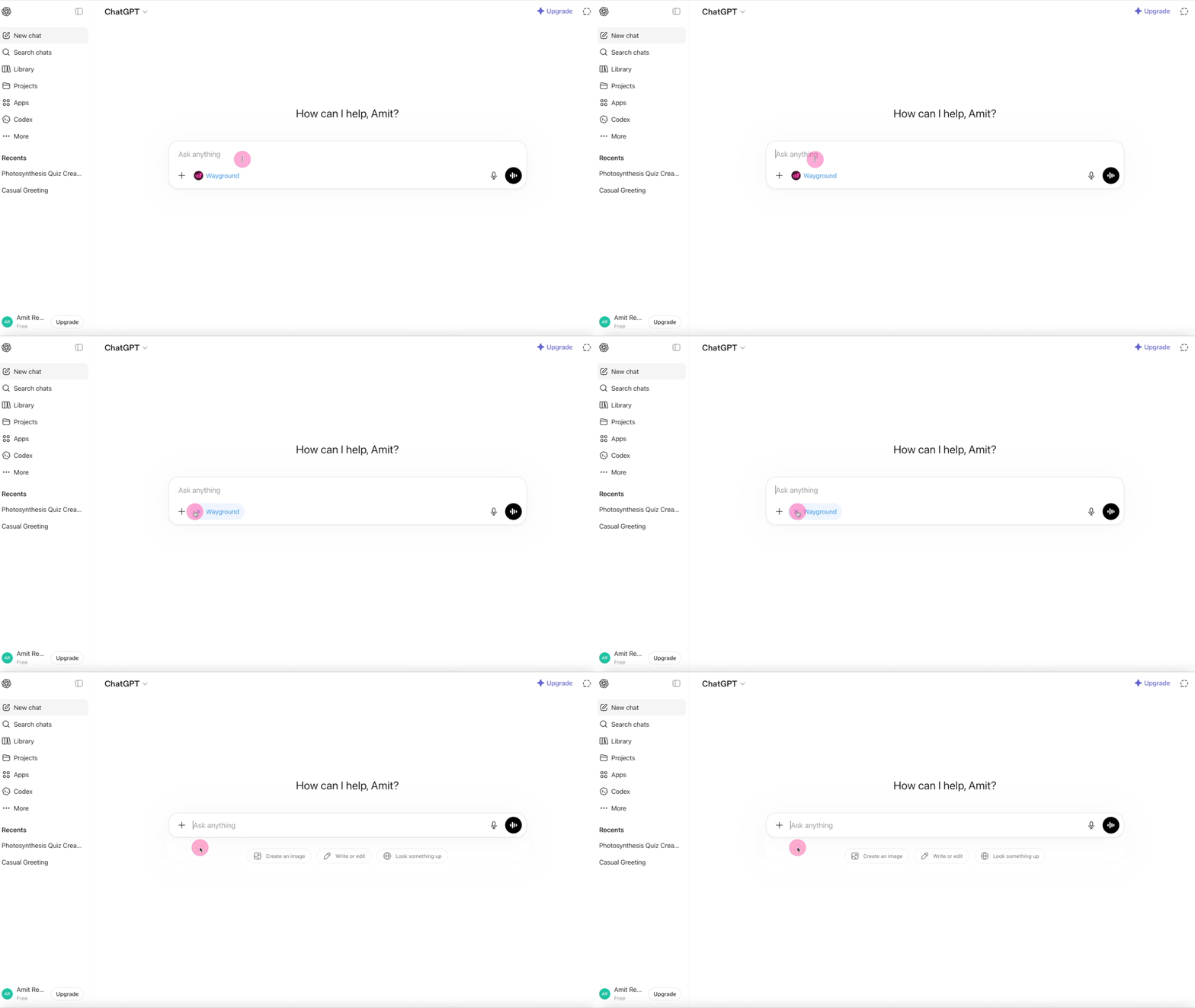
Create an Assessment or Flashcards
The steps are the same for both.
Start or open a chat with Wayground attached. If you don’t see the Wayground chip in the message box, click the + button, select More, and choose Wayground.
Describe what you want. Include the topic, grade level, and how many questions or cards.
Wait while ChatGPT builds the resource and shows it as an interactive Wayground card in the chat. Larger resources can take up to a minute, so keep the chat open while the loading messages cycle. The resource saves to your Wayground library automatically as a draft.
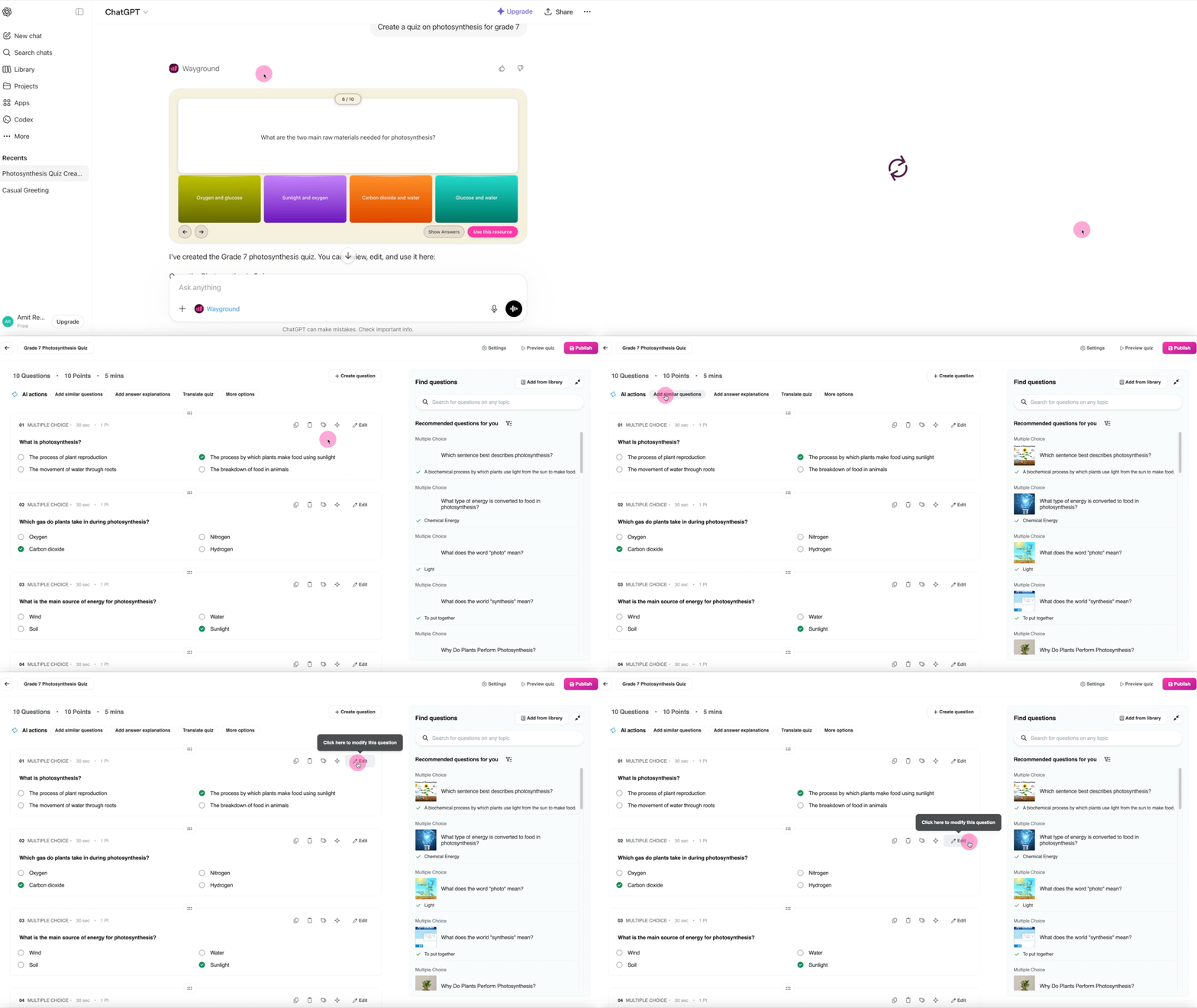
Click Use this resource on the card (or the Wayground link below it) to open the resource in Wayground.
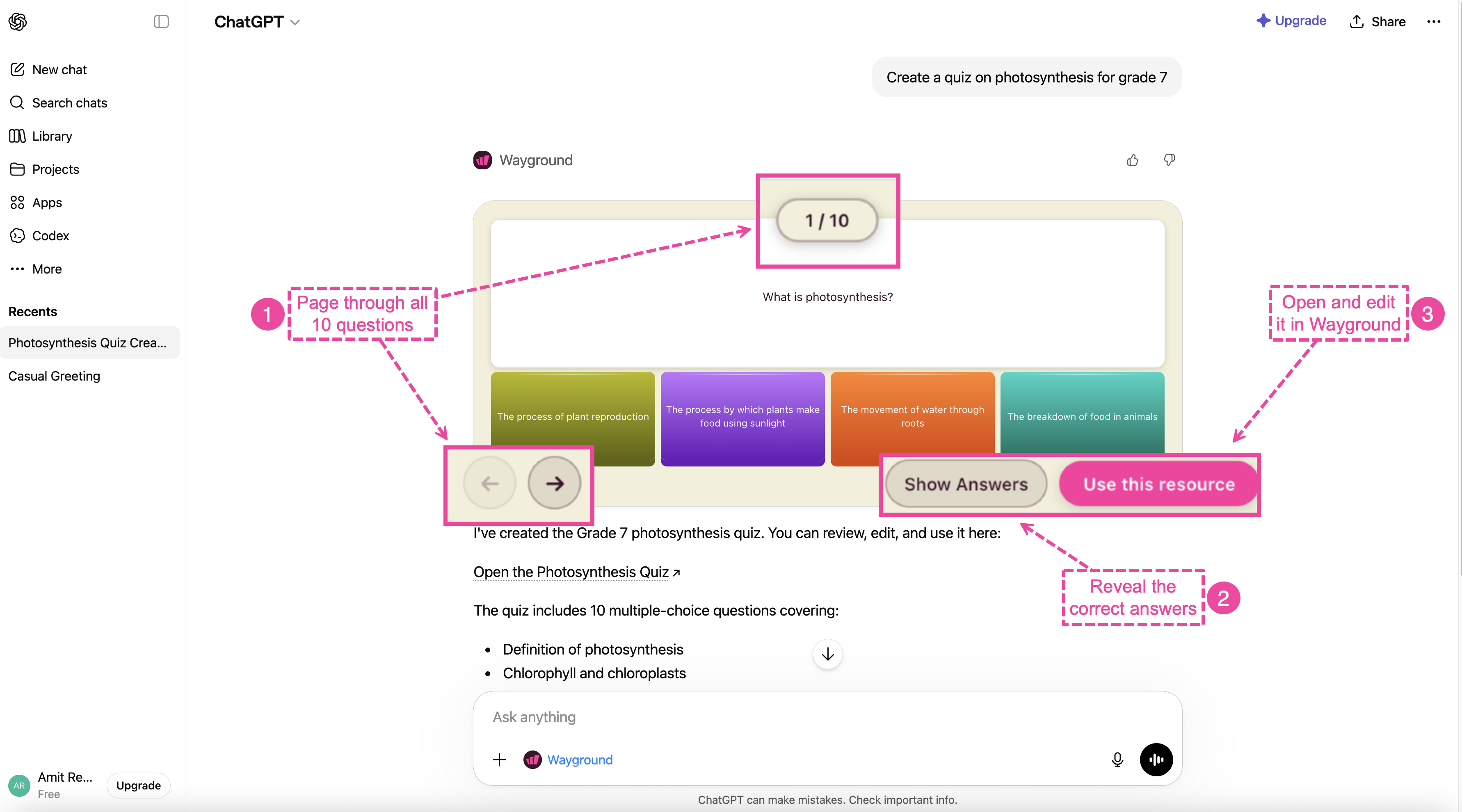
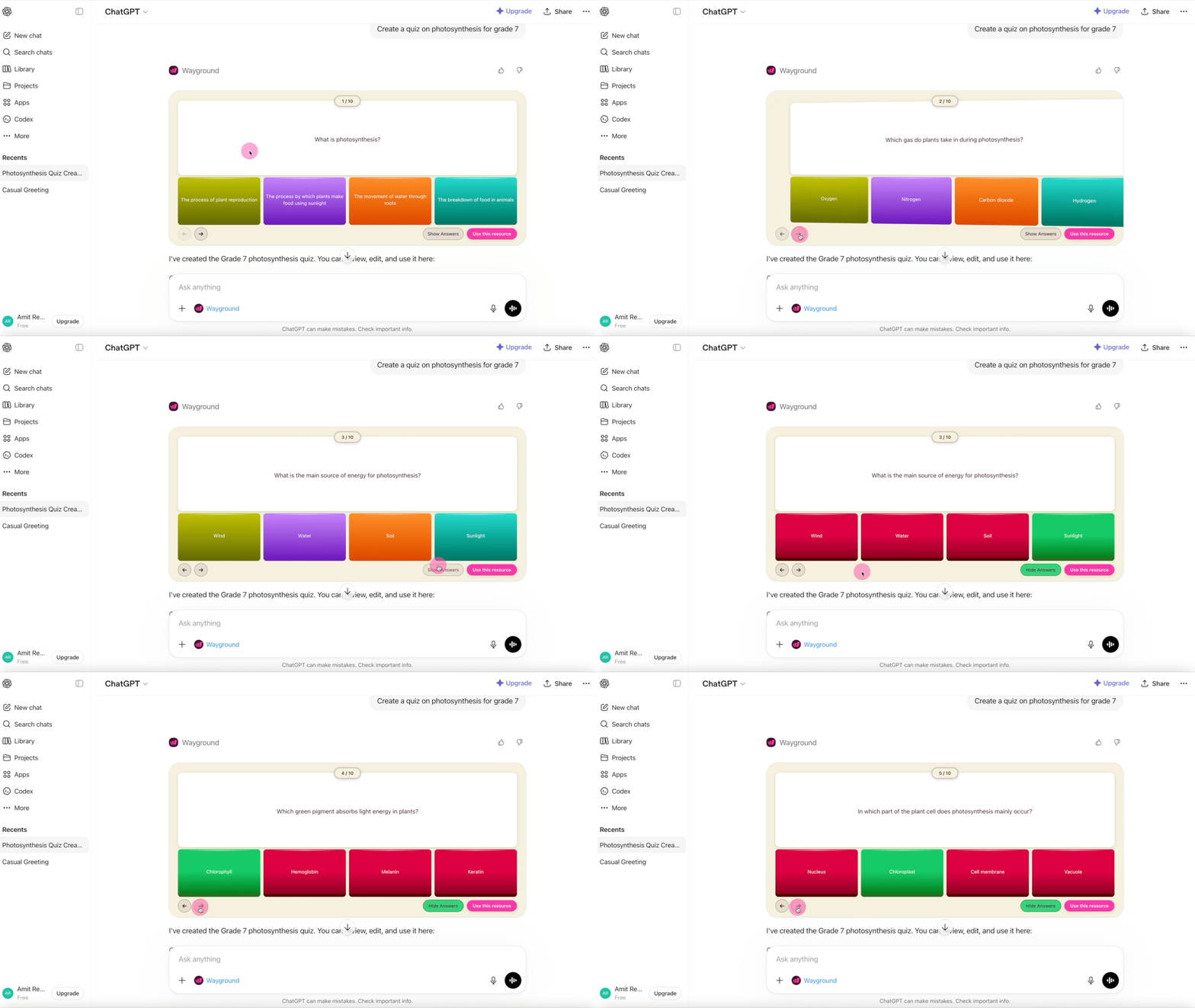
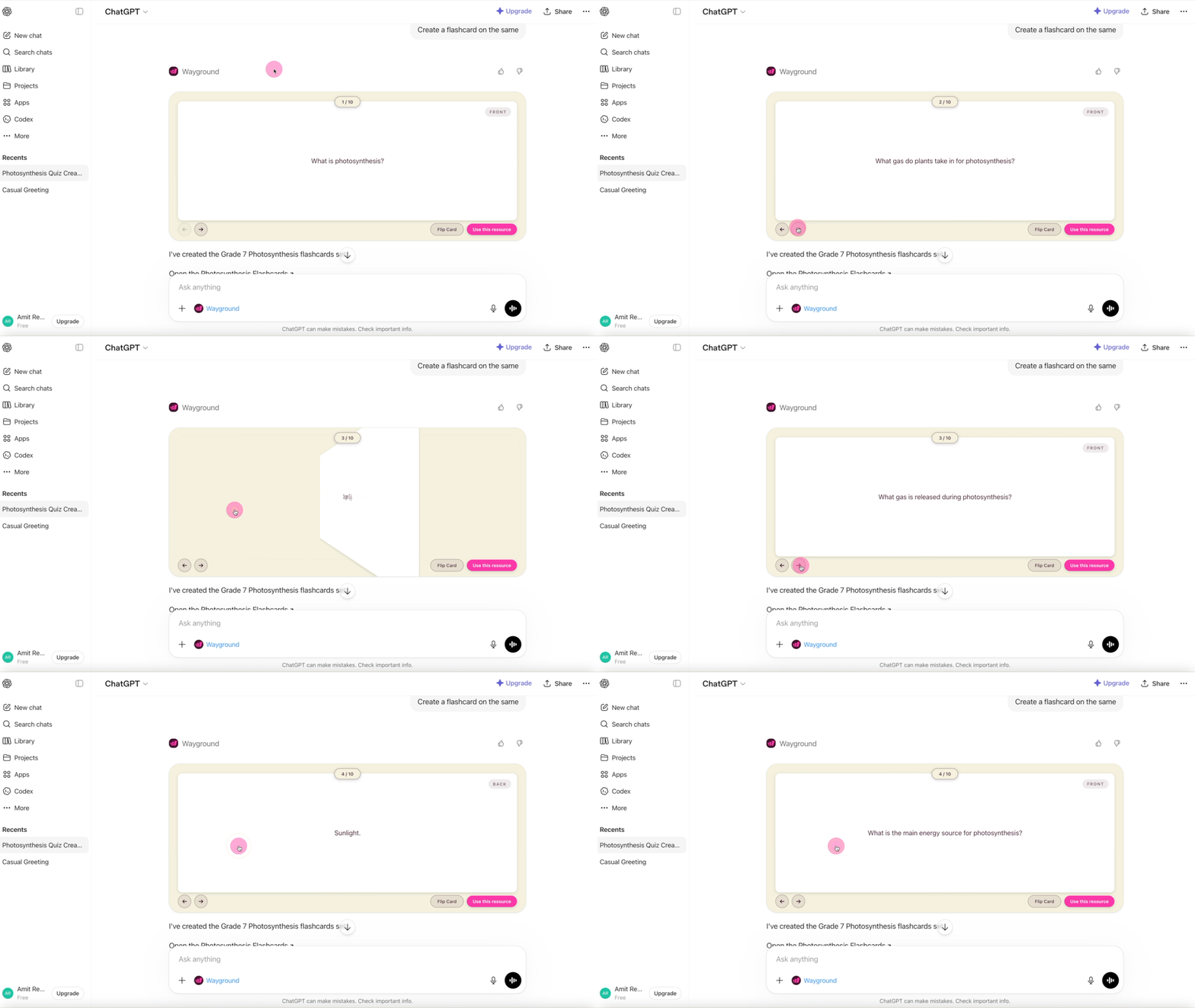
Preview it right in the chat:
Use the arrows to page through the questions or cards
On Assessments, click Show Answers to highlight the correct answer for every question
On Flashcards, click Flip Card to see both sides of a card
Example prompts
Copy any of these into ChatGPT:
“Create a 10-question Multiple Choice Assessment on fractions for 5th grade, medium difficulty.”
“Create an Assessment on photosynthesis for grade 7.”
“Make eight questions on the water cycle for 4th grade. Cover evaporation, condensation, and precipitation.”
“Make 15 Flashcards on the water cycle for 3rd grade.”
“Create 20 vocabulary Flashcards on Greek and Latin roots for a 6th grade ELA unit.”
ChatGPT remembers the conversation, so follow-ups work naturally. After creating an Assessment, try: “Now make Flashcards on the same topic.”
Tips for better results
The more detail you give ChatGPT, the better the result. Try to include:
Grade level: “for 4th grade” or “for my 7th grade class”
Subject and topic: “on photosynthesis” or “on multiplication facts”
Number of questions or cards: “10 questions” or “15 Flashcards”
Difficulty: “easy,” “medium,” or “challenging”
Standards: “Align to CCSS Math 5.NF.B.6” or “Cover TEKS 111.40.c.3.F”
Class context: “My students just finished fractions and are ready for mixed numbers”
Edit a resource
Ask ChatGPT to change anything in a resource it created. For example: “Change question 3 to be about improper fractions.”
Every edit creates a new resource with a new link. The original stays in your library untouched. Edit an Assessment five times and you end up with five versions. To keep your library tidy, make all your changes in ChatGPT first, use the final link, and delete the earlier drafts from Wayground.
You can also fine-tune any resource in Wayground’s editor: change questions and answers, adjust timing and points, or use the built-in AI actions to add similar questions, add answer explanations, or translate the whole resource.
Find your resources in Wayground
Two ways to open a resource:
From ChatGPT: click Use this resource on the card in your chat
From Wayground: log in at wayground.com and open your Library
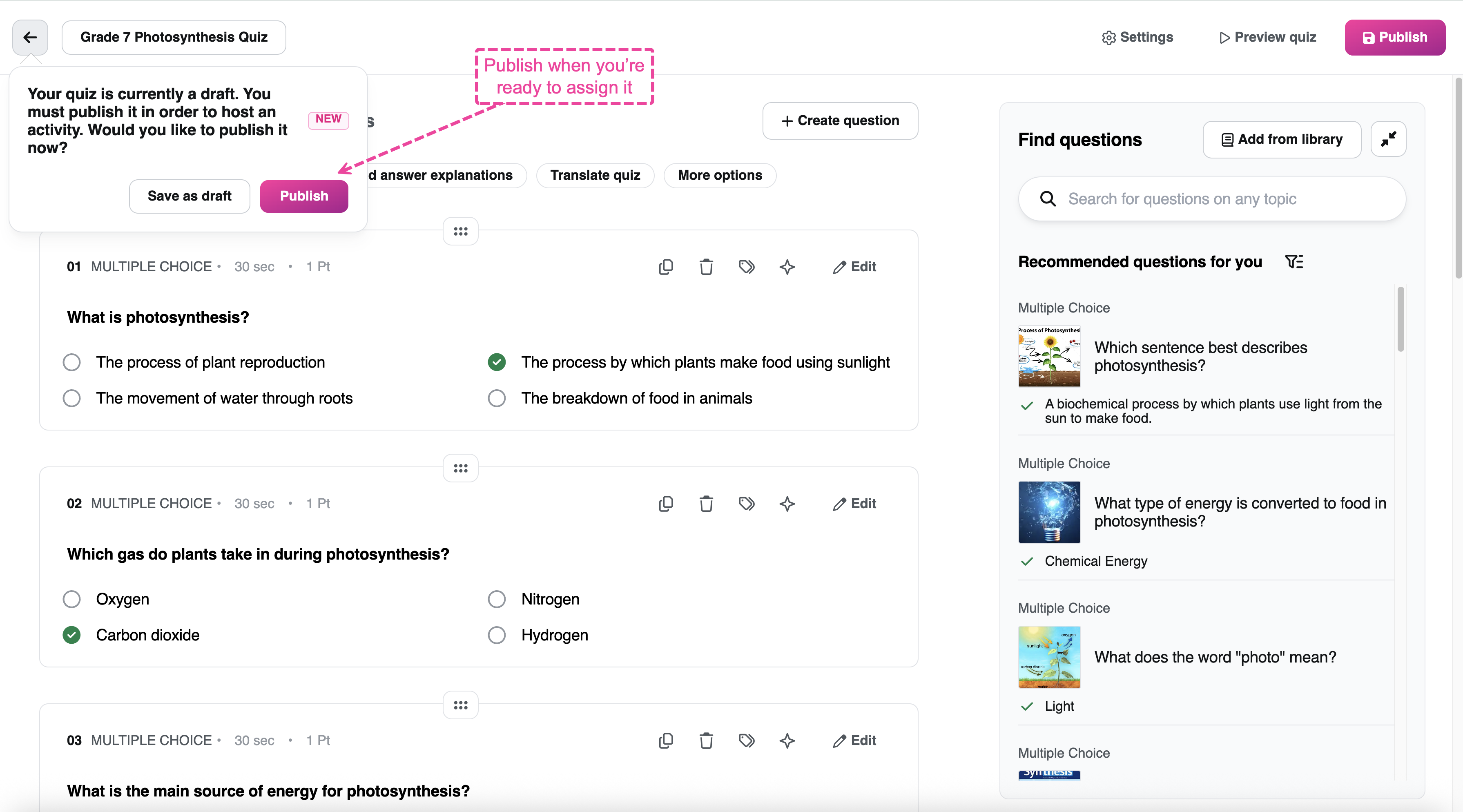
Resources created through ChatGPT start as drafts. In your Library, open Created by me and check the Draft tab. Your newest resources appear at the top. Open one and click Publish when you’re ready to host it live or assign it to students. Wayground also prompts you to publish or save as draft whenever you leave the editor.
Frequently asked questions
Is the Wayground app free? Yes. It works with free or paid accounts on both Wayground and ChatGPT.
Which ChatGPT plan do I need? Any plan, including the free one. Apps in ChatGPT are a beta feature, and availability can vary by region. If you don’t see Apps, make sure you’re signed in.
Does this work on my phone or tablet? Yes. Use the ChatGPT mobile app, or open chatgpt.com in your phone’s browser.
Do my students need ChatGPT? No. You create resources in ChatGPT, but students join, play, and practice through Wayground as usual, and their reports show up in your Wayground account.
How do I disconnect Wayground? In ChatGPT, open Apps in the sidebar, search for Wayground, and open the app page. Click the gear icon next to Start chat to open Wayground’s app settings, then click Disconnect. You can reconnect anytime from chatgpt.com/apps. To take Wayground out of a single chat instead, hover over the Wayground chip in the message box and click the X icon.
Troubleshooting
I can’t find the Wayground app. Search for “Wayground,” not “Quizizz,” at chatgpt.com/apps. If it still doesn’t show, refresh the page or try a different browser.
The sign-in tab didn’t open. Your browser is likely blocking pop-ups. Allow pop-ups for chatgpt.com and try again.
My resource didn’t save to Wayground. New resources land in the Draft tab of Created by me, so check there first. Make sure you’re signed in to the correct Wayground account, then refresh your Library. If it still doesn’t show, disconnect and reconnect Wayground in ChatGPT.
The card seems stuck on a loading message. Larger resources can take up to a minute to generate. Keep the chat open and give it a moment before retrying.
ChatGPT isn’t generating a resource. Add more detail to your prompt (topic, grade level, number of questions), and confirm the Wayground chip is attached to the message box. If it isn’t, click the + button, select More, and choose Wayground. A Wayground card appears while it builds.
Was this article helpful?
That’s Great!
Thank you for your feedback
Sorry! We couldn't be helpful
Thank you for your feedback
Feedback sent
We appreciate your effort and will try to fix the article