For Administrators
Administrators need to add a specific custom field to the Canvas Developer Key to enable importing, copying, and sharing Wayground LTI assignments across Canvas courses.
If this field is missing, teachers may not be able to import or copy assignments from one Canvas course to another.
This guide walks you through exactly how to add it:
When this setting is needed
Wayground requires the following custom field in the Canvas Developer Key for the import/copy feature to work correctly: context_id_history=$Context.id.history
In new Canvas installations, this field is added automatically
In existing Canvas LTI setups, administrators must add it manually
If teachers report issues importing or copying Wayground assignments across different Canvas courses, confirm that this field is present in the Developer Key.
How to add the required custom field in Canvas
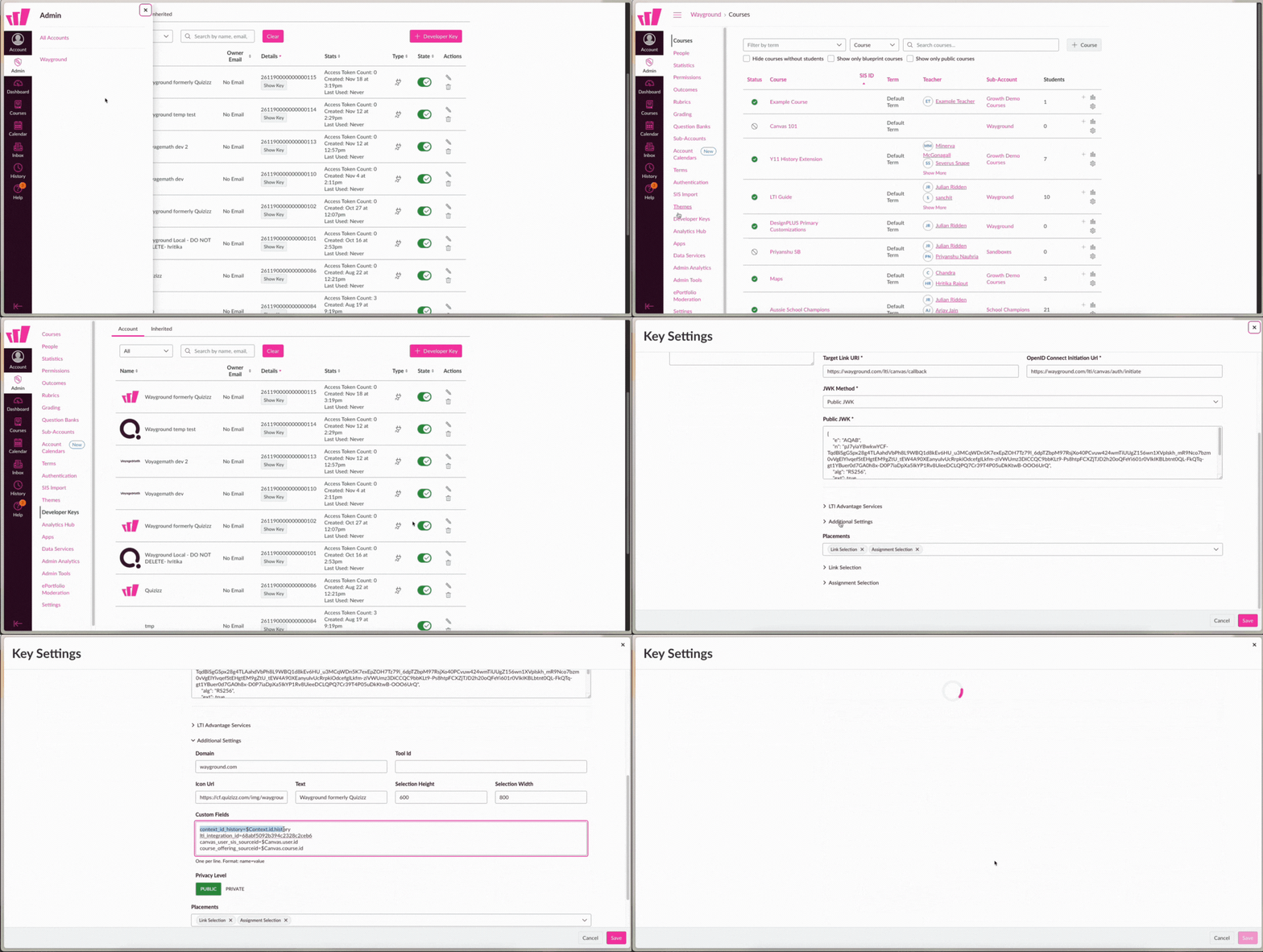
Go to ‘Admin’ in Canvas
Select the Account where the Wayground LTI tool is installed
Open Developer Keys from the left panel
Click the Edit (pencil) icon next to the relevant Developer Key
Scroll down and click on ‘Additional Settings’
Locate the ‘Custom Fields’ section
Add a new line on top with the value: context_id_history=$Context.id.history
Click on ‘Save’
Troubleshooting
If the import/copy option still doesn’t work after updating the Developer Key:
Verify that the correct Developer Key was edited
Ensure there are no typos in the custom field value.
Ask teachers to refresh Canvas and try the import again.
If issues persist, contact your Wayground Customer Success Manager.
For more details on how to import or copy LTI assignments as a teacher read this article.
Was this article helpful?
That’s Great!
Thank you for your feedback
Sorry! We couldn't be helpful
Thank you for your feedback
Feedback sent
We appreciate your effort and will try to fix the article