TABLE OF CONTENTS
- Copy assignments from an existing course to a new course
- Import assignments to a new course from an existing course
- Important: Enabling access for your students
If you’re setting up a new Canvas course for a new term or section, you can easily import Wayground LTI activities from an existing Canvas course. This saves time and makes sure that your students can access the same assignments you’ve already created.
With this import feature, you can:
Copy assignments (including Wayground LTI activities) from one Canvas course to another
Retain assignment structure and content without recreating them manually
Adjust due dates or remove them while importing
Choose to import all course content or select specific assignments
This feature is handy if you teach multiple sections of the same course or are preparing for a new term.
Copy assignments from an existing course to a new course
Follow these steps within your existing Canvas course:
Open the course that contains the assignment that you want to copy to another course
Click on the three-dot icon next to the assignment and select ‘Copy to’
Proceed to select the course you want the assignment to be copied to
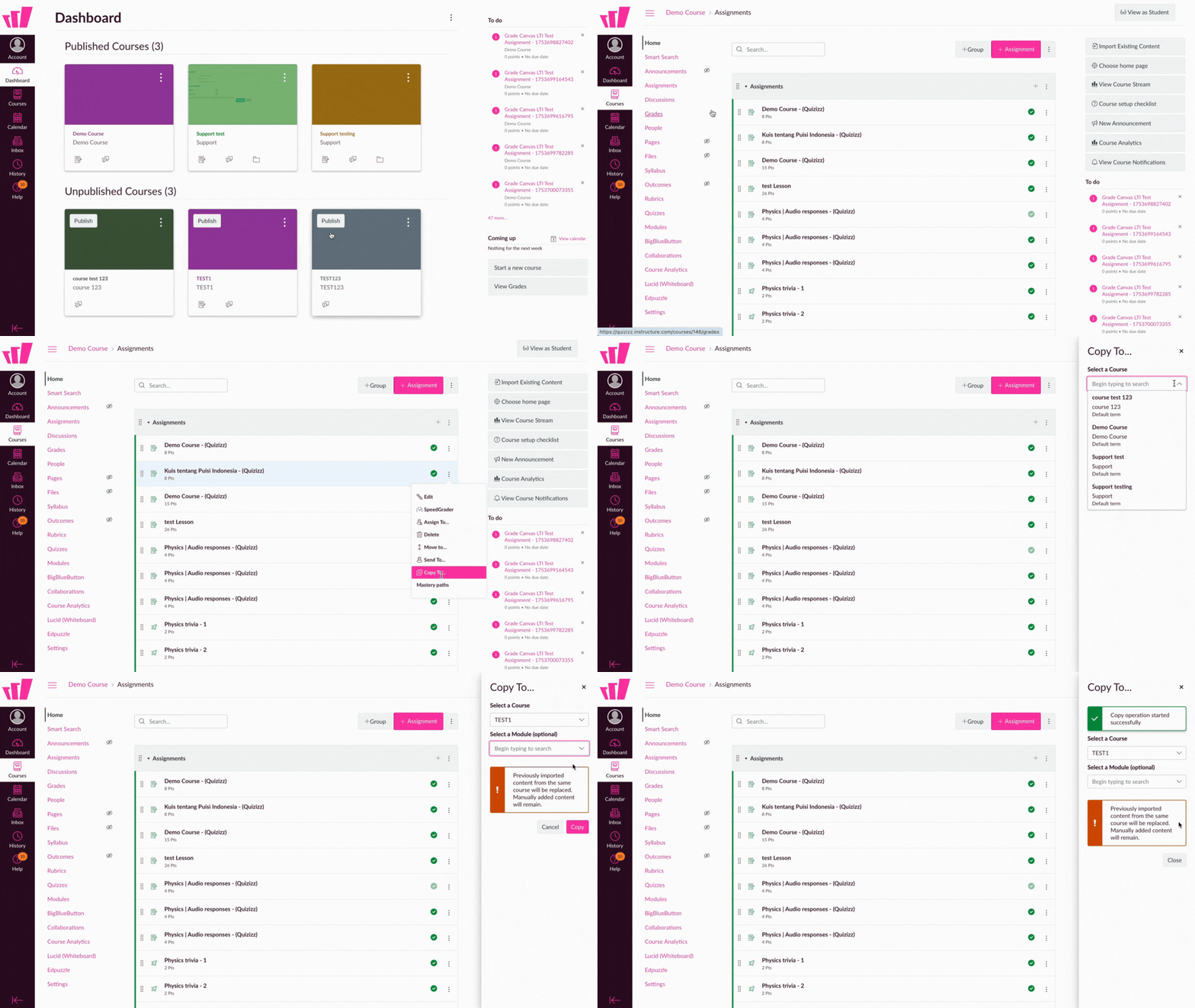
The same assignment link will now be accessible to students in the course you selected.
Import assignments to a new course from an existing course
Follow these steps within your new Canvas course or while creating a new course:
Open the course where you want to import assignments
You can follow the steps below while creating a new course as well
Click on ‘Import Existing Content’ from the right side of your screen
In the Select Content Type dropdown, choose ‘Copy a Canvas Course’
Select the course whose assignments you want to import to the new course. You can do so by using the ‘Select a course’ drop-down menu or the ‘Search for a course’ option.
(You can also check Include completed courses to get assignments from a completed course)Select what to import:
To bring everything from the course, select ‘All Content’
To import only selected assignments, choose ‘Select Specific Content’
Check the ‘Shift dates’ or ‘Remove dates’ option to make changes to the assignment deadlines or remove existing deadlines, respectively.
Click on ‘Add to import queue’
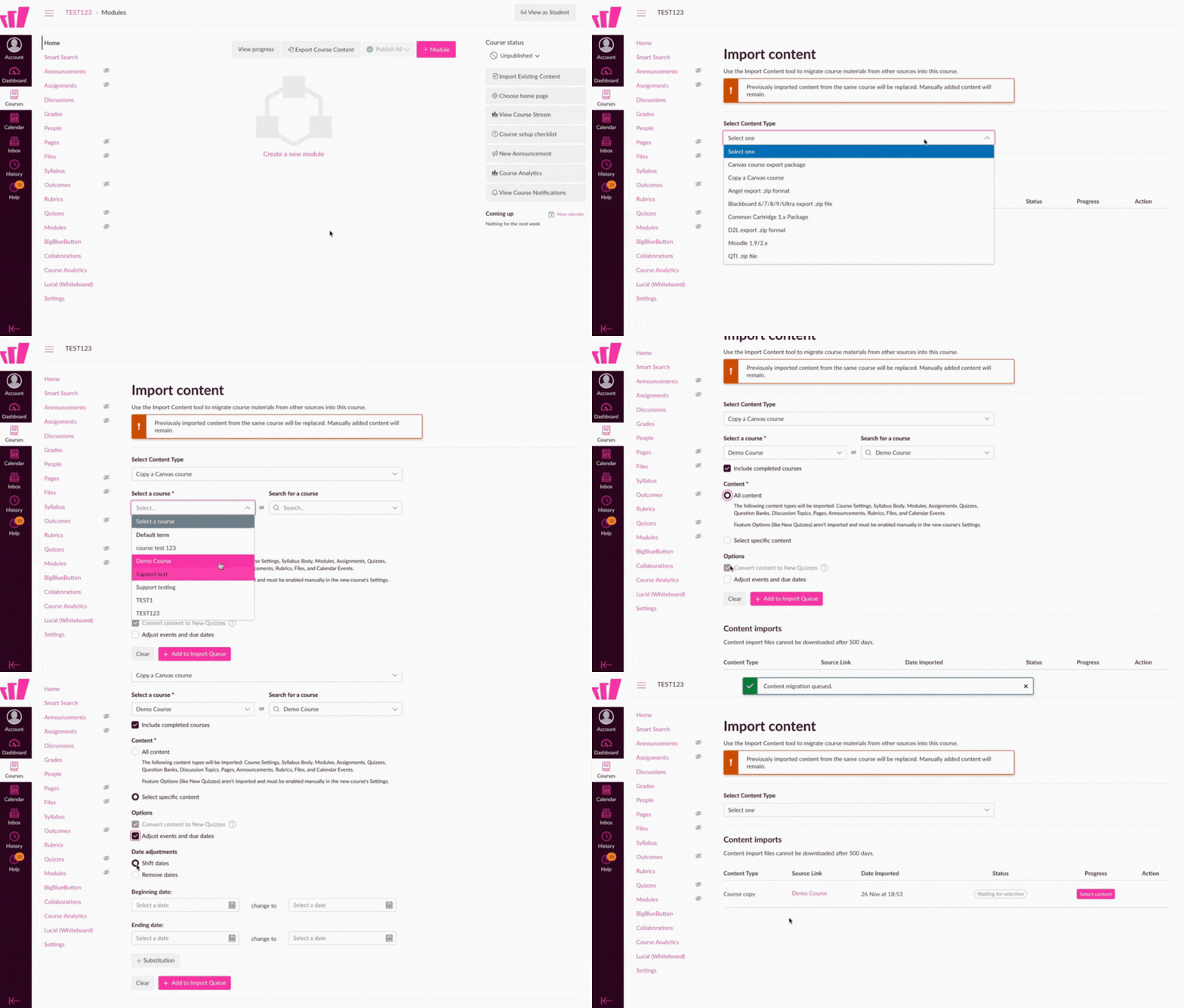
If you chose the ‘Select Specific Content’ option
Click on the ‘Select Content’ button
From the list, check the Wayground LTI assignments you want to import to the new course
Click on the ‘Select Content’ button again
You’ll now see a progress bar. Once complete, your imported assignments will appear in a new section titled ‘Imported Assignments’ under the ‘Assignments’ tab in your Canvas course:
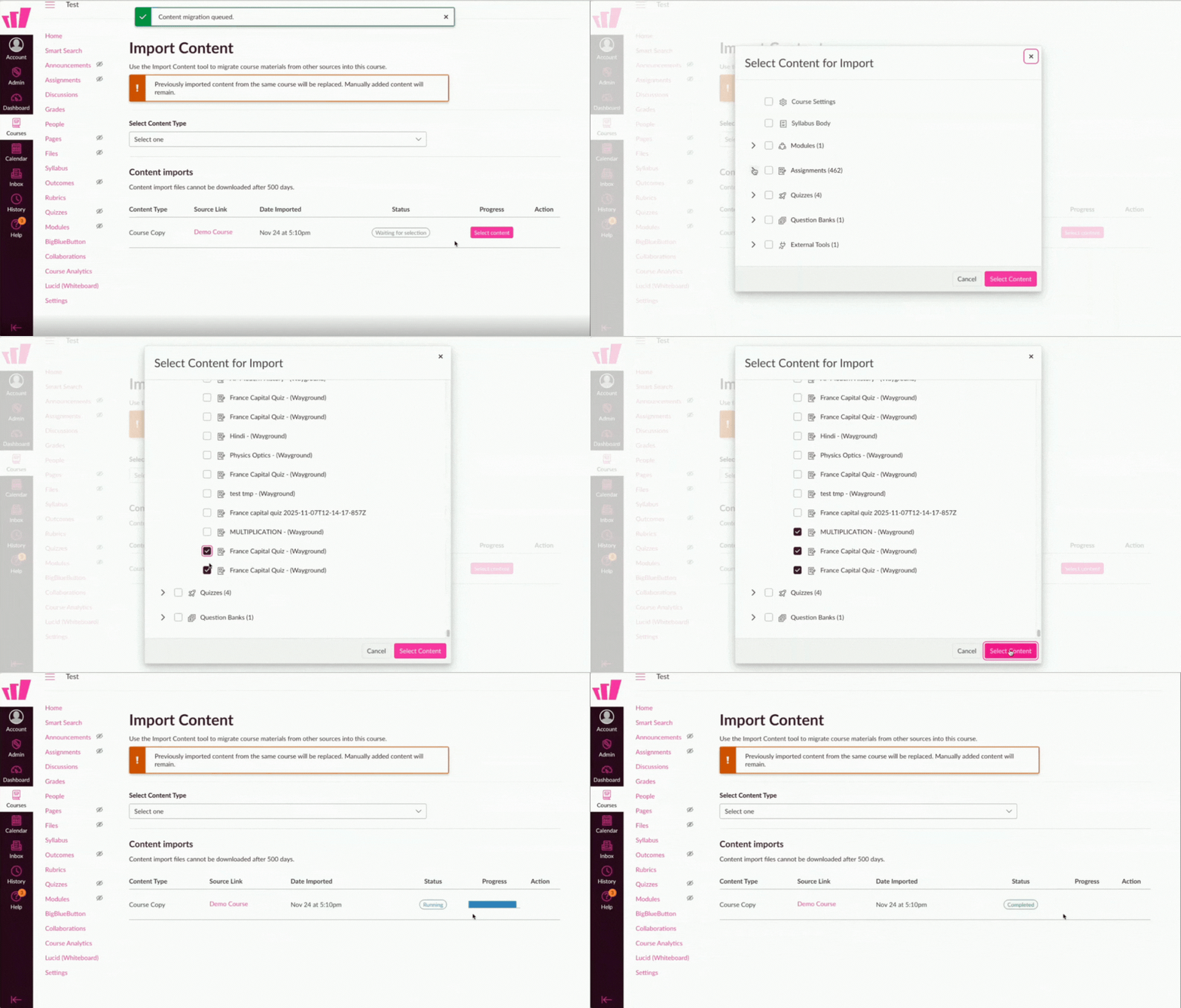
Important: Enable access for your students
After importing, your assignments will appear for students, but they won’t be able to open them until you enable access.
To enable access, click on the imported assignment to open it. You may close the same once the assignment opens.
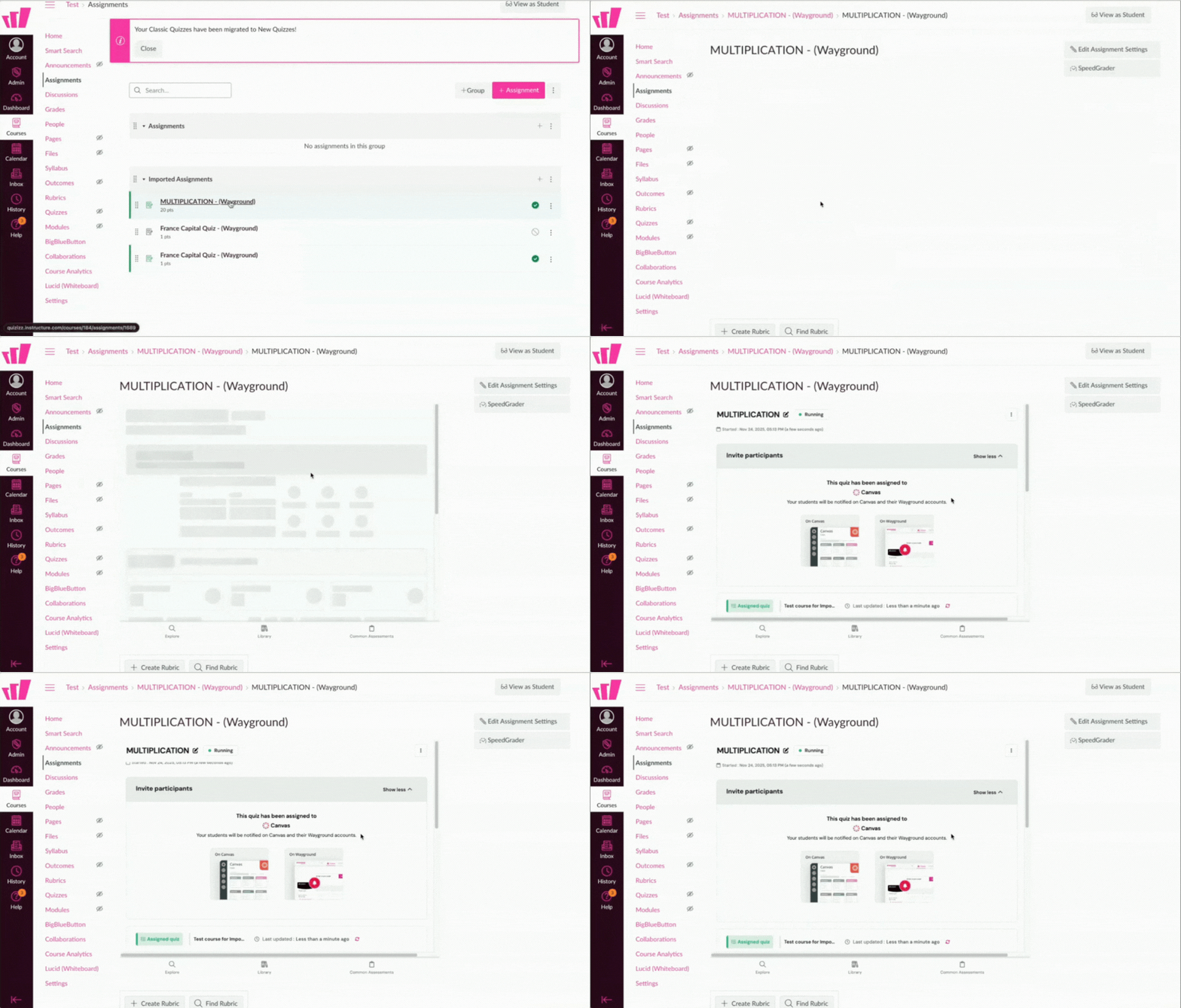
This step confirms your ownership and establishes the connection between Wayground and your new Canvas course.
Once you do this, your students will be able to open and attempt the assignment without any issues.
⚠️ Skipping this step may result in access errors for students: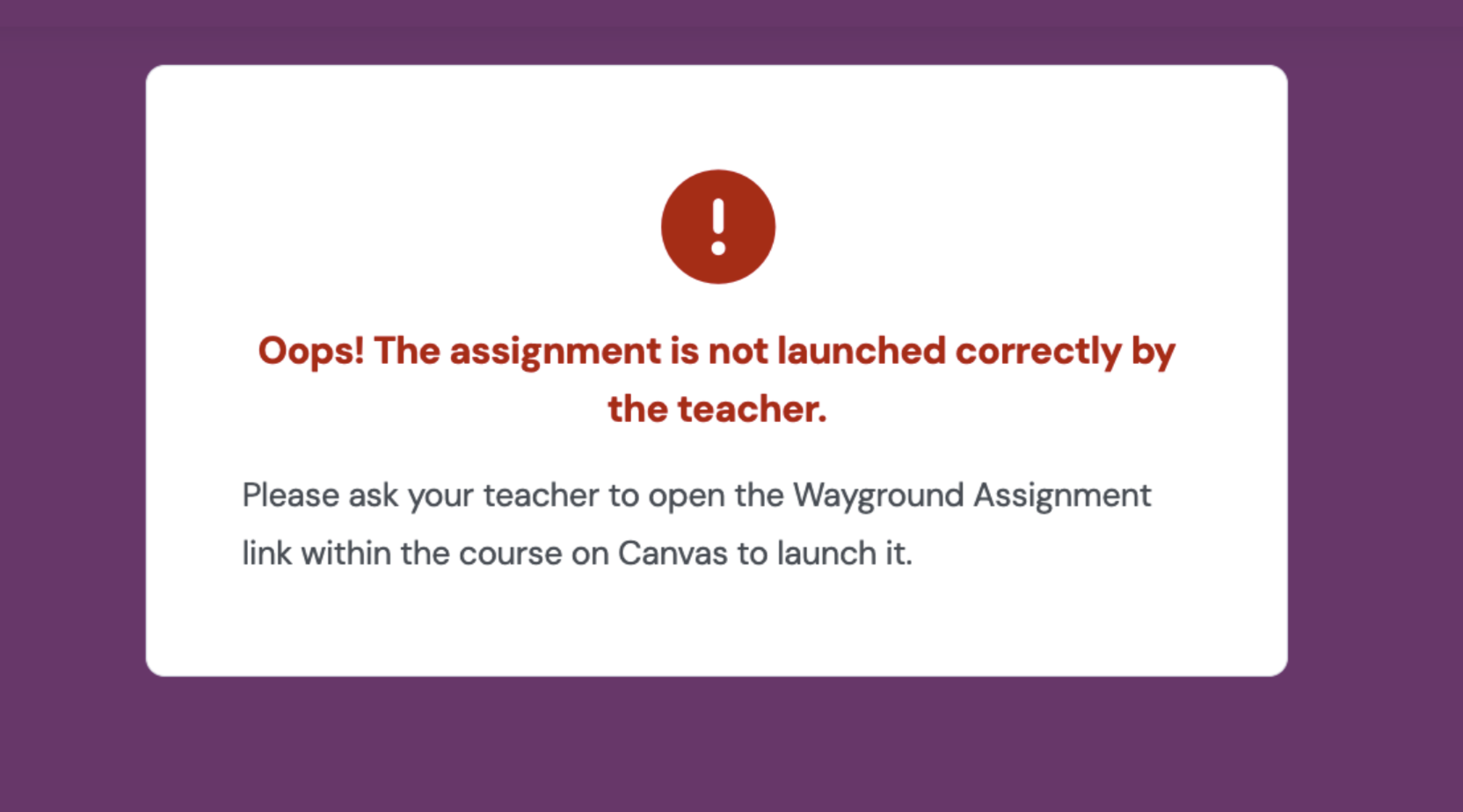
Was this article helpful?
That’s Great!
Thank you for your feedback
Sorry! We couldn't be helpful
Thank you for your feedback
Feedback sent
We appreciate your effort and will try to fix the article