For Teachers & Students
To start assigning Wayground sessions to an MS Teams class, make sure the MS Teams class is imported as a Wayground Class. Once this is done, you can easily assign a Quzizz session directly to MS Teams.
Assigning a Wayground session to an MS Teams class
- 1. Select the resource you would like to assign as a session to an MS Teams class
- 2. Click on 'Start now' (for a live session) or 'Assign' (for a homework session), and choose the desired session mode
- 3. Click on the 'Select a class' button
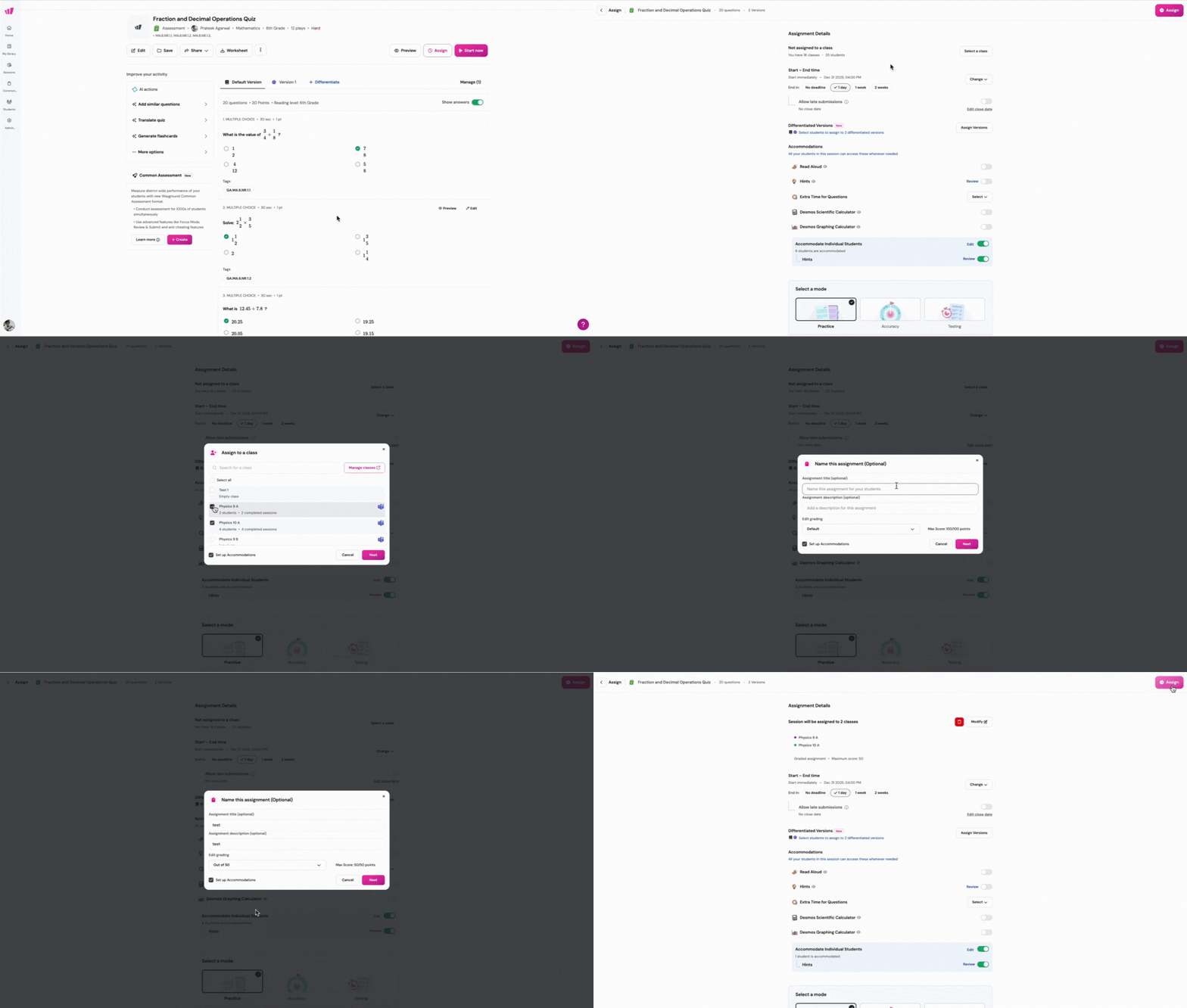
- 4. Select the MS Teams class(es) you want to assign the session to
- 5. Give the session an optional title and description
- 6. If you have the Wayground School or District plan, you can also set the maximum number of points that your students can score and assign Accommodations to your students
- 7. Customize the remaining session settings as per your requirements and click on 'Start' (for a live session) or 'Assign' (for a homework session)
Reports & data
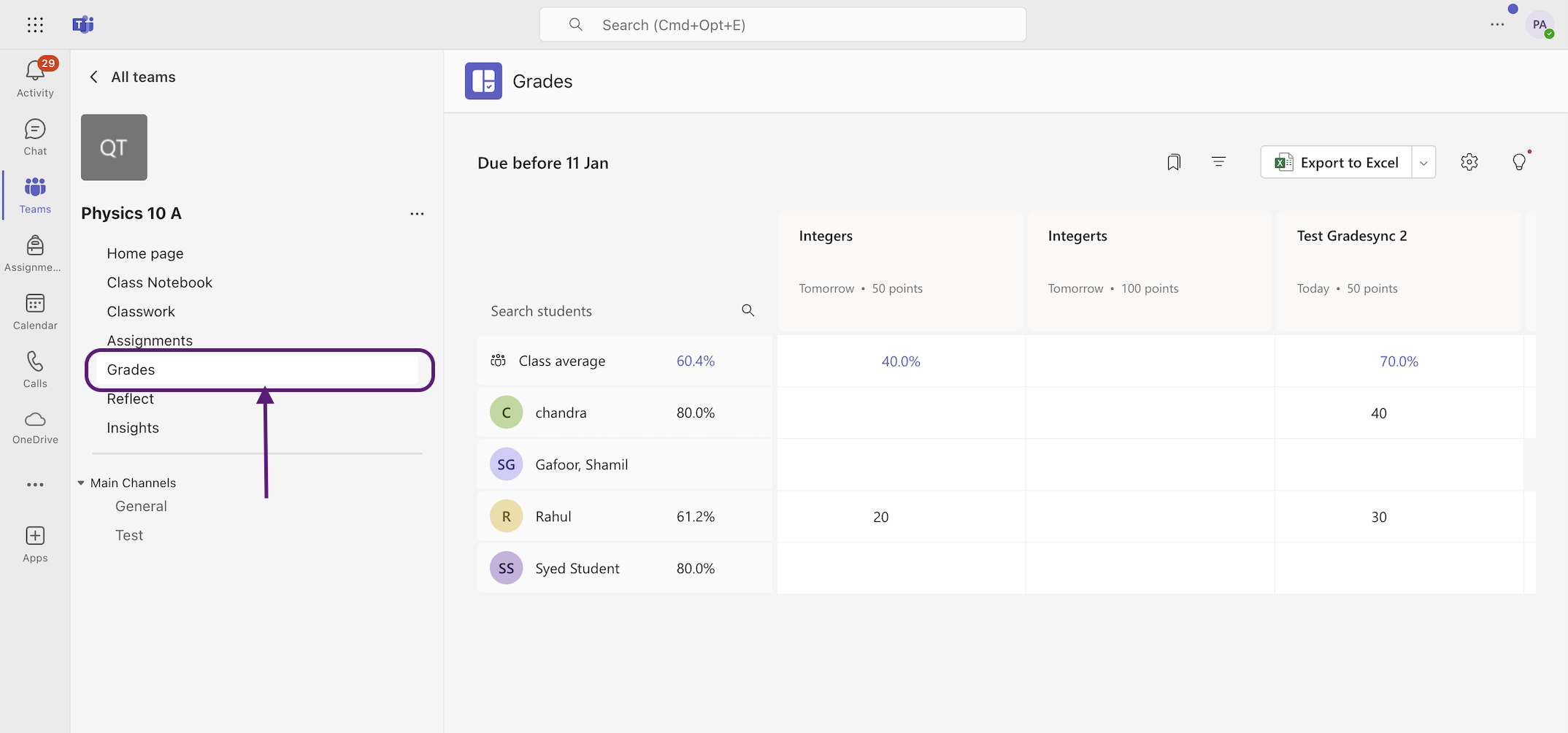
Once students finish a session, grades will automatically sync to your MS Teams class grade book and your Wayground sessions page.
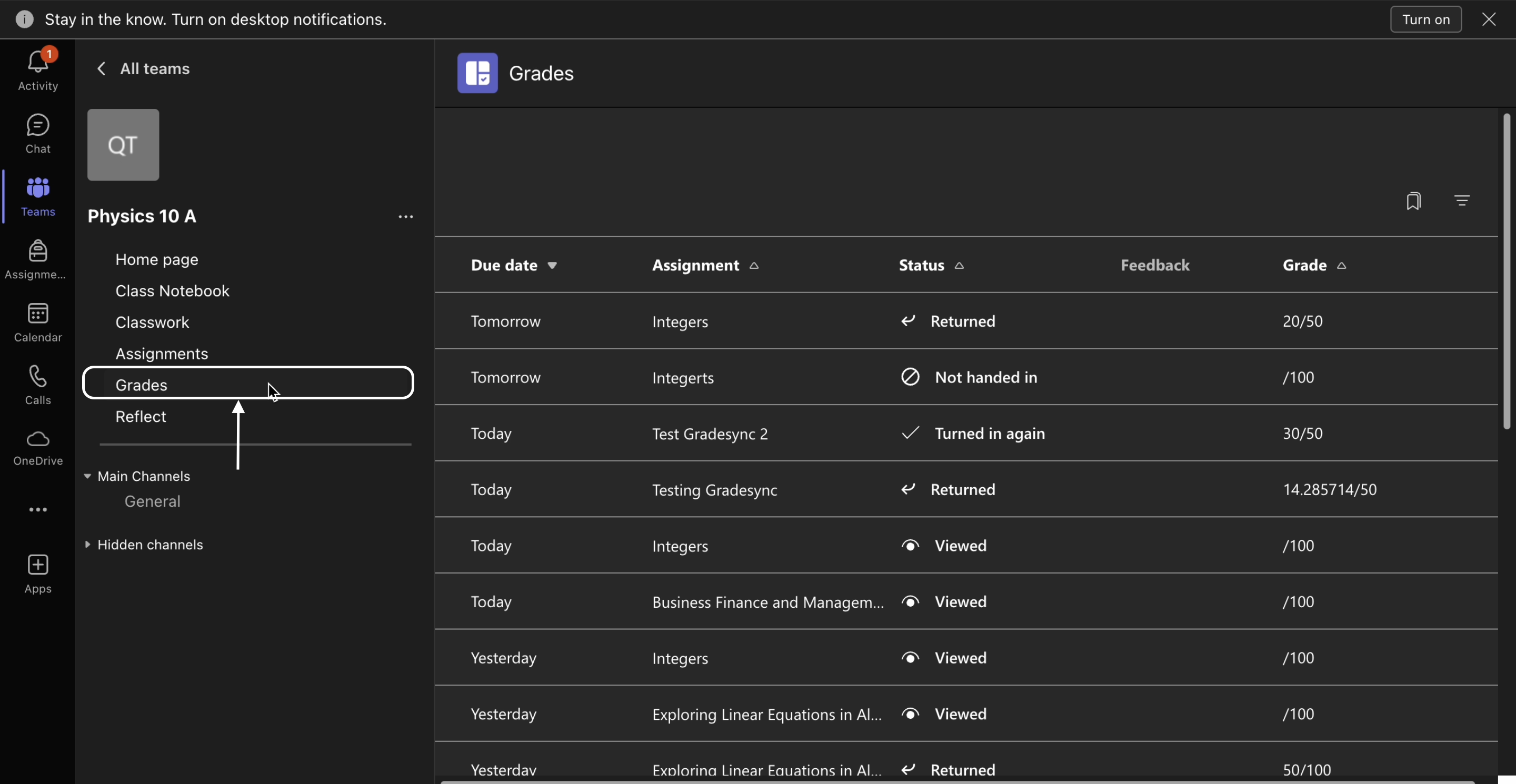
To view the grades on MS Teams, simply go to the MS Teams class and go to the 'Grades' section. Here, you'll be able to view the student insights for all the Wayground sessions.
Note: Grade syncing across platforms is available for users with the Wayground School and District plans.
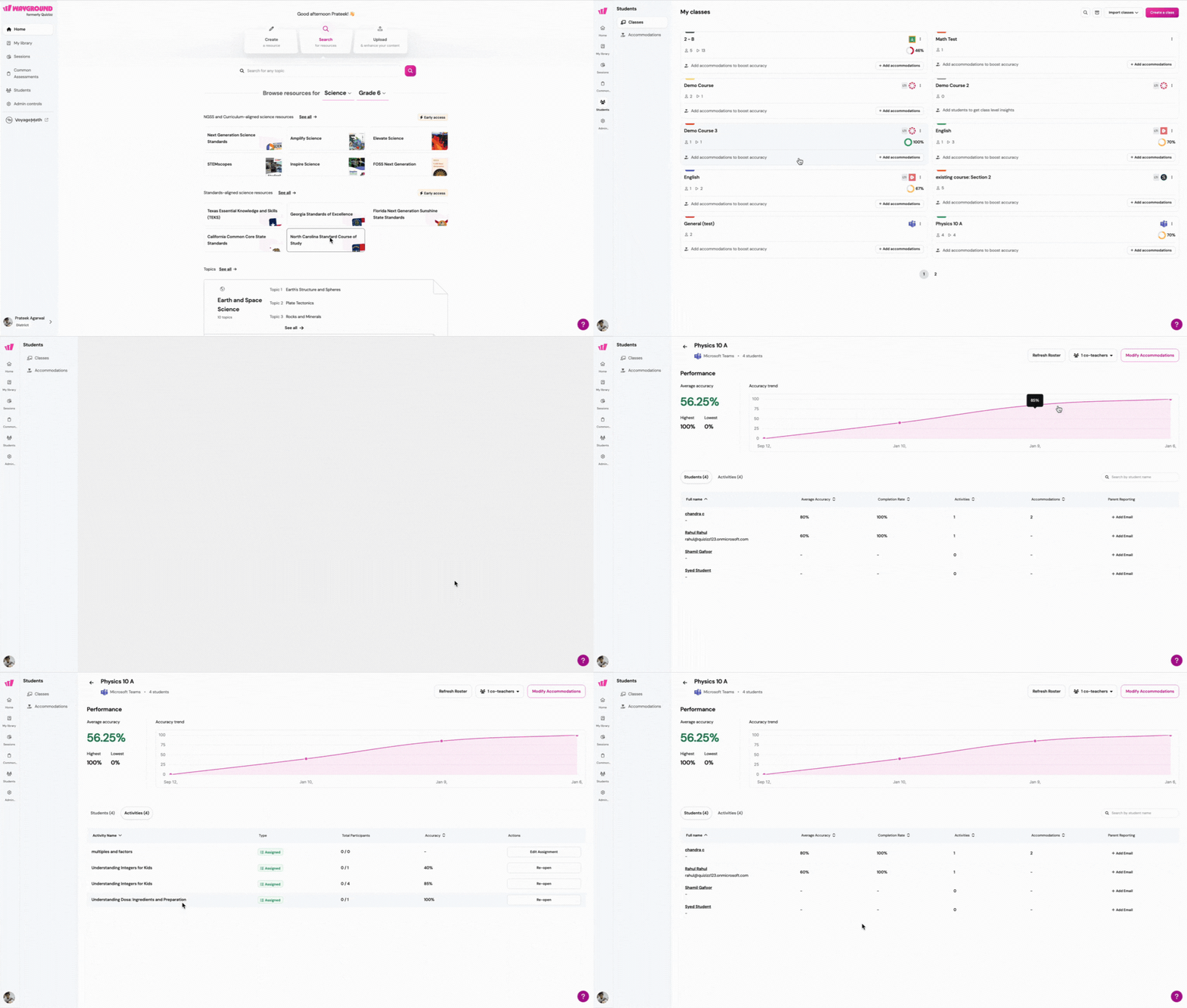
Additionally, if you have subscribed to the Wayground School or District plan, you can view the aggregated report of an MS Teams class on Wayground:
- 1. Go to the 'Classes' tab on Wayground
- 2. Select the MS Teams class
- 3. Here, you can view the aggregated insights on the MS Teams class, like accuracy rate and accuracy trend
Joining a Wayground Session on MS Teams
Once a session has been assigned, students can view it on their MS Teams accounts. To access the session link, students must:
- 1. Log in to the MS Team account
- 2. Go to the class where the session has been assigned
- 3. Click on the 'Assignments' section
- 4. Go to the 'Forthcoming' tab
- 5. Select the Wayground session
- 6. Click on the join link
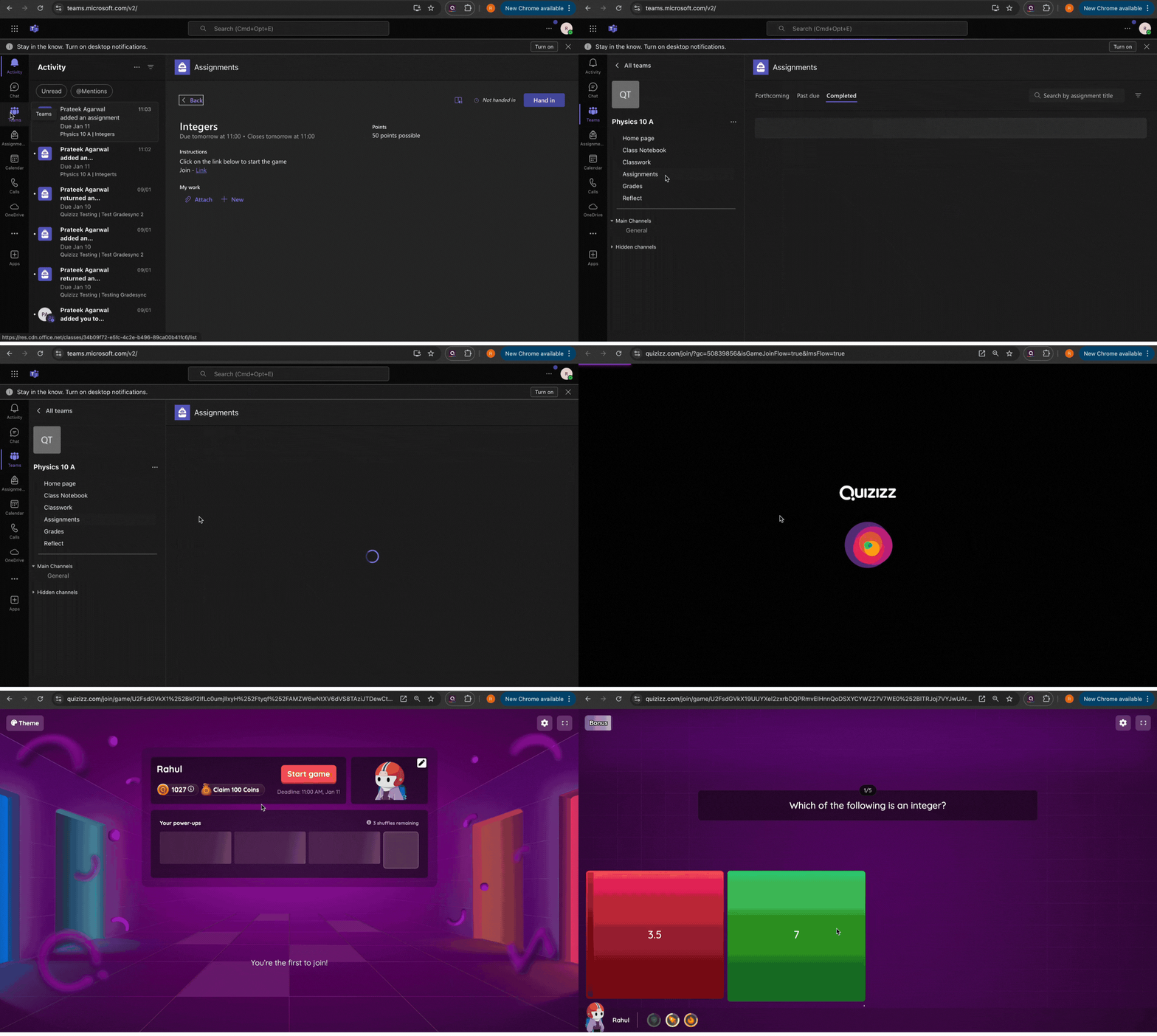
- 7. Follow the on-screen instructions to start the session
- 8. Answer the questions to the best of your ability
- 9. After completing the session, submit your answers
Students can view the grades and statuses for all the Wayground sessions they participated in the 'Grades' section of their class page.
Note:
Wayground supports both MS Teams for Education and MS Teams (Communication).
If you’re using MS Teams for Education, your assigned Wayground sessions appear in the Assignments tab and sync with the Grades section.
If you’re using MS Teams (Communication), the session is shared as a link in the channel and will not appear under Assignments or Grades.
Was this article helpful?
That’s Great!
Thank you for your feedback
Sorry! We couldn't be helpful
Thank you for your feedback
Feedback sent
We appreciate your effort and will try to fix the article