Universal Tools in Test Mode give students familiar supports like calculators, notepads, Line Reader, and Highlighter in one toolbar.
Set up Universal Tools in Test Mode
Open your assessment, click 'Start now' / 'Assign', and choose 'Test mode' / 'Testing'.
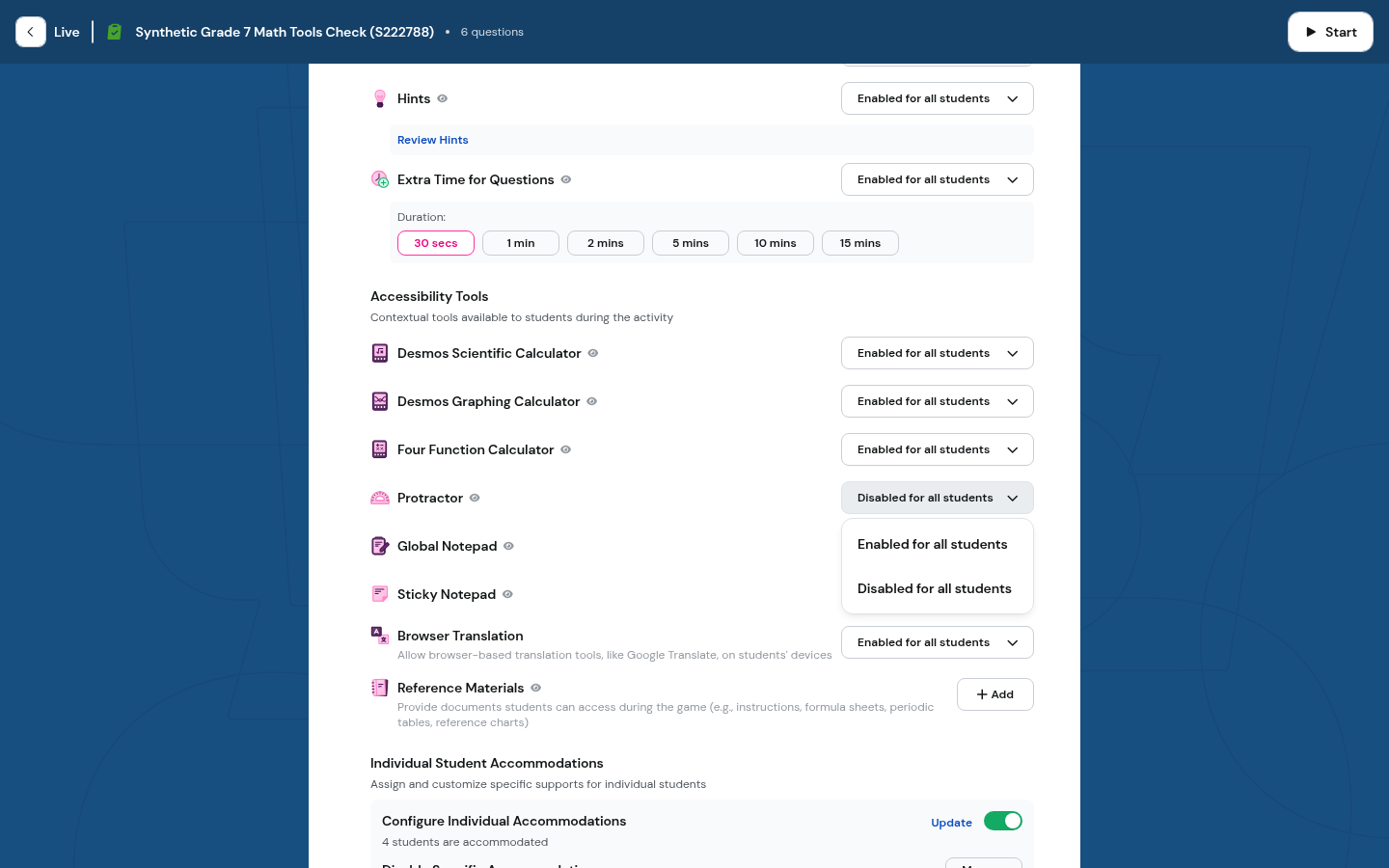
- Scroll to 'Student Support' in your session settings. 'Accommodations' holds Read Aloud, Hints, and Extra Time for Questions, and 'Accessibility Tools' holds the three calculators, Protractor, both notepads, and Browser Translation.
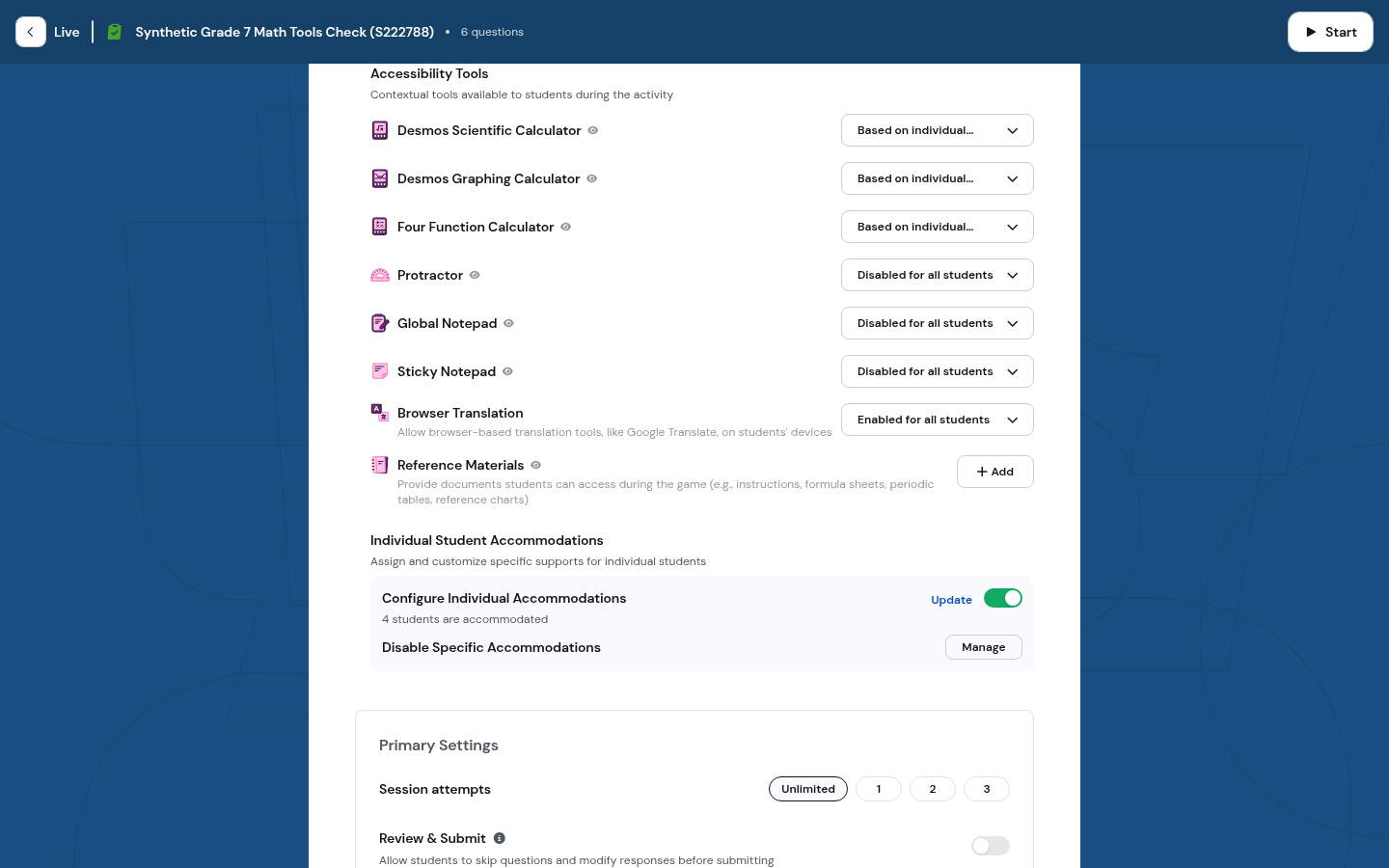
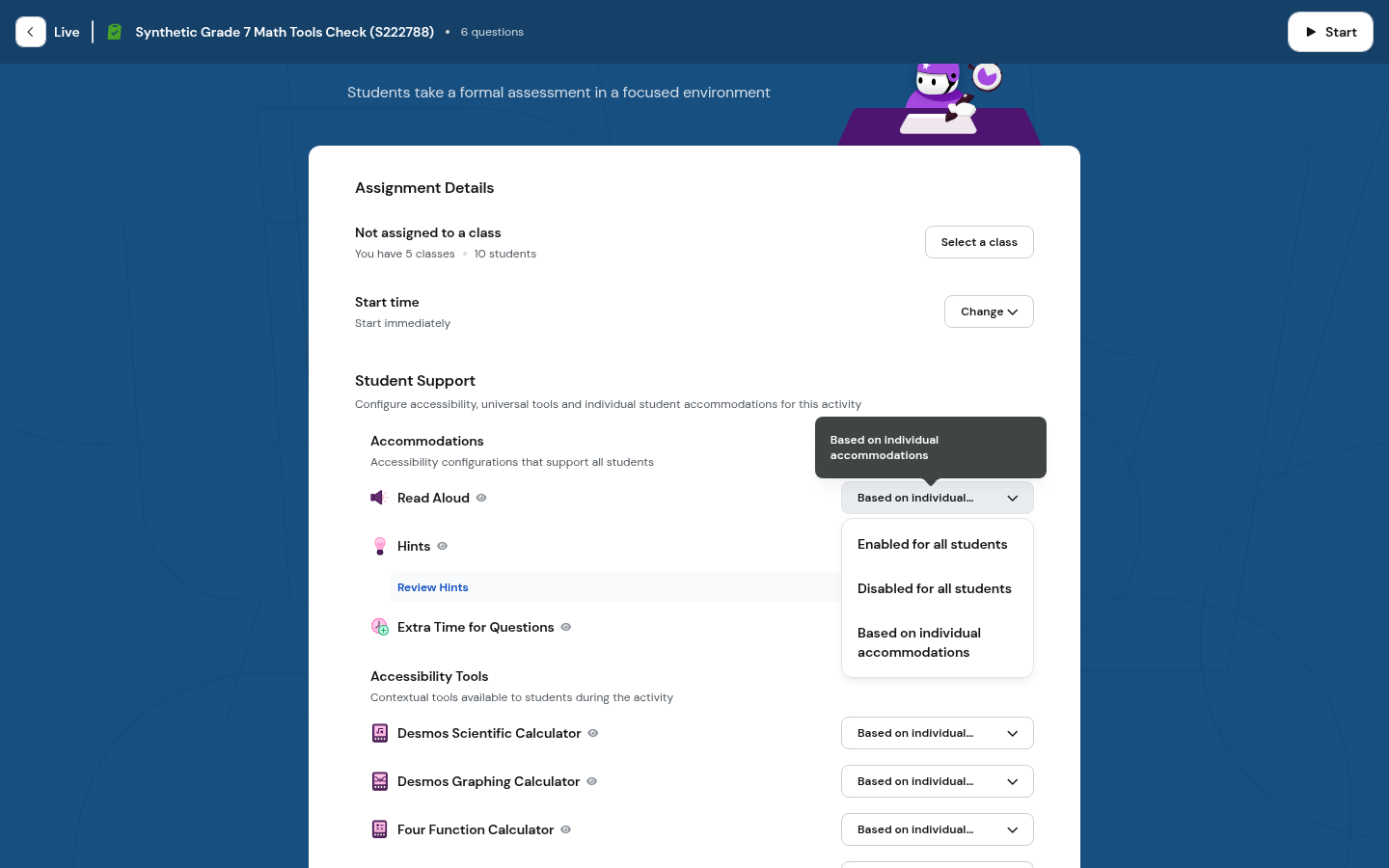
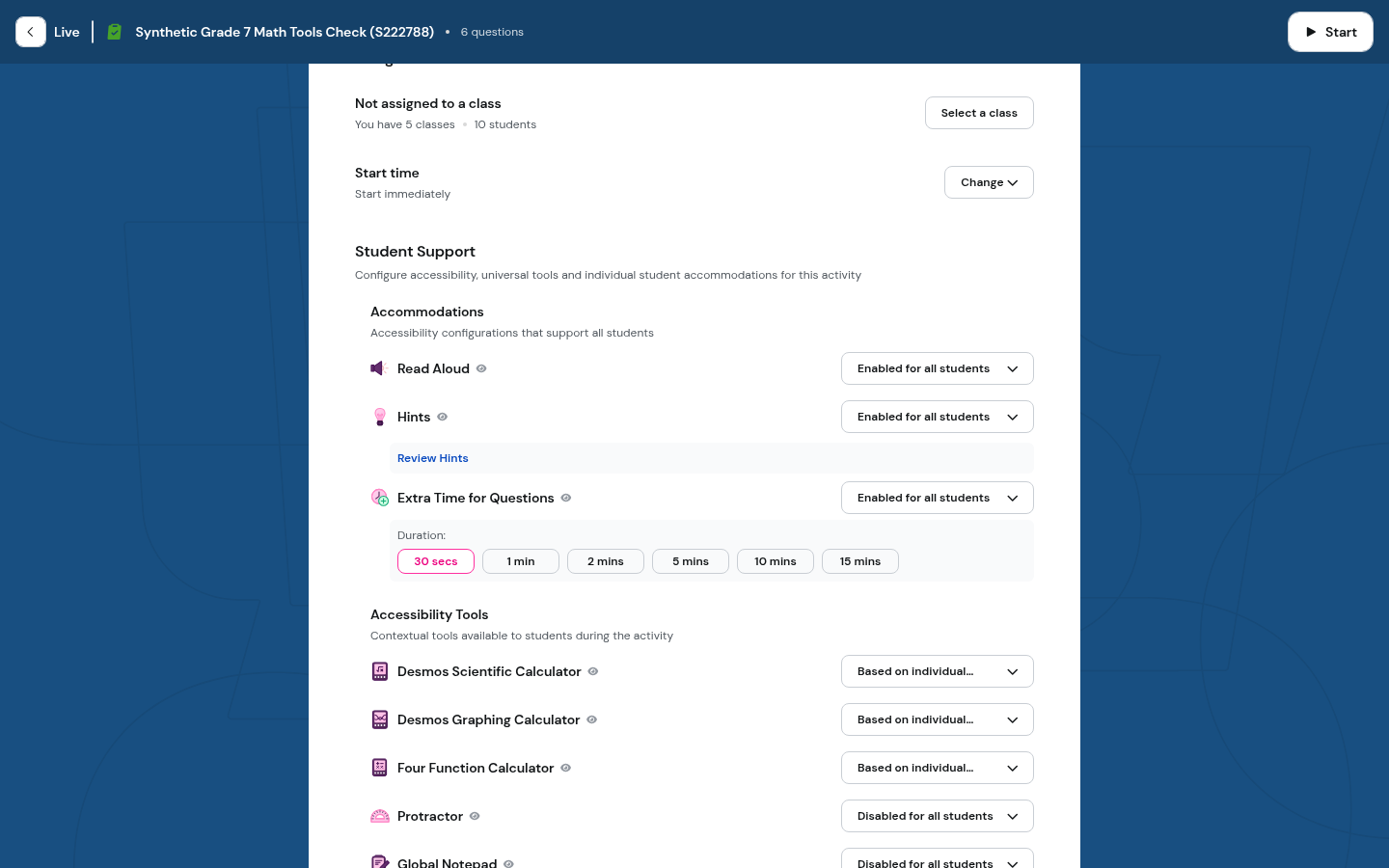
- Open the 'Read Aloud' dropdown and choose 'Enabled for all students', 'Disabled for all students', or 'Based on individual accommodations'. Repeat for 'Hints' and 'Extra Time for Questions'. Choose 'Based on individual accommodations' to follow the accommodations you've set for each student. If you enable Extra Time for Questions, pick a 'Duration' of '30 secs', '1 min', '2 mins', '5 mins', '10 mins', or '15 mins'.
- Set 'Desmos Scientific Calculator', 'Desmos Graphing Calculator', and 'Four Function Calculator'. Each row has the same three choices as the accommodation rows, and you can turn on all three in one session. Students find them under 'Math Tools' as 'Calculator', 'Graphing Calculator', and 'Four Function Calculator'.
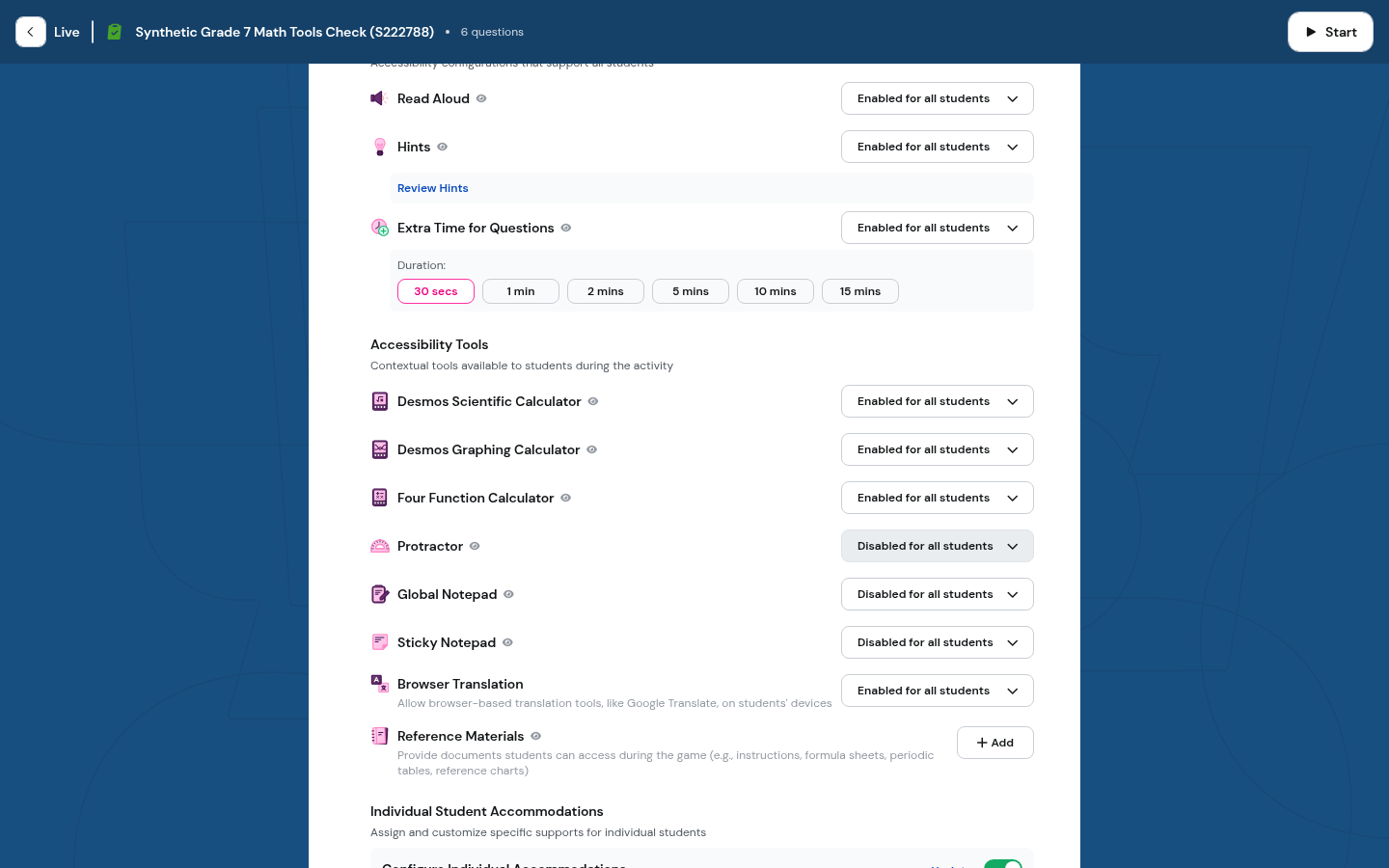
- Set 'Protractor', 'Global Notepad', 'Sticky Notepad', and 'Browser Translation'. These rows have two choices, 'Enabled for all students' and 'Disabled for all students'. Browser Translation lets students use their browser's translation feature and doesn't add a button to the Test Mode toolbar.
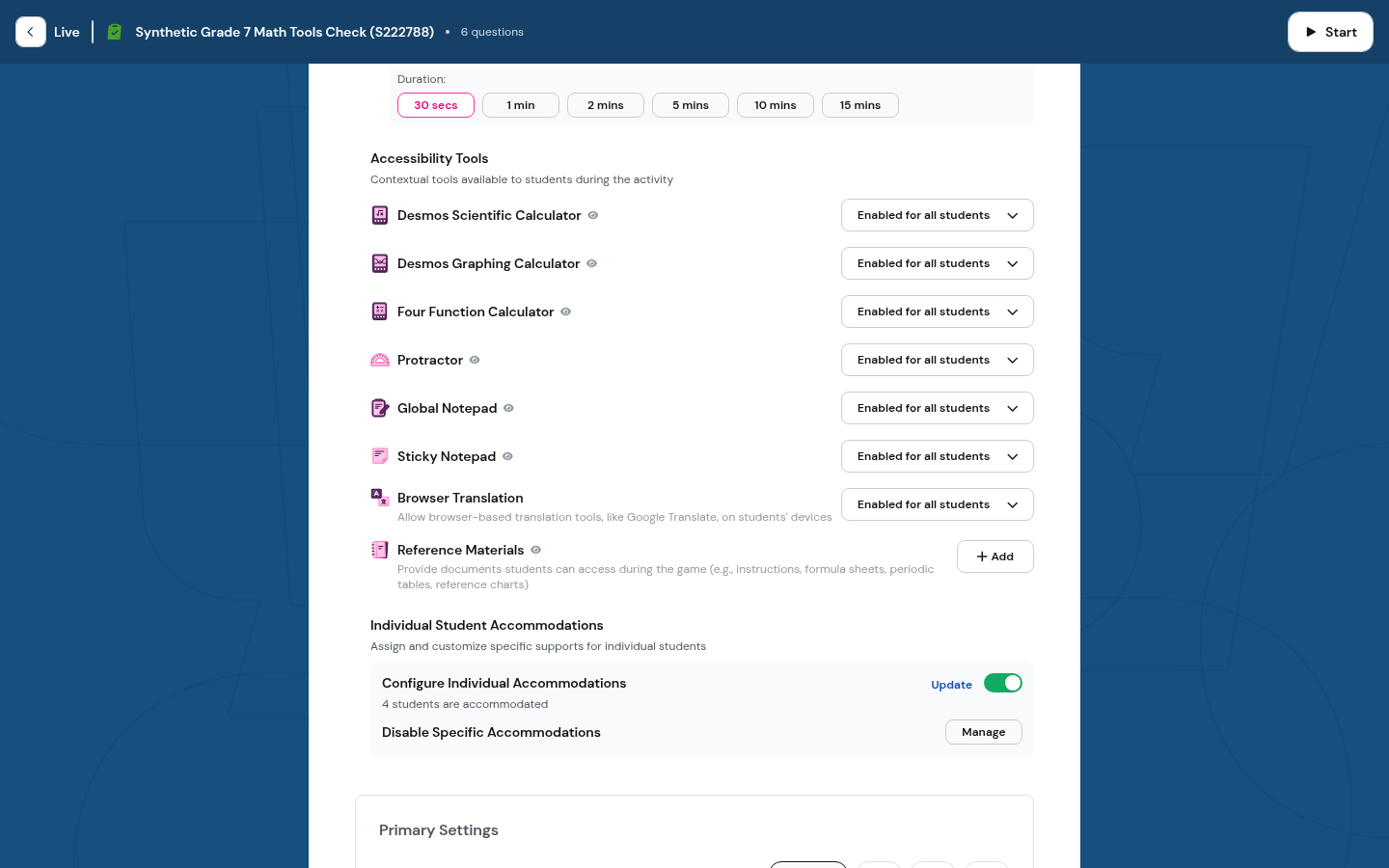
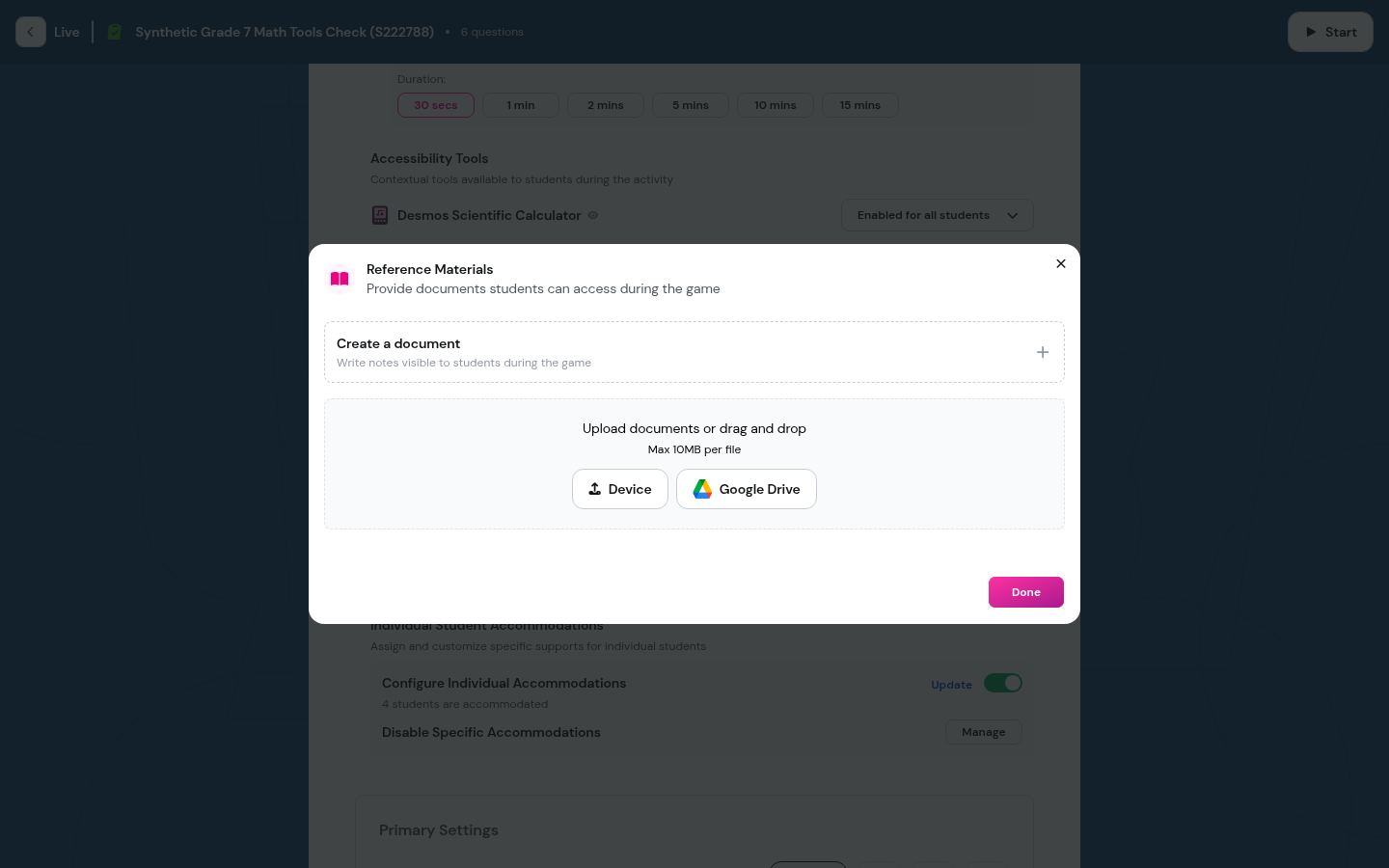
- Click 'Add' next to 'Reference Materials' to give students a document such as a formula sheet. Select 'Create a document' to write one, or upload a file from 'Device' or 'Google Drive' or drag and drop it. Each file can be up to 10 MB.
What students see in Test Mode
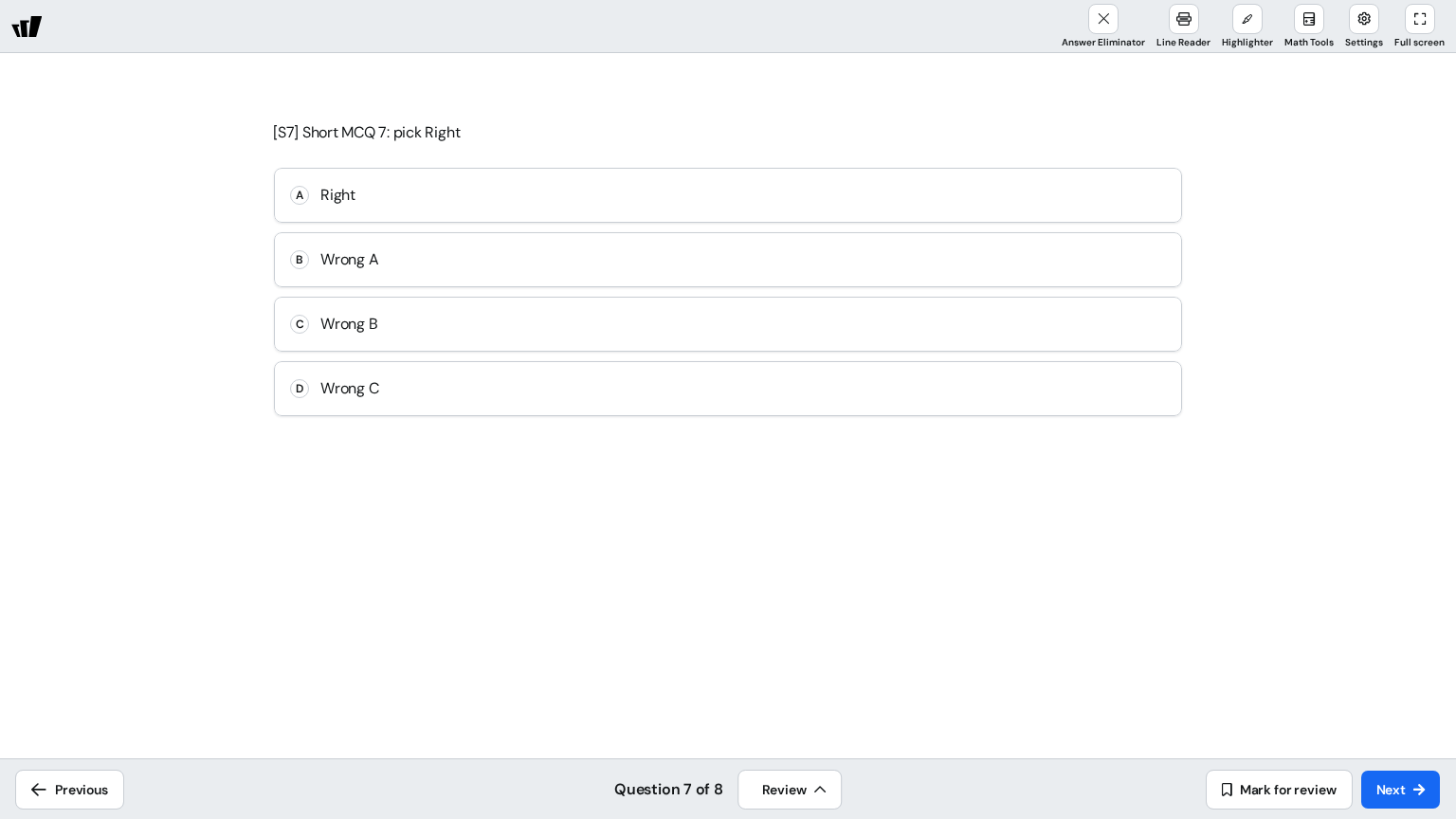
Students find their tools in the Test Mode toolbar. Which tools appear depends on the teacher’s Student Support settings and the question type.
Use the built-in tools
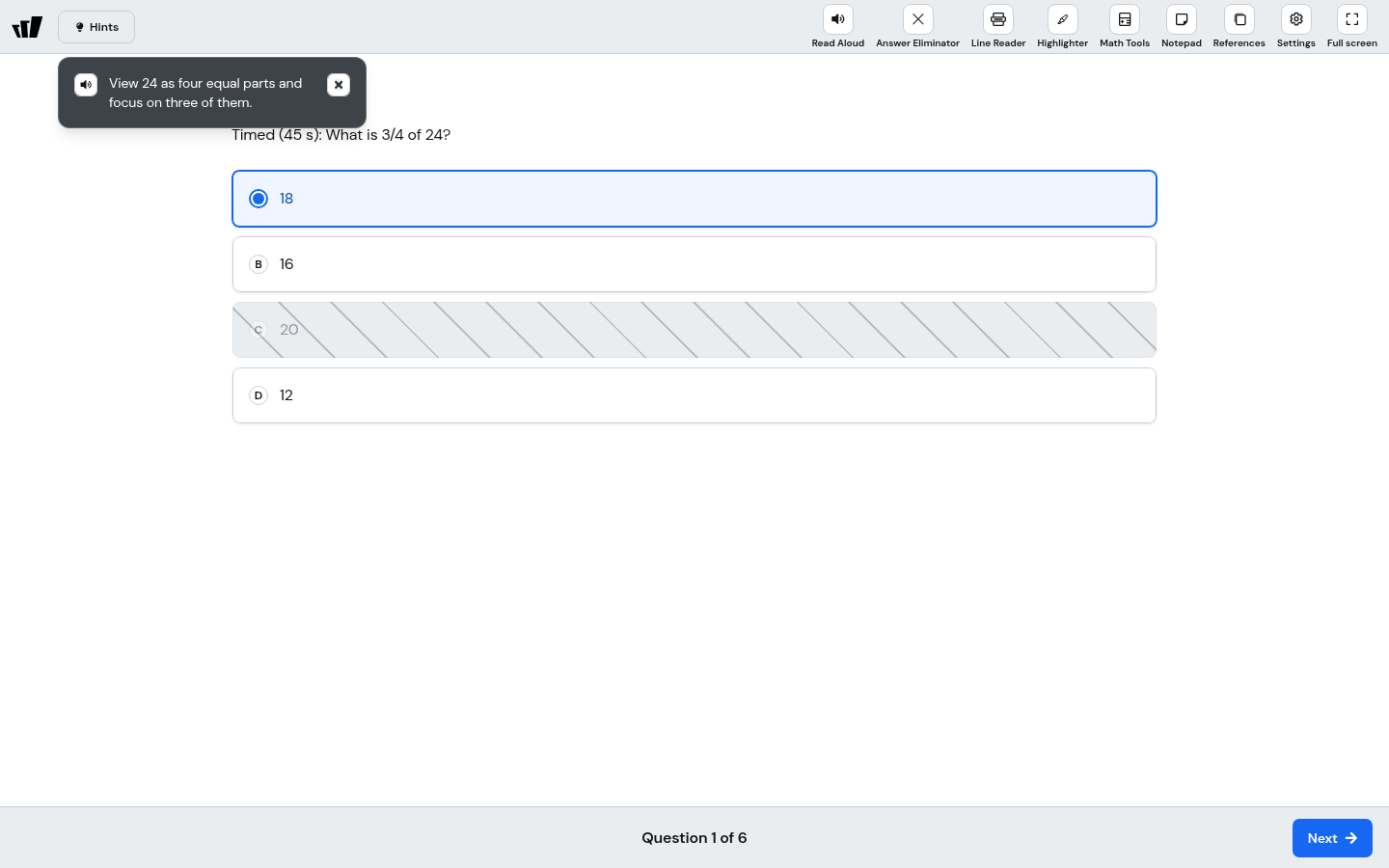
- Look for your tools in the toolbar. Tools your teacher turns on, like 'Hints', 'Read Aloud', 'Math Tools', 'Notepad', and 'References', appear next to 'Answer Eliminator', 'Line Reader', and 'Highlighter'.
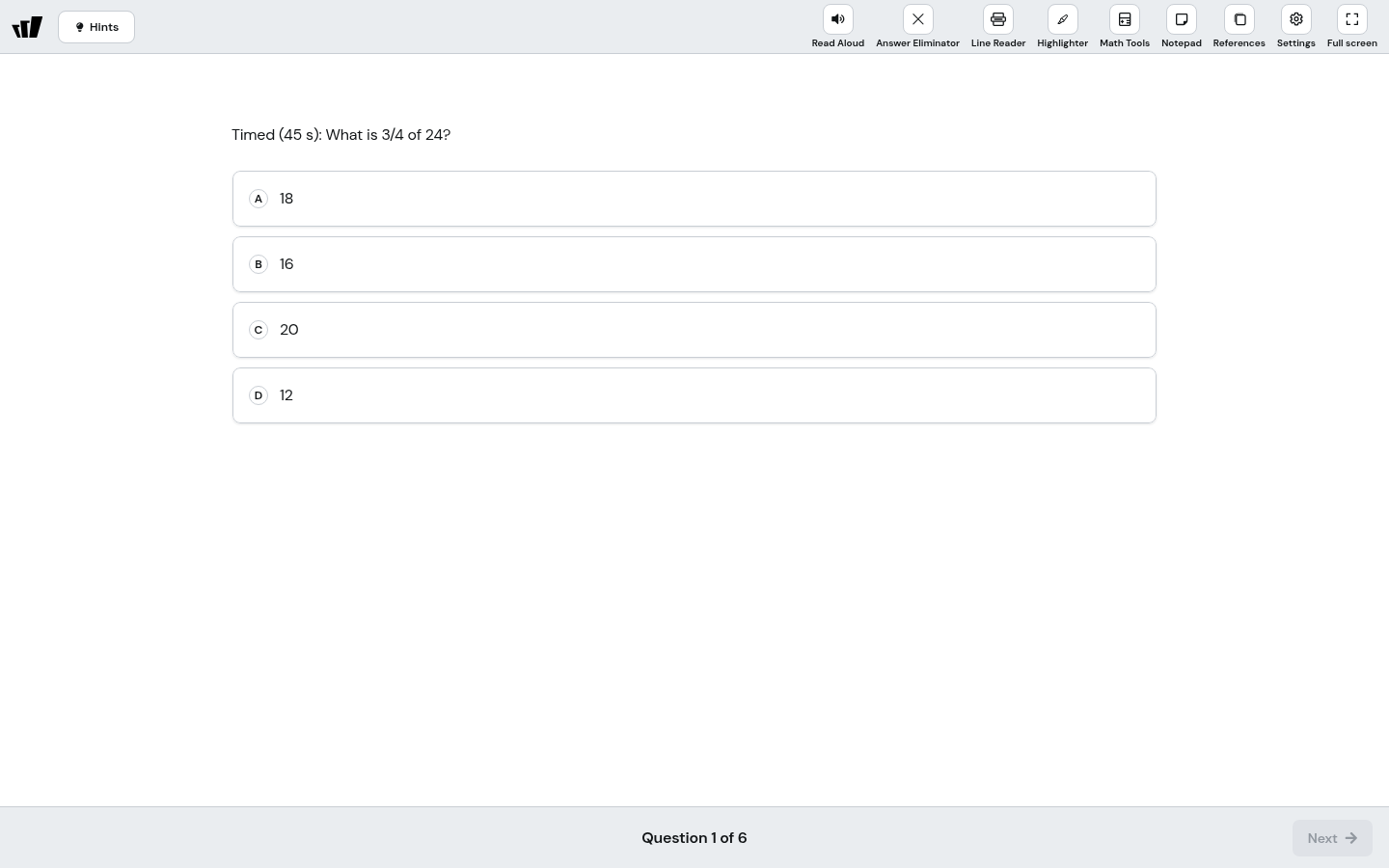
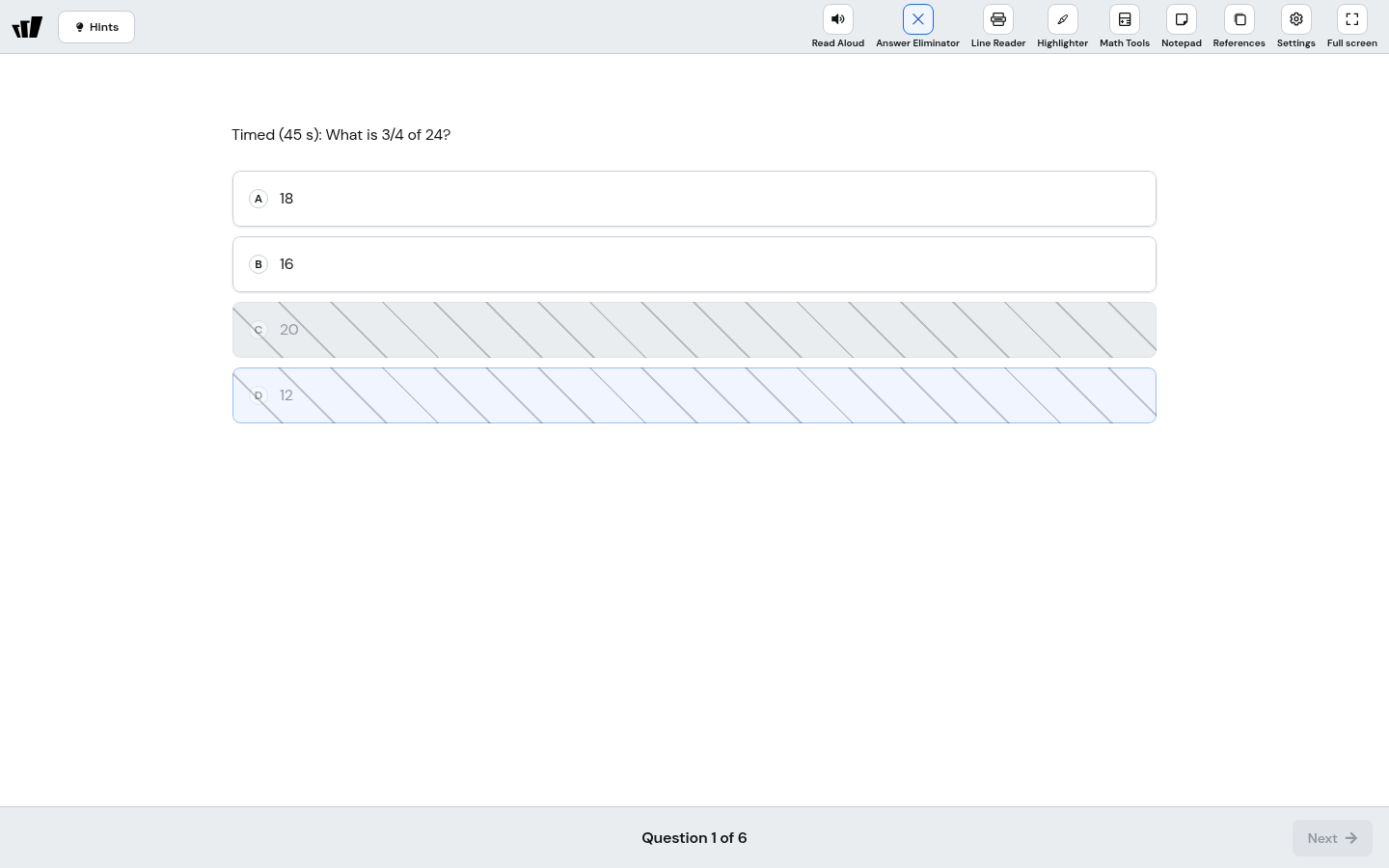
- Click 'Answer Eliminator' to turn it on, then click an answer choice to cross it out. Click a crossed-out choice again to bring it back. Crossed-out choices stay crossed out after you turn the tool off. On Math Response questions, Answer Eliminator isn't in the toolbar.
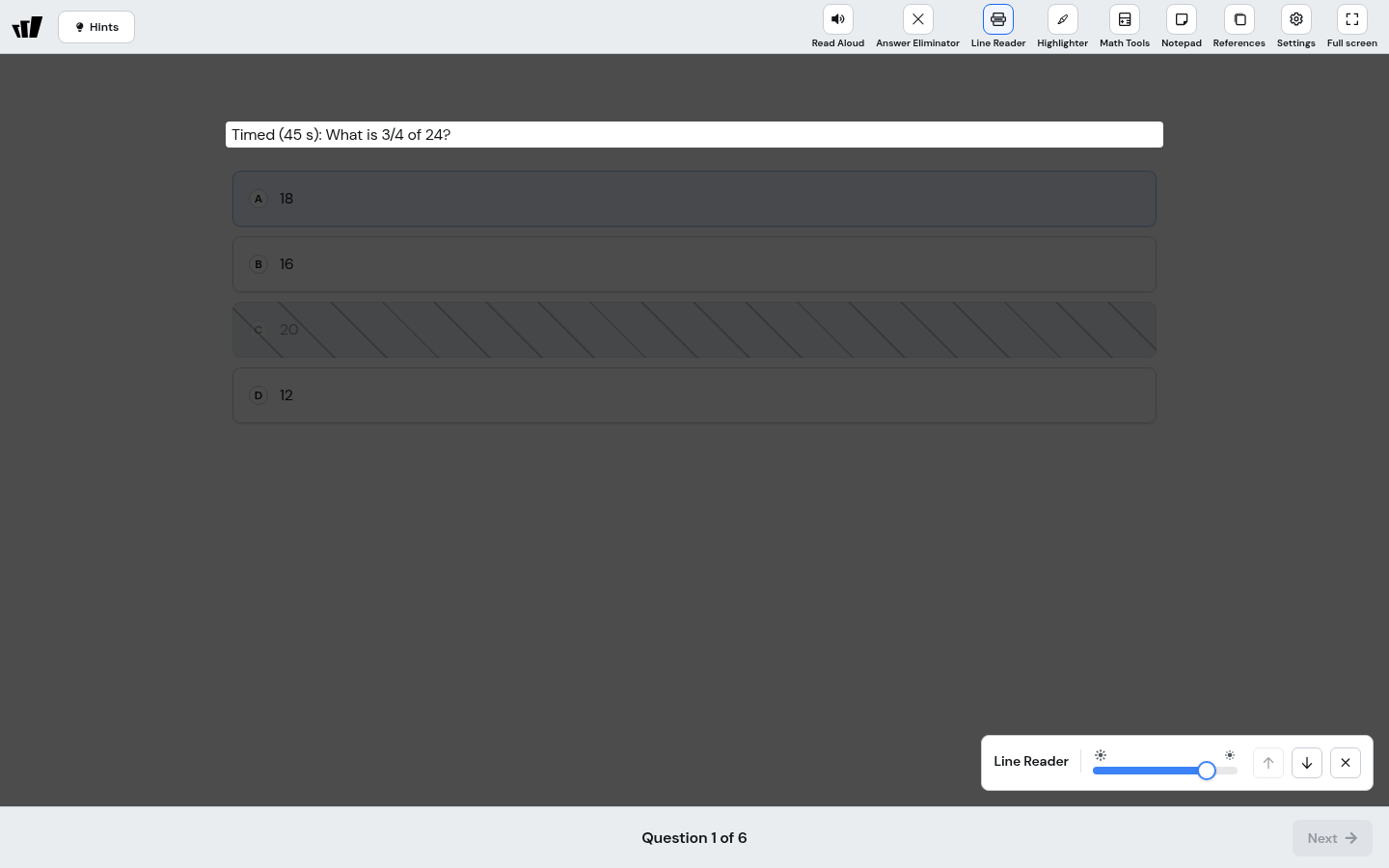
- Click 'Line Reader' to focus on one line at a time. Click the down arrow ('Next line') or the up arrow to move the reading band, and drag the slider to make the area around it lighter or darker. Click × to close Line Reader.
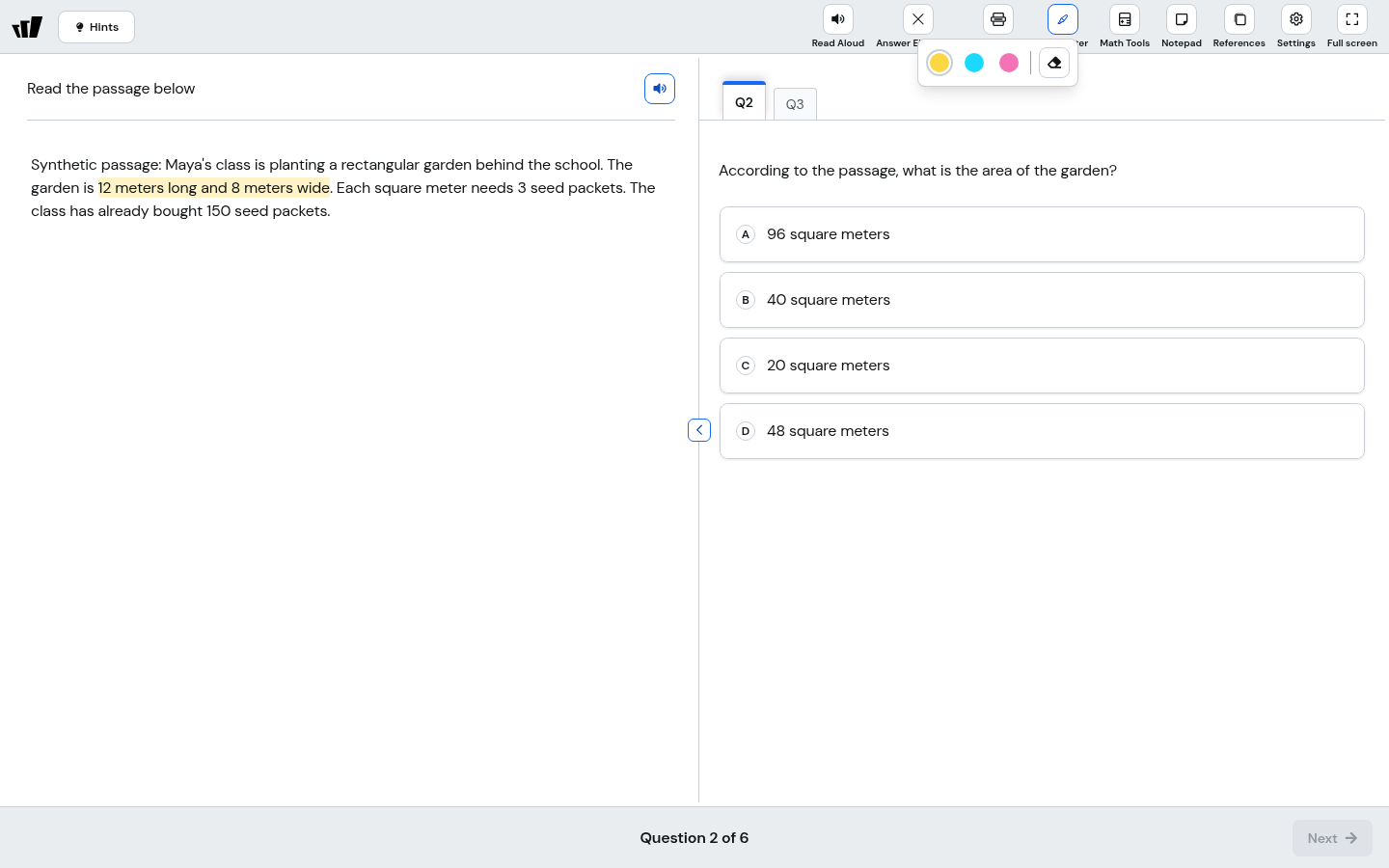
- Click 'Highlighter' and choose yellow, blue, or pink. Select the words you want to highlight, and use the eraser to remove a highlight.
- When Review & Submit is enabled, click 'Mark for review' with the bookmark icon beside 'Next' at the bottom of the question to flag it. You can return to flagged questions and change your answers before you submit the assessment.
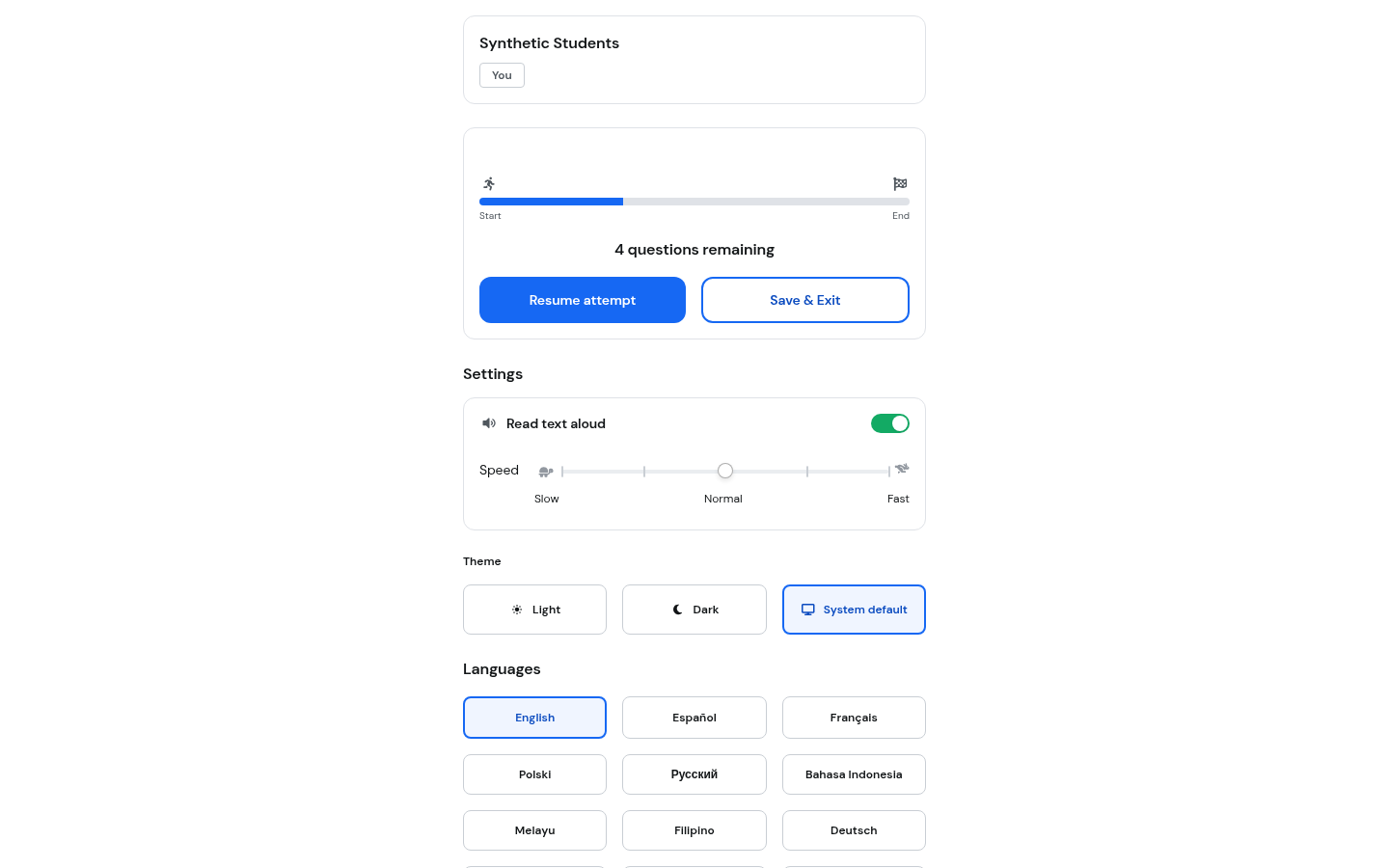
- Click 'Settings' in the toolbar, then choose 'Light' or 'Dark' under 'Theme'. Choose 'System default' to follow your device’s theme. Click 'Resume attempt' to return to the assessment.
Use the tools your teacher turns on
- Click 'Hints' to see the hint for a question that has one. Click × to close it.
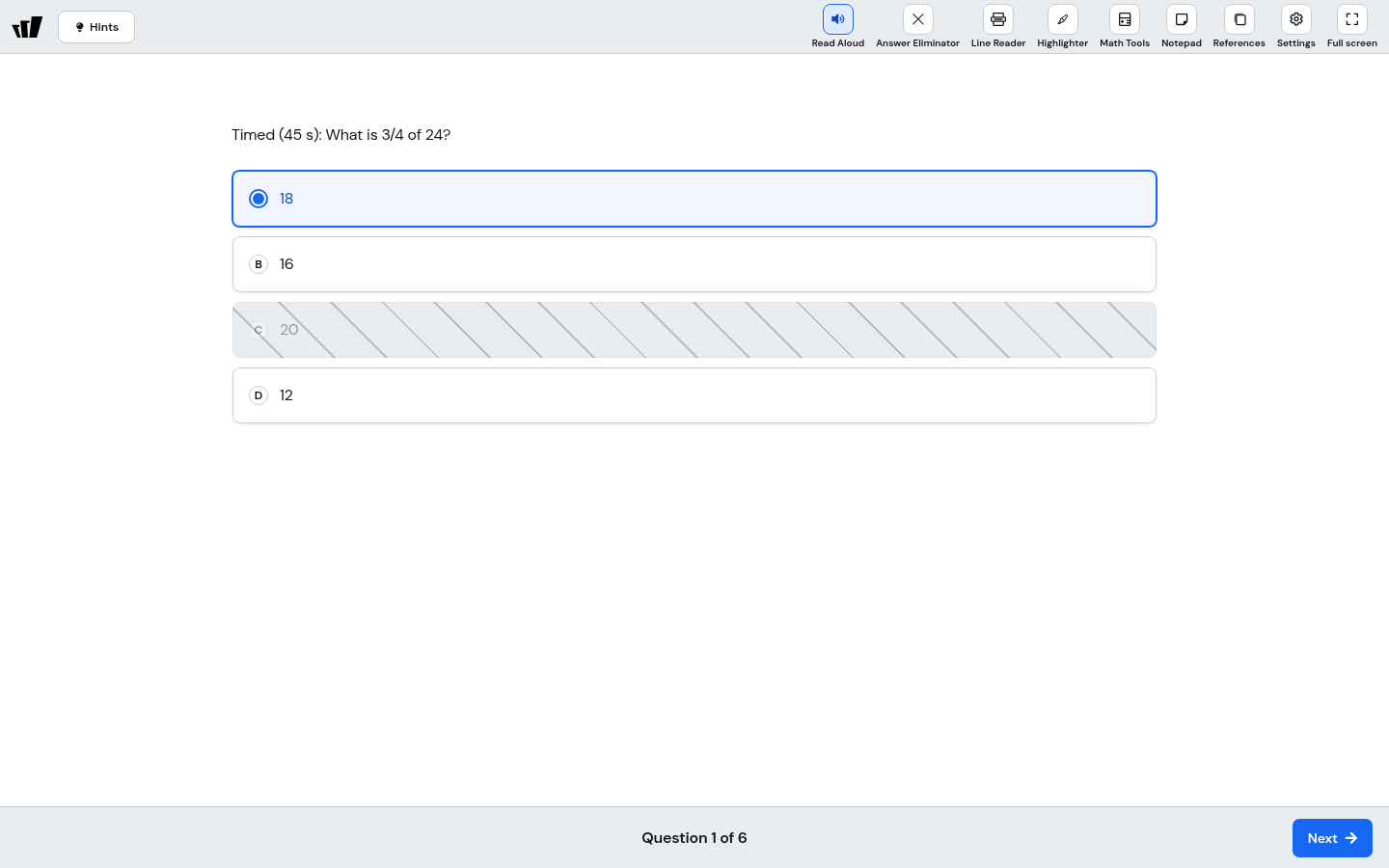
- Click 'Read Aloud' to turn it on. The button turns blue when it's on, and passages show a speaker icon next to the text.
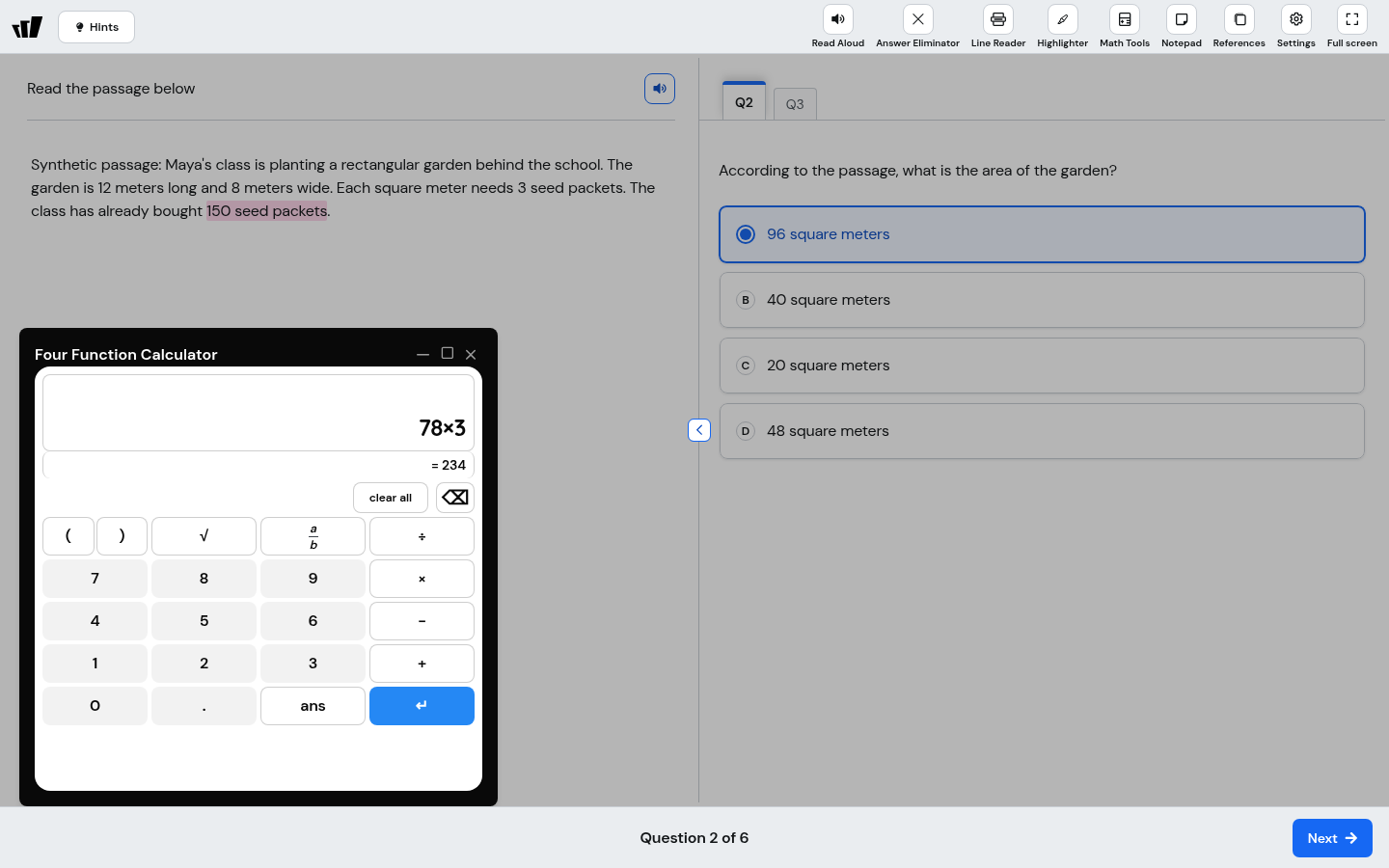
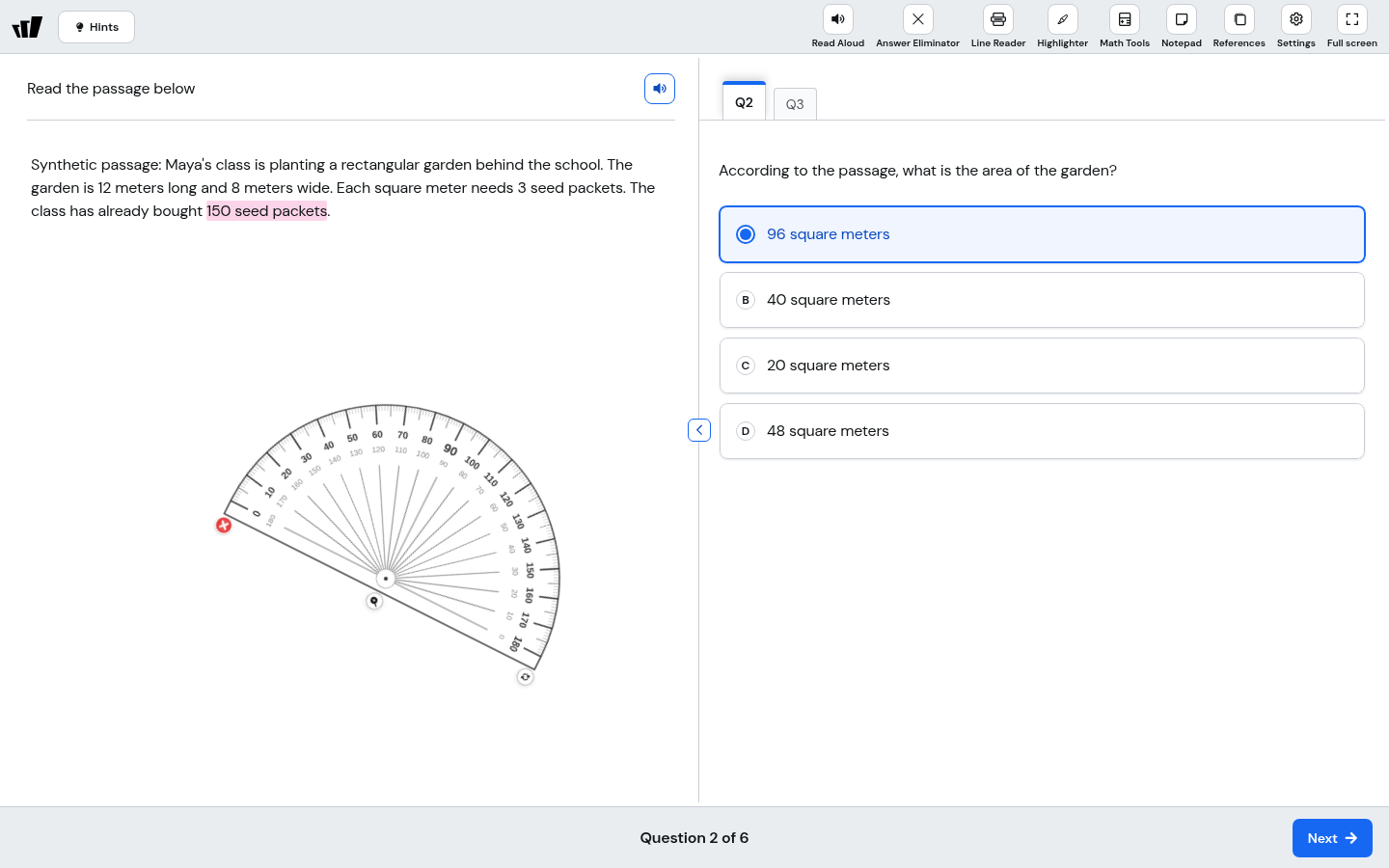
- Click 'Math Tools' and choose 'Protractor', 'Calculator', 'Graphing Calculator', or 'Four Function Calculator'.
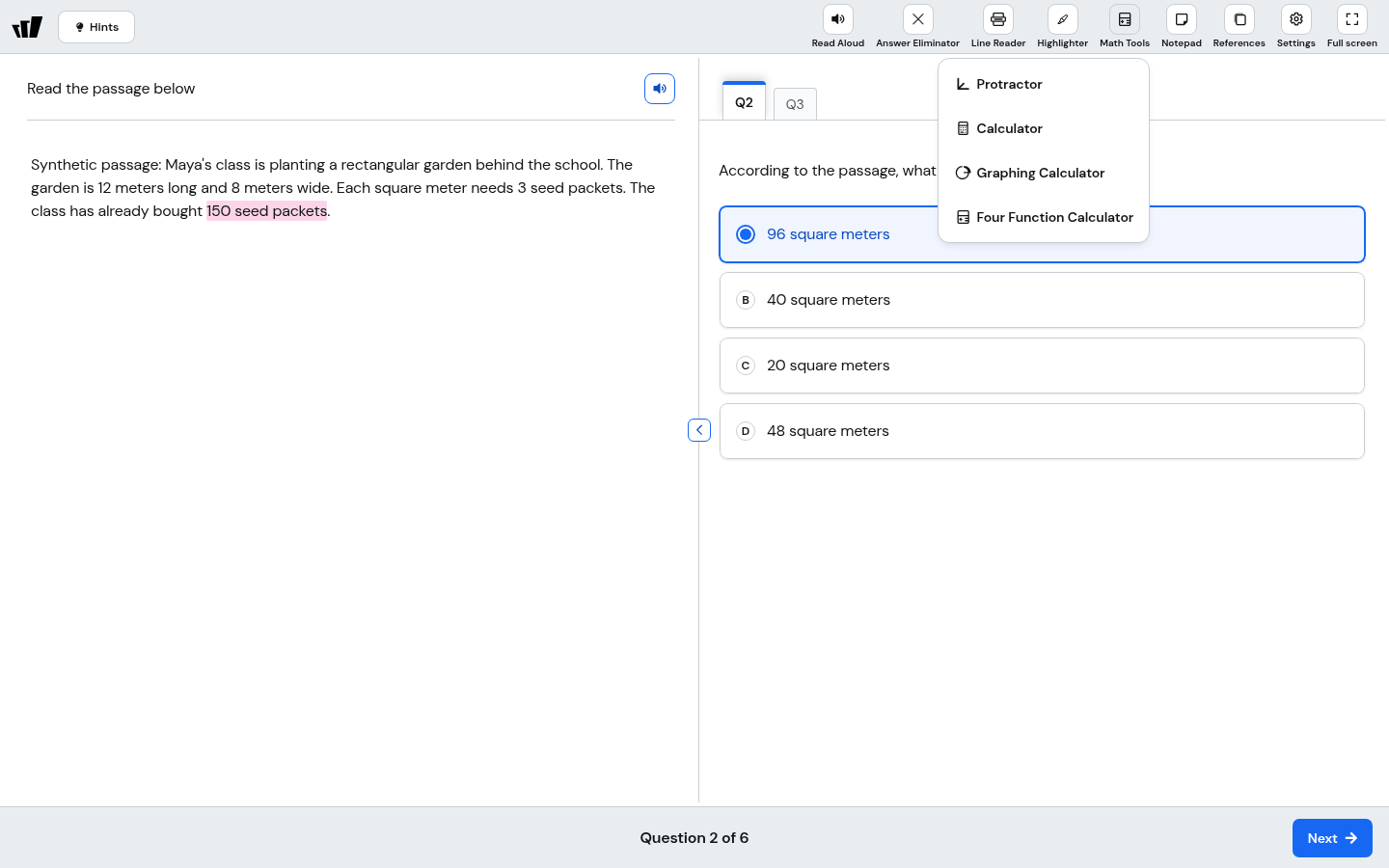
- In 'Calculator', click the on-screen keys to enter your math. Switch between 'main', 'abc', and 'func' for more keys, choose 'RAD' or 'DEG' for angles, and click 'clear all' to start over.
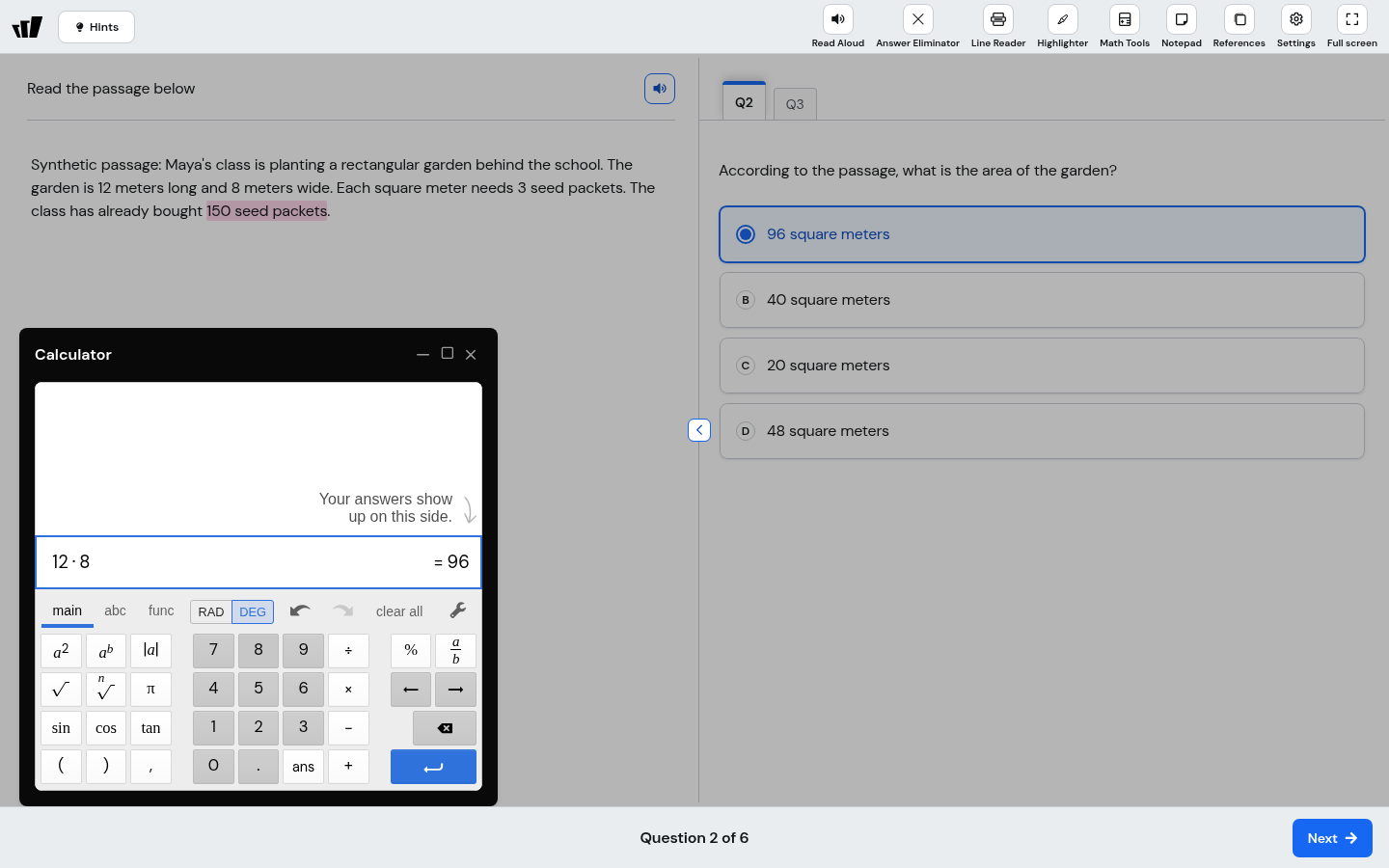
- In 'Graphing Calculator', enter an equation with the on-screen keys to plot it. Click × next to an expression to delete it.
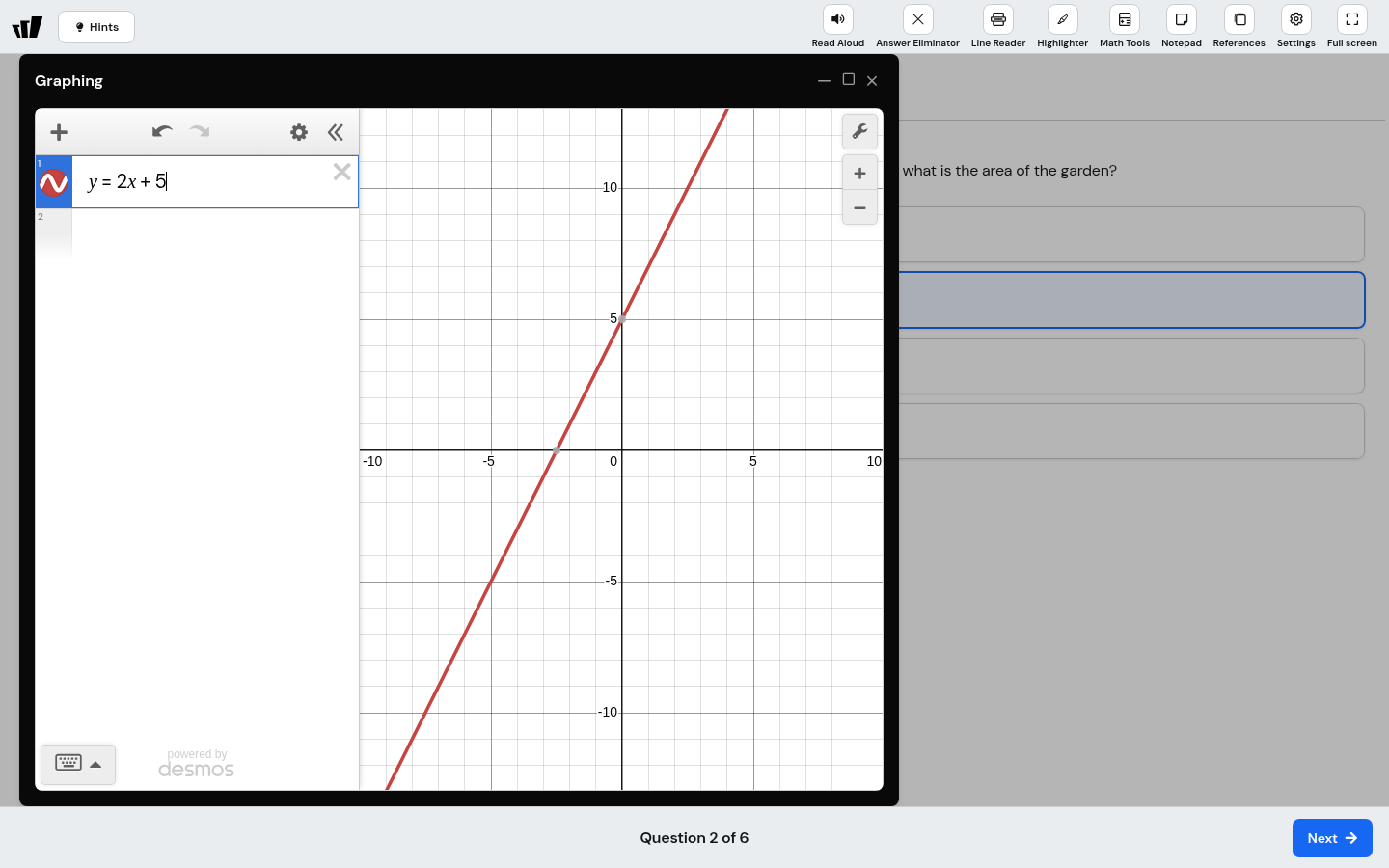
- In 'Four Function Calculator', click the on-screen keys to enter numbers, and use √, a/b, and parentheses when you need them. Click ⌫ to delete one entry or 'clear all' to start over.
- Drag 'Protractor' to move it over the question, and use its handles to rotate or zoom. Click the red × to close it.
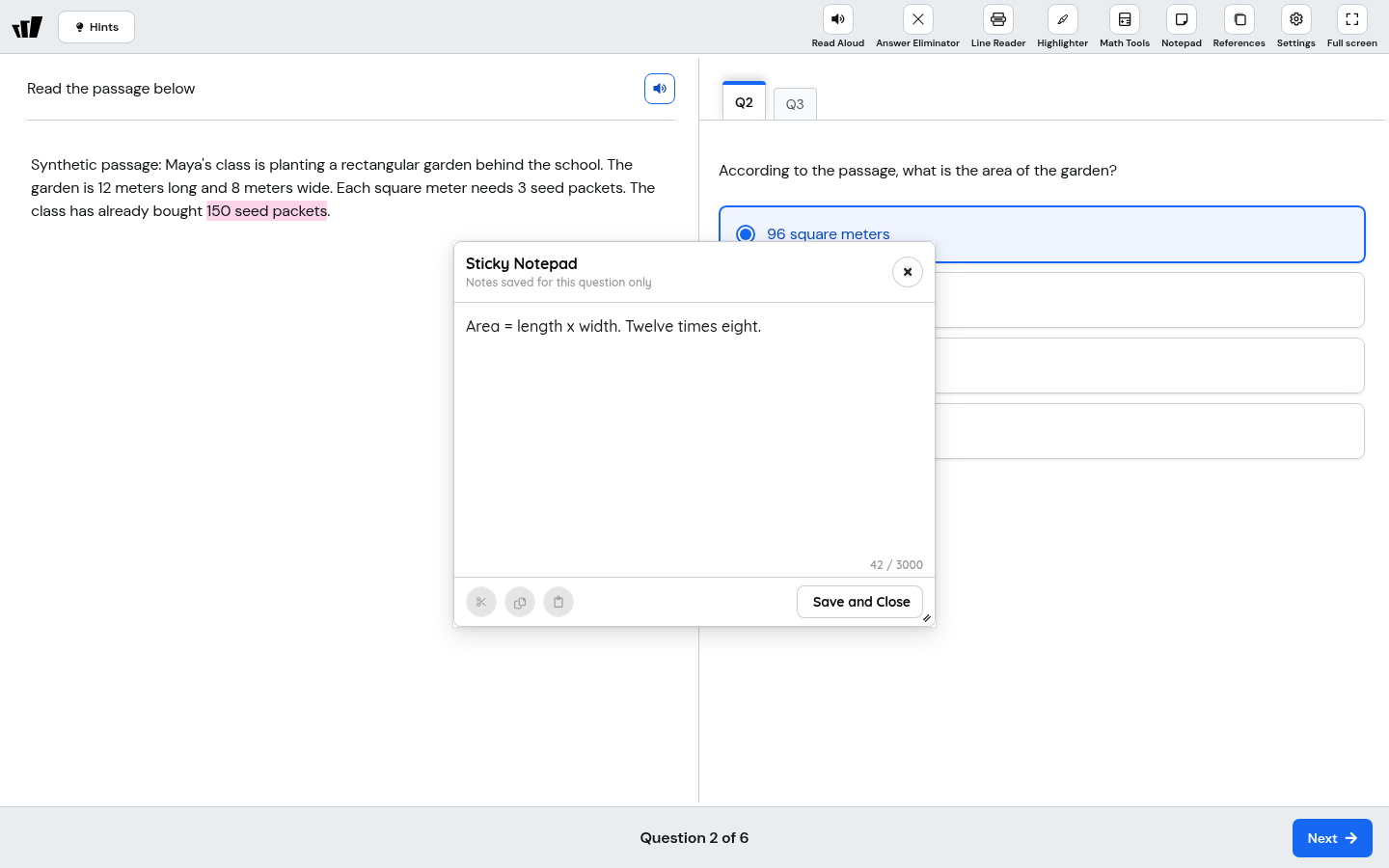
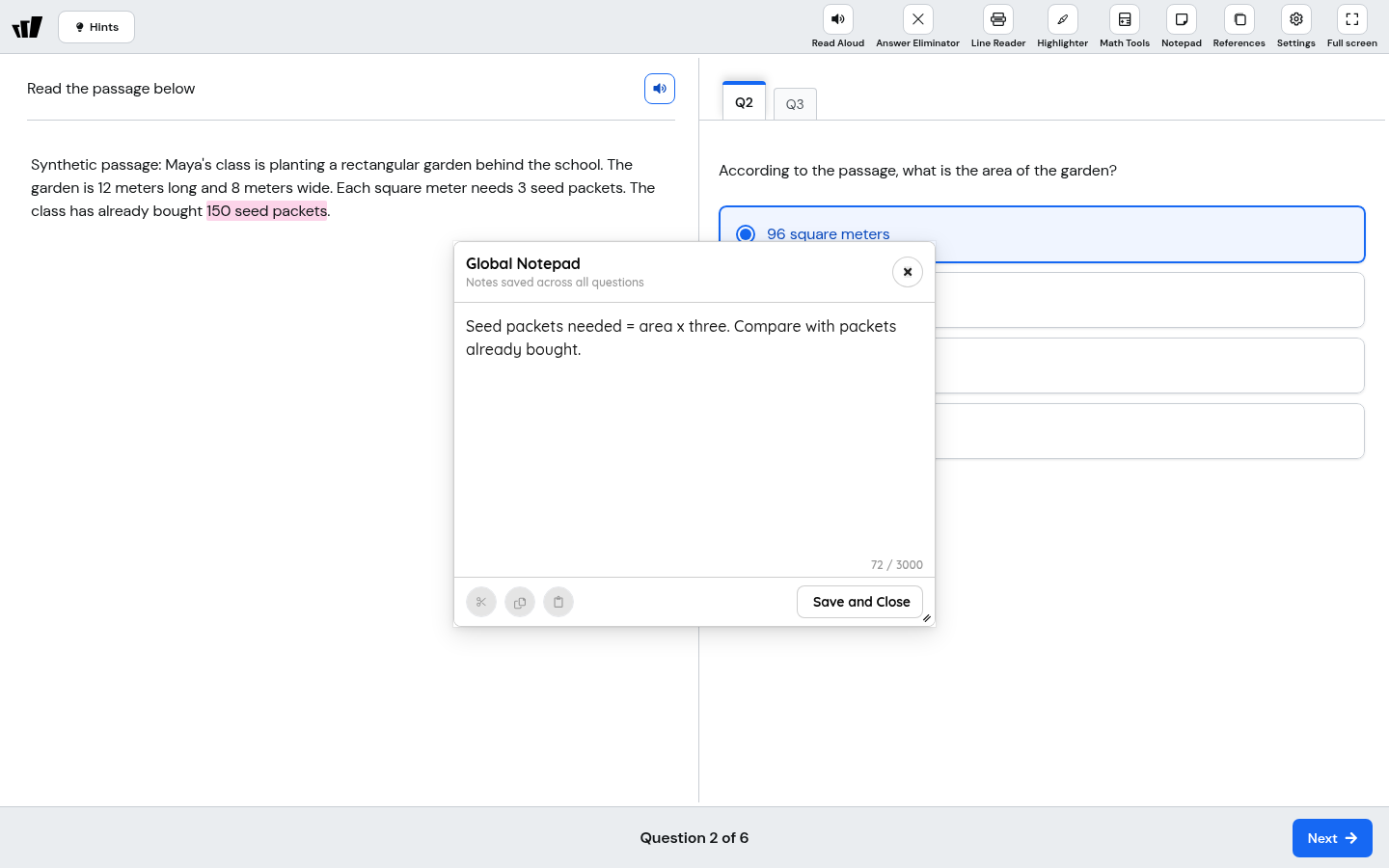
- Click 'Notepad' and choose 'Sticky Notepad' for notes on one question or 'Global Notepad' for notes you can see on every question. Click 'Save and Close' when you're done.
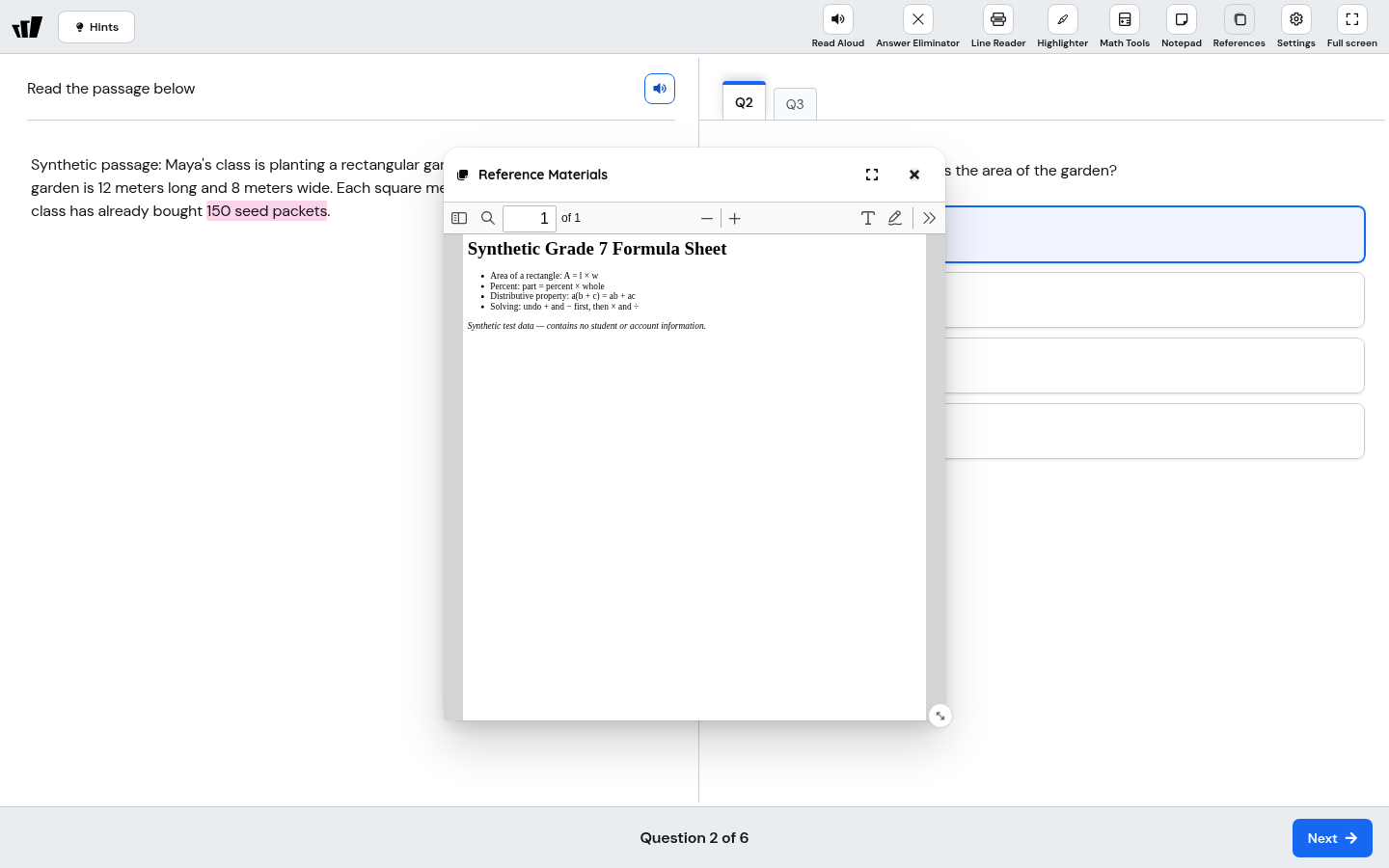
- Click 'References' to open the documents your teacher added, like a formula sheet.
Related articles
- Live Session Modes on Wayground
- Async (Homework) Session Modes on Wayground
- How to Set Up Accommodations for Your Students
- Setting Up and Using Read Aloud
For help, contact our support team at support@wayground.com.
Was this article helpful?
That’s Great!
Thank you for your feedback
Sorry! We couldn't be helpful
Thank you for your feedback
Feedback sent
We appreciate your effort and will try to fix the article